

Click here for the Japanese version of this article.
Introduction
This guide offers a detailed end‑to‑end overview, compiled from my own verified testing.
To configure Global Secure Access (GSA) Internet Access, you must meet several prerequisites. These requirements are extensive, and while a proof‑of‑concept can be configured manually by following public documentation, deploying settings to production PCs—especially using Intune—lacks complete guidance and presents many pitfalls.
It took me several months to compile this information, and I’m pleased to finally present a fully validated, end‑to‑end guide. In particular, I successfully demonstrated that all prerequisites required for GSA Internet Access can be deployed using Intune alone. This article walks through each component comprehensively.
If you are unfamiliar with GSA basics, please read the following first:
What is GSA Internet Access?
https://qiita.com/carol0226/items/ae2bfdb209170fb41bae
What is Global Secure Access (GSA)?
https://qiita.com/carol0226/items/29cba6c32a22893a1349
What You Will Learn
- Understand all prerequisites required for GSA Internet Access
- Learn how to meet these prerequisites using Intune only
- Follow a concrete step‑by‑step process to achieve All Green in Health Check
Required Prerequisites for GSA Internet Access
Most GSA Internet Access features require all prerequisites described in the public documentation. These features include:
① Web Content Filtering
② Transport Layer Security Inspection (TLS Inspection)
③ Threat Intelligence
④ Cloud Firewall
⑤ File Policies
⑥ Prompt Shield (Protection for AI applications)
⑦ Configuration of Secure Web + AI Gateway for Microsoft Copilot Studio Agents
For details on each of the above features, see:
https://qiita.com/carol0226/items/ae2bfdb209170fb41bae#インターネット-アクセス-について
Prerequisites
To enable all GSA Internet Access features, multiple prerequisite configurations are required.
Public Documentation: Prerequisites
https://learn.microsoft.com/en-us/entra/global-secure-access/how-to-configure-web-content-filtering?wt.mc_id=MVP_407731#prerequisites
(Excerpt from the above documentation)

The color coding above corresponds to the following chapters in this article:
| Color | Chapter | Title | Link |
|---|---|---|---|
| Brown | 1 | Enable Conditional Access | Link |
| Pink | 2 | Enable GSA Internet Access | Link |
| Orange | 3 | Install the GSA Client | Link |
| Red | 4 | Configure DNS Client to Disable DoH | Link |
| Green/Blue | 5 | Disable Built‑in DNS Client & QUIC in Chrome/Edge | Link |
| Purple | 6 | Configure OS to Prefer IPv4 | Link |
| Gray | 7 | Configure Web Content Filtering | Link |
Important
If these prerequisites are not configured, Internet Access features will not function correctly.
You must complete all items.
TIP: Health Check
Open the GSA Client from the task tray → Troubleshooting → Run tool → Health check tab.
If all prerequisites are satisfied, you will see:
All checks are successful.
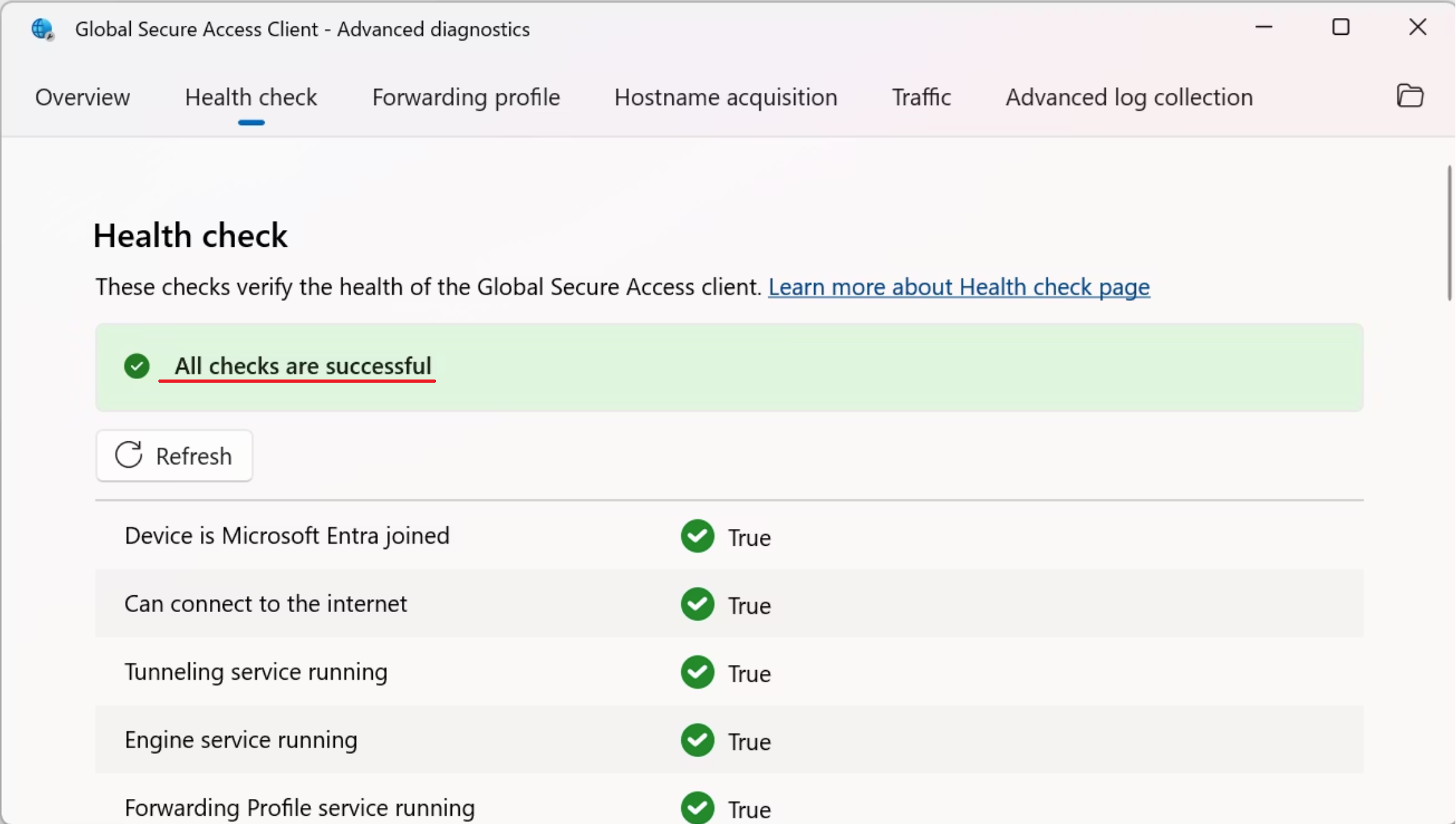
Public Documentation: Health Check
https://learn.microsoft.com/en-us/entra/global-secure-access/troubleshoot-global-secure-access-client-diagnostics-health-check?wt.mc_id=MVP_407731
Before we begin, all links in sections 1–7 point to articles that I have personally tested and verified. You can use them with full confidence.
1. Enable Conditional Access
GSA Internet Access requires Conditional Access to be enabled in your tenant.
If this is your first time enabling Conditional Access, please refer to the following article.
Default Security Settings vs. Conditional Access
https://qiita.com/carol0226/items/51a70a561b78af567972
2. Enable GSA Internet Access
To use Web Content Filtering, Internet Access must already be configured.
Follow the article below:
[GSA] Configure Microsoft Entra Internet Access
https://qiita.com/carol0226/items/ae2bfdb209170fb41bae
3. Install the GSA Client
Client PCs require installation of the GSA Client.
This article covers manual installation and Intune deployment:
[GSA] Deploy the Global Secure Access Client
https://qiita.com/carol0226/items/8e30fc6caf36c83894dc
4. Configure DNS Client to Disable DoH
GSA Internet Access does not support DNS over HTTPS (DoH).
Therefore, you must disable Secure DNS on Windows.
Public Documentation: DNS over HTTPS is not supported
https://learn.microsoft.com/en-us/entra/global-secure-access/troubleshoot-global-secure-access-client-diagnostics-health-check?wt.mc_id=MVP_407731#dns-over-https-not-supported
Detailed procedures, screenshots, and deployment via GPO/Intune:
[GSA:Internet] Disable DoH (Prerequisite)
https://qiita.com/carol0226/items/c00c0fae1b045654469b
5. Disable Built‑in DNS Client & QUIC in Chrome and Microsoft Edge
GSA does not support:
- Secure DNS via browsers
- QUIC-based DNS traffic
Thus, both must be disabled in user browsers.
Public Documentation: Secure DNS disabled in browsers
https://learn.microsoft.com/en-us/entra/global-secure-access/troubleshoot-global-secure-access-client-diagnostics-health-check?wt.mc_id=MVP_407731#secure-dns-disabled-in-browsers-microsoft-edge-chrome-firefox
Public Documentation: QUIC not supported
https://learn.microsoft.com/en-us/entra/global-secure-access/troubleshoot-global-secure-access-client-diagnostics-health-check?wt.mc_id=MVP_407731#quic-not-supported-for-internet-access
Detailed article with instructions and Intune deployment:
[GSA:Internet] Disable Built‑in DNS & QUIC
https://qiita.com/carol0226/items/44519d3a45b24932fc3f
6. Configure OS to Prefer IPv4
GSA does not support IPv6.
To tunnel Internet Access traffic, the OS must prefer IPv4.
Public Documentation: IPv4 preferred
https://learn.microsoft.com/en-us/entra/global-secure-access/troubleshoot-global-secure-access-client-diagnostics-health-check?wt.mc_id=MVP_407731#ipv4-preferred
Detailed explanation & Intune deployment:
[GSA:Internet] Configure IPv4 Preference
https://qiita.com/carol0226/items/7b3cff50503d07211946
7. Configure Web Content Filtering
Once prerequisites 1–6 are completed, Web Content Filtering becomes available.
This configuration is also required for other GSA Internet Access features.
See the full guide:
[GSA:Internet] Configure Web Content Filtering
https://qiita.com/carol0226/items/e33dd928ae848691bb1e
Summary
To fully enable GSA Internet Access, the following seven prerequisites must be configured:
- Enable Conditional Access
- Enable Internet Access
- Install the GSA Client
- Disable DoH
- Disable Built‑in DNS & QUIC
- Prefer IPv4
- Configure Web Content Filtering
Completing all of these results in All Green in Health Check and ensures stable operation of all GSA features.
``