概要
本記事では、Databricks Labs で開発が進められている OntoBricks を用いて、データ更新を伴う Action を構築する手順を紹介します。OntoBricks は、Databricks 上でオントロジーとナレッジグラフを構築・活用するためのツールです。
Databricks Free Edition 上で実施した手順となっています。ただし、複数のリソースを利用するため、利用上限に達する場合がある点にご注意ください。
データ更新を伴う Action の実装編として、ドキュメントで Class Actions (Unity Catalog functions) として紹介されている機能を実装します。

出所: OntoBricks User Guide — OntoBricks docs
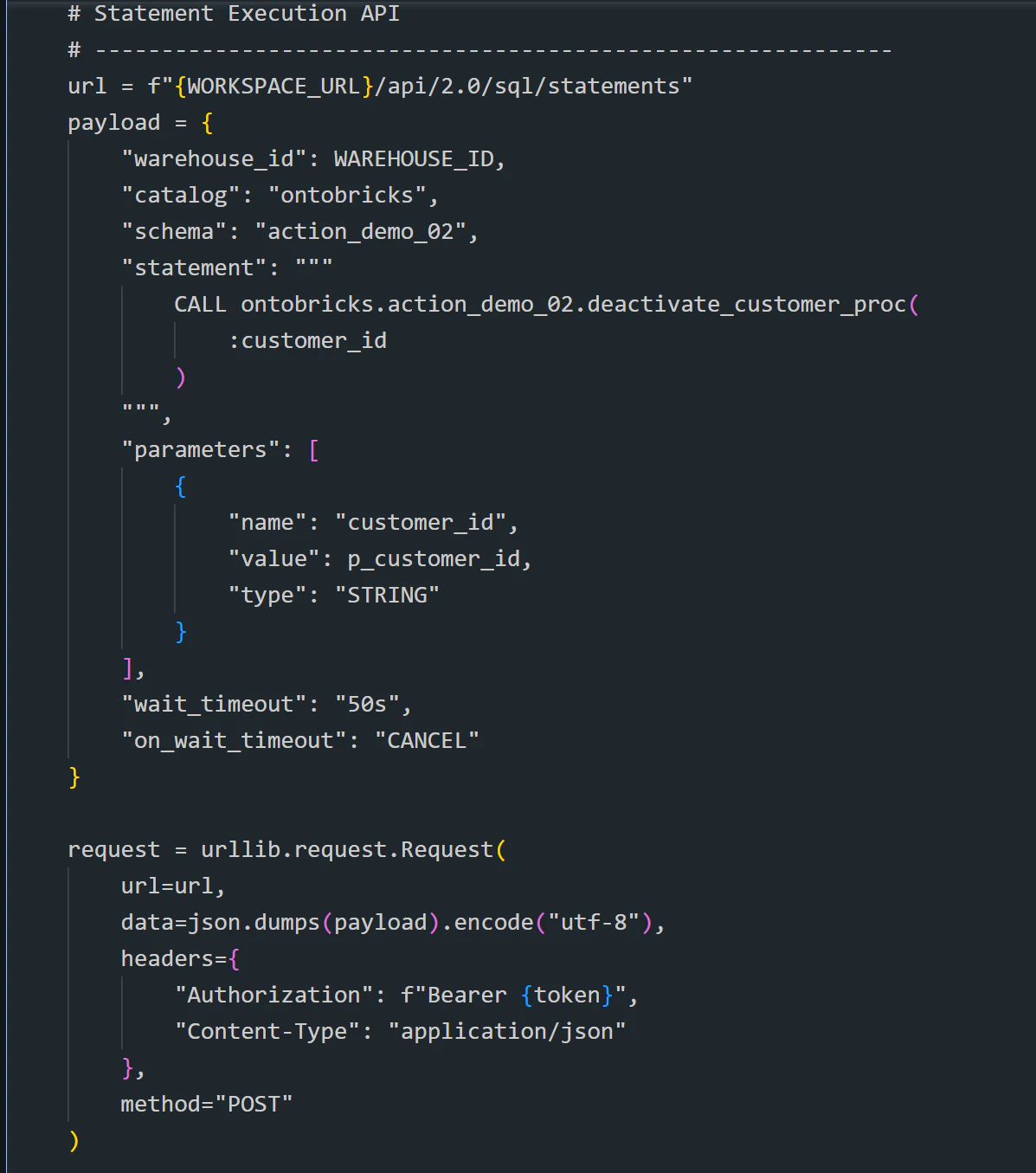
SQL Functions では UPDATE を実行できないため、Python UDF in Unity Catalog から Databricks の Statement Execution API を呼び出してプロシージャを実行しています。
SQL Functions で UPDATE を実行できない仕様については、下記の記事で紹介しています。
本記事の位置付け
OntoBricks 入門シリーズのデータ更新を伴う Action の実装編です。シリーズの構成は次のとおりです。
- 環境構築編
- シンプルなケースの実装編(Family Tree Ontology Mapping)
- 複雑なケースの実装編(Customer Journey Ontology)
- シンプルな Action の実装編
- データ更新を伴う Actin の実装編
手順
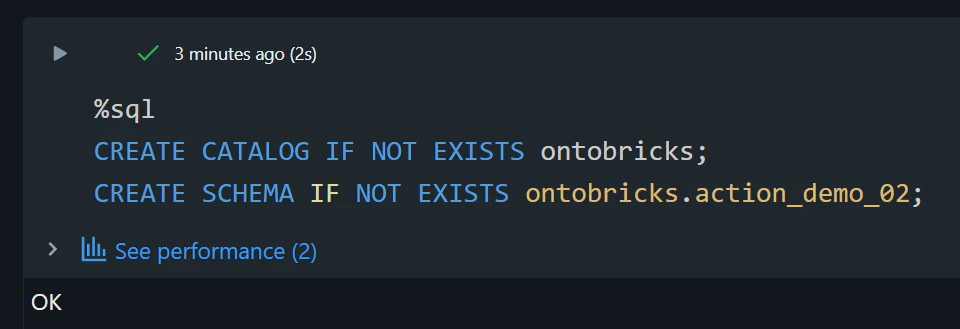
カタログとスキーマを作成
%sql
CREATE CATALOG IF NOT EXISTS ontobricks;
CREATE SCHEMA IF NOT EXISTS ontobricks.action_demo_02;
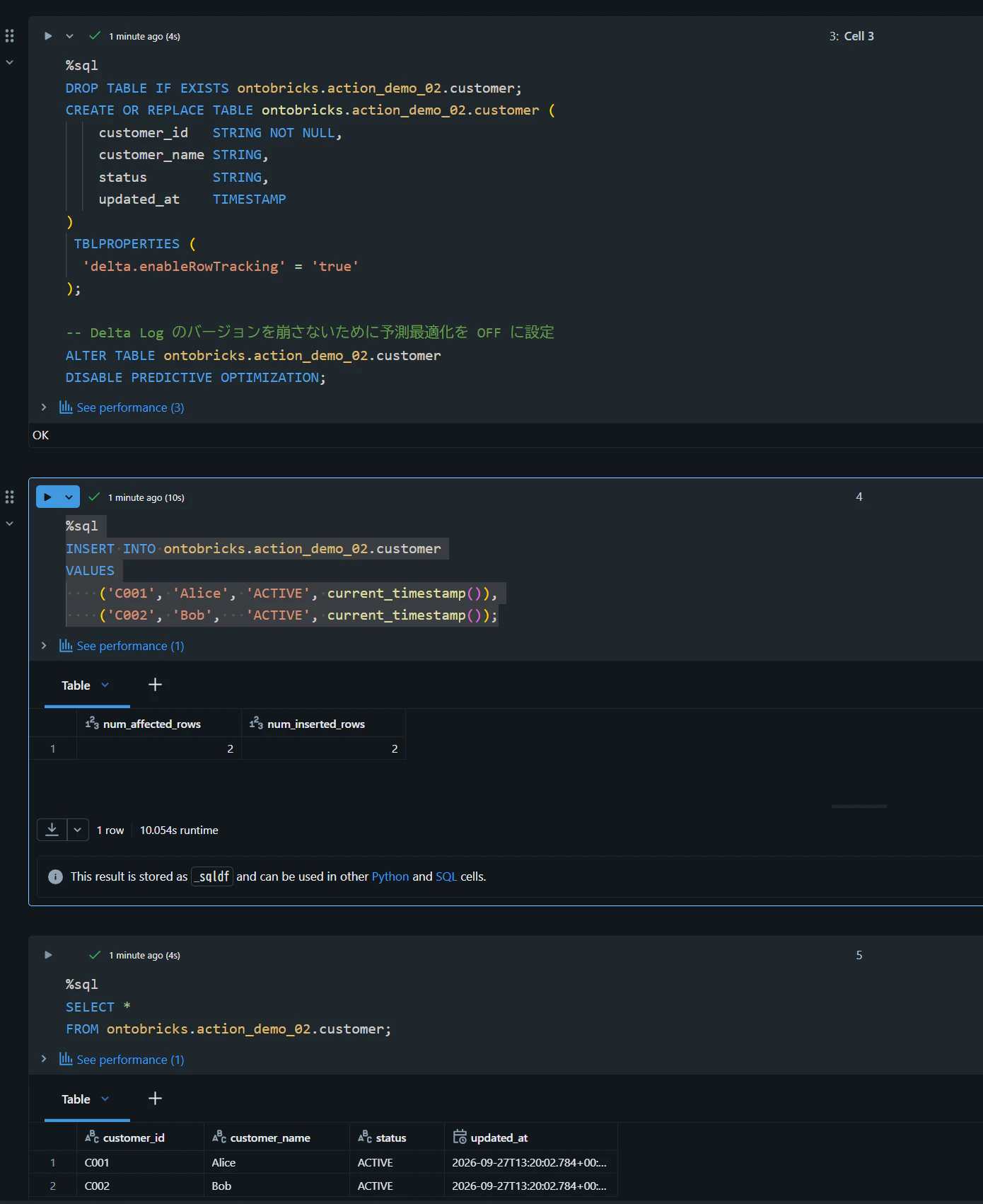
テーブルの準備
%sql
DROP TABLE IF EXISTS ontobricks.action_demo_02.customer;
CREATE OR REPLACE TABLE ontobricks.action_demo_02.customer (
    customer_id   STRING NOT NULL,
    customer_name STRING,
    status        STRING,
    updated_at    TIMESTAMP
)
 TBLPROPERTIES (
  'delta.enableRowTracking' = 'true'
);

-- Delta Log のバージョンを崩さないために予測最適化を OFF に設定
ALTER TABLE ontobricks.action_demo_02.customer
DISABLE PREDICTIVE OPTIMIZATION;
%sql
INSERT INTO ontobricks.action_demo_02.customer
VALUES
    ('C001', 'Alice', 'ACTIVE', current_timestamp()),
    ('C002', 'Bob',   'ACTIVE', current_timestamp());
プロシージャの準備
プロシージャの作成と動作確認を実施します。
%sql
CREATE OR REPLACE PROCEDURE
    ontobricks.action_demo_02.deactivate_customer_proc(
        IN p_customer_id STRING
    )
LANGUAGE SQL
SQL SECURITY INVOKER
MODIFIES SQL DATA
AS
BEGIN
    UPDATE ontobricks.action_demo_02.customer
       SET status     = 'INACTIVE',
           updated_at = current_timestamp()
     WHERE customer_id = p_customer_id;
END;
%sql
CALL ontobricks.action_demo_02.deactivate_customer_proc('C001');
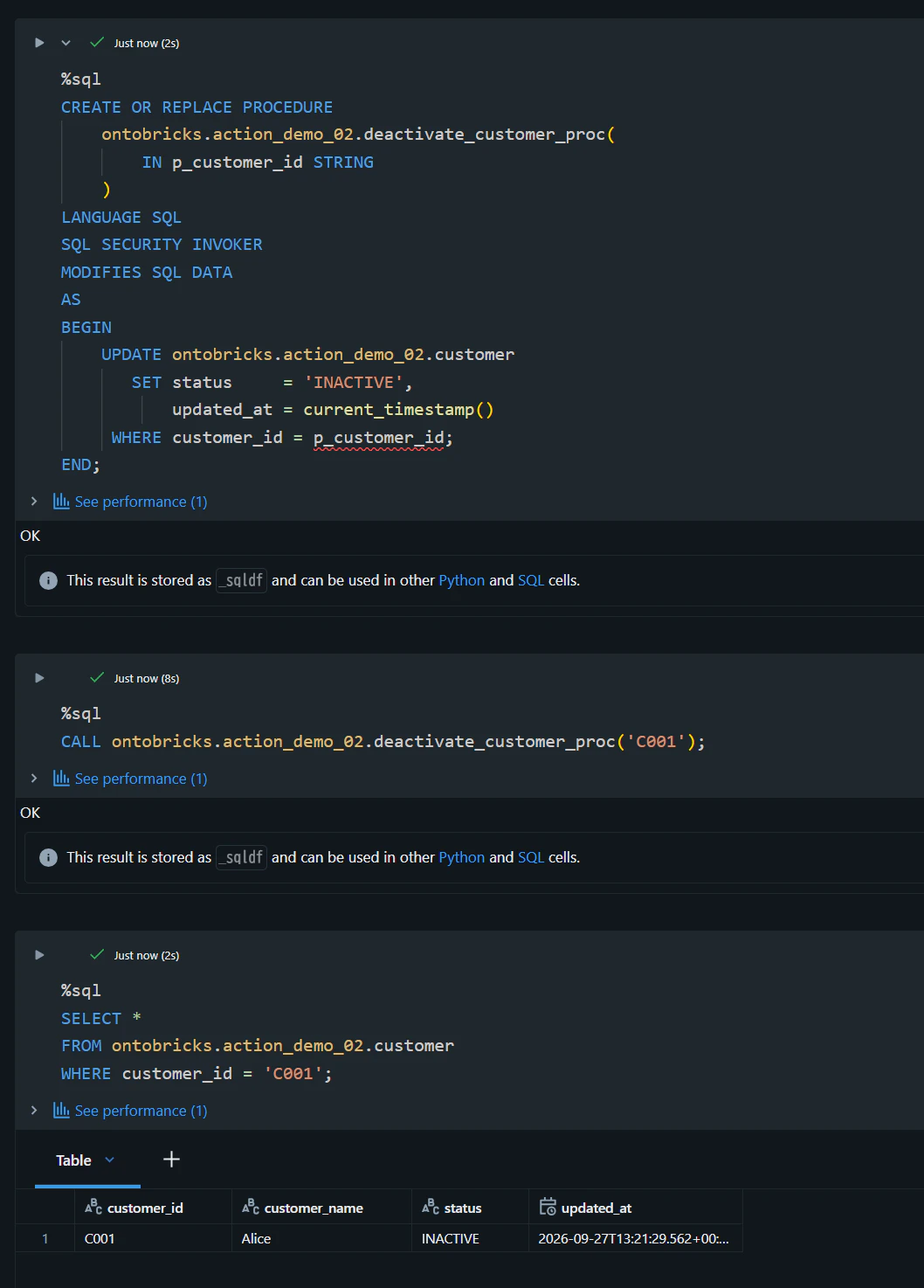
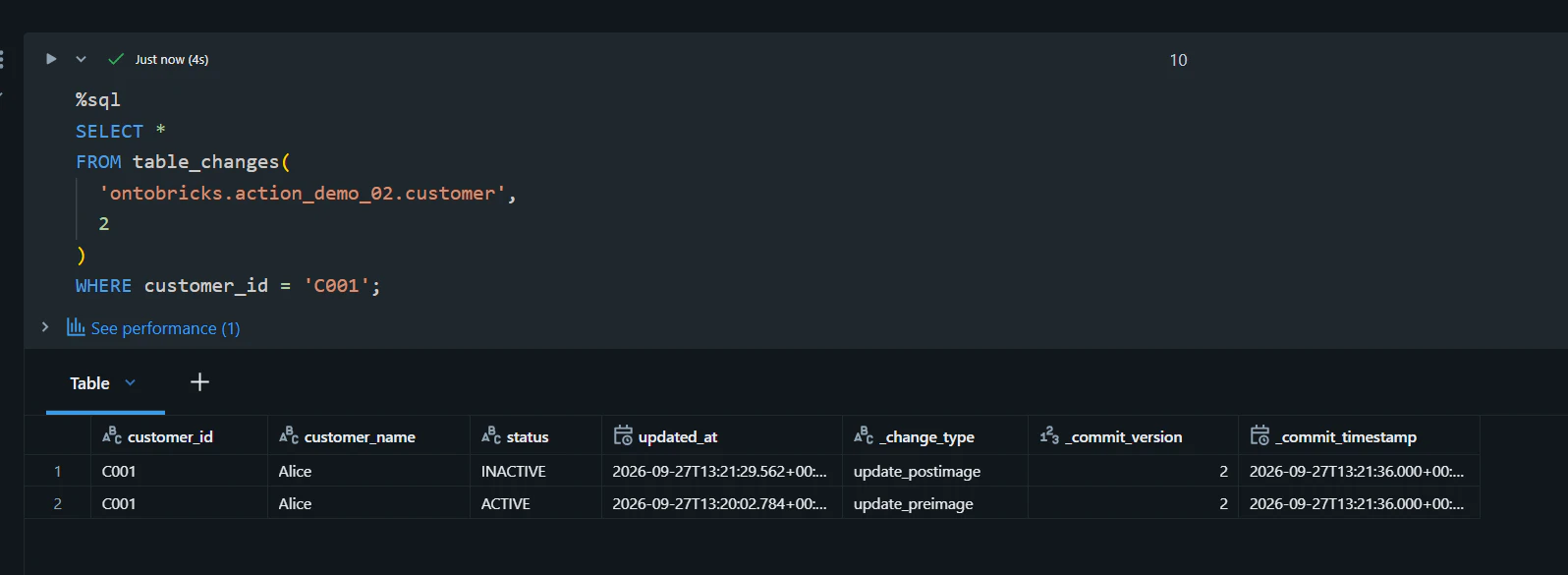
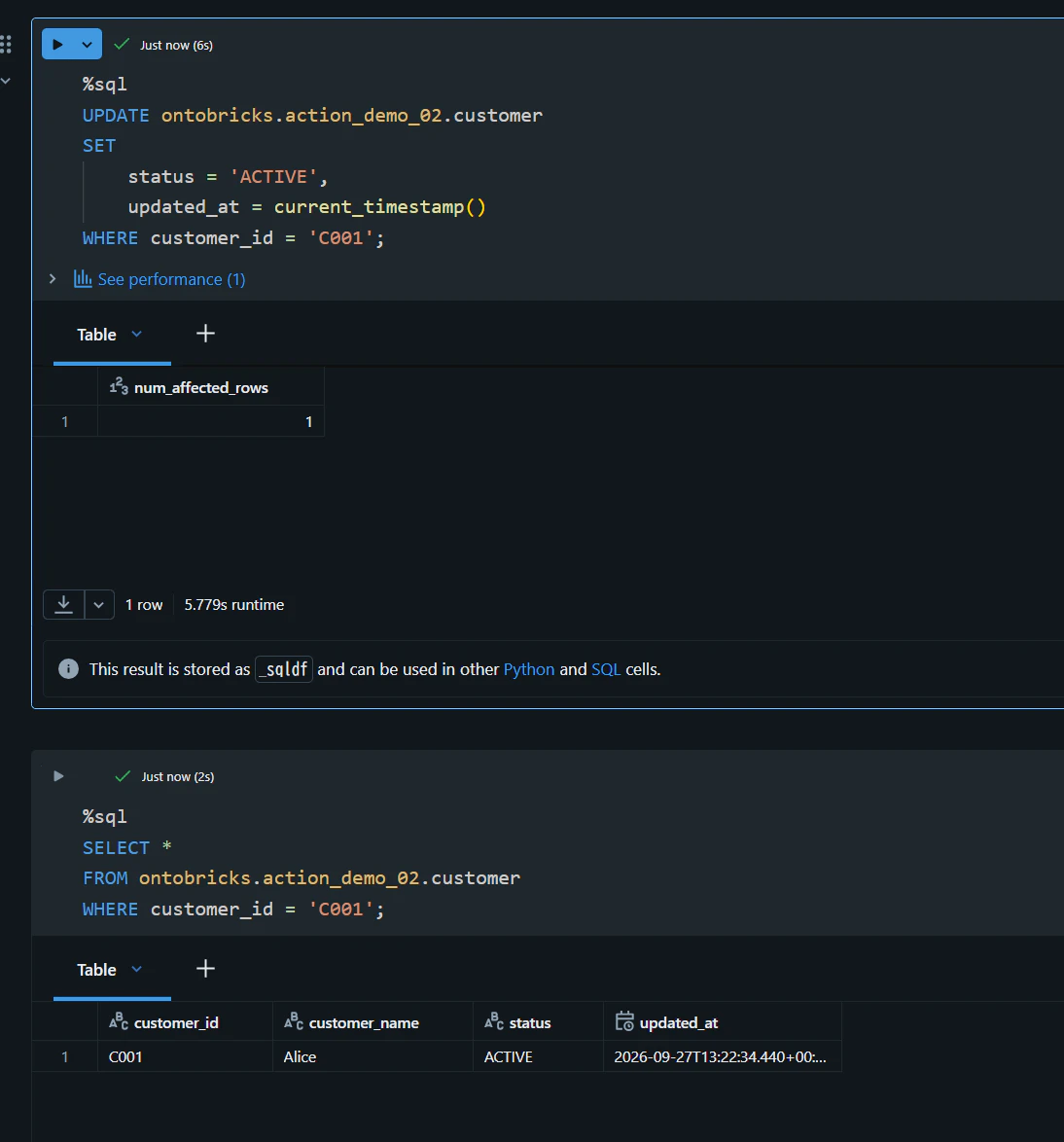
関数の動作確認を実施する前に、データを元の状態に戻します。
%sql
UPDATE ontobricks.action_demo_02.customer
SET
    status = 'ACTIVE',
    updated_at = current_timestamp()
WHERE customer_id = 'C001';
PAT の取得と Unity Catalog secret への登録
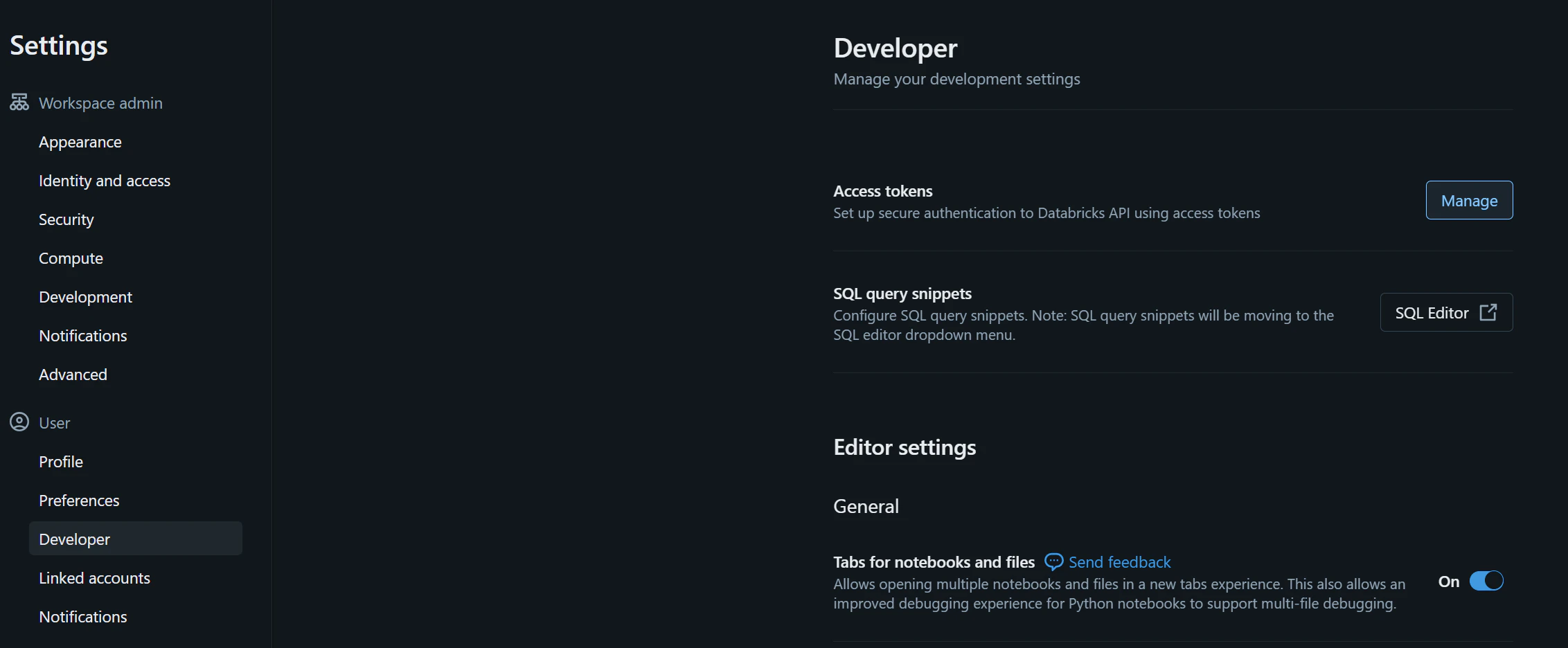
Databricks Workspace にて右上のアカウント -> Settingsを選択します。
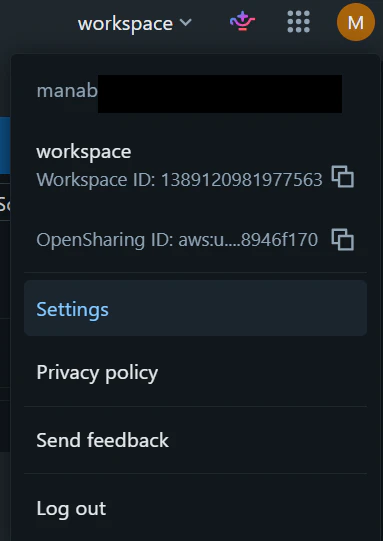
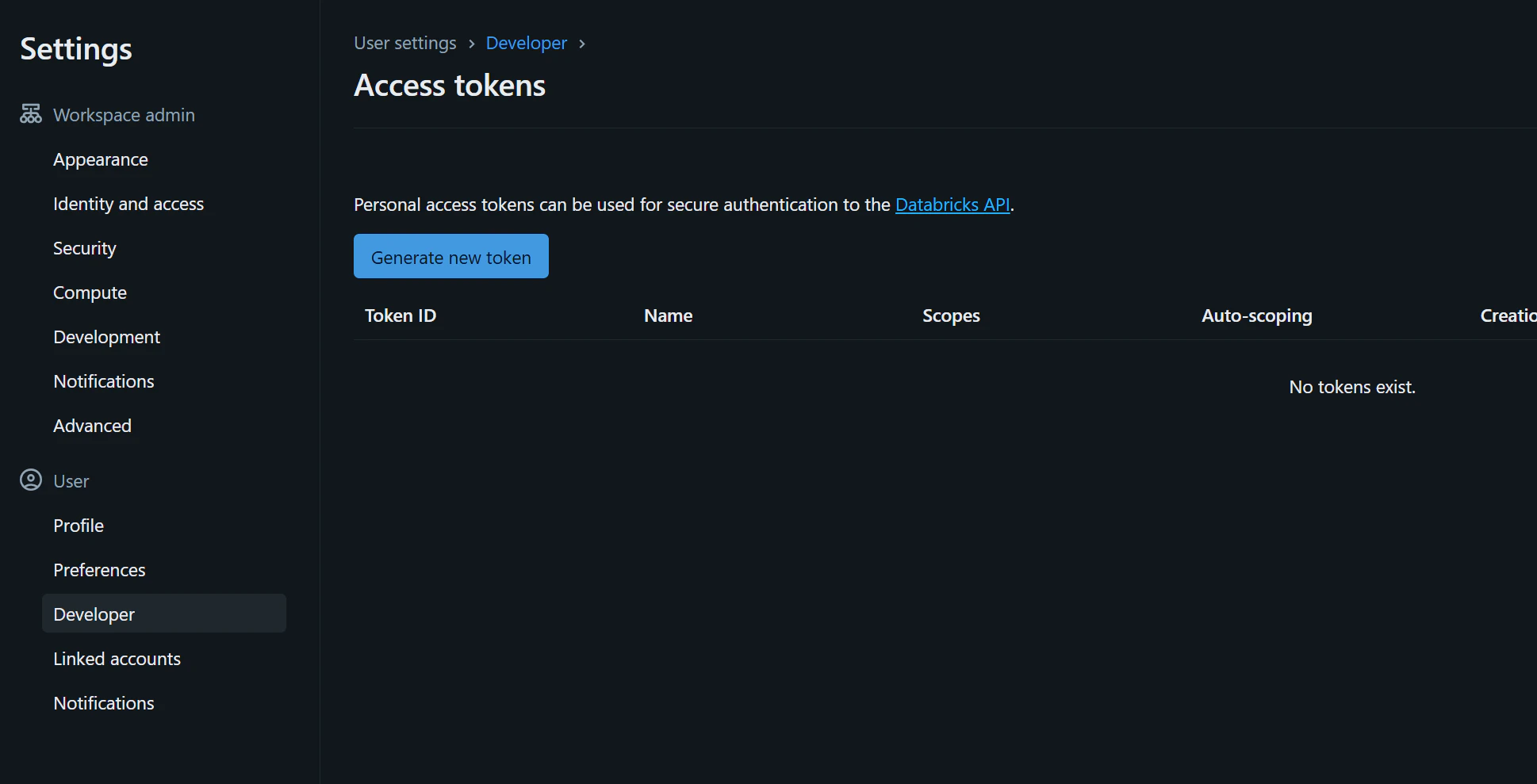
Developer -> Manageを選択します。
Generate new tokenを選択します。
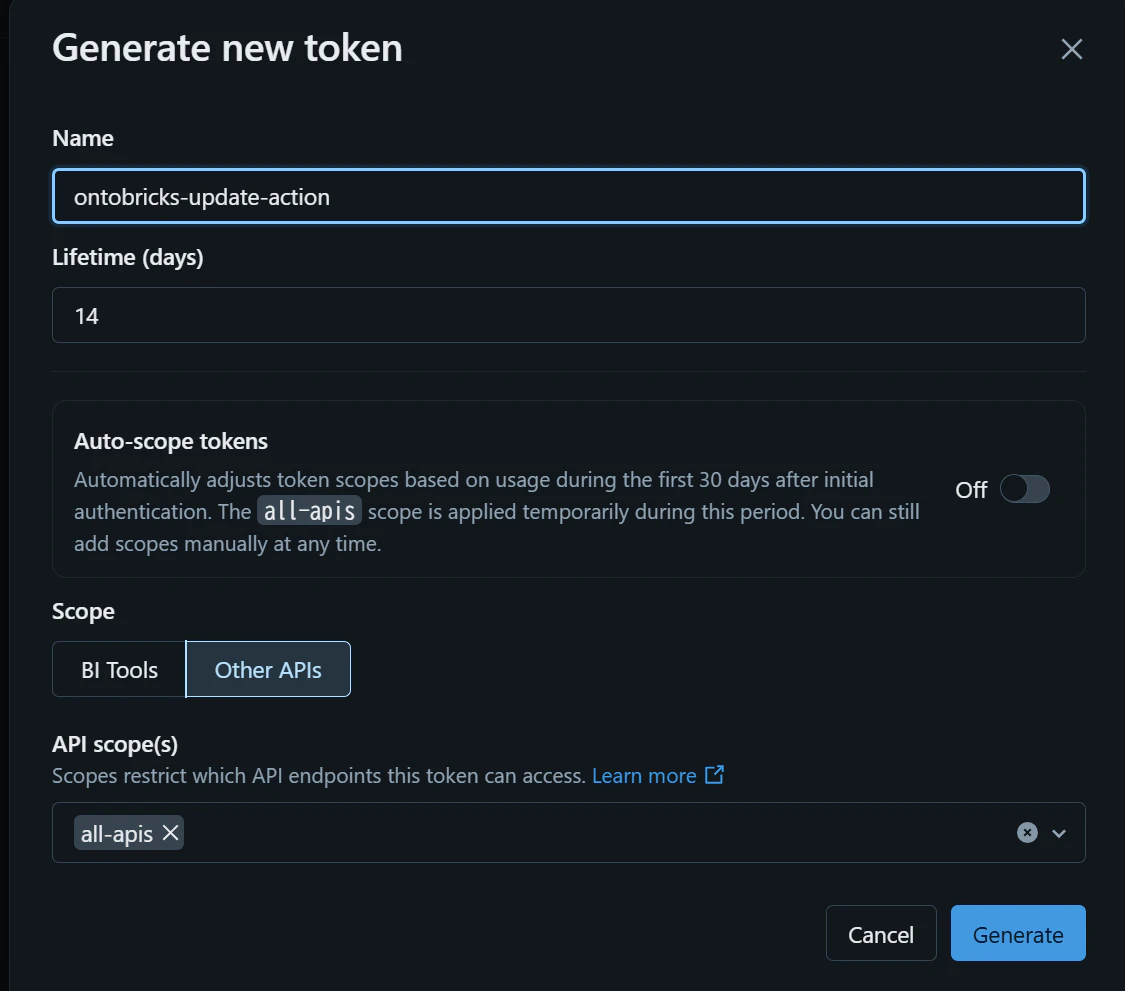
Nameに任意の名称を入力し、Generateを選択します。
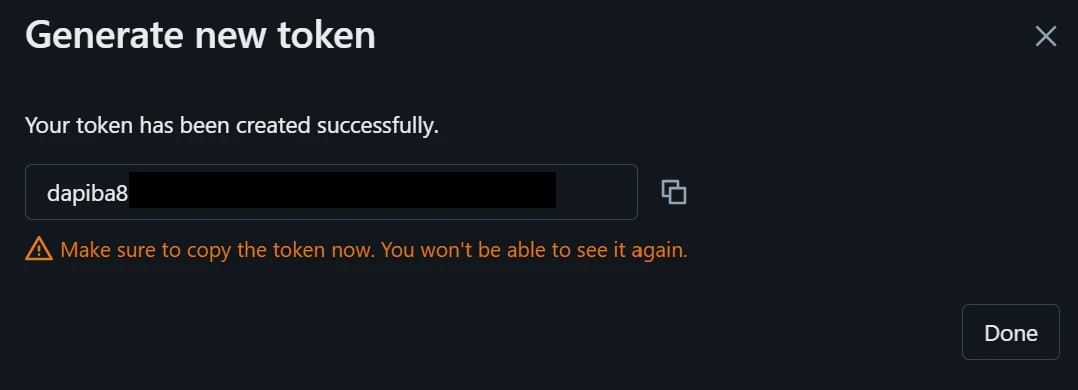
表示された Token の値を控えます。
左側タブのCatalog -> 作成したスキーマであるaction_demo_02 -> 右側のCreate -> Secretを選択します。
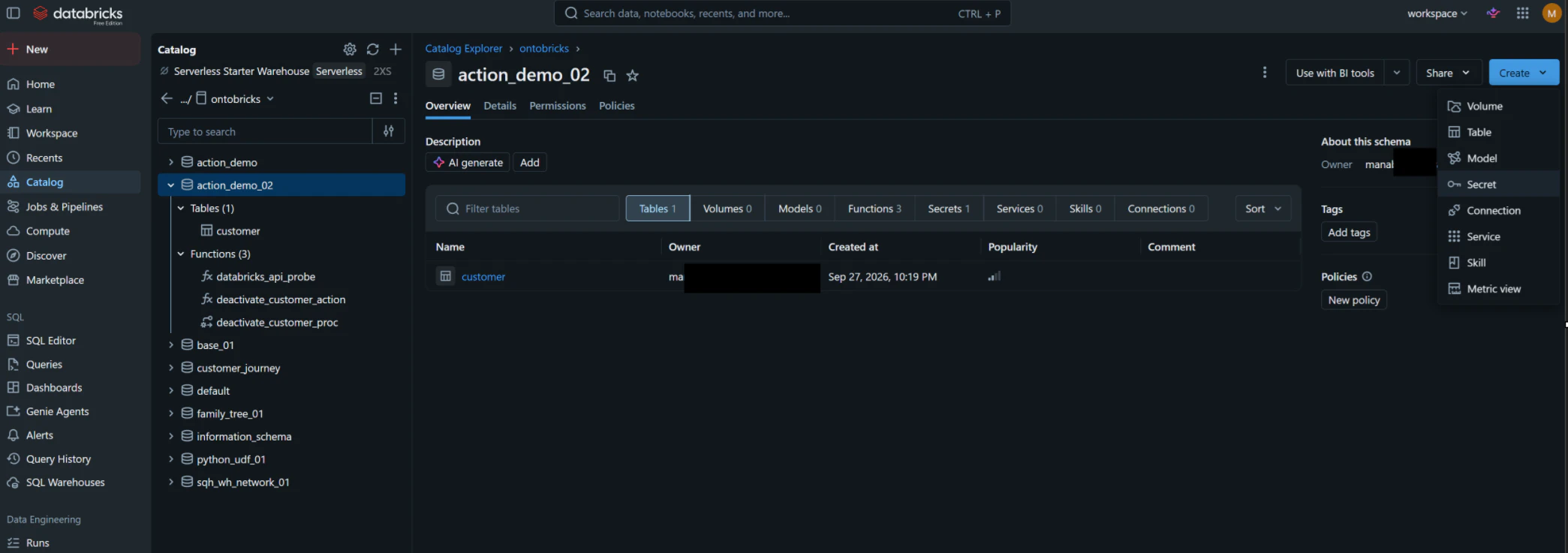
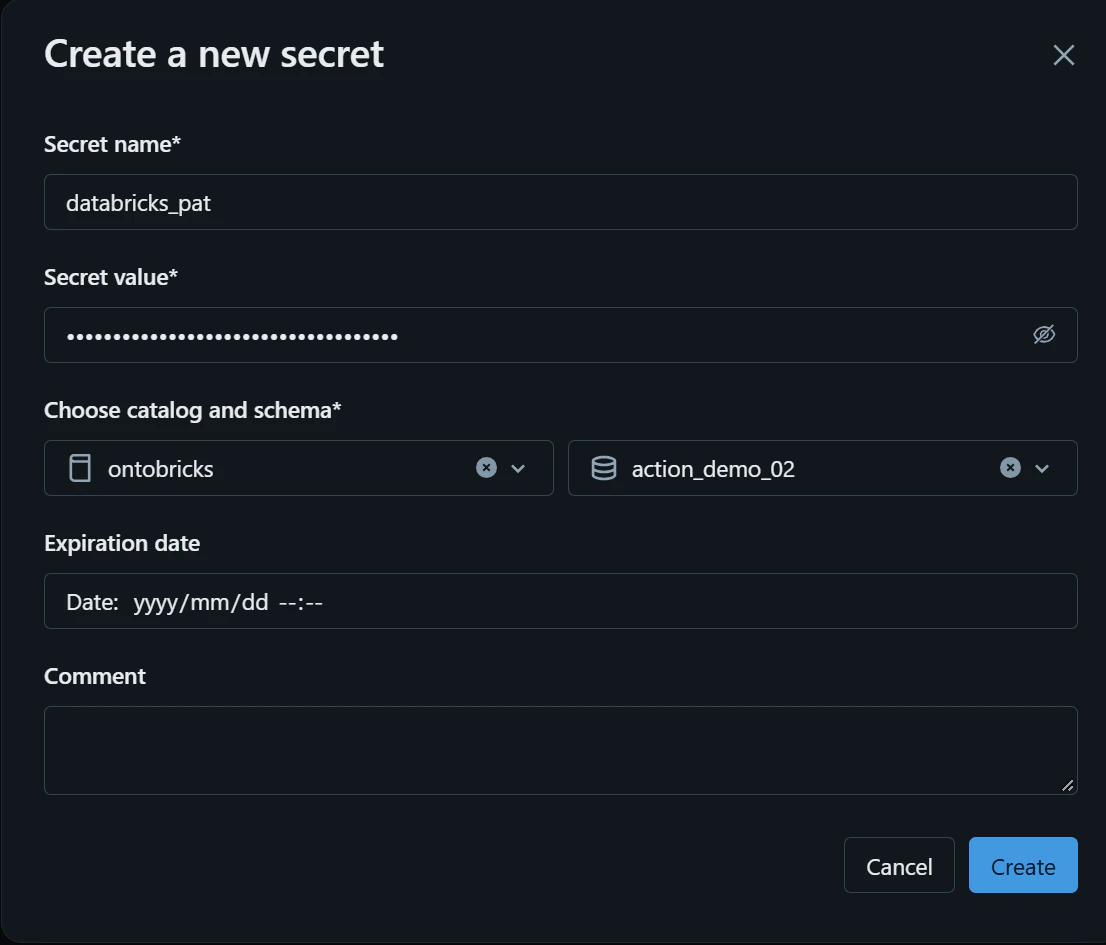
Secret nameにdatabricks_patを、Secret valueに取得したトークンを入力し、Createを選択します。
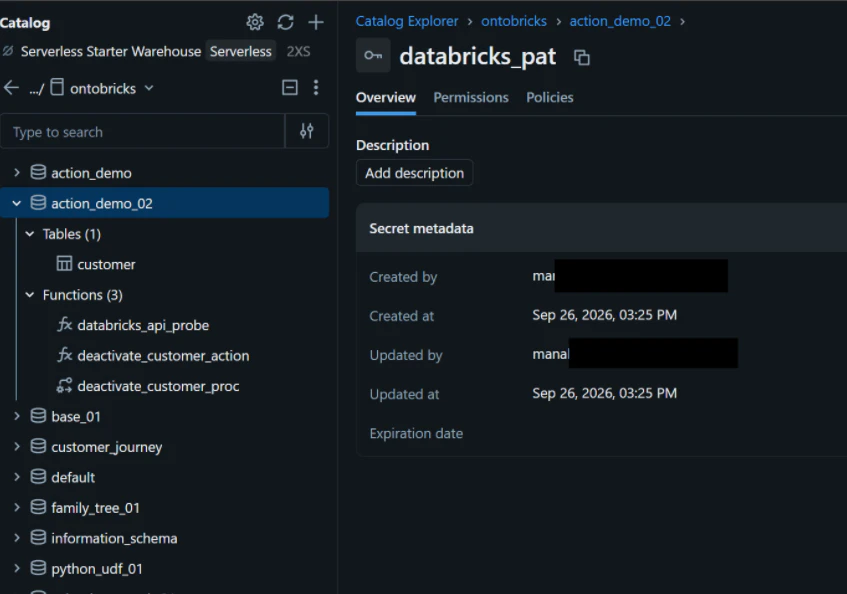
Secret が作成されたことを確認します。
WAREHOUSE_ID の取得
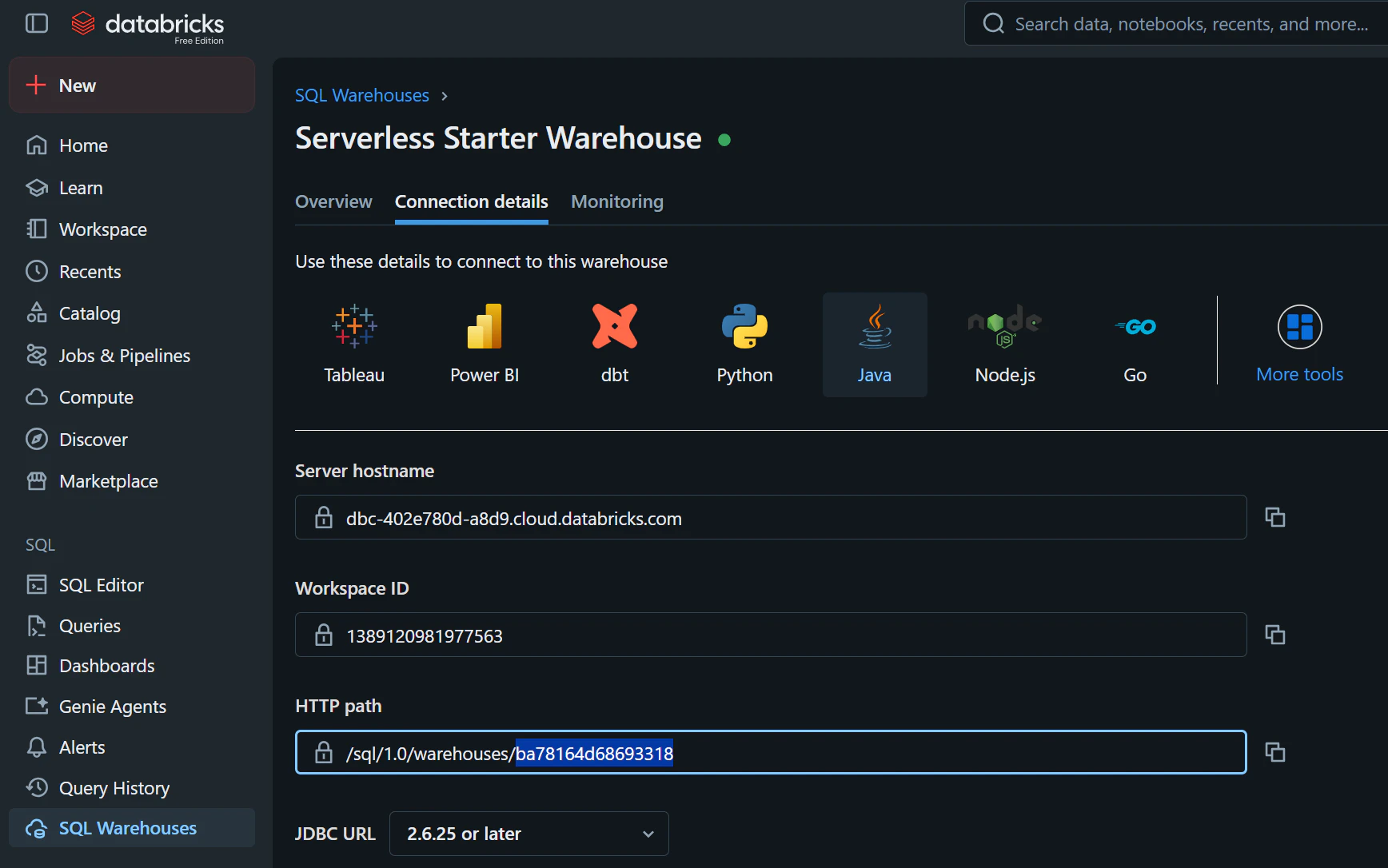
SQL Warehouse の接続情報に表示されるHTTP pathのうち、/sql/1.0/warehouses/以降の値(例:ba78164d68693318)を控えます。
関数の準備
関数の作成と動作確認を実施します。WORKSPACE_URLとWAREHOUSE_IDは、ご利用の環境の値に書き換えてください。
%sql
CREATE OR REPLACE FUNCTION ontobricks.action_demo_02.deactivate_customer_action(
        p_customer_id STRING COMMENT '非アクティブ化する顧客ID'
    )
    RETURNS STRING
    LANGUAGE PYTHON
    SECRETS (ontobricks.action_demo_02.databricks_pat)
    ENVIRONMENT (environment_version = '6')
    COMMENT '指定された顧客を非アクティブ化する OntoBricks Action'
    AS $$
import json
import urllib.request
import urllib.error

from databricks.secrets import get

# ------------------------------------------------------------
# Configuration
# ------------------------------------------------------------
WORKSPACE_URL = "https://dbc-402e780d-a8d9.cloud.databricks.com"
WAREHOUSE_ID = "ba78164d68693318"

# ------------------------------------------------------------
# Authentication
# ------------------------------------------------------------
token = get(
    catalog="ontobricks",
    schema="action_demo_02",
    key="databricks_pat"
)

# ------------------------------------------------------------
# Statement Execution API
# ------------------------------------------------------------
url = f"{WORKSPACE_URL}/api/2.0/sql/statements"
payload = {
    "warehouse_id": WAREHOUSE_ID,
    "catalog": "ontobricks",
    "schema": "action_demo_02",
    "statement": """
        CALL ontobricks.action_demo_02.deactivate_customer_proc(
            :customer_id
        )
    """,
    "parameters": [
        {
            "name": "customer_id",
            "value": p_customer_id,
            "type": "STRING"
        }
    ],
    "wait_timeout": "50s",
    "on_wait_timeout": "CANCEL"
}

request = urllib.request.Request(
    url=url,
    data=json.dumps(payload).encode("utf-8"),
    headers={
        "Authorization": f"Bearer {token}",
        "Content-Type": "application/json"
    },
    method="POST"
)

try:
    with urllib.request.urlopen(
        request,
        timeout=60
    ) as response:
        response_body = response.read().decode("utf-8")
        result = json.loads(response_body)

except urllib.error.HTTPError as e:
    error_body = e.read().decode("utf-8")
    raise Exception(
        f"Statement Execution API failed. "
        f"HTTP {e.code}: {error_body}"
    )

except Exception as e:
    raise Exception(
        f"Action invocation failed: {str(e)}"
    )


# ------------------------------------------------------------
# Validate SQL execution
# ------------------------------------------------------------
status = result.get("status", {})
state = status.get("state", "UNKNOWN")

statement_id = result.get(
    "statement_id",
    "UNKNOWN"
)

if state != "SUCCEEDED":
    error = status.get("error", {})
    raise Exception(
        f"Action SQL failed. "
        f"state={state}, "
        f"statement_id={statement_id}, "
        f"error={json.dumps(error)}"
    )


# ------------------------------------------------------------
# Result for OntoBricks
# ------------------------------------------------------------
return json.dumps(
    {
        "success": True,
        "customer_id": p_customer_id,
        "action": "deactivate_customer",
        "statement_id": statement_id,
        "state": state
    }
)
$$;
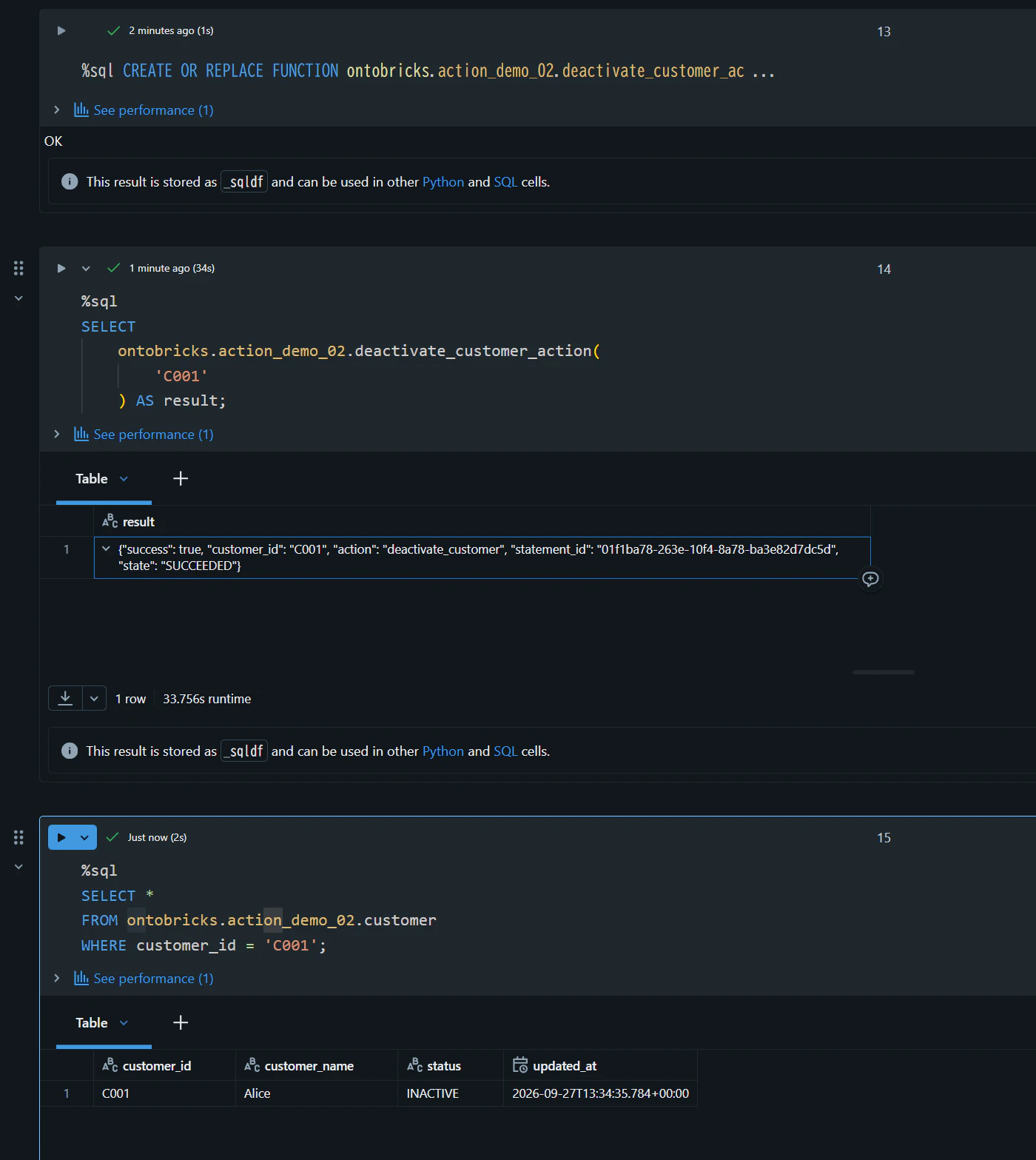
%sql
SELECT
    ontobricks.action_demo_02.deactivate_customer_action(
        'C001'
    ) AS result;
{"success": true, "customer_id": "C001", "action": "deactivate_customer", "statement_id": "01f1ba78-263e-10f4-8a78-ba3e82d7dc5d", "state": "SUCCEEDED"}
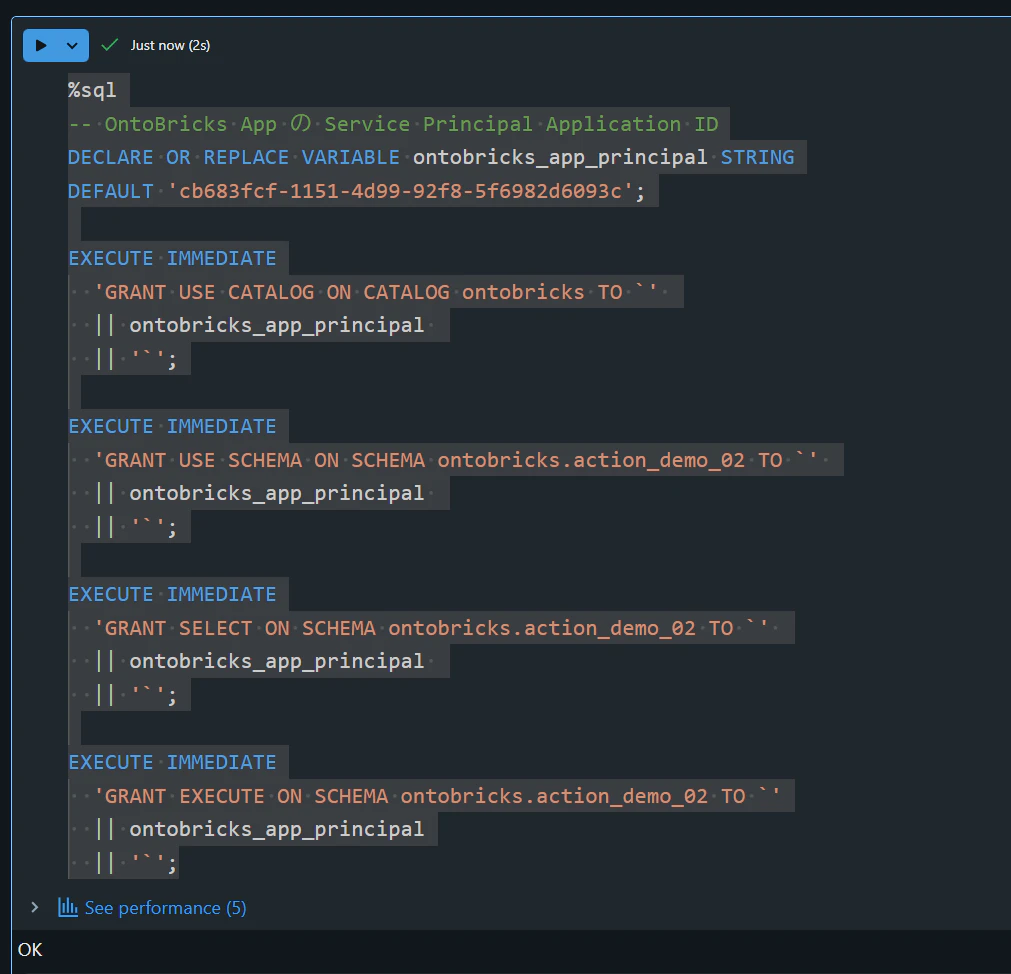
Databricks Apps に対する権限付与
%sql
-- OntoBricks App の Service Principal Application ID
DECLARE OR REPLACE VARIABLE ontobricks_app_principal STRING
DEFAULT 'cb683fcf-1151-4d99-92f8-5f6982d6093c';

EXECUTE IMMEDIATE
  'GRANT USE CATALOG ON CATALOG ontobricks TO `'
  || ontobricks_app_principal
  || '`';

EXECUTE IMMEDIATE
  'GRANT USE SCHEMA ON SCHEMA ontobricks.action_demo_02 TO `'
  || ontobricks_app_principal
  || '`';

EXECUTE IMMEDIATE
  'GRANT SELECT ON SCHEMA ontobricks.action_demo_02 TO `'
  || ontobricks_app_principal
  || '`';

EXECUTE IMMEDIATE
  'GRANT EXECUTE ON SCHEMA ontobricks.action_demo_02 TO `'
  || ontobricks_app_principal
  || '`';
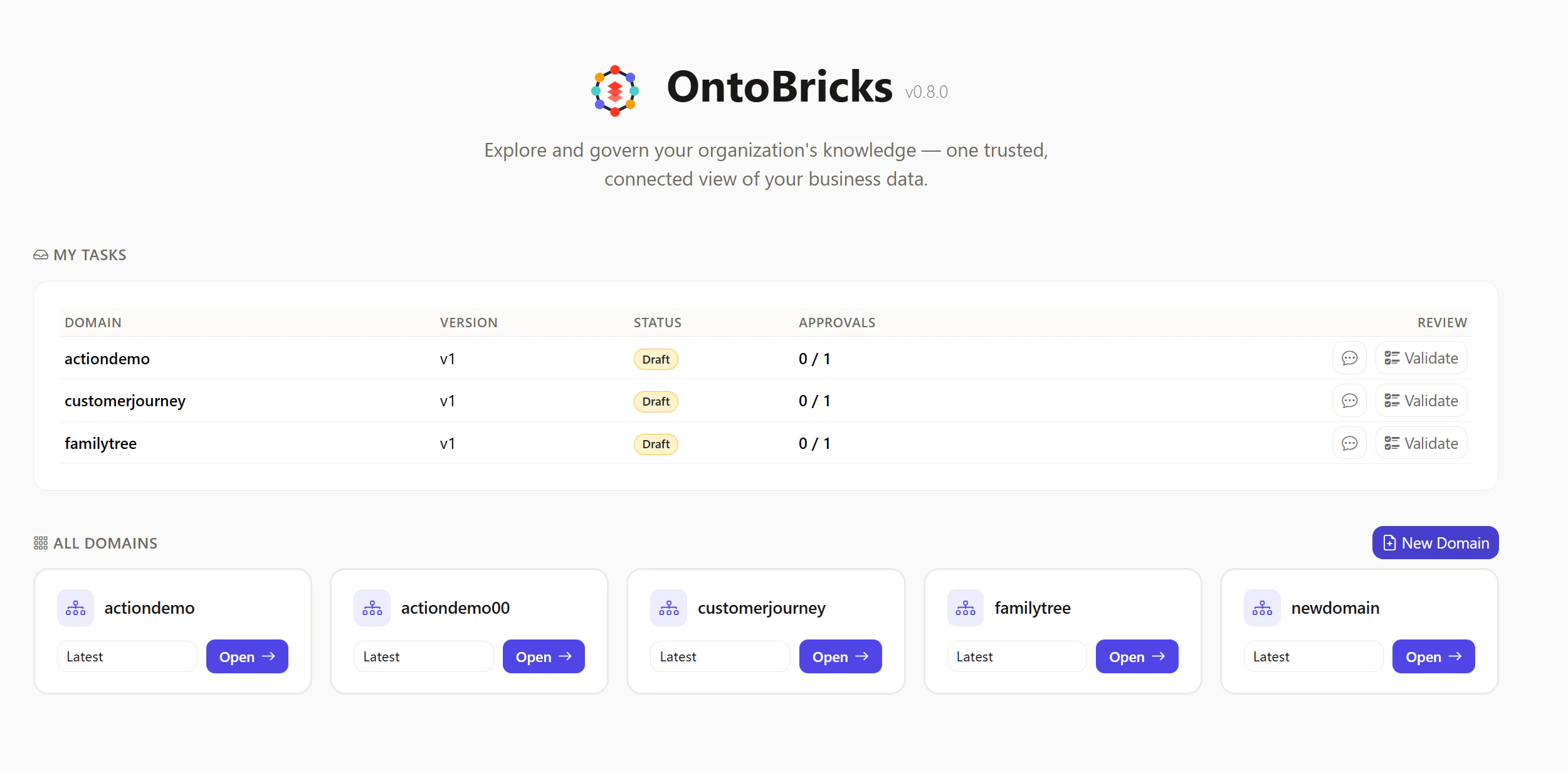
ActionDemo2ドメインを作成
OntoBricks にログインし、+New Domainを選択します。
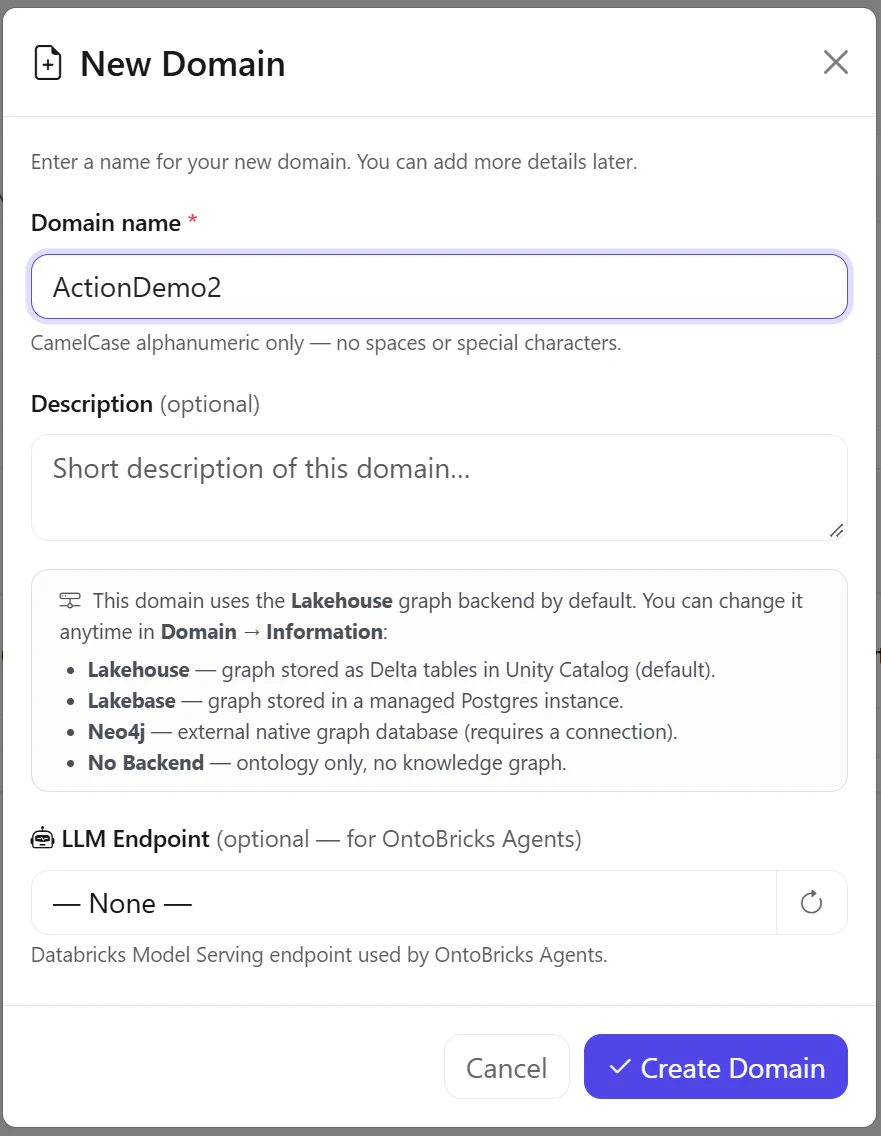
Domain nameにActionDemo2と入力し、Create Domainを選択します。
Information -> Knowledge GraphタブにてLakebaseを選択し、Saveを選択します。
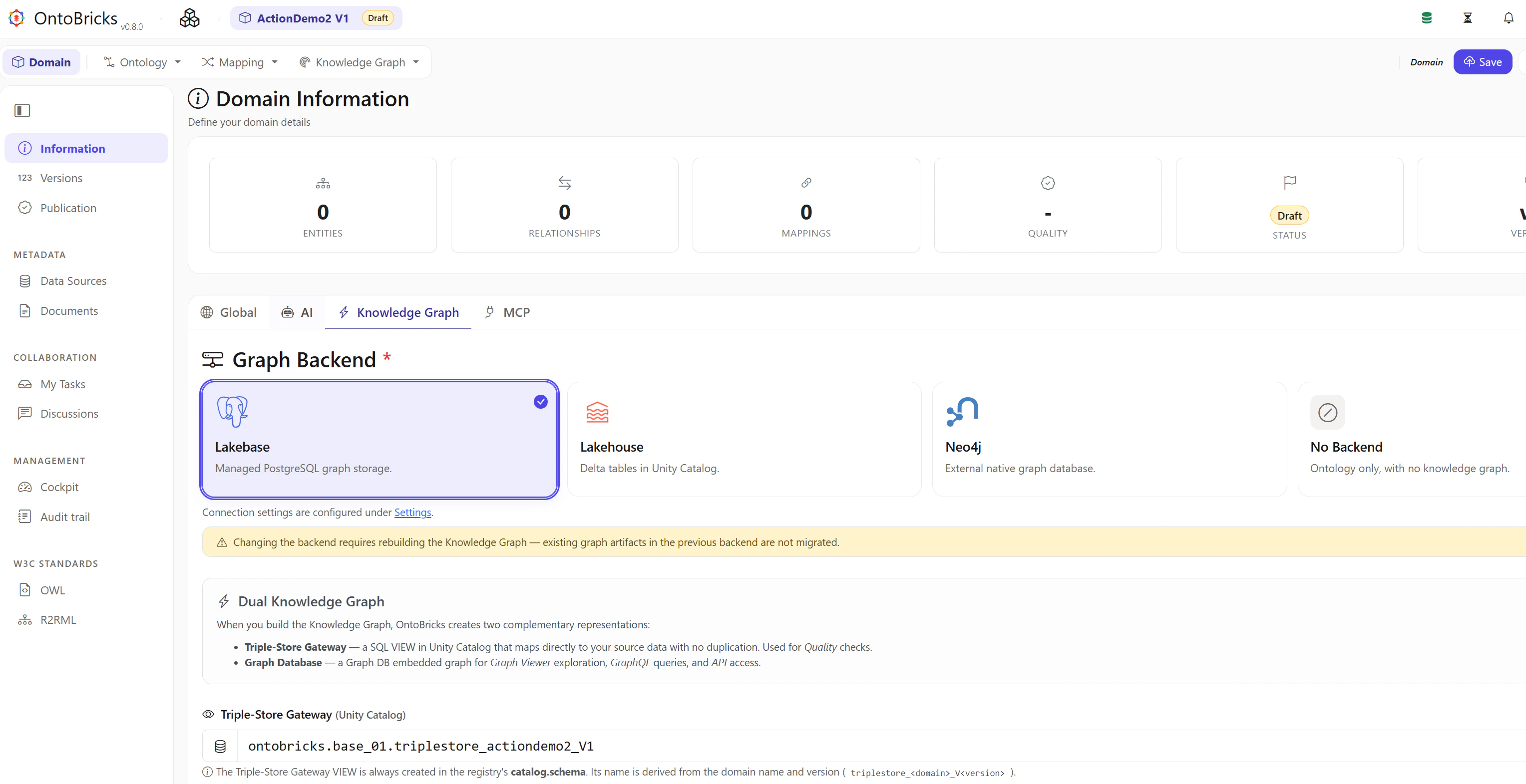
Ontology の設定
Ontology -> Entitiesを選択します。
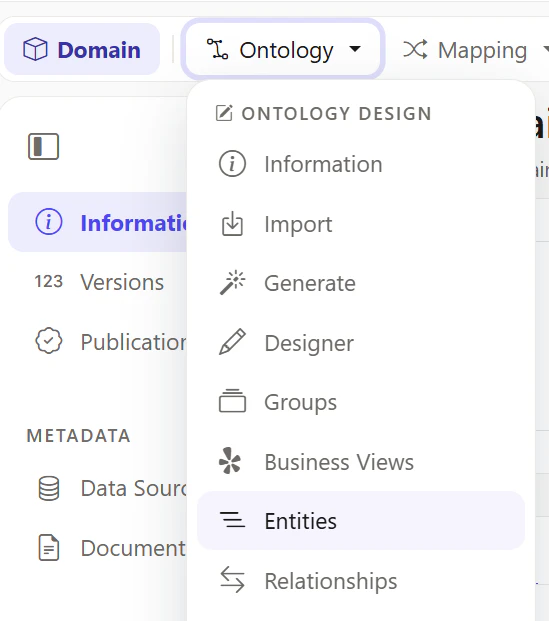
右側の+ Add Entityを選択します。
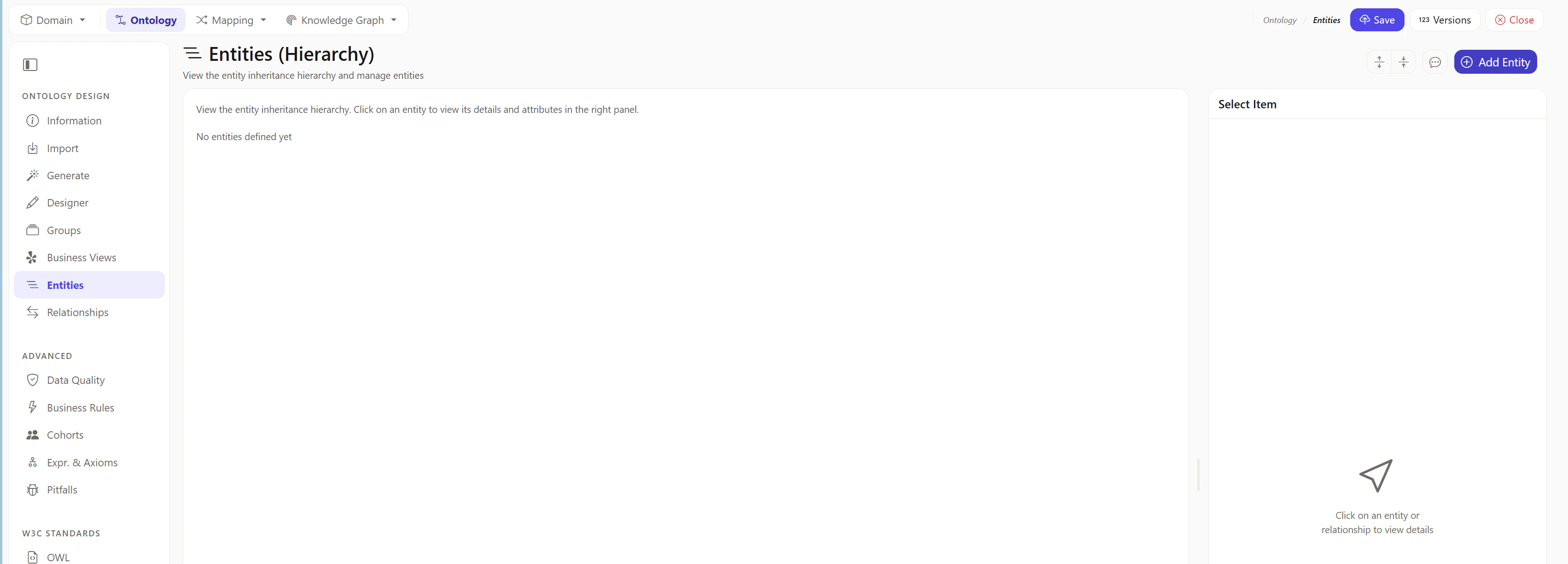
NameにCustomerと入力します。
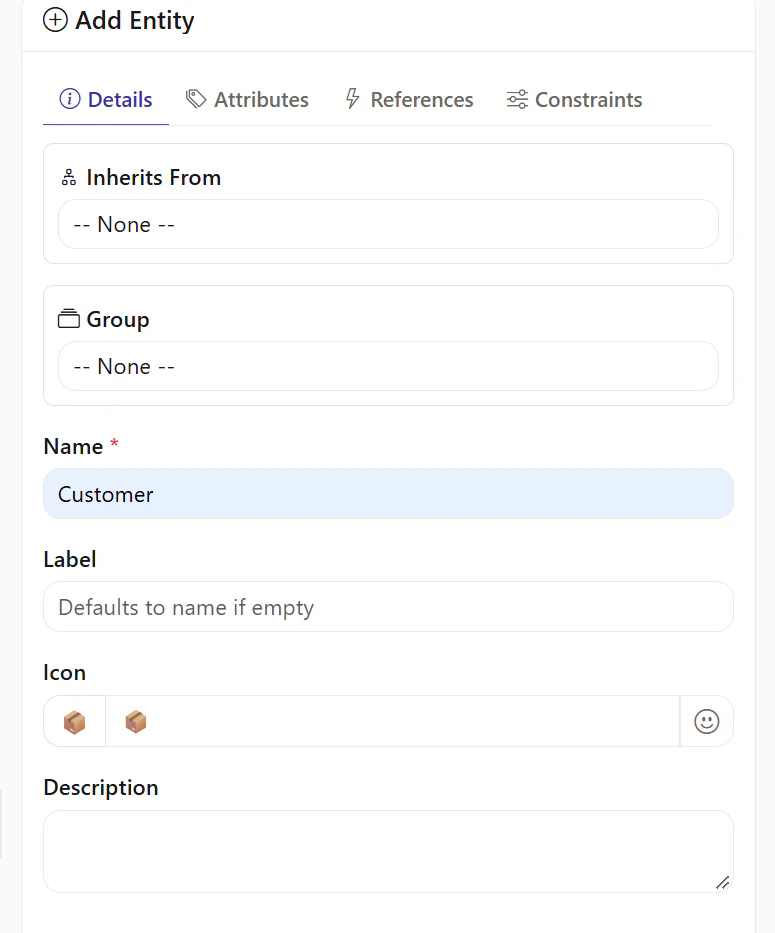
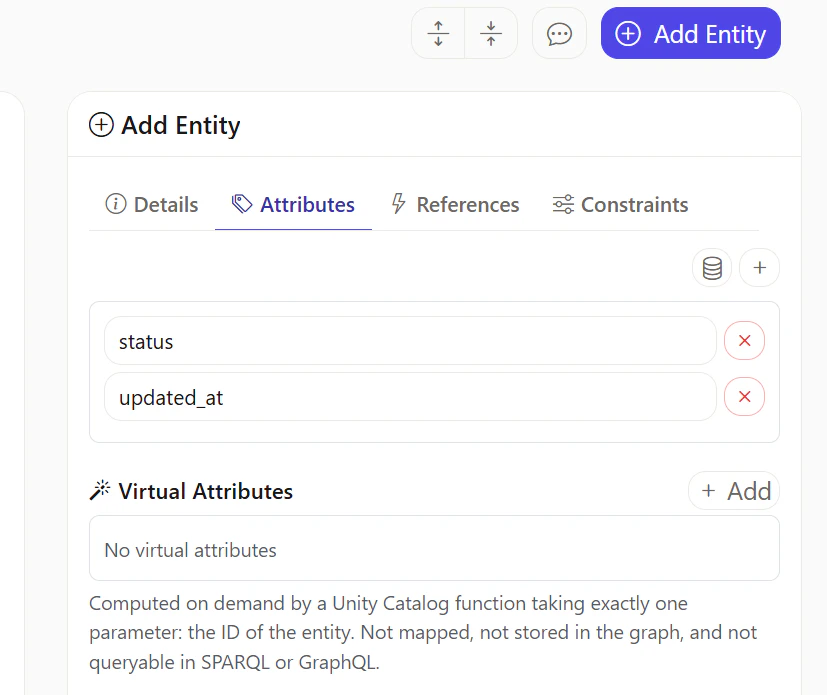
Attributesタブにてstatusとupdated_atを追加します。
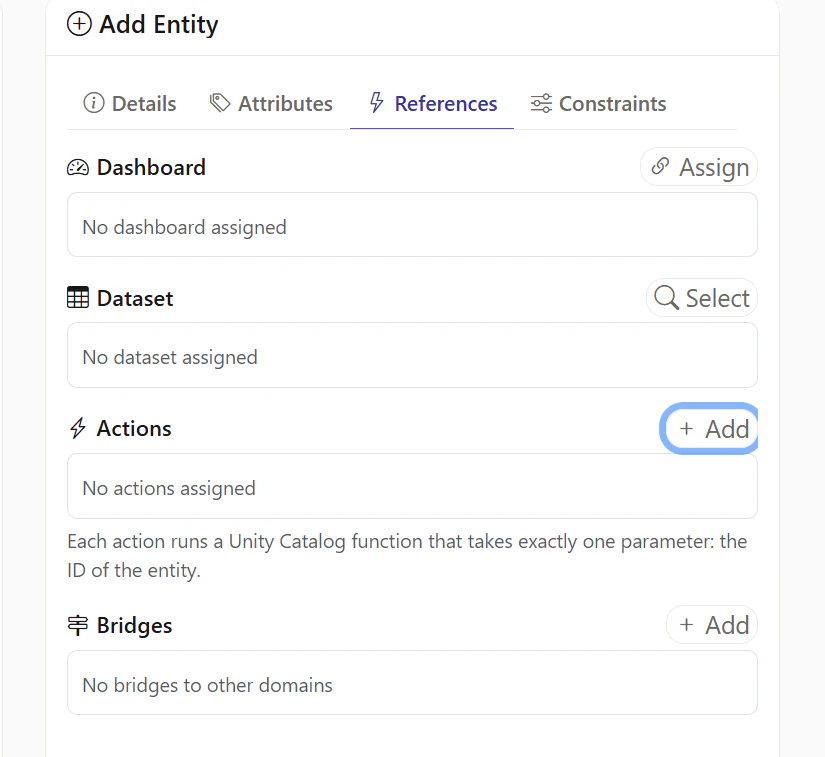
Actionsタブにて+ Addを選択します。
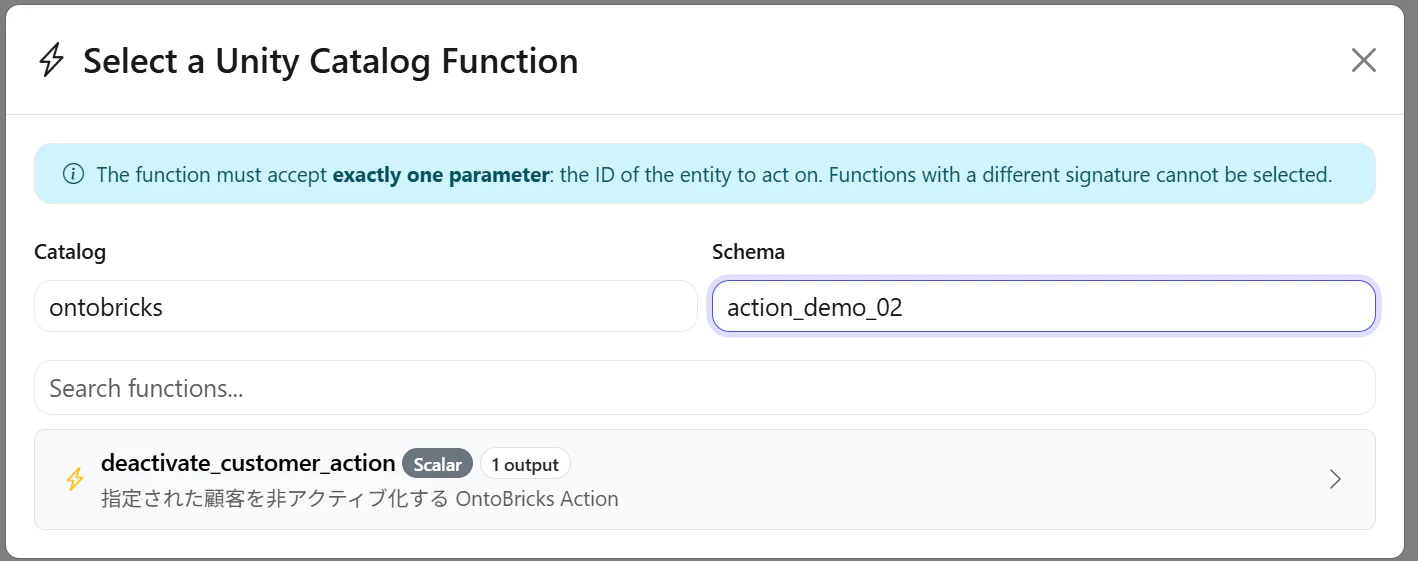
作成済みの関数を選択します。
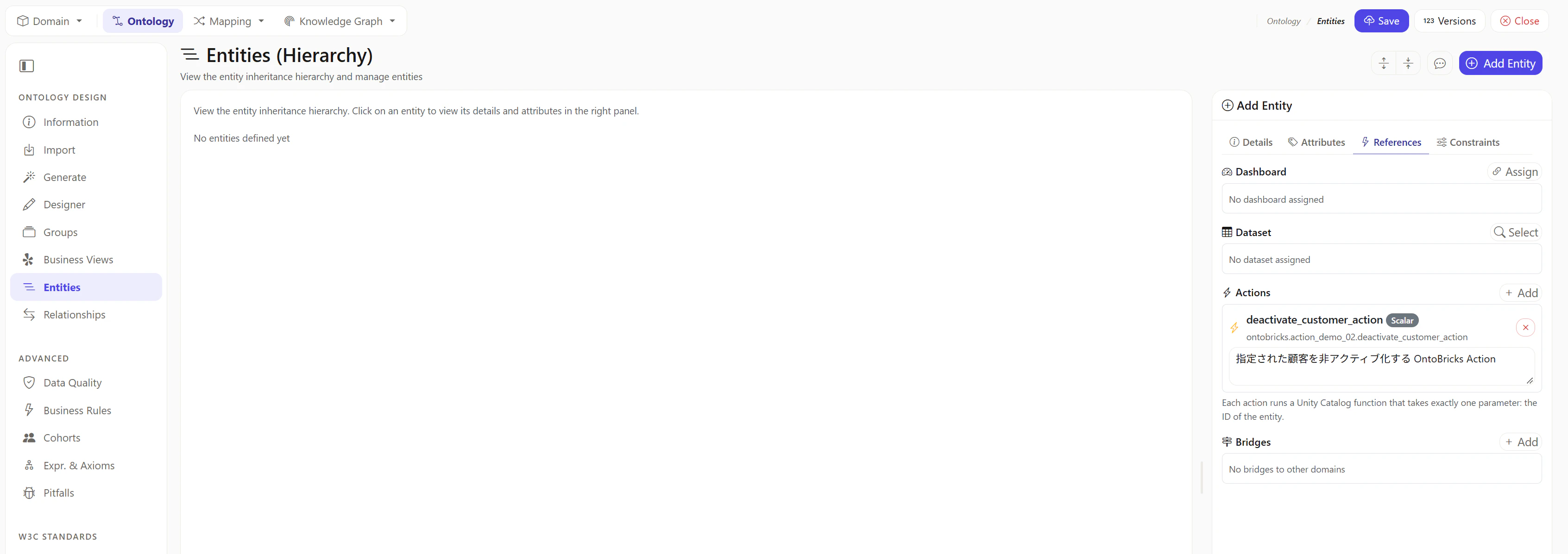
Saveを選択します。
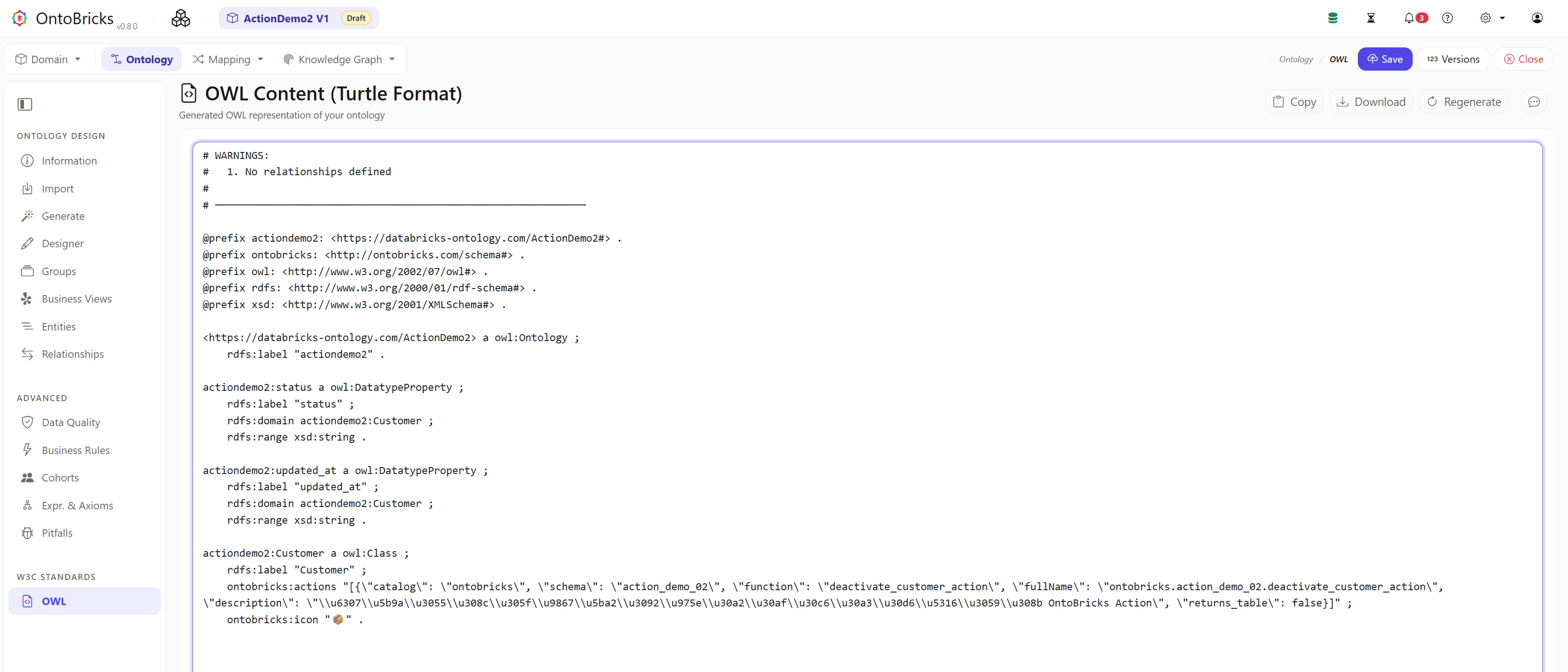
OWLタブを選択して定義を確認します。
# WARNINGS:
#   1. No relationships defined
#
# ─────────────────────────────────────────────────────────────

@prefix actiondemo2: <https://databricks-ontology.com/ActionDemo2#> .
@prefix ontobricks: <http://ontobricks.com/schema#> .
@prefix owl: <http://www.w3.org/2002/07/owl#> .
@prefix rdfs: <http://www.w3.org/2000/01/rdf-schema#> .
@prefix xsd: <http://www.w3.org/2001/XMLSchema#> .

<https://databricks-ontology.com/ActionDemo2> a owl:Ontology ;
    rdfs:label "actiondemo2" .

actiondemo2:status a owl:DatatypeProperty ;
    rdfs:label "status" ;
    rdfs:domain actiondemo2:Customer ;
    rdfs:range xsd:string .

actiondemo2:updated_at a owl:DatatypeProperty ;
    rdfs:label "updated_at" ;
    rdfs:domain actiondemo2:Customer ;
    rdfs:range xsd:string .

actiondemo2:Customer a owl:Class ;
    rdfs:label "Customer" ;
    ontobricks:actions "[{\"catalog\": \"ontobricks\", \"schema\": \"action_demo_02\", \"function\": \"deactivate_customer_action\", \"fullName\": \"ontobricks.action_demo_02.deactivate_customer_action\", \"description\": \"\\u6307\\u5b9a\\u3055\\u308c\\u305f\\u9867\\u5ba2\\u3092\\u975e\\u30a2\\u30af\\u30c6\\u30a3\\u30d6\\u5316\\u3059\\u308b OntoBricks Action\", \"returns_table\": false}]" ;
    ontobricks:icon "📦" .
Mapping の設定
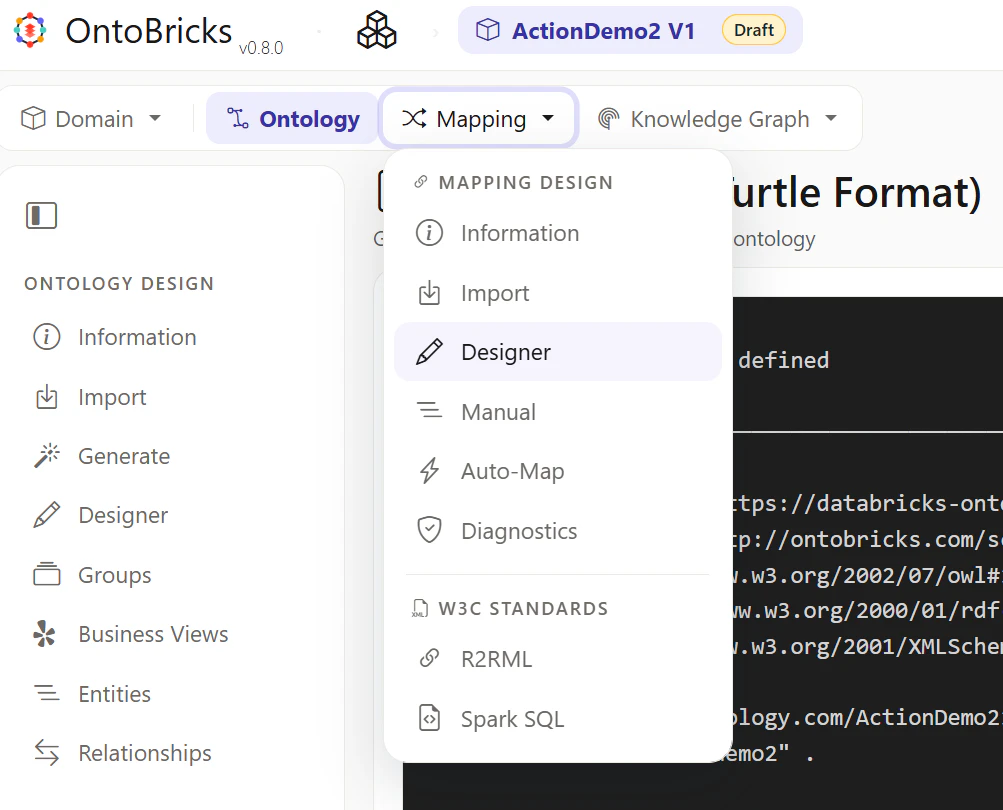
Mapping -> Designerを選択します。
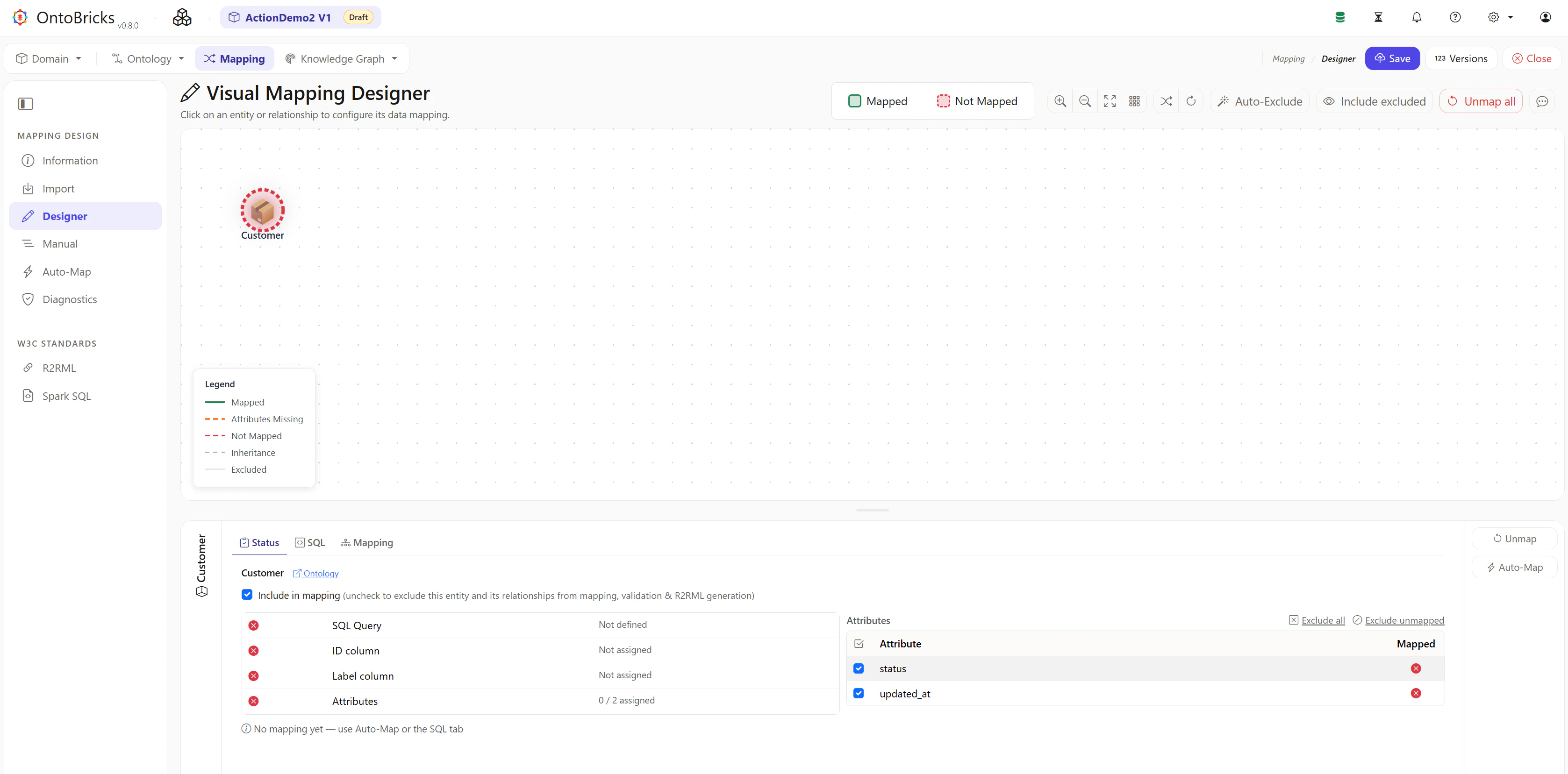
Customerを選択します。
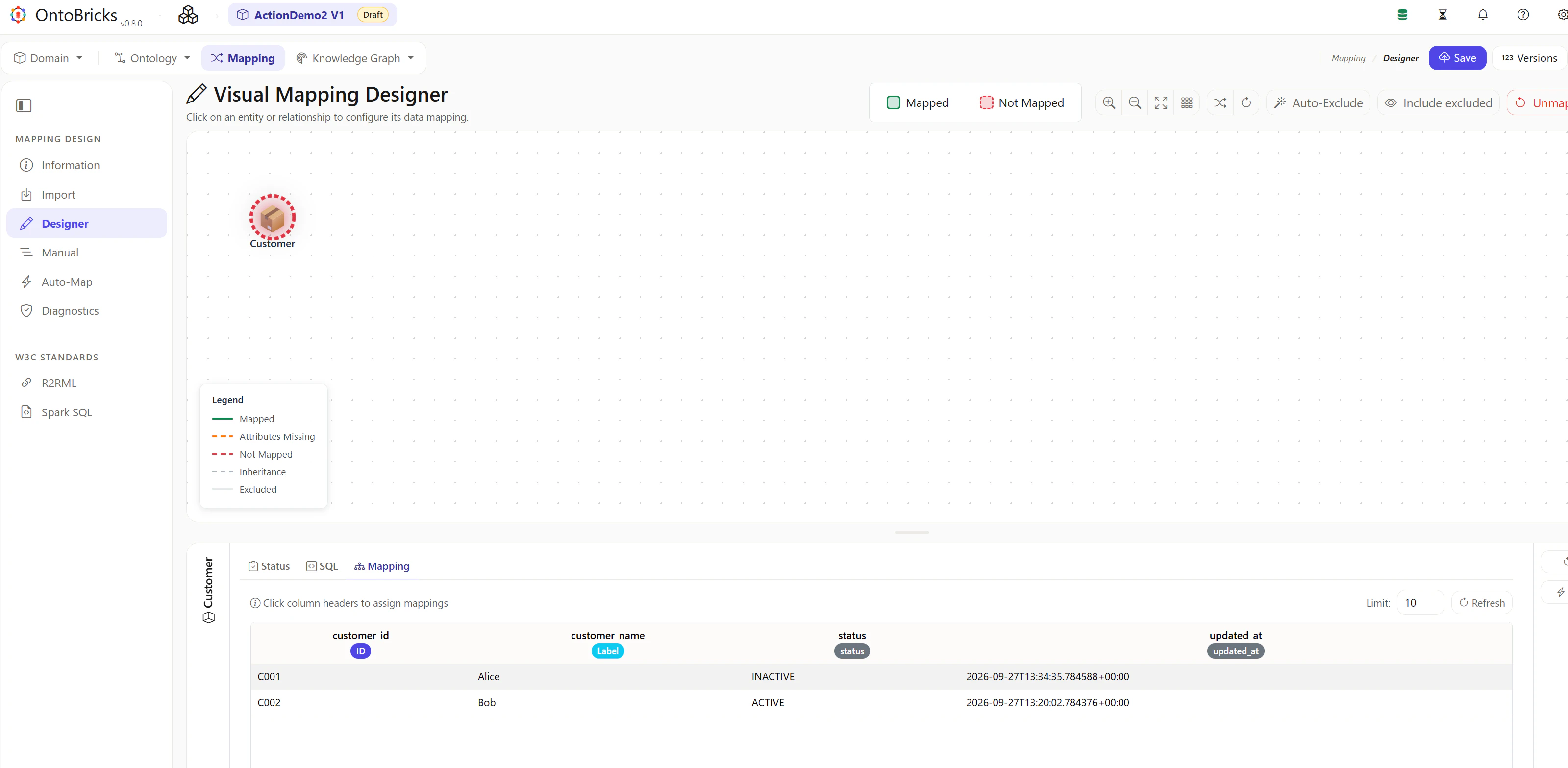
SQLタブに下記の SQL を入力し、Runを選択します。
SELECT
    customer_id,
    customer_name,
    status,
    updated_at
FROM ontobricks.action_demo_02.customer

Mappingタブにて適切に設定されていることを確認します。
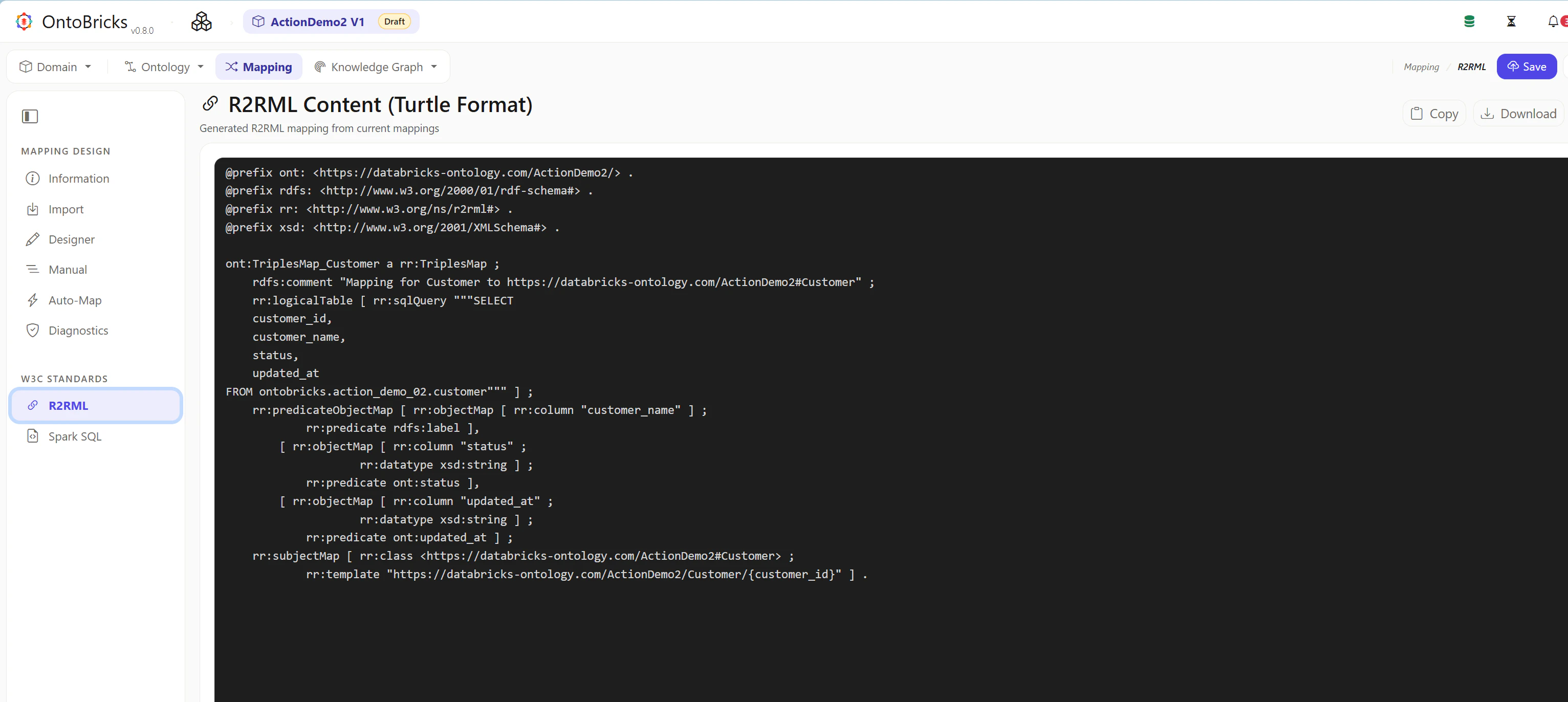
R2RMLタブを選択して、下記のように設定されていることを確認します。
@prefix ont: <https://databricks-ontology.com/ActionDemo2/> .
@prefix rdfs: <http://www.w3.org/2000/01/rdf-schema#> .
@prefix rr: <http://www.w3.org/ns/r2rml#> .
@prefix xsd: <http://www.w3.org/2001/XMLSchema#> .

ont:TriplesMap_Customer a rr:TriplesMap ;
    rdfs:comment "Mapping for Customer to https://databricks-ontology.com/ActionDemo2#Customer" ;
    rr:logicalTable [ rr:sqlQuery """SELECT
    customer_id,
    customer_name,
    status,
    updated_at
FROM ontobricks.action_demo_02.customer""" ] ;
    rr:predicateObjectMap [ rr:objectMap [ rr:column "customer_name" ] ;
            rr:predicate rdfs:label ],
        [ rr:objectMap [ rr:column "status" ;
                    rr:datatype xsd:string ] ;
            rr:predicate ont:status ],
        [ rr:objectMap [ rr:column "updated_at" ;
                    rr:datatype xsd:string ] ;
            rr:predicate ont:updated_at ] ;
    rr:subjectMap [ rr:class <https://databricks-ontology.com/ActionDemo2#Customer> ;
            rr:template "https://databricks-ontology.com/ActionDemo2/Customer/{customer_id}" ] .
Knowledge Graph の設定
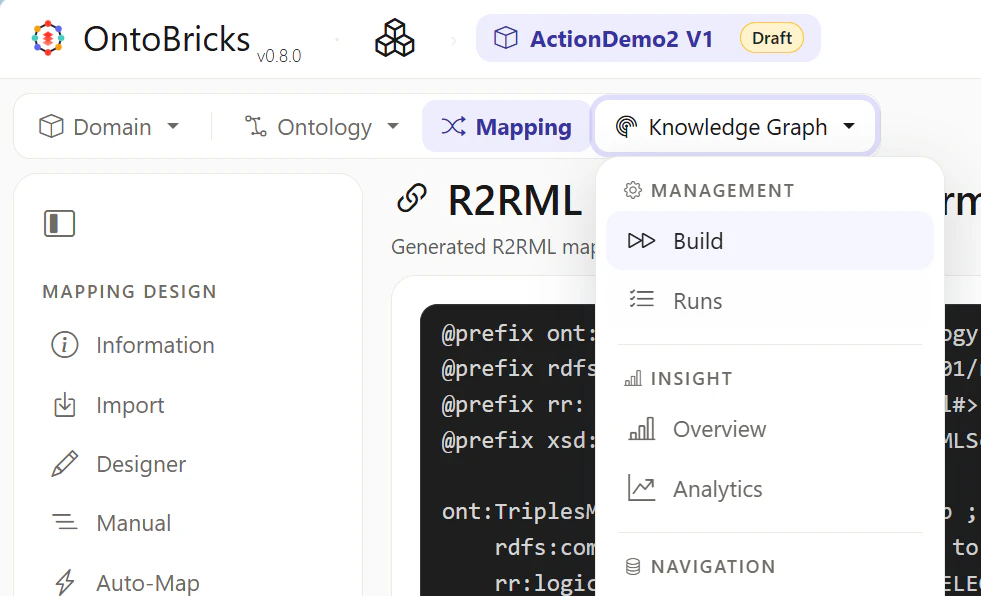
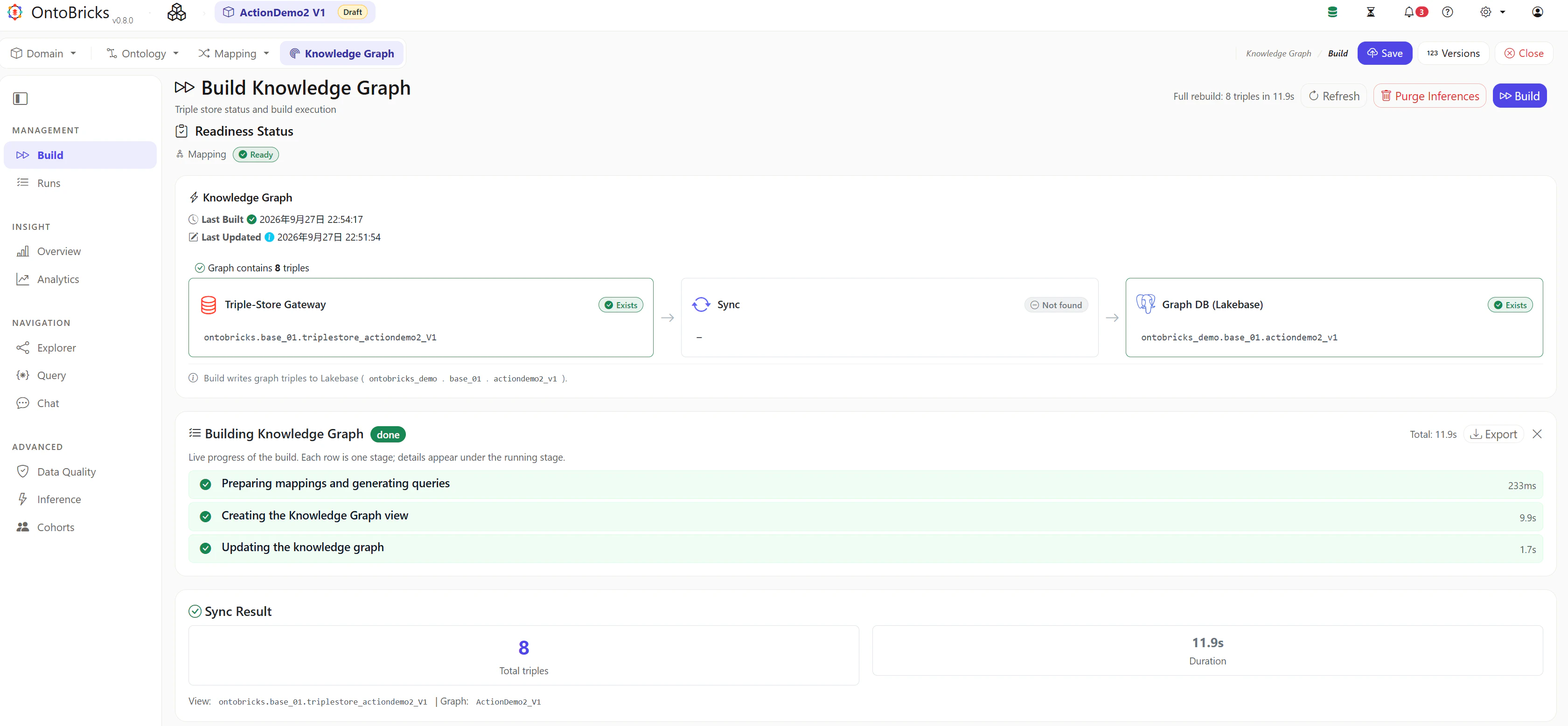
Knowledge Graph -> Buildを選択します。
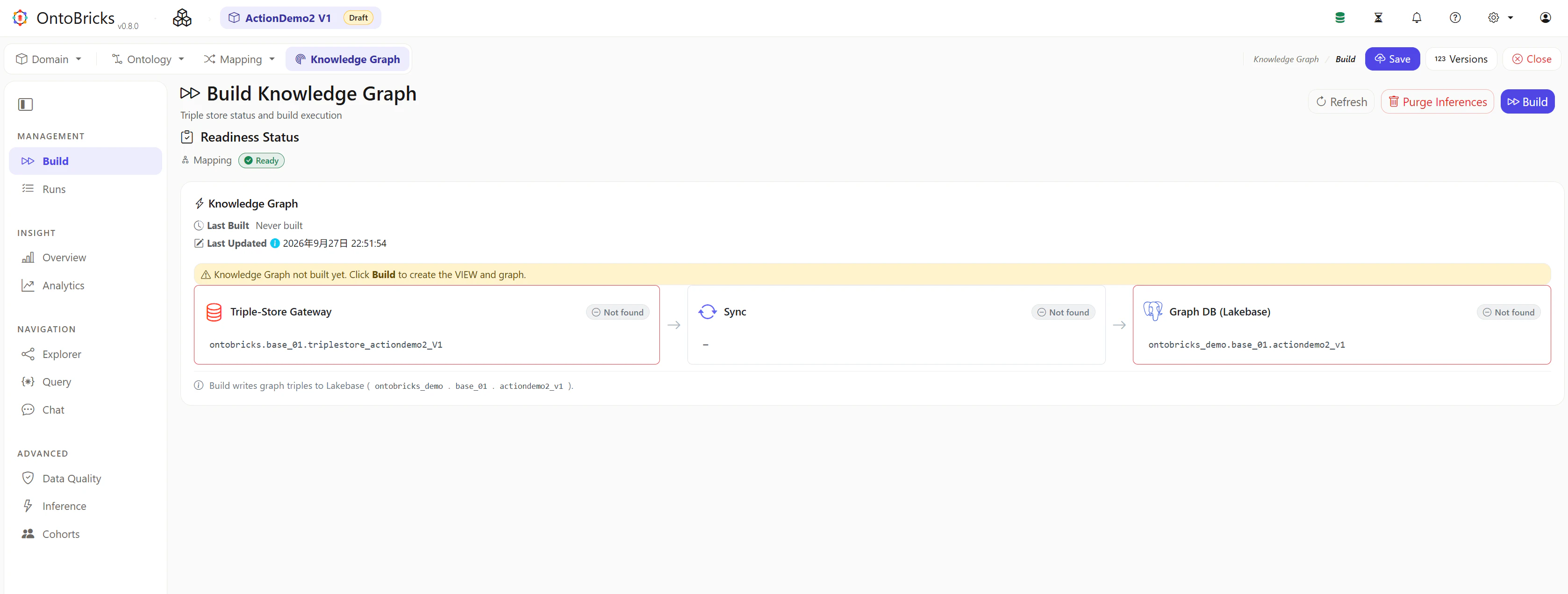
Buildを選択します。
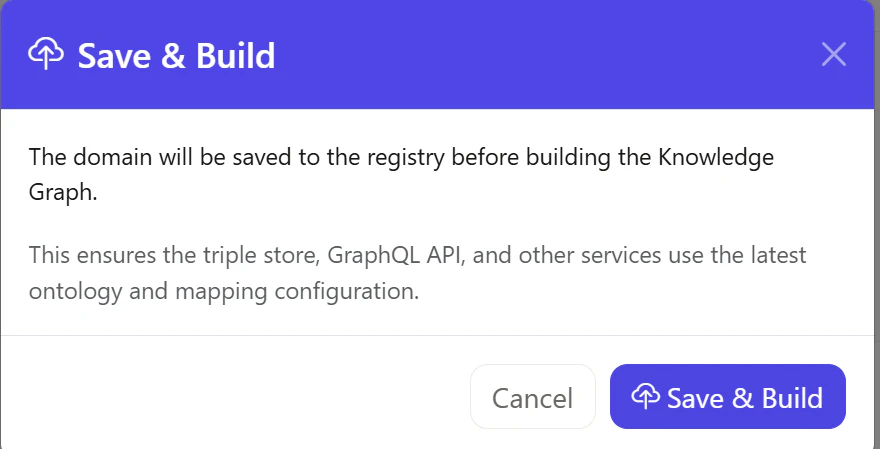
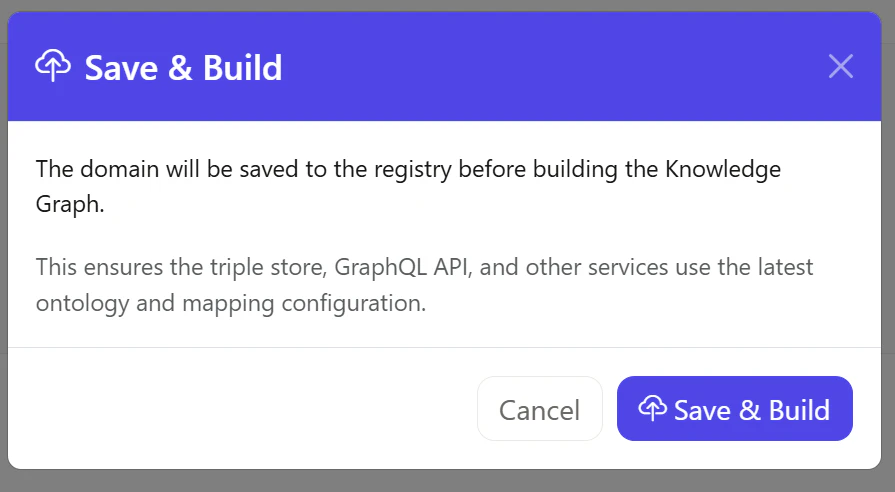
Save & Buildを選択します。
ビルドが完了したことを確認します。
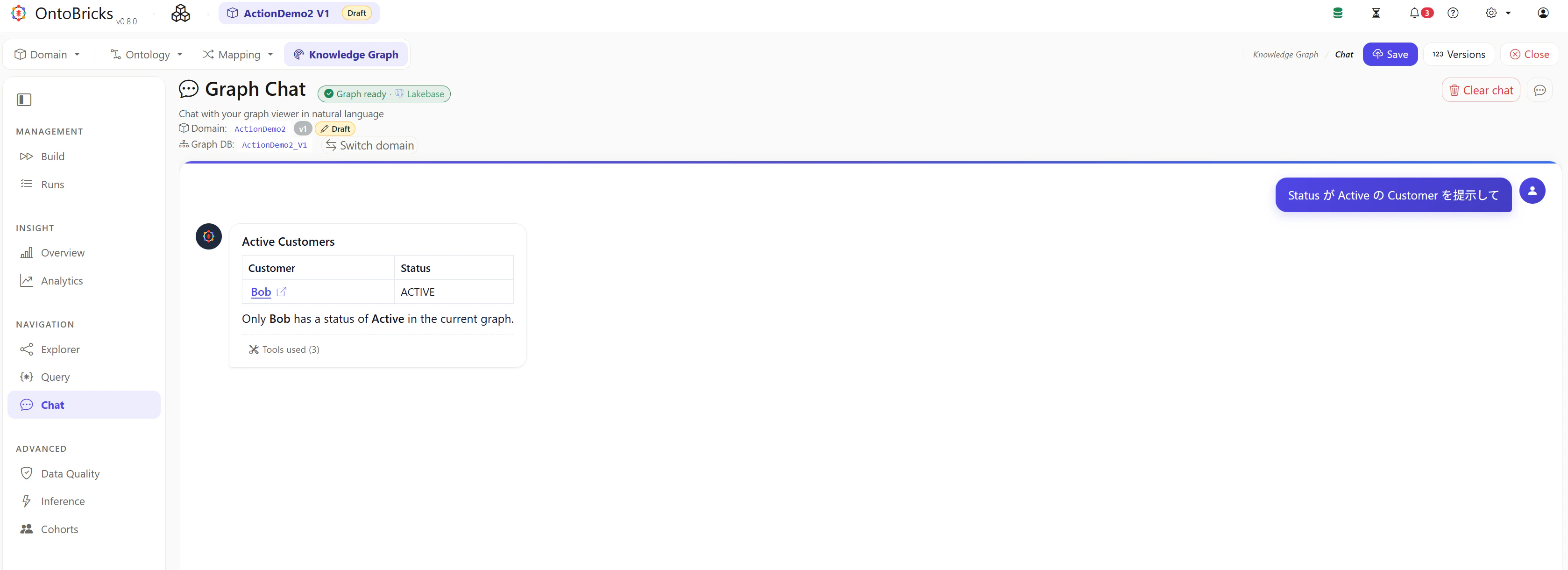
Graph Chat にてデータ更新の Action を実行
Status が Active の Customer を提示してと質問します。
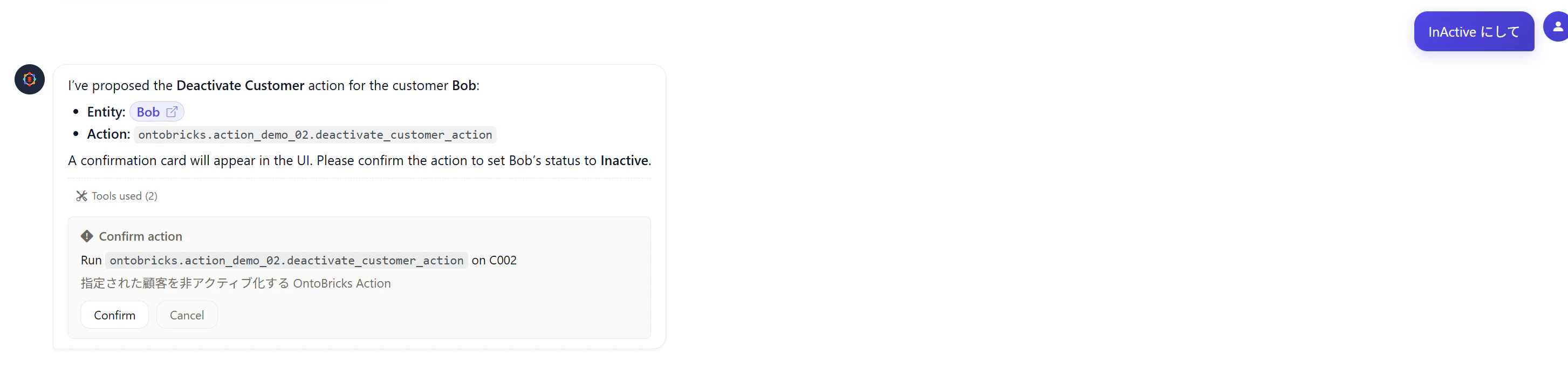
InActive にしてと質問し、Confirmを選択します。
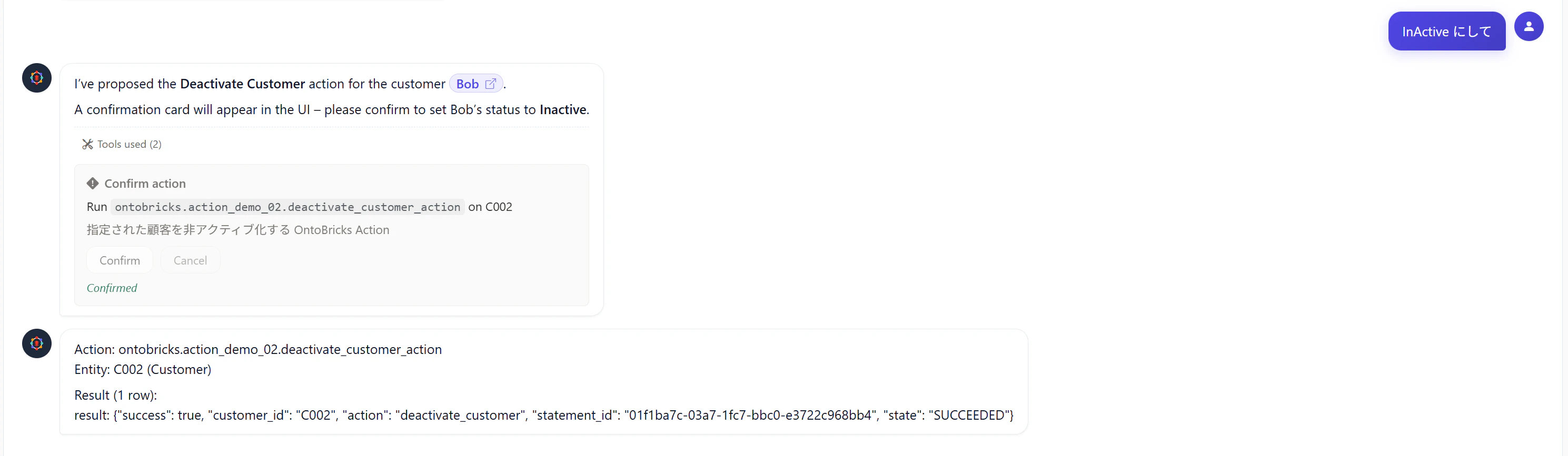
Action が成功することを確認します。
Action: ontobricks.action_demo_02.deactivate_customer_action
Entity: C002 (Customer)Result (1 row):
result: {"success": true, "customer_id": "C002", "action": "deactivate_customer", "statement_id": "01f1ba7c-03a7-1fc7-bbc0-e3722c968bb4", "state": "SUCCEEDED"}
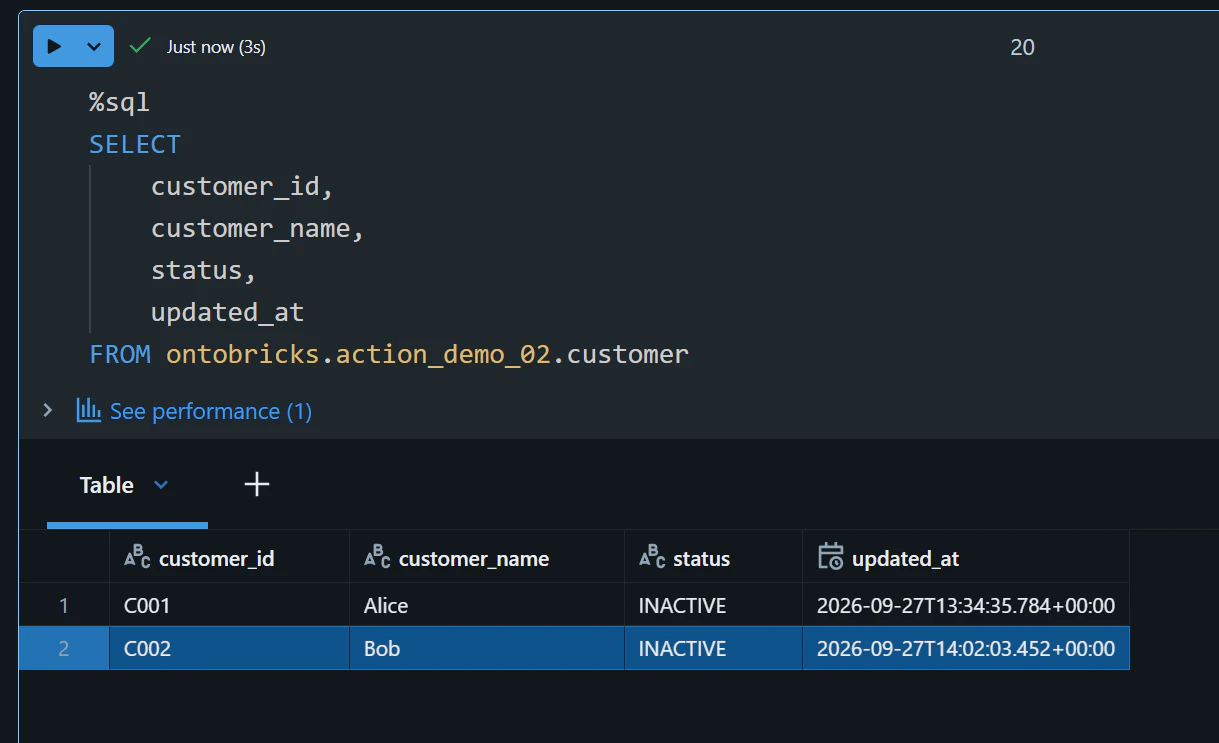
customer_idがC002のレコードのstatusがINACTIVEとなっていることを確認します。
%sql
SELECT
    customer_id,
    customer_name,
    status,
    updated_at
FROM ontobricks.action_demo_02.customer
課題
Action 実行後に Knowledge Graph のデータとテーブルのデータが不整合となる事象
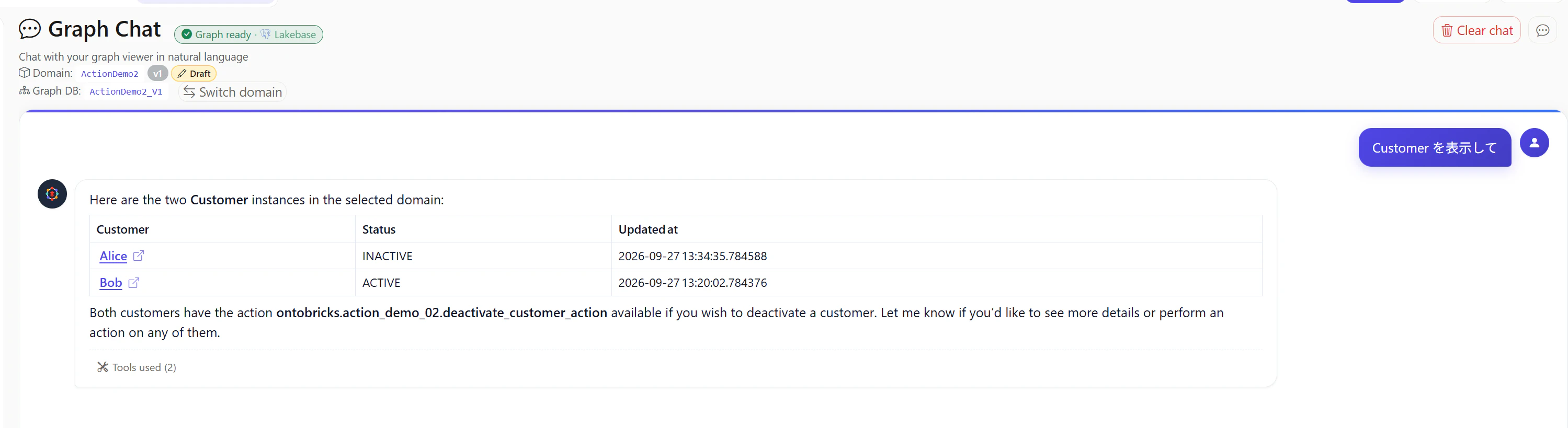
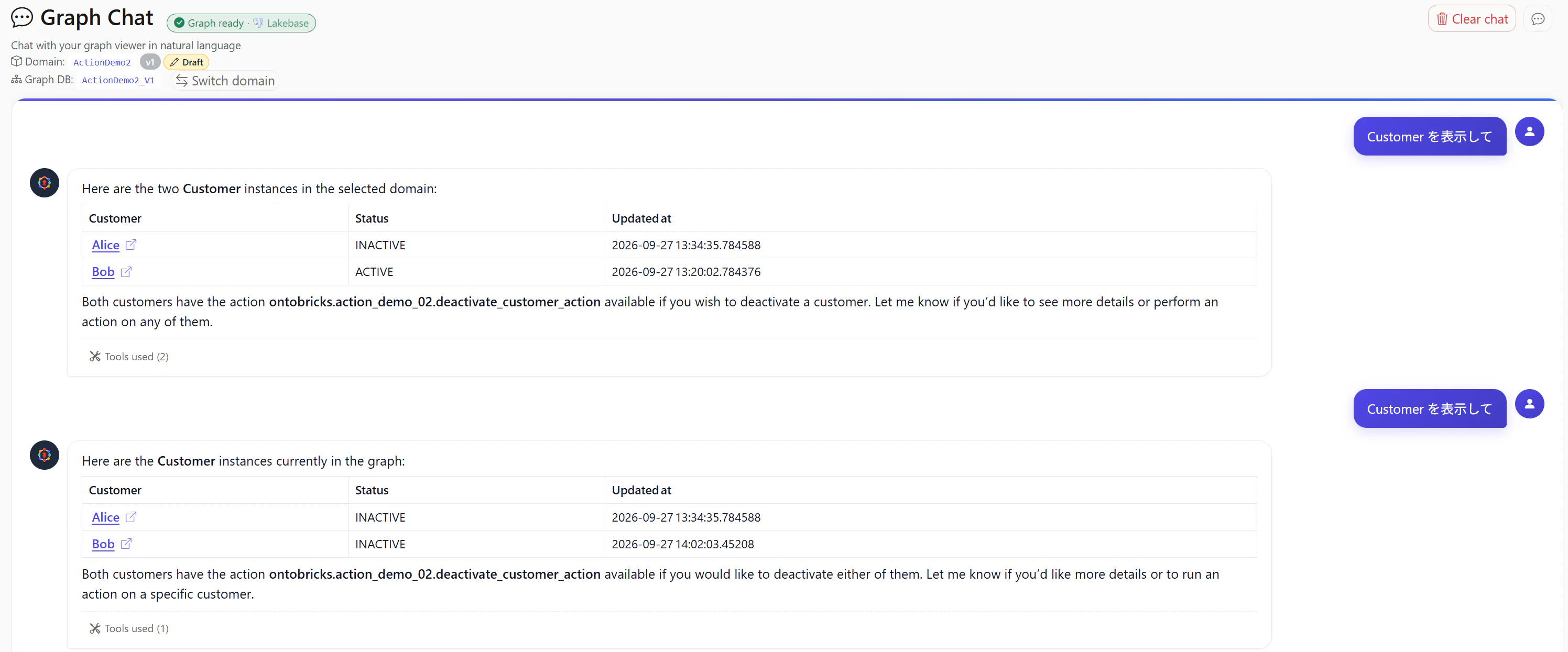
テーブル上のデータが更新された後でも、OntoBricks 上でCustomerのデータを表示すると、customer_idがC002のレコードのstatusがACTIVEのままとなっています。
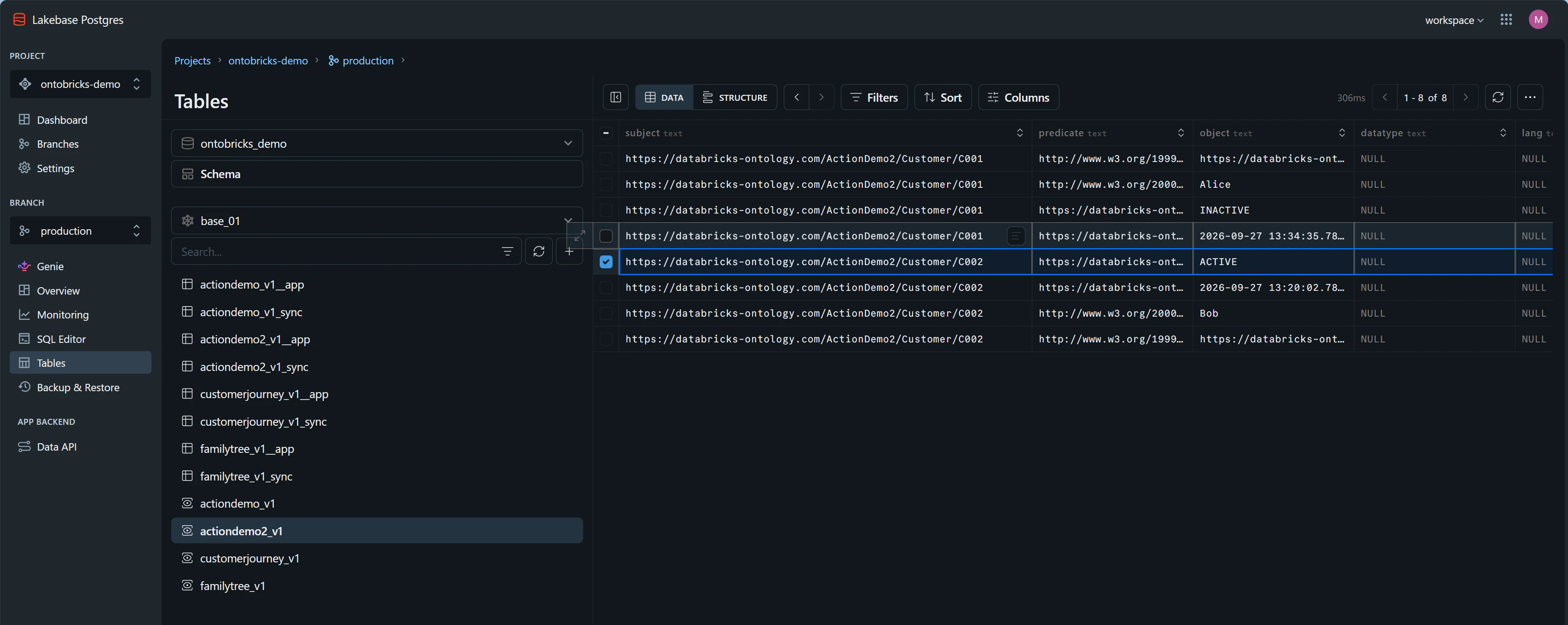
Lakebase にてactiondemo2_v1テーブルのデータを確認すると、ACTIVEのままとなっていることを確認できます。
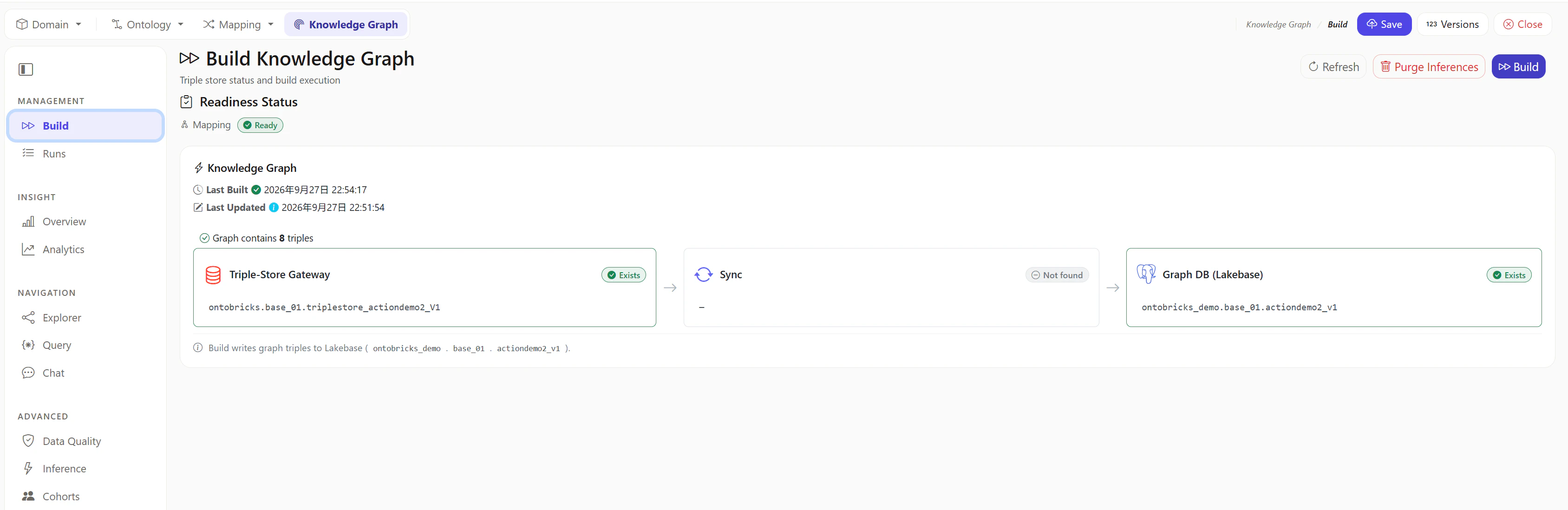
Knowledge Graph を再度ビルドします。
再度質問すると、INACTIVEが返されることを確認できます。
Lakebase でも同様にINACTIVEとなっていることを確認できます。