

Click here for the Japanese version of this article.
Introduction
If you're using Microsoft Entra Global Secure Access (GSA) – Internet Access, this guide shows how to enable and operate TLS Inspection in your environment.
TLS Inspection explained with a mail analogy

Without TLS Inspection
- The “envelope” (traffic) is sealed and encrypted.
- The “post office” (the network admin/GSA) cannot open it.
- Even if the letter is a scam, nobody notices.
→ Only destination checks (URL/domain-level control) are possible. The content is opaque, so auditing is not feasible.
With TLS Inspection
- The post office (GSA) securely opens the envelope once.
- It inspects the contents (URLs, files, prompts, etc.).
- If safe, it repackages and re-encrypts the envelope, then forwards it.
- If the content is phishing, malware, or otherwise harmful, it gets blocked.
→ Because the content is visible, advanced actions like threat evaluation, AI prompt inspection, and file analysis become possible.
In short, TLS Inspection in GSA performs secure TLS interception: GSA decrypts HTTPS traffic, inspects it, and re‑encrypts it before forwarding. This enables granular governance and advanced protection while maintaining end‑to‑end control.
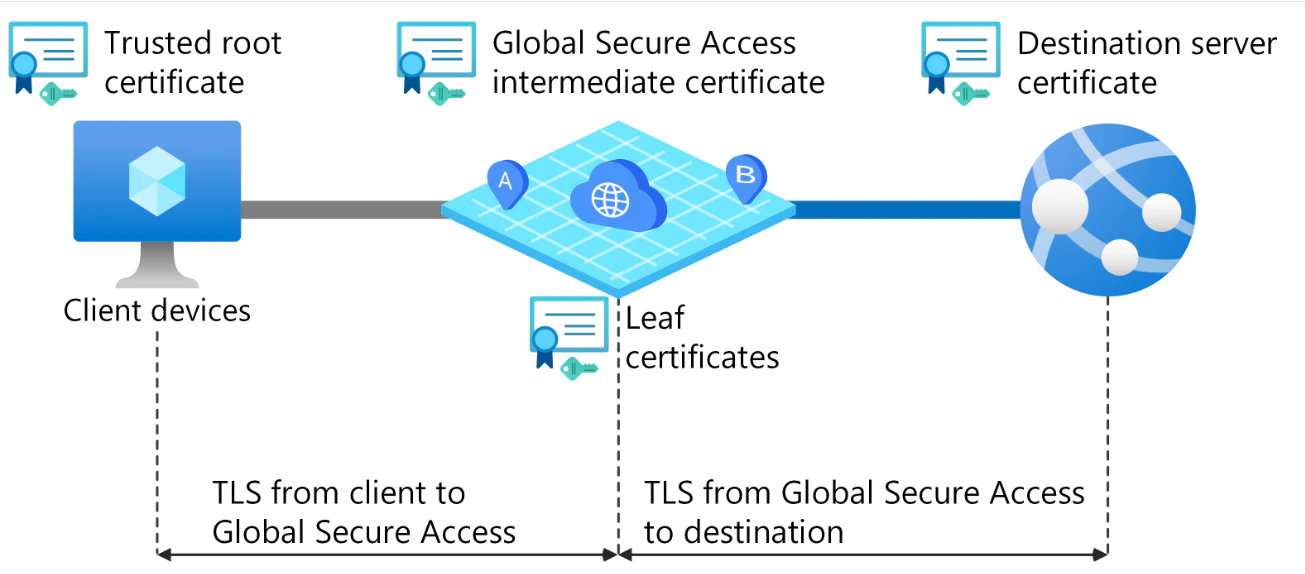
Diagram excerpted from the following resources:
What is Transport Layer Security inspection?
https://learn.microsoft.com/en-us/entra/global-secure-access/concept-transport-layer-security?wt.mc_id=MVP_407731
Microsoft Entra Blog: TLS Inspection now in Microsoft Entra Internet Access
https://techcommunity.microsoft.com/blog/microsoft-entra-blog/tls-inspection-now-in-microsoft-entra-internet-access/4395972
Note
Enabling TLS Inspection by itself gives you visibility into encrypted traffic (auditing).
To take actions (e.g., block), combine TLS Inspection with the policy types below.
| Policy Type | TLS Inspection Required? | Why |
|---|---|---|
| Web Content Filtering | Recommended | HTTPS URL categorization requires decryption |
| Threat Intelligence Policies | Required | Improves detection for malicious URLs and C2 communication |
| File Policies | Required | Needed to inspect file contents |
| Prompt Policies | Recommended | URL-level blocking works without TLS; Prompt Shield requires decrypted content |
| Threat Protection Policies | Recommended | Without TLS you can only control URL/domains; with TLS you gain layered inspection |
| Netskope DLP Policies | Not required | Decryption happens on the Netskope side |
| Cloud Firewall Policies | Not required | Layer 3/4 controls only |
In other words, TLS Inspection is effectively a prerequisite to get full value from the first five policy types above.
Prerequisites
To configure TLS Inspection for GSA, ensure the official prerequisites are met:
Official reference: Prerequisites
https://learn.microsoft.com/en-us/entra/global-secure-access/how-to-transport-layer-security-settings?wt.mc_id=MVP_407731#prerequisites
Summarized:
- Certificate Authority (CA)
- Microsoft Entra Internet Access license
- Global Secure Access prerequisites
1) Certificate Authority
This is often the most confusing part of a production rollout.
Microsoft’s documentation shows OpenSSL as a test option but doesn’t prescribe a production PKI.
A Public Key Infrastructure (PKI) service to sign the Certificate Signing Request (CSR) and generate an intermediate certificate for TLS inspection. For testing scenarios, you can also use a self-signed root certificate created with OpenSSL.
This guide uses Active Directory Certificate Services (AD CS) with production in mind.
Prepare a server and create a standalone CA (or, in an AD domain, an Enterprise CA is recommended) using the following article. If you already operate AD CS, you can reuse it.
Deploying Active Directory Certificate Services (AD CS)
https://qiita.com/carol0226/items/cb38ed3188c520bd9d64
2) Microsoft Entra Internet Access license
Configure GSA Internet Access following:
[GSA:Internet] Configure Microsoft Entra Internet Access
https://qiita.com/carol0226/items/ae2bfdb209170fb41bae
3) Global Secure Access prerequisites
Make sure all prerequisites are satisfied (it’s fairly extensive):
[GSA: Internet] How to Meet All Prerequisites for Internet Access
https://qiita.com/carol0226/items/29197f33c6537cd2b0e5
Certificate Creation and Deployment
We’ll proceed in this order:
- Create a CSR
- Sign the certificate using AD CS
- Upload the signed certificate
- Distribute the AD CS root certificate to clients
- Create a TLS Inspection policy
- Assign the TLS Inspection policy to a Security Profile
- Test the configuration
Reference
In my walkthrough, steps 1–3 are explained with manual procedures and screenshots.
Microsoft has since published a PowerShell-based end‑to‑end method (not tested here):
Generate and sign TLS certificates using AD CS with PowerShell
https://learn.microsoft.com/en-us/entra/global-secure-access/scripts/powershell-active-directory-certificate-service?wt.mc_id=MVP_407731
1. Creating the CSR
For TLS Inspection to function, GSA must operate as an intermediate certificate authority, issuing on‑the‑fly server certificates for inspected HTTPS sessions.
To enable this, you must generate a Certificate Signing Request (CSR) in GSA and have it signed by your upstream CA (AD CS).
Key point
Client devices trust your organization’s root CA.
Once GSA is recognized as a subordinate CA, any certificate it issues during TLS interception is automatically trusted by clients.
Official reference:
Create a CSR and upload the signed certificate
https://learn.microsoft.com/en-us/entra/global-secure-access/how-to-transport-layer-security-settings?wt.mc_id=MVP_407731#global-secure-access-admin-create-a-csr-and-upload-the-signed-certificate-for-tls-termination
Steps
-
Sign in to the Microsoft Entra admin center as a Global Secure Access Administrator:
https://entra.microsoft.com -
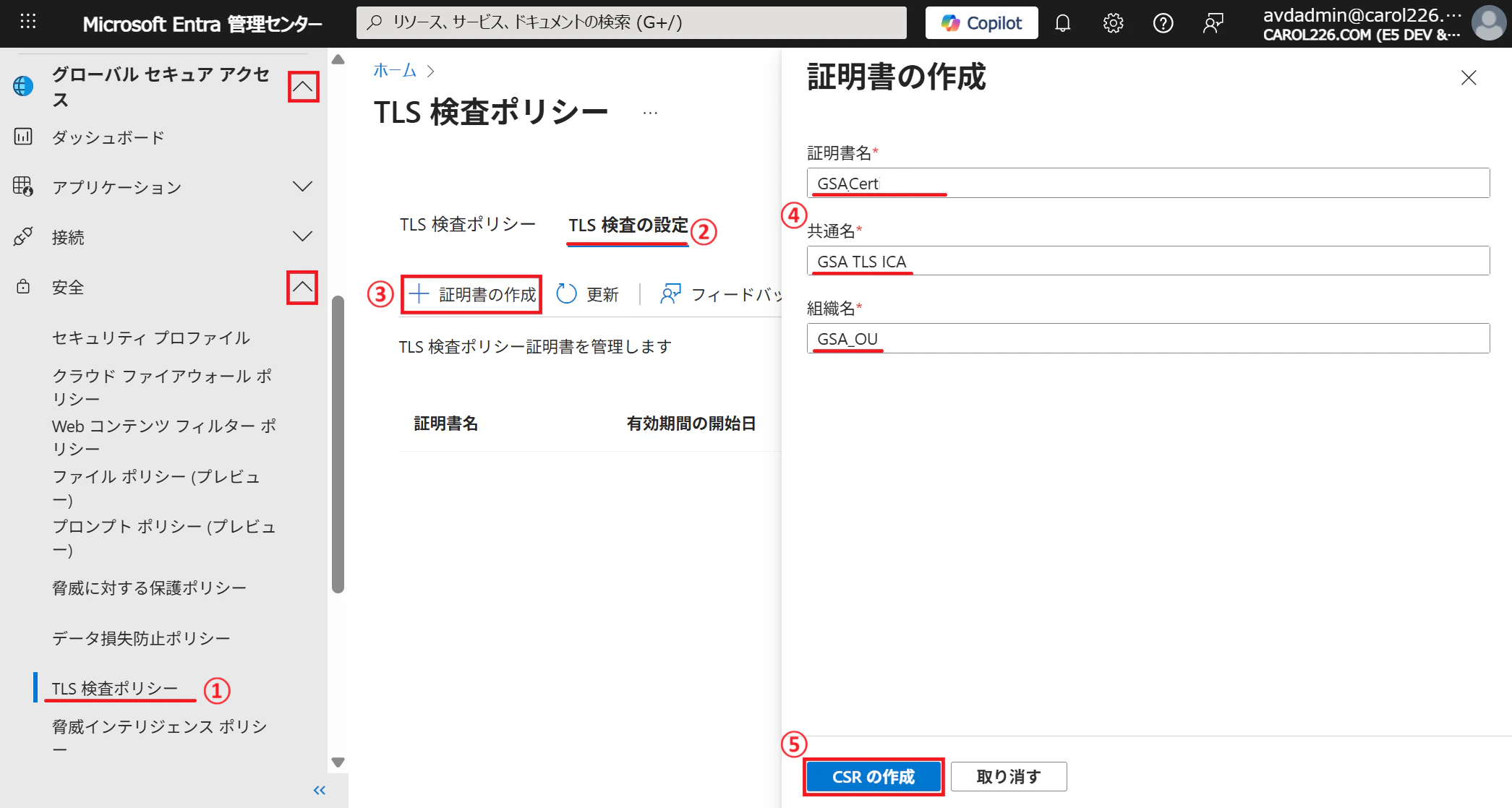
Follow these steps:
① From the left navigation, select TLS inspection policy
② Open the TLS inspection settings tab
③ Select + Create certificate
④ Fill in the following required fields:-
Certificate name:
Shown in certificate hierarchy views. Must be unique, without spaces, and ≤12 characters.
Note: You cannot reuse a deleted certificate name. -
Common Name (CN):
A meaningful name for your intermediate CA (e.g.,Contoso TLS ICA). -
Organization Unit (OU):
Example:Contoso IT.
⑤ Select Create CSR.
-
-
After creation, a notification appears:

A .csr file is downloaded:

You should now see the generated certificate entry listed:

2. Signing the Certificate Using AD CS
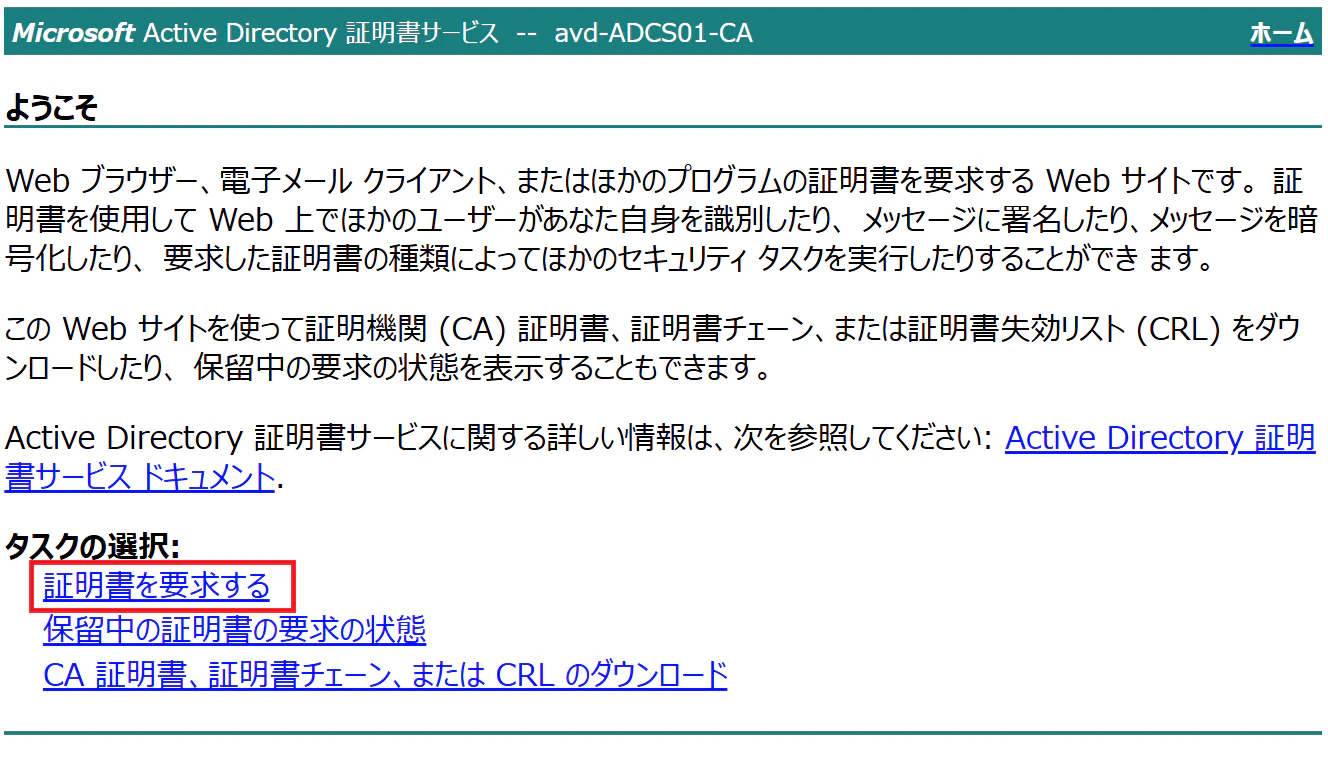
1 . Open your browser and navigate to:
http://<ADCS-server-ip>/certsrv
2 . When the page loads, select Request a certificate:
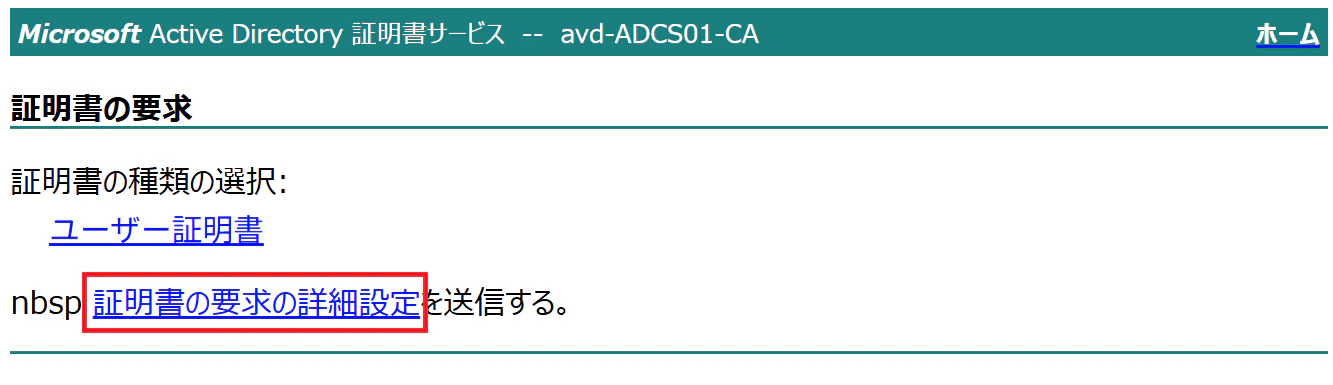
3 . Select advanced certificate request:
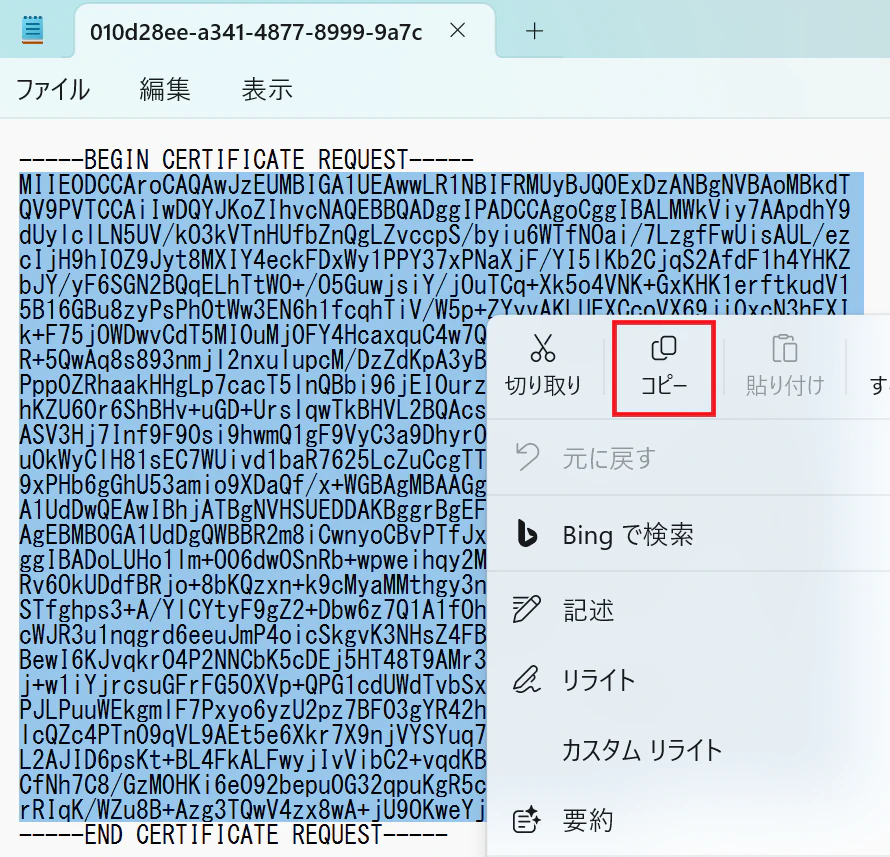
4 . Open the downloaded .csr file in Notepad and copy only the base64 body (exclude the BEGIN and END headers).
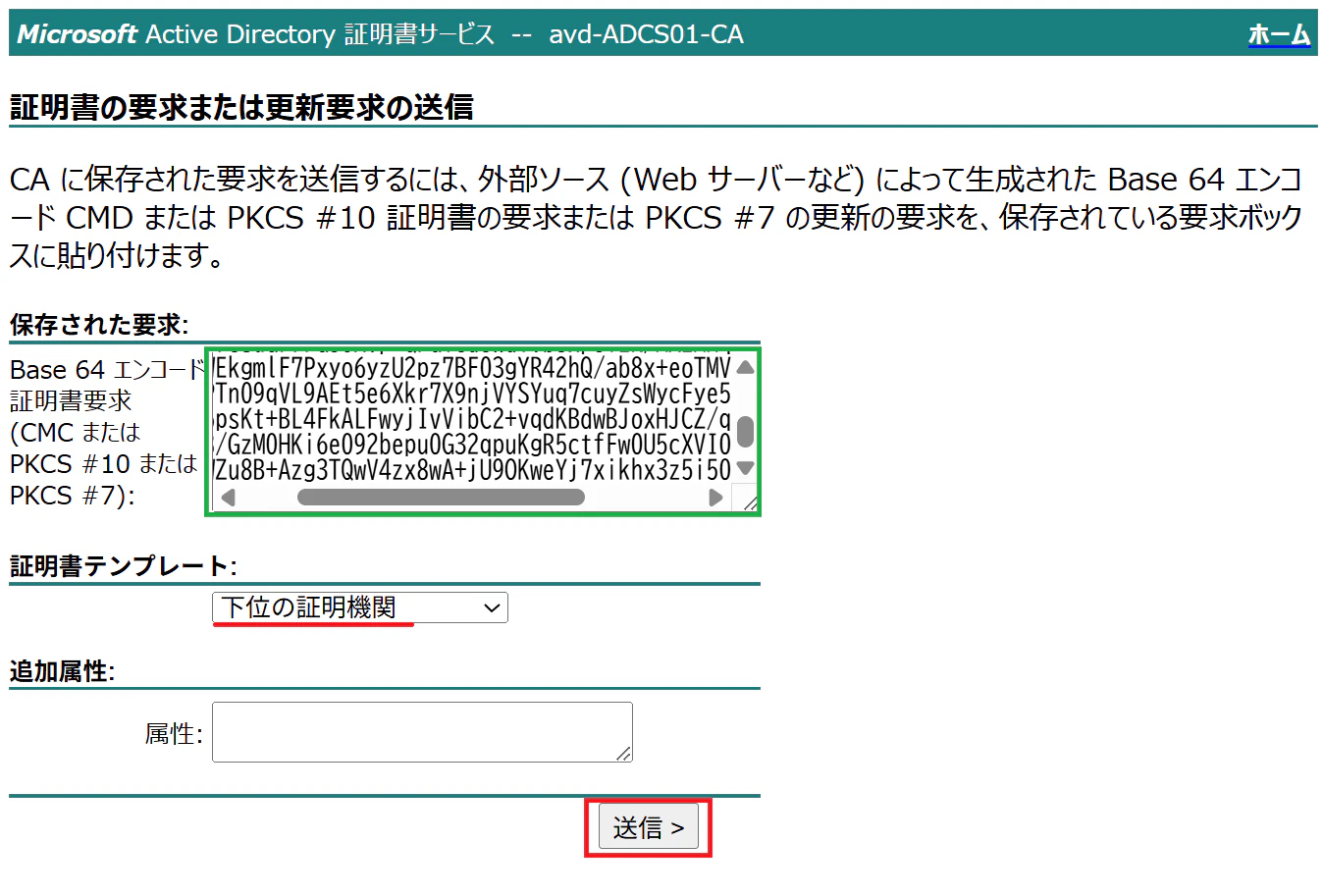
5 . Paste the CSR into the form, select the Subordinate Certification Authority template (must choice), then click Submit.
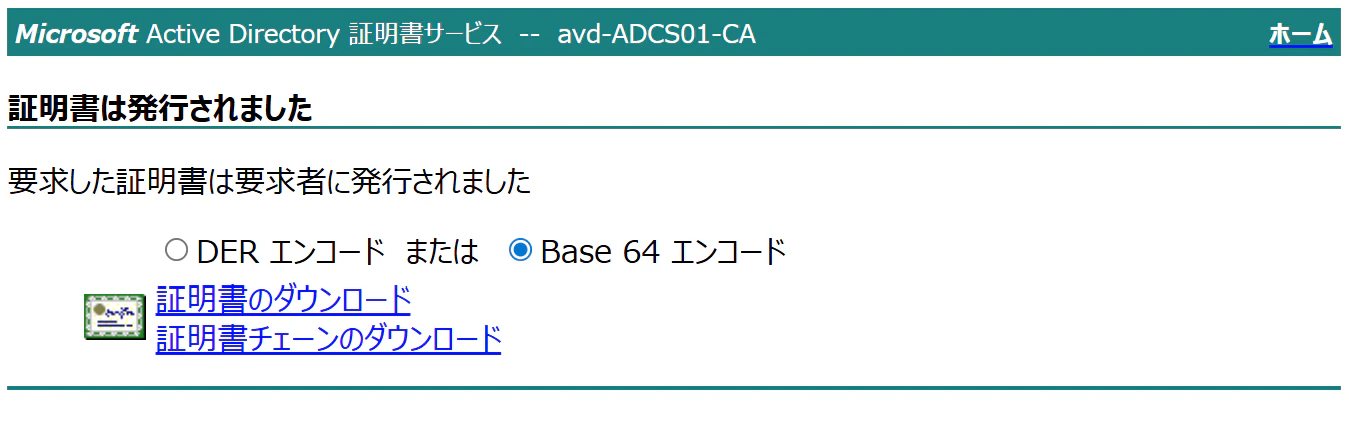
6 . Choose Base 64 encoded, then download both:
- The issued certificate
- The certificate chain
3. Uploading the Signed Certificate
The certificates downloaded from AD CS cannot be uploaded directly to GSA.
Important
AD CS outputs:
- Root certificate →
certnew.cer - Certificate chain →
certnew.p7b
GSA requires certificates in PEM (.pem) format.
Converting to PEM format
① Convert the root certificate
Copy certnew.cer and rename the file extension to .pem.
GSA accepts this file directly.
(Keep the .cer version as it will be needed later.)
② Convert and extract the certificate chain
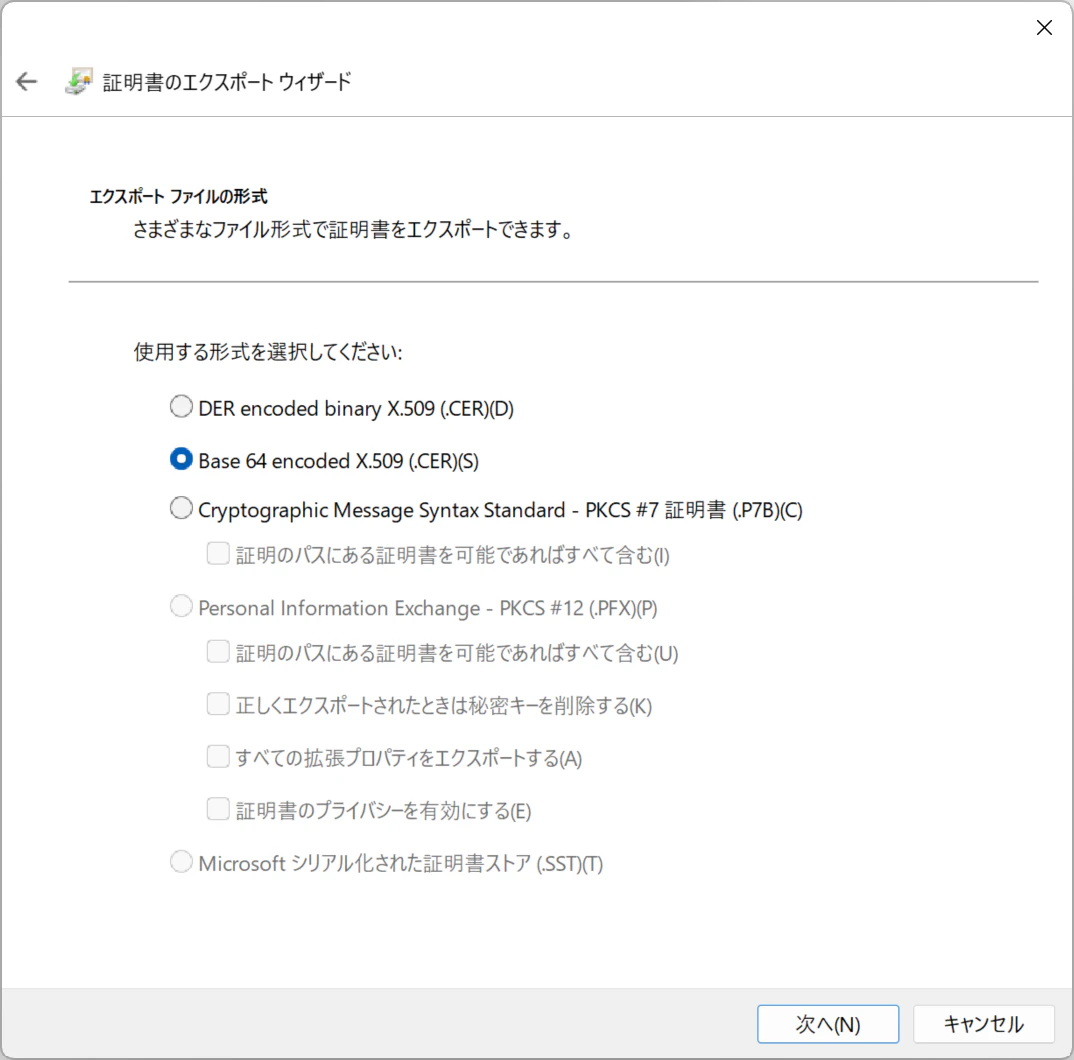
Open certnew.p7b. Export both certificates in Base 64 encoded .cer format.
First certificate (root):

Second certificate (intermediate):
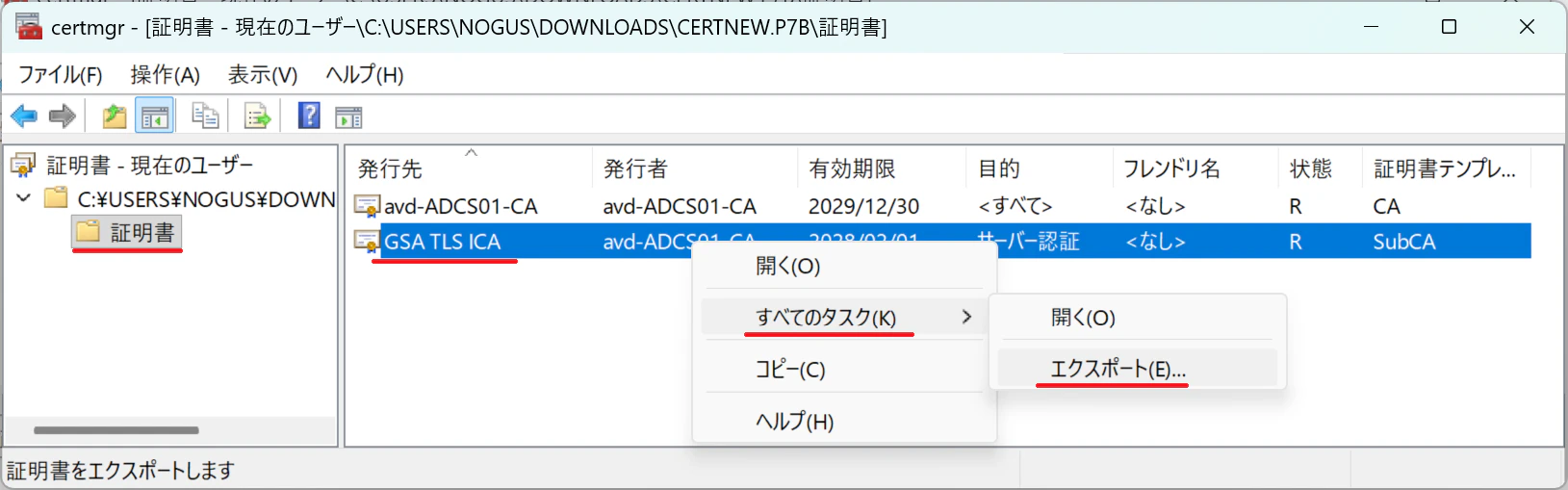
When exporting, ensure Base 64 is selected:
Save the certificates as .cer files:
Root certificate:
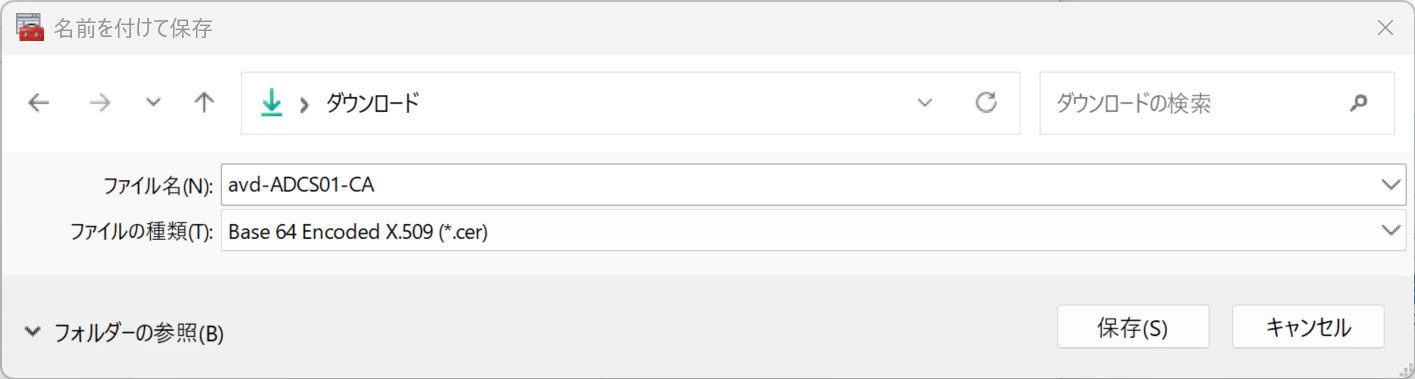
Intermediate certificate:

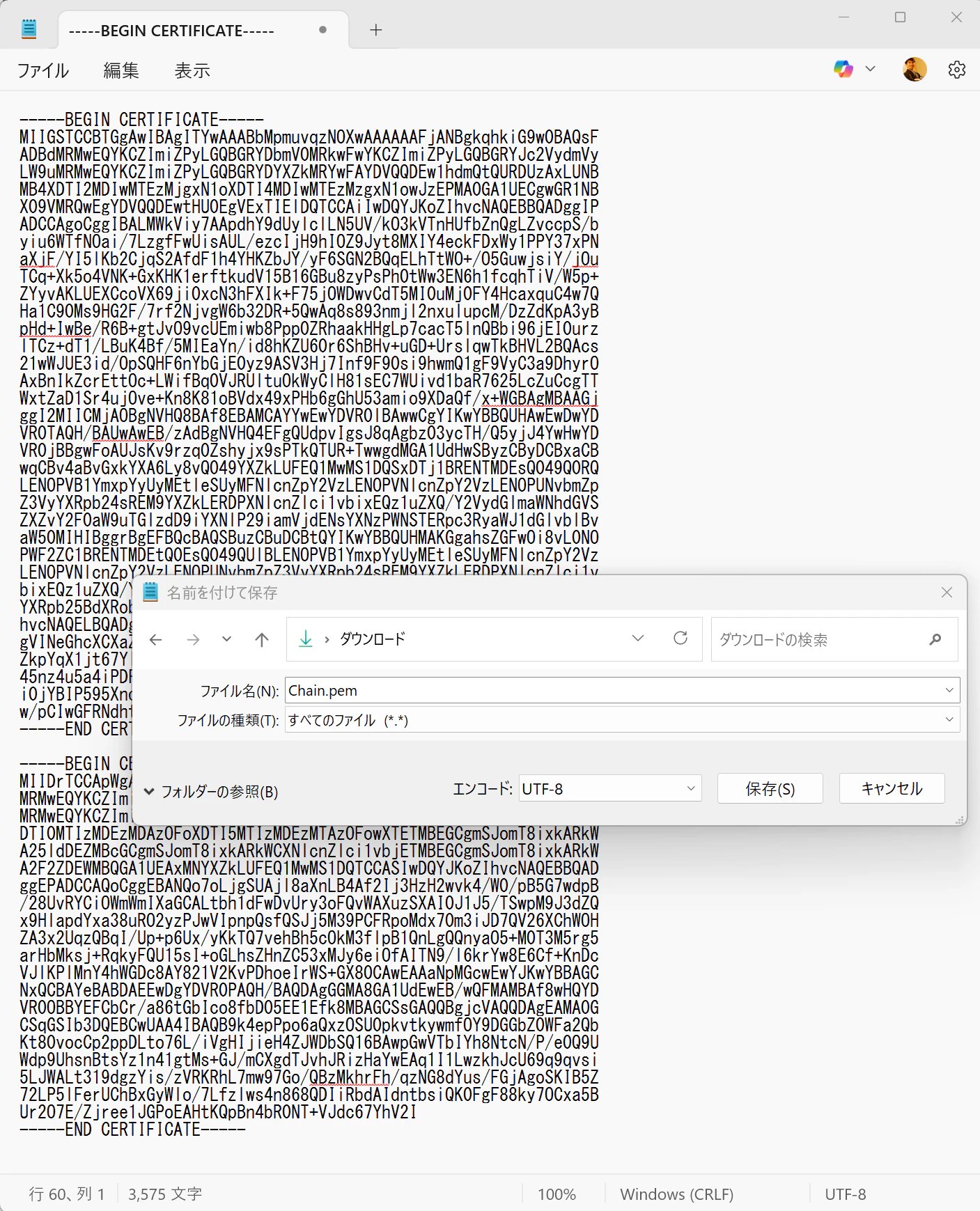
③ Create a combined certificate chain
Open a new Notepad file and paste both certificates back‑to‑back.
Save the file as Chain.pem.
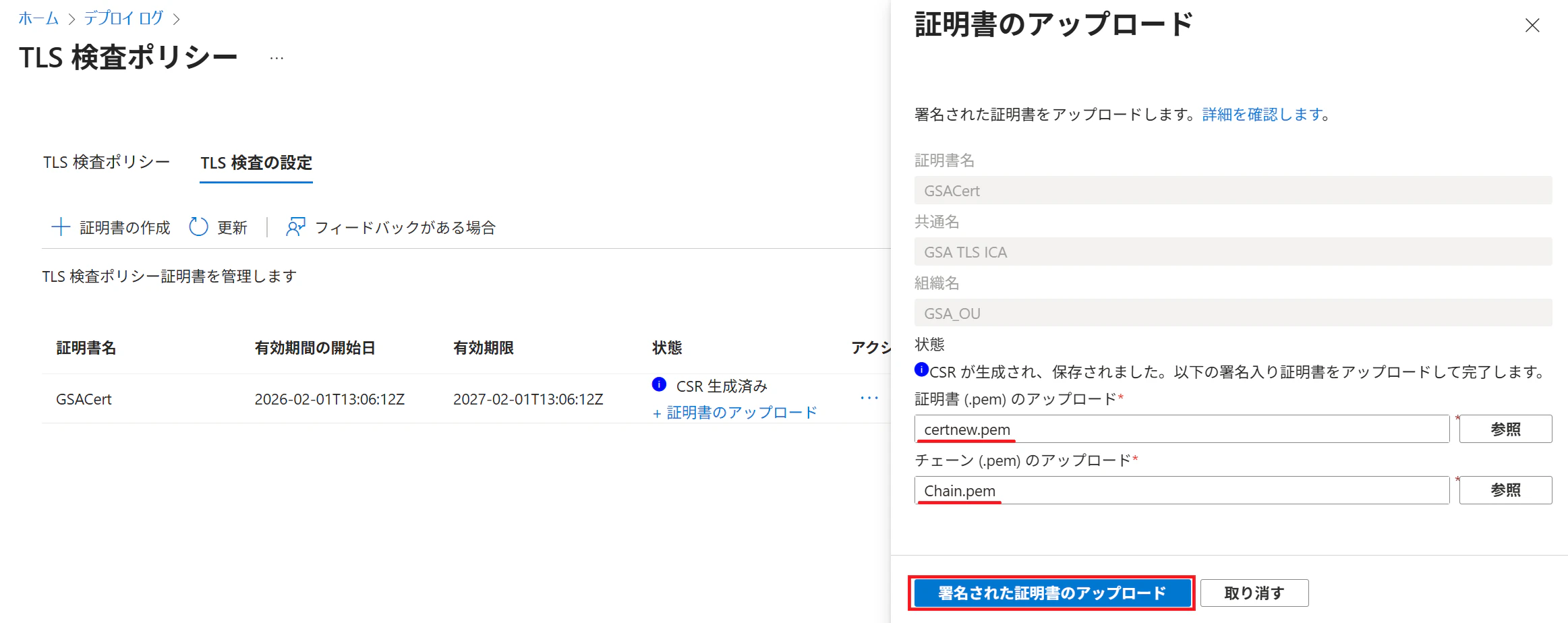
④ Upload the certificate to GSA
In the TLS Inspection Settings page, upload the .pem files and select Upload signed certificate.
A notification confirms a successful upload:
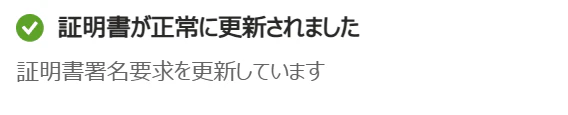
Initially, the certificate state shows Disabled.
From the action menu, select Enable.
It briefly enters the “Registering” state.

After enabling, the certificate becomes Enabled:

At this point, you can confirm that AD CS has issued the subordinate certification authority (SubCA) certificate as shown below.
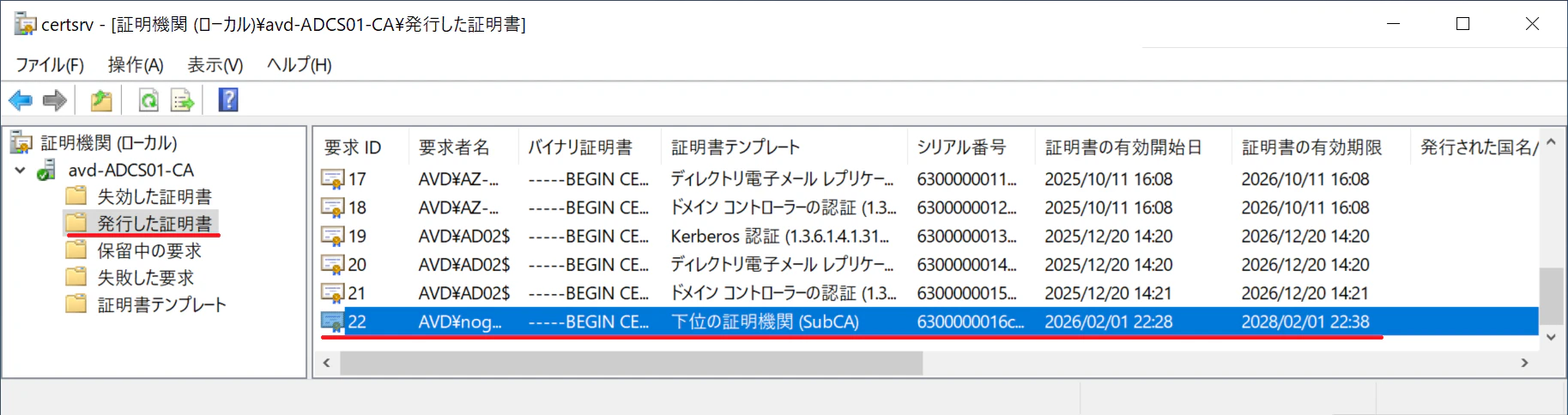
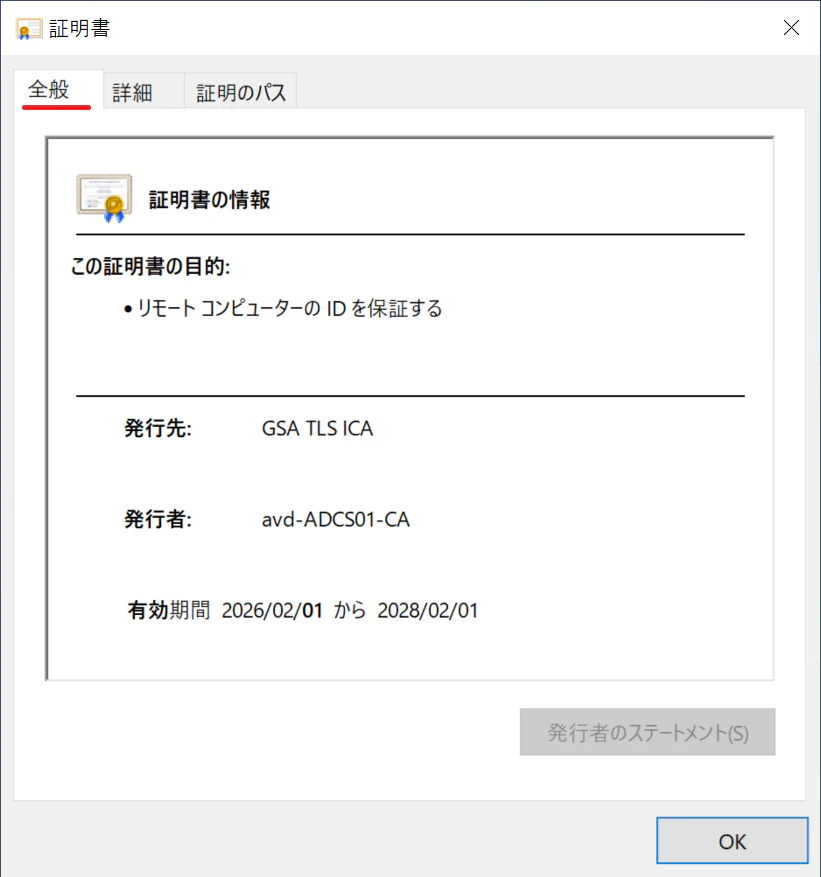
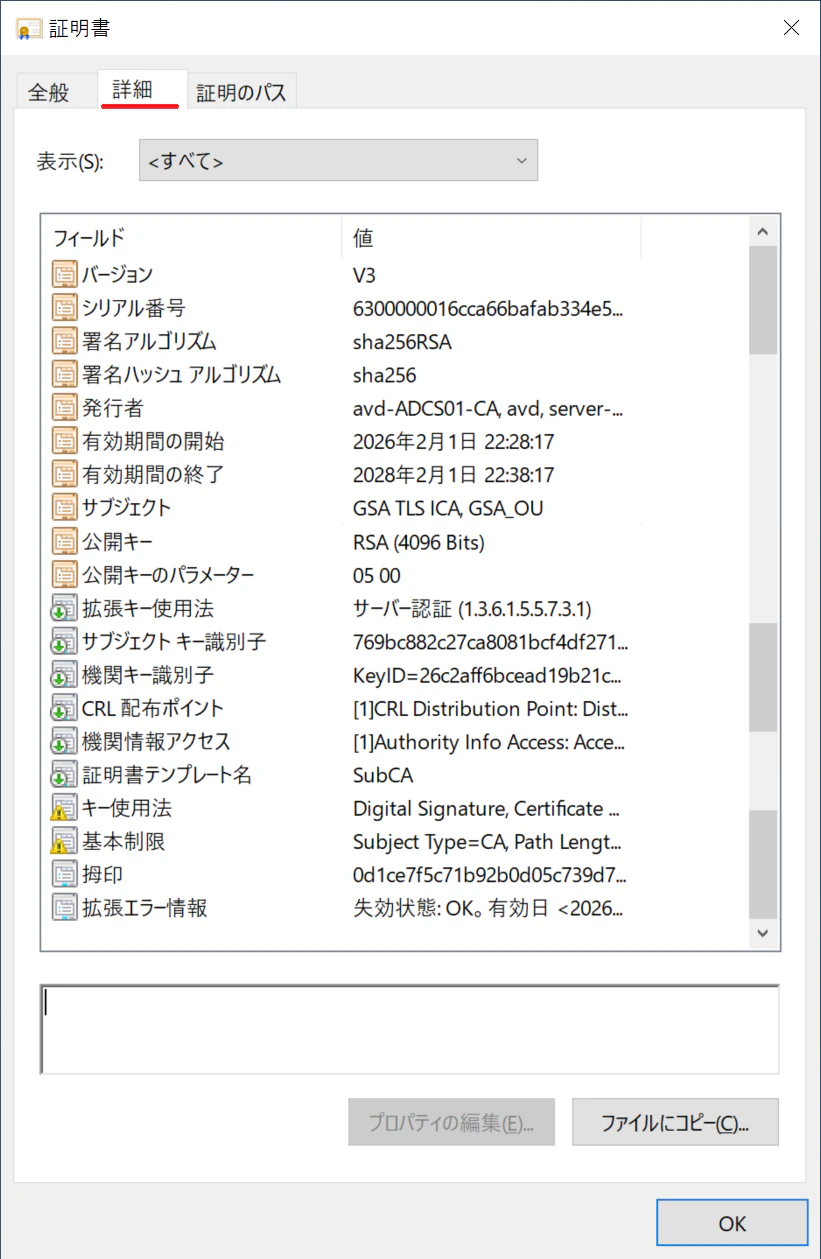
When you open the certificate by double‑clicking it, you can verify the following details.
General tab
Details tab
Certification Path tab
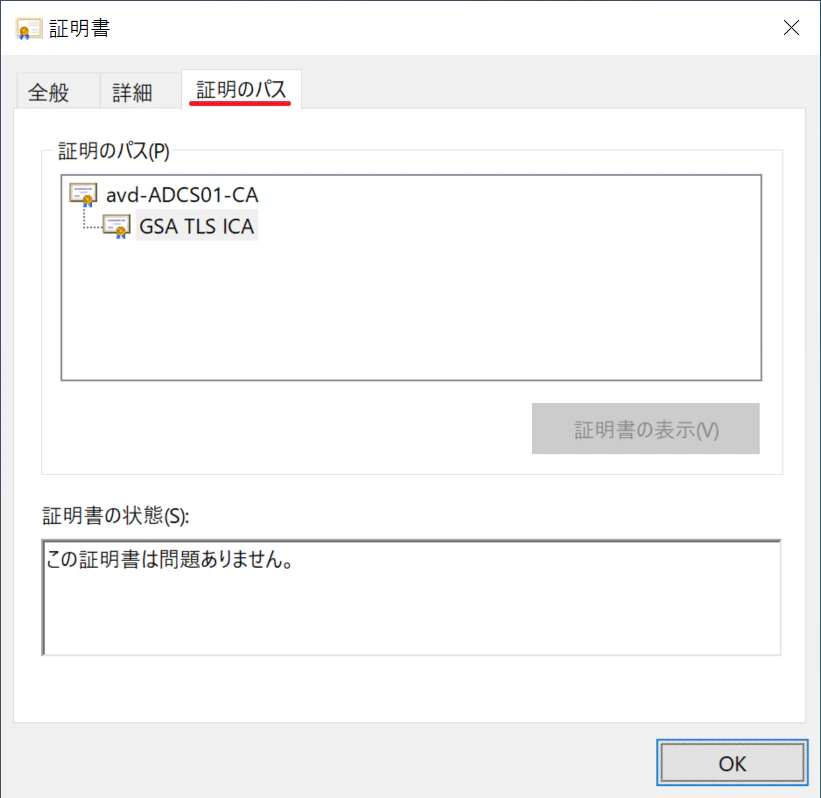
At this point, the intermediate CA configuration is complete.
4. Deploying the AD CS Root Certificate to Client Devices
Once the intermediate certificate is configured in GSA, client devices must trust the root certificate issued by your AD CS environment.
Below are the supported deployment options.
① Manual installation on a single client
For testing on an individual machine, follow the steps in the article below:
How to download and install the AD CS root certificate on a client PC
https://qiita.com/carol0226/items/33042c5c639c79832aeb
② Domain‑joined devices using an AD CS Enterprise CA
If you're operating an Enterprise CA, domain‑joined devices automatically receive the root certificate through Active Directory Group Policy.
No additional configuration is required.
③ Deploying the root certificate using Intune
For production environments with many devices, Intune distribution is recommended.
The following guide uses screenshots generated from this exact GSA setup, ensuring full consistency:
Deploying trusted root certificates with Intune
https://qiita.com/carol0226/items/6b016907fd41001ab305
Key point
Although GSA uses an intermediate certificate, client devices only need the root certificate.
If the root CA is trusted, the entire chain—including the GSA intermediate CA—is validated automatically.
Therefore, if your organization already distributes the root certificate, all you need to do is sign the CSR as a subordinate CA.
5. Creating a TLS Inspection Policy
Now that certificate trust is in place, the next step is to configure a TLS Inspection Policy in GSA.
Any category or URL marked as Inspect will have its HTTPS traffic decrypted and inspected.
Official reference:
Step 1: Create a TLS Inspection Policy
https://learn.microsoft.com/en-us/entra/global-secure-access/how-to-transport-layer-security?wt.mc_id=MVP_407731#step-1-global-secure-access-admin-create-a-tls-inspection-policy
Steps
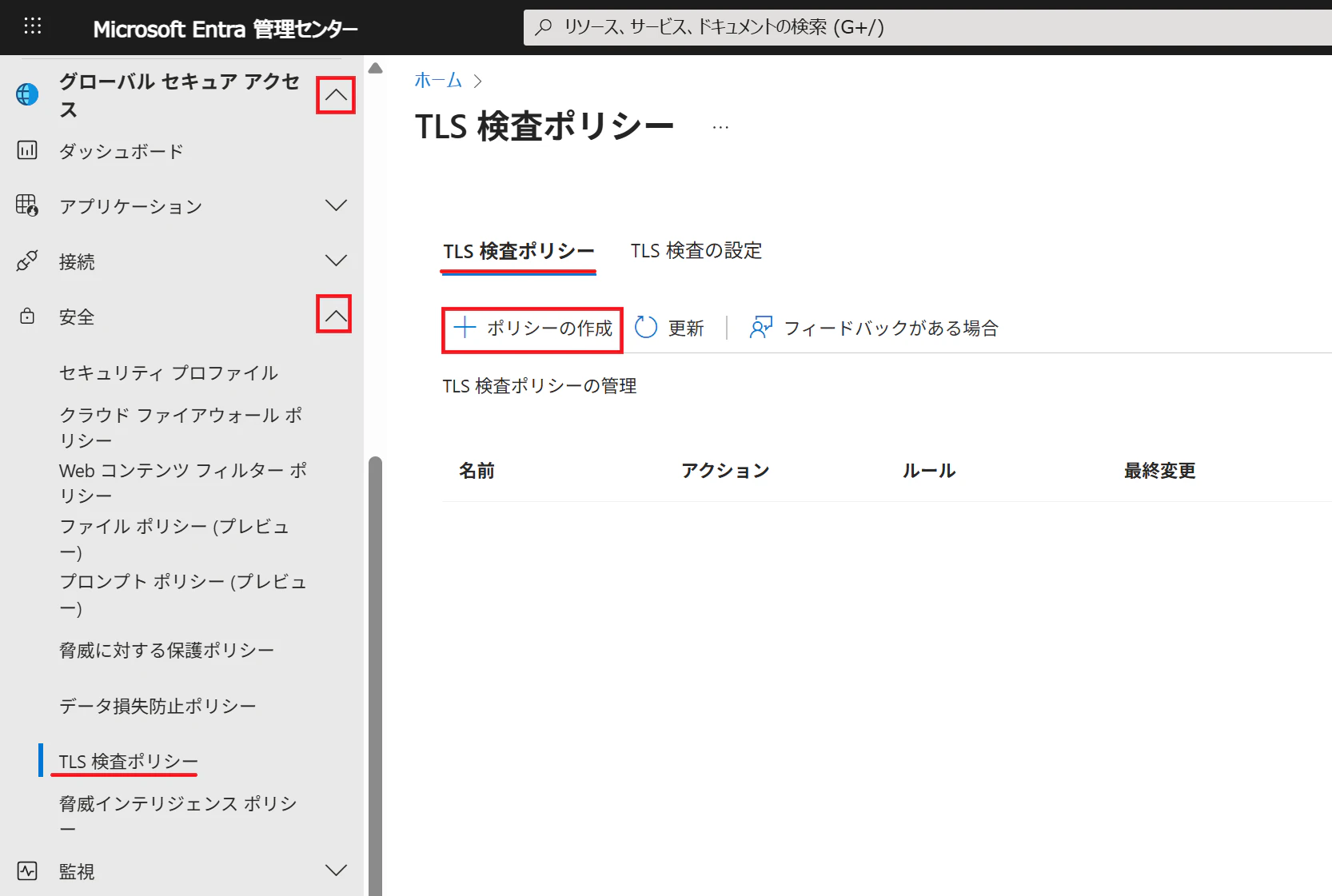
1 . In the Microsoft Entra admin center, open Global Secure Access → Secure → TLS inspection policy, then select + Create policy.
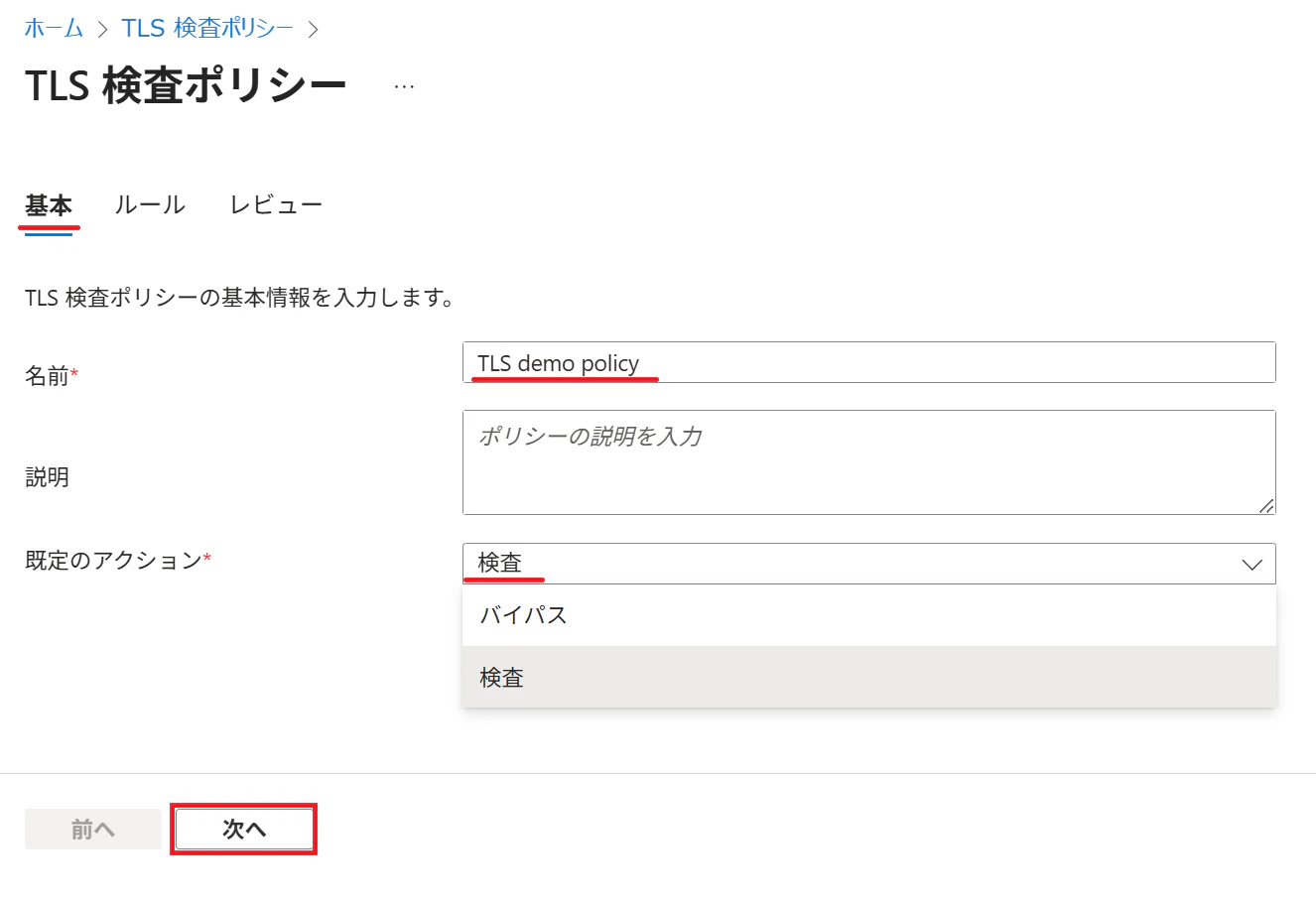
2 . In the Basics tab, enter a descriptive name and set the action to Inspect, then select Next.
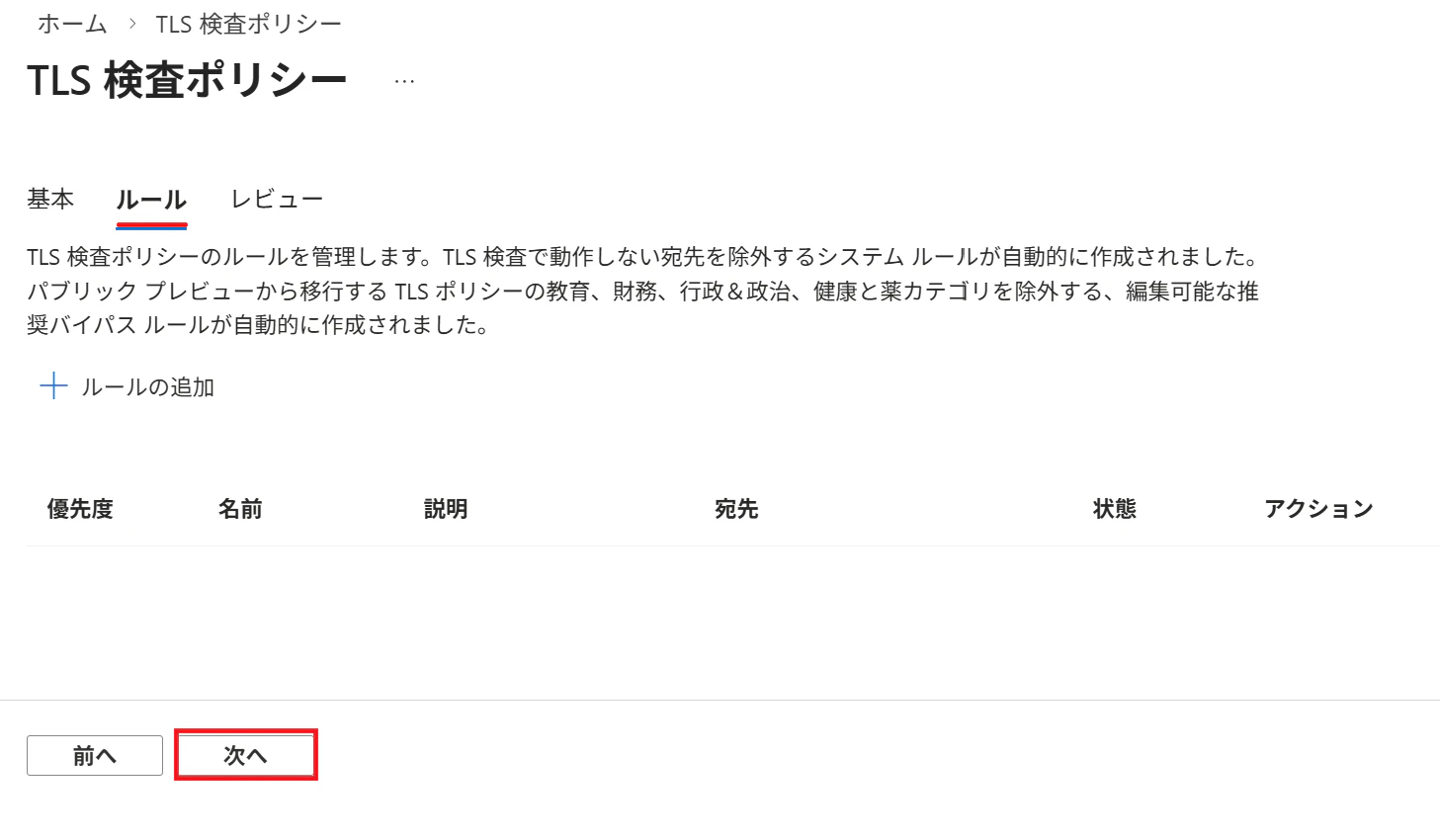
3 . In the Rules tab, retain the default rule set unless you need custom exceptions.
Select Next.
4 . Review the configuration, then select Submit.
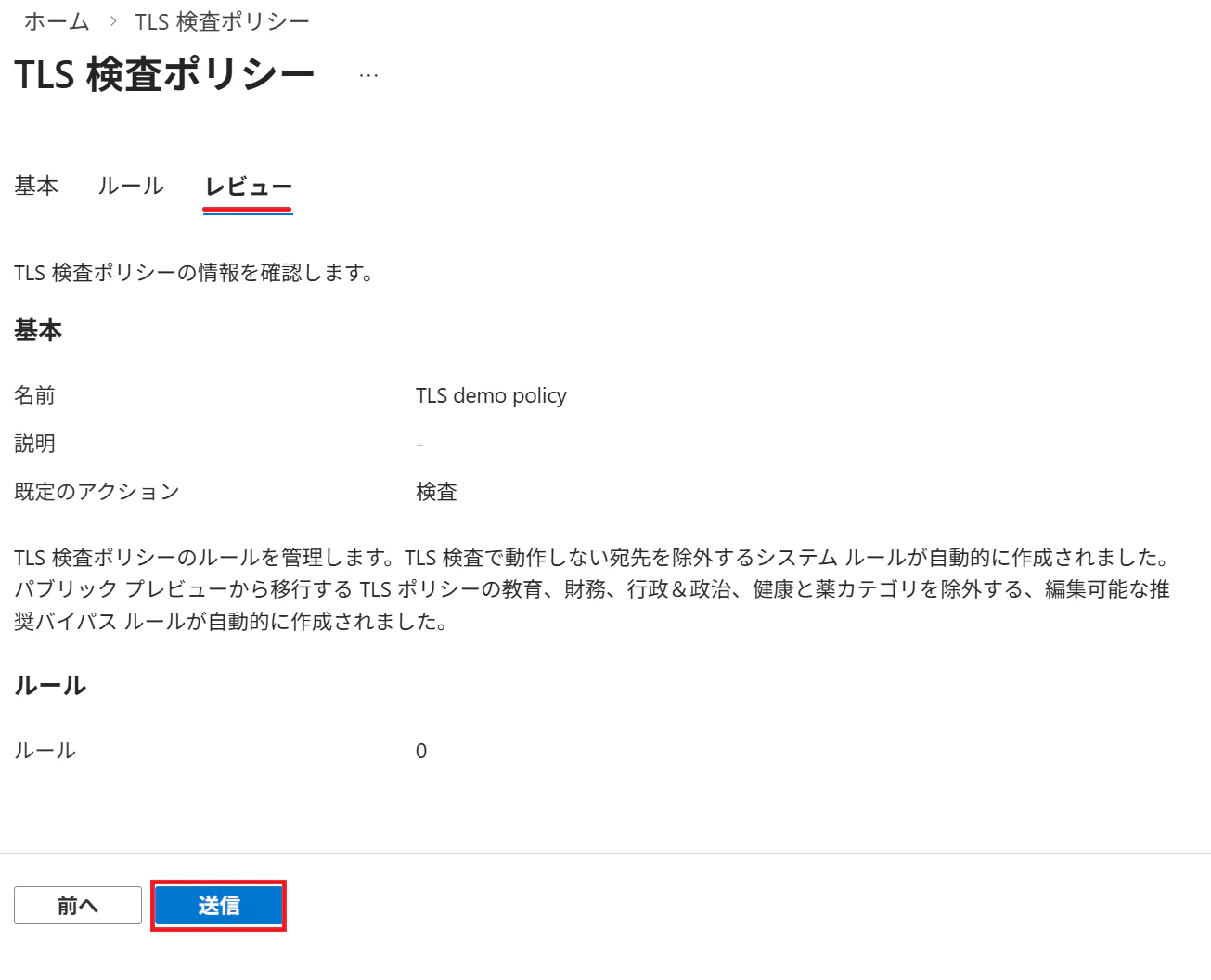
After creation, the policy appears in the list.
You can confirm settings via … → Edit.

In the policy details, you will see:
- Built‑in system bypass rules
- Rule 65000 (Education, Finance, Government, Health & Medicine)
- All other categories will be inspected by default
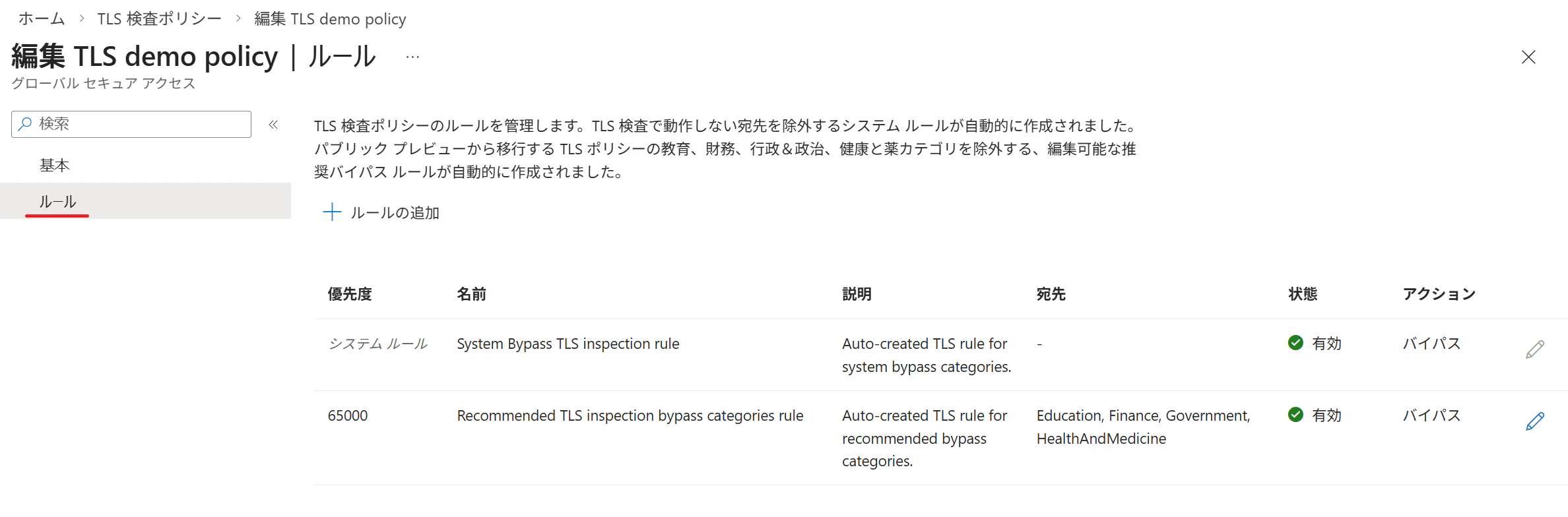
This completes the default TLS Inspection Policy configuration.
Tip
To inspect categories that are bypassed by default, create a rule with Inspect.
To bypass categories that are normally inspected, create a rule with Bypass.
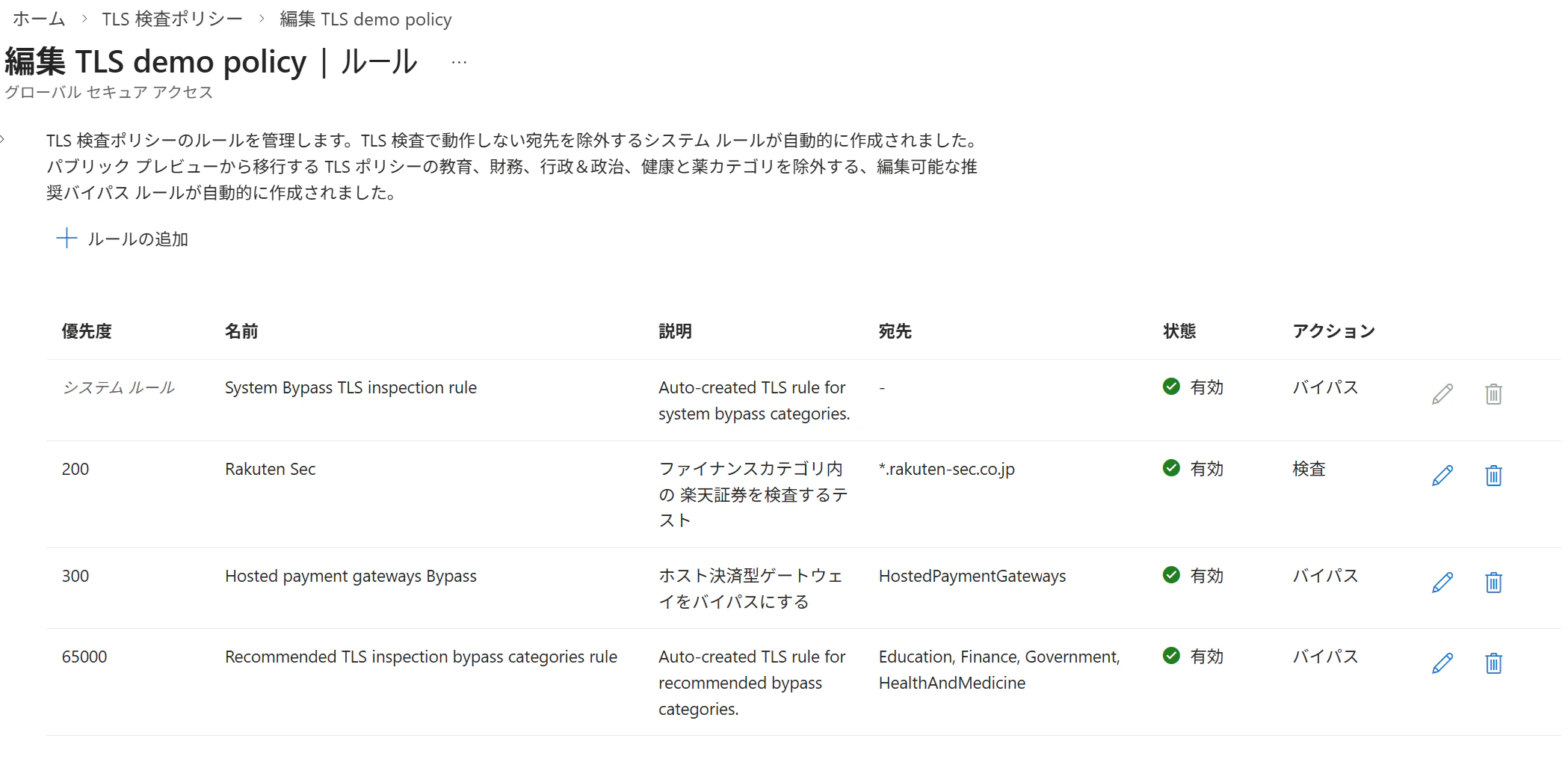
Optional: Adding exception rules
If needed, you can customize inspection behavior by adding additional rules.
Select + Add rule:
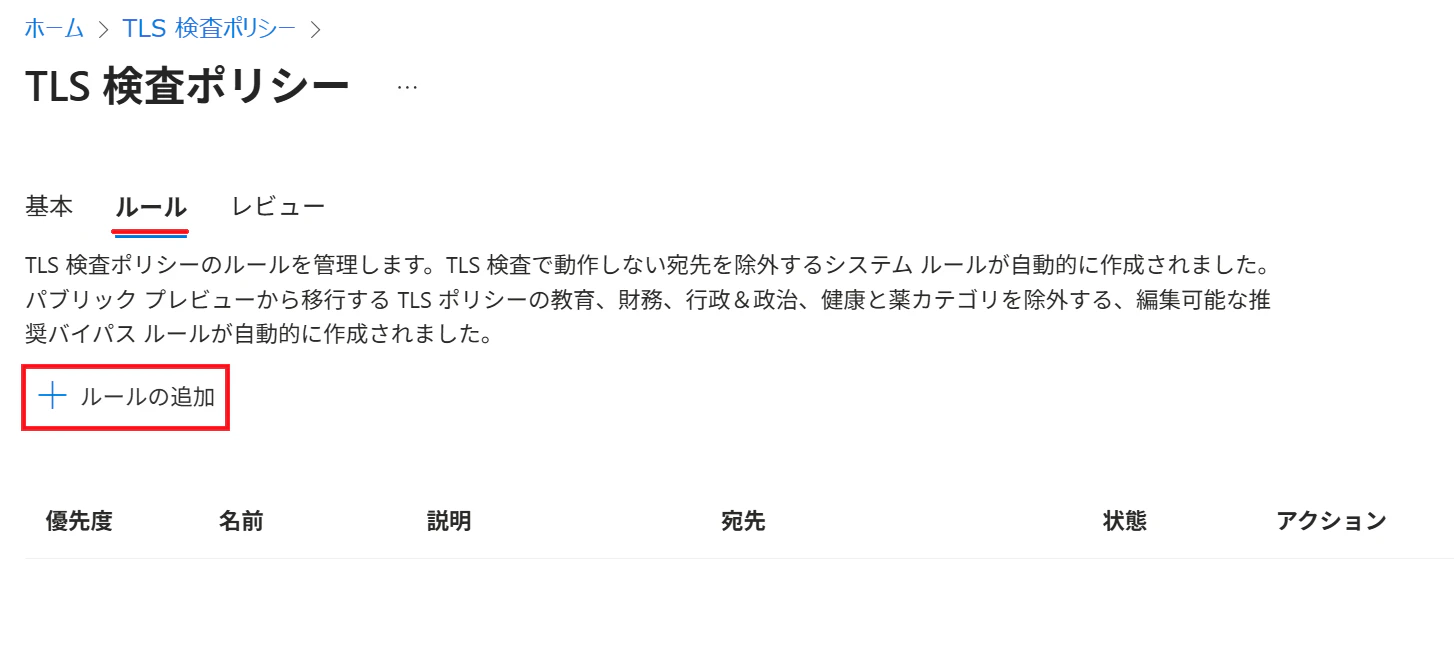
Example: Inspect Rakuten Securities (normally bypassed under “Finance”)

Example: Bypass a category normally inspected (Hosted Payment Gateways)
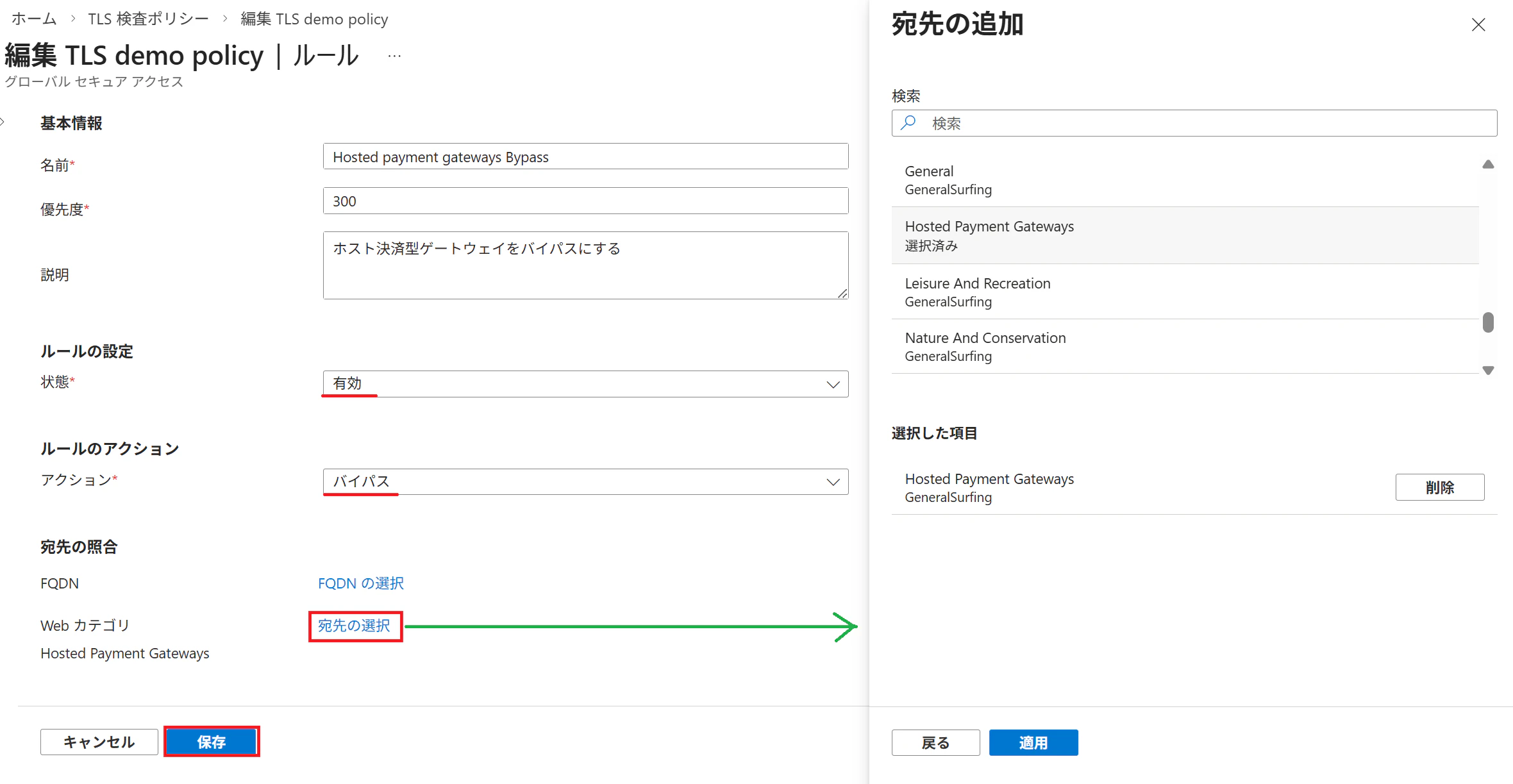
After adding custom rules, the policy may look like this:
Reference: Web Content Filtering Categories
https://learn.microsoft.com/en-us/entra/global-secure-access/reference-web-content-filtering-categories?wt.mc_id=MVP_407731
6. Assigning the Policy to a Profile
Creating a TLS Inspection Policy alone does not activate TLS decryption.
The policy must be assigned to a Security Profile before GSA begins inspecting traffic.
For details, see the article below:
[GSA : Internet] Summary of Profile Settings for Applying Policies
https://qiita.com/carol0226/items/1d9fa23904947c8598fd
Important
TLS Inspection becomes effective only after a Security Profile has been configured to use the policy.
Without the assignment step, no traffic will be inspected.
7. Testing the Configuration
After completing all configuration steps, validate that TLS Inspection functions correctly.
The simplest approach is to compare behavior with Internet Access enabled vs. disabled.
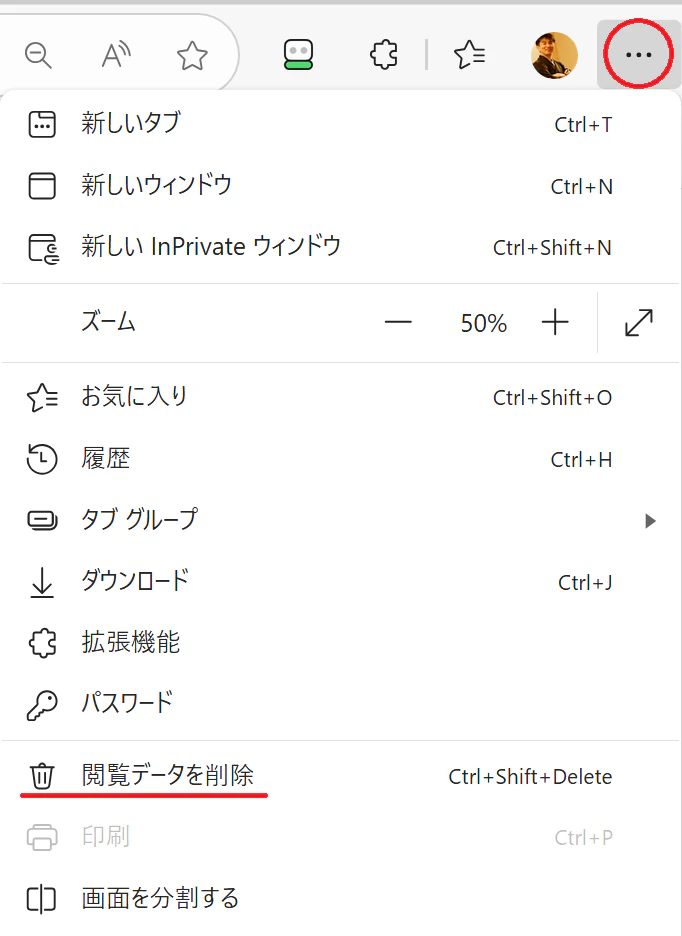
Whenever toggling the feature on or off, remember to clear your browser’s cache.
Official reference:
Step 4: Test the configuration
https://learn.microsoft.com/en-us/entra/global-secure-access/how-to-transport-layer-security#step-4-test-the-configuration
Clearing cache in Microsoft Edge
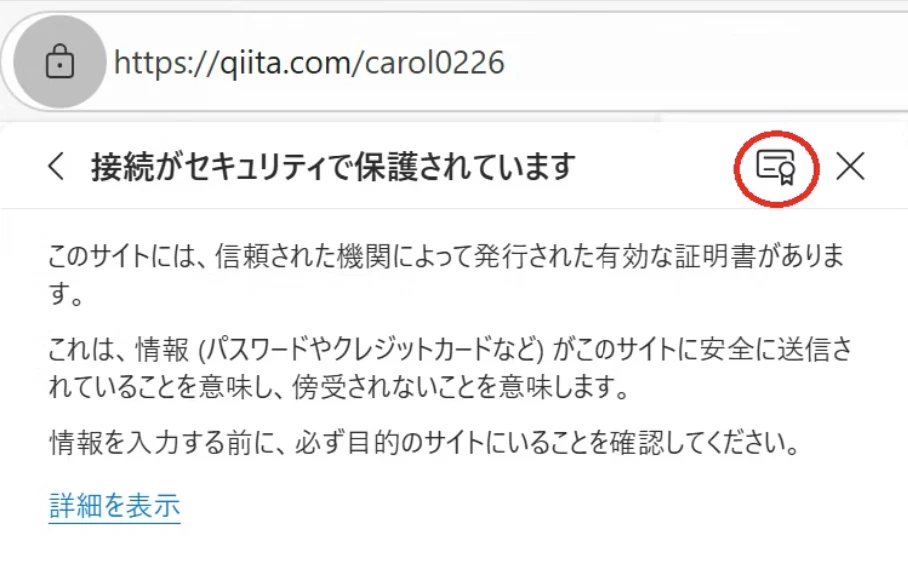
Viewing certificate details in Microsoft Edge
Select the lock icon → click the highlighted area:

Then click the certificate icon to display certificate details:
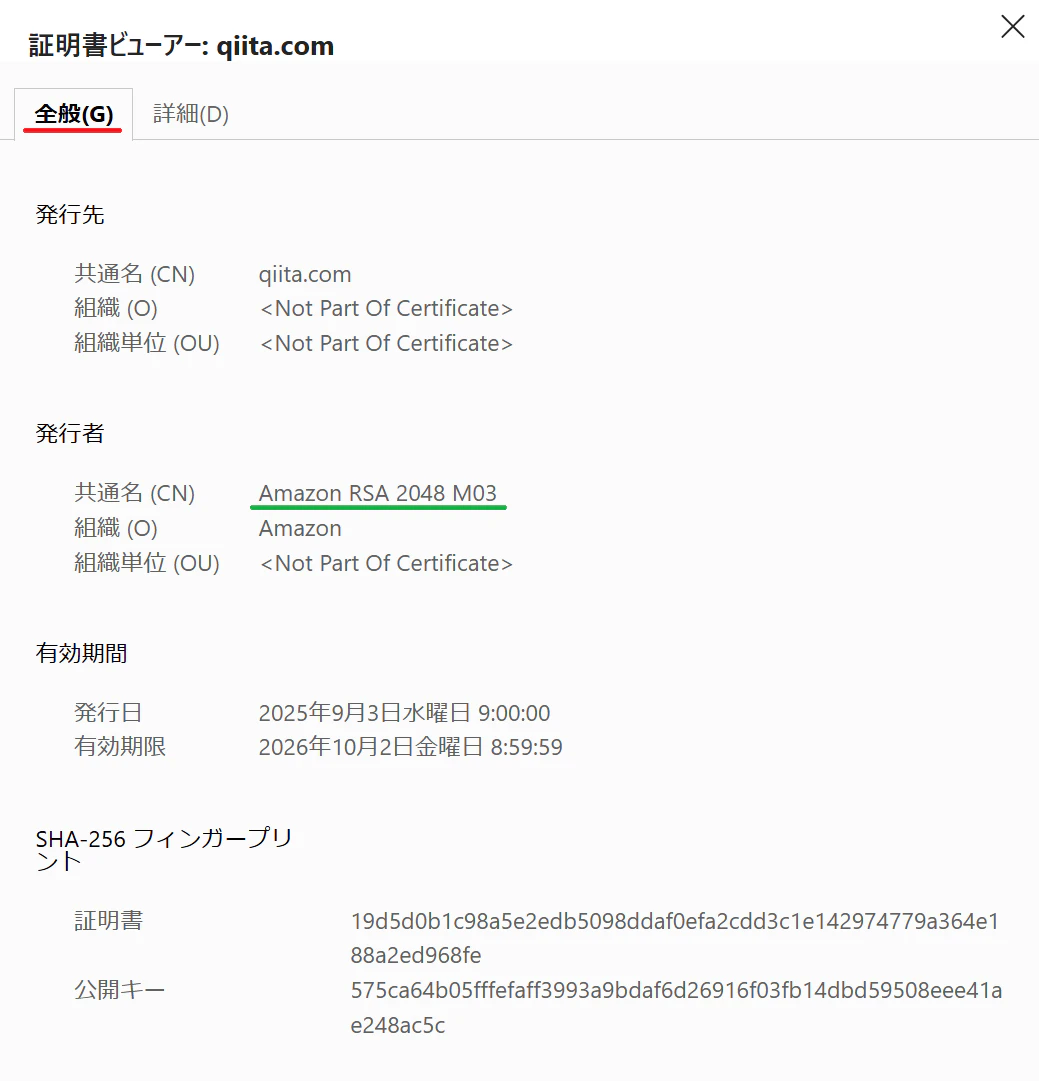
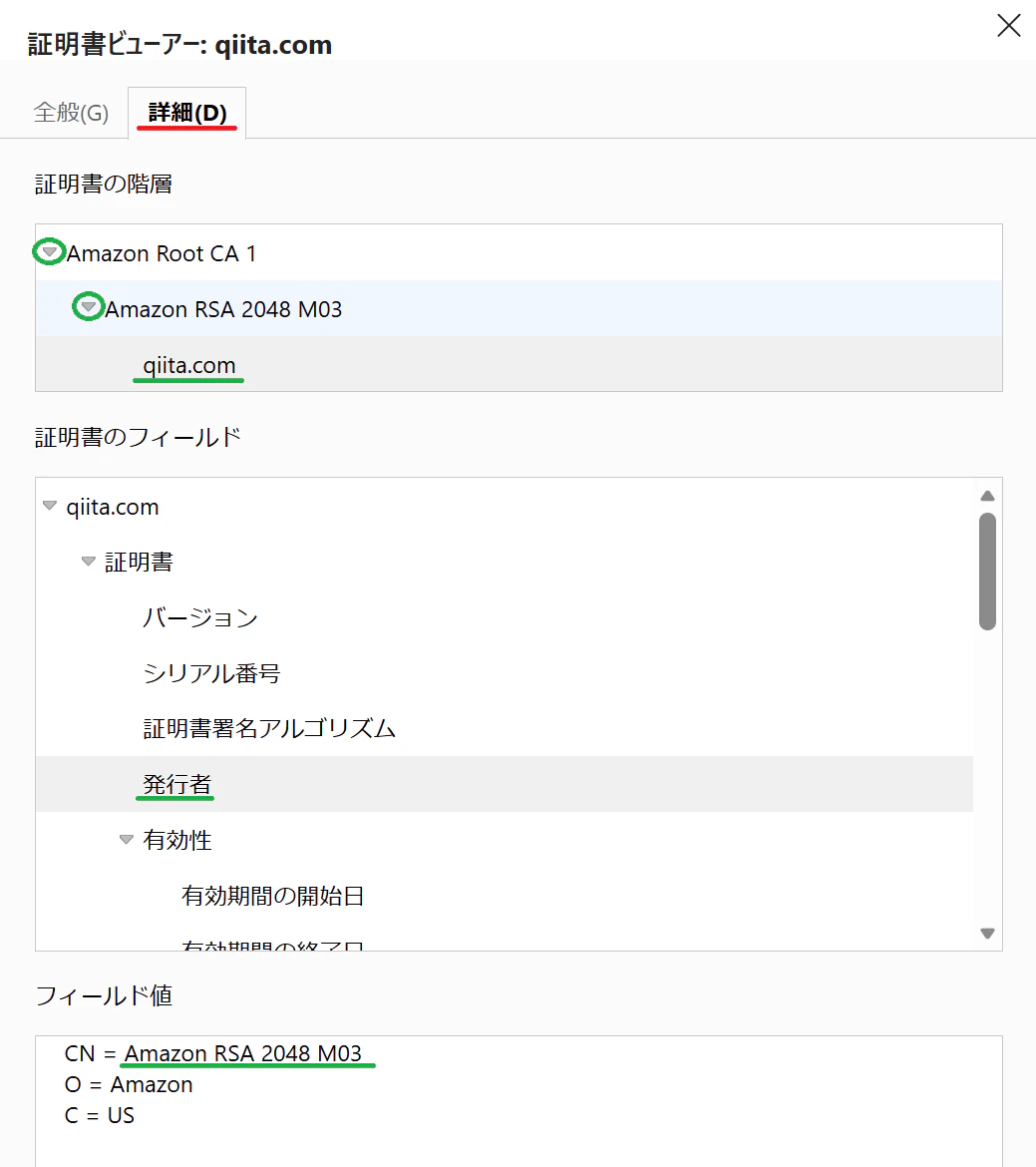
TLS Inspection disabled
When accessing qiita.com, the certificate appears as issued by Amazon:
The certificate chain shows a standard 3‑level hierarchy rooted at Amazon:
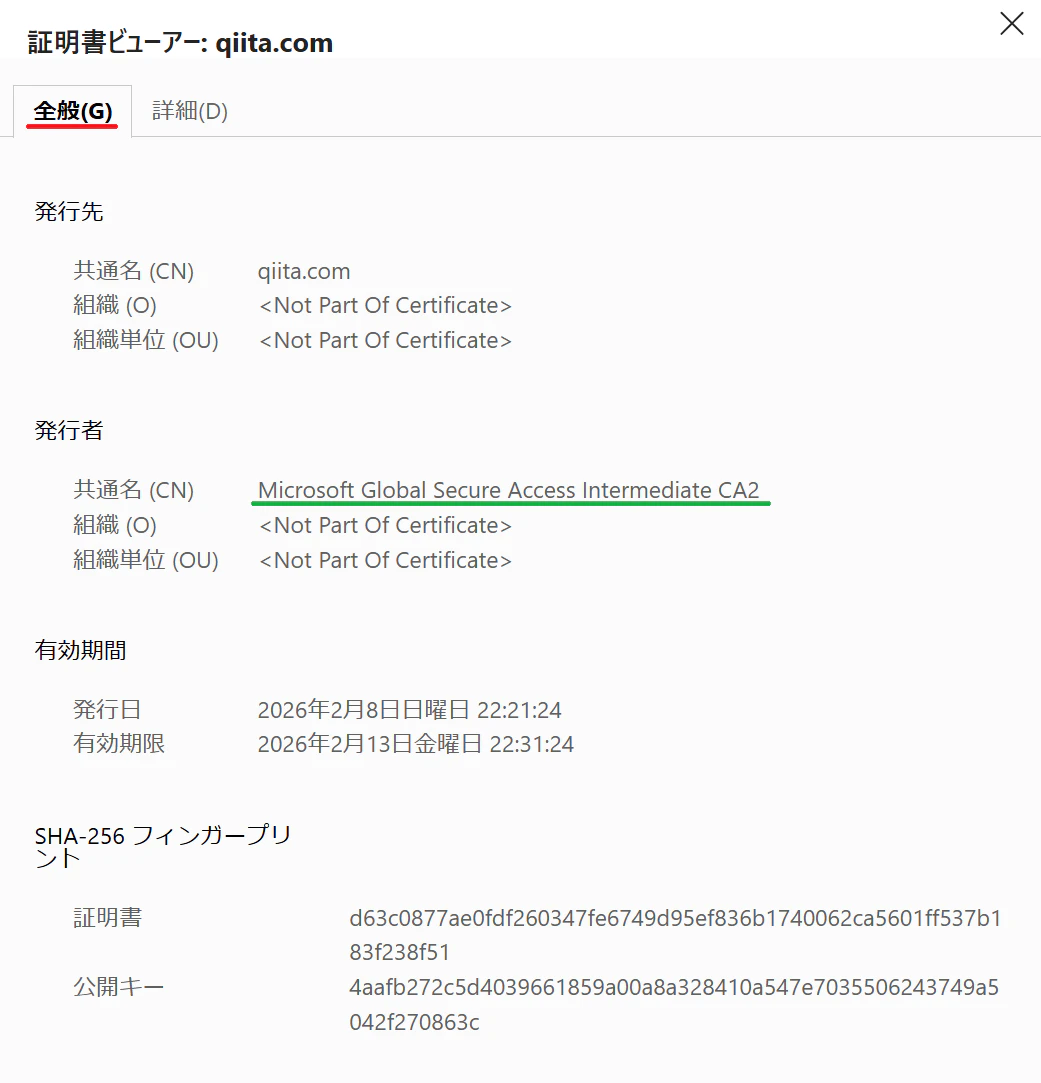
TLS Inspection enabled
With the feature enabled, the certificate for qiita.com is issued by:
Microsoft Global Secure Access Intermediate CA2
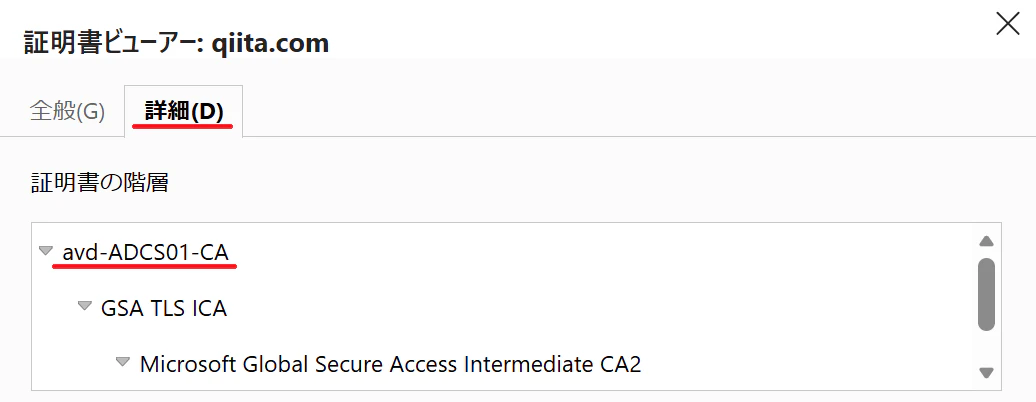
The certification path now forms a 4‑level chain, anchored by your AD CS root certificate:
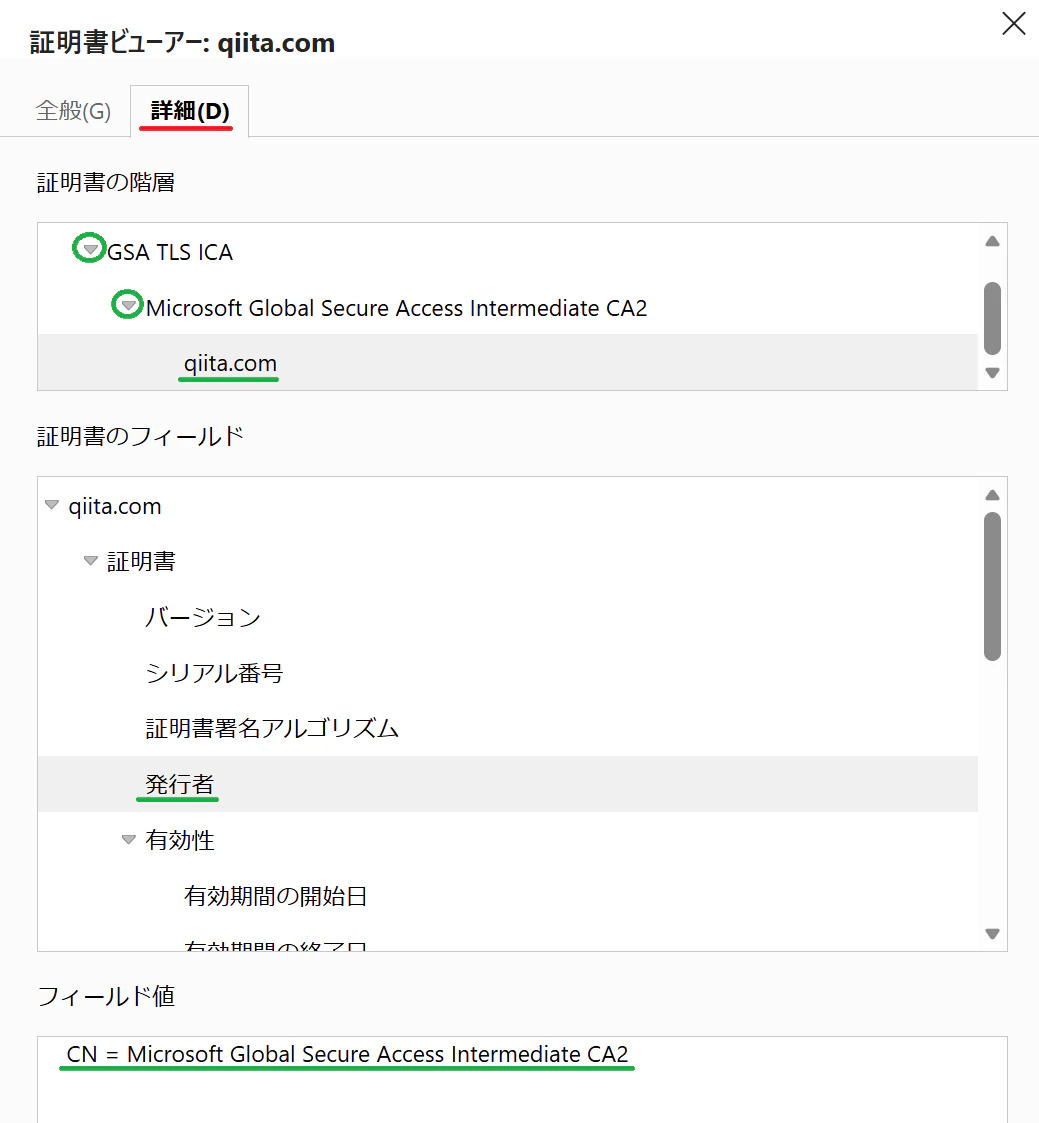
Scrolling reveals the full chain:
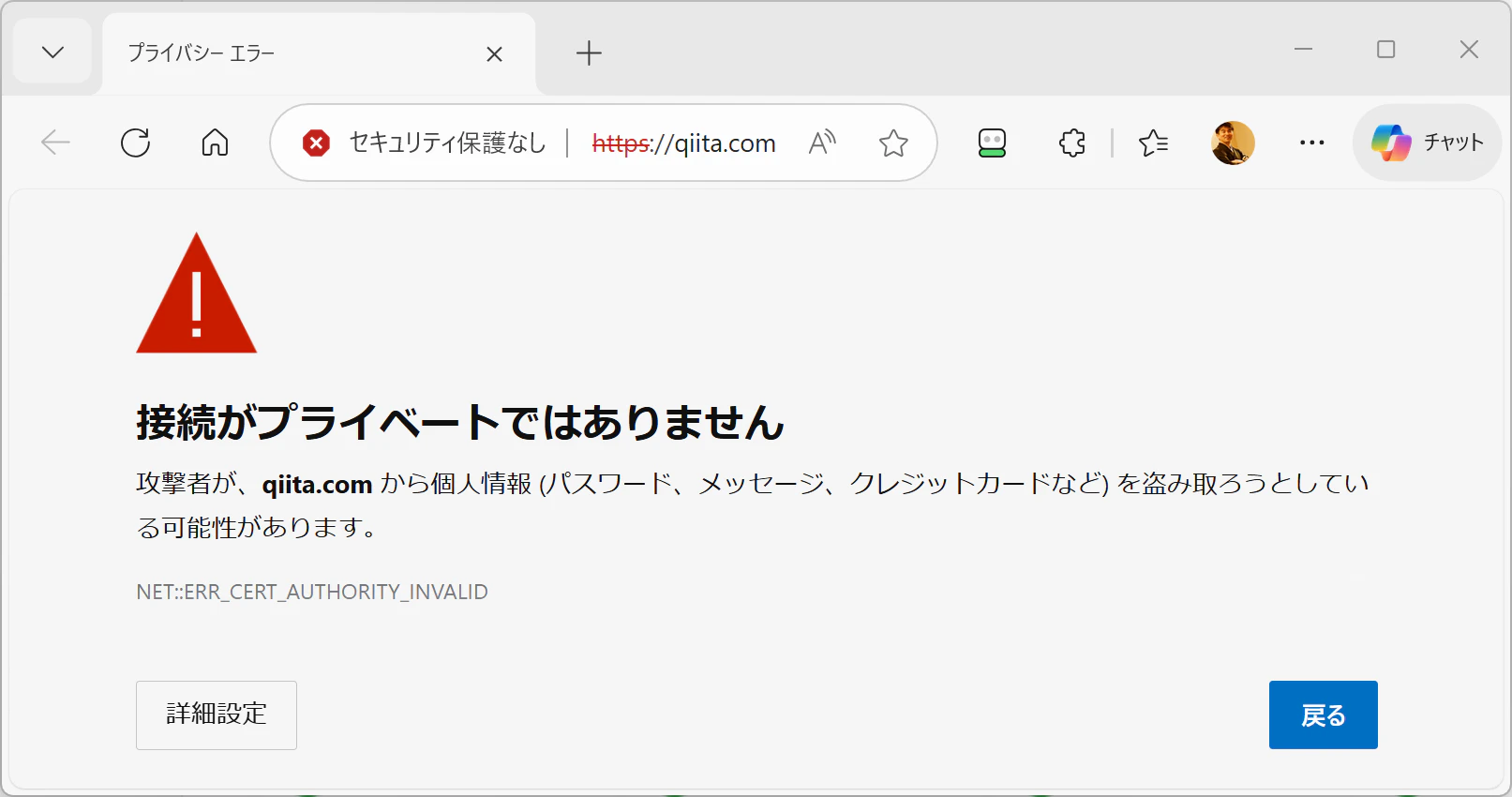
If the root certificate is missing or incorrect
If the device does not trust the AD CS root certificate, browsers will display an error like the example below:
Testing with Web Content Filtering
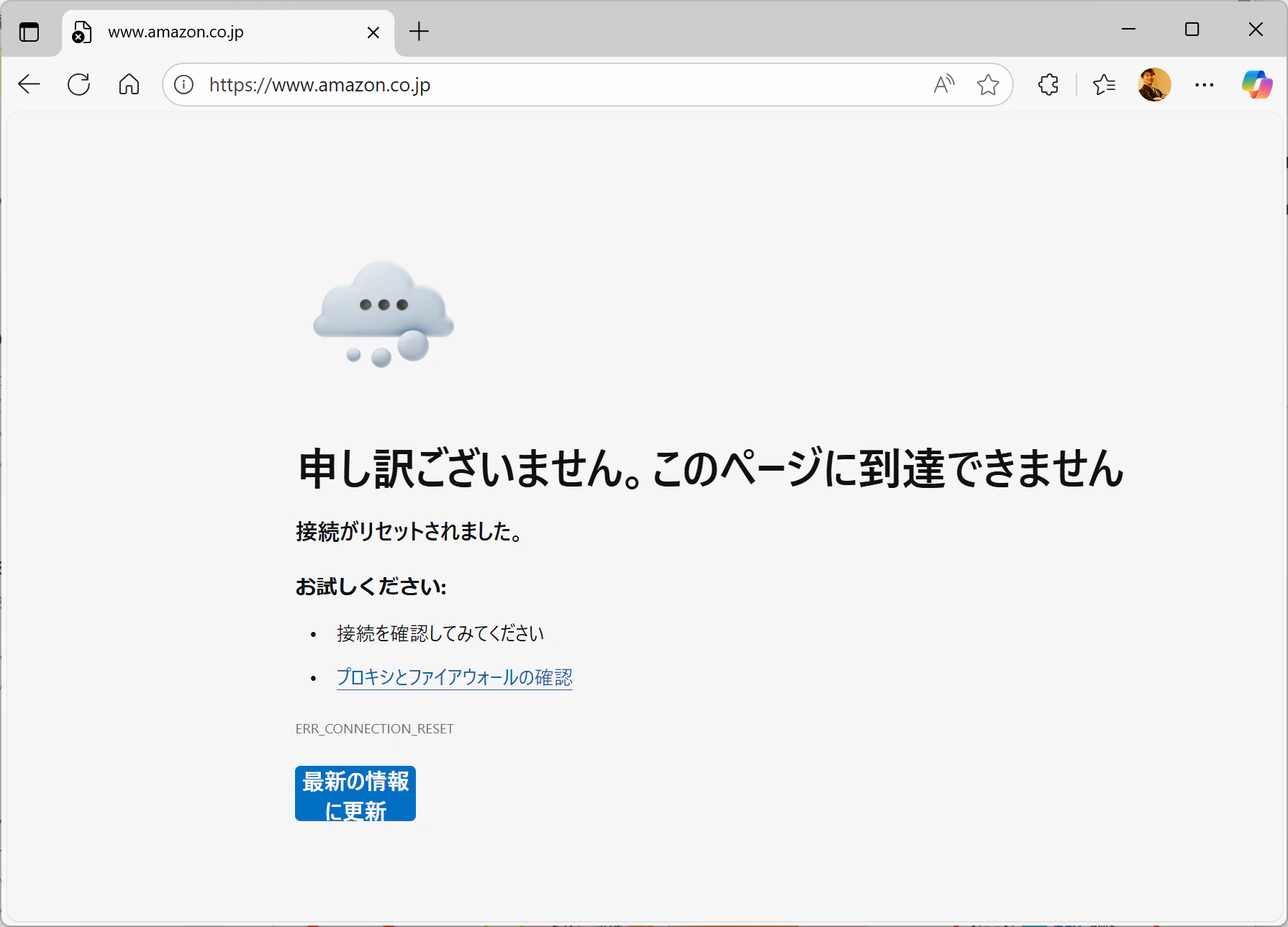
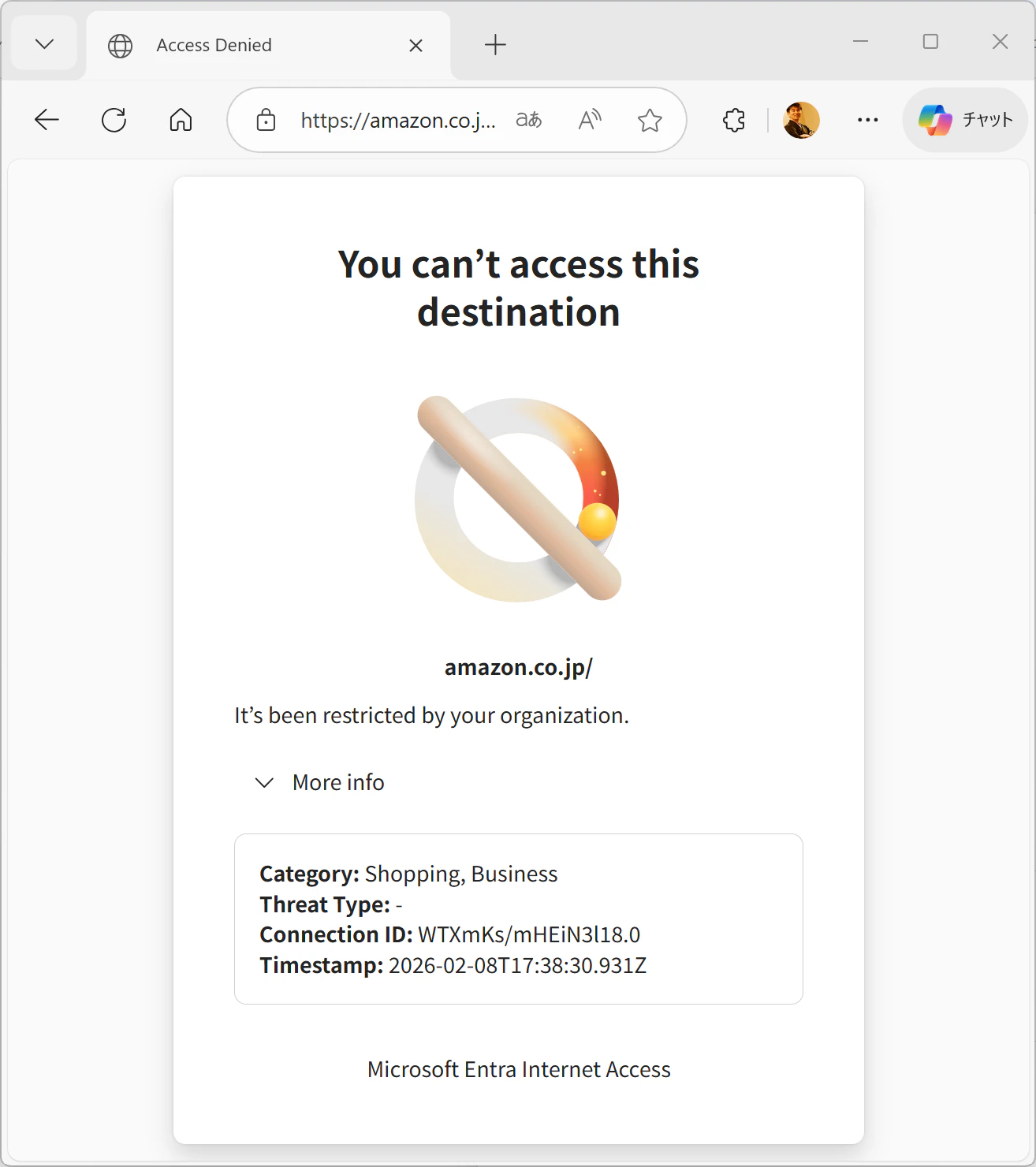
When combined with Web Content Filtering, behavior changes in a noticeable way.
Without TLS Inspection
Example: https://www.amazon.co.jp
A timeout‑like error appears, with no explanation:
With TLS Inspection enabled
Now, the block page is shown with a clear explanation:
References
The following resources were used during the preparation of this guide:
TLS Inspection in Microsoft Entra GSA Internet Access – Complete Configuration Guide
https://www.thetechtrails.com/2025/09/entra-gsa-tls-inspection-guide.html
YouTube: TLS Inspection in Microsoft Entra Internet Access – Deep Dive
https://www.youtube.com/watch?v=WxxHH_4vKh4
Summary
This article has walked through a complete, end‑to‑end configuration of TLS Inspection in Microsoft Entra Global Secure Access (GSA)—from prerequisites, certificate creation, signing, and deployment, to policy configuration, profile assignment, and verification.
TLS Inspection is foundational for enabling advanced security capabilities, including:
- Accurate web content categorization
- Enhanced threat intelligence
- File‑based inspection
- AI prompt protection (Prompt Shield)
Although certificate handling—especially the creation of an intermediate CA and conversion to PEM—can be complex, following these steps enables a reproducible and reliable deployment.
Remember:
- A TLS Inspection Policy must be assigned to a Security Profile before it becomes active.
- Certificate chain validation is the most reliable way to confirm correct operation.
We hope this guide supports your deployment and testing efforts in GSA environments.
Feel free to extend it with exception rules, AD CS best practices, or Intune‑based certificate distribution models as needed.