

Motivation
watsonx Orchestrate には、組み込みツール と呼ばれる、最初から使用可能なツールが備わっており、このツールを使ってエージェントやエージェント型ワークフローを構築することが可能です。
しかし、組込みゆえの使いづらい点がいくつかあると個人的には考えており、例えば以下などです:
- 内部的にどういうロジックなのか不透明
- デバッグが難しい
そこで、これらの課題の解決に繋げるためのアプローチについて紹介したいと思います。
TL;DR
- ADK でツールをエクスポートして中身を確認すれば処理内容がある程度わかる
- ツール内で外部 API をコールしている場合は、そちらのドキュメントも参照すること
Pre-condition
本記事では、watsonx Orchestrate の SaaS 版を使用することとします。
また、検証に使用する具体的な環境やツールのバージョン等は以下です:
- マシン: MacOS 15.6.1, Apple M1 Max
- Python version:
3.11.5 - ADK Version:
1.15.0
Usecase
実際に組み込みツールにおける使いづらさを感じるきっかけが、Email search results in Outlook というツール使用時でした。
このツールは、検索キーワードと数を指定することで、キーワードを含むメールを指定数分だけ取得してくれるものです。
問題は、キーワードに通常の文字(アスキー文字、日本語文字)を入力した際は正常に機能するのですが、キーワードに記号や数字を含む場合エラーが返されてしまいます。
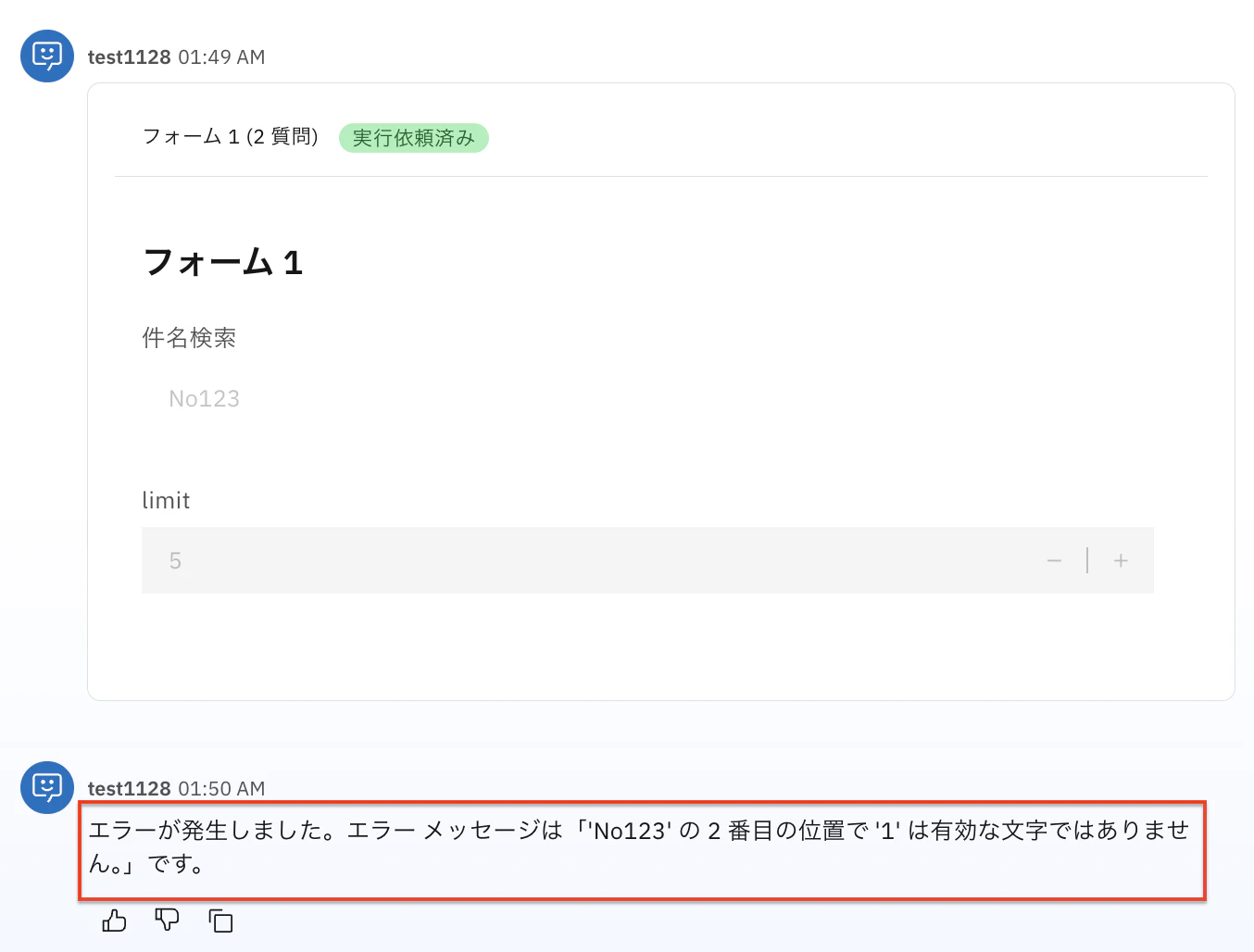
メール検索時に記号や数字を含むキーワードで検索したい場面はままあると考えられるため、原因の究明と対応策を迫られました。
Investigation
Outlook 周りのセットアップなど
watsonx Orchestrate と Outlook との接続方法についての説明は割愛しますが、以下を参照ください。
前提として、Microsoft Azure ポータルにて、アプリケーション (Microsoft Extra ID) の作成が必要です。
ADK インストール
ADK とは
The IBM watsonx Orchestrate Agent Development Kit (ADK) is a set of tools designed to make it easy to build and deploy agents using IBM watsonx Orchestrate. It is packaged as a Python library and command line tool that allows builders to configure agents that run on the IBM watsonx Orchestrate platform. The ADK also supports integrating agents and tools built on other frameworks.
つまり watsonx Orchestrate によるエージェント開発を効率よく進めるための Python ライブラリです。
インストールは以下コマンドです。
pip install --upgrade ibm-watsonx-orchestrate
環境の設定およびアクティベーションについては こちら を参照ください。
組み込みツールのエクスポート
まずはエクスポート対象となるツールを確認します。
orchestrate tools list

# Name                                ┃ Description                                                                                                  ┃ Type    ┃ Toolkit ┃ App ID                                  ┃
# ...
# email_search_results_dbbdd          │ Get all emails which matches the search criteria in Microsoft Outlook                                        │ python  │         │ microsoft_oauth2_auth_code_ibm_184bdbd3
# ...
対象となるツール Name を確認し、エクスポートします。
orchestrate tools export -n email_search_results_dbbdd -o email-search-tool.zip
email-search-tool.zip というファイルでエクスポートしました。
これを解凍すると、以下のような構成になっています:
tree email-search-tool -L 1

#email-search-tool
#├── agent_ready_tools
#├── connections
#└── requirements.txt

tree email-search-tool/agent_ready_tools

#email-search-tool/agent_ready_tools
#├── __init__.py
#├── clients
#│		├── __init__.py
#│		├── clients_enums.py
#│		└── microsoft_client.py
#├── tools
#│		├── __init__.py
#│		└── productivity
#│		     ├── __init__.py
#│		     └── outlook
#│			         ├── __init__.py
#│			         └── email_search_results.py
#└── utils
#    ├── __init__.py
#    ├── credentials.py
#    ├── env.py
#    ├── get_id_from_links.py
#    ├── systems.py
#    ├── tool_cred_utils.py
#    └── tool_credentials.py
組込みツールの主な実装は、email-search-tool/agent_ready_tools/tools/productivity/outlook/email_search_results.py にあります。この中身を確認していきます。
ツールの実装確認
email_search_results.py の全文はこちら
from pathlib import Path
import sys

test_dir = Path(__file__).parent
BASE_DIR = 'agent_ready_tools'
MAX_DEPTH = 10

while test_dir.name != BASE_DIR:
    test_dir = test_dir.parent
    MAX_DEPTH -= 1
    if MAX_DEPTH == 0:
        raise RecursionError(f"'{BASE_DIR}' not found in path: {__file__}")
parent_path = test_dir.parent.resolve()

sys.path.append(str(parent_path))

from http import HTTPStatus
import json
from typing import List, Optional

from ibm_watsonx_orchestrate.agent_builder.tools import tool
from pydantic.dataclasses import dataclass
from requests.exceptions import HTTPError

from agent_ready_tools.clients.microsoft_client import get_microsoft_client
from agent_ready_tools.utils.get_id_from_links import get_query_param_from_links
from agent_ready_tools.utils.tool_credentials import MICROSOFT_CONNECTIONS


@dataclass
class EmailSearchResult:
    """Represents the result of using a search term to find a particular email in Microsoft
    Outlook."""

    subject: Optional[str]
    body: Optional[str]
    recipient_name: str
    created_date_time: str
    sender_email_address: str


@dataclass
class EmailSearchResponse:
    """Represents a list of emails that match the search term in Microsoft Outlook."""

    searchemail: Optional[List[EmailSearchResult]] = None
    limit: Optional[int] = None
    skip_token: Optional[str] = None
    http_code: Optional[int] = None
    error_message: Optional[str] = None


@tool(expected_credentials=MICROSOFT_CONNECTIONS)
def email_search_results(
    search_term: str, limit: Optional[int] = 10, skip_token: Optional[str] = None
) -> EmailSearchResponse:
    """
    Searches for an email using a search term in Microsoft Outlook.

    Args:
        search_term: The string that needs to be searched to fetch an email.
        limit: The number of records to retrieve.
        skip_token: The number of records to skip for pagination.

    Returns:
        A list of emails containing the specified search term.
    """

    client = get_microsoft_client()

    params = {
        "$search": search_term,
        "$top": limit,
        "$skiptoken": skip_token,
    }
    params = {key: value for key, value in params.items() if value}

    try:
        response = client.get_request(
            endpoint=f"{client.get_user_resource_path()}/messages", params=params
        )

        searchemail_list = [
            EmailSearchResult(
                subject=record.get("subject", ""),
                body=record.get("bodyPreview", ""),
                recipient_name=record.get("toRecipients", [{}])[0]
                .get("emailAddress", {})
                .get("name", ""),
                created_date_time=record.get("createdDateTime", ""),
                sender_email_address=record.get("sender", {})
                .get("emailAddress", {})
                .get("address", ""),
            )
            for record in response.get("value", [])
        ]

        # Extract limit and skiptoken from @odata.nextLink if it exists
        output_limit = None
        output_skiptoken = None
        next_api_link = response.get("@odata.nextLink", "")
        if next_api_link:
            query_params = get_query_param_from_links(next_api_link)
            output_limit = int(query_params["$top"])
            output_skiptoken = query_params.get("$skiptoken")

        return EmailSearchResponse(
            searchemail=searchemail_list,
            limit=output_limit,
            skip_token=output_skiptoken,
        )
    except HTTPError as e:
        error_message = ""
        try:
            # Try to parse the JSON error response from the API
            error_response = e.response.json()
            error_message = error_response.get("error", {}).get("message", "")
        except json.JSONDecodeError:
            # Fallback for non-JSON error responses (e.g., HTML from a proxy)
            error_message = e.response.text or "An HTTP error occurred without a JSON response."

        return EmailSearchResponse(
            http_code=e.response.status_code,
            error_message=error_message,
        )
    except Exception as e:  # pylint: disable=broad-except
        return EmailSearchResponse(
            error_message=str(e), http_code=HTTPStatus.INTERNAL_SERVER_ERROR.value
        )
組込みツールは、@tool デコレータが付与された関数が実体です。
本ツールでは、以下の email_search_results() がそれです。
@tool(expected_credentials=MICROSOFT_CONNECTIONS)
def email_search_results(
search_term: str, limit: Optional[int] = 10, skip_token: Optional[str] = None
) -> EmailSearchResponse:
引数的に search_term が検索キーワードして使用されているようです。
これが利用されているのが、ここです(params の中に含まれています):
response = client.get_request(
	endpoint=f"{client.get_user_resource_path()}/messages", params=params
)
f"{client.get_user_resource_path()}/messages" の外部 API をコールするような形です。
すなわち、組み込みツールの処理内容を確認するだけでは、なぜ検索キーワードに記号や数値が含まれる場合にエラーとなるのかわかりませんでした。
外部 API 仕様を確認する
厳密に値を確認したわけではないですが、おそらくこの外部 API に当たるのが、以下の List messages というエンドポイントでしょう。
この API の クエリパラメーター を確認しても、それっぽいことがわかります。
| Name | Description | Example |
|---|---|---|
| $count | Returns the total count of matching resources. | /me/messages?$top=2&$count=true |
| $expand | Returns related resources. | /groups?$expand=members |
| $filter | Filters results (rows). | /users?$filter=startswith(givenName,'J') |
| $format | Returns results in the specified media format. | /users?$format=json |
| $orderby | Orders results. | /users?$orderby=displayName desc |
| $search | Returns results based on search criteria. | /me/messages?$search=pizza |
| $select | Filters properties (columns). | /users?$select=givenName,surname |
| $skip | Skips items in a result set. Also used by some APIs to implement paging and can be used with $top to manually page results. |
/me/messages?$skip=11 |
| $top | Sets the page size of results. | /users?$top=2 |
組込みツールの email_search_results() と List Messages でパラメータが異なるのは、オリジナルの方のすべてのパラメータが組込みツール側に公開されていないということだと推測されます。
ではこのエンドポイントがクエリパラメーター(検索キーワード部分)をどう処理しているのでしょう?
実際に List messages API を叩いてみる
この Play Ground を利用すれば、Graph API を試し撃ちする事ができます:
下の画像のように、サイドメニューより「'Hello World' を含む自分のメール」を選択すると、List messages エンドポイントに対して検索キーワード「hello world」で実行できるようになります。
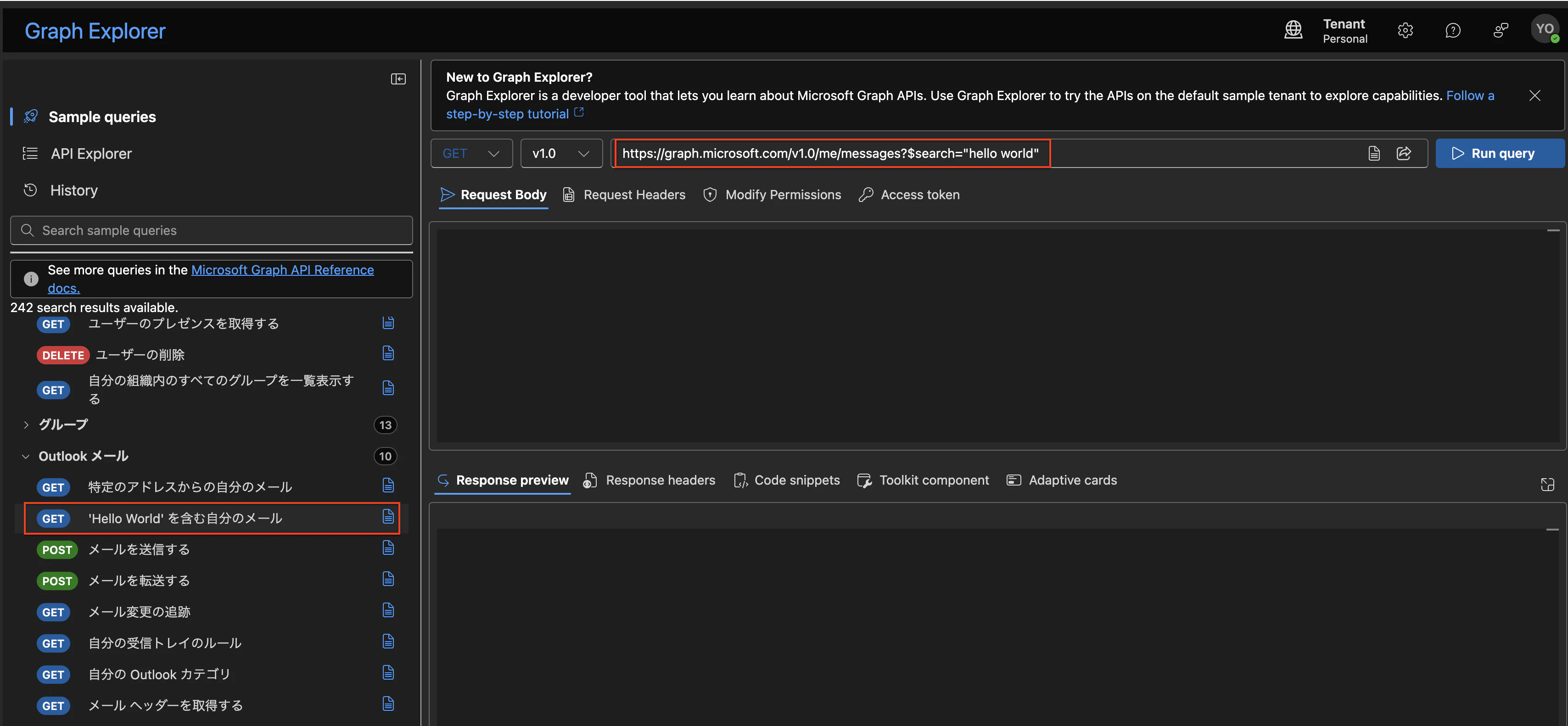
元々 watsonx Orchestrate のチャットにおいて、キーワードとして入力したものと同じものを指定して実行してみます。
https://graph.microsoft.com/v1.0/me/messages?$search="No123"
結果:
{
    "@odata.context": "https://graph.microsoft.com/v1.0/$metadata#users('xxxxxxxxxxxxoutlook.com')/messages",
    "value": [
        {
            ...
            "subject": "No123 テスト",
            ...
        }
    ]
}
予想に反して、正常にメールを取得できてしまいました。
何が違うのかとよく観察したところ、$search="No123" のところでキーワードがダブルクォーテーション ("") で囲まれていることに気づきました。
試しに "" なしで実行してみたところ
https://graph.microsoft.com/v1.0/me/messages?$search=No123
結果:
{
    "error": {
        "code": "BadRequest",
        "message": "Syntax error: character '1' is not valid at position 2 in 'No123'.",
        "innerError": {
            "date": "2025-11-28T18:14:20",
            "request-id": "xxxxx",
            "client-request-id": "xxxxx"
        }
    }
}
watsonx Orchestrate で表示されたエラーと同等のものを再現できました。
つまり、検索キーワードを "" で囲む必要があったということです!
Conclusion
今回は一例として Outlook メールを取得する組込みツールを取り上げましたが、基本的にはどのツールでも同様のアプローチが可能だと考えています。
たとえ便利なツールがあるとはいえ、ブラックボックスだと何かと不便です。
watsonx Orchestrate 組込みツールは使用するだけだと実装が隠蔽されているため、コードレベルで確認すると少し幸せになれるかもしれないですね。