1
0

Delete article

Deleted articles cannot be recovered.

Draft of this article would be also deleted.

Are you sure you want to delete this article?

IBM watsonx Orchestrate から IBM Planning Analytics を操作する

1
Posted at

はじめに

タイトル通りですが、IBM watsonx Orchestrate から IBM Planning Analytics を操作する方法を整理します。

最終的に、こんな感じで、自然言語で操作できます。

image.png

設定

IBM watsonx Orchestrate のエージェント構築画面のDiscoveryからプリビルドエージェントを探していきます。
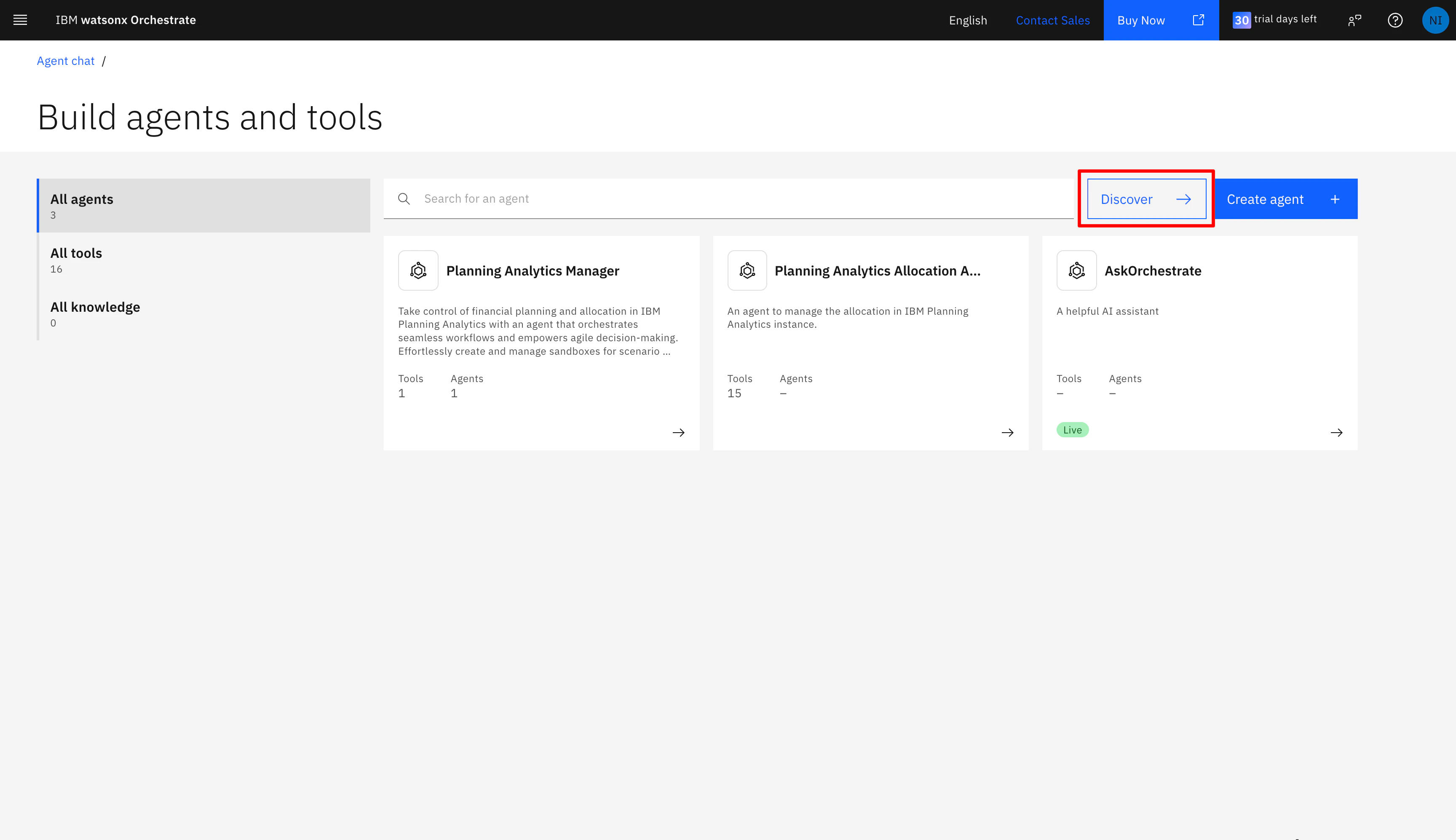
image.png

検索して見つけます。
image.png

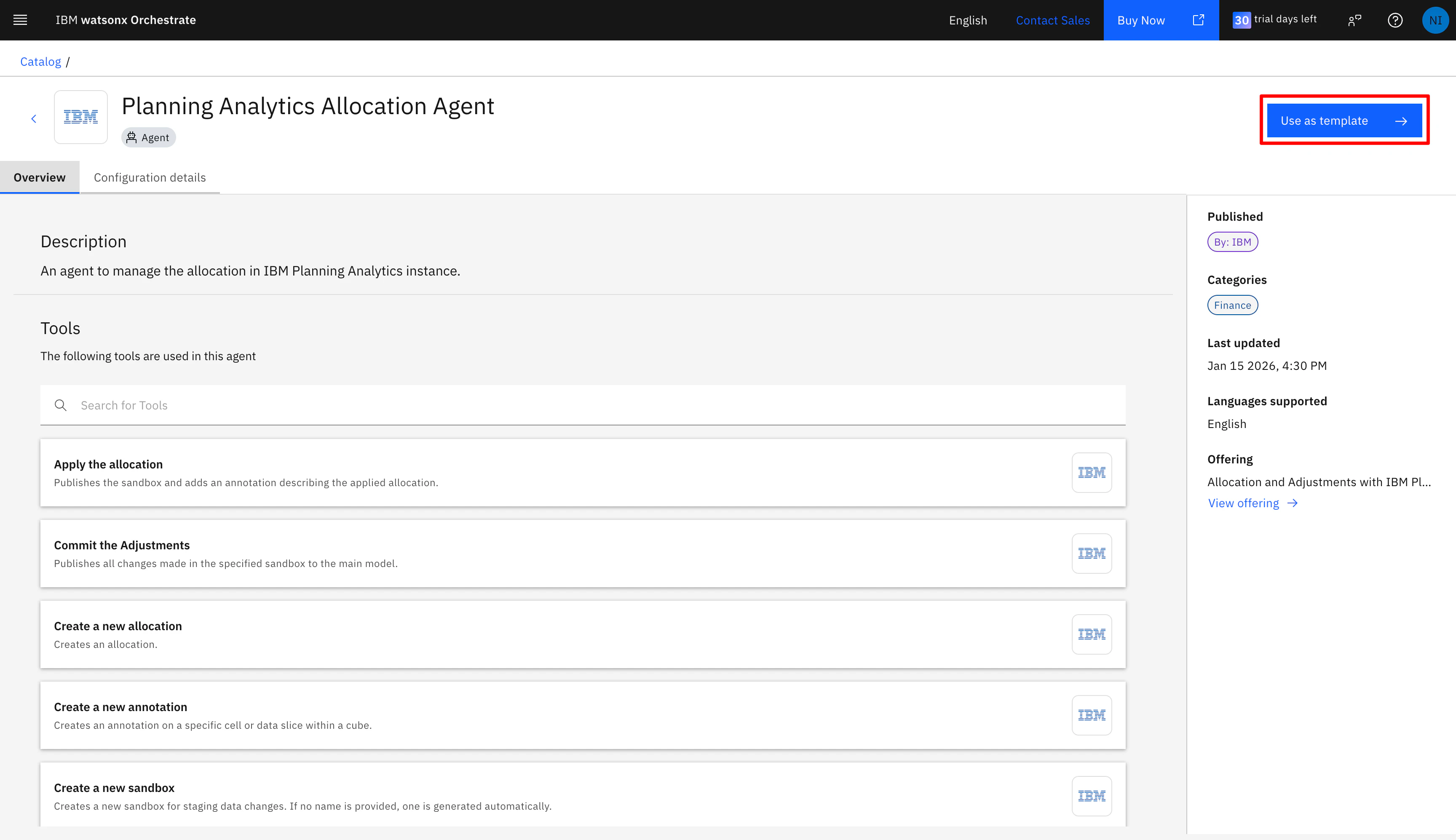
テンプレートとして利用します。
image.png

エージェントを作る画面に遷移します。
image.png

ツールの接続を設定していきます。
image.png

Connectorを設定していきます。
image.png

2種類のConnectorを編集します。
image.png

1つ目に、Server URL、User Name、Passwordを入力し、接続を確認し、保存します。
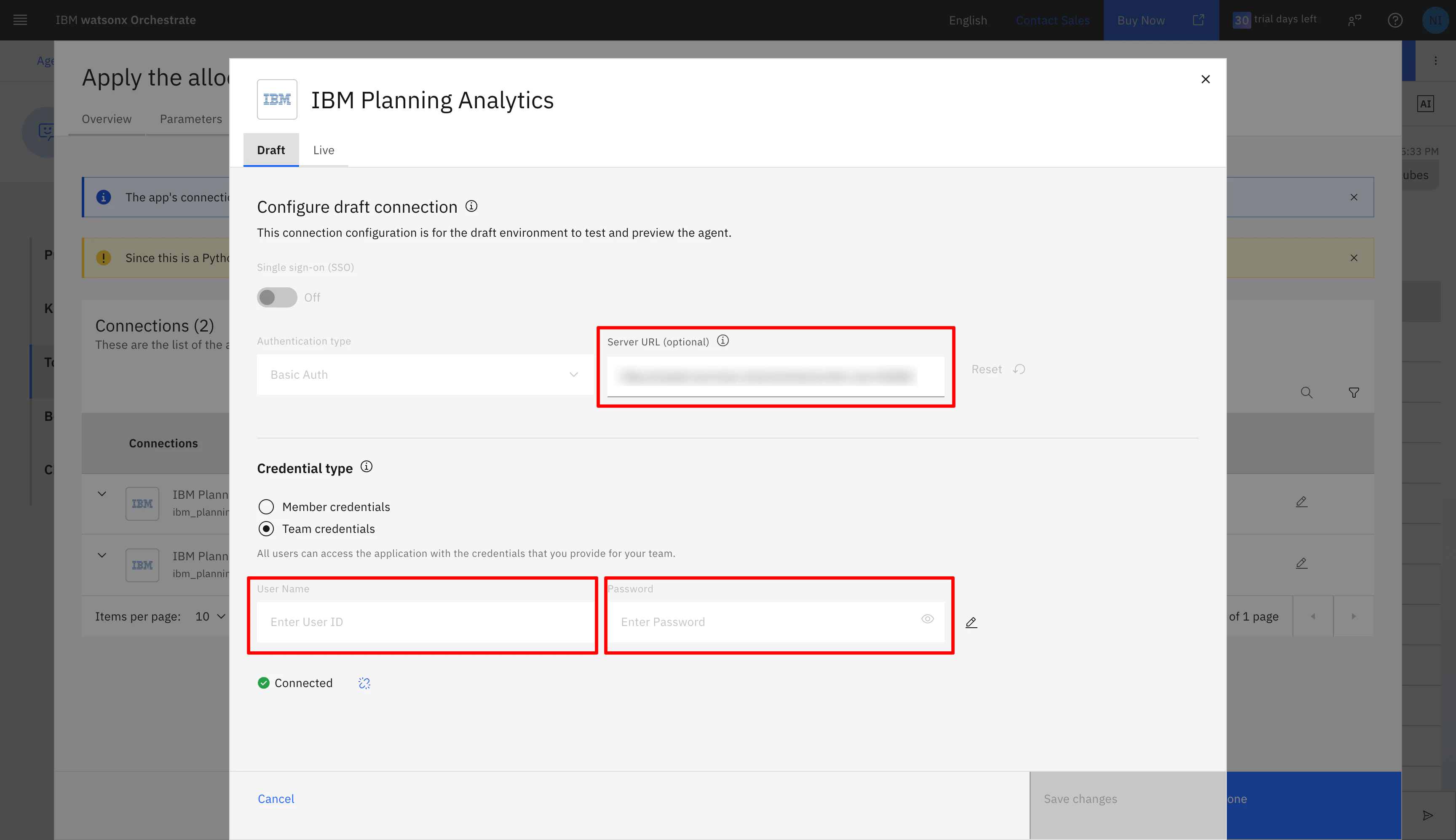
image.png

2つ目に、tenant idとmodel nameを入力し、接続を確認し、保存します。
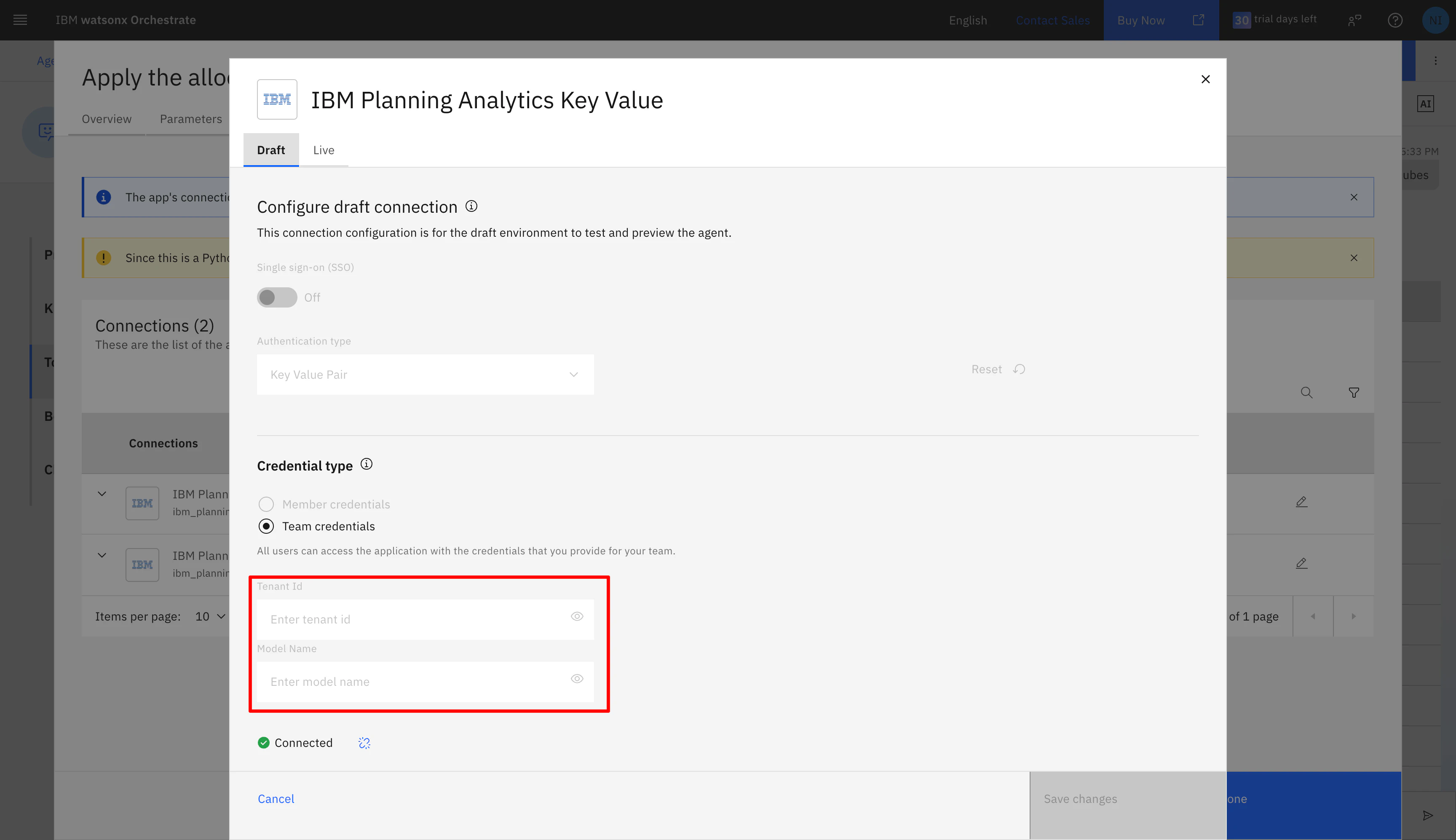
image.png

tenant id はIBM Planning AnalyticsのURLにありました。
model nameは、データベースの名前を入れることで動きました。
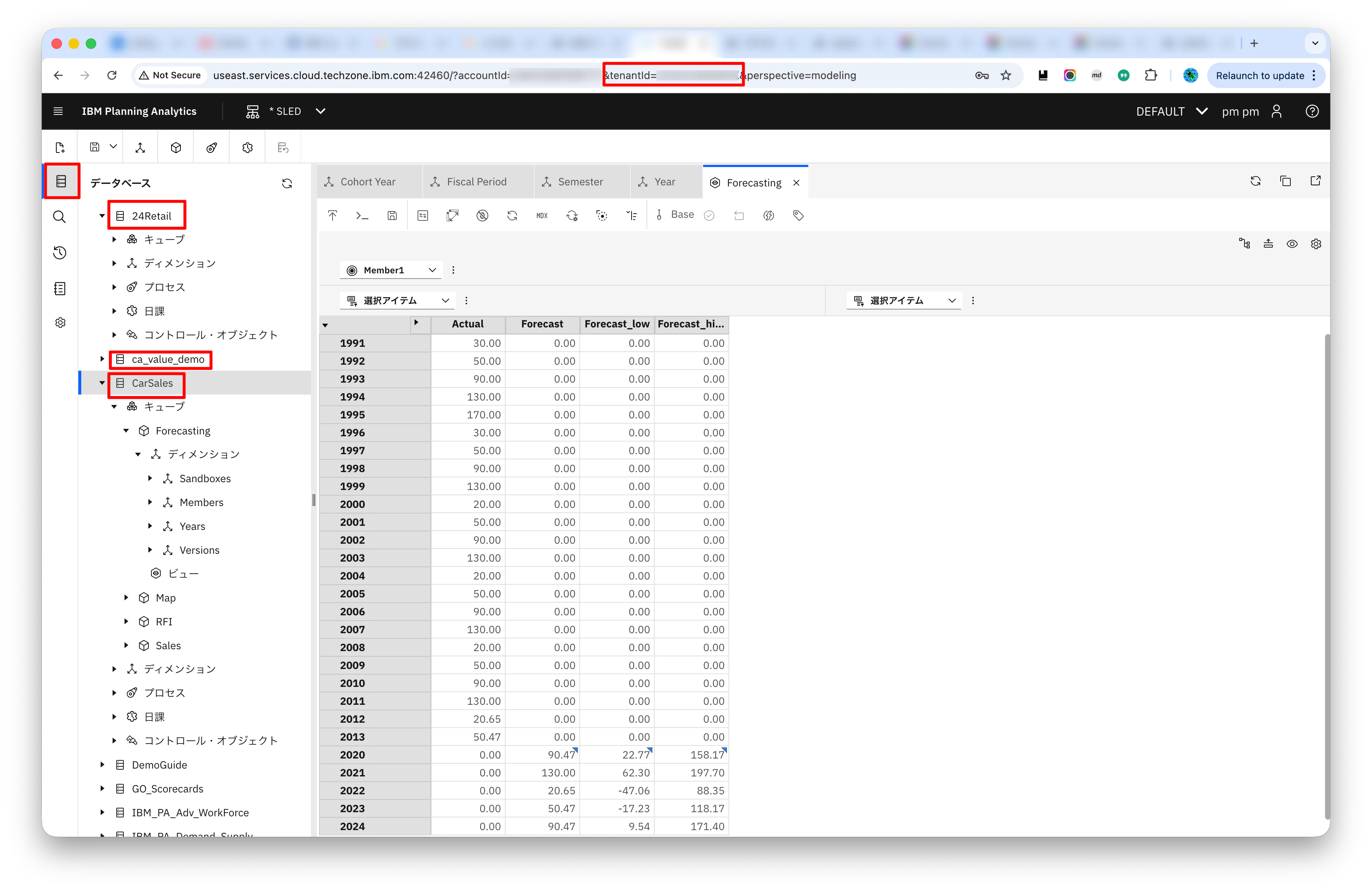
image.png

右側のプレビュー画面で動作確認すると以下のように、IBM Planning Analyticsの情報を取得できることがわかります。
image.png

URL等に誤りがあると、以下のように呼び出しできない場合があります。各入力の確認が必要です。
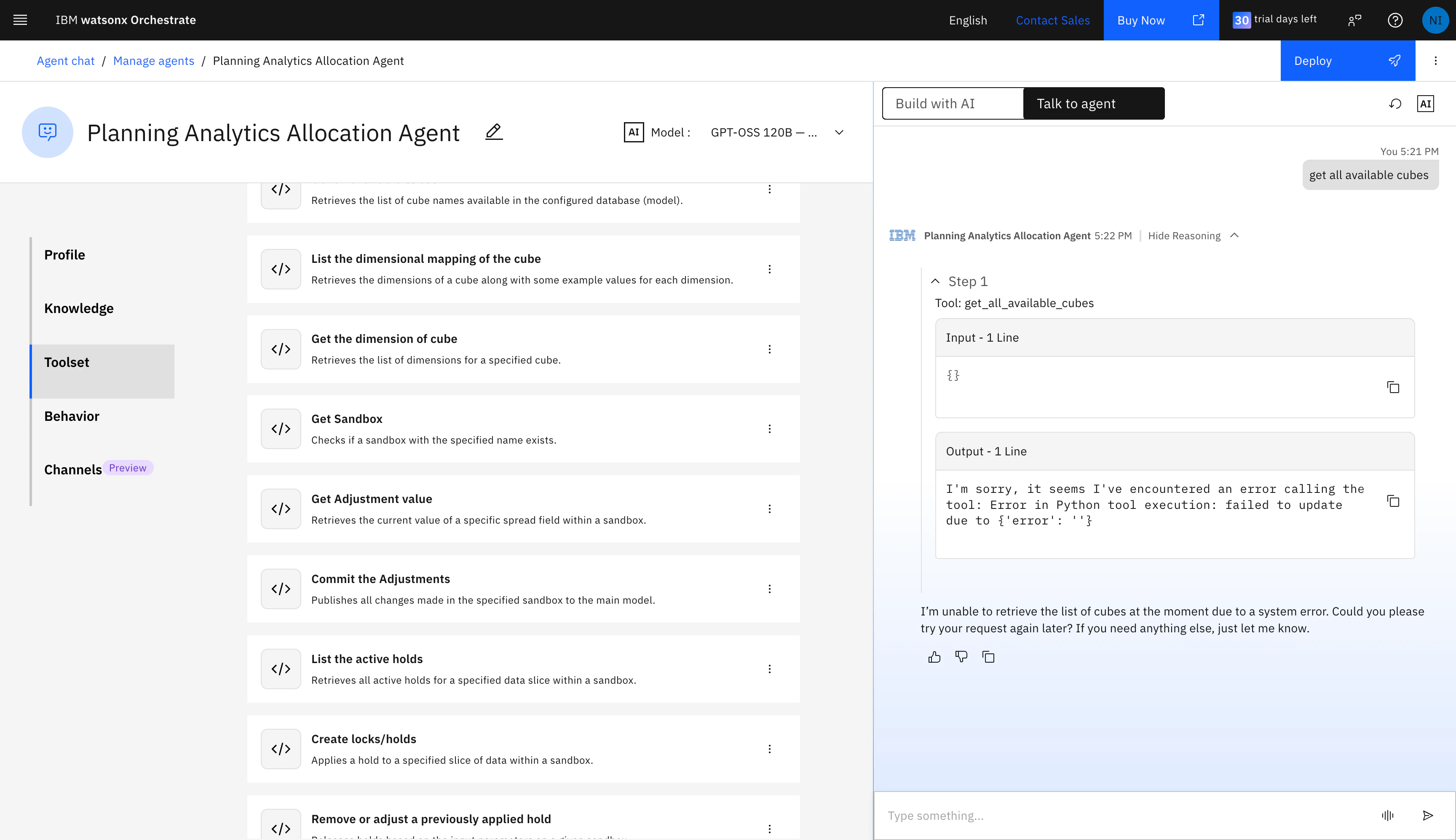
image.png

おわりに

無事、接続できました。よかった。

1
0
0

Register as a new user and use Qiita more conveniently

  1. You get articles that match your needs
  2. You can efficiently read back useful information
  3. You can use dark theme
What you can do with signing up
1
0

Delete article

Deleted articles cannot be recovered.

Draft of this article would be also deleted.

Are you sure you want to delete this article?