
zennに投稿していましたが、こちらにも投稿します。
はじめに
IBM Bob IDEは VS Codeで利用できるdevcontainerは利用できません。
代替手段として、IBM BobからローカルPCで稼働している開発用のコンテナにSSH接続する方法を紹介します。
システム構成
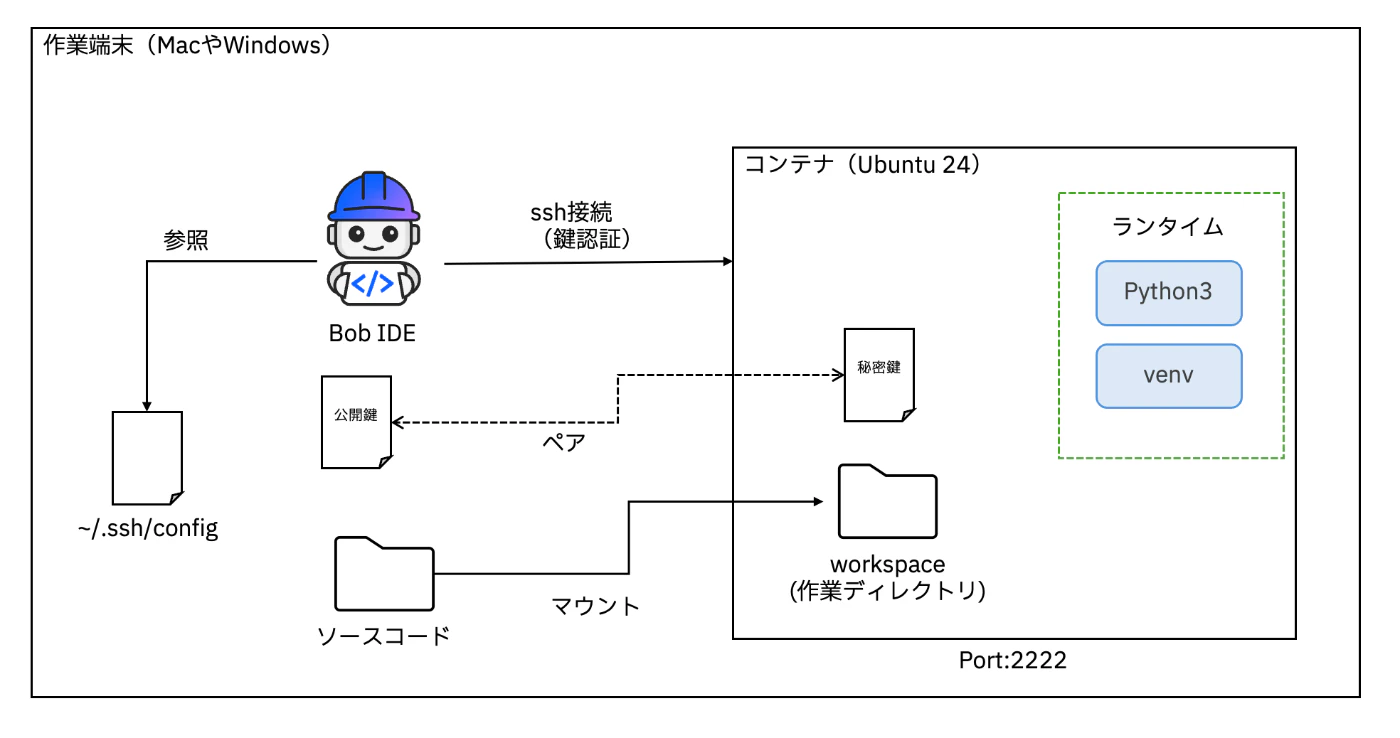
注意
この手順でコンテナにインストールする言語はPythonです。
インストールする言語は適宜変更可能です。
コマンドは全てM4 Macで実行する前提で記載しています。Windowsユーザーの方は適宜コマンドを読み替えてください。
環境
- Macbook Pro M4 Max
- Rancher Desktop v1.22.3
- IBM Bob
手順
-
作業用ディレクトリを作成し、そのディレクトリに移動する
mkdir ~/work/study/bob_development_container && cd $_ -
マウント用のディレクトリを作成する(任意)
mkdir code -
SSH接続で使用する鍵を作成する
ssh-keygen -t ed25519 -f bob -N "" -
Dockerfileを作成する
vi Dockerfile以下の内容を記述し、保存する。
FROM docker.io/ubuntu:24.04 ENV DEBIAN_FRONTEND=noninteractive RUN apt-get update && apt-get install -y \ openssh-server \ sudo \ bash \ curl \ git \ ca-certificates \ tar \ gzip \ unzip \ procps \ less \ nano \ vim \ iproute2 \ python3 \ python3-pip \ python3-venv \ && rm -rf /var/lib/apt/lists/* ARG USER_ID=1000 RUN useradd -m -u ${USER_ID} -s /bin/bash bob \ && passwd -d bob \ && echo "bob ALL=(ALL) NOPASSWD:ALL" > /etc/sudoers.d/bob \ && chmod 0440 /etc/sudoers.d/bob RUN mkdir -p /var/run/sshd /home/bob/.ssh \ && chown -R bob:bob /home/bob/.ssh \ && chmod 700 /home/bob/.ssh COPY ./bob.pub /home/bob/.ssh/authorized_keys RUN chown bob:bob /home/bob/.ssh/authorized_keys \ && chmod 600 /home/bob/.ssh/authorized_keys RUN printf '%s\n' \ 'Port 2222' \ 'PermitRootLogin no' \ 'PasswordAuthentication no' \ 'UsePAM no' \ 'PubkeyAuthentication yes' \ 'AllowUsers bob' \ > /etc/ssh/sshd_config.d/remote-dev.conf # ビルド時にホスト鍵を生成しておく RUN ssh-keygen -A # bob ユーザーで作業する設定は維持 USER bob WORKDIR /home/bob/workspace/demo-app # 起動時のみ root 権限で sshd を実行し、その後 bob に切り替える # docker run 時に --user 0 を指定しなくても root で起動されるようにする USER root EXPOSE 2222 CMD ["/usr/sbin/sshd", "-D", "-e"] -
イメージをビルドする
docker build --no-cache --platform linux/amd64 --build-arg USER_ID=501 -t bob-remote-python . -
開発用コンテナを実行する
docker run -d \ --name bob-remote-host \ --platform linux/amd64 \ -v .:/home/bob/workspace/demo-app \ -p 2222:2222 \ bob-remote-python -
~/.ssh/configに以下を追加する
Host bob-remote-container-demo HostName 127.0.0.1 Port 2222 User bob IdentityFile ~/work/study/bob_development_container/bob IdentitiesOnly yes StrictHostKeyChecking accept-new ServerAliveInterval 30 ServerAliveCountMax 3 ForwardAgent yes -
IBM Bobを開き、"Remote Explorer"から "bob-remote-container-demo"を選択して、接続する

コンテナへのSSH接続に成功すると、新しいウィンドウが開きます。

以上
この記事がどなたかの参考になると幸いです。