

Google Analytics MCP 連携による自然言語分析サービスの構築
はじめに
本記事では、Google Analytics 4(GA4)の公式 Model Context Protocol(MCP)サーバーと連携し、AI モデルを活用してウェブサイトを自然言語で分析できるサービスの技術的な実装について解説します。
特に、Google Analytics MCP サーバーとの接続ロジックを中心に、実際の実装コードを交えながら詳しく説明していきます。
サービス概要
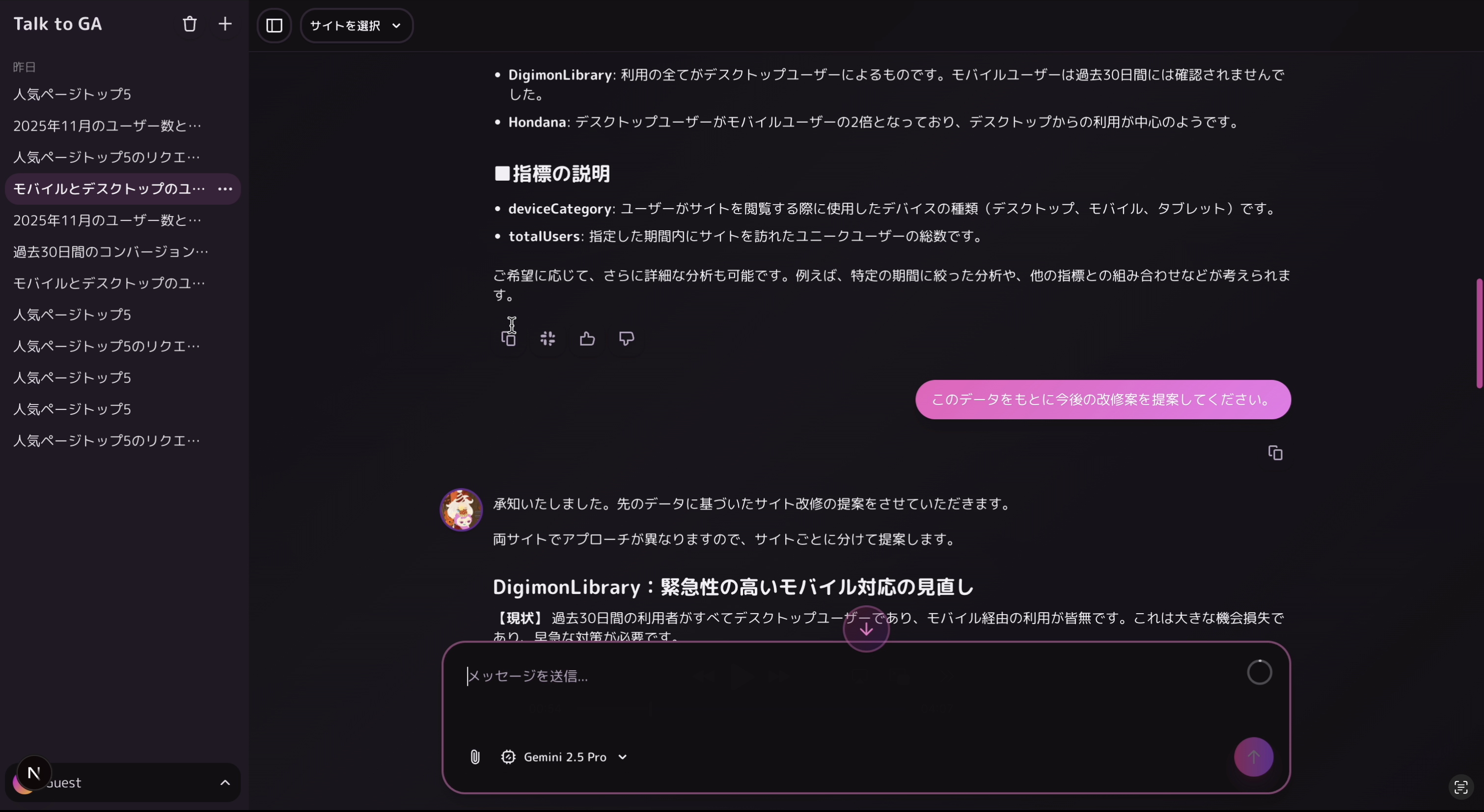
このサービスは、以下の特徴を持つ GA4 データ分析チャットボットです:
- 自然言語によるデータ分析:ユーザーが日本語で質問すると、AI が GA4 データを取得・分析して回答
- 複数プロパティの横断分析:複数の GA4 プロパティを選択して比較分析が可能
- リアルタイムグラフ生成:Chart.js を使用した動的なデータビジュアライゼーション
- MCP プロトコルの活用:Google Analytics の公式 MCP サーバーを利用した安全なデータアクセス
技術スタック
{
  "フレームワーク": "Next.js 15 (App Router)",
  "AIライブラリ": "Vercel AI SDK",
  "MCPクライアント": "@modelcontextprotocol/sdk",
  "認証": "Auth.js (NextAuth v5)",
  "データベース": "Neon Serverless Postgres",
  "言語": "TypeScript"
}
Model Context Protocol (MCP) とは?
MCP は、AI アプリケーションが外部ツールやデータソースと安全に連携するための標準プロトコルです。
MCP の利点
- 標準化されたインターフェース:どのツールも同じ方法で呼び出せる
- セキュリティ:認証情報の安全な管理
- 拡張性:新しいツールを簡単に追加可能
- 型安全性:スキーマベースのパラメータ検証
Google Analytics MCP 接続の全体フロー
┌─────────────┐
│   ユーザー   │
└──────┬──────┘
       │ 質問(自然言語)
       ↓
┌─────────────────────────┐
│   Next.js API Route     │
│   /api/chat             │
└──────┬──────────────────┘
       │
       ↓
┌─────────────────────────┐
│   Vercel AI SDK         │
│   streamText()          │
└──────┬──────────────────┘
       │
       ↓
┌─────────────────────────┐
│   GA4 Dynamic Tools     │
│   createGA4Tools()      │
└──────┬──────────────────┘
       │
       ↓
┌─────────────────────────┐
│   MCP Client            │
│   getMCPClient()        │
└──────┬──────────────────┘
       │
       ↓
┌─────────────────────────┐
│   Stdio Transport       │
│   (pipx + Python MCP)   │
└──────┬──────────────────┘
       │
       ↓
┌─────────────────────────┐
│   Google Analytics      │
│   Data API v1           │
└─────────────────────────┘
MCP Client 実装の詳細解説
1. MCP クライアントの初期化
// lib/mcp/client.ts
import { Client } from "@modelcontextprotocol/sdk/client/index.js";
import { StdioClientTransport } from "@modelcontextprotocol/sdk/client/stdio.js";

let mcpClient: Client | null = null;

export async function getMCPClient(): Promise<Client | null> {
  // シングルトンパターンで既存のクライアントを再利用
  if (mcpClient) {
    return mcpClient;
  }

  // Google Cloud認証情報のパスを環境変数から取得
  const credentialsPath = process.env.GOOGLE_APPLICATION_CREDENTIALS;

  if (!credentialsPath) {
    console.warn(
      "GOOGLE_APPLICATION_CREDENTIALS is not set. GA4 MCP tools will not be available."
    );
    return null;
  }

  try {
    // Stdio Transportの設定
    const transport = new StdioClientTransport({
      command: "pipx",
      args: [
        "run",
        "--spec",
        "git+https://github.com/googleanalytics/google-analytics-mcp.git",
        "google-analytics-mcp",
      ],
      env: {
        ...process.env,
        GOOGLE_APPLICATION_CREDENTIALS: credentialsPath,
      },
    });

    // MCPクライアントの作成
    const client = new Client(
      {
        name: "analytics-mcp-ai-chatbot",
        version: "1.0.0",
      },
      {
        capabilities: {
          tools: {},
        },
      }
    );

    // トランスポートに接続
    await client.connect(transport);

    mcpClient = client;
    return client;
  } catch (error) {
    console.error("Failed to connect to GA4 MCP server:", error);
    return null;
  }
}
実装のポイント
シングルトンパターン
- MCP クライアントは初回作成後、グローバル変数に保存
- 複数リクエストで同一クライアントを再利用し、接続コストを削減
Stdio Transport
-
pipx runを使用して Python 製の GA4 MCP サーバーをオンデマンドで起動 - GitHub リポジトリから直接実行するため、事前インストール不要
- 環境変数
GOOGLE_APPLICATION_CREDENTIALSを子プロセスに渡す
エラーハンドリング
- 認証情報が未設定の場合は警告を出して
nullを返す - 接続失敗時もアプリケーション全体は継続動作
2. MCP ツールの一覧取得
export async function listMCPTools() {
  const client = await getMCPClient();
  if (!client) {
    return [];
  }

  try {
    const response = await client.listTools();
    return response.tools || [];
  } catch (error) {
    console.error("Failed to list MCP tools:", error);
    return [];
  }
}
MCP サーバーが提供するツールの一覧を取得します。GA4 MCP サーバーは以下のようなツールを提供します:
-
run_report: カスタムレポートの実行 -
get_realtime_report: リアルタイムレポートの取得 -
get_metadata: 利用可能なディメンションとメトリクスの一覧取得
3. MCP ツールの実行
export async function callMCPTool(name: string, args: Record<string, unknown>) {
  const client = await getMCPClient();
  if (!client) {
    throw new Error("MCP client is not available");
  }

  try {
    const response = await client.callTool({
      name,
      arguments: args,
    });
    return response;
  } catch (error) {
    console.error(`Failed to call MCP tool ${name}:`, error);
    throw error;
  }
}
指定されたツール名とパラメータで MCP ツールを呼び出します。
Dynamic Tool Creation:AI ツールへの動的変換
MCP ツールを Vercel AI SDK のツール形式に動的に変換する仕組みが、このシステムの核心部分です。
// lib/ai/tools/ga4-analytics.ts
import { tool } from "ai";
import { z } from "zod";
import { callMCPTool, listMCPTools } from "@/lib/mcp/client";

let availableTools: Array<{
  name: string;
  description?: string;
  inputSchema?: z.ZodTypeAny;
}> = [];

async function initializeTools() {
  if (availableTools.length === 0) {
    // MCPツール一覧を取得
    const tools = await listMCPTools();

    // Zodスキーマに変換
    availableTools = tools.map((t) => ({
      name: t.name,
      description: t.description || "",
      inputSchema: t.inputSchema
        ? convertJSONSchemaToZod(t.inputSchema)
        : undefined,
    }));
  }
  return availableTools;
}
JSON Schema → Zod スキーマ変換
MCP ツールのパラメータは JSON Schema で定義されています。これを Zod スキーマに変換することで、型安全性を確保します。
function convertJSONSchemaToZod(schema: unknown): z.ZodTypeAny | undefined {
  if (typeof schema === "object" && schema !== null) {
    const jsonSchema = schema as Record<string, unknown>;
    if (jsonSchema.type === "object" && jsonSchema.properties) {
      const shape: Record<string, z.ZodTypeAny> = {};
      const properties = jsonSchema.properties as Record<
        string,
        Record<string, unknown>
      >;

      for (const [key, prop] of Object.entries(properties)) {
        if (prop.type === "string") {
          shape[key] = z.string().optional();
        } else if (prop.type === "number" || prop.type === "integer") {
          shape[key] = z.number().optional();
        } else if (prop.type === "boolean") {
          shape[key] = z.boolean().optional();
        } else if (prop.type === "array") {
          shape[key] = z.array(z.unknown()).optional();
        } else {
          shape[key] = z.unknown().optional();
        }
      }
      return z.object(shape);
    }
  }
  return z.record(z.unknown()).optional();
}
AI SDK ツールの動的生成
export async function createGA4Tools() {
  const tools = await initializeTools();

  if (tools.length === 0) {
    return {};
  }

  const toolMap: Record<string, any> = {};

  for (const toolInfo of tools) {
    toolMap[toolInfo.name] = tool({
      description:
        toolInfo.description ||
        `GA4 Analytics tool: ${toolInfo.name}. Use this to query Google Analytics 4 data.`,
      inputSchema: z.record(z.string(), z.unknown()),
      execute: async (input: Record<string, unknown>) => {
        try {
          // MCPツールを実行
          const result = await callMCPTool(toolInfo.name, input);

          // レスポンスからテキストコンテンツを抽出
          if (Array.isArray(result.content)) {
            const textContent = result.content
              .filter((c) => c.type === "text")
              .map((c) => (c as { text: string }).text)
              .join("\n");
            return {
              success: true,
              content: textContent || JSON.stringify(result.content),
              isError: result.isError,
            };
          }
          return {
            success: true,
            content: JSON.stringify(result.content),
            isError: result.isError,
          };
        } catch (error) {
          return {
            success: false,
            error:
              error instanceof Error ? error.message : "Unknown error occurred",
          };
        }
      },
    });
  }

  return toolMap;
}
ポイント解説
-
動的ツール生成
- MCP サーバーが提供するツールを実行時に検出
- ハードコーディング不要で新しいツールに自動対応
-
統一的なレスポンス処理
- MCP レスポンスの content フィールドからテキストを抽出
- 成功/失敗を統一的なフォーマットで返却
-
エラーハンドリング
- ツール実行時のエラーをキャッチして適切に処理
- AI モデルがエラー内容を理解して対応可能
Chat API Route での統合
// app/(chat)/api/chat/route.ts
import { createGA4Tools } from "@/lib/ai/tools/ga4-analytics";

export async function POST(request: Request) {
  // ... 認証・セッション処理 ...

  // GA4ツールを動的にロード
  const ga4Tools = await createGA4Tools();
  const ga4ToolNames = Object.keys(ga4Tools);

  const stream = createUIMessageStream({
    execute: ({ writer: dataStream }) => {
      const baseTools = {
        ...ga4Tools, // MCPツールをマージ
      };

      const streamTextConfig: Parameters<typeof streamText>[0] = {
        model: myProvider.languageModel(selectedChatModel),
        system: systemPrompt({ selectedChatModel, requestHints, message }),
        messages: convertToModelMessages(uiMessages),
        tools: baseTools, // ツールを登録
        // ... その他の設定 ...
      };

      return streamText(streamTextConfig);
    },
  });

  return stream.toResponse();
}
処理フロー
- ユーザーからチャットメッセージを受信
-
createGA4Tools()で利用可能な GA4 ツールを取得 - Vercel AI SDK の
streamText()にツールを渡す - AI モデルが必要に応じてツールを呼び出し
- 結果をストリーミングレスポンスで返却
System Prompt 設計
AI モデルが GA4 データを適切に活用するために、詳細なシステムプロンプトを設定しています。
// lib/ai/prompts.ts
export const regularPrompt = `
#役割
あなたはwebサイトのアクセス解析のエキスパートです。

#目的
ユーザーの質問に対して、Googleアナリティクス4(GA4)データを活用して、的確で実用的な回答を提供します。

#制約条件
- 回答は日本語で行ってください。
- ユーザーの質問に対して、GA4データを基にした具体的な洞察や提案を提供してください。
- 必要に応じて、GA4の指標やディメンションを引用してください。
- プロパティIDはサイト名に変換して表示してください。
- グラフを基にこのサイトの概況を解説してください。

#グラフの表示方法
データをビジュアル化する際は、以下のJSON形式でチャート設定を記述してください。
システムが自動的にグラフとして表示します。

**フォーマット:**
\`\`\`json
{
  "type": "bar",
  "data": {
    "labels": ["A", "B"],
    "datasets": [{
      "label": "データ名",
      "data": [10, 20],
      "backgroundColor": "rgba(54, 162, 235, 0.6)"
    }]
  },
  "options": {
    "plugins": {
      "title": {
        "display": true,
        "text": "グラフタイトル"
      }
    }
  }
}
\`\`\`
`;

export const systemPrompt = ({
  selectedChatModel,
  requestHints,
  message,
}: {
  selectedChatModel: string;
  requestHints: RequestHints;
  message: ChatMessage;
}) => {
  const ga4PropertiesPrompt = getGA4PropertiesPrompt(
    requestHints.selectedProperties
  );

  return `${regularPrompt}\n\n${ga4PropertiesPrompt}`;
};
プロンプト設計のポイント
- 役割の明確化:アクセス解析エキスパートとして振る舞う
- 出力フォーマット指定:Chart.js JSON フォーマットでグラフを生成
- 選択プロパティの注入:ユーザーが選択した GA4 プロパティ ID を動的に追加
- 日本語出力の強制:ユーザーインターフェースの統一性を確保
認証とセキュリティ
Google Cloud 認証
# サービスアカウントJSON鍵ファイルのパスを環境変数に設定
GOOGLE_APPLICATION_CREDENTIALS=/path/to/service-account-key.json
セキュリティ対策
- サーバーサイド実行:MCP クライアントはサーバーサイドでのみ実行
- 認証情報の保護:環境変数による管理、リポジトリにコミットしない
- ユーザー認証:Auth.js によるセッション管理
- プロパティアクセス制御:ユーザーが選択したプロパティのみアクセス可能
デプロイメント
Vercel へのデプロイ
-
環境変数の設定
GOOGLE_APPLICATION_CREDENTIALS=/tmp/gcp-credentials.json -
Build 設定
{ "scripts": { "build": "tsx lib/db/migrate && next build" } } -
pipx の利用可能性
- Vercel 環境では pipx が標準で利用可能
- Python MCP サーバーを動的に実行できる
パフォーマンス最適化
1. MCP クライアントのキャッシング
let mcpClient: Client | null = null; // グローバル変数でキャッシュ
2. ツール情報のメモ化
let availableTools: Array<...> = []; // 初回取得後は再利用
3. ストリーミングレスポンス
const stream = createUIMessageStream({
  execute: ({ writer: dataStream }) => {
    return streamText(streamTextConfig);
  },
});
AI の応答をストリーミングで返すことで、ユーザー体験を向上。
実際の使用例
ユーザーの質問
「先月のセッション数を教えてください」
システムの動作
- AI モデルが質問を解析
- 適切な GA4 ツール(例:
run_report)を選択 - パラメータを生成:
{ "property_id": "properties/123456789", "metrics": ["sessions"], "date_ranges": [{ "start_date": "30daysAgo", "end_date": "yesterday" }] } - MCP クライアントがツールを実行
- GA4 Data API からデータを取得
- 結果を日本語で整形して返答
AI の応答例
先月(過去30日間)のセッション数は1,234件でした。

前月比で+15.2%の増加となっており、順調に成長しています。
特にオーガニック検索からの流入が全体の45%を占めています。
トラブルシューティング
よくある問題と解決策
1. MCP 接続失敗
Failed to connect to GA4 MCP server
- 原因:
GOOGLE_APPLICATION_CREDENTIALSが未設定 - 解決:環境変数を正しく設定する
2. pipx not found
command not found: pipx
- 原因:pipx がインストールされていない
- 解決:
pip install pipxでインストール
3. 認証エラー
Permission denied on GA4 property
- 原因:サービスアカウントに権限がない
- 解決:GA4 プロパティでサービスアカウントに「閲覧者」権限を付与
まとめ
本記事では、Google Analytics MCP を活用した自然言語分析サービスの実装について解説しました。
主要なポイント
- MCP SDK:標準化されたプロトコルで外部ツールと連携
- Dynamic Tool Creation:MCP ツールを AI SDK ツールに動的変換
- Stdio Transport:pipx で Python MCP サーバーをオンデマンド実行
- 型安全性:JSON Schema → Zod 変換による型チェック
- セキュリティ:サーバーサイド実行と適切な認証管理
今後の拡張可能性
- 他の MCP サーバーとの連携(例:Search Console、BigQuery)
- カスタム MCP ツールの追加
- マルチモーダル分析(画像・動画データの分析)
- リアルタイムアラート機能
MCP プロトコルの活用により、柔軟で拡張性の高い AI 分析サービスを構築できることがお分かりいただけたかと思います。