0
0

Delete article

Deleted articles cannot be recovered.

Draft of this article would be also deleted.

Are you sure you want to delete this article?

VSCodeでDatadog MCPサーバ設定

0
Last updated at Posted at 2026-07-16

目次

準備:VSCode内に拡張機能をインストールする
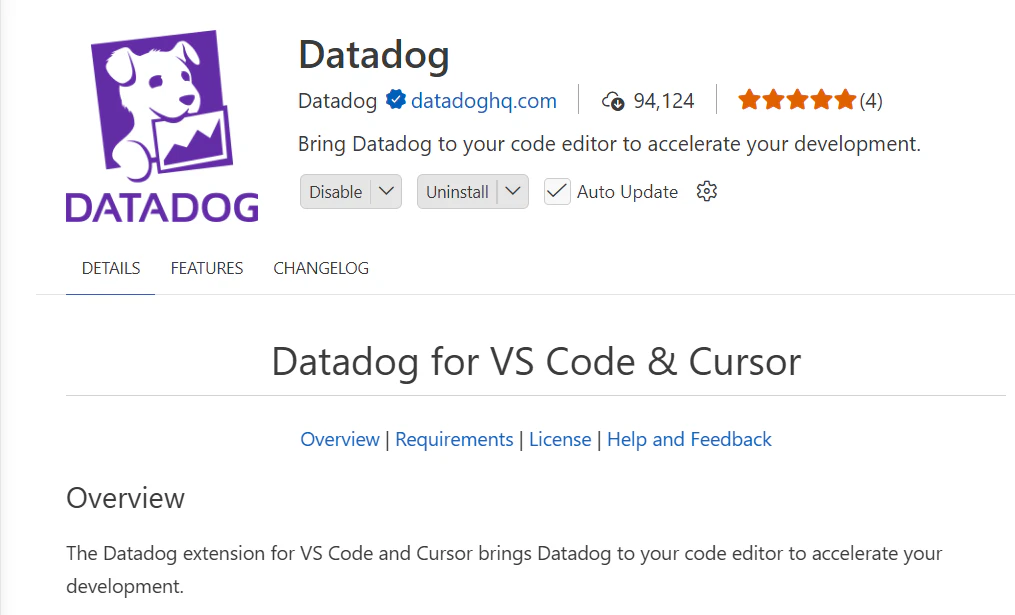
image.png

設定方法1:手動でmcp.jsonを書く

公式手順はこちら

  1. Datadog拡張機能をペインでクリックし、アカウントにサインインする

  2. VSCodeを起動し、「Ctrl」+「Shift」+「P」->「MCP: Open User Configuration」をクリックする

    mcp.jsonを以下のように設定する
    なお、"url"の部分については、ツールセットを参考にする

    mcp.json
    {
    "servers": {
    	"my-mcp-server-datadog": {
    		"url": "https://mcp.datadoghq.com/v1/mcp",
    		"type": "http"
    	}
    },
    "inputs": []
    }
    

  3. mcp.jsonファイル内に「Start」がでるはずなので、それをクリック
    image.png


  4. Github Copilotのチャットから確認
    image.png
    image.png

設定方法2:画面で設定する

  1. Datadog拡張機能をペインでクリックし、アカウントにサインインする


  2. VSCodeを起動し、「Ctrl」+「Shift」+「P」->「MCP: List Servers」->「MCP: Add Server」をクリックする

  3. 続いて「HTTP」->ツールセットのURLを入力する

  4. すると、【設定方法1】で記載したものと同じものができあがるはず。

0
0
0

Register as a new user and use Qiita more conveniently

  1. You get articles that match your needs
  2. You can efficiently read back useful information
  3. You can use dark theme
What you can do with signing up
0
0

Delete article

Deleted articles cannot be recovered.

Draft of this article would be also deleted.

Are you sure you want to delete this article?
