

Colissの「PhotoshopやIllustratorをオープンソースで再構築」という記事を読みました。
Crafting Appsとして、PhotoCraft、VectorCraft、FilmCraft、LightCraft、PrintCraft、EffectCraft、DesignCraftの7つのアプリが紹介されています。
その中で特に気になったのが、「エージェント準備完了」の文字。
「MCPで操作できるなら、Codexからどこまで触れるんだろう?」
と思い、早速Windows環境に入れて試してみました。
結果として、7つすべてをCodex MCPとして登録でき、合計468個のツールを認識。
さらに、LightCraftでは画像補正、PhotoCraftでは文字入れまで実際に試すことができました。
この記事では、実際に環境を作ってみた手順と、MCP経由でどこまで操作できたのかをまとめます。
今回使った7つのCrafting Apps
今回導入したのは以下の7つです。
| 用途のイメージ | Crafting Apps |
|---|---|
| Photoshop系 | PhotoCraft |
| Illustrator系 | VectorCraft |
| Premiere Pro系 | FilmCraft |
| Lightroom系 | LightCraft |
| Acrobat系 | PrintCraft |
| After Effects系 | EffectCraft |
| InDesign系 | DesignCraft |
Adobe製品そのものがオープンソース化されたわけではなく、それぞれの用途に近いOSSアプリとして作られています。
今回の目的は、単にアプリを起動して触ることではなく、CodexからMCP経由で操作できる状態にすることです。
まずは配置を整理する
長く使うことを考えて、全部を以下にまとめました。
C:\AI\CraftingApps
構成はこんな感じです。
C:\AI\CraftingApps\
├─ apps\
│  ├─ PhotoCraft\
│  ├─ VectorCraft\
│  ├─ FilmCraft\
│  ├─ LightCraft\
│  ├─ PrintCraft\
│  ├─ EffectCraft\
│  └─ DesignCraft\
│
├─ src\
│  ├─ VectorCraft\
│  ├─ FilmCraft\
│  ├─ LightCraft\
│  ├─ PrintCraft\
│  └─ DesignCraft\
│
├─ workspace\
│  ├─ images\
│  ├─ vectors\
│  ├─ video\
│  ├─ photos\
│  ├─ pdf\
│  └─ layout\
│
├─ install.bat
├─ update.bat
├─ register-mcp.bat
└─ AGENTS.md
ポイントは、apps / src / workspace を分離したことです。
apps
実際に使う実行ファイルを置く場所です。
CodexのMCP設定から参照するのも、すべてここです。
src
GitHubから取得したソースコードと、Rustでビルドするための場所です。
更新時にはここで、
git pull
↓
cargo build --release
↓
appsへ反映
という流れにしています。
workspace
実際の画像やPDF、動画などを置く作業領域です。
アプリ本体やソースコードとは分離しているので、アップデート時に巻き込まれません。
Portable版とソースビルド版を混在させた
今回、Windows向けPortable版が用意されているものは、そのまま使いました。
一方、Portable版がないものはソースからRustでビルドしています。
ただし、最終的な配置は全部同じ形に揃えました。
C:\AI\CraftingApps\apps\PhotoCraft\photocraft-cli.exe
C:\AI\CraftingApps\apps\VectorCraft\vectorcraft-cli.exe
C:\AI\CraftingApps\apps\FilmCraft\filmcraft-cli.exe
C:\AI\CraftingApps\apps\LightCraft\lightcraft-cli.exe
C:\AI\CraftingApps\apps\PrintCraft\printcraft-cli.exe
C:\AI\CraftingApps\apps\EffectCraft\effectcraft-cli.exe
C:\AI\CraftingApps\apps\DesignCraft\designcraft-cli.exe
これで、導入方法が違っていてもCodexから見えるパスは固定になります。
更新時にもMCP設定を変えずに済むので、この形にしておくとかなり楽です。
install.batとupdate.batも用意した
初回構築用に、
install.bat
更新用に、
update.bat
を用意しました。
install.batの中身
初回構築用の install.bat です。
PhotoCraftとEffectCraftはWindows向けPortable版を取得し、それ以外はGitHubからソースを取得してRustでビルドする構成にしています。
GitとRust(Cargo)がインストール済みであることを前提にしています。
@echo off
chcp 65001 >nul
setlocal EnableExtensions EnableDelayedExpansion

set "ROOT=C:\AI\CraftingApps"
set "APPS=%ROOT%\apps"
set "SRC=%ROOT%\src"
set "WORK=%ROOT%\workspace"
set "TMP=%ROOT%\_tmp"

echo.
echo ==========================================
echo   Crafting Apps Installer
echo ==========================================
echo.

rem --------------------------------------------------
rem Directory setup
rem --------------------------------------------------

if not exist "%ROOT%" mkdir "%ROOT%"
if not exist "%APPS%" mkdir "%APPS%"
if not exist "%SRC%" mkdir "%SRC%"
if not exist "%WORK%" mkdir "%WORK%"
if not exist "%TMP%" mkdir "%TMP%"

if not exist "%WORK%\images" mkdir "%WORK%\images"
if not exist "%WORK%\vectors" mkdir "%WORK%\vectors"
if not exist "%WORK%\video" mkdir "%WORK%\video"
if not exist "%WORK%\photos" mkdir "%WORK%\photos"
if not exist "%WORK%\pdf" mkdir "%WORK%\pdf"
if not exist "%WORK%\layout" mkdir "%WORK%\layout"

rem --------------------------------------------------
rem Tool checks
rem --------------------------------------------------

where git >nul 2>&1
if errorlevel 1 (
    echo [ERROR] Git was not found.
    echo Install Git and run this script again.
    exit /b 1
)

where cargo >nul 2>&1
if errorlevel 1 (
    echo [ERROR] Cargo was not found.
    echo Install Rust with rustup and run this script again.
    exit /b 1
)

echo [OK] Git
echo [OK] Cargo
echo.

rem --------------------------------------------------
rem Portable applications
rem --------------------------------------------------

call :InstallPortable PhotoCraft photocraft photocraft-cli.exe
if errorlevel 1 exit /b 1

call :InstallPortable EffectCraft effectcraft effectcraft-cli.exe
if errorlevel 1 exit /b 1

rem --------------------------------------------------
rem Source-built applications
rem --------------------------------------------------

call :InstallSource VectorCraft vectorcraft vectorcraft-cli.exe
if errorlevel 1 exit /b 1

call :InstallSource FilmCraft filmcraft filmcraft-cli.exe
if errorlevel 1 exit /b 1

call :InstallSource LightCraft lightcraft lightcraft-cli.exe
if errorlevel 1 exit /b 1

call :InstallSource PrintCraft printcraft printcraft-cli.exe
if errorlevel 1 exit /b 1

call :InstallSource DesignCraft designcraft designcraft-cli.exe
if errorlevel 1 exit /b 1

rem --------------------------------------------------
rem Cleanup
rem --------------------------------------------------

if exist "%TMP%" rmdir /s /q "%TMP%"

echo.
echo ==========================================
echo   Installation complete
echo ==========================================
echo Apps      : %APPS%
echo Sources   : %SRC%
echo Workspace : %WORK%
echo.
echo Next: run register-mcp.bat
echo.

exit /b 0


rem ==================================================
rem Install Portable Release
rem ==================================================

:InstallPortable

set "APPNAME=%~1"
set "REPO=%~2"
set "CLI=%~3"

set "DEST=%APPS%\%APPNAME%"
set "APP_TMP=%TMP%\%REPO%"
set "ZIP=%APP_TMP%\release.zip"
set "EXTRACT=%APP_TMP%\extract"

echo.
echo ------------------------------------------
echo Installing %APPNAME%
echo ------------------------------------------

if exist "%APP_TMP%" rmdir /s /q "%APP_TMP%"
mkdir "%APP_TMP%"
mkdir "%EXTRACT%"

echo Downloading latest Windows portable release...

powershell -NoProfile -ExecutionPolicy Bypass -Command ^
"$ErrorActionPreference='Stop';" ^
"$headers=@{'User-Agent'='CraftingApps-Installer'};" ^
"$release=Invoke-RestMethod -Headers $headers -Uri 'https://api.github.com/repos/storytold/%REPO%/releases/latest';" ^
"$asset=$null;" ^
"foreach($a in $release.assets){if($a.name -like '*windows-x64-portable.zip'){$asset=$a;break}};" ^
"if($null -eq $asset){throw 'Windows x64 portable ZIP was not found.'};" ^
"Write-Host ('Downloading: ' + $asset.name);" ^
"Invoke-WebRequest -Headers $headers -Uri $asset.browser_download_url -OutFile '%ZIP%';"

if errorlevel 1 (
    echo [ERROR] Failed to download %APPNAME%.
    exit /b 1
)

echo Extracting...

powershell -NoProfile -ExecutionPolicy Bypass -Command ^
"$ErrorActionPreference='Stop';" ^
"Expand-Archive -LiteralPath '%ZIP%' -DestinationPath '%EXTRACT%' -Force;"

if errorlevel 1 (
    echo [ERROR] Failed to extract %APPNAME%.
    exit /b 1
)

powershell -NoProfile -ExecutionPolicy Bypass -Command ^
"$ErrorActionPreference='Stop';" ^
"$root='%EXTRACT%';" ^
"$dirs=@(Get-ChildItem -LiteralPath $root -Directory);" ^
"$files=@(Get-ChildItem -LiteralPath $root -File);" ^
"if($dirs.Count -eq 1 -and $files.Count -eq 0){" ^
"  $wrapper=$dirs[0].FullName;" ^
"  Get-ChildItem -LiteralPath $wrapper -Force | ForEach-Object { Move-Item -LiteralPath $_.FullName -Destination $root -Force };" ^
"  Remove-Item -LiteralPath $wrapper -Force -Recurse;" ^
"}"

if errorlevel 1 (
    echo [ERROR] Failed to normalize %APPNAME% directory.
    exit /b 1
)

if exist "%DEST%" rmdir /s /q "%DEST%"
mkdir "%DEST%"

xcopy "%EXTRACT%\*" "%DEST%\" /E /I /H /Y >nul

if not exist "%DEST%\%CLI%" (
    echo [ERROR] %CLI% was not found after installation.
    exit /b 1
)

echo [OK] %DEST%\%CLI%

exit /b 0


rem ==================================================
rem Clone and build source application
rem ==================================================

:InstallSource

set "APPNAME=%~1"
set "REPO=%~2"
set "CLI=%~3"

set "REPO_DIR=%SRC%\%APPNAME%"
set "DEST=%APPS%\%APPNAME%"
set "RELEASE_DIR=%REPO_DIR%\target\release"

echo.
echo ------------------------------------------
echo Installing %APPNAME%
echo ------------------------------------------

if not exist "%REPO_DIR%\.git" (
    echo Cloning repository...

    git clone "https://github.com/storytold/%REPO%.git" "%REPO_DIR%"

    if errorlevel 1 (
        echo [ERROR] git clone failed for %APPNAME%.
        exit /b 1
    )
) else (
    echo Repository already exists.
)

echo Building release version...

pushd "%REPO_DIR%"

cargo build --release

if errorlevel 1 (
    popd
    echo [ERROR] Build failed for %APPNAME%.
    exit /b 1
)

popd

if not exist "%RELEASE_DIR%\%CLI%" (
    echo [ERROR] %CLI% was not generated.
    exit /b 1
)

if not exist "%DEST%" mkdir "%DEST%"

copy /Y "%RELEASE_DIR%\%CLI%" "%DEST%\%CLI%" >nul

if exist "%RELEASE_DIR%\%REPO%.exe" (
    copy /Y "%RELEASE_DIR%\%REPO%.exe" "%DEST%\%REPO%.exe" >nul
)

echo [OK] %DEST%\%CLI%

exit /b 0
初回はRustの依存関係もまとめてビルドするため、それなりに時間がかかりました。
自分の環境では、特にVectorCraftなどの初回ビルドは数十分単位になりました。
一度構築してしまえば、普段は次の update.bat を使います。
update.batの中身
こちらは通常のアップデート用です。
ソースビルド版は、
git fetch --prune
↓
git pull --ff-only
↓
cargo build --release
↓
appsへ反映
という流れにしています。
Portable版もGitHubの最新Releaseを確認して入れ替えます。
ポイントは、新しいバージョンの取得やビルドに失敗しても、できるだけ現在動いている実行ファイルを壊さないようにしたことです。
@echo off
chcp 65001 >nul
setlocal EnableExtensions EnableDelayedExpansion

set "ROOT=C:\AI\CraftingApps"
set "APPS=%ROOT%\apps"
set "SRC=%ROOT%\src"
set "WORK=%ROOT%\workspace"
set "TMP=%ROOT%\_tmp"

echo.
echo ==========================================
echo   Crafting Apps Updater
echo ==========================================
echo.

if not exist "%TMP%" mkdir "%TMP%"

where git >nul 2>&1
if errorlevel 1 (
    echo [ERROR] Git was not found.
    exit /b 1
)

where cargo >nul 2>&1
if errorlevel 1 (
    echo [ERROR] Cargo was not found.
    exit /b 1
)

call :UpdatePortable PhotoCraft photocraft photocraft-cli.exe
if errorlevel 1 (
    echo [WARN] PhotoCraft update failed.
)

call :UpdatePortable EffectCraft effectcraft effectcraft-cli.exe
if errorlevel 1 (
    echo [WARN] EffectCraft update failed.
)

call :UpdateSource VectorCraft vectorcraft vectorcraft-cli.exe
if errorlevel 1 (
    echo [WARN] VectorCraft update failed.
)

call :UpdateSource FilmCraft filmcraft filmcraft-cli.exe
if errorlevel 1 (
    echo [WARN] FilmCraft update failed.
)

call :UpdateSource LightCraft lightcraft lightcraft-cli.exe
if errorlevel 1 (
    echo [WARN] LightCraft update failed.
)

call :UpdateSource PrintCraft printcraft printcraft-cli.exe
if errorlevel 1 (
    echo [WARN] PrintCraft update failed.
)

call :UpdateSource DesignCraft designcraft designcraft-cli.exe
if errorlevel 1 (
    echo [WARN] DesignCraft update failed.
)

if exist "%TMP%" rmdir /s /q "%TMP%"

echo.
echo ==========================================
echo   Update finished
echo ==========================================
echo.
echo Apps      : %APPS%
echo Sources   : %SRC%
echo Workspace : %WORK%
echo.

exit /b 0


rem ==================================================
rem Update Portable Release
rem ==================================================

:UpdatePortable

set "APPNAME=%~1"
set "REPO=%~2"
set "CLI=%~3"

set "DEST=%APPS%\%APPNAME%"
set "NEWDEST=%DEST%.new"
set "OLDDEST=%DEST%.old"

set "APP_TMP=%TMP%\%REPO%"
set "ZIP=%APP_TMP%\release.zip"
set "EXTRACT=%APP_TMP%\extract"

echo.
echo ------------------------------------------
echo Updating %APPNAME%
echo ------------------------------------------

if exist "%APP_TMP%" rmdir /s /q "%APP_TMP%"
mkdir "%APP_TMP%"
mkdir "%EXTRACT%"

powershell -NoProfile -ExecutionPolicy Bypass -Command ^
"$ErrorActionPreference='Stop';" ^
"$headers=@{'User-Agent'='CraftingApps-Updater'};" ^
"$release=Invoke-RestMethod -Headers $headers -Uri 'https://api.github.com/repos/storytold/%REPO%/releases/latest';" ^
"$asset=$null;" ^
"foreach($a in $release.assets){if($a.name -like '*windows-x64-portable.zip'){$asset=$a;break}};" ^
"if($null -eq $asset){throw 'Windows x64 portable ZIP was not found.'};" ^
"Write-Host ('Downloading: ' + $asset.name);" ^
"Invoke-WebRequest -Headers $headers -Uri $asset.browser_download_url -OutFile '%ZIP%';"

if errorlevel 1 (
    echo [ERROR] Download failed for %APPNAME%.
    exit /b 1
)

powershell -NoProfile -ExecutionPolicy Bypass -Command ^
"$ErrorActionPreference='Stop';" ^
"Expand-Archive -LiteralPath '%ZIP%' -DestinationPath '%EXTRACT%' -Force;"

if errorlevel 1 (
    echo [ERROR] Extraction failed for %APPNAME%.
    exit /b 1
)

powershell -NoProfile -ExecutionPolicy Bypass -Command ^
"$ErrorActionPreference='Stop';" ^
"$root='%EXTRACT%';" ^
"$dirs=@(Get-ChildItem -LiteralPath $root -Directory);" ^
"$files=@(Get-ChildItem -LiteralPath $root -File);" ^
"if($dirs.Count -eq 1 -and $files.Count -eq 0){" ^
"  $wrapper=$dirs[0].FullName;" ^
"  Get-ChildItem -LiteralPath $wrapper -Force | ForEach-Object { Move-Item -LiteralPath $_.FullName -Destination $root -Force };" ^
"  Remove-Item -LiteralPath $wrapper -Force -Recurse;" ^
"}"

if errorlevel 1 (
    echo [ERROR] Directory normalization failed for %APPNAME%.
    exit /b 1
)

if not exist "%EXTRACT%\%CLI%" (
    echo [ERROR] %CLI% was not found in the new release.
    exit /b 1
)

if exist "%NEWDEST%" rmdir /s /q "%NEWDEST%"
mkdir "%NEWDEST%"

xcopy "%EXTRACT%\*" "%NEWDEST%\" /E /I /H /Y >nul

if not exist "%NEWDEST%\%CLI%" (
    echo [ERROR] Staging failed for %APPNAME%.
    if exist "%NEWDEST%" rmdir /s /q "%NEWDEST%"
    exit /b 1
)

if exist "%OLDDEST%" rmdir /s /q "%OLDDEST%"

if exist "%DEST%" (
    move "%DEST%" "%OLDDEST%" >nul

    if errorlevel 1 (
        echo [ERROR] Could not move current %APPNAME% installation.
        if exist "%NEWDEST%" rmdir /s /q "%NEWDEST%"
        exit /b 1
    )
)

move "%NEWDEST%" "%DEST%" >nul

if errorlevel 1 (
    echo [ERROR] Could not activate new %APPNAME%.

    if exist "%DEST%" rmdir /s /q "%DEST%"

    if exist "%OLDDEST%" (
        move "%OLDDEST%" "%DEST%" >nul
        echo Previous version restored.
    )

    exit /b 1
)

if exist "%OLDDEST%" rmdir /s /q "%OLDDEST%"

echo [OK] %DEST%\%CLI%

exit /b 0


rem ==================================================
rem Update source-built application
rem ==================================================

:UpdateSource

set "APPNAME=%~1"
set "REPO=%~2"
set "CLI=%~3"

set "REPO_DIR=%SRC%\%APPNAME%"
set "DEST=%APPS%\%APPNAME%"
set "RELEASE_DIR=%REPO_DIR%\target\release"

echo.
echo ------------------------------------------
echo Updating %APPNAME%
echo ------------------------------------------

if not exist "%REPO_DIR%\.git" (
    echo [ERROR] Repository was not found:
    echo %REPO_DIR%
    echo Run install.bat first.
    exit /b 1
)

pushd "%REPO_DIR%"

echo Fetching...

git fetch --prune

if errorlevel 1 (
    popd
    echo [ERROR] git fetch failed for %APPNAME%.
    exit /b 1
)

echo Pulling...

git pull --ff-only

if errorlevel 1 (
    popd
    echo [ERROR] git pull failed for %APPNAME%.
    exit /b 1
)

echo Building...

cargo build --release

if errorlevel 1 (
    popd
    echo [ERROR] Build failed for %APPNAME%.
    echo Current installed executable was not replaced.
    exit /b 1
)

popd

if not exist "%RELEASE_DIR%\%CLI%" (
    echo [ERROR] Built CLI was not found:
    echo %RELEASE_DIR%\%CLI%
    exit /b 1
)

if not exist "%DEST%" mkdir "%DEST%"

copy /Y "%RELEASE_DIR%\%CLI%" "%DEST%\%CLI%.new" >nul

if errorlevel 1 (
    echo [ERROR] Could not stage %CLI%.
    exit /b 1
)

if not exist "%DEST%\%CLI%.new" (
    echo [ERROR] Staged CLI was not found.
    exit /b 1
)

if exist "%DEST%\%CLI%.old" del /q "%DEST%\%CLI%.old"

if exist "%DEST%\%CLI%" (
    move /Y "%DEST%\%CLI%" "%DEST%\%CLI%.old" >nul
)

move /Y "%DEST%\%CLI%.new" "%DEST%\%CLI%" >nul

if errorlevel 1 (
    echo [ERROR] Could not activate new %CLI%.

    if exist "%DEST%\%CLI%.old" (
        move /Y "%DEST%\%CLI%.old" "%DEST%\%CLI%" >nul
        echo Previous CLI restored.
    )

    exit /b 1
)

if exist "%DEST%\%CLI%.old" del /q "%DEST%\%CLI%.old"

if exist "%RELEASE_DIR%\%REPO%.exe" (
    copy /Y "%RELEASE_DIR%\%REPO%.exe" "%DEST%\%REPO%.exe.new" >nul

    if exist "%DEST%\%REPO%.exe.new" (
        if exist "%DEST%\%REPO%.exe.old" del /q "%DEST%\%REPO%.exe.old"

        if exist "%DEST%\%REPO%.exe" (
            move /Y "%DEST%\%REPO%.exe" "%DEST%\%REPO%.exe.old" >nul
        )

        move /Y "%DEST%\%REPO%.exe.new" "%DEST%\%REPO%.exe" >nul

        if errorlevel 1 (
            if exist "%DEST%\%REPO%.exe.old" (
                move /Y "%DEST%\%REPO%.exe.old" "%DEST%\%REPO%.exe" >nul
            )
        ) else (
            if exist "%DEST%\%REPO%.exe.old" del /q "%DEST%\%REPO%.exe.old"
        )
    )
)

echo [OK] %DEST%\%CLI%

exit /b 0
実際に作業する画像やPDFなどは workspace に分離しているため、update.bat では触らないようにしています。
Codex MCPから参照する実行ファイルも、
C:\AI\CraftingApps\apps\...
に固定しているので、通常のアップデートでMCPの登録先を変更する必要もありません。
register-mcp.batの中身
最後に、7つのCrafting AppsをCodex MCPへまとめて登録するための register-mcp.bat です。
このスクリプトでは、まず各CLIが存在するか確認してから、同名の既存MCP登録を削除し、改めて登録し直しています。
@echo off
chcp 65001 >nul
setlocal EnableExtensions

set "ROOT=C:\AI\CraftingApps"
set "APPS=%ROOT%\apps"
set "WORK=%ROOT%\workspace"

echo.
echo ==========================================
echo   Crafting Apps MCP Registration
echo ==========================================
echo.

rem --------------------------------------------------
rem Check Codex
rem --------------------------------------------------

where codex >nul 2>&1

if errorlevel 1 (
    echo [ERROR] codex command was not found.
    echo Check that Codex CLI is installed and available in PATH.
    exit /b 1
)

rem --------------------------------------------------
rem Ensure workspace directories
rem --------------------------------------------------

if not exist "%WORK%" mkdir "%WORK%"
if not exist "%WORK%\images" mkdir "%WORK%\images"
if not exist "%WORK%\vectors" mkdir "%WORK%\vectors"
if not exist "%WORK%\video" mkdir "%WORK%\video"
if not exist "%WORK%\photos" mkdir "%WORK%\photos"
if not exist "%WORK%\pdf" mkdir "%WORK%\pdf"
if not exist "%WORK%\layout" mkdir "%WORK%\layout"

rem --------------------------------------------------
rem Verify CLI executables
rem --------------------------------------------------

call :CheckExe "%APPS%\PhotoCraft\photocraft-cli.exe"
if errorlevel 1 exit /b 1

call :CheckExe "%APPS%\VectorCraft\vectorcraft-cli.exe"
if errorlevel 1 exit /b 1

call :CheckExe "%APPS%\FilmCraft\filmcraft-cli.exe"
if errorlevel 1 exit /b 1

call :CheckExe "%APPS%\LightCraft\lightcraft-cli.exe"
if errorlevel 1 exit /b 1

call :CheckExe "%APPS%\PrintCraft\printcraft-cli.exe"
if errorlevel 1 exit /b 1

call :CheckExe "%APPS%\EffectCraft\effectcraft-cli.exe"
if errorlevel 1 exit /b 1

call :CheckExe "%APPS%\DesignCraft\designcraft-cli.exe"
if errorlevel 1 exit /b 1

echo.
echo All CLI executables were found.
echo.

rem --------------------------------------------------
rem Remove old registrations
rem --------------------------------------------------

echo Removing previous MCP registrations if present...
echo.

codex mcp remove photocraft >nul 2>&1
codex mcp remove vectorcraft >nul 2>&1
codex mcp remove filmcraft >nul 2>&1
codex mcp remove lightcraft >nul 2>&1
codex mcp remove printcraft >nul 2>&1
codex mcp remove effectcraft >nul 2>&1
codex mcp remove designcraft >nul 2>&1

rem --------------------------------------------------
rem PhotoCraft
rem --------------------------------------------------

echo Registering PhotoCraft...

codex mcp add photocraft -- ^
    "%APPS%\PhotoCraft\photocraft-cli.exe" ^
    mcp ^
    --automation-read-root "%WORK%" ^
    --automation-write-root "%WORK%"

if errorlevel 1 (
    echo [ERROR] Failed to register PhotoCraft.
    exit /b 1
)

echo [OK] PhotoCraft
echo.

rem --------------------------------------------------
rem VectorCraft
rem --------------------------------------------------

echo Registering VectorCraft...

codex mcp add vectorcraft -- ^
    "%APPS%\VectorCraft\vectorcraft-cli.exe" ^
    mcp

if errorlevel 1 (
    echo [ERROR] Failed to register VectorCraft.
    exit /b 1
)

echo [OK] VectorCraft
echo.

rem --------------------------------------------------
rem FilmCraft
rem --------------------------------------------------

echo Registering FilmCraft...

codex mcp add filmcraft -- ^
    "%APPS%\FilmCraft\filmcraft-cli.exe" ^
    mcp

if errorlevel 1 (
    echo [ERROR] Failed to register FilmCraft.
    exit /b 1
)

echo [OK] FilmCraft
echo.

rem --------------------------------------------------
rem LightCraft
rem --------------------------------------------------

echo Registering LightCraft...

codex mcp add lightcraft -- ^
    "%APPS%\LightCraft\lightcraft-cli.exe" ^
    mcp ^
    "%WORK%\photos"

if errorlevel 1 (
    echo [ERROR] Failed to register LightCraft.
    exit /b 1
)

echo [OK] LightCraft
echo.

rem --------------------------------------------------
rem PrintCraft
rem --------------------------------------------------

echo Registering PrintCraft...

codex mcp add printcraft -- ^
    "%APPS%\PrintCraft\printcraft-cli.exe" ^
    mcp ^
    --root "%WORK%\pdf"

if errorlevel 1 (
    echo [ERROR] Failed to register PrintCraft.
    exit /b 1
)

echo [OK] PrintCraft
echo.

rem --------------------------------------------------
rem EffectCraft
rem --------------------------------------------------

echo Registering EffectCraft...

codex mcp add effectcraft -- ^
    "%APPS%\EffectCraft\effectcraft-cli.exe" ^
    mcp

if errorlevel 1 (
    echo [ERROR] Failed to register EffectCraft.
    exit /b 1
)

echo [OK] EffectCraft
echo.

rem --------------------------------------------------
rem DesignCraft
rem --------------------------------------------------

echo Registering DesignCraft...

codex mcp add designcraft -- ^
    "%APPS%\DesignCraft\designcraft-cli.exe" ^
    mcp

if errorlevel 1 (
    echo [ERROR] Failed to register DesignCraft.
    exit /b 1
)

echo [OK] DesignCraft
echo.

rem --------------------------------------------------
rem Show result
rem --------------------------------------------------

echo.
echo ==========================================
echo   MCP registration complete
echo ==========================================
echo.

codex mcp list

echo.
echo Done.
echo.

exit /b 0


rem ==================================================
rem Check executable
rem ==================================================

:CheckExe

if not exist "%~1" (
    echo [ERROR] CLI executable was not found:
    echo %~1
    exit /b 1
)

echo [OK] %~1

exit /b 0
実行すると、最後に、
codex mcp list
の結果も表示されます。
自分の環境では、以下の7つがすべて enabled になりました。
photocraft
vectorcraft
filmcraft
lightcraft
printcraft
effectcraft
designcraft
なお、LightCraftは今回、
C:\AI\CraftingApps\workspace\photos
を起動時の対象として登録しています。
自分の環境では、このフォルダが空の状態だとLightCraft MCPが正常に立ち上がらなかったため、テスト時には、
C:\AI\CraftingApps\workspace\photos\test.png
を配置してから使用しました。
認識されたツールは合計468個
Codex側で確認したところ、認識されたツール数は以下でした。
| MCP | ツール数 |
|---|---|
| PhotoCraft | 18 |
| VectorCraft | 25 |
| FilmCraft | 14 |
| LightCraft | 242 |
| PrintCraft | 123 |
| EffectCraft | 21 |
| DesignCraft | 25 |
| 合計 | 468 |
LightCraftとPrintCraftがかなり多いです。
単に「MCP接続できた」というだけでなく、実際にアプリのかなり細かい操作までツールとして公開されていることが分かります。
AGENTS.mdで使い分けルールも作った
7つもMCPがあると、Codex側がどれを使うべきか迷う可能性があります。
そこで、
C:\AI\CraftingApps\AGENTS.md
を用意しました。
基本ルールはこんな感じです。
Photoshop系      → PhotoCraft
Illustrator系    → VectorCraft
Premiere Pro系   → FilmCraft
Lightroom系      → LightCraft
Acrobat系        → PrintCraft
After Effects系  → EffectCraft
InDesign系       → DesignCraft
ただし、拡張子だけで決めるのではなく、何をしたいかで判断するようにしています。
例えばPNG画像でも、
写真の露出補正
→ LightCraft
レイヤー合成や文字入れ
→ PhotoCraft
という使い分けです。
実際に画像を加工してみた
今回のテスト画像には、オリジナルキャラクター 「雨宮しずく」 の画像を使いました。
まずは元画像を、
C:\AI\CraftingApps\workspace\photos\test.png
として配置します。
元画像
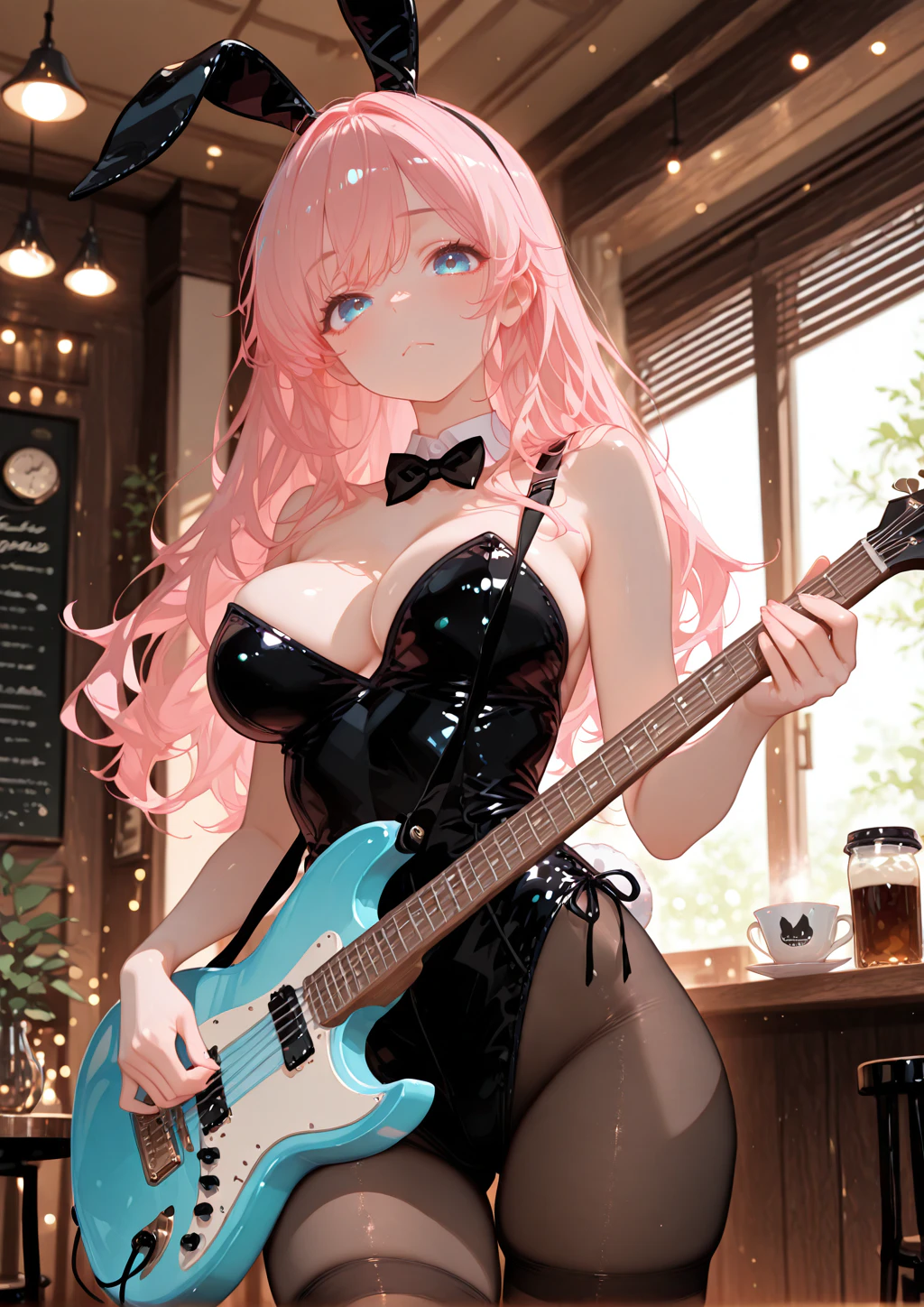
最初にLightCraft MCPで画像を確認させると、以下の情報を取得できました。
- 画像サイズ: 1024 × 1448 px
- 形式: PNG
- ファイルサイズ: 約2.01 MiB
- 向き: Normal
- 編集状態: 未編集
- 履歴: なし
- クロップ: なし
- 評価・フラグ・ラベル: 未設定
- EXIF / XMP: なし
読み取りだけでは、元ファイルは変更されませんでした。
そのままLightCraft MCPで画像補正も試してみます。
Codexには、
- 露出を少し明るくする
- コントラストを少し上げる
- 彩度をわずかに上げる
- シャープネスを軽く追加する
- 元ファイルは変更しない
- 別名PNGとして書き出す
という内容で依頼しました。
最終的に適用された値は以下です。
露出          +0.25 EV
コントラスト  +8
彩度          +5
シャープ量    20
シャープネス関連は、
シャープ半径  1.0
ディテール    25
マスキング    0
でした。
LightCraft MCPで補正後
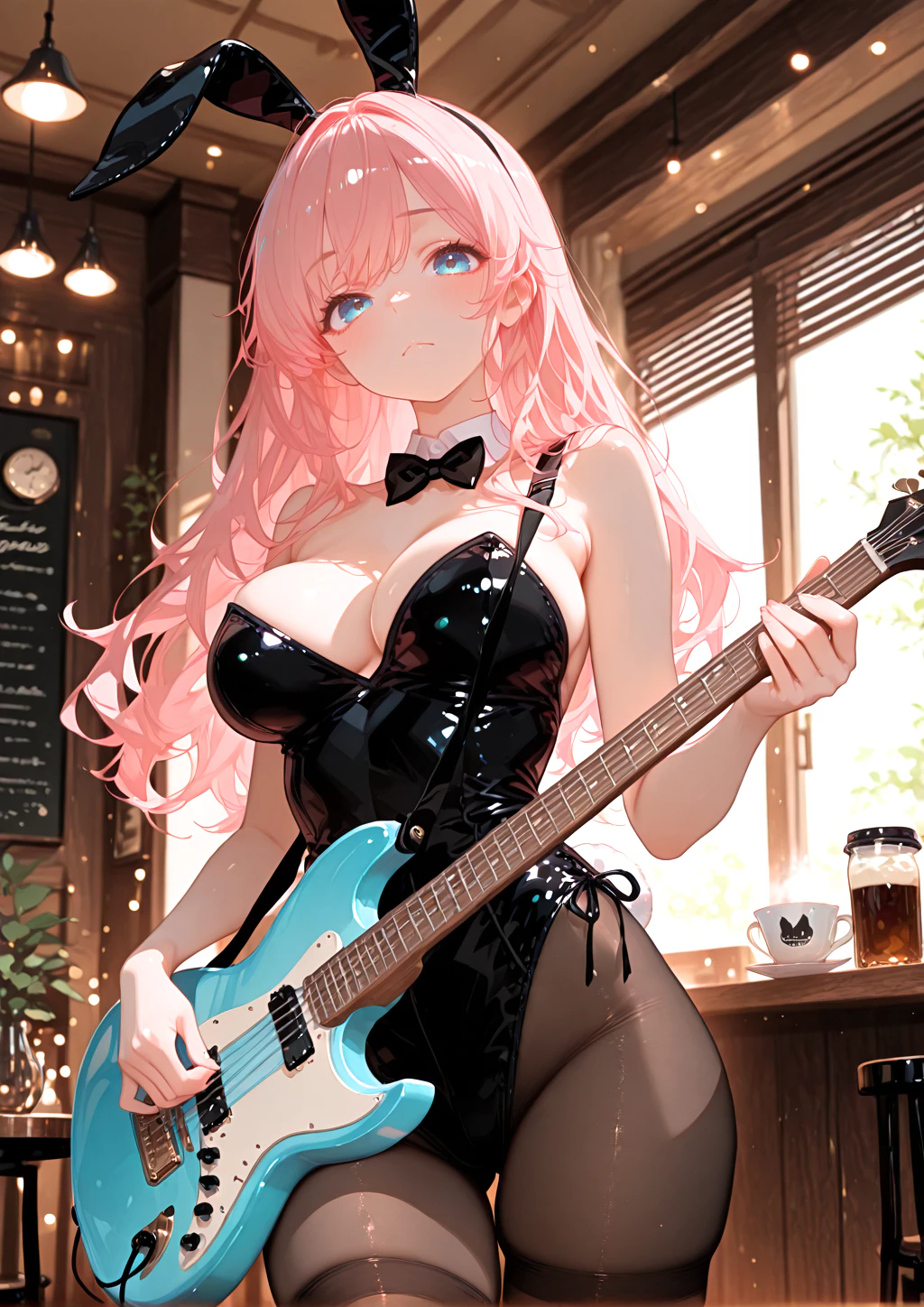
書き出し先は、
C:\AI\CraftingApps\workspace\photos\test-edited.png
です。
元画像を上書きせず、LightCraft MCP経由で補正した画像を別ファイルとして書き出せました。
PhotoCraftで文字入れも試してみた
続いて、PhotoCraft MCPも試してみます。
今度は画像下部に半透明の黒い帯を追加し、その上に白文字を配置しました。
Codexから、
- 画像下部に半透明の黒い帯を追加
- 白文字で「PhotoCraft MCP Test」と配置
- 元画像は残す
- 別ファイルとして書き出す
という処理を依頼しました。
PhotoCraft MCPで文字入れ後
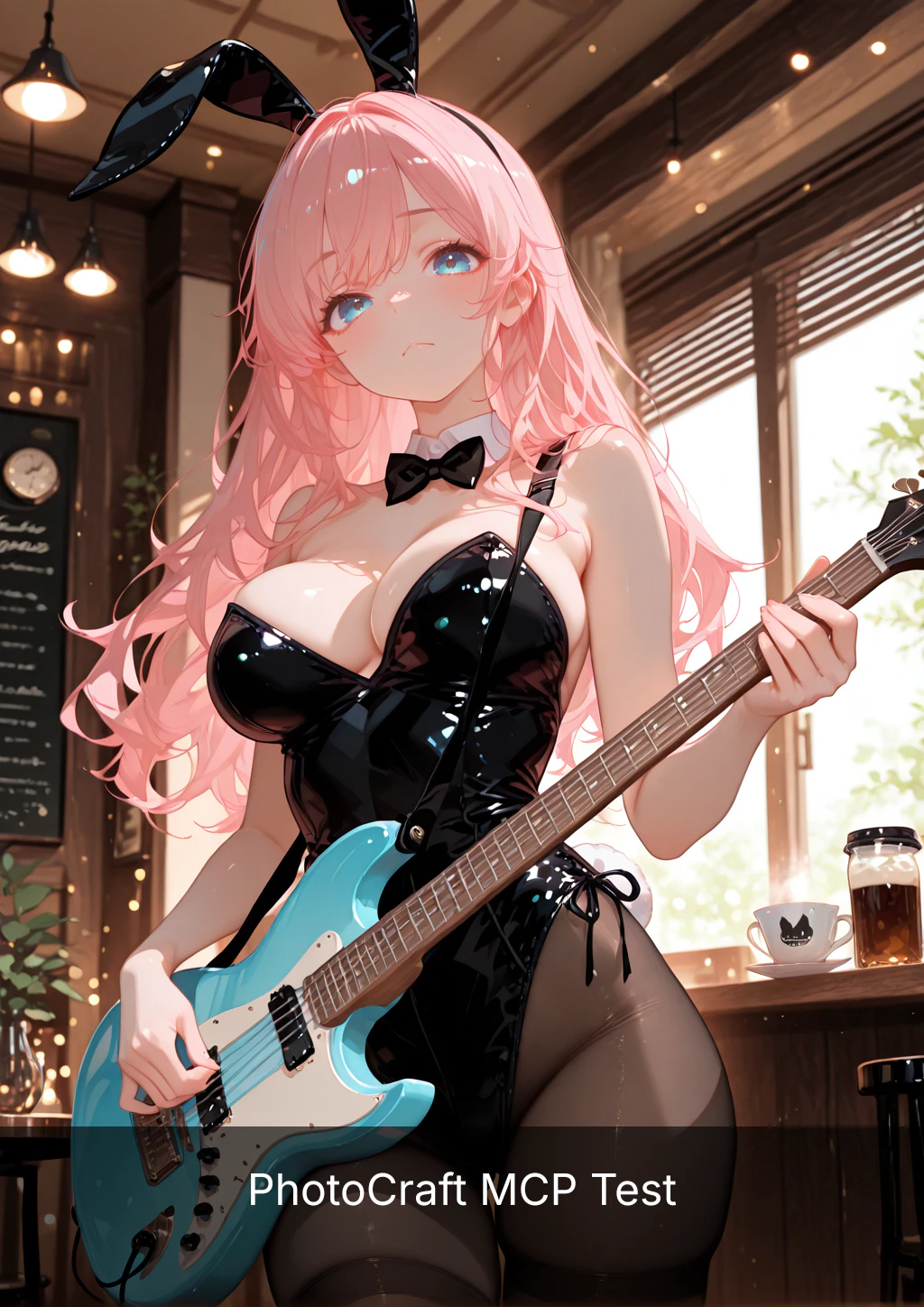
完成した画像では、画像下部に半透明の黒い帯が追加され、その上に「PhotoCraft MCP Test」という文字が配置されています。
今回の検証では、
雨宮しずくの元画像
↓
LightCraft MCP
↓
露出・コントラスト・彩度・シャープネス調整
↓
PhotoCraft MCP
↓
半透明の帯と文字を追加
↓
完成画像を書き出し
という流れを実際に確認できました。
1つのアプリですべてを処理するのではなく、画像補正はLightCraft、レイヤーや文字入れはPhotoCraftというように、目的に応じてMCPを使い分けられるのが面白いところです。
ちなみに、今回登場した「雨宮しずく」は、X、Instagram、TikTok、Threadsなどでも活動中です。
キャラクターのことが少しでも気になった方は、フォローをお願いします。
GUI操作ではなく意味的な操作ができる
AIでアプリを操作する場合、
画面を見る
↓
座標を判断する
↓
マウスをクリックする
というComputer Use的な方法があります。
今回のMCP経由では、それとは少し違います。
例えばLightCraftなら、
露出を変更する
PhotoCraftなら、
テキストを追加する
といった操作を、画面上のスライダーやボタンをマウスで操作するのではなく、意味的なコマンドとして直接実行できます。
つまり、
Codex
↓
MCP
↓
アプリ内部の操作
という形です。
個人的には、こちらの方がかなり安定しそうに感じました。
複数アプリを組み合わせるのも面白そう
今回はLightCraftとPhotoCraftを実際に使いました。
これだけでも、
LightCraft
↓
画像補正

PhotoCraft
↓
文字・レイヤー加工
という使い分けが成立しています。
さらに7つのMCPを使えるので、将来的にはもっと複数アプリをまたいだ処理もできそうです。
例えば印刷物なら、
LightCraft
↓
写真現像

PhotoCraft
↓
詳細レタッチ

VectorCraft
↓
ロゴや図形作成

DesignCraft
↓
ページレイアウト

PrintCraft
↓
最終PDF処理
という流れです。
動画なら、
VectorCraft
↓
グラフィック素材作成

EffectCraft
↓
アニメーション

FilmCraft
↓
動画編集
という組み合わせも考えられます。
セキュリティ面も少し意識した
MCP経由でローカルアプリを操作するので、アクセス範囲はなるべく限定しました。
PhotoCraftは、
C:\AI\CraftingApps\workspace
をread/write rootに設定。
PrintCraftは、
C:\AI\CraftingApps\workspace\pdf
をrootにしています。
AIエージェントからローカルファイルを扱う以上、PC全体ではなく作業領域だけに絞る方が安心です。
まとめ
Colissの記事を見て、「エージェント準備完了」という文字が気になったところから始めました。
実際にWindows + Codex環境へ導入してみると、
PhotoCraft
VectorCraft
FilmCraft
LightCraft
PrintCraft
EffectCraft
DesignCraft
の7つすべてをMCPとして接続できました。
Codexからは合計468個のツールを認識。
さらに今回は、オリジナルキャラクター「雨宮しずく」の画像を使って、
元画像
↓
LightCraft MCP
↓
露出・コントラスト・彩度・シャープネス調整
↓
PhotoCraft MCP
↓
半透明の帯と文字を追加
↓
完成画像を書き出し
まで実際に動作確認できました。
最初は「Adobe代替OSS」という部分が気になっていましたが、実際に触ってみると、それ以上に面白かったのは、
クリエイティブアプリをAIエージェントからMCP経由で直接操作できること
でした。
しかも今回は、LightCraftで画像補正、PhotoCraftで文字入れというように、複数のMCPを用途ごとに使い分けるところまで確認できました。
次はVectorCraftでのSVG作成、PrintCraftでのPDF編集、EffectCraftやFilmCraftを使った動画系の処理なども試してみたいと思います。