

証憑レポート作成アプリ 「明細ぶん投げくん」
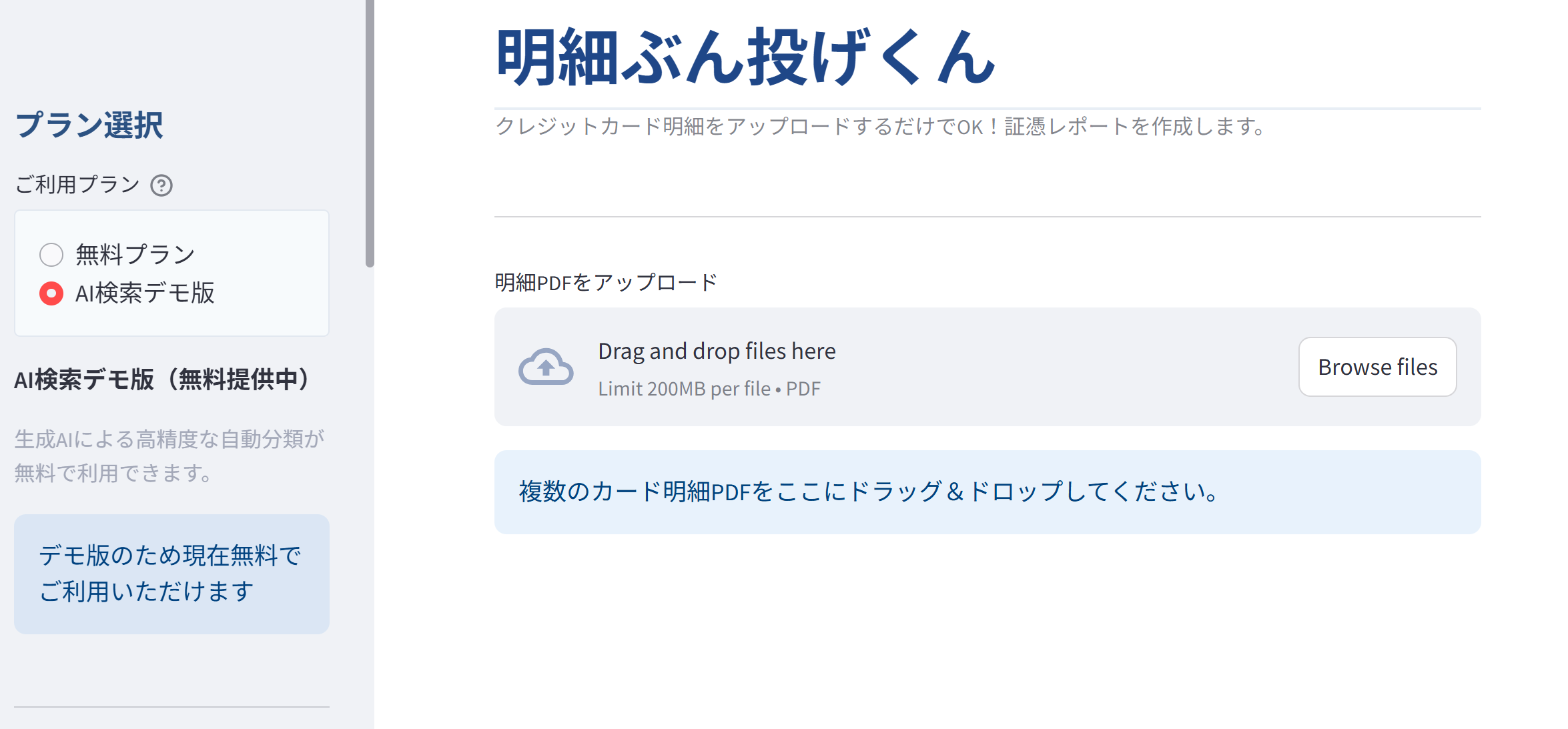
明細データをアップするだけで証憑レポート作成をしてくれるアプリをつくりました。
今年もこの時期がやってまいりました。
皆さんは確定申告することあるでしょうか?
もしその必要がなくても、毎月何にどれくらいの出費があるかがわかると便利ではないでしょうか?
会食やコーヒー代、交通費などなど...
経費証憑が大事
私は個人事業主として毎年確定申告をしています。実は一人でやっているわけではなく、相談事も含め税理士の先生に依頼しているのですが、私の場合はこのような経費レポートをつくってやり取りします。
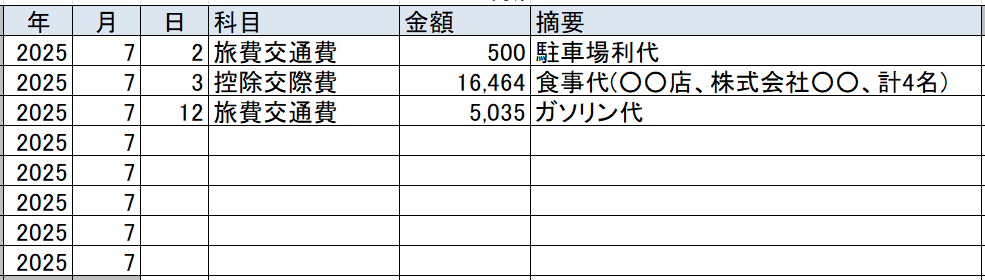
※ちなみに「証憑」は「しょうひょう」と読みます。はじめて見たとき、読めませんでした...。
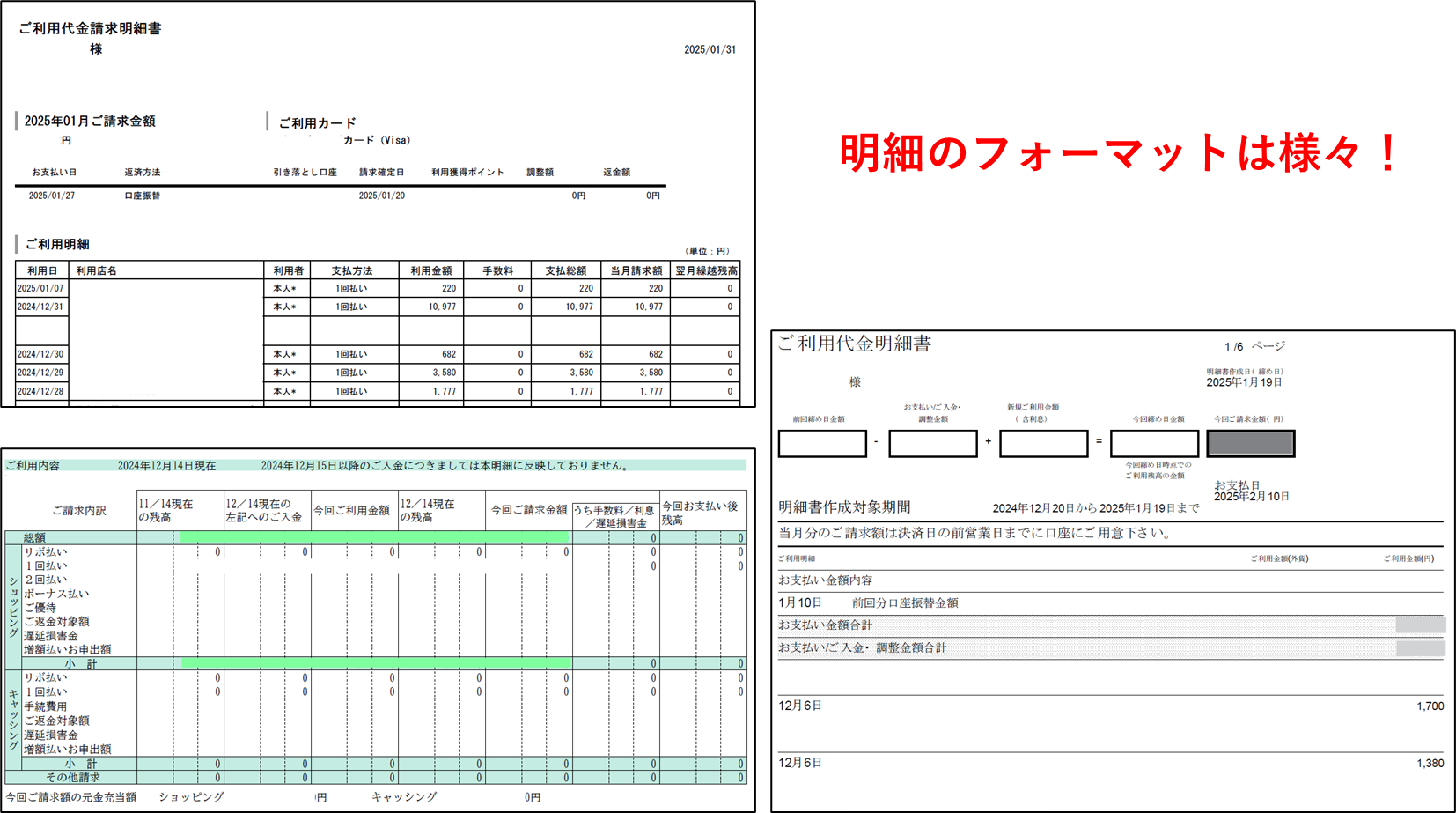
ここで手間になるのは、色々なフォーマットの明細データから情報を入力すること。
この手間を吹っ飛ばしてくれるアプリをつくったので紹介します!
こんな感じで csv ファイルを出力してくれます。
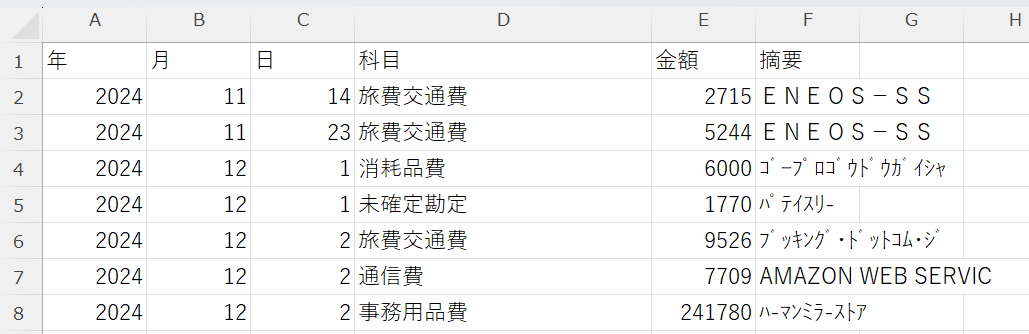
過去の明細を久しぶりに見ました。椅子高かった...。
「明細ぶん投げくん」の特徴
機能はシンプルで、明細のファイルを選択すると、その項目ごとに表をまとめてくれます。なおファイルは複数同時にアップ可能です。
さらに2つの機能を用意しました。
1.勘定科目はキーワード検索やAI検索で自動付与
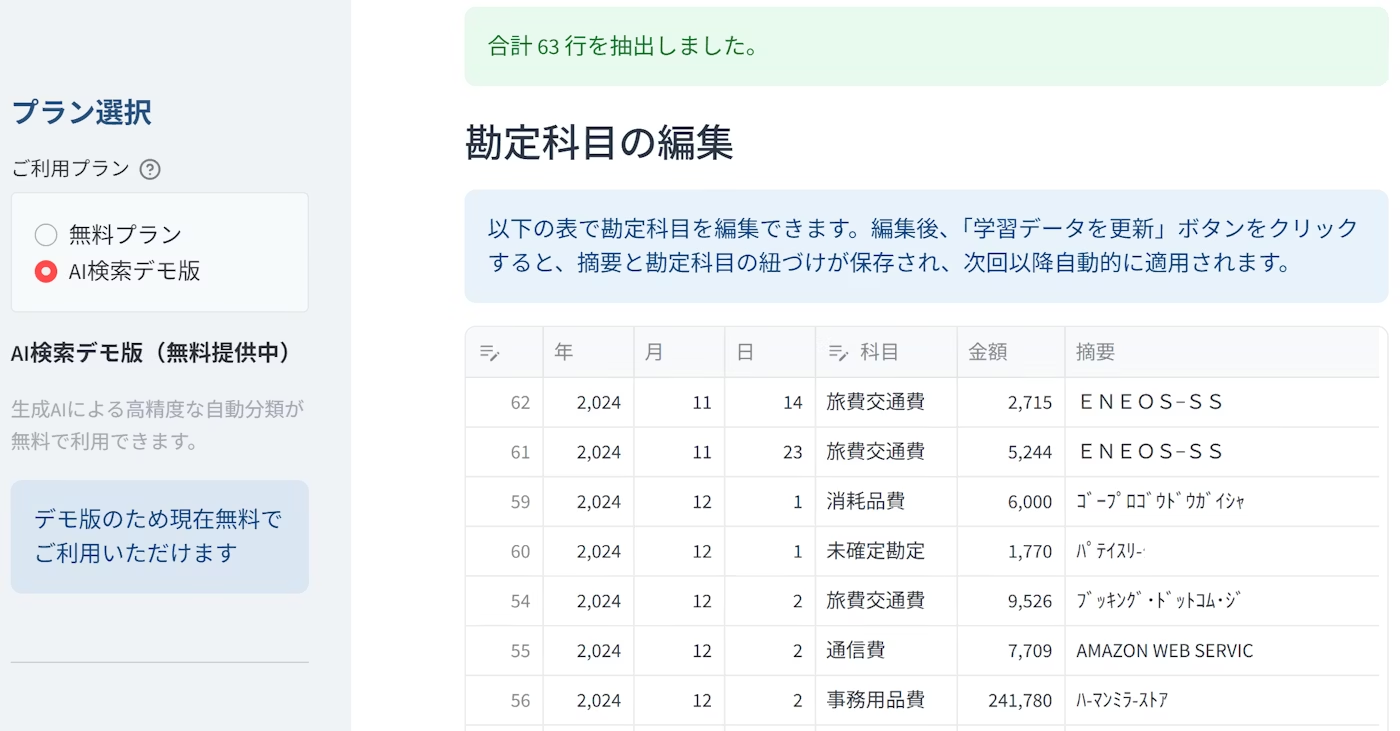
このような明細データが作られます。Booking.com が「旅費交通費」、AWS が「通信費」など摘要から推定してくれます。
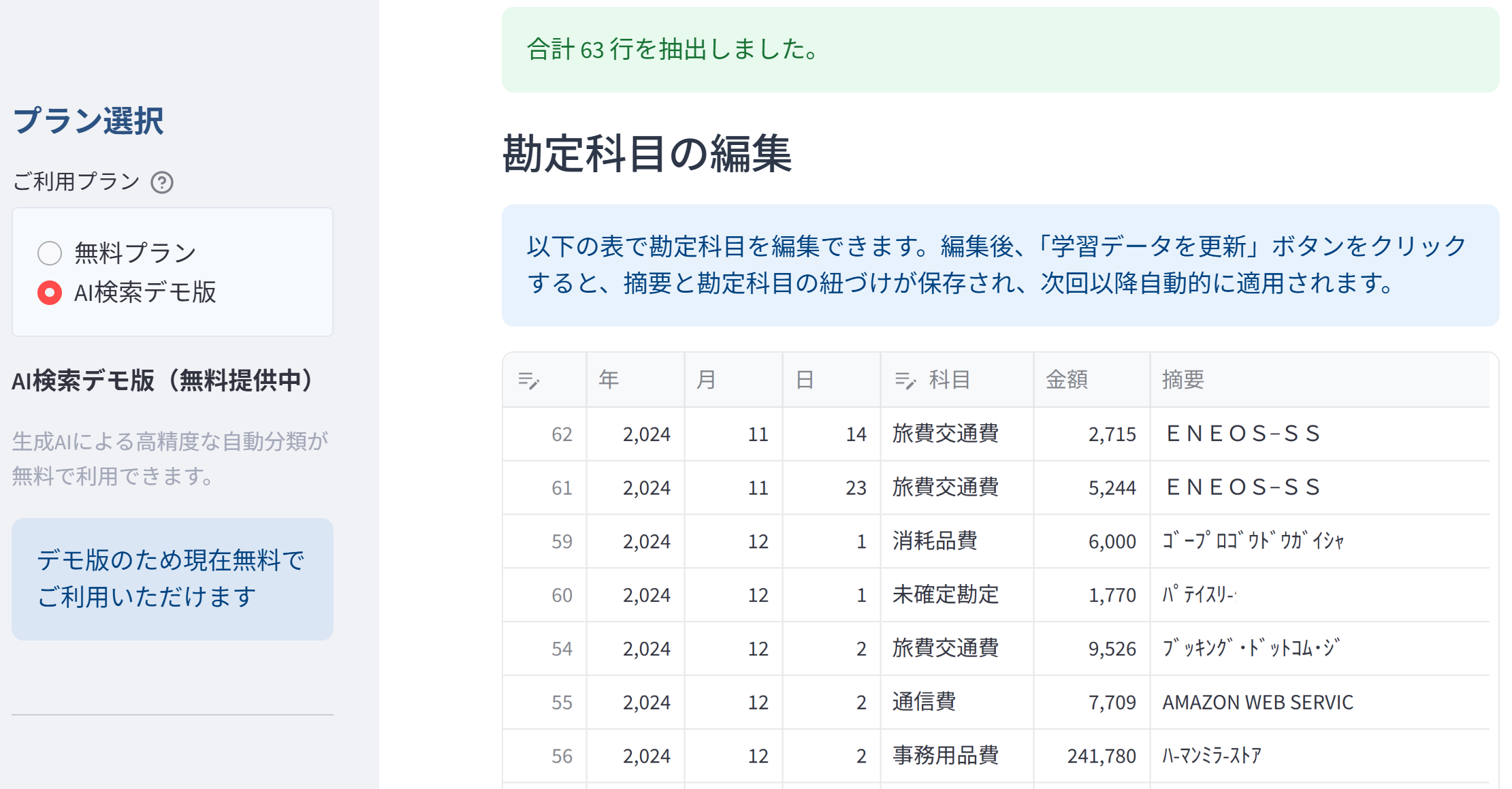
※「無料プラン」や「AI 検索デモ版」はそれっぽく作ってみました。
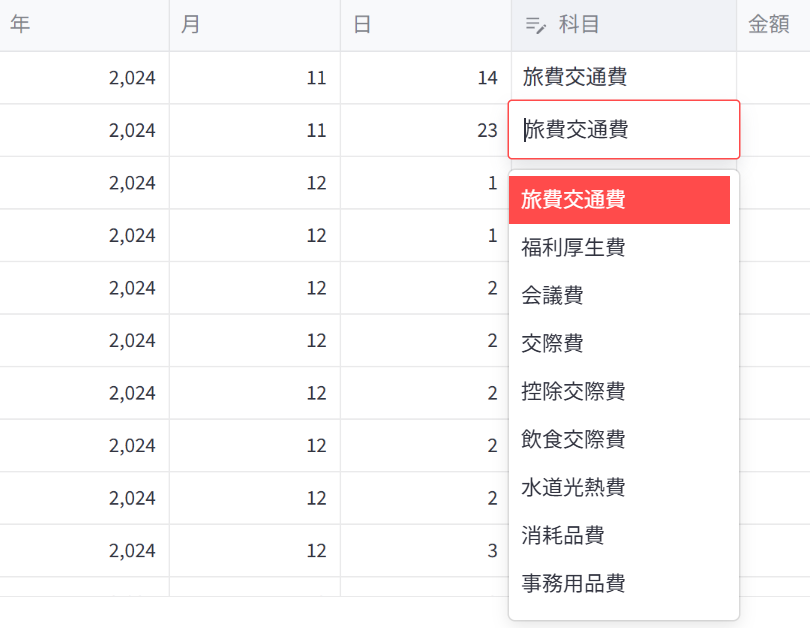
2.上手く判定しなかった勘定科目も手動で編集すれば次回以降に反映
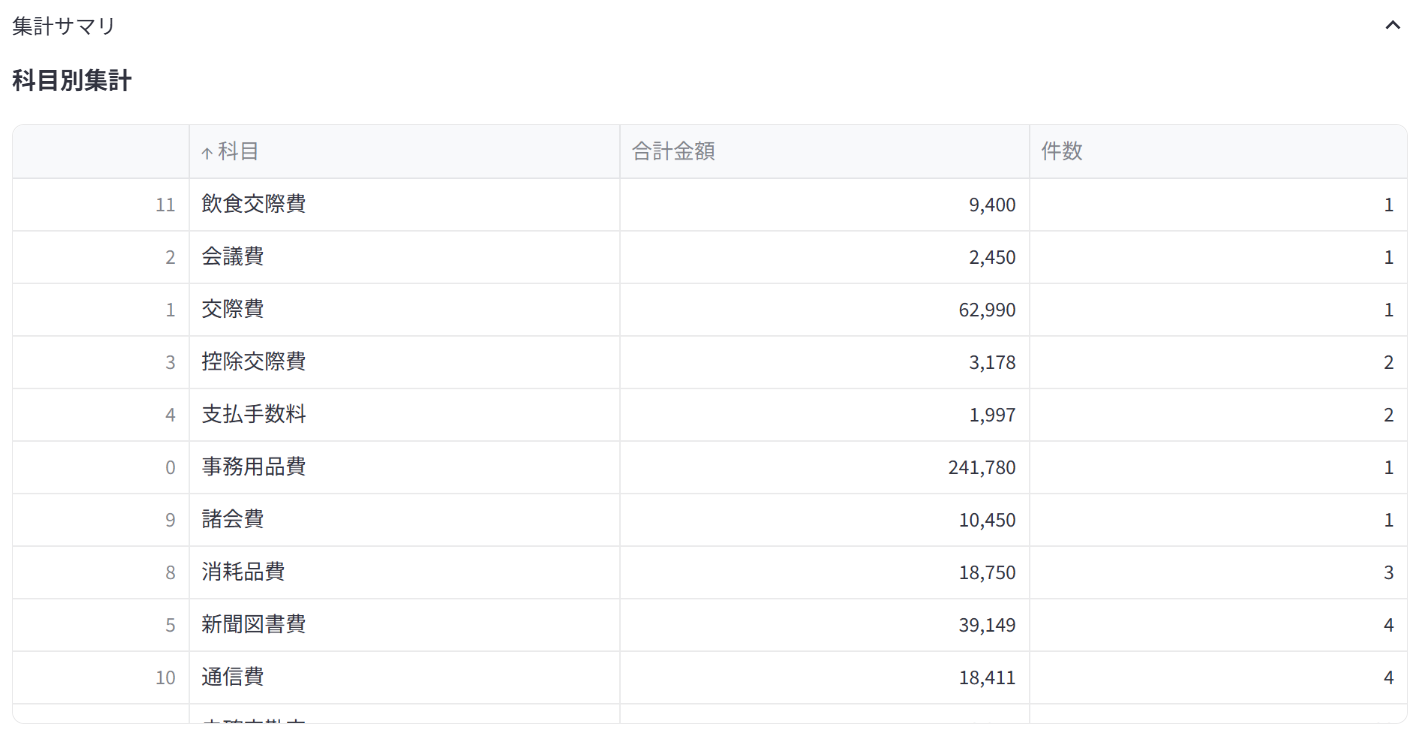
なお、集計結果のサマリーも見れます。
ソースコードはこちら:
ローカルで使えますが、この作業が必要な冬季の間だけ稼働させるクラウド版も用意しています。
※クラウド版は別の記事で紹介します。
技術スタック
| 分類 | 技術 / サービス |
|---|---|
| フロントエンド / UI | Streamlit |
| バックエンド | Python 3.11 |
| AI / 学習 | OpenAI API(openai ≥ 1.0.0) |
| コンテナ化 | Docker |
| デプロイ | AWS App Runner、Amazon ECR |
コンテナ化とデプロイはこの記事では紹介していません。
開発のポイント
1. Streamlit で UI を爆速プロトタイピング
機能としてはファイルをアップして、できたものを表示、ダウンロードできれば良いので、UI はサクッとやりましょう。
Streamlit を使うと、st.file_uploader や st.download_button など基本的なコンポーネントをすぐ準備できます。
import streamlit as st
import pandas as pd

st.title("明細ぶん投げくん")

sample_data = {}
parsed_df = pd.DataFrame(sample_data)

uploaded_files = st.file_uploader("明細PDFをアップロード", type=["pdf"], accept_multiple_files=True)

if not parsed_df.empty:
    csv_bytes = parsed_df.to_csv(index=False, encoding="utf-8-sig").encode("utf-8-sig")
    st.download_button(
        "集計CSVをダウンロード",
        data=csv_bytes,
        file_name="parsed_expenses_all_cards.csv",
        mime="text/csv",
    )
上記のコードは Playground でも試せます。
2. PDF 解析は pdfplumber を使用
pdfplumber はテーブル構造を保ったままPDF ファイルからデータを抽出してくれます。抽出後は pandas で整形していくだけです。
import pdfplumber

with pdfplumber.open(file) as pdf:
    for page in pdf.pages:
        table = page.extract_table()
使ってみたところ、日本語にも強い印象です。
3. 各明細のフォーマットに対応する
各クレジットカードごとにパーサーを用意しています。
仕訳はシンプルにファイル名からクレジットカードを特定しています。
def guess_card_type_from_filename(filename: str) -> str | None:
    name = filename.lower()
    if "ebiten" in name or "海老天" in name:
        return "海老天カード"
    if "Amozon" in name:
        return "Amozon Mastercard"

    return None
パーサーはこんな感じです。
import re
import pdfplumber
from .utils import to_ymd, normalize_amount, as_sample_row

def parse(file_like) -> list:
    """
    海老天カード明細パーサー
    """
    rows = []
    with pdfplumber.open(file_like) as pdf:
        print(f"\n=== 海老天カード明細解析開始 ===")
        print(f"総ページ数: {len(pdf.pages)}")
        for page_idx, page in enumerate(pdf.pages, 1):
            print(f"\n--- ページ {page_idx} ---")
            # 1) line-based extraction
            text = page.extract_text() or ""
            lines = text.splitlines()
            print(f"抽出テキスト行数: {len(lines)}")
            if lines:
                print("最初の10行:")
                for i, line in enumerate(lines[:10], 1):
                    print(f"  {i}: {line}")
                if len(lines) > 10:
                    print(f"  ... (残り {len(lines) - 10} 行)")

            # 複数行にまたがる可能性を考慮
            combined_text = " ".join(lines)

            # パターン1: 標準的な形式
            pattern1 = r"(\d{4}/\d{2}/\d{2})\s+(.+?)\s+本人\*\s+1回払い\s+([\d,]+)"
            for match in re.finditer(pattern1, text):
                try:
                    y, mth, d = to_ymd(match.group(1))
                    merchant = match.group(2).strip()
                    amount = normalize_amount(match.group(3))
                    rows.append(as_sample_row(y, mth, d, merchant, amount))
                except (ValueError, AttributeError):
                    continue

            # パターン2: 本人* 1回払いが省略されている場合
            pattern2 = r"(\d{4}/\d{2}/\d{2})\s+(.+?)\s+([\d,]+)\s*(?:円|¥)?\s*$"
            for ln in lines:
                ln = re.sub(r"[ \t]+", " ", ln).strip()
                # パターン1にマッチしない場合のみ試す
                if not re.search(pattern1, ln):
                    m = re.search(pattern2, ln)
                    if m:
                        try:
                            y, mth, d = to_ymd(m.group(1))
                            merchant = m.group(2).strip()
                            # 金額っぽい文字列を除去
                            merchant = re.sub(r"\s+[\d,]+(?:\s*(?:円|¥))?\s*$", "", merchant).strip()
                            amount = normalize_amount(m.group(3))
                            if merchant and amount > 0:
                                rows.append(as_sample_row(y, mth, d, merchant, amount))
                        except (ValueError, AttributeError):
                            continue
...続く
4. 勘定科目を推定する
4つの方法を実装しています。
1.手動設定: すべての明細にデフォルト科目を適用
2.キーワード分類: 登録された正規表現パターンや一致ルールから科目を決定
3.AI分類: OpenAI APIに対して次のようなプロンプトを構成して問い合わせ
{
    "messages": [
        {"role": "system", "content": "以下の取引情報から最も適切な会計勘定科目を一つだけ返してください"},
        {"role": "user", "content": "摘要: ○○コーヒー, 金額: 650円"}
    ],
    "model": "gpt-5",
    "temperature": 0.3
}
4.ハイブリッドモード: まずキーワードで分類を試み、失敗した場合にAI分類をフォールバックとして実行
if method == ClassificationMethod.HYBRID:
    keyword_result = classify_expense(..., method=ClassificationMethod.KEYWORD)
if keyword_result != "未確定勘定":
    return keyword_result
else:
    return classify_expense(..., method=ClassificationMethod.AI)
5. 学習機能
勘定科目を編集し更新することで学習データとして上書きされます。学習といってもパターンの保存です。よりユーザーに特化した実装であったり、複数回のデータをもとに解析するようなやり方もできると思います。
from parsers.learning_data import update_learning_data_from_dataframe

if st.button("学習データを更新", use_container_width=True, type="primary"):
    updated_count = update_learning_data_from_dataframe(display_df)
    if updated_count > 0:
        st.success(f"学習データを {updated_count} 件更新しました。")
確定申告でバタバタするこれまでの全ての人に
AI 機能のオン/オフを実装したクラウド版の開発記事も準備中です。
ぜひお楽しみに!