

前回までのあらすじ
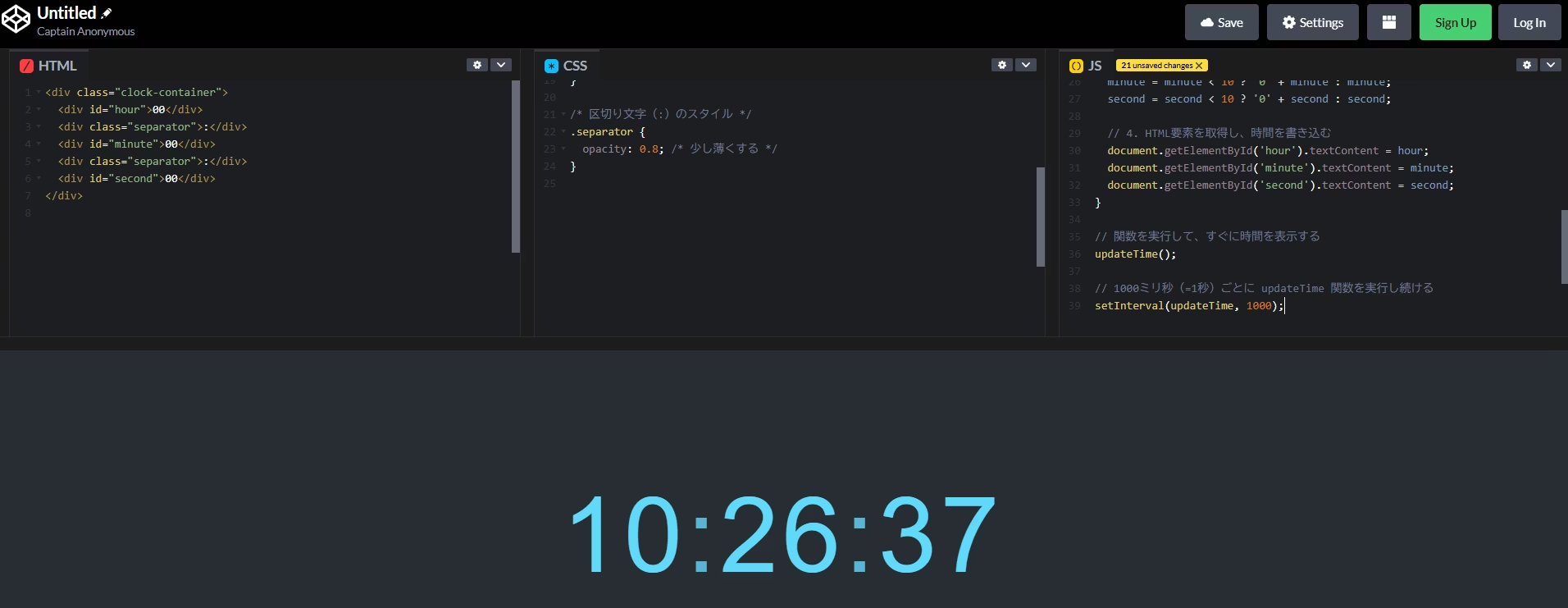
1. CSSでデザインをもうちょっと良い感じにする
時間が動くようになったので、最後の仕上げとしてCSSを調整し、イベント運営時に見やすいデザインにしてみます。
秒数を強調し、区切り文字を点滅させることで、時間の流れを意識しやすくしてみます。
CSSエリアに追加・修正するコード
既存のCSSコードに、以下を追加・修正
/* 【追加】秒数だけを特別に目立たせる */
#second {
    color: #ff5757; /* 秒数を赤系にして目立たせる */
    text-shadow: 0 0 10px rgba(255, 87, 87, 0.5); /* 影をつけて浮き立たせる */
}

/* 【追加】区切り文字(:)を点滅させるアニメーション */
.separator {
    /* 既存のopacity: 0.8; の設定を残しつつアニメーションを追加 */
    animation: blink 1s infinite; /* blinkというアニメーションを1秒ごとに無限に実行 */
}

/* 【追加】区切り文字(:)を点滅させるアニメーション */
.separator {
    /* 既存のopacity: 0.8; の設定を残しつつアニメーションを追加 */
    animation: blink 1s infinite; /* blinkというアニメーションを1秒ごとに無限に実行 */
}

/* 【追加】点滅アニメーションの定義 */
@keyframes blink {
    0%, 100% { opacity: 0.8; } /* 最初と最後は通常の透明度 */
    50% { opacity: 0.2; } /* 真ん中(0.5秒後)で薄くする */
}
コードを入力した結果で以下が反映されました
- 「秒」の部分だけ赤く変更
- 「:」の部分を点滅
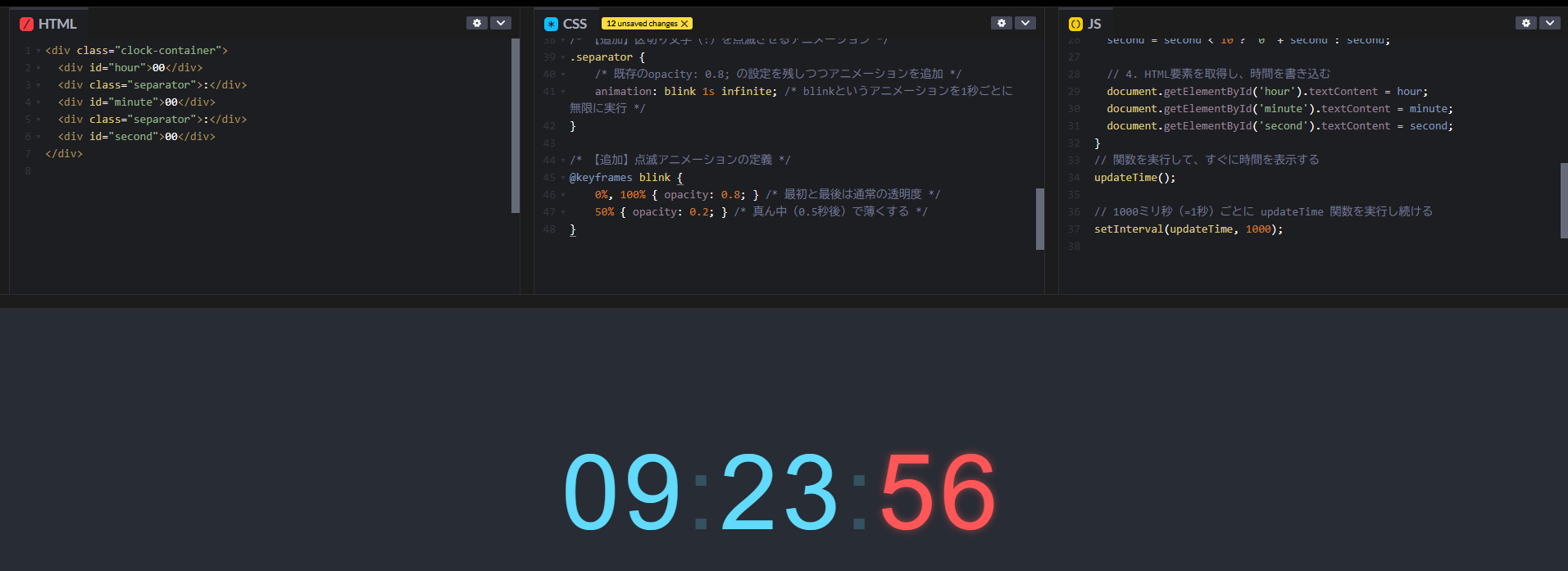
(画像だと点滅している感じが分かりづらい…)
2. 設定した時計を普段から利用する
- 添付画像にある「Export」から「Export .zip」を選択してファイルをダウンロードできます。

- ダウンロードしたファイルの中で「index.htmlファイル」を開けば、CodePenのウェブサイトにアクセスしなくても、ローカルPC上で動く秒数付き時計として普段使いができます!
まとめ
それぞれの入力項目へ下記を入力したら、秒針付き時計が作れる
HTMLへ下記を入力
<div class="clock-container">
  <div id="hour">00</div>
  <div class="separator">:</div>
  <div id="minute">00</div>
  <div class="separator">:</div>
  <div id="second">00</div>
</div>
CSSへ下記を入力
/* ページ全体の配置 */
body {
  display: flex; /* 要素を柔軟に配置 */
  justify-content: center; /* 水平方向の中央揃え */
  align-items: center; /* 垂直方向の中央揃え */
  min-height: 100vh; /* 画面全体を高さの基準にする */
  background-color: #282c34; /* 背景色をダークカラーに */
  margin: 0;
}

/* 時計全体 */
.clock-container {
  display: flex;
  font-family: 'Arial', sans-serif;
  color: #61dafb; /* 文字色を明るいブルーに */
  font-size: 8rem; /* 文字サイズを大きく */
  letter-spacing: 5px; /* 文字間隔を調整 */
  user-select: none; /* テキスト選択を無効化 */
}

/* 区切り文字(:)のスタイル */
.separator {
  opacity: 0.8; /* 少し薄くする */
}
/* 【追加】秒数だけを特別に目立たせる */
#second {
    color: #ff5757; /* 秒数を赤系にして目立たせる */
    text-shadow: 0 0 10px rgba(255, 87, 87, 0.5); /* 影をつけて浮き立たせる */
}

/* 【追加】区切り文字(:)を点滅させるアニメーション */
.separator {
    /* 既存のopacity: 0.8; の設定を残しつつアニメーションを追加 */
    animation: blink 1s infinite; /* blinkというアニメーションを1秒ごとに無限に実行 */
}
}

/* 【追加】区切り文字(:)を点滅させるアニメーション */
.separator {
    /* 既存のopacity: 0.8; の設定を残しつつアニメーションを追加 */
    animation: blink 1s infinite; /* blinkというアニメーションを1秒ごとに無限に実行 */
}

/* 【追加】点滅アニメーションの定義 */
@keyframes blink {
    0%, 100% { opacity: 0.8; } /* 最初と最後は通常の透明度 */
    50% { opacity: 0.2; } /* 真ん中(0.5秒後)で薄くする */
}
JSへ下記を入力
function updateTime() {
  // 1. 現在の「時」を取得する
  const now = new Date();

  // 2. 時・分・秒を個別に変数に格納する
  let hour = now.getHours();
  let minute = now.getMinutes();
  let second = now.getSeconds();

  // 3. 一桁の数字には「0」を付けて二桁にする(例:9 -> 09)
  hour = hour < 10 ? '0' + hour : hour;
  minute = minute < 10 ? '0' + minute : minute;
  second = second < 10 ? '0' + second : second;

  // (次のStepでHTMLに書き込む処理を追加します)
}
function updateTime() {
  // ... (省略: Step 2-1までの現在時刻の取得と整形処理)
  const now = new Date();
  let hour = now.getHours();
  let minute = now.getMinutes();
  let second = now.getSeconds();

  hour = hour < 10 ? '0' + hour : hour;
  minute = minute < 10 ? '0' + minute : minute;
  second = second < 10 ? '0' + second : second;

  // 4. HTML要素を取得し、時間を書き込む
  document.getElementById('hour').textContent = hour;
  document.getElementById('minute').textContent = minute;
  document.getElementById('second').textContent = second;
}
// 関数を実行して、すぐに時間を表示する
updateTime();

// 1000ミリ秒(=1秒)ごとに updateTime 関数を実行し続ける
setInterval(updateTime, 1000);