
これは、農工大2025アドベントカレンダーの記事です。
animejsをreactで頑張った話です。
はじめに
去年からWeb開発を始め、アプリやサイトを作成してきました。主にNext.jsを使っており、技術選定の幅を広げたいと思いつつも、慣れた技術に頼りがちです。
最近では、見た目にもこだわりたいという思いが強くなり、アニメーションに挑戦することにしました。アニメーションを使った動きのあるサイトはとてもかっこいいので、私もそんなサイトを作りたいと思っています。
そこで、友人から教えてもらった「anime.js」というライブラリを使ってみることにしました。この記事では、初めてのアニメーション制作の挑戦を通じて学んだことを共有します。
anime.jsとは
anime.jsは、アニメーションを簡単に追加できるJavaScriptライブラリです。
公式サイトには多くのサンプルやドキュメントがあり、初心者でも取り組みやすかったです。
- 公式サイト: anime.js
- ドキュメント: Documentation
公式ドキュメントにはVanilla JSでのサンプルコードが多く掲載されていますが、私は普段Next.jsとReactを使っているため、React向けにコードを調整する必要がありました。
Reactでanime.jsを使う
幸い、公式ドキュメントにはReact用のサンプルコードも1つだけ掲載されていました。
これを参考に、React環境でanime.jsを使う方法を学びました。
"use client";

import { animate } from 'animejs';
import { useEffect, useRef } from 'react';

export default function Example() {
  const demoRef = useRef<HTMLDivErement | null>(null);

  useEffect(() => {
    if (!demoRef.current) return;

    const squares = demoRef.current.querySelectorAll(".square");
    animate(squares, { x: "23rem" });
  }, []);

return (
  <div
    id="selector-demo"
    ref={demoRef}
    className="flex flex-col gap-4 p-8 bg-slate-900 min-h-screen"
  >
      <div className="medium row flex justify-center">
        <div className="square h-16 w-16 rounded-xl bg-pink-500" />
      </div>
      <div className="medium row flex justify-center">
        <div className="square h-16 w-16 rounded-xl bg-pink-500" />
      </div>
      <div className="medium row flex justify-center">
        <div className="square h-16 w-16 rounded-xl bg-pink-500" />
      </div>
  </div>
);
}
このコードでは、以下の手順でアニメーションを実現しています:
- HTML要素を参照するための変数を
useRefで用意。 - anime.jsの
animate関数でアニメーションを適用。
Next.jsではデフォルトでSSR(サーバーサイドレンダリング)が有効なため、"use client"を指定する必要があります。
また、useRefで取得した参照がサーバー側でnullになる問題を回避するため、適切な条件分岐を追加しています。
scroll
次に挑戦したのは、スクロール位置に応じてアニメーションを実行する機能です。
公式ドキュメントのonScrollを参考に、以下のコードを作成しました。
"use client";

import { onScroll, animate } from 'animejs';
import { useEffect, useRef } from "react";

export default function ScrollTest() {
  const ref = useRef<HTMLDivElement | null>(null);;
  const container = useRef<HTMLDivElement | null>(null);;

  useEffect(() => {
    if (!ref.current) return;
    if (!container.current) return;

    animate(ref.current, {
      x: "23rem",
      autoplay: onScroll({
        container: container.current,
        enter: "55% 0%",
        leave: "45% 100%",
        sync: true,
        debug: true,
      }),
    });
  }, []);

  return (
    <div ref={container} className='h-screen overflow-auto'>
        <div className="container min-h-screen bg-slate-950 text-slate-100 overflow-x-hidden">
          <section className="flex h-screen items-center justify-center">
            <p className="text-sm uppercase tracking-[0.4em] text-slate-500">
              scroll down
            </p>
          </section>

          <div ref={ref}>
            <h2 className="h-24 block bg-amber-300">hello scroll</h2>
          </div>

          <section className="flex h-screen items-center justify-center">
            <p className="text-sm uppercase tracking-[0.4em] text-slate-500">
              scroll up
            </p>
          </section>
        </div>
    </div>
  );
}
このコードでは、onScrollを使ってスクロール位置に応じたアニメーションを実現しています。
enterやleaveの値を調整することで、アニメーションが発生する位置を細かく設定できます。
timeline
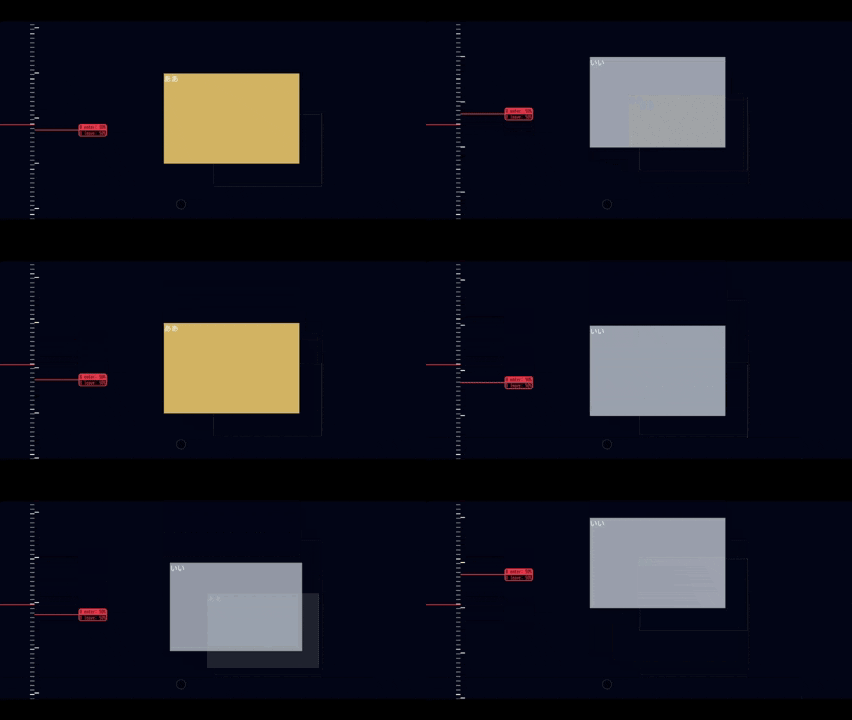
最後に挑戦したのは、タイムラインを使ったアニメーションです。
以下のコードでは、スクロールイベントに応じて複数の要素を連動して動かすアニメーションを実現しました。
"use client";

import { createTimeline, onScroll } from 'animejs';
import { useEffect, useRef } from "react";

export default function Testt() {
  const container = useRef<HTMLDivElement | null>(null);
  const target = useRef<HTMLDivElement | null>(null);

  const leftbox = useRef<HTMLDivElement | null>(null);
  const rightbox = useRef<HTMLDivElement | null>(null);


  useEffect(() => {
    if (!leftbox.current) return;
    if (!rightbox.current) return;
    if (!container.current) return;
    if (!target.current) return;

    const leftboxTimeline = createTimeline({
      autoplay: false,
    }).add(leftbox.current, {
      width: "*= 0.8",
      height: "*= 0.8",
      zIndex: [2,0],
      translateX: target.current.offsetWidth - leftbox.current.offsetWidth * 0.8,
      translateY: target.current.offsetHeight - leftbox.current.offsetHeight * 0.8,
      backgroundColor: ['var(--theme-gold)',`var(--theme-alpha)`],
      duration: 500,
    });

    const rightboxTimeline = createTimeline({
      autoplay: false,
    }).add(rightbox.current, {
      width: "*= 1.25",
      height: "*= 1.25",
      zIndex: [0,2],
      translateX: -(target.current.offsetWidth - rightbox.current.offsetWidth * 1.25),
      translateY: -(target.current.offsetHeight - rightbox.current.offsetHeight * 1.25),
      backgroundColor: ['var(--theme-alpha)',  'var(--theme-muted)'],
      duration: 500,
    });

    onScroll({
      container: container.current,
      target: target.current,
      enter: "50% 50%",
      leave: "0% 50%",
      debug: true,
      onEnter: () => {
        leftboxTimeline.play();
        rightboxTimeline.play();
      },
      onLeaveBackward: () => {
        leftboxTimeline.reverse();
        rightboxTimeline.reverse();
      },
    });
  }, []);

  return (
    <div ref={container} className=' h-screen overflow-y-auto'>
    <div className="min-h-screen bg-slate-950 text-slate-100">
      <section className="flex h-screen items-center justify-center">
        <p className="text-sm uppercase tracking-[0.4em] text-slate-500">
          scroll down
        </p>
      </section>

      <div ref={target} className='relative w-[350px] mx-auto h-[250px]'>
        <div ref={leftbox} className="absolute   top-0 left-0 border border-theme-gold/30"
          style={{ width: "300px", height: "200px",top:0,left:0 }}
        >
          ああ
        </div>
        <div
          ref={rightbox}
          className="absolute bg-blue-300 bottom-0 right-0 border border-theme-gold/30"
          style={{ width: "240px", height: "160px" }}
        >
          いい
        </div>
      </div>

      <section className="flex h-screen items-center justify-center">
        <p className="text-sm uppercase tracking-[0.4em] text-slate-500">
          scroll up
        </p>
      </section>
    </div>

    </div>
  );
}
このコードでは、createTimelineを使って複数のアニメーションを連動させています。onScrollのonEnterやonLeaveBackwardを活用することで、スクロール位置に応じた再生や逆再生を実現しました。
おわりに
初めてのアニメーション制作は試行錯誤の連続でしたが、anime.jsを使うことで、比較的簡単に動きのあるWebサイトを作ることができました。この記事が、これからアニメーションに挑戦する方の参考になれば幸いです。