
停止用 Lambda 設定
Lambdaを選択
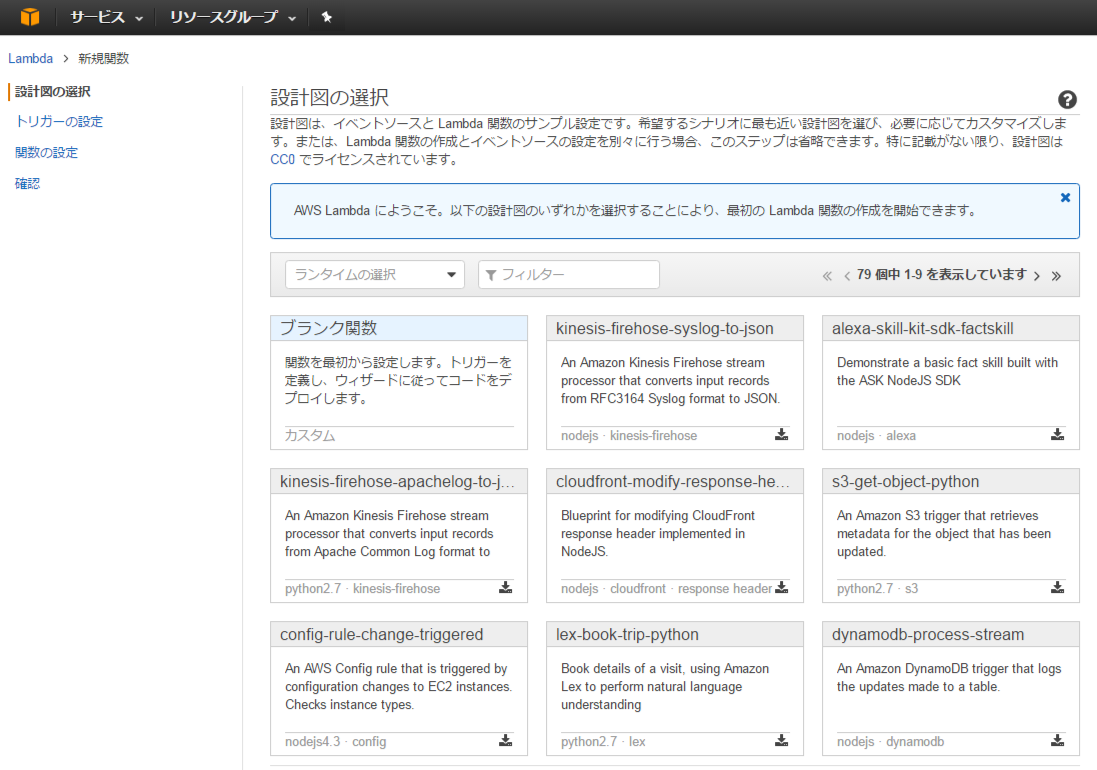
設計図の選択でブランク関数を選択
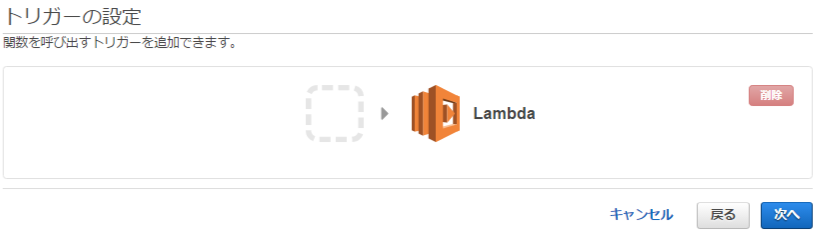
トリガーの設定は何もせず次へ
関数の設定を行う

Name:StopEC2
Description:stop EC2
ランタイム:Python2.7
Lambda 関数のコードに
インスタンス停止のコードを記載。
import boto3

region = 'ap-northeast-1'
instances = ['X-XXXXXXXX']
def lambda_handler(event, context):
    ec2 = boto3.client('ec2', region_name=region)
    ec2.stop_instances(InstanceIds=instances)
    print 'stopped instances: ' + str(instances)
region,instancesを設定する。
上記は東京リージョン(ap-northeast-1)を指定。
Boto3の説明は以下
AWS SDK For Python (Boto3)
https://aws.amazon.com/jp/sdk-for-python/
Lambda 関数ハンドラおよびロールを設定
ロールの新規作成を選んで、
ロール名とポリシーを設定します。
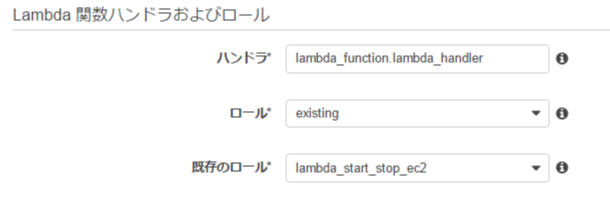

ロール名はlambda_start_stop_ec2。
ポリシーにはEC2の起動・停止をを許可します。
※下記で追加したのは下半分
{
  "Version": "2012-10-17",
  "Statement": [
    {
      "Effect": "Allow",
      "Action": [
        "logs:CreateLogGroup",
        "logs:CreateLogStream",
        "logs:PutLogEvents"
      ],
      "Resource": "arn:aws:logs:*:*:*"
    },
    {
        "Effect": "Allow",
        "Action": [
            "ec2:StartInstances",
            "ec2:StopInstances"
        ],
        "Resource": "*"
    }
  ]
}
次へを押します。
確認後で関数の作成を押します。
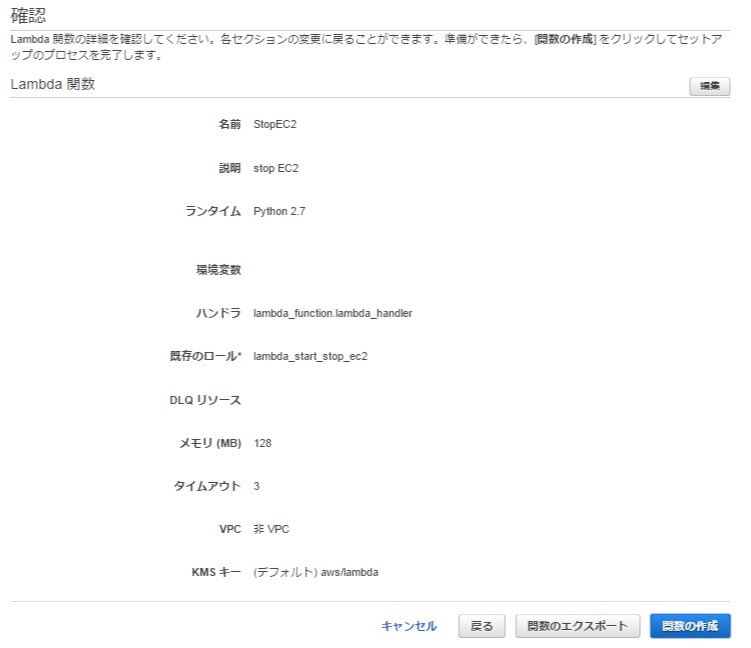
これで、停止用は完成です。
起動用 Lambda 設定
起動用ですが、基本的には停止用と同じで、
関数内の「ec2.stop_instances」を「ec2.start_instances」に変更するぐらいで後は一緒です。
ロールは先ほど作成したものを選択。

停止用CloudWatch Events 設定
CloudWatchを選択
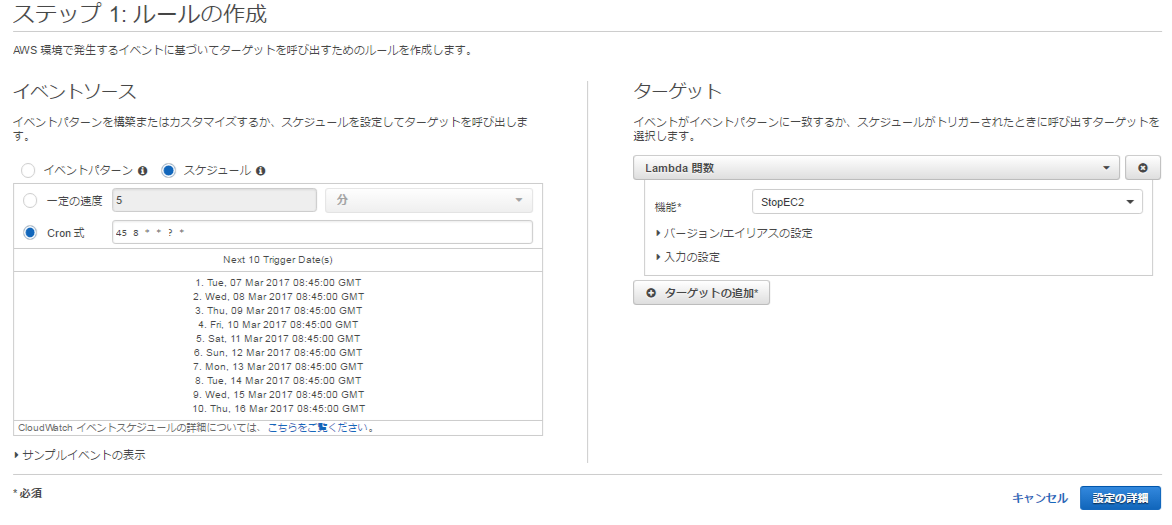
イベント → ルールの作成を選択します。

ルールの作成
スケジュール、cron式を選択して、実行時間を設定します。
タイムゾーンはUTCでcronの記載方法は下記参照
https://docs.aws.amazon.com/ja_jp/lambda/latest/dg/tutorial-scheduled-events-schedule-expressions.html
ターゲットには先ほど作成してLambda関数のStopEC2を選択して「設定の詳細」をします。
名前と説明を記載して完了です。

起動用CloudWatch Events 設定
設定時間、Lambda関数をStartEC2に変更する以外は停止と同じ記載でいけます。
CloudWatch Events ログ
以下CloudWatchメニューのログにて、確認できます。

以上。