
はじめに
この記事は、NTTテクノクロスアドベントカレンダー24日目の記事になります。
NTTテクノクロスの山之口です。普段はAWSを活用したインフラ開発の業務に携わっております。
今回は、AWS Systems Manager Patch Managerを用いてEC2インスタンスのWindows Updateを自動化する際に困ったことと、その対処方法について紹介します。
Patch Managerに初めて触れる方にとって、役立つ記事となれば幸いです。
AWS Systems Manager Patch Managerとは
AWS Systems Manager Patch Managerは、EC2インスタンスやオンプレミスサーバーに対するパッチ適用を自動化するAWSのマネージドサービスです。
OSのセキュリティパッチやバグ修正を手動で適用する場合、インスタンス台数が増えるほど作業負担が大きくなります。また、適用漏れが発生するとセキュリティリスクにもつながります。
Patch Managerを導入することで、パッチ適用を自動化し、運用負荷の軽減とセキュリティの向上を実現できます。
できること
Patch Managerを使用することで、以下のようなパッチ管理が可能になります。
-
定期的なパッチ適用の自動化
- メンテナンスウィンドウでスケジュールを設定し、指定した日時に自動的にパッチを適用できます
-
パッチベースラインによる適用制御
- セキュリティパッチのみ適用、リリースから7日後に承認など、適用するパッチの基準を柔軟に定義できます
-
適用状況の一元管理
- Systems Managerのダッシュボードから、どのインスタンスにどのパッチが適用されているかを一目で確認できます
-
コンプライアンスの可視化
- パッチ適用状況をレポートとして出力し、セキュリティ監査や内部統制に対応できます
-
メンテナンスウィンドウの活用
- 業務時間外にパッチ適用を実行するなど、サービスへの影響を最小限に抑えられます
前提条件
Patch Managerを使用するには、以下の前提条件を満たす必要があります。
-
Systems Manager エージェント(SSM Agent)のインストール
- EC2インスタンスにSSM Agentがインストールされ、実行されている必要があります
-
IAMロールの設定
- EC2インスタンスに適切なIAMロール(AmazonSSMManagedInstanceCore等)がアタッチされている必要があります
-
ネットワーク接続
- Systems Managerエンドポイント(ssm、ssmmessages、ec2messages)とAmazon S3への接続が必要です
- VPCエンドポイント、または、インターネットゲートウェイ/NATゲートウェイ経由でアクセスできる環境が必要です
-
サポート対象のOS
- Patch Managerがサポートするオペレーティングシステムである必要があります
- 詳細はサポート対象OS一覧を参照してください
やったこと
以下のような構成の60台以上のEC2インスタンスのWindows UpdateをPatch Managerで自動化することを試みました。
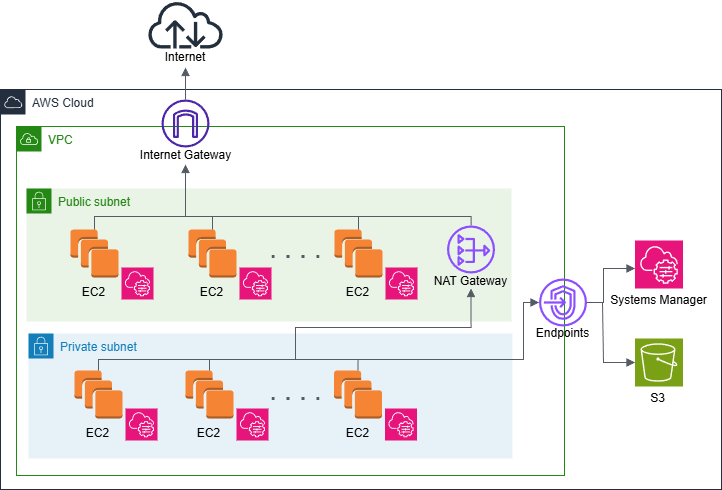
構成の特徴
- パブリックサブネットとプライベートサブネットに配置された複数のWindows Server EC2インスタンス
- 開発環境として使用されており、起動状態と停止状態のインスタンスが混在
Quick Setupによる導入
Quick Setupを使用することで、以下の設定を一括で行うことができます。
- パッチベースラインの設定
- メンテナンスウィンドウの作成
- IAMロールの自動作成
複雑な設定を個別に行う必要がなく、短時間で導入できるため、Quick Setupを使用しました。
困ったこと
Quick Setupで簡単に導入できると思っていたPatch Managerですが、実際に運用してみると以下のような問題に直面しました。
1. インスタンスの起動
Patch Managerは起動中のインスタンスにのみパッチを適用するため、停止しているインスタンスは自動的にスキップされます。
Quick Setupではインスタンスの起動処理が含まれていないため、別途EventBridgeやLambdaで事前に起動する仕組みが必要でした。
また、60台以上のインスタンスを一斉に起動しようとした際、以下の問題が発生しました。
- AWSのリソース制限により一部のインスタンスが起動できない
- 多くのインスタンスがパッチ適用待ちの状態となり、待機時間分のコストが無駄に発生する
このため、バッチ処理で段階的に起動・パッチ適用を行う対策が必要となりました。
2. ディスク容量の不足
パッチ適用時にディスク容量が不足していると、ダウンロードやインストールが失敗します。
開発環境のインスタンスではディスク容量をあまり気にしていなかったため、空き容量が十分でないインスタンスが複数存在し、エラーが多発していました。
Windows Serverでは大型のパッチや累積更新プログラムで10GB以上の空き容量が必要になるケースがあります。
参考: Windows 更新プログラム用に空き領域を増やすには
3. Windows Update自体の問題
Patch Managerを正しく設定していても、Windows Update自体に問題が発生しているケースがありました。
具体的には、Windows Updateのコンポーネントが破損していたり、Windows Updateサービス(wuauserv、BITS等)が停止している場合です。
このような問題が発生した場合、各インスタンスに対して手動でDISMコマンドやWindows Update トラブルシューティングツールを実行し、Windows Updateを修復する必要があります。
対処方法
上記の困りごとを解決するにあたり、以下の2点を実施しました。
1. 管理対象インスタンスの整理
基本的なことではありますが、管理するEC2インスタンスが増えると管理の手間も増えます。
EC2インスタンスの管理対象を見直し、以下の対応を行いました。
- 不要なインスタンスの削除
-
タグによる管理
-
PatchGroupタグを付与し、パッチ適用対象を明確化
-
管理対象を60台以上から約40台に削減したことで、運用負荷とコストを削減できました。
2. Systems Manager Automationによるバッチ処理の実装
3つの困りごとへの対応を自動化するため、親子2段階のAutomationドキュメントを使用した仕組みを構築しました。
実装の全体像
親ドキュメント (patch-orchestrator.yaml)
親ドキュメントは全体のオーケストレーションを担当します。
patch-orchestrator.yaml の全文を表示(クリックで展開)
schemaVersion: "0.3"
description: Multi-Batch Patch Manager - Preserves Instance State
assumeRole: "{{ AutomationAssumeRole }}"

parameters:
  AutomationAssumeRole:
    type: String
    description: "(Required) The ARN of the role that allows Automation to perform the actions on your behalf"

  TagKey:
    type: String
    description: Tag key to filter instances
    default: "PatchGroup"

  TagValue:
    type: String
    description: Tag value to filter instances
    default: "Windows"

  BatchSize:
    type: Integer
    description: Number of instances to process in each batch
    default: 5

  PriorityInstanceTypes:
    type: StringList
    description: Instance types to prioritize for patching
    default:
      - m5.large
      - m5.xlarge
      - c5.large

  ChildDocumentName:
    type: String
    description: Name of the child SSM document for single batch processing
    default: "patch-batch-executor"

  WaitBetweenBatches:
    type: Integer
    description: Seconds to wait between batches
    default: 120

mainSteps:
  - name: GetTargetInstances
    action: aws:executeScript
    description: Get instances by tag and their current state
    inputs:
      Runtime: python3.11
      Handler: handler
      Script: |
        import boto3
        import json

        def handler(events, context):
            ec2 = boto3.client('ec2')
            tag_key = events['TagKey']
            tag_value = events['TagValue']

            response = ec2.describe_instances(
                Filters=[
                    {'Name': f'tag:{tag_key}', 'Values': [tag_value]},
                    {'Name': 'instance-state-name', 'Values': ['running', 'stopped']}
                ]
            )

            instances_info = []
            for reservation in response['Reservations']:
                for instance in reservation['Instances']:
                    instance_id = instance['InstanceId']
                    state = instance['State']['Name']
                    instance_type = instance['InstanceType']

                    name_tag = next((tag['Value'] for tag in instance.get('Tags', []) if tag['Key'] == 'Name'), 'No Name')

                    instances_info.append({
                        'instance_id': instance_id,
                        'state': state,
                        'instance_type': instance_type,
                        'name': name_tag
                    })

            print(f"Found {len(instances_info)} instances")
            for info in instances_info:
                print(f"  {info['instance_id']} ({info['name']}) - Type: {info['instance_type']}, State: {info['state']}")

            return {'InstancesInfo': json.dumps(instances_info)}
      InputPayload:
        TagKey: "{{ TagKey }}"
        TagValue: "{{ TagValue }}"
    outputs:
      - Name: InstancesInfo
        Selector: $.Payload.InstancesInfo
        Type: String

  - name: RecordStateAndCreateBatches
    action: aws:executeScript
    description: Record original states and create batches with priority
    inputs:
      Runtime: python3.11
      Handler: handler
      Script: |
        import json

        def handler(events, context):
            instances_info_json = events['InstancesInfo']
            instances_info = json.loads(instances_info_json)
            batch_size = events['BatchSize']
            priority_instance_types = events['PriorityInstanceTypes']

            print(f"Processing {len(instances_info)} instances")
            print(f"Priority instance types: {priority_instance_types}")

            priority_high = []
            priority_normal = []
            instance_states = {}

            for instance_info in instances_info:
                instance_id = instance_info['instance_id']
                instance_type = instance_info['instance_type']
                current_state = instance_info['state']

                instance_states[instance_id] = current_state

                if instance_type in priority_instance_types:
                    priority_high.append(instance_id)
                else:
                    priority_normal.append(instance_id)

            all_instances = priority_high + priority_normal

            print(f"Priority high instances: {len(priority_high)}")
            print(f"Priority normal instances: {len(priority_normal)}")

            batches = []
            for i in range(0, len(all_instances), batch_size):
                batch_instances = all_instances[i:i+batch_size]
                batch_states = {iid: instance_states[iid] for iid in batch_instances}
                batches.append({
                    'InstanceIds': batch_instances,
                    'OriginalStates': batch_states
                })

            print(f"Created {len(batches)} batches")

            return {'batches': json.dumps(batches), 'total_batches': len(batches)}
      InputPayload:
        InstancesInfo: "{{ GetTargetInstances.InstancesInfo }}"
        BatchSize: "{{ BatchSize }}"
        PriorityInstanceTypes: "{{ PriorityInstanceTypes }}"
    outputs:
      - Name: Batches
        Selector: $.Payload.batches
        Type: String
      - Name: TotalBatches
        Selector: $.Payload.total_batches
        Type: Integer

  - name: ProcessBatches
    action: aws:executeScript
    description: Process each batch sequentially
    inputs:
      Runtime: python3.11
      Handler: handler
      Script: |
        import boto3
        import json
        import time

        def handler(events, context):
            ssm = boto3.client('ssm')

            batches_json = events['Batches']
            batches = json.loads(batches_json)
            child_document = events['ChildDocumentName']
            automation_role = events['AutomationAssumeRole']
            wait_time = events['WaitBetweenBatches']

            results = []
            total_batches = len(batches)

            for idx, batch in enumerate(batches, 1):
                print(f"\n=== Starting Batch {idx}/{total_batches} ===")
                print(f"Instance IDs: {batch['InstanceIds']}")
                print(f"Original States: {batch['OriginalStates']}")

                response = ssm.start_automation_execution(
                    DocumentName=child_document,
                    Parameters={
                        'AutomationAssumeRole': [automation_role],
                        'InstanceIds': batch['InstanceIds'],
                        'OriginalStates': [json.dumps(batch['OriginalStates'])]
                    }
                )

                execution_id = response['AutomationExecutionId']
                print(f"Started child execution: {execution_id}")

                while True:
                    exec_response = ssm.get_automation_execution(
                        AutomationExecutionId=execution_id
                    )
                    status = exec_response['AutomationExecution']['AutomationExecutionStatus']
                    print(f"Batch {idx} status: {status}")

                    if status in ['Success', 'Failed', 'TimedOut', 'Cancelled']:
                        break

                    time.sleep(30)

                results.append({
                    'batch': idx,
                    'execution_id': execution_id,
                    'status': status,
                    'instances': batch['InstanceIds']
                })

                if idx < total_batches:
                    print(f"\nWaiting {wait_time} seconds before next batch...")
                    time.sleep(wait_time)

            print(f"\n=== All Batches Completed ===")
            for result in results:
                print(f"Batch {result['batch']}: {result['status']} (Execution ID: {result['execution_id']})")

            return {'results': results}
      InputPayload:
        Batches: "{{ RecordStateAndCreateBatches.Batches }}"
        ChildDocumentName: "{{ ChildDocumentName }}"
        AutomationAssumeRole: "{{ AutomationAssumeRole }}"
        WaitBetweenBatches: "{{ WaitBetweenBatches }}"
【処理ステップ】
-
対象インスタンスの取得 (GetTargetInstances)
- タグでフィルタリングし、パッチ適用対象を特定
- インスタンスタイプ、状態、名前などの情報を取得
-
元の状態の記録とバッチ作成 (RecordStateAndCreateBatches)
- 各インスタンスの起動/停止状態を記録
- 優先度の高いインスタンスタイプを優先してソート
- 指定されたバッチサイズ(デフォルト5台)でバッチを作成
-
バッチの順次処理 (ProcessBatches)
- 各バッチに対して子ドキュメントを順次実行
- 各バッチの完了を待機してから次のバッチを処理
子ドキュメント (patch-batch-executor.yaml)
子ドキュメントは各バッチに対して以下の処理を実行します。
patch-batch-executor.yaml の全文を表示(クリックで展開)
schemaVersion: "0.3"
description: Process single batch - Preserves original instance state
assumeRole: "{{ AutomationAssumeRole }}"

parameters:
  AutomationAssumeRole:
    type: String
    description: "(Required) The ARN of the role that allows Automation to perform the actions"

  InstanceIds:
    type: StringList
    description: Instance IDs in this batch

  OriginalStates:
    type: String
    description: JSON string of original instance states

mainSteps:
  - name: LogBatchStart
    action: aws:executeScript
    description: Log the start of batch processing
    inputs:
      Runtime: python3.11
      Handler: handler
      Script: |
        import json

        def handler(events, context):
            instance_ids = events['InstanceIds']
            original_states = json.loads(events['OriginalStates'])

            print(f"=== Batch Processing Started ===")
            print(f"Processing {len(instance_ids)} instances")
            for iid in instance_ids:
                print(f"  {iid}: Original state = {original_states.get(iid, 'unknown')}")

            return {'message': 'Batch processing started'}
      InputPayload:
        InstanceIds: "{{ InstanceIds }}"
        OriginalStates: "{{ OriginalStates }}"

  - name: IdentifyAndStartStoppedInstances
    action: aws:executeScript
    description: Identify and start only the stopped instances
    inputs:
      Runtime: python3.11
      Handler: handler
      Script: |
        import boto3
        import json

        def handler(events, context):
            ec2 = boto3.client('ec2')
            instance_ids = events['InstanceIds']
            original_states = json.loads(events['OriginalStates'])

            instances_to_start = []
            instances_already_running = []

            for instance_id in instance_ids:
                original_state = original_states.get(instance_id, 'unknown')

                if original_state in ['stopped', 'stopping']:
                    instances_to_start.append(instance_id)
                elif original_state == 'running':
                    instances_already_running.append(instance_id)

            print(f"Instances to start: {instances_to_start}")
            print(f"Instances already running: {instances_already_running}")

            if instances_to_start:
                ec2.start_instances(InstanceIds=instances_to_start)
                print(f"Started {len(instances_to_start)} instances")

            return {
                'InstancesToStart': instances_to_start,
                'InstancesAlreadyRunning': instances_already_running
            }
      InputPayload:
        InstanceIds: "{{ InstanceIds }}"
        OriginalStates: "{{ OriginalStates }}"
    outputs:
      - Name: InstancesToStart
        Selector: $.Payload.InstancesToStart
        Type: StringList
      - Name: InstancesAlreadyRunning
        Selector: $.Payload.InstancesAlreadyRunning
        Type: StringList

  - name: WaitForSSMAgent
    action: aws:executeScript
    description: Wait for SSM Agent to be online
    inputs:
      Runtime: python3.11
      Handler: handler
      Script: |
        import boto3
        import time

        def handler(events, context):
            ssm = boto3.client('ssm')
            instance_ids = events['InstanceIds']
            max_wait_time = 600
            check_interval = 10

            elapsed_time = 0

            while elapsed_time < max_wait_time:
                response = ssm.describe_instance_information(
                    Filters=[{'Key': 'InstanceIds', 'Values': instance_ids}]
                )

                online_instances = [
                    info['InstanceId']
                    for info in response['InstanceInformationList']
                    if info['PingStatus'] == 'Online'
                ]

                print(f"Online instances: {len(online_instances)}/{len(instance_ids)}")

                if len(online_instances) == len(instance_ids):
                    print("All instances are online")
                    return {'status': 'success', 'online_instances': online_instances}

                time.sleep(check_interval)
                elapsed_time += check_interval

            print(f"Timeout: Not all instances came online within {max_wait_time} seconds")
            return {'status': 'timeout', 'online_instances': online_instances}
      InputPayload:
        InstanceIds: "{{ InstanceIds }}"

  - name: ExpandEBSIfNeeded
    action: aws:runCommand
    description: Check disk space and expand EBS if needed
    inputs:
      DocumentName: AWS-RunPowerShellScript
      InstanceIds: "{{ InstanceIds }}"
      CloudWatchOutputConfig:
        CloudWatchLogGroupName: /aws/ssm/patch-manager
        CloudWatchOutputEnabled: true
      Parameters:
        commands:
          - |
            $ErrorActionPreference = "Stop"

            # ディスク容量確認
            $drive = Get-PSDrive C
            $freeSpaceGB = [math]::Round($drive.Free / 1GB, 2)
            Write-Output "Current free space: ${freeSpaceGB}GB"

            if ($freeSpaceGB -lt 20) {
                Write-Output "Free space is less than 20GB. Starting cleanup..."

                # Windows Updateキャッシュのクリーンアップ
                Write-Output "Running DISM cleanup..."
                Dism.exe /online /Cleanup-Image /StartComponentCleanup /ResetBase

                # 一時ファイルの削除
                Write-Output "Cleaning temp files..."
                Remove-Item -Path "$env:TEMP\*" -Recurse -Force -ErrorAction SilentlyContinue
                Remove-Item -Path "C:\Windows\Temp\*" -Recurse -Force -ErrorAction SilentlyContinue

                # 再度容量確認
                $drive = Get-PSDrive C
                $freeSpaceGB = [math]::Round($drive.Free / 1GB, 2)
                Write-Output "Free space after cleanup: ${freeSpaceGB}GB"

                # まだ不足している場合はEBSを拡張
                if ($freeSpaceGB -lt 20) {
                    Write-Output "Still insufficient space. Expanding EBS volume..."

                    $instanceId = (Invoke-RestMethod -Uri http://169.254.169.254/latest/meta-data/instance-id)

                    # ボリューム情報取得
                    $volumes = aws ec2 describe-volumes --filters "Name=attachment.instance-id,Values=$instanceId" --query "Volumes[*].[VolumeId,Size]" --output text
                    $volumeId = ($volumes -split "`t")[0]
                    $currentSize = [int]($volumes -split "`t")[1]

                    Write-Output "Current volume: $volumeId, Size: ${currentSize}GB"

                    # 20GB追加
                    $newSize = $currentSize + 20
                    Write-Output "Expanding volume to ${newSize}GB..."

                    aws ec2 modify-volume --volume-id $volumeId --size $newSize

                    # 拡張完了待機
                    Start-Sleep -Seconds 30

                    # パーティション拡張
                    $disk = Get-Partition -DriveLetter C | Get-Disk
                    $partition = Get-Partition -DriveLetter C
                    $maxSize = (Get-PartitionSupportedSize -DiskNumber $disk.Number -PartitionNumber $partition.PartitionNumber).SizeMax

                    Write-Output "Resizing partition..."
                    Resize-Partition -DiskNumber $disk.Number -PartitionNumber $partition.PartitionNumber -Size $maxSize

                    $drive = Get-PSDrive C
                    $freeSpaceGB = [math]::Round($drive.Free / 1GB, 2)
                    Write-Output "Final free space: ${freeSpaceGB}GB"
                }
            } else {
                Write-Output "Sufficient free space available"
            }

  - name: RunPreFlightChecks
    action: aws:runCommand
    description: Check Windows Update services and connectivity
    inputs:
      DocumentName: AWS-RunPowerShellScript
      InstanceIds: "{{ InstanceIds }}"
      CloudWatchOutputConfig:
        CloudWatchLogGroupName: /aws/ssm/patch-manager
        CloudWatchOutputEnabled: true
      Parameters:
        commands:
          - |
            $ErrorActionPreference = "Continue"

            Write-Output "=== Pre-Flight Checks ==="

            # Windows Updateサービスの確認
            $services = @('wuauserv', 'BITS', 'cryptsvc', 'TrustedInstaller')
            $allServicesRunning = $true

            foreach ($svc in $services) {
                $service = Get-Service $svc -ErrorAction SilentlyContinue

                if ($service) {
                    Write-Output "Service $svc status: $($service.Status)"

                    if ($service.Status -ne 'Running') {
                        Write-Output "Starting service $svc..."
                        try {
                            Start-Service $svc
                            Start-Sleep -Seconds 5

                            $service = Get-Service $svc
                            if ($service.Status -eq 'Running') {
                                Write-Output "Successfully started $svc"
                            } else {
                                Write-Output "Failed to start $svc"
                                $allServicesRunning = $false
                            }
                        } catch {
                            Write-Output "Error starting $svc: $_"
                            $allServicesRunning = $false
                        }
                    }
                } else {
                    Write-Output "Service $svc not found"
                    $allServicesRunning = $false
                }
            }

            # 保留中の再起動確認
            $rebootPending = Test-Path "HKLM:\SOFTWARE\Microsoft\Windows\CurrentVersion\Component Based Servicing\RebootPending"
            if ($rebootPending) {
                Write-Output "Warning: Reboot is pending"
            }

            # Windows Updateエンドポイント接続確認
            $endpoints = @('update.microsoft.com', 'windowsupdate.microsoft.com')
            foreach ($endpoint in $endpoints) {
                try {
                    $result = Test-NetConnection -ComputerName $endpoint -Port 443 -InformationLevel Quiet
                    if ($result) {
                        Write-Output "Connected to $endpoint"
                    } else {
                        Write-Output "Failed to connect to $endpoint"
                    }
                } catch {
                    Write-Output "Error testing $endpoint: $_"
                }
            }

            if (-not $allServicesRunning) {
                Write-Output "Warning: Not all services are running"
            }

  - name: ApplyPatches
    action: aws:runCommand
    description: Apply patches using AWS-RunPatchBaseline
    inputs:
      DocumentName: AWS-RunPatchBaseline
      InstanceIds: "{{ InstanceIds }}"
      CloudWatchOutputConfig:
        CloudWatchLogGroupName: /aws/ssm/patch-manager
        CloudWatchOutputEnabled: true
      Parameters:
        Operation: Install
        RebootOption: RebootIfNeeded

  - name: RestoreInstanceStates
    action: aws:executeScript
    description: Restore instances to their original state
    inputs:
      Runtime: python3.11
      Handler: handler
      Script: |
        import boto3
        import json

        def handler(events, context):
            ec2 = boto3.client('ec2')
            original_states = json.loads(events['OriginalStates'])

            instances_to_stop = [
                instance_id
                for instance_id, state in original_states.items()
                if state in ['stopped', 'stopping']
            ]

            instances_to_keep_running = [
                instance_id
                for instance_id, state in original_states.items()
                if state == 'running'
            ]

            if instances_to_stop:
                print(f"Stopping instances: {instances_to_stop}")
                ec2.stop_instances(InstanceIds=instances_to_stop)
            else:
                print("No instances to stop")

            if instances_to_keep_running:
                print(f"Keeping running: {instances_to_keep_running}")

            return {
                'stopped': instances_to_stop,
                'kept_running': instances_to_keep_running
            }
      InputPayload:
        OriginalStates: "{{ OriginalStates }}"

  - name: LogBatchCompletion
    action: aws:executeScript
    description: Log the completion of batch processing
    inputs:
      Runtime: python3.11
      Handler: handler
      Script: |
        def handler(events, context):
            print("=== Batch Processing Completed ===")
            return {'message': 'Batch processing completed successfully'}
【処理ステップ】
-
インスタンスの起動
- 停止していたインスタンスのみを起動
-
SSM Agent接続確認
- 最大10分間待機
-
ディスク容量の確保
- 20GB未満の場合、自動拡張
-
事前チェック
- Windows Updateサービスの状態確認と自動修復
-
パッチ適用
- AWS-RunPatchBaselineを使用
-
元の状態に復元
- 元々停止していたインスタンスを停止
CloudFormationによる環境構築
CloudFormationを使用して、以下のリソースを一括作成できます。
patch-manager-complete-setup.yaml の全文を表示(クリックで展開)
AWSTemplateFormatVersion: "2010-09-09"
Description: "SSM Patch Manager with Maintenance Windows - Complete Setup"

Parameters:
  TagKey:
    Type: String
    Default: "PatchGroup"
    Description: Tag key to filter target instances

  TagValue:
    Type: String
    Default: "Windows"
    Description: Tag value to filter target instances

  MaintenanceWindowSchedule:
    Type: String
    Default: "cron(55 22 ? * * *)"
    Description: Maintenance window schedule (UTC)

  CreateEC2InstanceRole:
    Type: String
    Default: "true"
    AllowedValues:
      - "true"
      - "false"
    Description: Create EC2 instance role if it doesn't exist

Conditions:
  CreateNewEC2Role: !Equals [!Ref CreateEC2InstanceRole, "true"]

Resources:
  # IAM Role for Automation
  SSMAutomationRole:
    Type: AWS::IAM::Role
    Properties:
      RoleName: !Sub "${AWS::StackName}-AutomationRole"
      AssumeRolePolicyDocument:
        Version: "2012-10-17"
        Statement:
          - Effect: Allow
            Principal:
              Service: ssm.amazonaws.com
            Action: sts:AssumeRole
      ManagedPolicyArns:
        - arn:aws:iam::aws:policy/service-role/AmazonSSMAutomationRole
      Policies:
        - PolicyName: AdditionalPermissions
          PolicyDocument:
            Version: "2012-10-17"
            Statement:
              - Effect: Allow
                Action:
                  - ec2:DescribeInstances
                  - ec2:StartInstances
                  - ec2:StopInstances
                  - ec2:DescribeVolumes
                  - ec2:ModifyVolume
                  - ssm:DescribeInstanceInformation
                  - ssm:SendCommand
                  - ssm:GetCommandInvocation
                  - ssm:StartAutomationExecution
                  - ssm:GetAutomationExecution
                  - logs:CreateLogGroup
                  - logs:CreateLogStream
                  - logs:PutLogEvents
                Resource: "*"

  # IAM Role for Maintenance Window
  SSMMaintenanceWindowRole:
    Type: AWS::IAM::Role
    Properties:
      RoleName: !Sub "${AWS::StackName}-MaintenanceWindowRole"
      AssumeRolePolicyDocument:
        Version: "2012-10-17"
        Statement:
          - Effect: Allow
            Principal:
              Service: ssm.amazonaws.com
            Action: sts:AssumeRole
      ManagedPolicyArns:
        - arn:aws:iam::aws:policy/service-role/AmazonSSMMaintenanceWindowRole
      Policies:
        - PolicyName: StartAutomation
          PolicyDocument:
            Version: "2012-10-17"
            Statement:
              - Effect: Allow
                Action:
                  - ssm:StartAutomationExecution
                  - iam:PassRole
                Resource: "*"

  # IAM Role for EC2 Instances
  EC2InstanceRole:
    Type: AWS::IAM::Role
    Condition: CreateNewEC2Role
    Properties:
      RoleName: !Sub "${AWS::StackName}-EC2InstanceRole"
      AssumeRolePolicyDocument:
        Version: "2012-10-17"
        Statement:
          - Effect: Allow
            Principal:
              Service: ec2.amazonaws.com
            Action: sts:AssumeRole
      ManagedPolicyArns:
        - arn:aws:iam::aws:policy/AmazonSSMManagedInstanceCore
        - arn:aws:iam::aws:policy/CloudWatchAgentServerPolicy
      Policies:
        - PolicyName: EC2VolumeModification
          PolicyDocument:
            Version: "2012-10-17"
            Statement:
              - Effect: Allow
                Action:
                  - ec2:DescribeVolumes
                  - ec2:ModifyVolume
                  - ec2:DescribeVolumesModifications
                Resource: "*"

  EC2InstanceProfile:
    Type: AWS::IAM::InstanceProfile
    Condition: CreateNewEC2Role
    Properties:
      InstanceProfileName: !Sub "${AWS::StackName}-EC2InstanceProfile"
      Roles:
        - !Ref EC2InstanceRole

  # CloudWatch Logs Group
  PatchManagerLogGroup:
    Type: AWS::Logs::LogGroup
    Properties:
      LogGroupName: /aws/ssm/patch-manager
      RetentionInDays: 30

  # Resource Group
  PatchTargetResourceGroup:
    Type: AWS::ResourceGroups::Group
    Properties:
      Name: !Sub "${AWS::StackName}-PatchTargets"
      Description: Target instances for patch management
      ResourceQuery:
        Type: TAG_FILTERS_1_0
        Query:
          ResourceTypeFilters:
            - AWS::EC2::Instance
          TagFilters:
            - Key: !Ref TagKey
              Values:
                - !Ref TagValue

  # Maintenance Window
  PatchMaintenanceWindow:
    Type: AWS::SSM::MaintenanceWindow
    Properties:
      Name: !Sub "${AWS::StackName}-PatchWindow"
      Description: Automated patch management window
      Schedule: !Ref MaintenanceWindowSchedule
      Duration: 4
      Cutoff: 0
      AllowUnassociatedTargets: false

  # Maintenance Window Target
  PatchMaintenanceWindowTarget:
    Type: AWS::SSM::MaintenanceWindowTarget
    Properties:
      WindowId: !Ref PatchMaintenanceWindow
      ResourceType: RESOURCE_GROUP
      Targets:
        - Key: resource-groups:Name
          Values:
            - !Sub "${AWS::StackName}-PatchTargets"

  # Maintenance Window Task
  PatchMaintenanceWindowTask:
    Type: AWS::SSM::MaintenanceWindowTask
    Properties:
      WindowId: !Ref PatchMaintenanceWindow
      TaskType: AUTOMATION
      TaskArn: patch-orchestrator
      ServiceRoleArn: !GetAtt SSMMaintenanceWindowRole.Arn
      Priority: 1
      MaxConcurrency: "1"
      MaxErrors: "1"
      Targets:
        - Key: WindowTargetIds
          Values:
            - !Ref PatchMaintenanceWindowTarget
      TaskInvocationParameters:
        MaintenanceWindowAutomationParameters:
          Parameters:
            AutomationAssumeRole:
              - !GetAtt SSMAutomationRole.Arn
            TagKey:
              - !Ref TagKey
            TagValue:
              - !Ref TagValue

Outputs:
  AutomationRoleArn:
    Description: ARN of the Automation execution role
    Value: !GetAtt SSMAutomationRole.Arn
    Export:
      Name: !Sub "${AWS::StackName}-AutomationRoleArn"

  MaintenanceWindowRoleArn:
    Description: ARN of the Maintenance Window role
    Value: !GetAtt SSMMaintenanceWindowRole.Arn
    Export:
      Name: !Sub "${AWS::StackName}-MaintenanceWindowRoleArn"

  EC2InstanceRoleArn:
    Condition: CreateNewEC2Role
    Description: ARN of the EC2 instance role
    Value: !GetAtt EC2InstanceRole.Arn
    Export:
      Name: !Sub "${AWS::StackName}-EC2InstanceRoleArn"

  MaintenanceWindowId:
    Description: ID of the Maintenance Window
    Value: !Ref PatchMaintenanceWindow
    Export:
      Name: !Sub "${AWS::StackName}-MaintenanceWindowId"

  LogGroupName:
    Description: CloudWatch Logs group name
    Value: !Ref PatchManagerLogGroup
    Export:
      Name: !Sub "${AWS::StackName}-LogGroupName"
【作成されるリソース】
-
IAMロール
- 各処理に必要なAutomation用、MaintenanceWindow用、EC2用の3種類のロール(EC2用はロール作成の必要がなければポリシーのみ作成)
-
CloudWatch Logsグループ
- 各バッチの実行状況を記録するためのログ保存先
-
メンテナンスウィンドウ
- 親子2段階のAutomationドキュメントを自動実行する時間帯
-
リソースグループ
- タグベースでのパッチ適用のターゲットグループ
なお、CloudFormationにて作成後、EC2用のIAMロール(ポリシー)は対象となるインスタンスに手動でアタッチする必要があります。
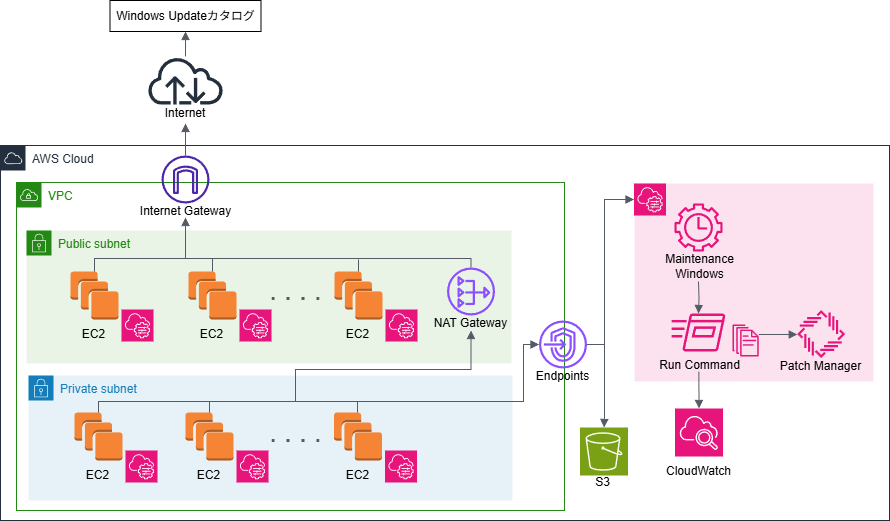
最終的な構成
対処方法を実装した最終的な構成は以下の通りです。
最後に
本記事で紹介したように、考慮すべきポイントはあるものの、Patch Managerを導入することでパッチ適用の手間は大幅に削減できます。
まだ導入していない皆様も導入を検討してみてはいかがでしょうか?
AWSより、Patch Manager のトラブルシューティングも公開されているため、困ったときには参考にしてみてください。
明日は、NTTテクノクロスアドベントカレンダー25日目の記事となります。最後までお楽しみに!