
5年ぶりにRaspberry Piでタッチパネル、復習と新規開発準備
以下の 復習とデジタルサイネージ&スマートホームの準備です
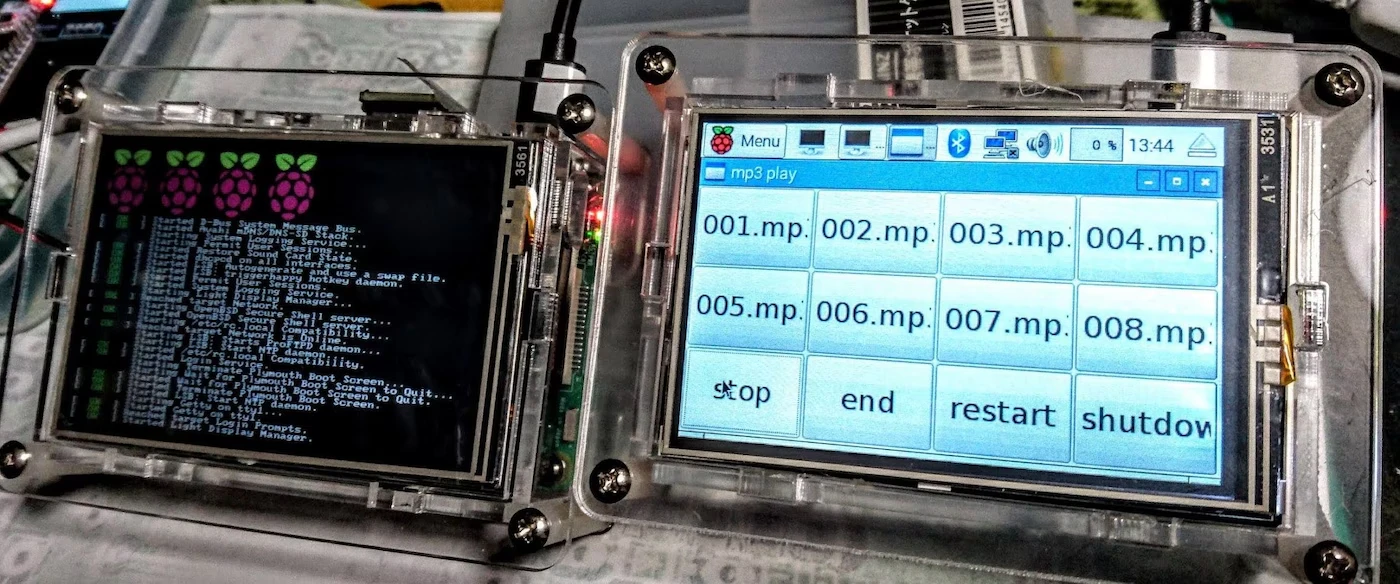
在庫のタッチパネルで始めます 最新のイメージDL&再設定
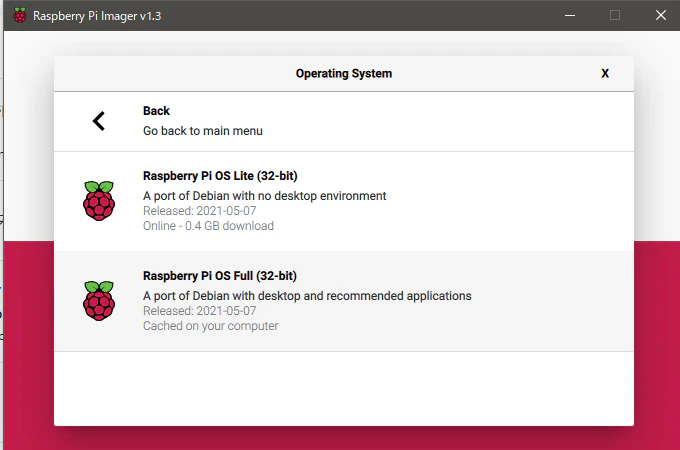
VNC接続
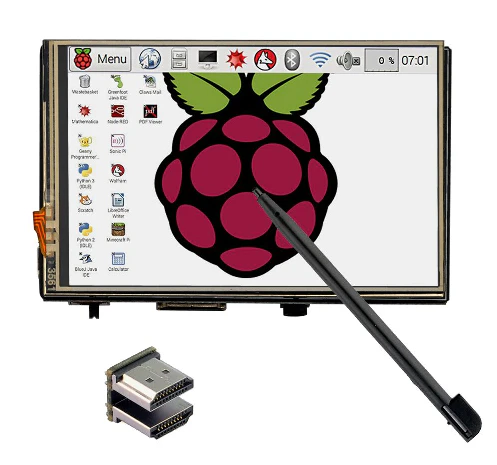
タッチパネルドライバー入れると画面、めちゃくちゃ小さくなりました💦
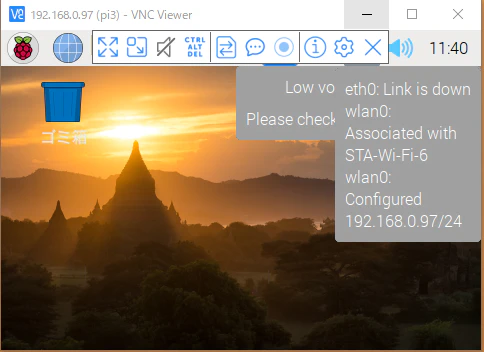
Raspberry Pi にSambaを設定して共有フォルダ接続
久々Raspberry触りましたが1時間ぐらいでSambaまで確認できました。
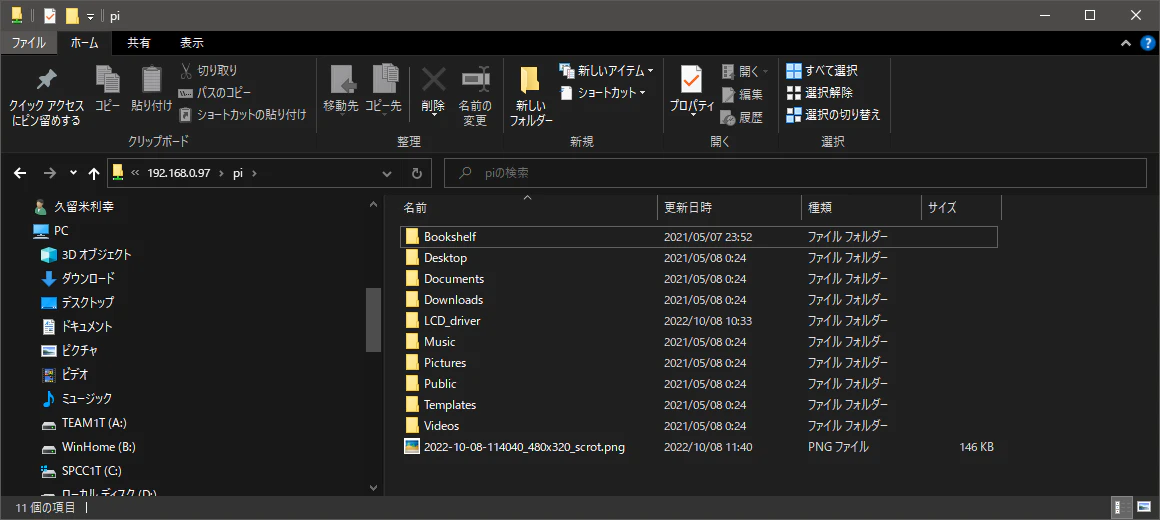
VNCで画面キャプチャしますとRaspberryのホルダに画面が保存しかし左上のVNCのアイコンが表示されません
2022-10-08-114040_480x320_scrot.png
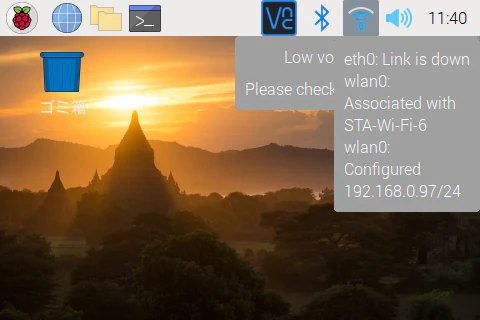
今回は Vscodeでリモート接続
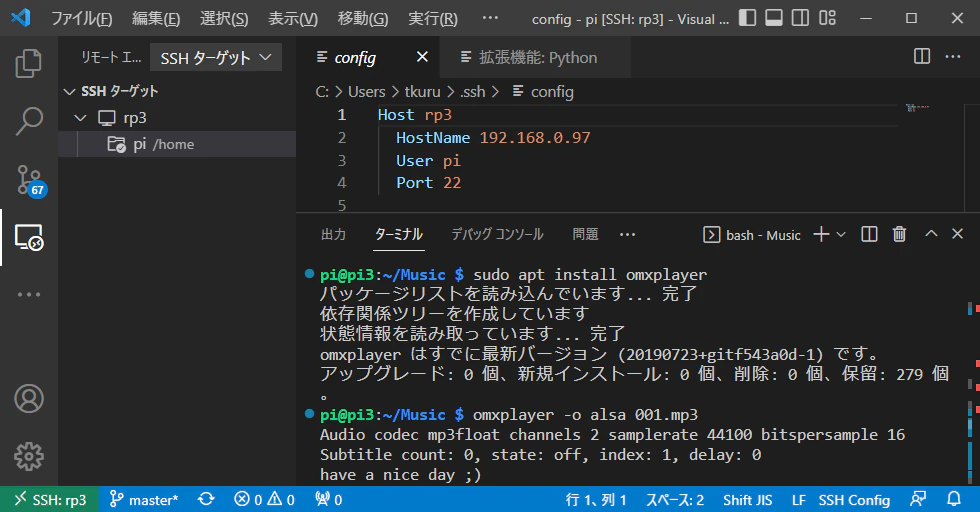
python omxplayer もすでに入っていて、
Sambaのおかげでmp3ファイルもドラック&ドロップ転送すぐにmp3再生しました。
pi@pi3:~ $ python
Python 2.7.16 (default, Oct 10 2019, 22:02:15)
[GCC 8.3.0] on linux2
Type "help", "copyright", "credits" or "license" for more information.
>>>
KeyboardInterrupt
[1]+  停止                  python
pi@pi3:~/Music $ sudo apt install omxplayer
パッケージリストを読み込んでいます... 完了
依存関係ツリーを作成しています
状態情報を読み取っています... 完了
omxplayer はすでに最新バージョン (20190723+gitf543a0d-1) です。
アップグレード: 0 個、新規インストール: 0 個、削除: 0 個、保留: 279 個。
pi@pi3:~/Music $ omxplayer -o alsa 001.mp3
Audio codec mp3float channels 2 samplerate 44100 bitspersample 16
Subtitle count: 0, state: off, index: 1, delay: 0
have a nice day ;)
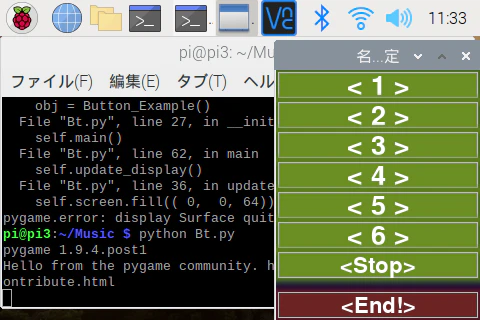
Python ボタン使ったMP3再生試験
#import serial
#import pygame, Buttons
from pygame.locals import *
import pygame.mixer
import Buttons

#Initialize pygame
pygame.init()

sx=2
sy=2
sl=200
sh=26
sz=sh+4
#str1="Dmx mp3 Play"
str1=""

class Button_Example:
    def __init__(self):
        self.main()

    #Create a display
    def display(self):
        self.screen = pygame.display.set_mode((sl+4,250),0,32)  #480,320
        pygame.display.set_caption(str1)

    #Update the display and show the button
    def update_display(self):
        self.screen.fill(( 0,  0, 64))
        #Parameters:               surface,      color,       x,      y, length, height, width,    text,      text_color
        self.Button1.create_button(self.screen, (107,142,35),  sx, sy+sz*0  , sl,  sh,    0,        "< 1 >", (255,255,255))
        self.Button2.create_button(self.screen, (107,142,35),  sx, sy+sz*1  , sl,  sh,    0,        "< 2 >", (255,255,255))
        self.Button3.create_button(self.screen, (107,142,35),  sx, sy+sz*2  , sl,  sh,    0,        "< 3 >", (255,255,255))
        self.Button4.create_button(self.screen, (107,142,35),  sx, sy+sz*3  , sl,  sh,    0,        "< 4 >", (255,255,255))
        self.Button5.create_button(self.screen, (107,142,35),  sx, sy+sz*4  , sl,  sh,    0,        "< 5 >", (255,255,255))
        self.Button6.create_button(self.screen, (107,142,35),  sx, sy+sz*5  , sl,  sh,    0,        "< 6 >", (255,255,255))
        self.Button0.create_button(self.screen, (107,142,35),  sx, sy+sz*6  , sl,  sh,    0,        "<Stop>", (255,255,255))
        self.Button9.create_button(self.screen, (107, 35,35),  sx, sy+sz*7+10, sl, sh,    0,     "<End!>" , (255,255,255))
        pygame.display.flip()


    #Run the loop
    def main(self):
        self.Button1 = Buttons.Button()
        self.Button2 = Buttons.Button()
        self.Button3 = Buttons.Button()
        self.Button4 = Buttons.Button()
        self.Button5 = Buttons.Button()
        self.Button6 = Buttons.Button()
        self.Button0 = Buttons.Button()
        self.Button9 = Buttons.Button()
        self.display()
        pygame.mixer.init()
        while True:
            self.update_display()
            for event in pygame.event.get():
                if event.type == pygame.QUIT:
                    pygame.quit()
                elif event.type == MOUSEBUTTONDOWN:
                    if self.Button1.pressed(pygame.mouse.get_pos()):
                        #print "Give me a command!"
                        pygame.mixer.music.load('001.mp3')
                        pygame.mixer.music.play()
                        pygame.display.set_caption(str1+"<1>")
                    if self.Button2.pressed(pygame.mouse.get_pos()):
                        pygame.mixer.music.load('002.mp3')
                        pygame.mixer.music.play()
                        pygame.display.set_caption(str1+"<2>")
                    if self.Button3.pressed(pygame.mouse.get_pos()):
                        pygame.mixer.music.load('003.mp3')
                        pygame.mixer.music.play()
                        pygame.display.set_caption(str1+"<3>")
                    if self.Button4.pressed(pygame.mouse.get_pos()):
                        pygame.mixer.music.load('004.mp3')
                        pygame.mixer.music.play()
                        pygame.display.set_caption(str1+"<4>")
                    if self.Button5.pressed(pygame.mouse.get_pos()):
                        pygame.mixer.music.load('005.mp3')
                        pygame.mixer.music.play()
                        pygame.display.set_caption(str1+"<5>")
                    if self.Button6.pressed(pygame.mouse.get_pos()):
                        pygame.mixer.music.load('006.mp3')
                        pygame.mixer.music.play()
                        pygame.display.set_caption(str1+"<6>")
                    if self.Button0.pressed(pygame.mouse.get_pos()):
                        pygame.mixer.music.stop()
                        pygame.display.set_caption(str1+"<->")
                    if self.Button9.pressed(pygame.mouse.get_pos()):
                        pygame.mixer.music.stop()
                        pygame.quit()
if __name__ == '__main__':
#    con=serial.Serial('/dev/ttyACM0',9600)
    #pm = pygame.mixer.Sound("start.wav")
    #pm.play()
    obj = Button_Example()
Buttons.py ソース作者のページ https://simonhl.dk/button-drawer-python-2-6/
# -*- coding: cp1252 -*-
#/usr/bin/env python
#Simon H. Larsen
#Buttons
#Project startet: d. 26. august 2012
import pygame
from pygame.locals import *
pygame.init()
class Button:
    def create_button(self, surface, color, x, y, length, height, width, text, text_color):
        surface = self.draw_button(surface, color, length, height, x, y, width)
        surface = self.write_text(surface, text, text_color, length, height, x, y)
        self.rect = pygame.Rect(x,y, length, height)
        return surface

    def write_text(self, surface, text, text_color, length, height, x, y):
        font_size = int(length//len(text))
        myFont = pygame.font.SysFont("Calibri", font_size)
        myText = myFont.render(text, 1, text_color)
        surface.blit(myText, ((x+length/2) - myText.get_width()/2, (y+height/2) - myText.get_height()/2))
        return surface

    def draw_button(self, surface, color, length, height, x, y, width):
        for i in range(1,10):
            s = pygame.Surface((length+(i*2),height+(i*2)))
            s.fill(color)
            alpha = (255/(i+2))
            if alpha <= 0:
                alpha = 1
            s.set_alpha(alpha)
            pygame.draw.rect(s, color, (x-i,y-i,length+i,height+i), width)
            surface.blit(s, (x-i,y-i))
        pygame.draw.rect(surface, color, (x,y,length,height), 0)
        pygame.draw.rect(surface, (190,190,190), (x,y,length,height), 1)
        return surface

    def pressed(self, mouse):
        if mouse[0] > self.rect.topleft[0]:
            if mouse[1] > self.rect.topleft[1]:
                if mouse[0] < self.rect.bottomright[0]:
                    if mouse[1] < self.rect.bottomright[1]:
                        #print "Some button was pressed!"
                        return True
                    else: return False
                else: return False
            else: return False
        else: return False
こちらが 使いやすそうでです guizero
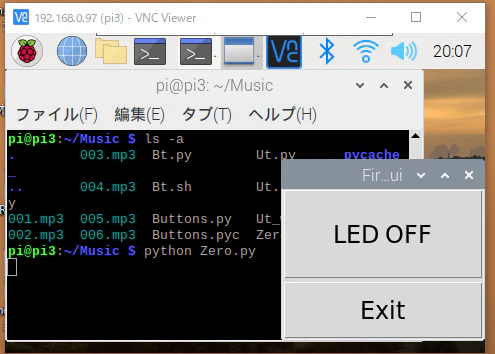
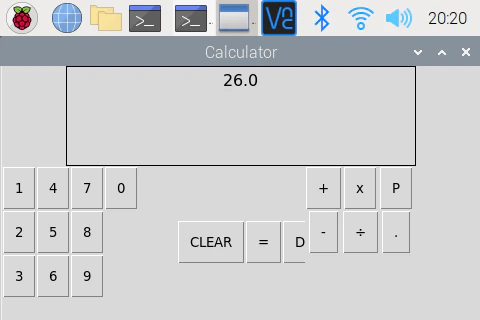
4Bでも Python3 起動
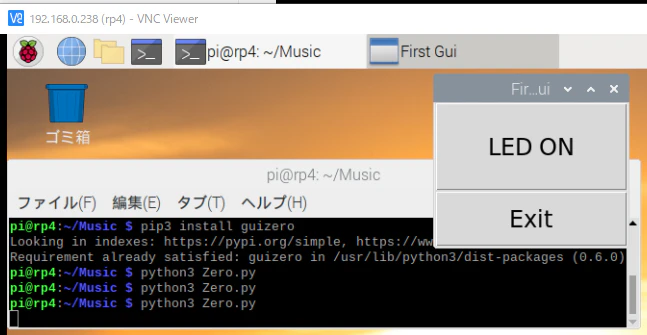
以前は気が付きませんでしたが、こちらも良いですね
PySimpleGUIはPythonの標準ライブラリ「Tkinter」がベースとなっています。
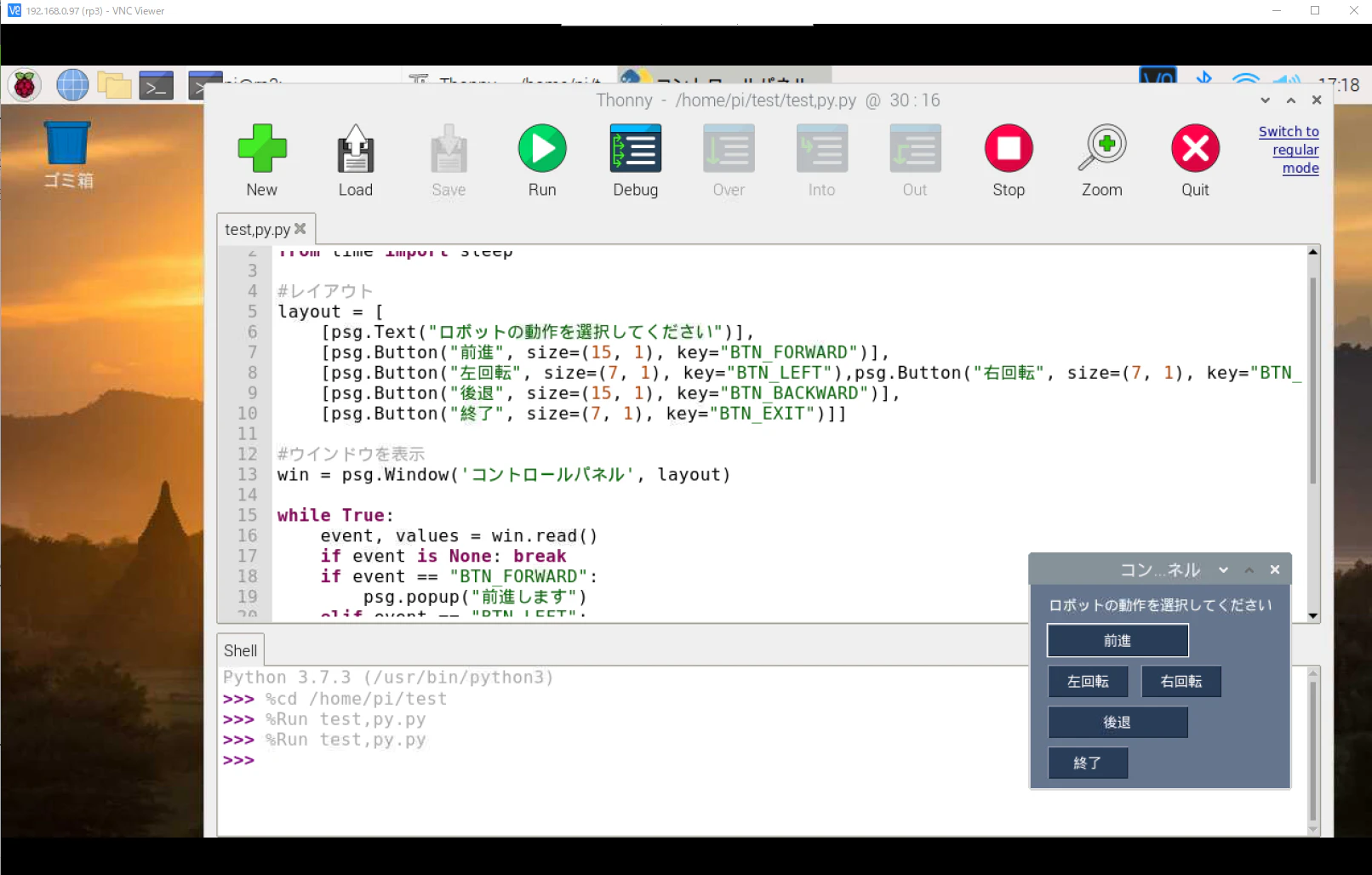
あれ こちらは?
RaspberryPiでwxPython
現状こちらで、つまずきました!
wxPython Python3でも上手くいきません!
変更 Qtを試す
その他 参照させていただいた ページ
問題 解決 参照させていただいた ページ!
なぜかVNC起動でWindowsキー+Shift+Sが動作停止?