

SPSS Modelerで他の人からもらったストリームを実行するときやテスト環境と本番環境を切り替えるときにデータソース名が違っていて、実行ができないことがあると思います。
1、2テーブルであれば書き換えても大きな手間ではありませんが、たくさんのテーブルを使っている場合は大変です。
そこで入出力のデータソースを一括変更するpythonスクリプトを書きました。
1 pythonスクリプト
changeDsn.py
# 新しいデータソース情報を定義
new_dsn = "DB2115"
new_username = "db2admin"
new_password = "password"

# ストリームを取得
stream = modeler.script.stream()

# ストリーム内のすべてのノードをループ
for node in stream.nodes:
    # ノードタイプを確認(DatabaseノードまたはDatabase Exportノード)
    if node.getTypeName() == "database" or node.getTypeName() == "databaseexport":
        # 更新対象ノードのテーブル名を表示
        print("更新中のノード: {}".format(node.getPropertyValue("tablename")))

        # データソース名を更新
        node.setPropertyValue("datasource", new_dsn)

        # 必要に応じてユーザー名とパスワードも更新
        node.setPropertyValue("username", new_username)
        node.setPropertyValue("password", new_password)
new_dsn、new_username、new_passwordのところに変更したいデータソース名、ユーザー名、パスワードを指定すればOKです。
- ユーザー名、パスワードのsetPropertyValueはコメントアウトしてしまって、初回アクセス時にダイアログボックスから入力することも可能です
2 実行例
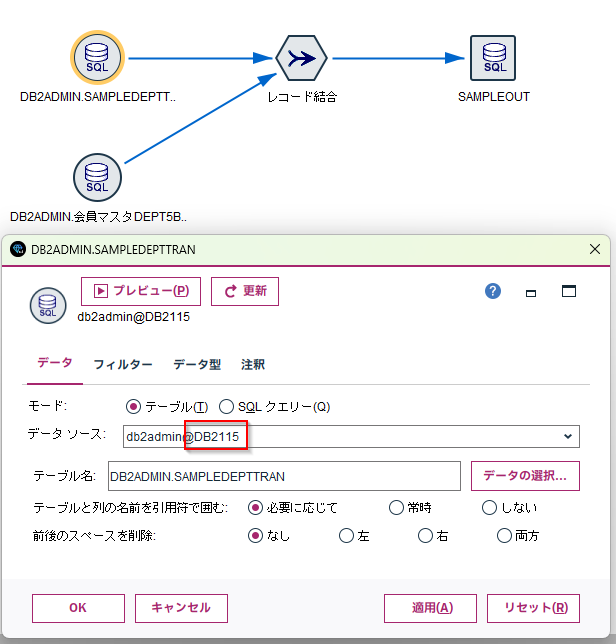
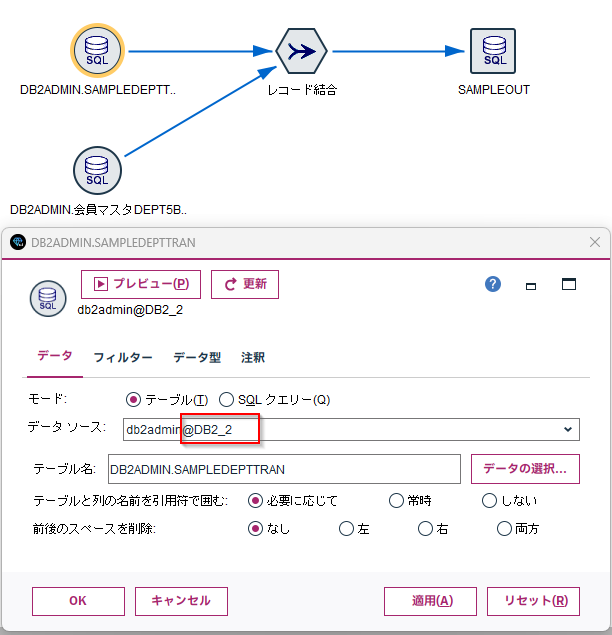
DB2115というデータソースからDB2_2というデータソースに変更します。
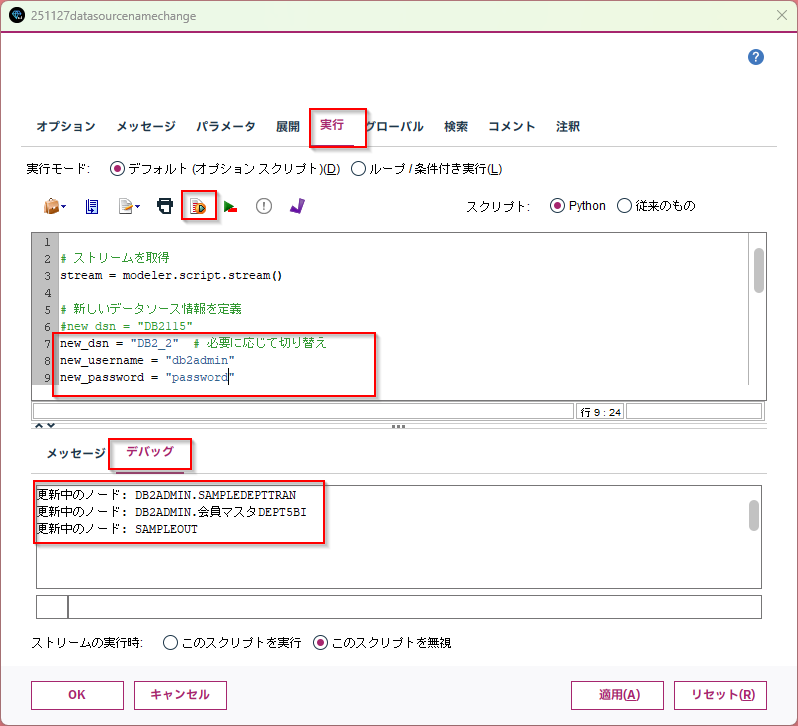
ストリームのスクリプトに上のスクリプトをコピーペーストして、new_dsn、new_username、new_passwordを変更します。そして、このスクリプトを実行ボタンをクリックします。
デバッグの欄に変更したテーブル名が表示されます。
以下のように変更されます。
- テストした環境
- SPSS Modeler 19.0
- Windows 11
参考
SPSS Modelerで入出力のファイルパスを一括変更する #SPSS_Modeler - Qiita