
イントロ
セルフホスト型のアプリケーションといえばダッシュボードですよね?!
ということで、今回の紹介はGlanceです。
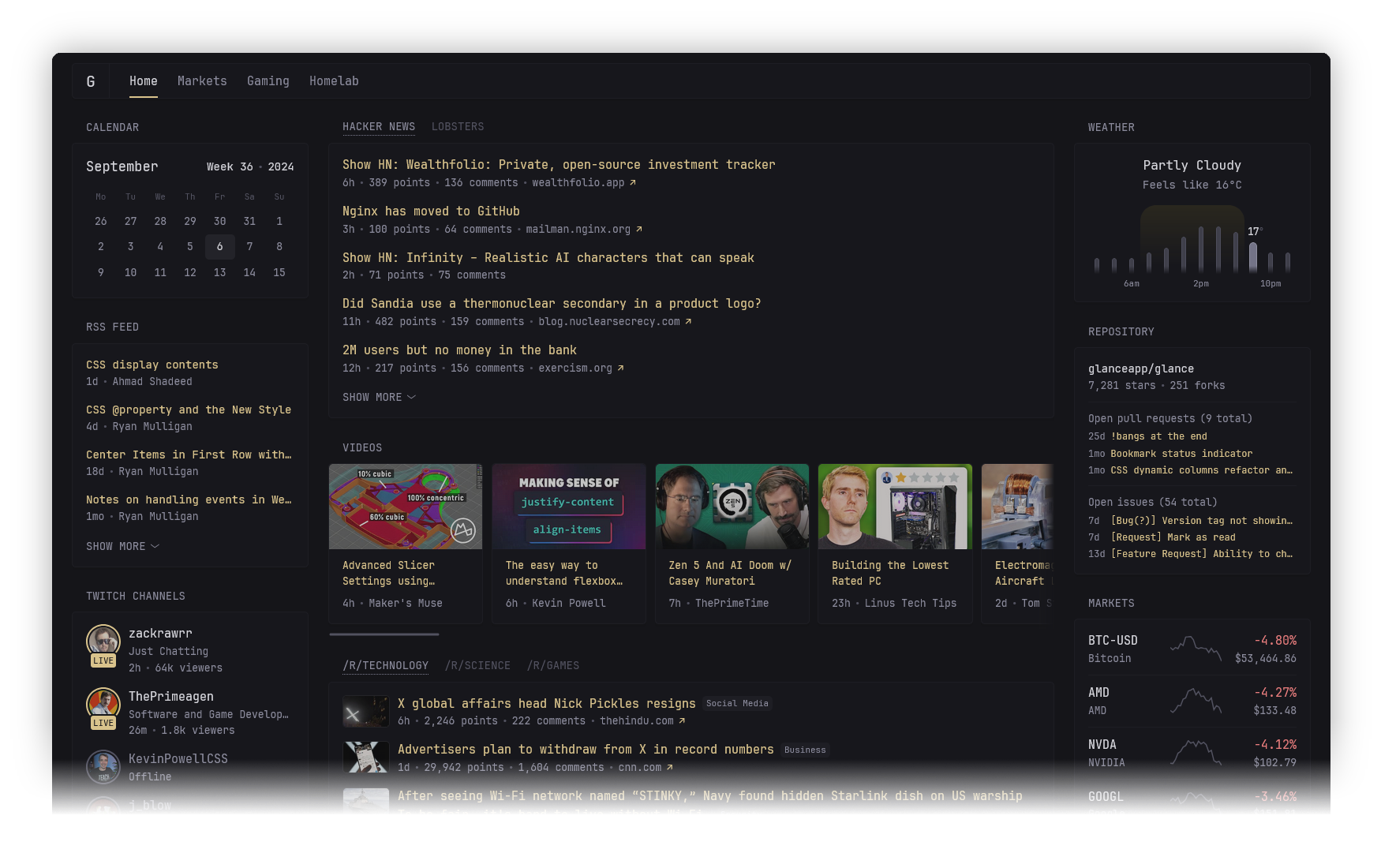
色々試したのですが、極力シンプルに、 かつ見た目が良いダッシュボードを探していたところ、Glanceにたどり着きました。
個人的に好きなのは、YouTubeのチャンネルFeed、RedditのFeed、GitHubのリリースFeed、Dockerコンテナステータスが見れるところです。
モバイル向けのビューもしっかりしているので、スマホからも見やすいのがポイント高いです。
Glanceの使い方
環境情報
$ docker version
Client: Docker Engine - Community
 Version:           29.1.3
 API version:       1.52
 Go version:        go1.25.5
 Git commit:        f52814d
 Built:             Fri Dec 12 14:49:51 2025
 OS/Arch:           linux/amd64
 Context:           default

Server: Docker Engine - Community
 Engine:
  Version:          29.1.3
  API version:      1.52 (minimum version 1.44)
  Go version:       go1.25.5
  Git commit:        fbf3ed2
  Built:            Fri Dec 12 14:49:51 2025
  OS/Arch:          linux/amd64
  Experimental:     false
 containerd:
  Version:          v2.2.0
  GitCommit:        1c4457e00facac03ce1d75f7b6777a7a851e5c41
 runc:
  Version:          1.3.4
  GitCommit:        v1.3.4-0-gd6d73eb8
 docker-init:
  Version:          0.19.0
  GitCommit:        de40ad0
前提条件
- Docker がインストールされていること
- Traefik が導入されていること(リバースプロキシサーバー)
手順
-
compose.ymlを作成しますdomain.tldは自分の環境に合わせて変更してください。https://glance.domain.tldでアクセスできるようになります。compose.ymlservices: glance: container_name: glance image: glanceapp/glance restart: unless-stopped volumes: - ./config:/app/config - /var/run/docker.sock:/var/run/docker.sock:ro expose: - 8080 labels: traefik.enable: true traefik.http.services.glance.loadbalancer.server.port: 8080 traefik.http.routers.glance.rule: Host(`glance.domain.tld`) traefik.http.routers.glance.entrypoints: websecure traefik.http.routers.glance.tls: true traefik.http.routers.glance.tls.certResolver: cloudflare traefik.docker.network: traefik-network # Dockerのラベルを使ってコンテナのステータスを表示することができる glance.name: Glance glance.icon: https://cdn.jsdelivr.net/gh/selfhst/icons/png/glance.png glance.url: https://glance.domain.tld/ glance.description: selfhost dashboard glance.id: glance networks: - traefik-network networks: traefik-network: external: true -
config/glance.ymlを作成します。glance.ymltheme: primary-color: 210 86 53 # text-blue-400 for hls color contrast-multipler: 1.3 pages: - name: Home $include: top.yml # 直接記載もできますが、ファイル別に分けることも可能 -
config/top.ymlを作成します簡単な一例だけ挙げておきます。残りは全部ドキュメント見てください。
top.ymlcolumns: - size: full widgets: - type: split-column widgets: - type: group widgets: - type: docker-containers hide-by-default: false containers: app: name: Application Server description: Current server sock-path: //var/run/docker.sock hide: true -
Docker Composeで起動します。
docker compose up -dhttps://glance.domain.tldにアクセスすると、Glanceの画面が表示されます。
私のGlance環境(簡単なスクショのみ)

Glanceの感想
- 良いところ
- シンプルで見やすいUI
- モバイル対応がしっかりしている
- Dockerコンテナのステータスが見れる
- ウィジェット選びに困らない程度の選択肢
- Dockerのラベルでコンテナのステータスやリンクの設定ができる
- イマイチなところ
- ドキュメントがMarkdownの1枚のみ(ウィジェット探しは慣れが必要)
- 他のダッシュボードアプリと比べてカスタマイズ性は高くない
以上、Glanceの紹介でした。
他のダッシュボードアプリはカスタマイズ性が高い分、設定が複雑だったりウィジェット選びに苦労するのですが、Glanceは良い意味でそこまでカスタマイズ性が高くない分、選びやすかったです。