

1. TPMの有効化
-
vCenter名を選択し、Configureから、Key Providersを選択し、
Add Native Key Provicerを選択する(本来は外部のKMS Providerを選択する方がよりセキュアなのだろうが、手っ取り早く検証したいので、Native Key Providerを利用)。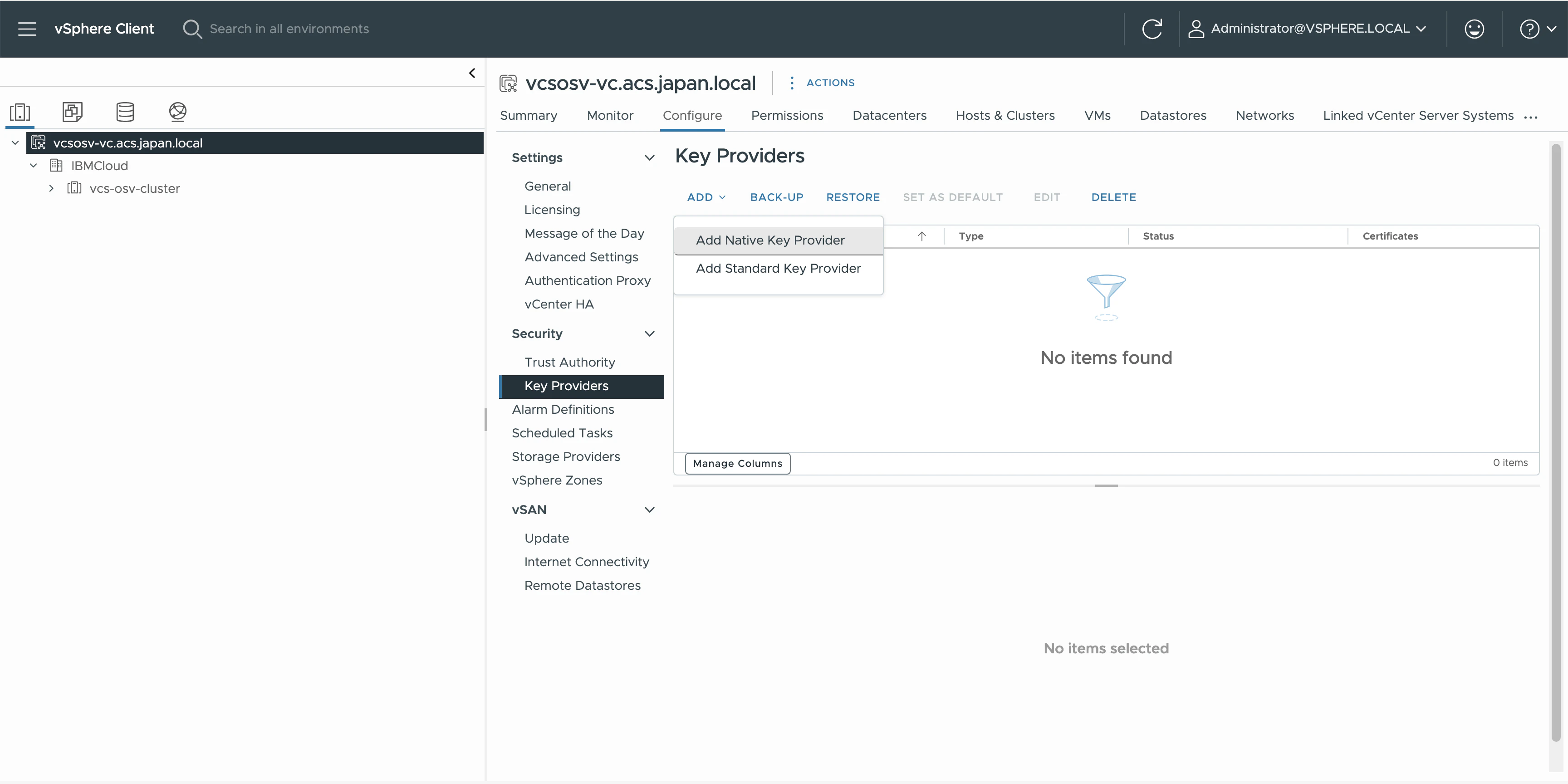
-
Native Key Providerの名称を入力。TPM protected hostの要件を満たせていないかもしれないので、
Use key provider only with TPM protected ESXi hosts(Recommended)のチェックは外しておく。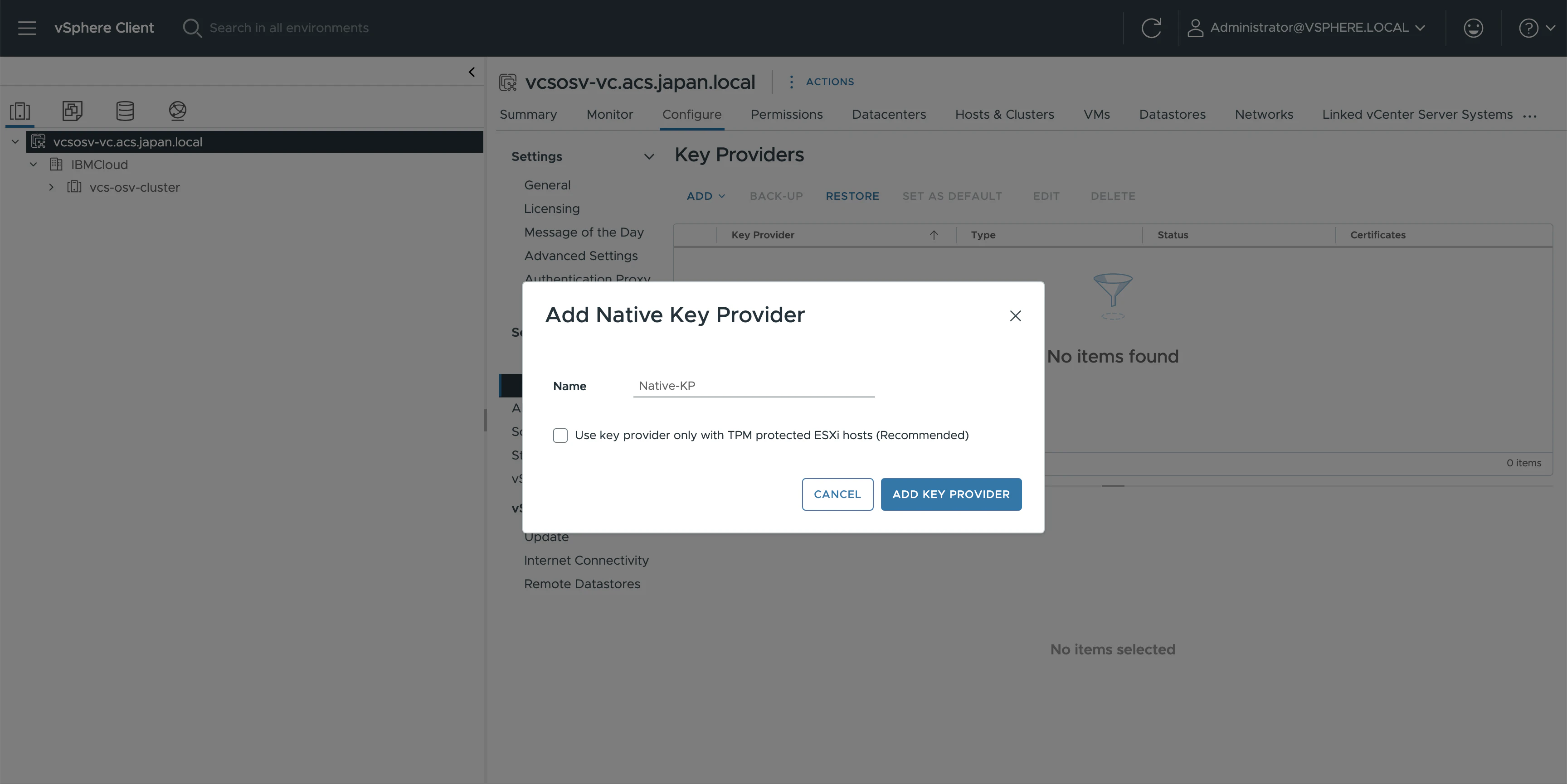
-
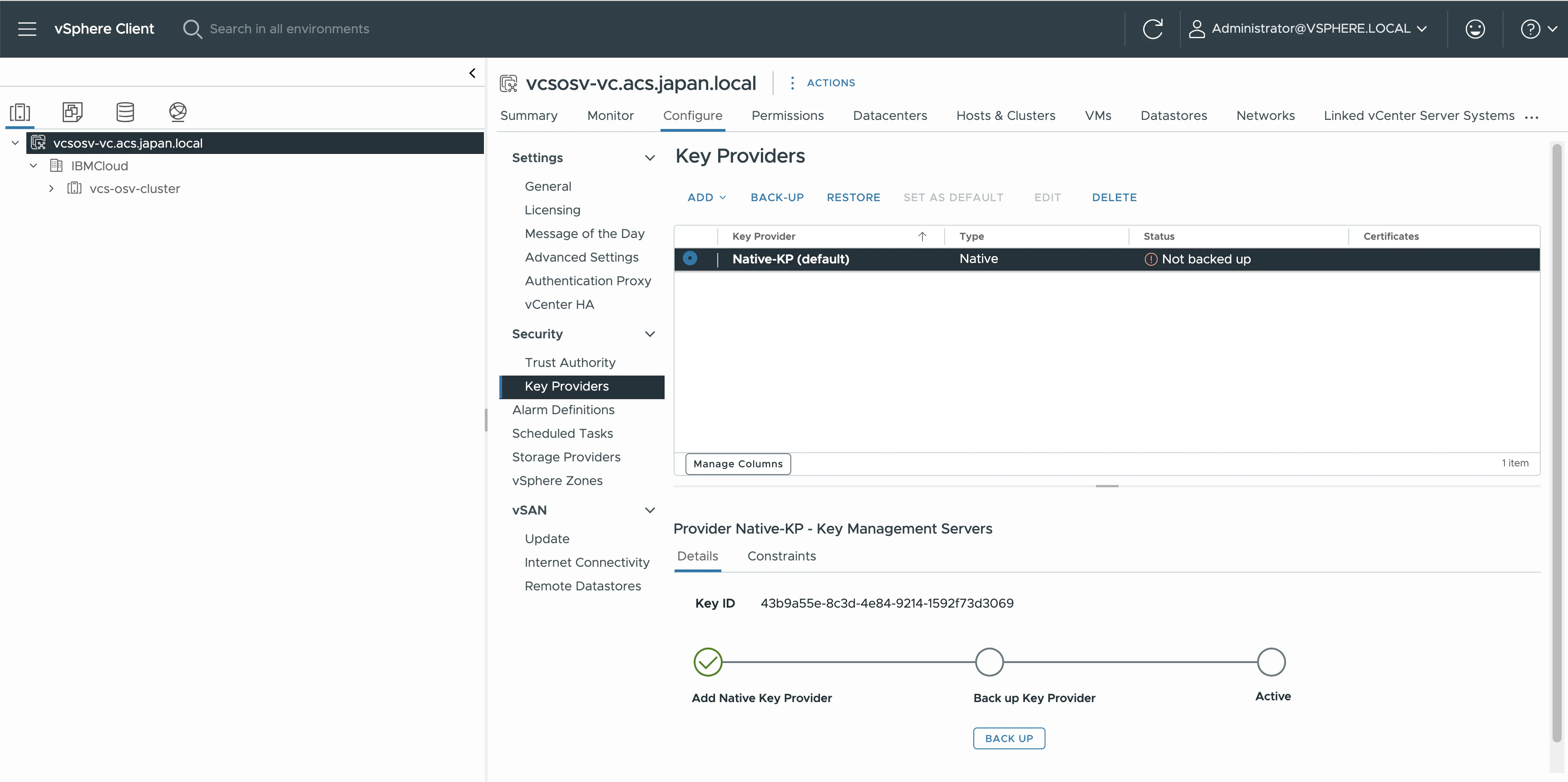
Backupを取得することが推奨されるので、バックアップを実行。
-
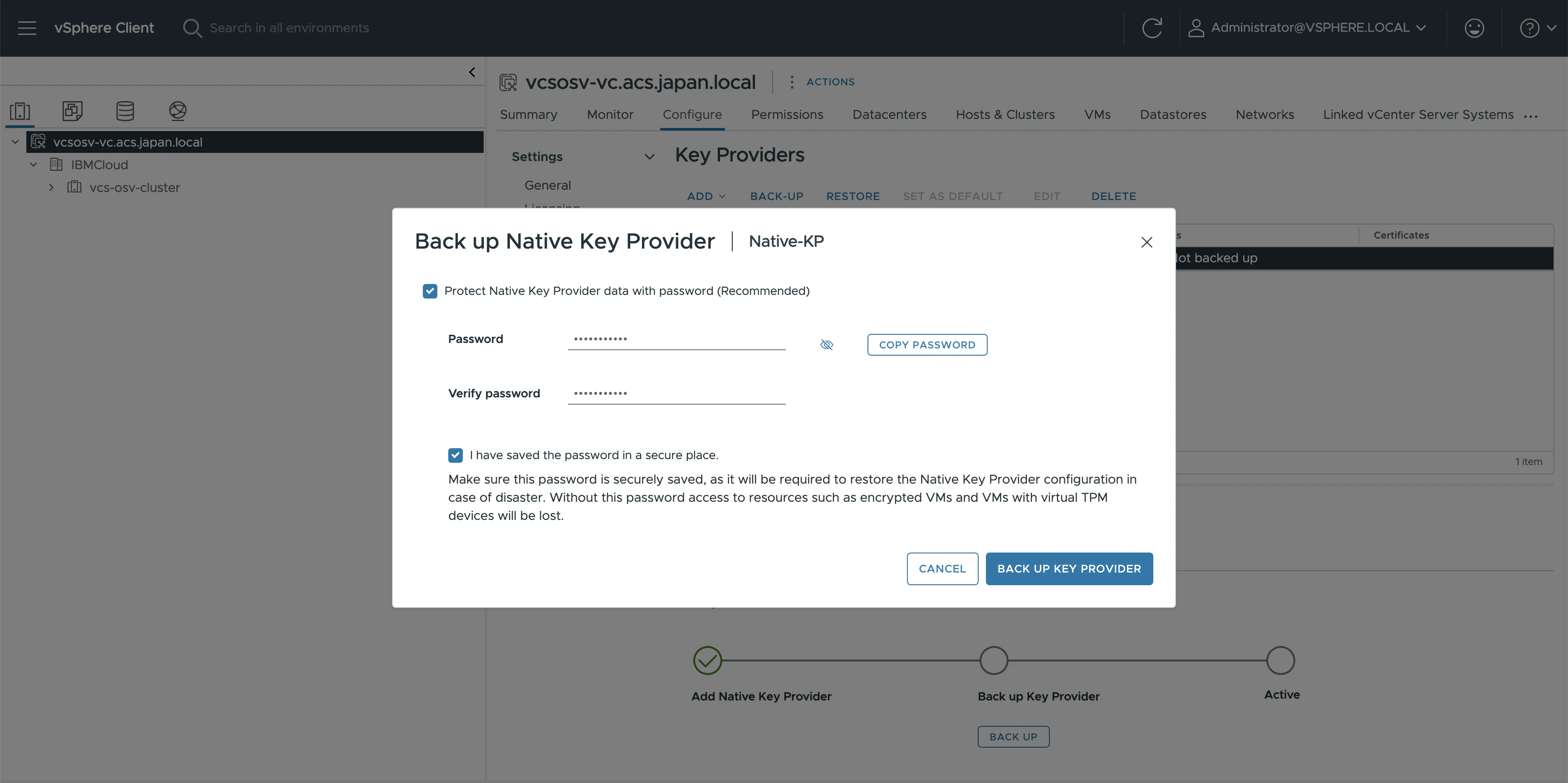
パスワードを設定することが推奨されるので、パスワードを設定。
-
<Native Key Provider名>.p12というファイルがバックアップされる。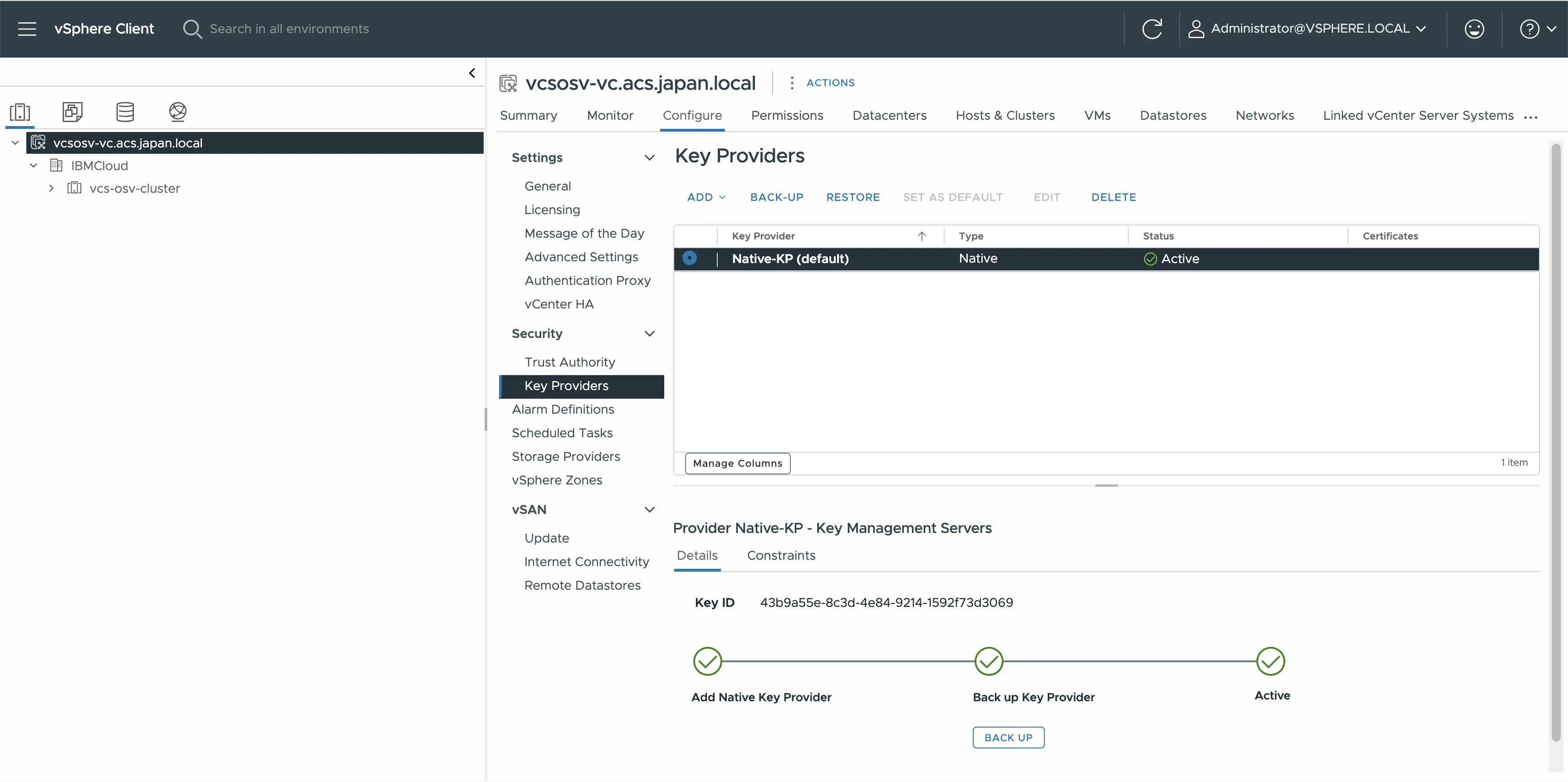
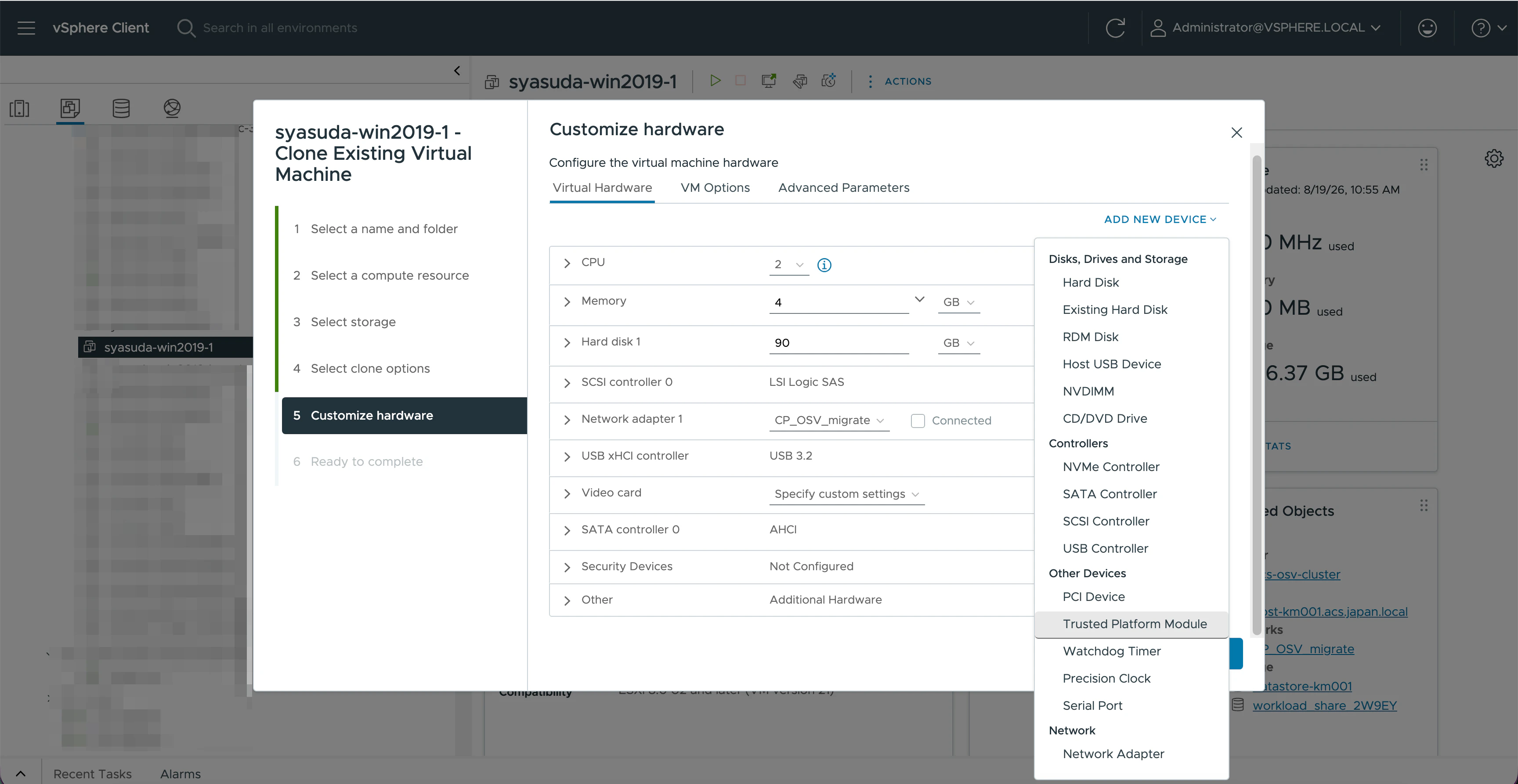
これにより、例えばClone実行時にTPM(Trusted Platform Module)を追加できるようになる。
2. Windows Server: TPM確認
2-1. PowerShellからのTPM確認
PS C:\> Get-TPM


TpmPresent                : True
TpmReady                  : True
ManufacturerId            : 1447909120
ManufacturerIdTxt         : VMW
ManufacturerVersion       : 2.101
ManufacturerVersionFull20 : 2.101.0.1

ManagedAuthLevel          : Full
OwnerAuth                 : CXXh6oI++B7L7uyL1HYtEaUZ2Gc=
OwnerClearDisabled        : False
AutoProvisioning          : Enabled
LockedOut                 : False
LockoutHealTime           : 10 minutes
LockoutCount              : 0
LockoutMax                : 31
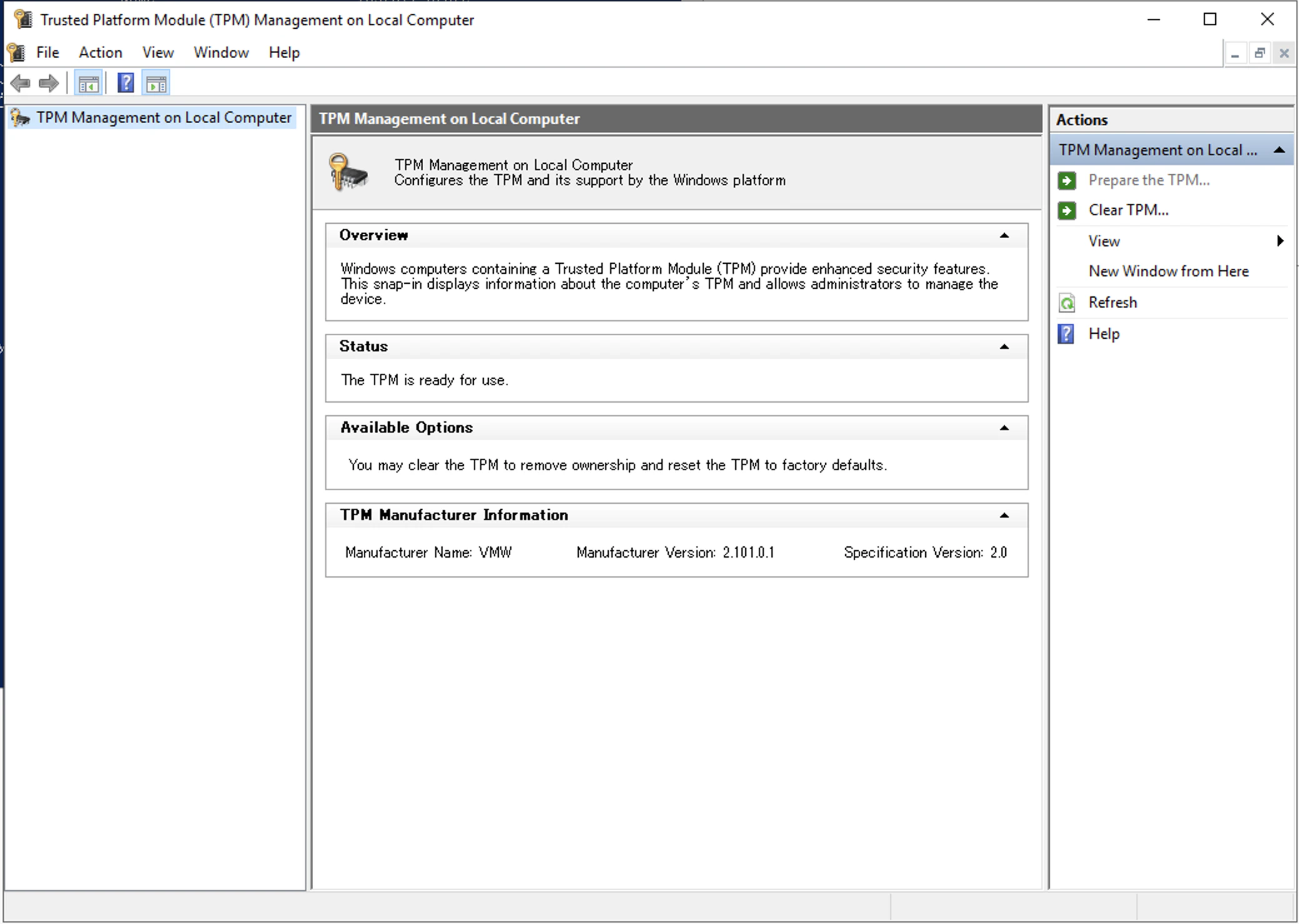
2-2. TPM専用GUIからの確認
PS C:\> tpm.msc
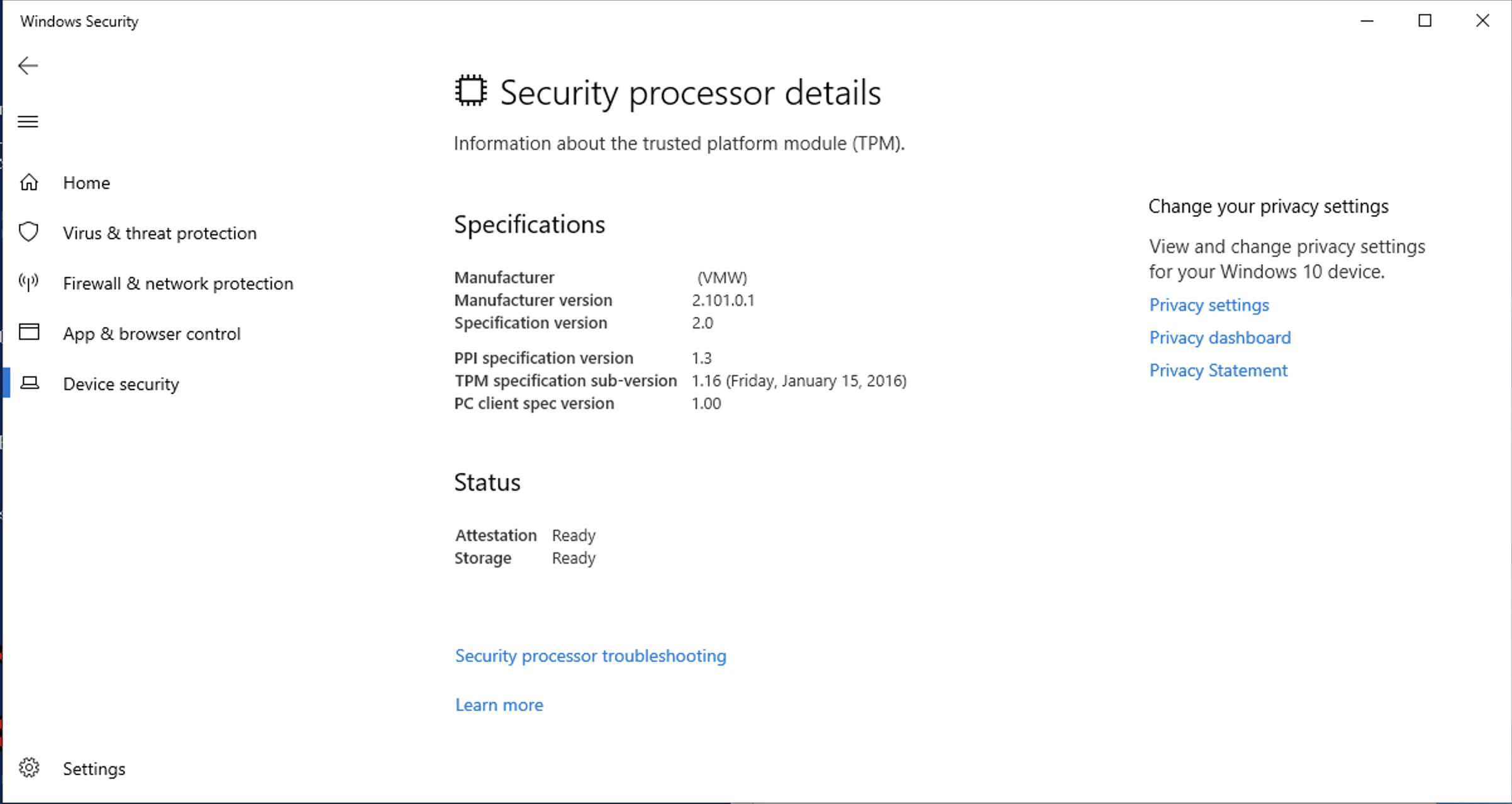
2-3. Security Processor detailsを使った確認
Windows Security -> Device Security -> Security Processor details
3. Windows Server: BitLockerの構成
3-1. Bitlockerのインストール
PS C:\> Get-WindowsFeature *BitLocker*

Display Name                                            Name                       Install State
------------                                            ----                       -------------
[ ] BitLocker ドライブ暗号化                            BitLocker                      Available
[ ] BitLocker ネットワーク ロック解除                   BitLocker-NetworkUnlock        Available
        [ ] BitLocker ドライブ暗号化管理ユーティリティ  RSAT-Feature-Tools-B...        Available
            [ ] BitLocker ドライブ暗号化ツール          RSAT-Feature-Tools-B...        Available
            [ ] BitLocker 回復パスワード ビューアー     RSAT-Feature-Tools-B...        Available

PS C:\> Install-WindowsFeature BitLocker -IncludeAllSubFeature -Restart
再起動後
PS C:\> Get-WindowsFeature *BitLocker*

Display Name                                            Name                       Install State
------------                                            ----                       -------------
[X] BitLocker ドライブ暗号化                            BitLocker                      Installed
[ ] BitLocker ネットワーク ロック解除                   BitLocker-NetworkUnlock        Available
        [ ] BitLocker ドライブ暗号化管理ユーティリティ  RSAT-Feature-Tools-B...        Available
            [ ] BitLocker ドライブ暗号化ツール          RSAT-Feature-Tools-B...        Available
            [ ] BitLocker 回復パスワード ビューアー     RSAT-Feature-Tools-B...        Available
3-2. 暗号化前の状態
当然だが、まだDecrypted状態だし、Protectorも登録されていない。
PS C:\> manage-bde -status
BitLocker Drive Encryption: Configuration Tool version 10.0.17763
Copyright (C) 2013 Microsoft Corporation. All rights reserved.

Disk volumes that can be protected with
BitLocker Drive Encryption:
Volume C: []
[OS Volume]

    Size:                 2559.40 GB
    BitLocker Version:    None
    Conversion Status:    Fully Decrypted
    Percentage Encrypted: 0.0%
    Encryption Method:    None
    Protection Status:    Protection Off
    Lock Status:          Unlocked
    Identification Field: None
    Key Protectors:       None Found

PS C:\> Get-BitLockerVolume


   ComputerName: WIN2019-VM

VolumeType      Mount CapacityGB VolumeStatus           Encryption KeyProtector              AutoUnlock Protection
                Point                                   Percentage                           Enabled    Status
----------      ----- ---------- ------------           ---------- ------------              ---------- ----------
OperatingSystem C:      2,559.40 FullyDecrypted         0          {}                                   Off
3-3. 暗号化の実施
- Control Panel -> System and Security -> Bitlocker Drive Encryption から、
Turn on BitLockerを押下。
- どちらでも良いが、
Save to a fileだとローカルディスクに保管できないため、今回はPrint the recovery keyを選択してpdfとして保管
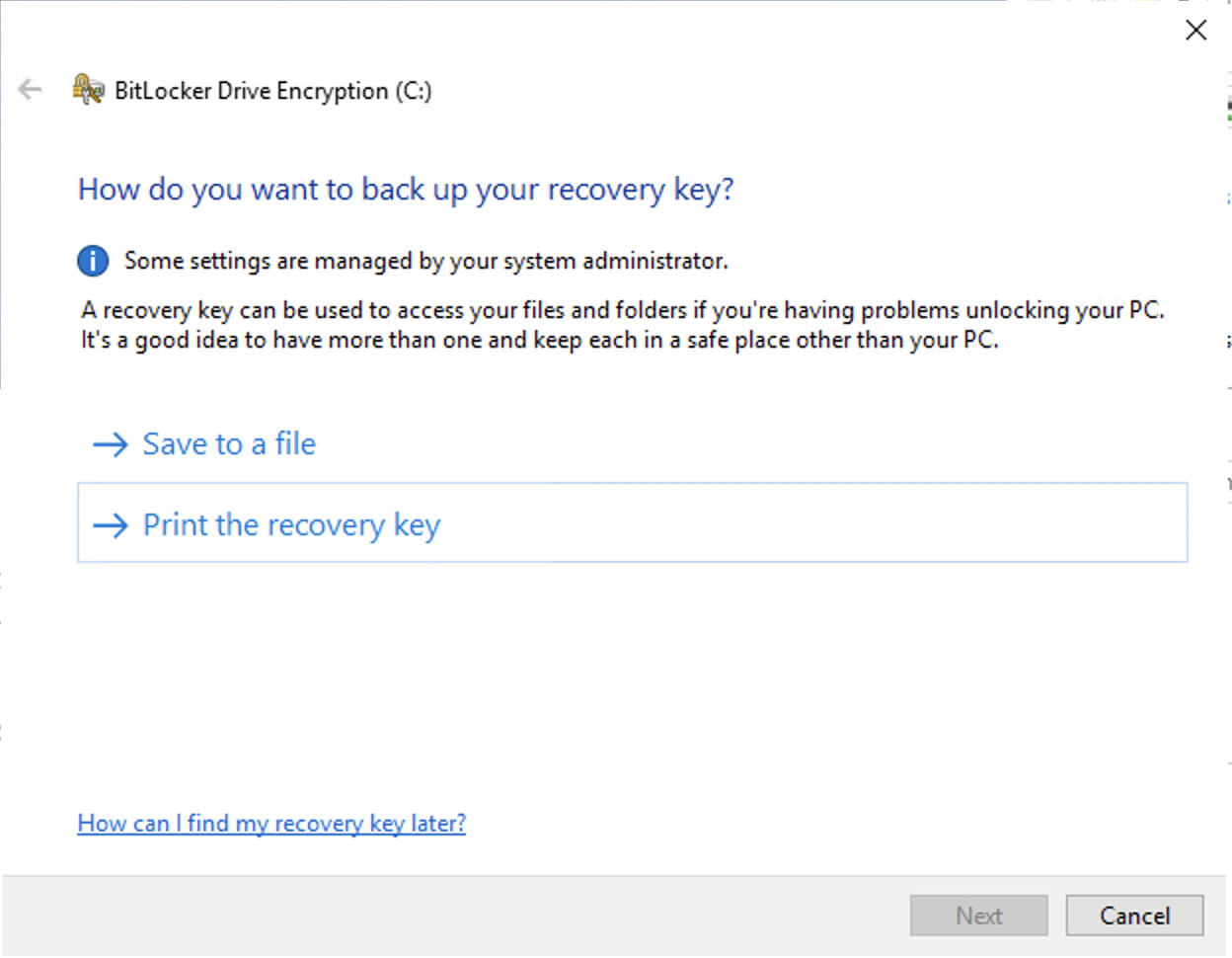

- Nextが押せるようになったので押下。

-
Encrypt entire driveを選択

-
New encryption modeを選択

-
Start encrypting

3-4. 暗号化完了後
Encrypted状態になったし、ProtectorとしてTPMとNumerical Password/RecoveryPasswordが追加されている。
PS C:\> manage-bde -status
BitLocker Drive Encryption: Configuration Tool version 10.0.17763
Copyright (C) 2013 Microsoft Corporation. All rights reserved.

Disk volumes that can be protected with
BitLocker Drive Encryption:
Volume C: []
[OS Volume]

    Size:                 2559.40 GB
    BitLocker Version:    2.0
    Conversion Status:    Fully Encrypted
    Percentage Encrypted: 100.0%
    Encryption Method:    XTS-AES 128
    Protection Status:    Protection On
    Lock Status:          Unlocked
    Identification Field: Unknown
    Key Protectors:
        TPM
        Numerical Password

PS C:\> Get-BitLockerVolume


   ComputerName: WIN2019-VM

VolumeType      Mount CapacityGB VolumeStatus           Encryption KeyProtector              AutoUnlock Protection
                Point                                   Percentage                           Enabled    Status
----------      ----- ---------- ------------           ---------- ------------              ---------- ----------
OperatingSystem C:      2,559.40 FullyEncrypted         100        {Tpm, RecoveryPassword}              On


PS C:\> manage-bde -protectors -get C:
BitLocker Drive Encryption: Configuration Tool version 10.0.17763
Copyright (C) 2013 Microsoft Corporation. All rights reserved.

Volume C: []
All Key Protectors

    TPM:
      ID: {59448911-DD3E-4DDE-A16C-B07F278DDE7F}
      PCR Validation Profile:
        7, 11
        (Uses Secure Boot for integrity validation)

    Numerical Password:
      ID: {1A3ED373-E194-4BFB-898E-7B37D4F8C28C}
      Password:
        614977-044308-099792-164890-054142-140052-549428-054461