

1. BitLockerの暗号化とProtectorの仕組み
- Cドライブなどのボリューム内のデータは、FVEK (Full Volume Encryption Key) によって暗号化される。
- FVEK自体もディスク上に保存されるが、そのまま保存されるわけではなく、VMK (Volume Master Key) によって暗号化された状態でBitLockerメタデータ領域に格納される。
- VMKもディスク上のBitLockerメタデータ領域に保存されるが、平文では保存されず、各Protectorによって保護された状態で格納される。
- VMKは複数の Protector (キー保護方式) によって保護することができる。Protectorには以下のような種類がある。
- TPM Protector
- Recovery Password Protector (48桁回復キー)
- Startup Key Protector (USBキー)
- TPM + PIN Protector
- VMKそのものが複数存在するわけではなく、同一のVMKを複数のProtectorで解除できるように情報を保持している。そのため、TPMを交換した場合でも、データやFVEKを再暗号化する必要はなく、TPM Protectorのみを追加・再作成すればよい。
2. TPM Protector(シール)の仕組み
- TPM Protectorの場合、VMKはTPMによって保護される。
- TPMはVMKを単純に保管するのではなく、現在のシステム状態
- TPM
- UEFI
- Secure Boot
- BCD
- Boot Manager
などの測定値(PCR)に紐付ける。この操作を Sealing(シール) と呼ぶ。TPMは、シール時と同じシステム状態であることを確認できた場合のみVMKを取り出せるようにする。
- 起動時に測定値が一致した場合のみTPMがVMKを解放する。この処理を Unseal(アンシール) と呼ぶ。
- TPM交換、マザーボード交換、BCD変更、Secure Boot変更などによって測定値が変化すると、TPMはVMKを解放しない。この場合、BitLockerはボリュームを自動的に解除できなくなるため、48桁の回復キー(Recovery Password)の入力を要求する。このように、TPM Protectorによる自動認証に失敗し、Recovery Password Protectorによる認証へフォールバックした状態を BitLocker Recovery Mode(BitLocker回復モード) と呼ぶ。 正しいRecovery Passwordを入力すると、Recovery Password Protectorを利用してVMKを取得し、通常どおりWindowsを起動できる。
3. BitLocker Suspendの仕組み
- BitLockerをSuspendしても暗号化自体は解除されない。
- FVEKもVMKもそのまま維持される。
- Suspend中は、既存のProtectorに加えて、
Clear Key Protectorという新たな Protector が利用可能な状態になる。これにより、Suspend時には復号に必要なキーが「Clear(利用可能な状態)」になり、TPMによる起動時整合性チェックを一時的にバイパスできる。 - その結果、通常は TPM Protectorや Recovery Password Protector などを使用しないと取得できないVMKを、TPM認証なしで利用できるようになり、データは依然として暗号化されたままであるが、VMKを取得できるためボリュームへアクセスできる。
4. BitLocker SuspendをGUIから実行した場合
- Suspend protection
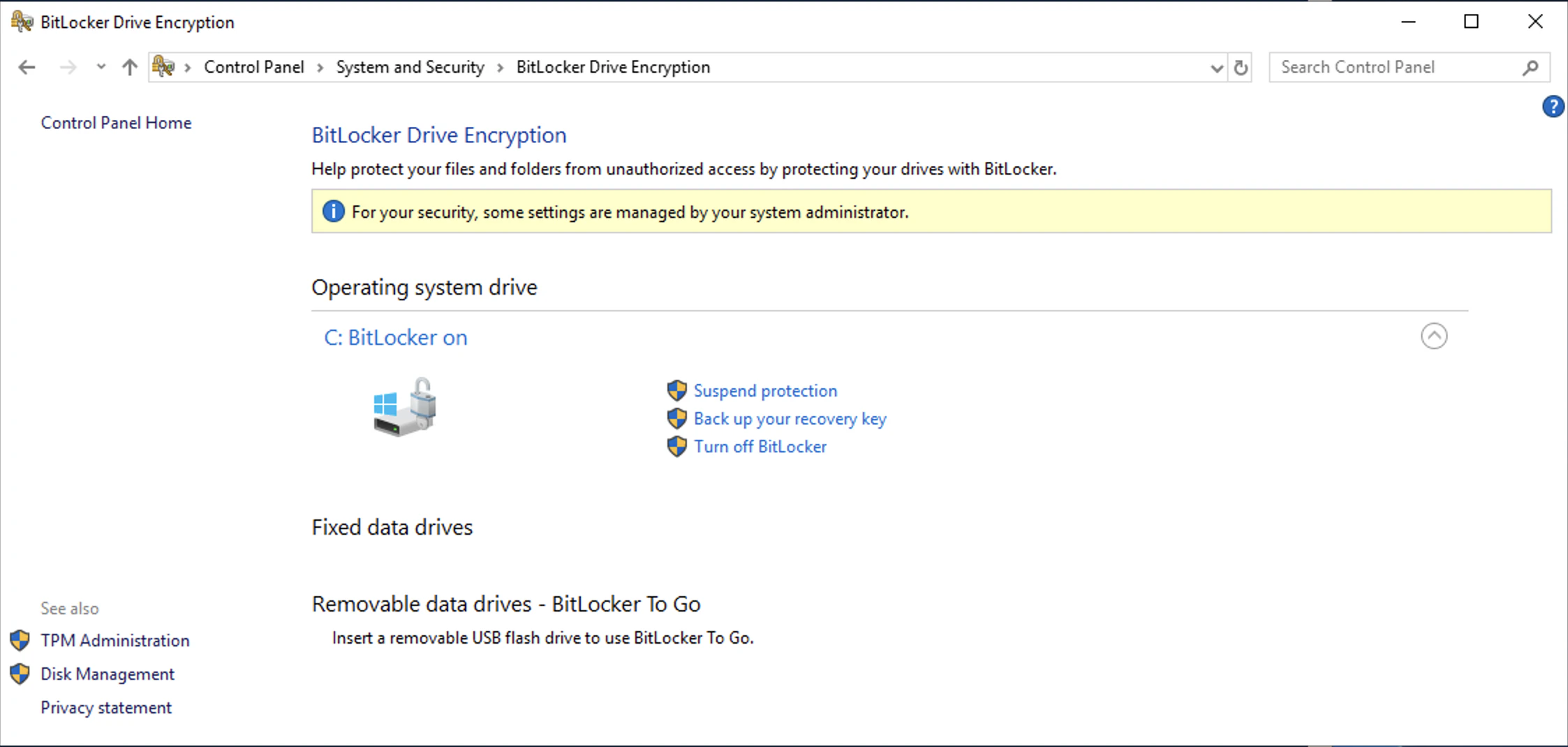
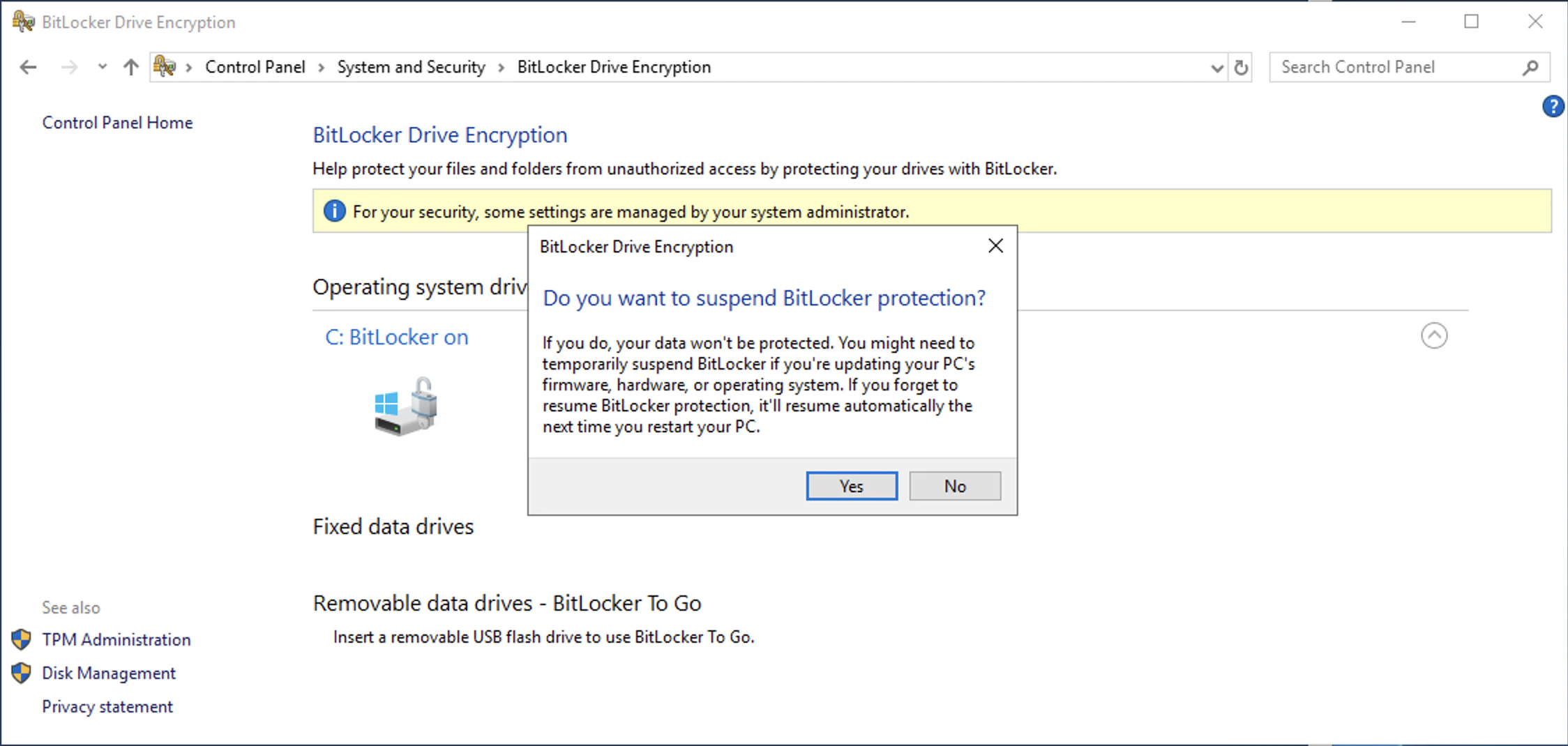
- Yesを選択。ここでの警告では、再起動したらsuspendは解除される旨説明されている。
- Suspend中の状態。
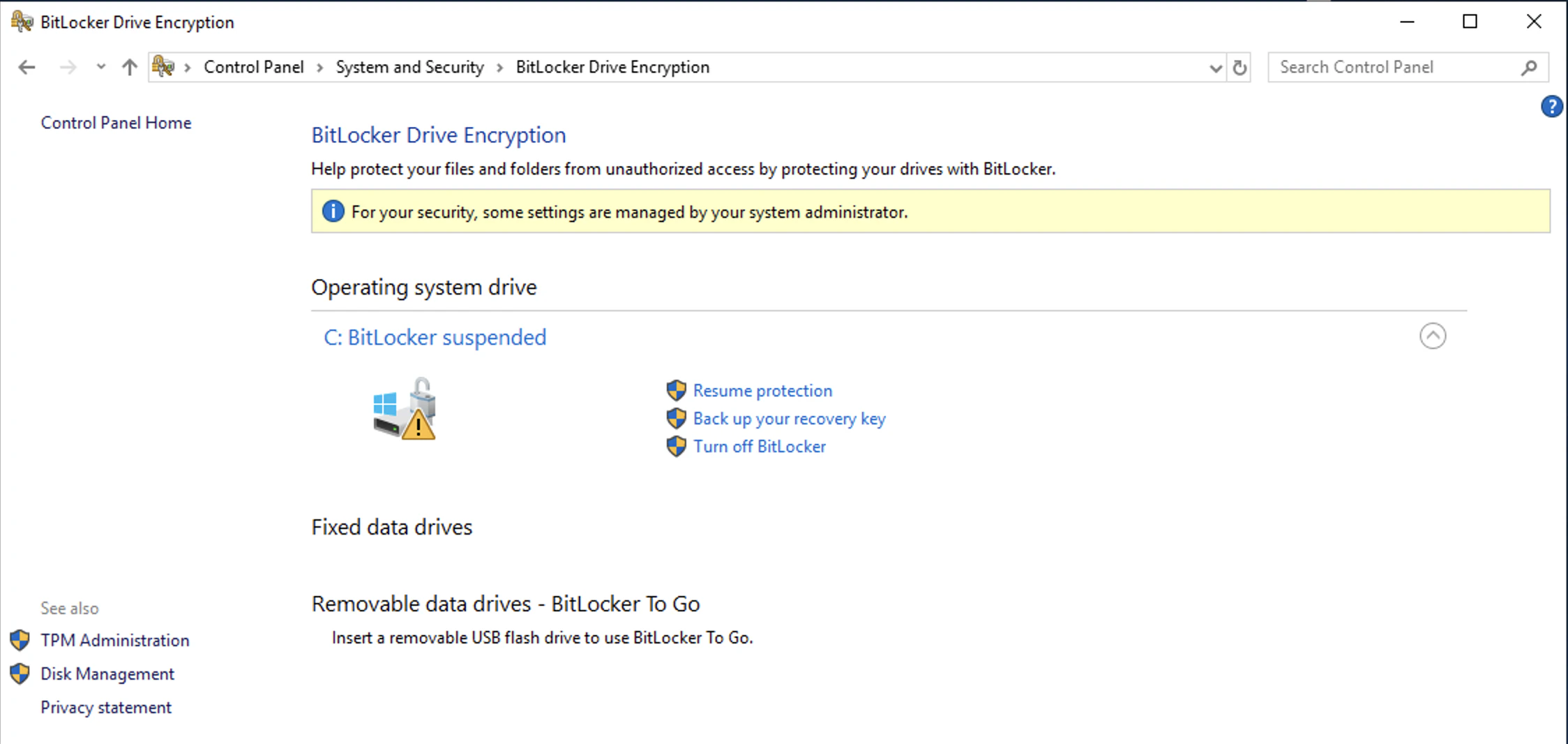
Protection Off (1 reboots left)になっている。
PS C:\> manage-bde -status
BitLocker Drive Encryption: Configuration Tool version 10.0.17763
Copyright (C) 2013 Microsoft Corporation. All rights reserved.

Disk volumes that can be protected with
BitLocker Drive Encryption:
Volume C: []
[OS Volume]

    Size:                 2559.40 GB
    BitLocker Version:    2.0
    Conversion Status:    Fully Encrypted
    Percentage Encrypted: 100.0%
    Encryption Method:    XTS-AES 128
    Protection Status:    Protection Off (1 reboots left)
    Lock Status:          Unlocked
    Identification Field: Unknown
    Key Protectors:
        TPM
        Numerical Password


PS C:\> Get-BitLockerVolume


   ComputerName: WIN2019-VM

VolumeType      Mount CapacityGB VolumeStatus           Encryption KeyProtector              AutoUnlock Protection
                Point                                   Percentage                           Enabled    Status
----------      ----- ---------- ------------           ---------- ------------              ---------- ----------
OperatingSystem C:      2,559.40 FullyEncrypted         100        {Tpm, RecoveryPassword}              Off
5. BitLocker SuspendをPowerShellから実行した場合
GUIでのやり方だと次回再起動時に保護を再開され、suspendが解除されてしまう(1 reboots left)。
そのため、GUIではなく、PowerShellで明示的にsuspend状態を維持する。
PS C:\> Suspend-BitLocker -MountPoint "C:" -RebootCount 0


   ComputerName: WIN2019-VM

VolumeType      Mount CapacityGB VolumeStatus           Encryption KeyProtector              AutoUnlock Protection
                Point                                   Percentage                           Enabled    Status
----------      ----- ---------- ------------           ---------- ------------              ---------- ----------
OperatingSystem C:      2,559.40 FullyEncrypted         100        {Tpm, RecoveryPassword}              Off


PS C:\> manage-bde -status
BitLocker Drive Encryption: Configuration Tool version 10.0.17763
Copyright (C) 2013 Microsoft Corporation. All rights reserved.

Disk volumes that can be protected with
BitLocker Drive Encryption:
Volume C: []
[OS Volume]

    Size:                 2559.40 GB
    BitLocker Version:    2.0
    Conversion Status:    Fully Encrypted
    Percentage Encrypted: 100.0%
    Encryption Method:    XTS-AES 128
    Protection Status:    Protection Off
    Lock Status:          Unlocked
    Identification Field: Unknown
    Key Protectors:
        TPM
        Numerical Password
6. BitLocker Resume
PS C:\> Resume-BitLocker -MountPoint "C:"


   ComputerName: WIN2019-VM

VolumeType      Mount CapacityGB VolumeStatus           Encryption KeyProtector              AutoUnlock Protection
                Point                                   Percentage                           Enabled    Status
----------      ----- ---------- ------------           ---------- ------------              ---------- ----------
OperatingSystem C:      2,559.40 FullyEncrypted         100        {Tpm, RecoveryPassword}              On

PS C:\> manage-bde -status
BitLocker Drive Encryption: Configuration Tool version 10.0.17763
Copyright (C) 2013 Microsoft Corporation. All rights reserved.

Disk volumes that can be protected with
BitLocker Drive Encryption:
Volume C: []
[OS Volume]

    Size:                 2559.40 GB
    BitLocker Version:    2.0
    Conversion Status:    Fully Encrypted
    Percentage Encrypted: 100.0%
    Encryption Method:    XTS-AES 128
    Protection Status:    Protection On
    Lock Status:          Unlocked
    Identification Field: Unknown
    Key Protectors:
        TPM
        Numerical Password