
はじめに
開発環境のエディタとしてGitHub Codespacesを使用するケースがありました。
その際、ハマった点がいくつかあったため備忘録として残します。
GitHub Codespacesとは
GitHub Codespace は、クラウドでホストされている開発環境です。
ブラウザ上で開けるVSCodeと思っていただければよく、機能もVSCodeと同様です。
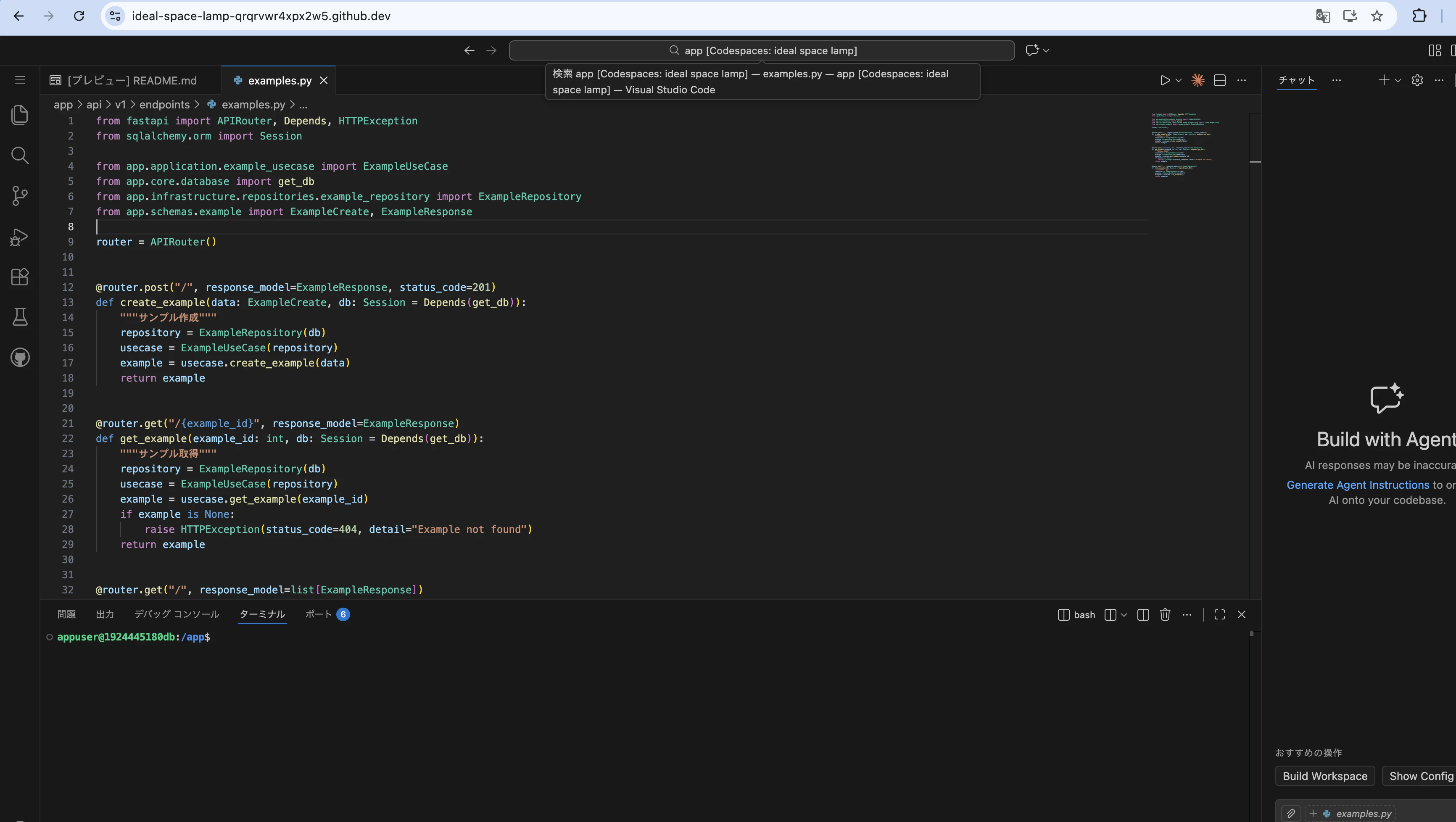
ハマりポイント1 DevContainerの起動について
DevContainerについてわからない方は以下を参照ください。
https://code.visualstudio.com/docs/devcontainers/containers
元々のディレクトリ構成は以下のようになっていました。
root/
├── backend/
│   ├── .devcontainer/
│   │   ├── devcontainer.json
そのため、devcontainerを起動する際は、backendディレクトリに移動した上で「Reopen in container」でdevcontainerを起動していました。
しかし、GitHub Codespacesから同様のことはできないようでした。
調べた結果、GitHub Codespacesからdevcontainerを起動する際は、以下の画面になるようで、そのために特定の設定が必要なようでした。
設定
devcontainerのディレクトリをプロジェクトルートに配置する
root/
├── .devcontainer/
│   ├── backend-container/
│   │   ├── devcontainer.json
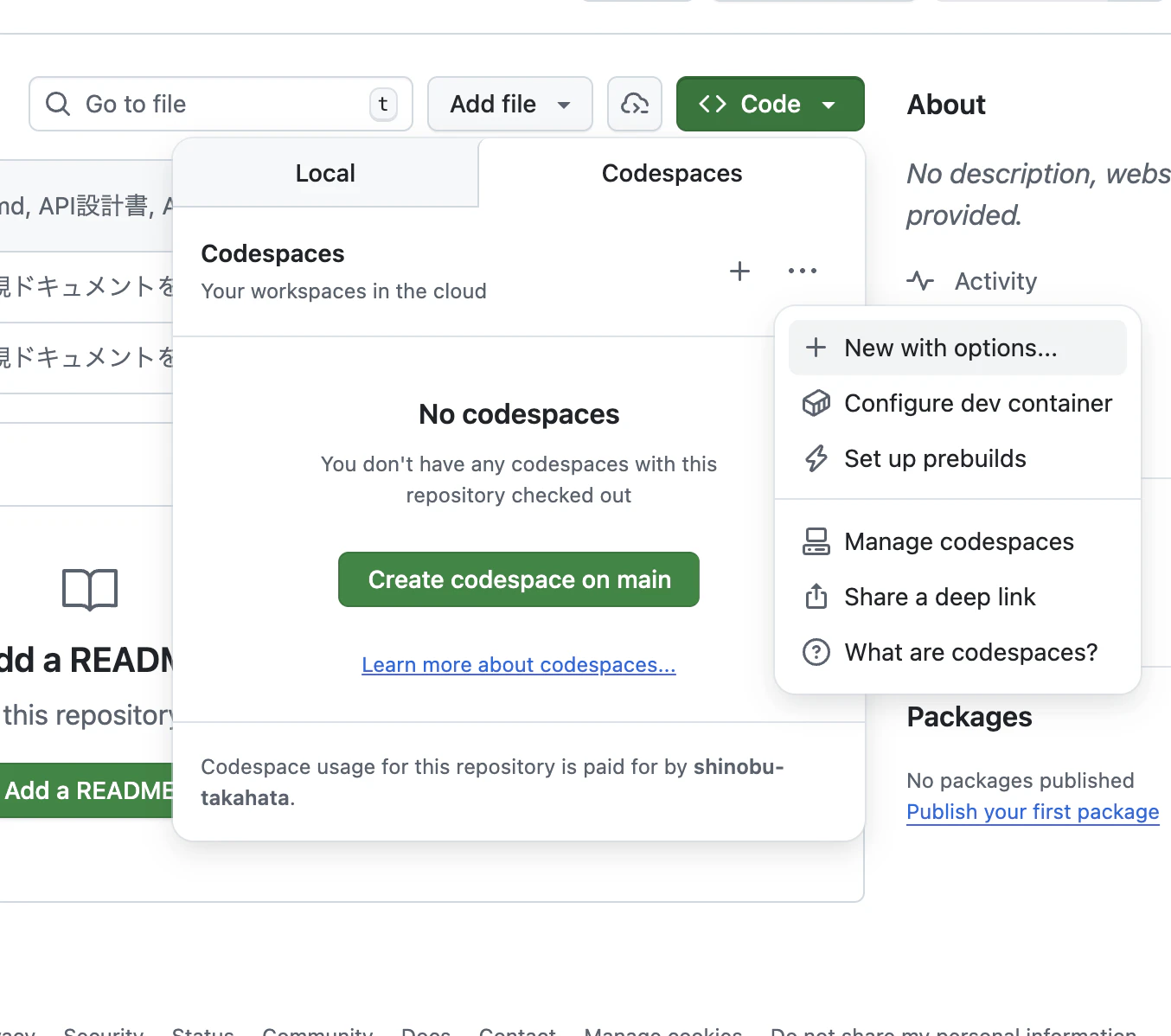
GitHub Codespacesを起動する際、「New with options...」を選択
「Dev container configuration」から対象のdevcontainerを選択し、「Create codespace」をクリックすると、devcontainerが起動します。
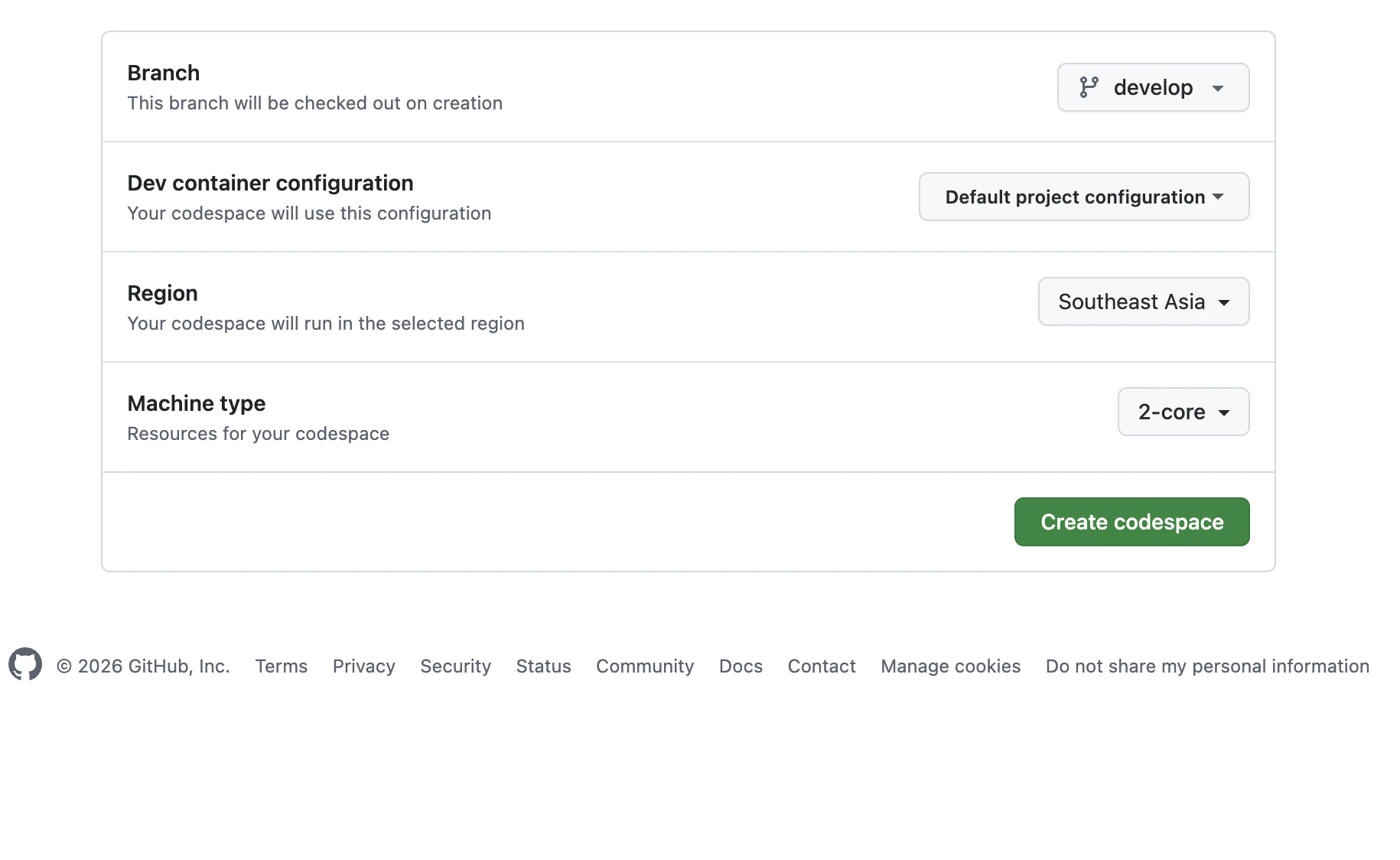
上記のようなディレクトリ構成にしていないと、「Dev container configuration」の選択ができないようでした。
ハマりポイント2 セマンティックハイライト
ホストマシンのVSCodeの設定を見れば一発でわかったのですが、一応。
プロジェクトではPythonを使用していますが、ハイライトがうまく見えるダークモードの配色は以下のものにする必要があるようでした。(VSCodeのデフォルトはこれです。)
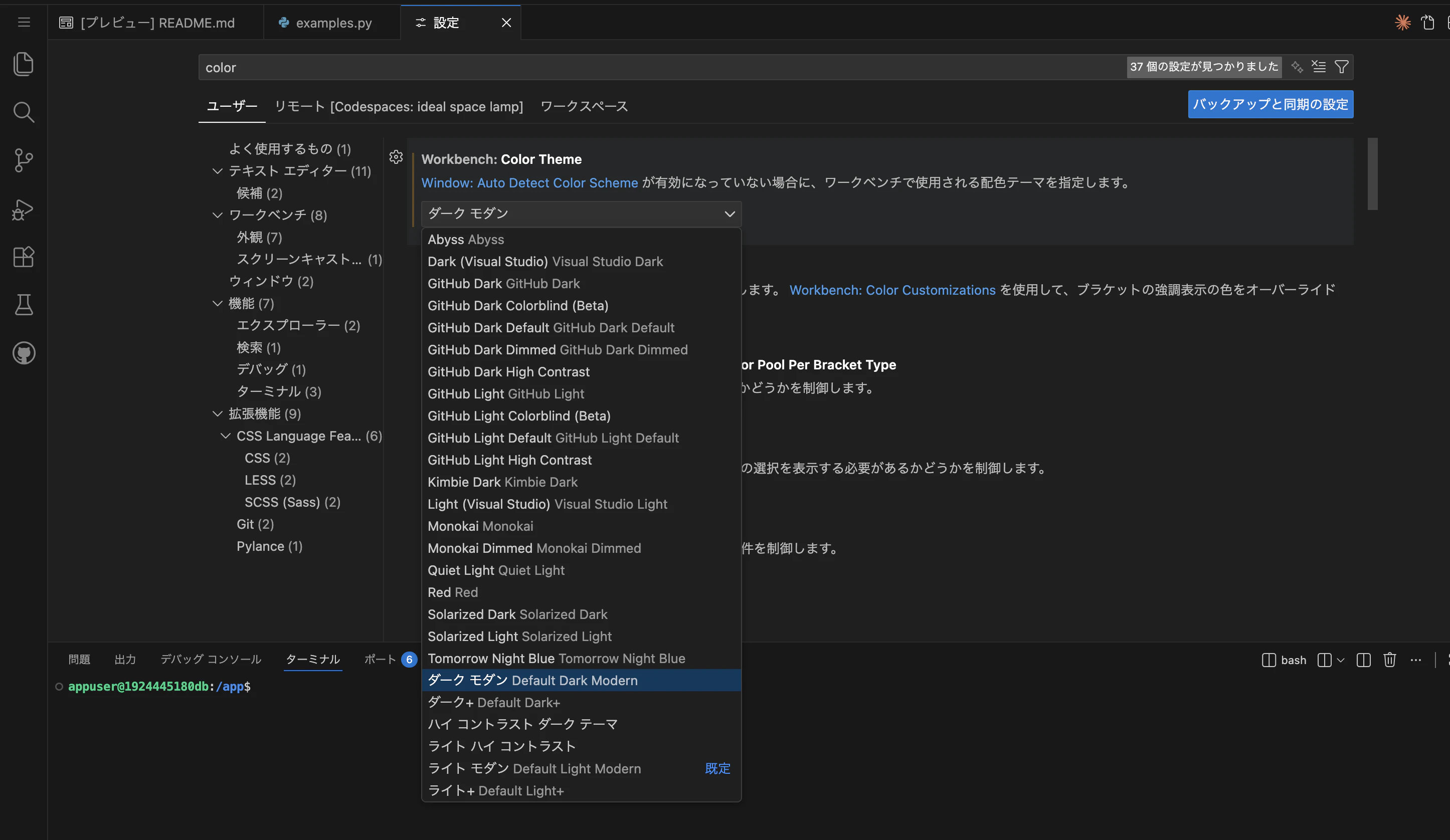
これではなく、「Visual Studio Dark」等すると、うまくハイライトが効かないので注意が必要でした。