
Google Apps Script (GAS) でスプレッドシートのデータをWebアプリに表示する際、「読み込みが遅い」と感じたことはありませんか?
一般的に使われる getValues() や getDisplayValues() は手軽ですが、行数が数万件を超えると処理時間が著しく長くなります。
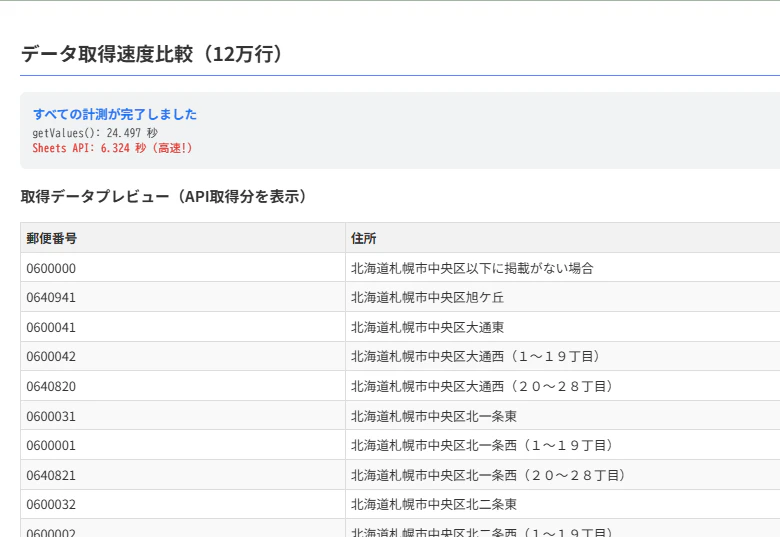
今回、約12万行のデータを読み込む時間を計測したところ、Sheets APIを使うことで処理時間が半分以下(約24秒 → 約7秒)に短縮できました。
アプリのURL そのまま実行できます
スプレッドシート データ入りのスプレッドシート
本記事では、その検証結果と、実際に使えるソースコード(コピペ用)も共有します。
検証環境とシナリオ
データは郵便局が公開している郵便番号データを加工してA列:郵便番号7桁、B列:住所を追加したシートを使いました(シート名はutf_ken_all)
- データ量: 約120,000行 × 2列(郵便番号、住所)
-
目的: スプレッドシートのデータをWebアプリ(
doGet)経由で取得し、フロントエンドに表示する -
比較対象:
-
従来法:
SpreadsheetAppクラスのgetDisplayValues() -
高速法:
Sheetsサービス (Advanced Google Services) のSheets.Spreadsheets.Values.get()
-
従来法:
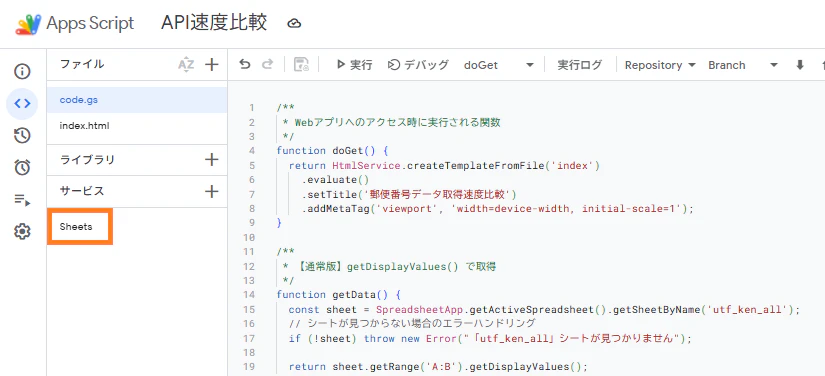
準備:Sheets APIの有効化(必須)
この高速化手法を使うには、スクリプトエディタでサービスの追加が必要です。これを行わないとエラーになります。
- GASエディタ左側の「サービス」の横にある 「+」 をクリック
- リストから Google Sheets API を選択
-
「追加」 をクリック(識別子が
Sheetsになっていることを確認)
検証用コード
Webアプリとしてデプロイし、アクセスすると「従来法」と「Sheets API」を連続で実行して時間を計測するコードです。
サーバーサイド (Code.gs)
getDataApi 関数が今回のキモとなる高速化コードです。
/**
 * Webアプリへのアクセス時に実行
 */
function doGet() {
  return HtmlService.createTemplateFromFile('Index')
    .evaluate()
    .setTitle('データ取得速度比較')
    .addMetaTag('viewport', 'width=device-width, initial-scale=1');
}

/**
 * ①【従来版】getDisplayValues() で取得
 * SpreadsheetApp経由のため、オブジェクトの読み込みに時間がかかります。
 */
function getData() {
  const sheet = SpreadsheetApp.getActiveSpreadsheet().getSheetByName('utf_ken_all'); // ※シート名は適宜変更してください
  if (!sheet) throw new Error("シートが見つかりません");

  return sheet.getRange('A:B').getDisplayValues();
}

/**
 * ②【高速版】Sheets API で取得
 * 値(JSON)だけを直接取得するため高速です。
 */
function getDataApi() {
  const ss = SpreadsheetApp.getActiveSpreadsheet();
  const spreadsheetId = ss.getId();

  // 範囲指定(シート名!範囲)
  const sheetName = 'utf_ken_all'; // ※シート名は適宜変更してください
  const rangeName = `'${sheetName}'!A:B`;

  try {
    // Sheets API を直接叩いて値を取得
    const response = Sheets.Spreadsheets.Values.get(spreadsheetId, rangeName);
    return response.values || [];
  } catch (e) {
    console.error(e);
    throw new Error("API取得エラー: " + e.message);
  }
}
フロントエンド (Index.html)
console.time() で正確な時間を計測しつつ、画面上にも結果を表示します。
<!DOCTYPE html>
<html>
  <head>
    <base target="_top">
    <style>
      body { font-family: sans-serif; padding: 20px; color: #333; }
      h2 { border-bottom: 2px solid #4285f4; padding-bottom: 10px; }
      #status-area { margin-bottom: 20px; padding: 15px; background: #f1f3f4; border-radius: 8px; }
      .status-text { font-weight: bold; color: #1a73e8; margin-bottom: 5px; }
      .result-log { list-style: none; padding: 0; margin: 0; }
      .result-log li { margin-bottom: 5px; font-family: monospace; font-size: 1.1em; }
      .fast { color: #d93025; font-weight: bold; }

      /* テーブル装飾 */
      table { width: 100%; border-collapse: collapse; margin-top: 20px; }
      th, td { border: 1px solid #ddd; padding: 6px; text-align: left; }
      th { background-color: #f2f2f2; position: sticky; top: 0; }
      #data-container { display: none; }
    </style>
  </head>
  <body>

    <h2>データ取得速度比較(12万行)</h2>

    <div id="status-area">
      <div id="current-status" class="status-text">待機中...</div>
      <ul id="result-list" class="result-log"></ul>
    </div>

    <div id="data-container">
      <h3>取得データプレビュー(API取得分)</h3>
      <table id="univ-table">
        <thead id="table-head"></thead>
        <tbody id="table-body"></tbody>
      </table>
    </div>

    <script>
      window.onload = function() {
        measureStandardFetch();
      };

      // ① getValues() の計測
      function measureStandardFetch() {
        updateStatus('getValues() 時間計測中...');
        console.time('getValues');
        const startTime = performance.now();

        google.script.run
          .withSuccessHandler(function() {
            const duration = ((performance.now() - startTime) / 1000).toFixed(3);
            console.timeEnd('getValues');
            addLog(`getValues(): ${duration} 秒`, false);
            measureApiFetch(); // 次へ
          })
          .getData();
      }

      // ② Sheets API の計測
      function measureApiFetch() {
        updateStatus('Sheets API 時間計測中...');
        console.time('Sheets API');
        const startTime = performance.now();

        google.script.run
          .withSuccessHandler(function(data) {
            const duration = ((performance.now() - startTime) / 1000).toFixed(3);
            console.timeEnd('Sheets API');
            addLog(`Sheets API: ${duration} 秒`, true);
            updateStatus('計測完了');
            renderTable(data);
          })
          .getDataApi();
      }

      function updateStatus(msg) {
        document.getElementById('current-status').textContent = msg;
      }

      function addLog(text, isFast) {
        const li = document.createElement('li');
        li.textContent = text + (isFast ? " (高速!)" : "");
        if (isFast) li.classList.add('fast');
        document.getElementById('result-list').appendChild(li);
      }

      // テーブル描画(負荷軽減のため100行まで)
      function renderTable(data) {
        const tbody = document.getElementById('table-body');
        const thead = document.getElementById('table-head');
        if (!data || !data.length) return;

        // ヘッダー
        const headerRow = document.createElement('tr');
        data[0].forEach(c => {
            const th = document.createElement('th'); th.textContent = c; headerRow.appendChild(th);
        });
        thead.appendChild(headerRow);

        // ボディ(100件制限)
        const limit = Math.min(data.length, 100);
        for (let i = 1; i < limit; i++) {
          const row = document.createElement('tr');
          // ★重要:APIは空セルを省略するため、ヘッダー長に合わせてループする
          for (let j = 0; j < data[0].length; j++) {
            const td = document.createElement('td');
            td.textContent = data[i][j] || ""; // 空文字ケア
            row.appendChild(td);
          }
          tbody.appendChild(row);
        }
        document.getElementById('data-container').style.display = 'block';
      }
    </script>
  </body>
</html>
計測結果
Webアプリを実行した結果、以下のようになりました。
| 手法 | 実行時間 | 備考 |
|---|---|---|
| SpreadsheetApp (getValues) | 約 24 秒 | 従来の方法 |
| Sheets API | 約 7 秒 | 2倍以上高速! |
APIを使用するだけで、劇的にパフォーマンスが改善しました。
なぜSheets APIの方が速いのか?
理由は**「読み込む情報量の違い」**にあります。
-
SpreadsheetApp (
getValues):
GASがスプレッドシートを開く際、データの値だけでなく、セルの色・フォント・数式・保護設定・入力規則など、シート全体のオブジェクト情報を読み込みに行きます。これが大きなオーバーヘッドとなります -
Sheets API:
REST API経由で**「指定範囲の値(JSONデータ)」だけ**をピンポイントで取得します。余計な属性情報を無視するため、データ量が増えれば増えるほど速度差が顕著になります
実装時の注意点:空セルの扱い
Sheets API (Values.get) の特徴として、行末のセルが空の場合、返ってくる配列に含まれない(省略される) という挙動があります。
// スプレッドシート: [ "A", "B", "" ] (C列が空)

// getValues() の場合
=> ["A", "B", ""]  // 空文字が入る

// Sheets API の場合
=> ["A", "B"]      // 省略される
そのため、JavaScriptで表を作る際は、単純な forEach で回すのではなく、ヘッダーの列数に合わせて for 文を回し、data[i][j] || "" のように空文字ケアを入れる必要があります(上記の Index.html には対策済みです)。
まとめ
数千行レベルなら getValues() でも問題ありませんが、数万行を超えるデータを扱うWebアプリやバッチ処理を作る場合は、Sheets API の利用を強くおすすめします。
なお、文字列だけが含まれる単純な表(テストしたのは郵便番号(文字列)と住所の2列の表)でも試してみましたが、こちらでは取得速度にあまり差がみられませんでした。時間を短縮するには表の作り方も関係するようです。
「サービスの追加」というひと手間だけでこれだけ速くなるので、ぜひ試してみてください。