
はじめに
前回初めてGiteaの構築をについて投稿しました。そこで記載出来ていなかったCIの構築について、Windows版の公式ドキュメントがあまりないので、投稿します。Giteaの構築について、まだ見ていないかたはぜひ見ていただけると幸いです。
オンプレWindowsでGiteaを構築する手順:社内Git環境をゼロから立ち上げる
Gitea Actionsとは
GitHub Actionsに類似したCI/CD機能で、リポジトリに定義したワークフロー(YAML)をトリガーにしてビルド・テスト・デプロイなどを自動化が行えます。基本概念はGitHub Actionsと非常に似ていているため、使用できないアクションはあるもののGitHub Actionsに移行しやすいです。
Runnersとは
Gitea Runnersは、GiteaのActions(CI/CD)ワークフローを実行する実体です。基本はセルフホスト型で、リポジトリ/組織/インスタンス単位で登録してジョブを受け取り、指定されたコマンドやコンテナを実行します。
Gitea ActionsとRunnersについて詳しくは下記を参照ください。
環境構築
前提条件
- Giteaを構築済みであること
- Gitea上で必要な設定済みであること(レポジトリの設定など)
- Act Runner実行するPCがインターネットと接続可能であること
(※Giteaを構築したPC以外でも問題ありません。)
Act Runner実行ファイルのダウンロード
下記の公式サイトからWindows用のAct Runnerの実行ファイルをダウンロードします。
Act Runnerを配置する
ダウンロードしたファイルをact_runner-<version>-windows-amd64.exeをact_runner.exeにリネームして、下記のフォルダー構成に配置します。
C:\gitea_runners\act_runner.exe
Act Runnerの設定ファイルを生成する
下記のコマンドを実行します。
cd C:\gitea_runners
.\act_runner.exe generate-config > config.yaml
出力された設定ファイルを開き下記の内容を設定に合わせて修正します。
| 設定項目 | 設定例 | 説明 |
|---|---|---|
| runner:capacity | 3 | 同時実行を許可するワークフローの最大値になります。各自のPCスペックに応じて設定してください。 |
| runner:labels | host | ワークフローを実行時に指定するものになります。self-hostなどhostが付くものが好ましいです。 |
Act Runnerを登録する
登録トークンを取得します。リポジトリ/組織/インスタンス単位で取得してください。
下記の画像は組織での登録トークンの払い出し画面になります。

下記のコマンドを実行してランナーを登録します。対話式になっているので、質問に対して、設定値を入力してください。
.\act_runner.exe --config config.yaml register
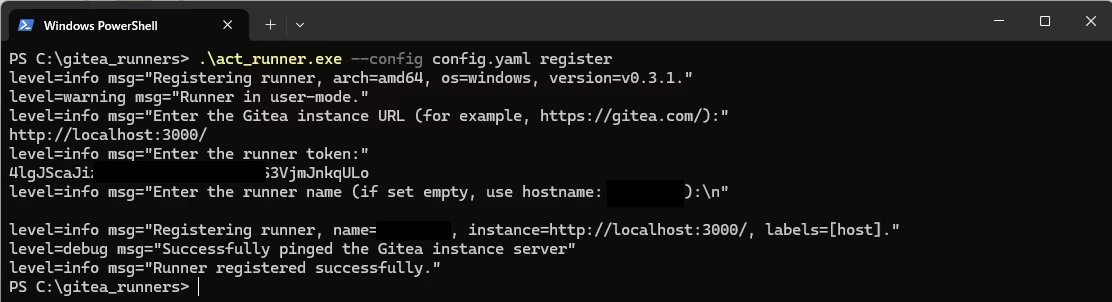
または、非対話式のコマンドを実行してください。
.\act_runner.exe --config config.yaml register --no-interactive --instance <instance_url> --token <registration_token> --name <runner_name>
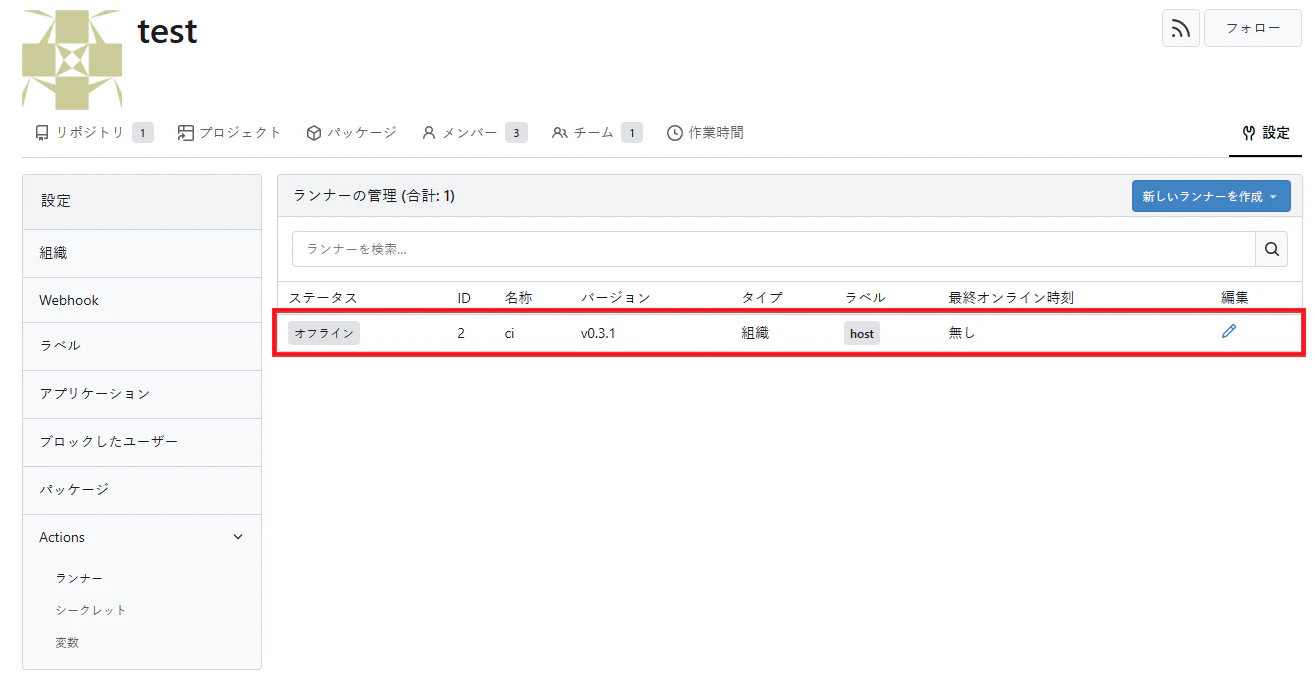
実行が成功後、ブラウザを再読み込みすると登録したランナーが表示されます。
Act Runnerを起動する
下記のコマンドを実行してランナーを起動します。
.\act_runner.exe daemon --config config.yaml
起動が成功後、ブラウザを再読み込みすると登録したランナーのステータスがアイドルになります。
これでActionsを実行できるようになります。

Actionsで動作確認を実施する
リポジトリの直下からみて.gitea/workflowsに以下内容でdemo.yamlを作成し、pushする。
name: Gitea Actions Demo
run-name: ${{ gitea.actor }} is testing out Gitea Actions 🚀
on: [push]

jobs:
  Explore-Gitea-Actions:
    runs-on: host # Act Runnerを作成したときのラベルと一致させるようにする
    steps:
      - run: echo "🎉 The job was automatically triggered by a ${{ gitea.event_name }} event."
      - run: echo "🐧 This job is now running on a ${{ runner.os }} server hosted by Gitea!"
      - run: echo "🔎 The name of your branch is ${{ gitea.ref }} and your repository is ${{ gitea.repository }}."
      - name: Check out repository code
        uses: actions/checkout@v4
      - run: echo "💡 The ${{ gitea.repository }} repository has been cloned to the runner."
      - run: echo "🖥️ The workflow is now ready to test your code on the runner."
      - name: List files in the repository
        run: |
          ls ${{ gitea.workspace }}
      - run: echo "🍏 This job's status is ${{ job.status }}."
すると、Actionsが自動的にワークフローが実行されます。
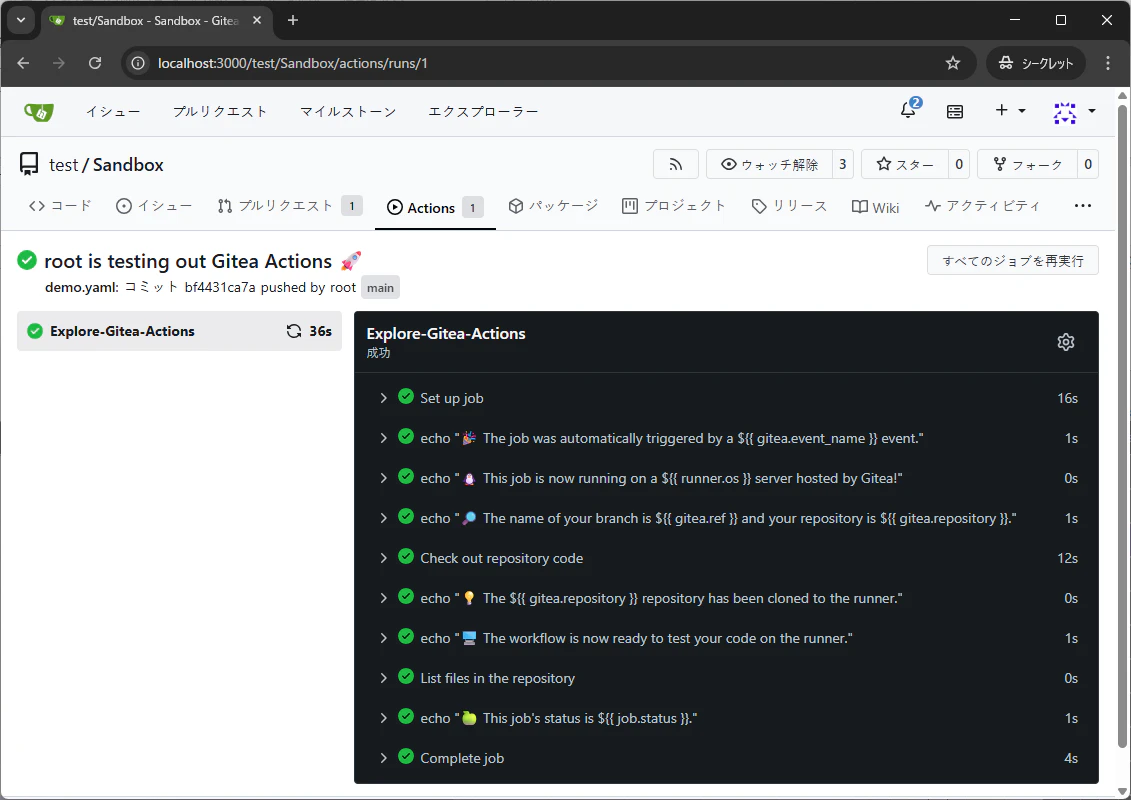
環境構築は以上になります。
最後に
Windows上に色々と検証して、Giteaを構築したのは以上になります。結局AzureDevOpsを使用することが出来るようになったので、Giteaは使用しなくなりました…
でも、検証したことを記事にして公開出来たので、供養できたかなと思いますw