
はじめに
昨年から、レガシーなウォーターフォール型SIの案件に入っています。相変わらず方眼Excelで設計書やテスト仕様書などを作成する世界ですが、生成AIが少しずつ入ってきています。
生成AIと方眼Excelは相性が悪いので、できれば方眼Excelを排除していきたいところです。設計書/仕様書は徐々にマークダウンの導入が進んでますが、テスト仕様書、テスト結果は依然としてExcelの世界です。
テスト設計~テスト結果~レビューの流れを生成AIを活用して効率化してみました。
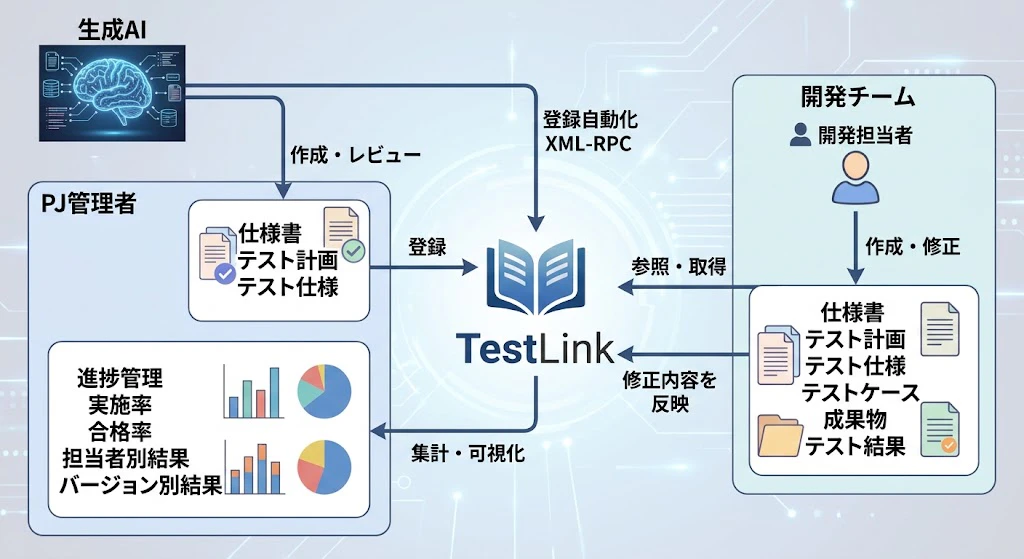
TestLink
2026年現在 TestLinkは活発には修正は行われていないものの、PHP8対応も少しずつ行われて十分利用できます。
2026年10月現在、動作検証した環境は以下の通り。
Amazon Linux 2023
TestLink 1.19.20_fixed
PHP 8.5
MairaDB 10.5
インスタンスの準備
EC2インスタンスを作成します。ディスクやメモリはあまり使わないので、t3.microあたりのインスタンスで十分に動作させることができます。
t3.micro
disk: 8GB
インスタンスが起動したら、インスタンスクライアントでインスタンスに接続します。
必要なパッケージのインストール
TestLinkの稼働に必要なパッケージをAmazon Linux 2023にインストールします。
sudo yum update

sudo yum install git httpd php php-gd php-ldap php-mysqlnd mariadb105-server
MariaDBの初期設定
MariaDBが正しくインストールされたことを確認します。
$ mysql --version
mysql  Ver 15.1 Distrib 10.5.29-MariaDB, for Linux (x86_64) using  EditLine wrapper
MariaDBの文字コードを設定します、まずサーバー側。/etc/my.cnf.d/mariadb-server.cnf ファイルを編集します。
sudo vi /etc/my.cnf.d/mariadb-server.cnf
[mariad]のセクションに2行追加します
[mariadb]
character-set-server=utf8mb4
collation-server=utf8mb4_general_ci
つぎに、クライアント側。/etc/my.cnf.d/mysql-clients.cnf ファイルを編集します。
sudo vi /etc/my.cnf.d/mysql-clients.cnf
[mysql]のセクションに1行追加します
[mysql]
default-character-set=utf8mb4
MariaDBを起動します。自動起動も有効にします。
sudo systemctl start mariadb
sudo systemctl enable mariadb
DBが起動したら接続して文字コードが反映されているか確認します。最初のパスワードのプロンプトはEnterキーのみで入ります。
sudo mysql -u root -p
Enter password:
Welcome to the MariaDB monitor.  Commands end with ; or \g.
Your MariaDB connection id is 3
Server version: 10.5.29-MariaDB MariaDB Server

Copyright (c) 2000, 2018, Oracle, MariaDB Corporation Ab and others.

Type 'help;' or '\h' for help. Type '\c' to clear the current input statement.

MariaDB [(none)]> status
--------------
mysql  Ver 15.1 Distrib 10.5.29-MariaDB, for Linux (x86_64) using  EditLine wrapper

Connection id:          3
Current database:
Current user:           root@localhost
SSL:                    Not in use
Current pager:          stdout
Using outfile:          ''
Using delimiter:        ;
Server:                 MariaDB
Server version:         10.5.29-MariaDB MariaDB Server
Protocol version:       10
Connection:             Localhost via UNIX socket
Server characterset:    utf8mb4
Db     characterset:    utf8mb4
Client characterset:    utf8mb4
Conn.  characterset:    utf8mb4
UNIX socket:            /var/lib/mysql/mysql.sock
Uptime:                 11 sec

Threads: 1  Questions: 4  Slow queries: 0  Opens: 17  Open tables: 10  Queries per second avg: 0.363
--------------

MariaDB [(none)]> exit
Bye
'sudo mysql -u root -p' で接続できるが 'mysql -u root -p' で接続するために、パスワードを設定します。
sudo mysql -u root -p

alter user 'root'@'localhost' identified by 'password';
接続できることを確認します。
mysql -u root -p
Enter password:
Welcome to the MariaDB monitor.  Commands end with ; or \g.
Your MariaDB connection id is 4
Server version: 10.5.29-MariaDB MariaDB Server

Copyright (c) 2000, 2018, Oracle, MariaDB Corporation Ab and others.

Type 'help;' or '\h' for help. Type '\c' to clear the current input statement.

MariaDB [(none)]> exit
Bye
PHPの設定
TestLinkにおけるPHPの推奨値を設定。
sudo vi /etc/php.ini
404行目、max_execution_time を30秒から120秒にする。
max_execution_time = 120
TestLinkのインストール
いよいよTestLinkをインストールしていきます。
ログインしているec2-userでファイルが配置、編集できるようにして、配置先のファイル属性を変更します。
sudo usermod -a -G apache ec2-user
sudo chown -R ec2-user:apache /var/www
sudo chmod 2775 /var/www
GitHubからTestLinkのソースコードを取得します。
7月の hupark-seegene さんのプルリクを見ると、PHP8対応が行われているようなので、こちらを使わせていただきます。(https://github.com/hupark-seegene/testlink-code/tree/php8-modernization)
cd /var/www/html

git clone https://github.com/hupark-seegene/testlink-code.git testlink

cd testlink

git checkout php8-modernization
ログなど、TestLinkが書き込むディレクトリーを準備します。
sudo mkdir -p /var/testlink/logs/
sudo mkdir -p /var/testlink/upload_area/
sudo chmod -R 2775 /var/testlink
sudo chmod -R 2775 /var/www/html/testlink
sudo chown -R ec2-user:apache /var/testlink
sudo chown -R ec2-user:apache /var/www/html/testlink
httpd を起動し、自動起動を設定します。
sudo systemctl start httpd
sudo systemctl enable httpd
ブラウザー・インストール
初期設定はブラウザーから行います。
http://<host名>/testlink にアクセスする。
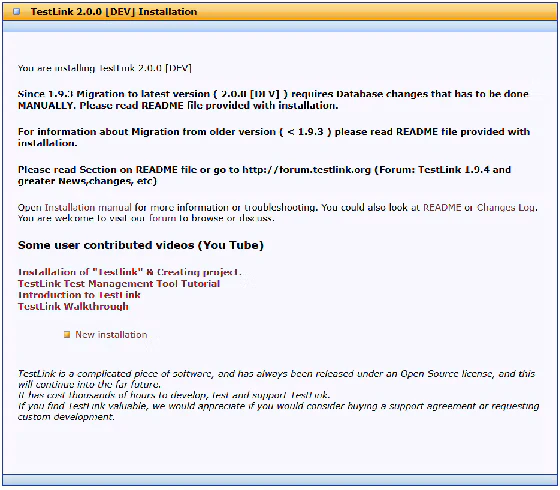
「New installation」をクリックしてインストール開始する。インストールは以下のステップがある。
Acceptance of License
Verification of System and configration
Definition of DB access
Create DB, testlink DB user, structures and default data & create configuration file.
Verify the procefure result and continue to TestLink login.
基本的には Continue で続行する。Create DB, testlink DB user, structures and default data & create configuration file のステップでは作成したDBの情報を入力する。
Database Type: MySQL/MariaDB (5.6+ / 10.+) - デフォルトのまま
Database host: localhost - デフォルトのまま
Database name: testlink - デフォルトのまま
Database admin login: root - デフォルトのまま
Database admin password: password - 上記で設定したパスワード
TestLink DB login: testlink - TestLink用に作成するユーザー
TestLink DB password: password - TestLink用に作成するユーザーのパスワード
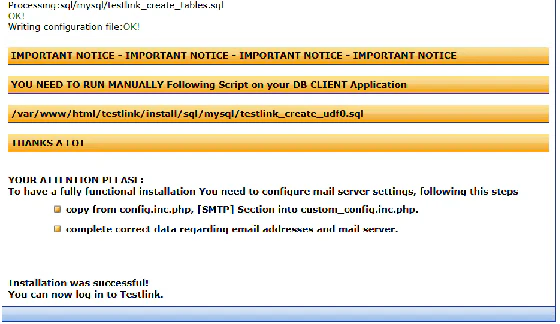
以下の画面が表示されて、インストールが完了です。
udf設定
インストール完了時にブラウザーにsqlを実行せよ、と表示されるので実行。
/var/www/html/testlink/install/sql/mysql/testlink_create_udf0.sql の YOUR_TL_DBNAME を testlink に置き換える(2か所)
vi /var/www/html/testlink/install/sql/mysql/testlink_create_udf0.sql
DBに接続して上記sqlを実行する。
$ mysql -u root -p
Enter password:
Welcome to the MariaDB monitor.  Commands end with ; or \g.
Your MariaDB connection id is 29
Server version: 10.5.29-MariaDB MariaDB Server

Copyright (c) 2000, 2018, Oracle, MariaDB Corporation Ab and others.

Type 'help;' or '\h' for help. Type '\c' to clear the current input statement.

MariaDB [(none)]> source /var/www/html/testlink/install/sql/mysql/testlink_create_udf0.sql
Reading table information for completion of table and column names
You can turn off this feature to get a quicker startup with -A

Database changed
Query OK, 0 rows affected (0.004 sec)

Database changed
Query OK, 0 rows affected (0.004 sec)
ログインして最初のプロジェクトを作成します。
AI活用
TestLinkは古くても、生成AIによりテストケースの作成など比較的大変な作業をAIに任せることができるようになりました。
Claude Codeなどを使って、マークダウン形式のテスト仕様からXML-RPC経由でTestLinkにテストケースを登録させることができます。
TestLinkはREST APIもありますが、XML-RPCに比べて操作できる範囲が限定されています。また、生成AIはREST APIだけでなくXML-RPCも容易に呼び出してくれます。
SKILLのサンプル
以下は、Claude Codeなどで指定するSKILLのサンプルです。ちゃんとエスケープしていないので、途中で別れたりしていますが。カスタマイズしてご利用ください。
---
name: testlink-xml-rpc
description: TestLink を XML-RPC API で操作する。テストプロジェクト、テストスイート、テストケース、テスト計画、ビルド、実行結果、要件、要件紐付け、添付ファイルの自動化に対応。
---
# TestLink API 操作ガイド
TestLink 1.9.x/2.x の標準 API は **REST API** と **XML-RPC API** の両方が存在するが、操作範囲が広いため、すべての操作は **XML-RPC API のみを使用する**。
## 対象バージョン
- **TestLink 1.9.20 fixed**
## 前提条件
- TestLink サーバーが稼働していること
- API Key(`users.script_key`)を発行していること
- 対象操作に必要な権限が API Key に紐づくユーザーに付与されていること
## API Key の取得
API Key は TestLink ユーザーごとに発行されます。
1. GUI で「マイアカウント(My Account)」を開く
2. 「API インターフェース」欄でキーを生成
3. または DB の `users.script_key` カラムを直接確認
取得したキーを以降の devKey パラメータに設定する。
---
## XML-RPC API
すべての操作で使用する API。
### エンドポイント
`http://<サーバーアドレス>/testlink/lib/api/xmlrpc/v1/xmlrpc.php`
### 認証
各メソッド呼び出しの引数(struct)に `devKey` を含める。
REST API と同じ API Key(`users.script_key`)を使用する。
`ApiKey: `devKey``
**重要:devKey は必ず struct のメンバーとして渡す。**
文字列として直接渡すと `code: 100 - No devKey provided.` エラーになる。
\```xml
<?xml version="1.0" encoding="UTF-8"?>
<methodCall>
<methodName>tl.getProjects</methodName>
<params>
<param>
<value>
<struct>
<member>
<name>devKey</name>
<value><string>`devKey`</string></value>
</member>
</struct>
</value>
</param>
</params>
</methodCall>
\```
### 主なメソッド
#### テストプロジェクト
| メソッド | 説明 |
|----------|------|
| `tl.createTestProject` | プロジェクト作成 |
| `tl.getProjects` | プロジェクト一覧 |
| `tl.getTestProjectByName` | 名前でプロジェクト取得 |
| `tl.getProjectTestPlans` | プロジェクト配下のテスト計画取得 |
| `tl.getFirstLevelTestSuitesForTestProject` | 第1階層テストスイート取得 |
#### テストスイート
| メソッド | 説明 |
|----------|------|
| `tl.createTestSuite` | テストスイート作成 |
| `tl.updateTestSuite` | テストスイート更新 |
| `tl.getTestSuiteByID` | ID で取得 |
| `tl.getTestSuitesForTestSuite` | 子スイート取得 |
| `tl.getTestSuite` | 名前/prefix で取得 |
| `tl.getTestSuiteAttachments` | 添付ファイル取得 |
#### テストケース
| メソッド | 説明 |
|----------|------|
| `tl.createTestCase` | テストケース作成 |
| `tl.updateTestCase` | テストケース更新 |
| `tl.getTestCase` | テストケース取得 |
| `tl.getTestCasesForTestSuite` | スイート配下のテストケース取得 |
| `tl.getTestCasesForTestPlan` | 計画配下のテストケース取得 |
| `tl.getTestCaseIDByName` | 名前で ID 取得 |
| `tl.addTestCaseToTestPlan` | テスト計画への追加 |
| `tl.setTestCaseTestSuite` | 所属スイート変更 |
| `tl.getTestCaseAttachments` | 添付ファイル取得 |
#### テスト計画・ビルド・実行
| メソッド | 説明 |
|----------|------|
| `tl.createTestPlan` | テスト計画作成 |
| `tl.getProjectTestPlans` | テスト計画取得 |
| `tl.getTestPlanByName` | 名前で取得 |
| `tl.createBuild` | ビルド作成 |
| `tl.getBuildsForTestPlan` | ビルド取得 |
| `tl.getLatestBuildForTestPlan` | 最新ビルド取得 |
| `tl.reportTCResult` | 実行結果登録 |
| `tl.setTestCaseExecutionResult` | `reportTCResult` のエイリアス |
| `tl.getLastExecutionResult` | 最終実行結果取得 |
| `tl.deleteExecution` | 実行結果削除 |
#### 要件
| メソッド | 説明 |
|----------|------|
| `tl.getRequirements` | 要件一覧取得 |
| `tl.getRequirement` | 要件取得 |
| `tl.assignRequirements` | テストケースと要件の紐付け |
| `tl.getTestCaseRequirements` | テストケースに紐づく要件取得 |
| `tl.getReqCoverage` | 要件カバレッジ取得 |
#### 添付ファイル
| メソッド | 対象 |
|----------|------|
| `tl.uploadTestProjectAttachment` | テストプロジェクト |
| `tl.uploadTestSuiteAttachment` | テストスイート |
| `tl.uploadTestCaseAttachment` | テストケース |
| `tl.uploadExecutionAttachment` | 実行結果 |
| `tl.uploadRequirementAttachment` | 要件 |
| `tl.uploadRequirementSpecificationAttachment` | 要件仕様 |
| `tl.uploadAttachment` | 汎用 |
アップロード時はファイル内容を **Base64 エンコード** して `content` に指定する。
---
## 操作別の API
すべての操作で XML-RPC API を使用する。REST API はこの環境では使用しない。
| 操作 | XML-RPC メソッド |
|------|-----------------|
| テストプロジェクト作成 | `tl.createTestProject` |
| テストプロジェクト一覧取得 | `tl.getProjects` |
| テストプロジェクト取得(名前) | `tl.getTestProjectByName` |
| テストスイート作成 | `tl.createTestSuite` |
| テストスイート取得・更新 | `tl.getTestSuiteByID`, `tl.updateTestSuite` |
| テストケース作成 | `tl.createTestCase` |
| テストケース更新 | `tl.updateTestCase` |
| テストケース取得 | `tl.getTestCase`, `tl.getTestCasesForTestSuite` |
| テスト計画作成 | `tl.createTestPlan` |
| テスト計画取得 | `tl.getProjectTestPlans`, `tl.getTestPlanByName` |
| ビルド作成 | `tl.createBuild` |
| ビルド取得 | `tl.getBuildsForTestPlan`, `tl.getLatestBuildForTestPlan` |
| テスト実行結果登録 | `tl.reportTCResult` |
| 実行結果取得 | `tl.getLastExecutionResult` |
| 要件取得 | `tl.getRequirements`, `tl.getRequirement` |
| 要件とテストケースの紐付け | `tl.assignRequirements` |
| 添付ファイルアップロード | `tl.upload*Attachment` |
---
## エラーハンドリング
### XML-RPC API
- レスポンス配列内に `faultCode` / `faultString` が含まれる場合がある
- 主要なエラーコード
- `100` : `devKey` 未指定
- `2000` : 認証失敗(無効な Dev Key)
- `2010` : 権限不足
- `3000` 台 : テスト計画関連
- `4000` 台 : ビルド関連
- `5000` 台 : テストケース関連
- `6000` 台 : ステータス・添付ファイル関連
- `7000` 台 : テストプロジェクト関連
- `8000` 台 : テストスイート関連
- `11000` 台 : 要件関連
---
## 実装ヒント
### PowerShell から呼び出す場合
XML-RPC リクエストは `-Body` にバイト配列を渡し `charset=utf-8` を明示する。
文字列をそのまま渡すと PowerShell 5.1 が ISO-8859-1 で送信するため、日本語が文字化けする。
\```powershell
$xmlBody = @"
<?xml version="1.0" encoding="UTF-8"?>
<methodCall>
<methodName>tl.createTestPlan</methodName>
<params>
<param>
<value>
<struct>
<member><name>devKey</name><value><string>`devKey`</string></value></member>
<member><name>testplanname</name><value><string>テスト計画名</string></value></member>
<member><name>testprojectname</name><value><string>プロジェクト名</string></value></member>
</struct>
</value>
</param>
</params>
</methodCall>
"@
# UTF-8 バイト配列として送信する(日本語文字化け防止)
$bytes = [System.Text.Encoding]::UTF8.GetBytes($xmlBody)
$r = Invoke-RestMethod -Uri "http://<サーバーアドレス>/testlink/lib/api/xmlrpc/v1/xmlrpc.php" `
-Method Post -Body $bytes -ContentType "text/xml; charset=utf-8"
$r.OuterXml
\```
### 汎用の注意点
- API Key は環境変数またはシークレットマネージャーから取得し、コードにハードコードしない
- **XML-RPC の devKey は必ず struct のメンバーとして渡す**(文字列で直接渡すと `code: 100` エラー)
- **PowerShell から送信する場合は `-Body` に UTF-8 バイト配列を渡し `Content-Type: text/xml; charset=utf-8` を指定する**。文字列のまま渡すと日本語が文字化けする
- **XML 宣言に `encoding="UTF-8"` を明記する**
- 添付ファイルは Base64 エンコードが必要
- 実行結果の `status` は TestLink インスタンスの設定値に依存するため、事前に確認する(標準: `p`=合格, `f`=不合格, `b`=ブロック)
- XML-RPC メソッド名は `tl.` プレフィックスが必要
- XML-RPC レスポンスは配列で返る場合があり、`faultCode`/`faultString` を含むことがあるため必ず確認する
---
## トラブルシューティング
### テストケースの廃止(削除の代替)
TestLink XML-RPC にはテストケースの削除 API がない。
`updateTestCase` で `status: 7`(obsolete)を設定して廃止扱いにする。
\```python
server.tl.updateTestCase({
'devKey': DEV_KEY,
'testcaseexternalid': 'pj362-1',
'status': 7, # 7 = obsolete
'user': 'admin',
})
\```
---
## テストスイート設計ガイドライン(品質管理の生産性向上)
### スイート構造の推奨パターン
テスト種別(UT / E2E)を最上位で分割することで、テスト計画でのフィルタリングや環境ごとの実行管理がしやすくなる。
\```
<機能名>
├── [UT] 単体テスト
│ ├── 正常系
│ └── 異常系
└── [E2E] APIテスト(HTTPレベル)
├── 正常系テスト
└── 異常系テスト
\```
### テストケース設計の原則
| 項目 | 推奨 | アンチパターン |
|------|------|---------------|
| 粒度 | 1テストケース=1確認観点 | 複数観点を1件に詰め込む |
| テストケース名 | `条件 → 期待結果` 形式 | 分類名のみ(内容不明) |
| テストステップ | 確認観点ごとに1ステップ | 1ステップに複数確認を記載 |
| Summary | 目的・対象を明記 | 空欄 |
| Preconditions | モック設定・DB状態など前提を明記 | 空欄 |
| importance | High/Medium/Low を適切に設定 | 全件 Medium |
### importance の設定基準(目安)
| importance | 値 | 対象 |
|------------|---|------|
| High | 3 | 正常動作の基本確認・障害時の挙動確認 |
| Medium | 2 | 仕様準拠確認・単体レベルの詳細検証 |
| Low | 1 | 補助的な確認・レアケース |
### テストケース名の命名規則
\```
<テストID>: <入力条件・操作> → <期待結果の要約>
例:
N-001: GET /health パラメータなし → 200 UP APP_AND_DB
U-004: check("1") DB異常 → HealthDbException をスロー
E-001: DB接続不可 + check_database_flag=1 → 500 DOWN APP_AND_DB
\```
---
## 付録:XML-RPC API OpenAPI 風仕様
以下は XML-RPC API を OpenAPI 3.0 風に整理した参考仕様です。
XML-RPC は REST ではないため、実際には `/xmlrpc.php` へ `POST` して XML ボディでメソッドを呼び出します。
ここでは各メソッドの引数・戻り値をスキーマとして整理しています。
\```yaml:openapi-xmlrpc.yaml
openapi: 3.0.3
info:
title: TestLink XML-RPC API
version: "1.0"
description: |
TestLink 1.9.x XML-RPC API 参考仕様。
実際の呼び出しは /lib/api/xmlrpc/v1/xmlrpc.php への XML-RPC POST となる。
servers:
- url: https://<TestLinkホスト>/lib/api/xmlrpc/v1
variables:
host:
default: testlink.example.com
paths:
/xmlrpc.php:
post:
summary: XML-RPC 共通エンドポイント
description: |
すべての XML-RPC メソッドはこのエンドポイントに対して
<methodCall><methodName>tl.xxx</methodName>...</methodCall> 形式で送信する。
requestBody:
required: true
content:
application/xml:
schema:
type: string
responses:
"200":
description: XML-RPC レスポンス
content:
application/xml:
schema:
$ref: "#/components/schemas/XMLRPCResponse"
components:
schemas:
DevKey:
type: string
description: ユーザーの API Key(users.script_key)
XMLRPCResponse:
type: object
description: |
XML-RPC レスポンス。<params><param><value>...</value></param></params> 形式。
失敗時は faultCode/faultString を含む場合がある。
TestProject:
type: object
properties:
id:
type: integer
name:
type: string
prefix:
type: string
notes:
type: string
active:
type: integer
is_public:
type: integer
TestCase:
type: object
properties:
id:
type: integer
name:
type: string
testSuiteID:
type: integer
testProjectID:
type: integer
summary:
type: string
preconditions:
type: string
steps:
type: array
items:
$ref: "#/components/schemas/TestCaseStep"
TestCaseStep:
type: object
properties:
step_number:
type: integer
actions:
type: string
expected_results:
type: string
execution_type:
type: integer
ExecutionResult:
type: object
properties:
id:
type: integer
statusCode:
type: string
description: p/f/b など TestLink 設定依存
notes:
type: string
Requirement:
type: object
properties:
id:
type: integer
req_doc_id:
type: string
title:
type: string
scope:
type: string
Attachment:
type: object
properties:
id:
type: integer
title:
type: string
description:
type: string
file_name:
type: string
file_type:
type: string
content:
type: string
format: byte
description: Base64 エンコードされたファイル内容
Fault:
type: object
properties:
faultCode:
type: integer
faultString:
type: string
# メソッド一覧(parameters / responses の参考定義)
methods:
tl.checkDevKey:
summary: Dev Key の有効性確認
parameters:
- name: devKey
schema:
$ref: "#/components/schemas/DevKey"
responses:
"200":
content:
application/xml:
schema:
type: boolean
tl.getProjects:
summary: テストプロジェクト一覧取得
parameters:
- name: devKey
schema:
$ref: "#/components/schemas/DevKey"
responses:
"200":
content:
application/xml:
schema:
type: array
items:
$ref: "#/components/schemas/TestProject"
tl.createTestProject:
summary: テストプロジェクト作成
parameters:
- name: devKey
schema:
$ref: "#/components/schemas/DevKey"
- name: testprojectname
schema:
type: string
- name: testcaseprefix
schema:
type: string
- name: notes
schema:
type: string
- name: options
schema:
type: object
- name: active
schema:
type: integer
- name: public
schema:
type: integer
responses:
"200":
content:
application/xml:
schema:
type: array
items:
type: object
properties:
status:
type: boolean
id:
type: integer
message:
type: string
tl.createTestCase:
summary: テストケース作成
parameters:
- name: devKey
schema:
$ref: "#/components/schemas/DevKey"
- name: testcasename
schema:
type: string
- name: testsuiteid
schema:
type: integer
- name: testprojectid
schema:
type: integer
- name: authorlogin
schema:
type: string
- name: summary
schema:
type: string
- name: steps
schema:
type: array
items:
$ref: "#/components/schemas/TestCaseStep"
- name: preconditions
schema:
type: string
- name: importance
schema:
type: integer
- name: execution
schema:
type: integer
- name: order
schema:
type: integer
- name: checkduplicatedname
schema:
type: integer
- name: actiononduplicatedname
schema:
type: string
responses:
"200":
content:
application/xml:
schema:
type: array
items:
type: object
properties:
status:
type: boolean
id:
type: integer
additionalInfo:
type: object
message:
type: string
tl.updateTestCase:
summary: テストケース更新
parameters:
- name: devKey
schema:
$ref: "#/components/schemas/DevKey"
- name: testcaseexternalid
schema:
type: string
- name: version
schema:
type: integer
- name: testcasename
schema:
type: string
- name: summary
schema:
type: string
- name: preconditions
schema:
type: string
- name: steps
schema:
type: array
items:
$ref: "#/components/schemas/TestCaseStep"
- name: importance
schema:
type: integer
- name: executiontype
schema:
type: integer
- name: status
schema:
type: integer
- name: estimatedexecduration
schema:
type: number
responses:
"200":
content:
application/xml:
schema:
type: array
items:
type: object
properties:
status:
type: boolean
id:
type: integer
message:
type: string
tl.reportTCResult:
summary: テスト実行結果登録
parameters:
- name: devKey
schema:
$ref: "#/components/schemas/DevKey"
- name: testcaseid
schema:
type: integer
- name: testcaseexternalid
schema:
type: string
- name: testplanid
schema:
type: integer
- name: status
schema:
type: string
- name: buildid
schema:
type: integer
- name: buildname
schema:
type: string
- name: notes
schema:
type: string
- name: execduration
schema:
type: number
- name: platformid
schema:
type: integer
- name: platformname
schema:
type: string
- name: customfields
schema:
type: object
- name: overwrite
schema:
type: integer
- name: user
schema:
type: string
- name: timestamp
schema:
type: string
format: date-time
responses:
"200":
content:
application/xml:
schema:
type: array
items:
$ref: "#/components/schemas/ExecutionResult"
tl.getRequirements:
summary: 要件一覧取得
parameters:
- name: devKey
schema:
$ref: "#/components/schemas/DevKey"
- name: testprojectid
schema:
type: integer
- name: testplanid
schema:
type: integer
- name: platformid
schema:
type: integer
responses:
"200":
content:
application/xml:
schema:
type: array
items:
$ref: "#/components/schemas/Requirement"
tl.assignRequirements:
summary: 要件とテストケースの紐付け
parameters:
- name: devKey
schema:
$ref: "#/components/schemas/DevKey"
- name: testcaseexternalid
schema:
type: string
- name: testprojectid
schema:
type: integer
- name: requirements
schema:
type: array
description: array(array('req_spec'=>id, 'requirements'=>array(id,...)))
items:
type: object
responses:
"200":
content:
application/xml:
schema:
type: object
properties:
status:
type: boolean
message:
type: string
tl.uploadExecutionAttachment:
summary: 実行結果への添付ファイルアップロード
parameters:
- name: devKey
schema:
$ref: "#/components/schemas/DevKey"
- name: executionid
schema:
type: integer
- name: title
schema:
type: string
- name: description
schema:
type: string
- name: filename
schema:
type: string
- name: filetype
schema:
type: string
- name: content
schema:
type: string
format: byte
responses:
"200":
content:
application/xml:
schema:
type: object
properties:
status:
type: boolean
id:
type: integer
message:
type: string
tl.uploadTestCaseAttachment:
summary: テストケースへの添付ファイルアップロード
parameters:
- name: devKey
schema:
$ref: "#/components/schemas/DevKey"
- name: testcaseid
schema:
type: integer
- name: version
schema:
type: integer
- name: title
schema:
type: string
- name: description
schema:
type: string
- name: filename
schema:
type: string
- name: filetype
schema:
type: string
- name: content
schema:
type: string
format: byte
responses:
"200":
content:
application/xml:
schema:
type: object
properties:
status:
type: boolean
id:
type: integer
message:
type: string
\```