

エンジニアなら共感してくれると思うんですけど、作業中って「あ、あとで読もう」が無限に増えませんか?
気になるURL、覚えておきたいキーワード、TODO のひとかけら。
タブを開いたら最後、気づいたら20タブになってて、結局何も読まずに全部閉じる。
これを解決しようとして Notion 開いたら重い、メモアプリ起動したら邪魔、
メモを取る前に思考が途切れる — という悪循環を繰り返してました。
なら作ればいいんですよ、100行で。
何を作ったか
Chrome 拡張の「その場メモ」です。
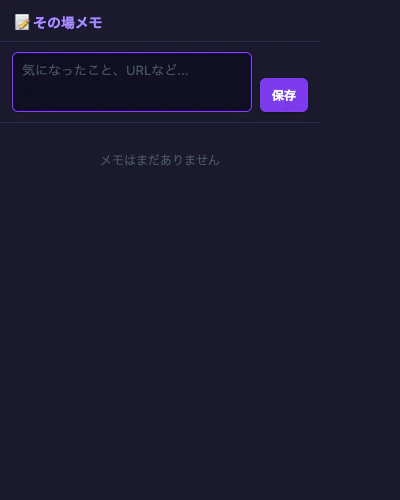
ツールバーのアイコンをクリック → テキストを入力 → 保存。それだけ。
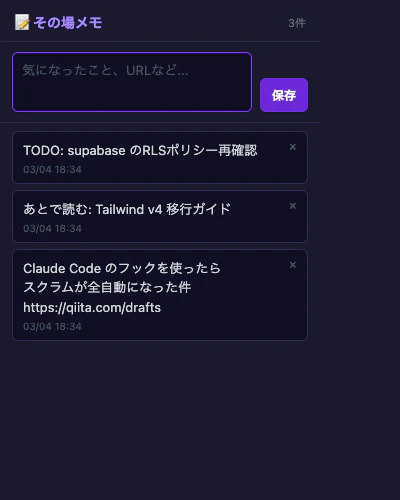
特徴:
-
chrome.storage.syncを使うのでデバイス間で同期される - メモは最大20件(上限超えたら古いものが消える)
- インストール不要な localStorage フォールバックでデモも可能
- コード全量100行以内(HTML/CSS込み)
動作環境
- Chrome 88以降(Manifest V3 対応)
- Chrome にサインイン済みであること(
chrome.storage.syncの同期に必要) - サインインなしでも動作するが、デバイス間の同期は無効になる
ファイル構成
chrome-ext-memo/
├── manifest.json   # 拡張機能の定義(Manifest V3)
├── popup.html      # ポップアップUI(CSS込み)
├── popup.js        # ロジック(~100行)
└── icon*.png       # アイコン(任意)
実装
manifest.json
{
  "manifest_version": 3,
  "name": "その場メモ",
  "version": "1.0.0",
  "description": "作業中にサッとメモ。chrome.storage.sync で端末をまたいで同期。",
  "action": {
    "default_popup": "popup.html",
    "default_title": "その場メモ",
    "default_icon": {
      "16": "icon16.png",
      "48": "icon48.png",
      "128": "icon128.png"
    }
  },
  "permissions": ["storage"],
  "icons": {
    "16": "icon16.png",
    "48": "icon48.png",
    "128": "icon128.png"
  }
}
permissions は "storage" だけ。これで chrome.storage.sync が使えます。
popup.html(CSS込み)
<!DOCTYPE html>
<html lang="ja">
<head>
  <meta charset="UTF-8">
  <style>
    * { box-sizing: border-box; margin: 0; padding: 0; }
    body {
      width: 320px; min-height: 200px; max-height: 500px;
      font-family: -apple-system, BlinkMacSystemFont, "Segoe UI", sans-serif;
      font-size: 13px; background: #1a1a2e; color: #e8e8f0;
      display: flex; flex-direction: column;
    }
    header {
      padding: 12px 14px 8px; border-bottom: 1px solid #2e2e4e;
      display: flex; align-items: center; gap: 6px;
    }
    header h1 { font-size: 14px; font-weight: 600; color: #a78bfa; }
    header .count { margin-left: auto; font-size: 11px; color: #6b7280; }
    .input-area {
      padding: 10px 12px; border-bottom: 1px solid #2e2e4e;
      display: flex; gap: 8px; align-items: flex-end;
    }
    textarea {
      flex: 1; background: #0f0f23; border: 1px solid #3d3d6b;
      border-radius: 6px; color: #e8e8f0; font-size: 13px;
      font-family: inherit; padding: 7px 9px; resize: none;
      height: 60px; outline: none; line-height: 1.5;
    }
    textarea:focus { border-color: #7c3aed; }
    textarea::placeholder { color: #4b5563; }
    button.save-btn {
      background: #7c3aed; color: white; border: none; border-radius: 6px;
      padding: 7px 12px; font-size: 12px; font-weight: 600;
      cursor: pointer; white-space: nowrap; height: 34px;
    }
    button.save-btn:hover { background: #6d28d9; }
    .notes-list { flex: 1; overflow-y: auto; padding: 8px 12px; }
    .notes-list:empty::after {
      content: "メモはまだありません"; display: block;
      text-align: center; color: #4b5563; padding: 20px 0; font-size: 12px;
    }
    .note-item {
      background: #0f0f23; border: 1px solid #2e2e4e;
      border-radius: 6px; padding: 8px 10px; margin-bottom: 6px; position: relative;
    }
    .note-item:hover { border-color: #3d3d6b; }
    .note-text {
      line-height: 1.5; white-space: pre-wrap; word-break: break-all;
      padding-right: 20px; color: #d1d5db;
    }
    .note-meta { font-size: 10px; color: #4b5563; margin-top: 4px; }
    .delete-btn {
      position: absolute; top: 6px; right: 8px; background: none;
      border: none; color: #4b5563; cursor: pointer; font-size: 14px;
    }
    .delete-btn:hover { color: #ef4444; }
  </style>
</head>
<body>
  <header>
    <span>📝</span>
    <h1>その場メモ</h1>
    <span class="count" id="count"></span>
  </header>
  <div class="input-area">
    <textarea id="noteInput" placeholder="気になったこと、URLなど..." maxlength="500"></textarea>
    <button class="save-btn" id="saveBtn">保存</button>
  </div>
  <div class="notes-list" id="notesList"></div>
  <script src="popup.js"></script>
</body>
</html>
popup.js(~100行)
XSS対策の escapeHtml と localStorage フォールバック込みで、コメント含めて約110行です。
// その場メモ — popup.js
// chrome.storage.sync で保存。ない環境(デモ)は localStorage fallback。
const storage = {
get: (key) =>
typeof chrome !== "undefined" && chrome.storage
? new Promise((r) => chrome.storage.sync.get(key, r))
: Promise.resolve({ [key]: JSON.parse(localStorage.getItem(key) || "null") }),
set: (obj) =>
typeof chrome !== "undefined" && chrome.storage
? new Promise((r) => chrome.storage.sync.set(obj, r))
: Promise.resolve(localStorage.setItem(Object.keys(obj)[0], JSON.stringify(Object.values(obj)[0]))),
};
const NOTES_KEY = "memo_notes";
const MAX_NOTES = 20;
async function loadNotes() {
const result = await storage.get(NOTES_KEY);
return result[NOTES_KEY] || [];
}
async function saveNotes(notes) {
await storage.set({ [NOTES_KEY]: notes });
}
function formatDate(ts) {
const d = new Date(ts);
const mm = String(d.getMonth() + 1).padStart(2, "0");
const dd = String(d.getDate()).padStart(2, "0");
const hh = String(d.getHours()).padStart(2, "0");
const min = String(d.getMinutes()).padStart(2, "0");
return `${mm}/${dd} ${hh}:${min}`;
}
function escapeHtml(str) {
return str
.replace(/&/g, "&")
.replace(/</g, "<")
.replace(/>/g, ">")
.replace(/"/g, """);
}
function renderNotes(notes) {
const list = document.getElementById("notesList");
const count = document.getElementById("count");
count.textContent = notes.length > 0 ? `${notes.length}件` : "";
if (notes.length === 0) { list.innerHTML = ""; return; }
list.innerHTML = notes
.slice().reverse()
.map((note) => `
<div class="note-item" data-id="${note.id}">
<div class="note-text">${escapeHtml(note.text)}</div>
<div class="note-meta">${formatDate(note.createdAt)}</div>
<button class="delete-btn" data-id="${note.id}" title="削除">×</button>
</div>
`)
.join("");
list.querySelectorAll(".delete-btn").forEach((btn) => {
btn.addEventListener("click", async (e) => {
const id = e.currentTarget.dataset.id;
const notes = await loadNotes();
await saveNotes(notes.filter((n) => String(n.id) !== id));
renderNotes(await loadNotes());
});
});
}
async function addNote(text) {
const trimmed = text.trim();
if (!trimmed) return;
const notes = await loadNotes();
if (notes.length >= MAX_NOTES) notes.shift();
notes.push({ id: Date.now(), text: trimmed, createdAt: Date.now() });
await saveNotes(notes);
return await loadNotes();
}
document.addEventListener("DOMContentLoaded", async () => {
const input = document.getElementById("noteInput");
const saveBtn = document.getElementById("saveBtn");
renderNotes(await loadNotes());
saveBtn.addEventListener("click", async () => {
const notes = await addNote(input.value);
if (notes) { input.value = ""; renderNotes(notes); input.focus(); }
});
input.addEventListener("keydown", (e) => {
if (e.key === "Enter" && (e.metaKey || e.ctrlKey)) saveBtn.click();
});
input.focus();
});
テストプレイの様子
実際に Playwright で動作確認しました。
テキスト入力中:
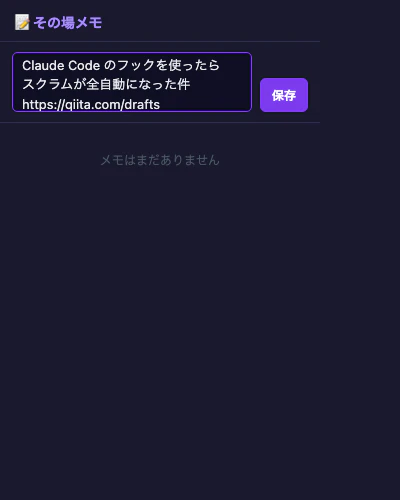
複数行のテキスト(URLも含む)をそのまま入力できます。
保存後 — 1件目:
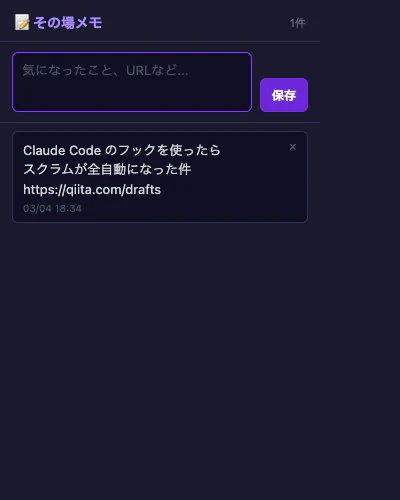
保存されると入力欄がクリアされて、即次のメモが取れる状態になります。
複数件のメモ:
新しいものが上に来る順番で並びます。削除ボタン(×)でいつでも消せます。
インストール方法
- 上記の3ファイル(
manifest.json,popup.html,popup.js)を1フォルダに置く - アイコン画像(
icon16.png,icon48.png,icon128.png)も置く(なくてもOK。省略するとデフォルトアイコンが使われます) - Chrome を開いて
chrome://extensions/に移動 - 右上の「デベロッパーモード」をON
- 「パッケージ化されていない拡張機能を読み込む」→ フォルダを選択
それだけです。ツールバーにアイコンが出てくるのでピン留めしておくと使いやすいです。
デモをローカルで試す
Chrome 拡張としてインストールせずに動作確認したい場合は、
popup.html をブラウザで直接開くだけで動きます。
localStorage にフォールバックするので chrome.storage なしでも保存機能が動作します。
python3 -m http.server 8765 --directory ./chrome-ext-memo/
まとめ
3ファイル、100行以下、権限は storage だけ。
「メモツールを開く」という行為そのものをなくしたかったので、
ツールバーのクリック1回で入力できる形にしました。
chrome.storage.sync のおかげで、家のMacと会社のMacで
勝手に同期されるのも地味に便利です。
「こんなの作った」系の記事って、完成品を見るとシンプルすぎて
「こんなの記事にしていいの?」ってなりがちなんですけど、
100行でこれだけ使えるものが作れるならむしろ積極的に公開したほうがいいな、
というのが最近の考えです。
ぜひ試してみてください。カスタマイズして公開した方はコメントでURL教えてもらえると嬉しいです!