
はじめに
Windows PowerShell 5.1(powershell.exe)が非推奨であるとして、Microsoft 公式から発表がありました。
今、手元の Windows 11 端末から PowerShell を立ち上げても 5.1 になっている人がほとんどかと思います。
それぐらい PowerShell 5.1 は当たり前の製品であり、私が覚えている限りでは、4、5年前にはそもそも 5.1 でないと動作しない公式モジュールも多かったと思います。
もちろん、非推奨になったからといって明日からすぐ使えなくなるわけではありません。公式の案内では、5.1 は引き続き Windows の一部で、各 Windows のライフサイクルに従ってセキュリティ更新も提供されます。既存のスクリプトもそのまま動きます。
ただし、新機能の追加はなく、今後の Windows では扱いが段階的に変わっていきます。
- 2026 年:非推奨化。Windows Server 2025 と Windows 11 26H2 が、5.1 が既定で有効な最後のバージョン
- 次のバージョンの Windows:オプション機能(Feature on Demand)になる。ただし新規インストールでは既定で有効
- さらにその先のバージョン:提供されなくなる(時期は利用状況をもとに、事前に告知される)
つまり、すぐに困るわけではありません。ただ、Windows Server の更改や端末の OS 更新・キッティングのたびに、5.1 が標準で入っていることを前提にできなくなっていきます。そのとき「どのスクリプトが 5.1 に依存しているのか分からない」とならないよう、今のうちに棚卸しをしておく必要があります。
そこで今回は、PowerShell 5.1 で使われているスクリプトの棚卸し方法を、検証環境を使って実際に試しながら見ていこうと思います。
事前準備
※本検証は WindowsServer2022 を使用しています。
まずは次のスクリプトを用意し、Windows Server 内の C ドライブにフォルダ(C:\Scripts)を作成して配置しておきます。
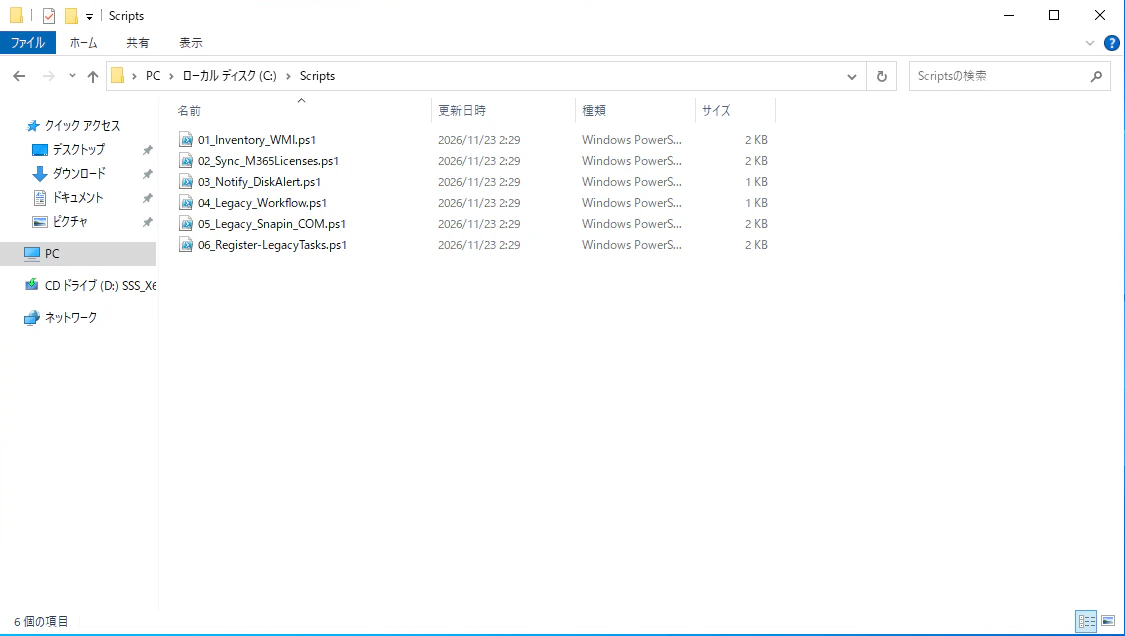
なおこれらのスクリプトは、後ほど「古いスクリプト」として検知させるための検証用サンプルです。検証用であり、実行しないようご注意ください(06 のタスク登録スクリプトだけは、検証機で実行します)。
01_Inventory_WMI.ps1(WMI による端末インベントリ収集・退役端末の操作)
# 端末インベントリ収集
# 共有フォルダの端末リストを読み、CSVに出力する
# ※検証用サンプル。実行しないこと
$computers = Get-Content "\\fileserver\IT_Admin\pclist.txt"
$result = @()

foreach ($pc in $computers) {
    $os   = Get-WmiObject -Class Win32_OperatingSystem -ComputerName $pc
    $cs   = Get-WmiObject -Class Win32_ComputerSystem -ComputerName $pc
    $bios = Get-WmiObject Win32_BIOS -ComputerName $pc
    $disk = Get-WmiObject Win32_LogicalDisk -ComputerName $pc -Filter "DriveType=3"

    $obj = New-Object PSObject -Property @{
        PCName   = $pc
        OS       = $os.Caption
        Model    = $cs.Model
        Serial   = $bios.SerialNumber
        FreeGB   = [math]::Round($disk[0].FreeSpace / 1GB, 1)
    }
    $result += $obj
}
$result | Export-Csv "\\fileserver\IT_Admin\inventory.csv" -NoTypeInformation -Encoding Default

# 退役端末のコンピュータ名変更・リモート再起動 (たまに使う)
$cs = Get-WmiObject Win32_ComputerSystem -ComputerName "OLDPC001"
$cs.Rename("RETIRED-OLDPC001") | Out-Null
Invoke-WmiMethod -Class Win32_OperatingSystem -Name Reboot -ComputerName "OLDPC001"

# WMIイベントフィルタの設定
Set-WmiInstance -Class __EventFilter -Namespace "root\subscription" -Arguments @{
    Name = "LegacyFilter"; EventNameSpace = "root\cimv2"
    QueryLanguage = "WQL"; Query = "SELECT * FROM __InstanceCreationEvent WITHIN 10 WHERE TargetInstance ISA 'Win32_Process'"
}

# 不要なWMIインスタンスの削除
Get-WmiObject -Namespace "root\subscription" -Class __EventFilter -Filter "Name='LegacyFilter'" | Remove-WmiObject
02_Sync_M365Licenses.ps1(MSOnline / AzureAD 時代のライセンス付与・退職者無効化)
# M365ライセンス棚卸し・付与スクリプト (MSOnline / AzureAD時代)
# ※検証用サンプル。実行しないこと
$cred = Get-Credential "admin@contoso.onmicrosoft.com"

Import-Module MSOnline
Import-Module AzureAD
Connect-MsolService -Credential $cred
Connect-AzureAD -Credential $cred

# ライセンス未割当ユーザーを抽出
$unlicensed = Get-MsolUser -All -UnlicensedUsersOnly | Where-Object { $_.UserPrincipalName -like "*@contoso.co.jp" }

foreach ($u in $unlicensed) {
    Set-MsolUser -UserPrincipalName $u.UserPrincipalName -UsageLocation JP
    Set-MsolUserLicense -UserPrincipalName $u.UserPrincipalName -AddLicenses "contoso:ENTERPRISEPACK"
    Write-Host "License assigned: $($u.UserPrincipalName)"
}

# 退職者の無効化
$retired = Import-Csv "C:\Scripts\retired_users.csv"
foreach ($r in $retired) {
    Set-AzureADUser -ObjectId $r.UPN -AccountEnabled $false
    Revoke-AzureADUserAllRefreshToken -ObjectId $r.UPN
}

# 最終サインイン確認用 (AzureAD)
Get-AzureADUser -All $true | Select-Object DisplayName, UserPrincipalName, AccountEnabled |
    Export-Csv C:\Scripts\aad_users.csv -NoTypeInformation -Encoding Default
03_Notify_DiskAlert.ps1(ファイルサーバーの空き容量監視・メール通知)
# ファイルサーバー空き容量監視 & メール通知 (タスクスケジューラから毎朝実行)
# ※検証用サンプル。実行しないこと
$threshold = 15   # %
$smtp      = "smtp.contoso.local"
$from      = "noreply@contoso.co.jp"
$to        = "it-team@contoso.co.jp"

$disks = Get-WmiObject Win32_LogicalDisk -Filter "DriveType=3"
$body  = ""
foreach ($d in $disks) {
    $pct = [math]::Round($d.FreeSpace / $d.Size * 100, 1)
    if ($pct -lt $threshold) {
        $body += "$($d.DeviceID) 空き容量 $pct %`r`n"
    }
}

if ($body -ne "") {
    $pw   = ConvertTo-SecureString "P@ssw0rd!" -AsPlainText -Force
    $cred = New-Object System.Management.Automation.PSCredential("svc-mail@contoso.co.jp", $pw)

    Send-MailMessage -From $from -To $to -Subject "[警告] ディスク空き容量不足" `
        -Body $body -SmtpServer $smtp -Port 587 -UseSsl -Credential $cred -Encoding UTF8
}
04_Legacy_Workflow.ps1(PowerShell 3.0 Workflow 時代の並列処理)
# 複数サーバーへ並列でサービス再起動 (PowerShell 3.0 Workflow時代の書き方)
# ※検証用サンプル。実行しないこと
workflow Restart-ServicesParallel {
    param([string[]]$Servers, [string]$ServiceName)

    foreach -parallel ($s in $Servers) {
        InlineScript {
            Restart-Service -Name $using:ServiceName -PassThru
        } -PSComputerName $s
    }
}

workflow Collect-EventLogs {
    param([string[]]$Servers)
    parallel {
        foreach ($s in $Servers) {
            Get-EventLog -LogName System -Newest 100 -ComputerName $s
        }
    }
}

$servers = "APP01", "APP02", "APP03"
Restart-ServicesParallel -Servers $servers -ServiceName "Spooler"
05_Legacy_Snapin_COM.ps1(Exchange 2010 管理・Excel レポート・IE 自動操作)
# Exchange 2010管理 + Excelレポート + IE自動操作 (オンプレ時代の運用ツール)
# ※検証用サンプル。実行しないこと
Add-PSSnapin Microsoft.Exchange.Management.PowerShell.E2010
Add-PSSnapin VMware.VimAutomation.Core -ErrorAction SilentlyContinue

# メールボックスサイズ一覧をExcelに出力
$excel = New-Object -ComObject Excel.Application
$excel.Visible = $false
$wb = $excel.Workbooks.Add()
$ws = $wb.Worksheets.Item(1)
$ws.Cells.Item(1,1) = "User"
$ws.Cells.Item(1,2) = "Size(MB)"

$row = 2
Get-MailboxStatistics -Server EXCH01 | ForEach-Object {
    $ws.Cells.Item($row,1) = $_.DisplayName
    $ws.Cells.Item($row,2) = $_.TotalItemSize.Value.ToMB()
    $row++
}
$wb.SaveAs("C:\Reports\mailbox_size.xlsx")
$excel.Quit()

# 社内ポータルへIEで自動ログイン
$ie = New-Object -ComObject InternetExplorer.Application
$ie.Visible = $true
$ie.Navigate("http://portal.contoso.local/login")
while ($ie.Busy) { Start-Sleep -Milliseconds 500 }
$ie.Document.getElementById("userid").value = "admin"
$ie.Document.getElementById("passwd").value = "password"
$ie.Document.getElementById("submit").click()

# 共有ドライブ棚卸し (FSO)
$fso = New-Object -ComObject Scripting.FileSystemObject
$fso.GetFolder("\\fileserver\share").Size
06_Register-LegacyTasks.ps1(powershell.exe 直書きの定期実行タスク登録)
# 定期実行タスクの登録 (powershell.exe 直書き)
# Get-ScheduledTask での棚卸し確認用に、検証機でのみ登録して使う想定
# ※検証用サンプル。本番サーバーでは実行しないこと
$tasks = @(
    @{ Name = "Legacy_Inventory";  Script = "C:\Scripts\01_Inventory_WMI.ps1";      At = "02:00" },
    @{ Name = "Legacy_Licenses";   Script = "C:\Scripts\02_Sync_M365Licenses.ps1";  At = "03:00" },
    @{ Name = "Legacy_DiskAlert";  Script = "C:\Scripts\03_Notify_DiskAlert.ps1";   At = "07:30" }
)

foreach ($t in $tasks) {
    $action = New-ScheduledTaskAction `
        -Execute "C:\Windows\System32\WindowsPowerShell\v1.0\powershell.exe" `
        -Argument "-NoProfile -ExecutionPolicy Bypass -File `"$($t.Script)`""
    $trigger = New-ScheduledTaskTrigger -Daily -At $t.At
    Register-ScheduledTask -TaskName $t.Name -TaskPath "\IT_Legacy\" `
        -Action $action -Trigger $trigger -User "SYSTEM" -RunLevel Highest
}

# バッチ経由で呼ぶパターンもあり
# schtasks /create /tn "IT_Legacy\Batch" /tr "C:\Scripts\run_ps.bat" /sc daily /st 04:00 /ru SYSTEM
用意したスクリプトのうち 06 だけを実行し、タスクスケジューラに「それらしい仕込み」をします。登録されたタスクは毎日自動実行される設定なので、検証用とはいえ意図せず動くのは避けたいところです。登録後は無効化しておくのが無難です。無効化しても一覧には Disabled と表示されるだけで、後述の検出には影響しません(本記事の結果は無効化前の Ready の状態です)。また、検証後は \IT_Legacy\ 配下のタスクを削除しておきましょう。
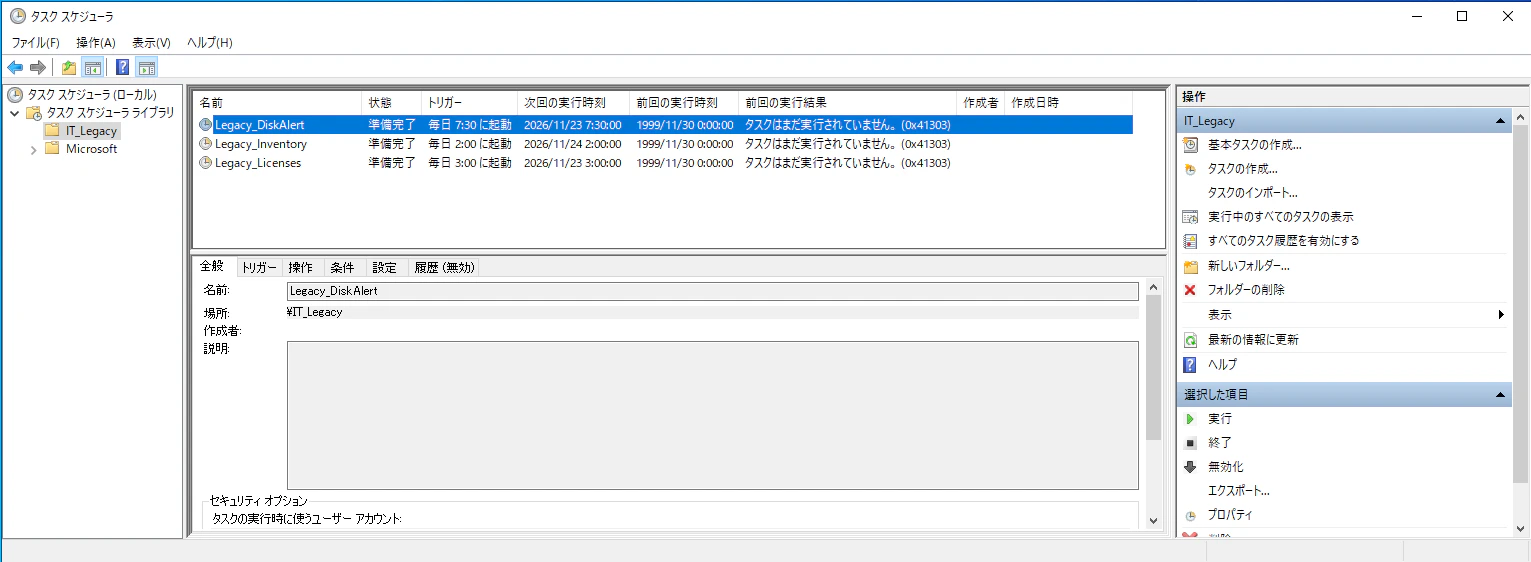
さらに今回は共有サーバーも用意し、その中にスクリプトを雑に置いておきます。
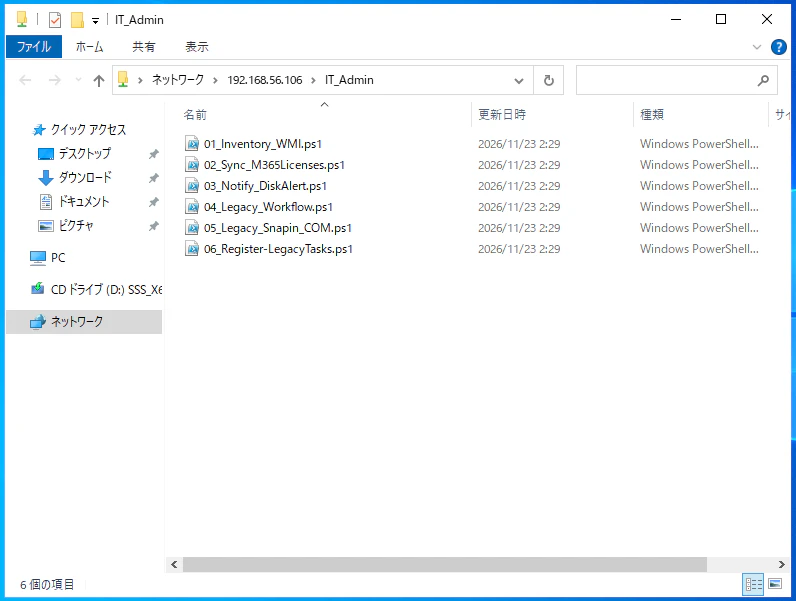
これで検証準備は完了です。
※ここから先の説明については、公式の Microsoft Learn を合わせてご確認ください。
1. 確認すべき「使えなくなる/動かなくなる」チェックリスト
ではここから、実際の棚卸しを見ていきます。
まずは自社に存在するスクリプトや運用ツールに、以下の要素が含まれていないかを確認します。
| カテゴリ | チェック項目 | 影響・理由 | 優先度 |
|---|---|---|---|
| 実行環境 | タスクスケジューラやバッチで powershell.exe を直書きしている |
PowerShell 7 は pwsh.exe のため、呼び出し先やパスが変わる |
高 |
| クラウド管理 | 古い M365 / Azure 系モジュール(MSOnline、AzureAD など)を使っている |
すでに廃止または廃止が進んでおり、PowerShell 7 でも公式には非対応。認証エラーの原因にもなる | 高 |
| 構文・機能 |
workflow キーワードを使っている |
PowerShell 7 ではワークフロー機能が削除されている | 高 |
| WMI / 情報取得 |
Get-WmiObject など WMI v1 系コマンドレットを使っている |
PowerShell 7 では使えない(Get-CimInstance などへの置換が必要) |
中 |
| 外部連携 |
Add-PSSnapin(スナップイン)や古い COM オブジェクト(IE / Office 操作など)に依存している |
スナップインは PowerShell 7 で使えない。COM は Windows 上なら動くものも多いが、IE のように対象アプリ自体が終了しているものは動かない | 中 |
| モジュール管理 | Windows 標準モジュール(ActiveDirectory、DnsServer など)を 7 系でそのまま呼んでいる | 一部は互換セッション経由で動くが、機能制限や遅延が出ることがある | 低〜中 |
この時点でなかなかに面倒そうです。
なので次から、できる限り簡単にチェックできる方法を見ていきます。
2. 具体的な確認方法
2-1. そもそも社内のどこで PowerShell が動いているかを洗い出す
まずは「野良スクリプト」や「引き継がれていない定期実行タスク」を特定します。
次のスクリプトは、
-
① タスクスケジューラに登録されている、
powershellを呼ぶタスク -
② 指定フォルダや共有フォルダ内の
.ps1ファイル
の2つを一度に一覧化します。
なお、以降の検査用スクリプトには 01_Inventory_PS_Assets.ps1 のように 01〜04 の番号を付けていますが、事前準備のサンプル(01〜06)とは別物です。混同を避けるため、本文では検査用スクリプトを「2-1 のスクリプト」のように節番号で呼びます。
# ファイル名: 01_Inventory_PS_Assets.ps1
# 文字コード: UTF-8 (BOM付き) ※BOMがないと Windows PowerShell 5.1 で日本語が文字化けし、パースエラーになることがあります
# 目的: PowerShell関連のタスクスケジューラ登録と、既存 .ps1 ファイルを一覧化する
param(
    [string]$OutFile = (Join-Path ([Environment]::GetFolderPath('Desktop')) '01_PS_Assets_Inventory.txt'),
    [string[]]$SearchPaths = @('C:\Scripts', '\\fileserver\IT_Admin')   # 環境に合わせて変更してください
)

$lines = New-Object 'System.Collections.Generic.List[string]'

# ---- 1. タスクスケジューラ ----
$lines.Add('=== 1. PowerShell関連のスケジュールタスク一覧 ===')
try {
    # 実行ファイル(Execute)だけでなく引数(Arguments)も見る
    # 例: cmd.exe /c powershell -File ... のような呼び方も拾うため
    $tasks = @(Get-ScheduledTask -ErrorAction Stop |
        Where-Object {
            ($_.Actions.Execute   -join ' ') -match 'powershell|pwsh' -or
            ($_.Actions.Arguments -join ' ') -match 'powershell|pwsh'
        })

    if ($tasks.Count -gt 0) {
        $text = $tasks |
            Select-Object TaskName, TaskPath, State,
                @{Name = 'Execute';   Expression = { $_.Actions.Execute -join ';' }},
                @{Name = 'Arguments'; Expression = { $_.Actions.Arguments -join ';' }} |
            Format-Table -AutoSize | Out-String -Width 4096
        $lines.Add($text.TrimEnd())
    }
    else {
        $lines.Add('(該当するタスクはありません)')
    }
}
catch {
    $lines.Add("[ERROR] タスクの取得に失敗しました: $($_.Exception.Message)")
}

# ---- 2. .ps1 ファイル ----
$lines.Add('')
$lines.Add('=== 2. 既存 .ps1 ファイル一覧 ===')

$allFiles = @()
foreach ($p in $SearchPaths) {
    if (-not (Test-Path -LiteralPath $p)) {
        $lines.Add("[SKIP] パスが存在しない、またはアクセスできません: $p")
        continue
    }
    $found = @(Get-ChildItem -LiteralPath $p -Filter *.ps1 -Recurse -File -ErrorAction SilentlyContinue)
    $lines.Add("[OK]   $p : $($found.Count) 件")
    $allFiles += $found
}

$lines.Add('')
if ($allFiles.Count -gt 0) {
    $text = $allFiles |
        Select-Object FullName, LastWriteTime, Length |
        Format-Table -AutoSize | Out-String -Width 4096
    $lines.Add($text.TrimEnd())
}
else {
    $lines.Add('(.ps1 ファイルは見つかりませんでした)')
}

# ---- 出力 (UTF-8 BOM付き。PS5.1 / PS7 どちらでも同じ結果) ----
[System.IO.File]::WriteAllText($OutFile, (($lines -join "`r`n") + "`r`n"), (New-Object System.Text.UTF8Encoding($true)))
Write-Host "出力完了: $OutFile" -ForegroundColor Green
なお、実行時は共有フォルダ側を \\fileserver\IT_Admin ではなく、検証環境の共有(\\192.168.56.106\IT_Admin)で指定しています。結果に IP アドレスが出ているのはそのためです。
結果を見てみましょう。
=== 1. PowerShell関連のスケジュールタスク一覧 ===

TaskName         TaskPath    State Execute                                                   Arguments
--------         --------    ----- -------                                                   ---------
Legacy_DiskAlert \IT_Legacy\ Ready C:\Windows\System32\WindowsPowerShell\v1.0\powershell.exe -NoProfile -ExecutionPolicy Bypass -File "C:\Scripts\03_Notify_DiskAlert.ps1"
Legacy_Inventory \IT_Legacy\ Ready C:\Windows\System32\WindowsPowerShell\v1.0\powershell.exe -NoProfile -ExecutionPolicy Bypass -File "C:\Scripts\01_Inventory_WMI.ps1"
Legacy_Licenses  \IT_Legacy\ Ready C:\Windows\System32\WindowsPowerShell\v1.0\powershell.exe -NoProfile -ExecutionPolicy Bypass -File "C:\Scripts\02_Sync_M365Licenses.ps1"

=== 2. 既存 .ps1 ファイル一覧 ===
[OK]   C:\Scripts : 6 件
[OK]   \\192.168.56.106\IT_Admin : 6 件


FullName                                              LastWriteTime      Length
--------                                              -------------      ------
C:\Scripts\01_Inventory_WMI.ps1                       2026/11/23 2:29:35   1693
C:\Scripts\02_Sync_M365Licenses.ps1                   2026/11/23 2:29:35   1179
C:\Scripts\03_Notify_DiskAlert.ps1                    2026/11/23 2:29:35    921
C:\Scripts\04_Legacy_Workflow.ps1                     2026/11/23 2:29:36    707
C:\Scripts\05_Legacy_Snapin_COM.ps1                   2026/11/23 2:29:36   1288
C:\Scripts\06_Register-LegacyTasks.ps1                2026/11/23 2:29:35   1121
\\192.168.56.106\IT_Admin\01_Inventory_WMI.ps1        2026/11/23 2:29:35   1693
\\192.168.56.106\IT_Admin\02_Sync_M365Licenses.ps1    2026/11/23 2:29:35   1179
\\192.168.56.106\IT_Admin\03_Notify_DiskAlert.ps1     2026/11/23 2:29:35    921
\\192.168.56.106\IT_Admin\04_Legacy_Workflow.ps1      2026/11/23 2:29:36    707
\\192.168.56.106\IT_Admin\05_Legacy_Snapin_COM.ps1    2026/11/23 2:29:36   1288
\\192.168.56.106\IT_Admin\06_Register-LegacyTasks.ps1 2026/11/23 2:29:35   1121
これで、まずタスクスケジューラに古いスクリプトが含まれていることを特定し、そのパスまで把握できました。
また、ローカルと共有フォルダの両方に同名・同サイズの .ps1 が6本ずつ見つかっています。(今回は雑に同じスクリプトを配置しているので、想定通りの動作です)
実際の現場でも、「どれが本物(実際に動いているもの)か」が分からなくなりがちなので、ここで把握できるのは大きいです。
2-2. スクリプト内の「非対応構文・古いコマンドレット」を文字列検索で炙り出す
次に、見つかった .ps1 ファイル群に対して、PowerShell 7 で動かなくなる代表的なキーワードを一括スキャンします。
ポイントだけを抜き出した簡易版は次のとおりです。
$TargetDir = "C:\Scripts"
$Patterns = @(
    "Get-WmiObject",
    "Set-WmiInstance",
    "Invoke-WmiMethod",
    "Remove-WmiObject",
    "workflow\s+",
    "Add-PSSnapin",
    "New-Object\s+-ComObject",
    "Connect-MsolService",
    "Connect-AzureAD",
    "Send-MailMessage"
)

$Regex = ($Patterns -join "|")

Get-ChildItem -Path $TargetDir -Filter *.ps1 -Recurse |
    Select-String -Pattern $Regex |
    Select-Object Filename, LineNumber, Line
実際の検証では、結果をファイルに出力し、キーワード別・ファイル別の件数も集計する次のスクリプトを使いました。
# ファイル名: 02_Scan_Deprecated_Syntax.ps1
# 文字コード: UTF-8 (BOM付き) ※BOMがないと Windows PowerShell 5.1 で日本語が文字化けし、パースエラーになることがあります
# 目的: .ps1 内の PowerShell 7 非対応・非推奨の構文/コマンドレットを検出する
param(
    [string]$OutFile   = (Join-Path ([Environment]::GetFolderPath('Desktop')) '02_Deprecated_Syntax_Report.txt'),
    [string]$TargetDir = 'C:\Scripts'   # 調査対象ディレクトリ
)

$Patterns = @(
    'Get-WmiObject',
    'Set-WmiInstance',
    'Invoke-WmiMethod',
    'Remove-WmiObject',
    'workflow\s+',
    'Add-PSSnapin',
    'New-Object\s+-ComObject',
    'Connect-MsolService',
    'Connect-AzureAD',
    'Send-MailMessage'
)
$Regex = $Patterns -join '|'

$lines = New-Object 'System.Collections.Generic.List[string]'
$lines.Add('=== 非対応構文・レガシーコマンド検出結果 ===')
$lines.Add("対象: $TargetDir")
$lines.Add('')

if (-not (Test-Path -LiteralPath $TargetDir)) {
    $lines.Add("[ERROR] 調査対象ディレクトリが存在しません: $TargetDir")
}
else {
    $files = @(Get-ChildItem -LiteralPath $TargetDir -Filter *.ps1 -Recurse -File -ErrorAction SilentlyContinue)
    $lines.Add("調査した .ps1 ファイル数: $($files.Count)")
    $lines.Add('')

    $results = @($files | Select-String -Pattern $Regex)

    if ($results.Count -gt 0) {
        $lines.Add('--- 検出一覧 ---')
        $text = $results |
            Select-Object @{Name = 'File';        Expression = { $_.Filename }},
                          LineNumber,
                          @{Name = 'Keyword';     Expression = { $_.Matches[0].Value }},
                          @{Name = 'Comment';     Expression = { if ($_.Line.TrimStart().StartsWith('#')) { 'コメント行' } else { '' } }},
                          @{Name = 'MatchedLine'; Expression = { $_.Line.Trim() }} |
            Format-Table -AutoSize | Out-String -Width 4096
        $lines.Add($text.TrimEnd())

        $lines.Add('')
        $lines.Add('--- キーワード別の件数 ---')
        $text = $results |
            Group-Object { $_.Matches[0].Value.Trim() } |
            Sort-Object Count -Descending |
            Select-Object Count, Name |
            Format-Table -AutoSize | Out-String -Width 4096
        $lines.Add($text.TrimEnd())

        $lines.Add('')
        $lines.Add('--- ファイル別の件数 ---')
        $text = $results |
            Group-Object Filename |
            Sort-Object Count -Descending |
            Select-Object Count, Name |
            Format-Table -AutoSize | Out-String -Width 4096
        $lines.Add($text.TrimEnd())
    }
    else {
        $lines.Add('該当する非推奨コードは検出されませんでした。')
    }
}

[System.IO.File]::WriteAllText($OutFile, (($lines -join "`r`n") + "`r`n"), (New-Object System.Text.UTF8Encoding($true)))
Write-Host "出力完了: $OutFile" -ForegroundColor Green
結果を見てみましょう。
=== 非対応構文・レガシーコマンド検出結果 ===
対象: C:\Scripts

調査した .ps1 ファイル数: 6

--- 検出一覧 ---

File                     LineNumber Keyword               Comment MatchedLine
----                     ---------- -------               ------- -----------
01_Inventory_WMI.ps1              8 Get-WmiObject                 $os   = Get-WmiObject -Class Win32_OperatingSystem -ComputerName $pc
01_Inventory_WMI.ps1              9 Get-WmiObject                 $cs   = Get-WmiObject -Class Win32_ComputerSystem -ComputerName $pc
01_Inventory_WMI.ps1             10 Get-WmiObject                 $bios = Get-WmiObject Win32_BIOS -ComputerName $pc
01_Inventory_WMI.ps1             11 Get-WmiObject                 $disk = Get-WmiObject Win32_LogicalDisk -ComputerName $pc -Filter "DriveType=3"
01_Inventory_WMI.ps1             25 Get-WmiObject                 $cs = Get-WmiObject Win32_ComputerSystem -ComputerName "OLDPC001"
01_Inventory_WMI.ps1             27 Invoke-WmiMethod              Invoke-WmiMethod -Class Win32_OperatingSystem -Name Reboot -ComputerName "OLDPC001"
01_Inventory_WMI.ps1             30 Set-WmiInstance               Set-WmiInstance -Class __EventFilter -Namespace "root\subscription" -Arguments @{
01_Inventory_WMI.ps1             36 Get-WmiObject                 Get-WmiObject -Namespace "root\subscription" -Class __EventFilter -Filter "Name='LegacyFilter'" | Remove-WmiObject
02_Sync_M365Licenses.ps1          7 Connect-MsolService           Connect-MsolService -Credential $cred
02_Sync_M365Licenses.ps1          8 Connect-AzureAD               Connect-AzureAD -Credential $cred
03_Notify_DiskAlert.ps1           8 Get-WmiObject                 $disks = Get-WmiObject Win32_LogicalDisk -Filter "DriveType=3"
03_Notify_DiskAlert.ps1          21 Send-MailMessage              Send-MailMessage -From $from -To $to -Subject "[警告] ディスク空き容量不足" `
04_Legacy_Workflow.ps1            3 workflow                      workflow Restart-ServicesParallel {
04_Legacy_Workflow.ps1           13 workflow                      workflow Collect-EventLogs {
05_Legacy_Snapin_COM.ps1          3 Add-PSSnapin                  Add-PSSnapin Microsoft.Exchange.Management.PowerShell.E2010
05_Legacy_Snapin_COM.ps1          4 Add-PSSnapin                  Add-PSSnapin VMware.VimAutomation.Core -ErrorAction SilentlyContinue
05_Legacy_Snapin_COM.ps1          7 New-Object -ComObject         $excel = New-Object -ComObject Excel.Application
05_Legacy_Snapin_COM.ps1         24 New-Object -ComObject         $ie = New-Object -ComObject InternetExplorer.Application
05_Legacy_Snapin_COM.ps1         33 New-Object -ComObject         $fso = New-Object -ComObject Scripting.FileSystemObject

--- キーワード別の件数 ---

Count Name
----- ----
    7 Get-WmiObject
    3 New-Object -ComObject
    2 workflow
    2 Add-PSSnapin
    1 Connect-AzureAD
    1 Send-MailMessage
    1 Set-WmiInstance
    1 Connect-MsolService
    1 Invoke-WmiMethod

--- ファイル別の件数 ---

Count Name
----- ----
    8 01_Inventory_WMI.ps1
    5 05_Legacy_Snapin_COM.ps1
    2 03_Notify_DiskAlert.ps1
    2 04_Legacy_Workflow.ps1
    2 02_Sync_M365Licenses.ps1
これで、古い構文が使われているスクリプトをあぶり出せました。
補足:
Send-MailMessageは PowerShell 7 でも構文自体は残っていますが、公式に非推奨(OBSOLETE)扱いです。TLS 1.2 の強制やモダン認証(SMTP AUTH のBasic認証の縮小)の影響で社内通知メールが届かなくなる典型例のため、あわせてチェックしておくのがおすすめです。
補足:やってみてから気づいた「他のチェック項目」
ここまで実行してから、「このパターンも入れておけばよかった」と気づいたものがあります。2-2 のキーワードでは拾えていなかった項目です。
| 追加するパターン | 何が分かるか | サンプルでの該当 |
|---|---|---|
MSOnline / Msol / AzureAD
|
Connect- 以外の行(Import-Module、Get-MsolUser、Set-AzureADUser など) |
02(Connect- 以外にも多数) |
-Encoding\s+Default |
文字コードの指定(3-4 で後述) | 01、02 |
-AsPlainText / passwd / password
|
平文パスワード | 03(-AsPlainText)、05(passwd / password) |
\.Rename\( / Win32_
|
WMI のメソッド呼び出し、WMI クラス名 | 01、03 |
-ComputerName |
リモート接続(DCOM → WinRM で方式が変わる。3-4 で後述) | 01、04 |
powershell\.exe / schtasks / \.bat
|
powershell.exe の直書き、タスク登録、バッチ経由の呼び出し |
06 |
Win32_ は CIM に移行した後のコードにもヒットするので、「見る場所の目印」として使ってください。password も同様にノイズが出ます。
2-2 のスクリプトの $Patterns には、次のように追加できます($Regex = ... の行より前に入れます)。
$Patterns += @(
    'MSOnline', 'Msol', 'AzureAD',
    '-Encoding\s+Default',
    '-AsPlainText', 'passwd', 'password',
    '\.Rename\(', 'Win32_',
    '-ComputerName',
    'powershell\.exe', 'schtasks', '\.bat'
)
今回のサンプルには含めていませんが、実環境では次のようなものも探す価値があります。
-
New-WebServiceProxy(PowerShell 7 では削除されています) -
Register-ScheduledJob(PSScheduledJob は PowerShell 7 非対応です) -
#Requires -PSEdition Desktop(公式の案内でも、スクリプト冒頭で宣言されている場合があるとされています。これがあると PowerShell 7 では実行が拒否されます。#Requires -Version 5.1は 7 でも条件を満たすので止まりません)
ただし、ここで見えているのは「キーワードに引っかかったもの」だけです。実行時にしか分からない問題は、この後の 2-4 で確認する構文チェックでも拾えません。この限界は、第3章で改めて整理します。
2-3. インストール済みモジュールと実行バージョンの確認
次に、管理用端末や踏み台サーバーに入っているモジュールを確認します。モジュールの置き場所は PowerShell 5.1 と 7 で分かれているので、「どちらに入っているか」「7 から見えて動くか」が重要です。
まず、5.1 側で「バージョン情報」と「利用可能なモジュール」を一覧化しました。
# ファイル名: 03_Check_Installed_Modules.ps1
# 文字コード: UTF-8 (BOM付き) ※BOMがないと Windows PowerShell 5.1 で日本語が文字化けし、パースエラーになることがあります
# 目的: 実行したPowerShell (5.1 / 7) から見えるモジュールを一覧化する
#       5.1 と 7 の両方で実行し、出力ファイル (PSv5 / PSv7) を見比べる
$MajorVer = $PSVersionTable.PSVersion.Major
$OutFile  = Join-Path ([Environment]::GetFolderPath('Desktop')) "03_Installed_Modules_PSv$MajorVer.txt"

$lines = New-Object 'System.Collections.Generic.List[string]'

# ---- バージョン情報 ----
$lines.Add('=== PowerShell バージョン情報 ===')
$lines.Add(($PSVersionTable | Out-String).TrimEnd())
$lines.Add('')

# ---- 1. 利用可能な全モジュール (標準モジュール + 手動配置も含む) ----
$lines.Add("=== 1. 利用可能なモジュール一覧 (PS v$MajorVer / Get-Module -ListAvailable) ===")
$lines.Add('PSModulePath:')
foreach ($pp in ($env:PSModulePath -split ';')) { $lines.Add("  $pp") }
$lines.Add('')

try {
    $mods = @(Get-Module -ListAvailable -ErrorAction Stop |
        Sort-Object Name, Version -Unique)
    $lines.Add("件数: $($mods.Count)")
    $text = $mods |
        Select-Object Name, Version,
            @{Name = 'Edition'; Expression = { if ($_.CompatiblePSEditions) { $_.CompatiblePSEditions -join ',' } else { '-' } }},
            @{Name = 'Location'; Expression = { $_.ModuleBase }} |
        Format-Table -AutoSize | Out-String -Width 4096
    $lines.Add($text.TrimEnd())
}
catch {
    $mods = @()
    $lines.Add("[ERROR] Get-Module -ListAvailable に失敗しました: $($_.Exception.Message)")
}

# ---- 2. PowerShellGet 経由でインストールしたモジュール ----
$lines.Add('')
$lines.Add("=== 2. PowerShellGet 経由のインストール済みモジュール (PS v$MajorVer / Get-InstalledModule) ===")
try {
    $installed = @(Get-InstalledModule -ErrorAction Stop)
    if ($installed.Count -gt 0) {
        $text = $installed |
            Select-Object Name, Version, InstalledLocation |
            Format-Table -AutoSize | Out-String -Width 4096
        $lines.Add($text.TrimEnd())
    }
    else {
        $lines.Add('(PowerShellGet 経由でインストールされたモジュールはありません)')
    }
}
catch {
    $lines.Add("[INFO] Get-InstalledModule を実行できませんでした: $($_.Exception.Message)")
}

# ---- 3. 移行時に注目するモジュール ----
$lines.Add('')
$lines.Add("=== 3. 移行時に注目するモジュールの有無 (PS v$MajorVer) ===")
$watch = @('MSOnline', 'AzureAD', 'AzureRM', 'Az', 'Microsoft.Graph', 'ExchangeOnlineManagement',
           'ActiveDirectory', 'DnsServer', 'ServerManager', 'Hyper-V')
$rows = foreach ($w in $watch) {
    $hit = @($mods | Where-Object { $_.Name -eq $w -or $_.Name -like "$w.*" })
    [pscustomobject]@{
        Module  = $w
        Found   = if ($hit.Count -gt 0) { 'あり' } else { 'なし' }
        Version = if ($hit.Count -gt 0) { ($hit | Sort-Object Version -Descending | Select-Object -First 1).Version } else { '' }
    }
}
$lines.Add(($rows | Format-Table -AutoSize | Out-String -Width 4096).TrimEnd())

[System.IO.File]::WriteAllText($OutFile, (($lines -join "`r`n") + "`r`n"), (New-Object System.Text.UTF8Encoding($true)))
Write-Host "出力完了: $OutFile" -ForegroundColor Green
=== PowerShell バージョン情報 ===

Name                           Value
----                           -----
PSVersion                      5.1.20348.558
PSEdition                      Desktop
PSCompatibleVersions           {1.0, 2.0, 3.0, 4.0...}
BuildVersion                   10.0.20348.558
CLRVersion                     4.0.30319.42000
WSManStackVersion              3.0
PSRemotingProtocolVersion      2.3
SerializationVersion           1.1.0.1

=== 1. 利用可能なモジュール一覧 (PS v5 / Get-Module -ListAvailable) ===
PSModulePath:
  C:\Users\Administrator\Documents\WindowsPowerShell\Modules
  C:\Program Files\WindowsPowerShell\Modules
  C:\Windows\system32\WindowsPowerShell\v1.0\Modules

件数: 89

Name                                      Version     Edition      Location
----                                      -------     -------      --------
AppBackgroundTask                         1.0.0.0     Core,Desktop C:\Windows\system32\WindowsPowerShell\v1.0\Modules\AppBackgroundTask
AppLocker                                 2.0.0.0     -            C:\Windows\system32\WindowsPowerShell\v1.0\Modules\AppLocker
AppvClient                                1.0.0.0     -            C:\Windows\system32\WindowsPowerShell\v1.0\Modules\AppvClient
Appx                                      2.0.1.0     Desktop,Core C:\Windows\system32\WindowsPowerShell\v1.0\Modules\Appx
BestPractices                             1.0         -            C:\Windows\system32\WindowsPowerShell\v1.0\Modules\BestPractices
BitsTransfer                              2.0.0.0     Core,Desktop C:\Windows\system32\WindowsPowerShell\v1.0\Modules\BitsTransfer
BranchCache                               1.0.0.0     Desktop,Core C:\Windows\system32\WindowsPowerShell\v1.0\Modules\BranchCache
CimCmdlets                                1.0.0.0     -            C:\Windows\system32\WindowsPowerShell\v1.0\Modules\CimCmdlets
ConfigCI                                  1.0         -            C:\Windows\system32\WindowsPowerShell\v1.0\Modules\ConfigCI
Defender                                  1.0         -            C:\Windows\system32\WindowsPowerShell\v1.0\Modules\Defender
DeliveryOptimization                      1.0.3.0     Core,Desktop C:\Windows\system32\WindowsPowerShell\v1.0\Modules\DeliveryOptimization
DirectAccessClientComponents              1.0.0.0     Desktop,Core C:\Windows\system32\WindowsPowerShell\v1.0\Modules\DirectAccessClientComponents
Dism                                      3.0         Desktop,Core C:\Windows\system32\WindowsPowerShell\v1.0\Modules\Dism
DnsClient                                 1.0.0.0     Desktop,Core C:\Windows\system32\WindowsPowerShell\v1.0\Modules\DnsClient
EventTracingManagement                    1.0.0.0     Desktop,Core C:\Windows\system32\WindowsPowerShell\v1.0\Modules\EventTracingManagement
Get-NetView                               2020.6.1.82 -            C:\Windows\system32\WindowsPowerShell\v1.0\Modules\Get-NetView
International                             2.0.0.0     Core,Desktop C:\Windows\system32\WindowsPowerShell\v1.0\Modules\International
iSCSI                                     1.0.0.0     -            C:\Windows\system32\WindowsPowerShell\v1.0\Modules\iSCSI
IscsiTarget                               2.0.0.0     -            C:\Windows\system32\WindowsPowerShell\v1.0\Modules\IscsiTarget
ISE                                       1.0.0.0     Desktop      C:\Windows\system32\WindowsPowerShell\v1.0\Modules\ISE
Kds                                       1.0.0.0     Core,Desktop C:\Windows\system32\WindowsPowerShell\v1.0\Modules\Kds
Microsoft.PowerShell.Archive              1.0.1.0     -            C:\Windows\system32\WindowsPowerShell\v1.0\Modules\Microsoft.PowerShell.Archive
Microsoft.PowerShell.Diagnostics          3.0.0.0     Desktop,Core C:\Windows\system32\WindowsPowerShell\v1.0\Modules\Microsoft.PowerShell.Diagnostics
Microsoft.PowerShell.Host                 3.0.0.0     -            C:\Windows\system32\WindowsPowerShell\v1.0\Modules\Microsoft.PowerShell.Host
Microsoft.PowerShell.LocalAccounts        1.0.0.0     Desktop,Core C:\Windows\system32\WindowsPowerShell\v1.0\Modules\Microsoft.PowerShell.LocalAccounts\1.0.0.0
Microsoft.PowerShell.Management           3.1.0.0     Desktop      C:\Windows\system32\WindowsPowerShell\v1.0\Modules\Microsoft.PowerShell.Management
Microsoft.PowerShell.ODataUtils           1.0         -            C:\Windows\system32\WindowsPowerShell\v1.0\Modules\Microsoft.PowerShell.ODataUtils
Microsoft.PowerShell.Operation.Validation 1.0.1       -            C:\Program Files\WindowsPowerShell\Modules\Microsoft.PowerShell.Operation.Validation\1.0.1
Microsoft.PowerShell.Security             3.0.0.0     Desktop      C:\Windows\system32\WindowsPowerShell\v1.0\Modules\Microsoft.PowerShell.Security
Microsoft.PowerShell.Utility              3.1.0.0     Desktop      C:\Windows\system32\WindowsPowerShell\v1.0\Modules\Microsoft.PowerShell.Utility
Microsoft.ServerCore.SConfig              2.0.0.0     -            C:\Windows\system32\WindowsPowerShell\v1.0\Modules\Microsoft.ServerCore.SConfig\2.0.0.0
Microsoft.WSMan.Management                3.0.0.0     Desktop      C:\Windows\system32\WindowsPowerShell\v1.0\Modules\Microsoft.WSMan.Management
MMAgent                                   1.0         Desktop,Core C:\Windows\system32\WindowsPowerShell\v1.0\Modules\MMAgent
MsDtc                                     1.0.0.0     Desktop      C:\Windows\system32\WindowsPowerShell\v1.0\Modules\MsDtc
NetAdapter                                2.0.0.0     Desktop,Core C:\Windows\system32\WindowsPowerShell\v1.0\Modules\NetAdapter
NetConnection                             1.0.0.0     Desktop,Core C:\Windows\system32\WindowsPowerShell\v1.0\Modules\NetConnection
NetEventPacketCapture                     1.0.0.0     Desktop,Core C:\Windows\system32\WindowsPowerShell\v1.0\Modules\NetEventPacketCapture
NetLbfo                                   2.0.0.0     Desktop,Core C:\Windows\system32\WindowsPowerShell\v1.0\Modules\NetLbfo
NetNat                                    1.0.0.0     Desktop,Core C:\Windows\system32\WindowsPowerShell\v1.0\Modules\NetNat
NetQos                                    2.0.0.0     Desktop,Core C:\Windows\system32\WindowsPowerShell\v1.0\Modules\NetQos
NetSecurity                               2.0.0.0     Desktop,Core C:\Windows\system32\WindowsPowerShell\v1.0\Modules\NetSecurity
NetSwitchTeam                             1.0.0.0     Desktop,Core C:\Windows\system32\WindowsPowerShell\v1.0\Modules\NetSwitchTeam
NetTCPIP                                  1.0.0.0     Desktop,Core C:\Windows\system32\WindowsPowerShell\v1.0\Modules\NetTCPIP
NetworkConnectivityStatus                 1.0.0.0     Desktop,Core C:\Windows\system32\WindowsPowerShell\v1.0\Modules\NetworkConnectivityStatus
NetworkSwitchManager                      1.0.0.0     Desktop,Core C:\Windows\system32\WindowsPowerShell\v1.0\Modules\NetworkSwitchManager
NetworkTransition                         1.0.0.0     Desktop,Core C:\Windows\system32\WindowsPowerShell\v1.0\Modules\NetworkTransition
NFS                                       1.0         Desktop,Core C:\Windows\system32\WindowsPowerShell\v1.0\Modules\NFS
PackageManagement                         1.0.0.1     Desktop      C:\Program Files\WindowsPowerShell\Modules\PackageManagement\1.0.0.1
PcsvDevice                                1.0.0.0     Desktop,Core C:\Windows\system32\WindowsPowerShell\v1.0\Modules\PcsvDevice
PersistentMemory                          1.0.0.0     Desktop      C:\Windows\system32\WindowsPowerShell\v1.0\Modules\PersistentMemory
Pester                                    3.4.0       -            C:\Program Files\WindowsPowerShell\Modules\Pester\3.4.0
PKI                                       1.0.0.0     Desktop,Core C:\Windows\system32\WindowsPowerShell\v1.0\Modules\PKI
PlatformIdentifier                        1.0.0.0     -            C:\Windows\system32\WindowsPowerShell\v1.0\Modules\PlatformIdentifier
PnpDevice                                 1.0.0.0     Desktop,Core C:\Windows\system32\WindowsPowerShell\v1.0\Modules\PnpDevice
PowerShellGet                             1.0.0.1     -            C:\Program Files\WindowsPowerShell\Modules\PowerShellGet\1.0.0.1
PrintManagement                           1.1         Desktop,Core C:\Windows\system32\WindowsPowerShell\v1.0\Modules\PrintManagement
ProcessMitigations                        1.0.12      Desktop,Core C:\Windows\system32\WindowsPowerShell\v1.0\Modules\ProcessMitigations
PSDesiredStateConfiguration               1.1         -            C:\Windows\system32\WindowsPowerShell\v1.0\Modules\PSDesiredStateConfiguration
PSDiagnostics                             1.0.0.0     Desktop      C:\Windows\system32\WindowsPowerShell\v1.0\Modules\PSDiagnostics
PSReadline                                2.0.0       -            C:\Program Files\WindowsPowerShell\Modules\PSReadline\2.0.0
PSScheduledJob                            1.1.0.0     Desktop      C:\Windows\system32\WindowsPowerShell\v1.0\Modules\PSScheduledJob
PSWorkflow                                2.0.0.0     Desktop      C:\Windows\system32\WindowsPowerShell\v1.0\Modules\PSWorkflow
PSWorkflowUtility                         1.0.0.0     -            C:\Windows\system32\WindowsPowerShell\v1.0\Modules\PSWorkflowUtility
RemoteDesktop                             2.0.0.0     Desktop      C:\Windows\system32\WindowsPowerShell\v1.0\Modules\RemoteDesktop
ScheduledTasks                            1.0.0.0     Desktop,Core C:\Windows\system32\WindowsPowerShell\v1.0\Modules\ScheduledTasks
SecureBoot                                2.0.0.0     Desktop,Core C:\Windows\system32\WindowsPowerShell\v1.0\Modules\SecureBoot
SecurityCmdlets                           1.0.0.0     -            C:\Windows\system32\WindowsPowerShell\v1.0\Modules\SecurityCmdlets
ServerCore                                1.0.0.0     -            C:\Windows\system32\WindowsPowerShell\v1.0\Modules\ServerCore
ServerManager                             2.0.0.0     -            C:\Windows\system32\WindowsPowerShell\v1.0\Modules\ServerManager
ServerManagerTasks                        1.0.0.0     -            C:\Windows\system32\WindowsPowerShell\v1.0\Modules\ServerManagerTasks
SmbShare                                  2.0.0.0     Desktop,Core C:\Windows\system32\WindowsPowerShell\v1.0\Modules\SmbShare
SmbWitness                                2.0.0.0     Desktop,Core C:\Windows\system32\WindowsPowerShell\v1.0\Modules\SmbWitness
SoftwareInventoryLogging                  2.0.0.0     Desktop,Core C:\Windows\system32\WindowsPowerShell\v1.0\Modules\SoftwareInventoryLogging
StartLayout                               1.0.0.0     Desktop,Core C:\Windows\system32\WindowsPowerShell\v1.0\Modules\StartLayout
Storage                                   2.0.0.0     Desktop,Core C:\Windows\system32\WindowsPowerShell\v1.0\Modules\Storage
StorageBusCache                           1.0.0.0     -            C:\Windows\system32\WindowsPowerShell\v1.0\Modules\StorageBusCache
TLS                                       2.0.0.0     Core,Desktop C:\Windows\system32\WindowsPowerShell\v1.0\Modules\TLS
TroubleshootingPack                       1.0.0.0     Desktop,Core C:\Windows\system32\WindowsPowerShell\v1.0\Modules\TroubleshootingPack
TrustedPlatformModule                     2.0.0.0     Desktop,Core C:\Windows\system32\WindowsPowerShell\v1.0\Modules\TrustedPlatformModule
UEV                                       2.1.639.0   Desktop,Core C:\Windows\system32\WindowsPowerShell\v1.0\Modules\UEV
UserAccessLogging                         1.0.0.0     -            C:\Windows\system32\WindowsPowerShell\v1.0\Modules\UserAccessLogging
VMDirectStorage                           1.0.0.0     -            C:\Windows\system32\WindowsPowerShell\v1.0\Modules\VMDirectStorage
VpnClient                                 2.0.0.0     Desktop,Core C:\Windows\system32\WindowsPowerShell\v1.0\Modules\VpnClient
Wdac                                      1.0.0.0     Desktop,Core C:\Windows\system32\WindowsPowerShell\v1.0\Modules\Wdac
Whea                                      2.0.0.0     Core,Desktop C:\Windows\system32\WindowsPowerShell\v1.0\Modules\Whea
WindowsDeveloperLicense                   1.0.0.0     Desktop,Core C:\Windows\system32\WindowsPowerShell\v1.0\Modules\WindowsDeveloperLicense
WindowsErrorReporting                     1.0         Desktop,Core C:\Windows\system32\WindowsPowerShell\v1.0\Modules\WindowsErrorReporting
WindowsSearch                             1.0.0.0     Core,Desktop C:\Windows\system32\WindowsPowerShell\v1.0\Modules\WindowsSearch
WindowsUpdate                             1.0.0.0     Core,Desktop C:\Windows\system32\WindowsPowerShell\v1.0\Modules\WindowsUpdate

=== 2. PowerShellGet 経由のインストール済みモジュール (PS v5 / Get-InstalledModule) ===
(PowerShellGet 経由でインストールされたモジュールはありません)

=== 3. 移行時に注目するモジュールの有無 (PS v5) ===

Module                   Found Version
------                   ----- -------
MSOnline                 なし
AzureAD                  なし
AzureRM                  なし
Az                       なし
Microsoft.Graph          なし
ExchangeOnlineManagement なし
ActiveDirectory          なし
DnsServer                なし
ServerManager            あり    2.0.0.0
Hyper-V                  なし
次に、同じスクリプトを PowerShell 7 でも実行します。
今回は検証のため、元々 PowerShell 5.1 がインストールされているサーバーに PowerShell 7.6 を入れています。
PowerShell 7.x の入手方法はいくつかありますが、私は下記サイトの zip ファイルを入手し、RDP 経由で Windows Server 側に移動させています。
7 側(pwsh.exe)で実行した結果が次のとおりです。
=== PowerShell バージョン情報 ===

Name                           Value
----                           -----
PSVersion                      7.6.6
PSEdition                      Core
GitCommitId                    7.6.6
OS                             Microsoft Windows 10.0.20348
Platform                       Win32NT
PSCompatibleVersions           {1.0, 2.0, 3.0, 4.0…}
PSRemotingProtocolVersion      2.4
SerializationVersion           1.1.0.1
WSManStackVersion              3.0

=== 1. 利用可能なモジュール一覧 (PS v7 / Get-Module -ListAvailable) ===
PSModulePath:
  C:\Users\Administrator\Documents\PowerShell\Modules
  C:\Program Files\PowerShell\Modules
  c:\users\administrator\desktop\powershell-7.6.6-win-x64\Modules
  C:\Program Files\WindowsPowerShell\Modules
  C:\Windows\system32\WindowsPowerShell\v1.0\Modules

件数: 69

Name                                      Version   Edition      Location
----                                      -------   -------      --------
AppBackgroundTask                         1.0.0.0   Core,Desktop C:\Windows\system32\WindowsPowerShell\v1.0\Modules\AppBackgroundTask
Appx                                      2.0.1.0   Desktop,Core C:\Windows\system32\WindowsPowerShell\v1.0\Modules\Appx
BitsTransfer                              2.0.0.0   Core,Desktop C:\Windows\system32\WindowsPowerShell\v1.0\Modules\BitsTransfer
BranchCache                               1.0.0.0   Desktop,Core C:\Windows\system32\WindowsPowerShell\v1.0\Modules\BranchCache
CimCmdlets                                7.0.0.0   Core         C:\users\administrator\desktop\powershell-7.6.6-win-x64\Modules\CimCmdlets
DeliveryOptimization                      1.0.3.0   Core,Desktop C:\Windows\system32\WindowsPowerShell\v1.0\Modules\DeliveryOptimization
DirectAccessClientComponents              1.0.0.0   Desktop,Core C:\Windows\system32\WindowsPowerShell\v1.0\Modules\DirectAccessClientComponents
Dism                                      3.0       Desktop,Core C:\Windows\system32\WindowsPowerShell\v1.0\Modules\Dism
DnsClient                                 1.0.0.0   Desktop,Core C:\Windows\system32\WindowsPowerShell\v1.0\Modules\DnsClient
EventTracingManagement                    1.0.0.0   Desktop,Core C:\Windows\system32\WindowsPowerShell\v1.0\Modules\EventTracingManagement
International                             2.0.0.0   Core,Desktop C:\Windows\system32\WindowsPowerShell\v1.0\Modules\International
Kds                                       1.0.0.0   Core,Desktop C:\Windows\system32\WindowsPowerShell\v1.0\Modules\Kds
Microsoft.PowerShell.Archive              1.2.6     -            C:\users\administrator\desktop\powershell-7.6.6-win-x64\Modules\Microsoft.PowerShell.Archive
Microsoft.PowerShell.Diagnostics          3.0.0.0   Desktop,Core C:\Windows\system32\WindowsPowerShell\v1.0\Modules\Microsoft.PowerShell.Diagnostics
Microsoft.PowerShell.Diagnostics          7.0.0.0   Core         C:\users\administrator\desktop\powershell-7.6.6-win-x64\Modules\Microsoft.PowerShell.Diagnostics
Microsoft.PowerShell.Host                 7.0.0.0   Core         C:\users\administrator\desktop\powershell-7.6.6-win-x64\Modules\Microsoft.PowerShell.Host
Microsoft.PowerShell.LocalAccounts        1.0.0.0   Desktop,Core C:\Windows\system32\WindowsPowerShell\v1.0\Modules\Microsoft.PowerShell.LocalAccounts\1.0.0.0
Microsoft.PowerShell.Management           7.0.0.0   Core         C:\users\administrator\desktop\powershell-7.6.6-win-x64\Modules\Microsoft.PowerShell.Management
Microsoft.PowerShell.Operation.Validation 1.0.1     -            C:\Program Files\WindowsPowerShell\Modules\Microsoft.PowerShell.Operation.Validation\1.0.1
Microsoft.PowerShell.PSResourceGet        1.2.0     Core,Desktop C:\users\administrator\desktop\powershell-7.6.6-win-x64\Modules\Microsoft.PowerShell.PSResourceGet
Microsoft.PowerShell.Security             7.0.0.0   Core         C:\users\administrator\desktop\powershell-7.6.6-win-x64\Modules\Microsoft.PowerShell.Security
Microsoft.PowerShell.ThreadJob            2.2.0     -            C:\users\administrator\desktop\powershell-7.6.6-win-x64\Modules\Microsoft.PowerShell.ThreadJob
Microsoft.PowerShell.Utility              7.0.0.0   Core         C:\users\administrator\desktop\powershell-7.6.6-win-x64\Modules\Microsoft.PowerShell.Utility
Microsoft.WSMan.Management                7.0.0.0   Core         C:\users\administrator\desktop\powershell-7.6.6-win-x64\Modules\Microsoft.WSMan.Management
MMAgent                                   1.0       Desktop,Core C:\Windows\system32\WindowsPowerShell\v1.0\Modules\MMAgent
NetAdapter                                2.0.0.0   Desktop,Core C:\Windows\system32\WindowsPowerShell\v1.0\Modules\NetAdapter
NetConnection                             1.0.0.0   Desktop,Core C:\Windows\system32\WindowsPowerShell\v1.0\Modules\NetConnection
NetEventPacketCapture                     1.0.0.0   Desktop,Core C:\Windows\system32\WindowsPowerShell\v1.0\Modules\NetEventPacketCapture
NetLbfo                                   2.0.0.0   Desktop,Core C:\Windows\system32\WindowsPowerShell\v1.0\Modules\NetLbfo
NetNat                                    1.0.0.0   Desktop,Core C:\Windows\system32\WindowsPowerShell\v1.0\Modules\NetNat
NetQos                                    2.0.0.0   Desktop,Core C:\Windows\system32\WindowsPowerShell\v1.0\Modules\NetQos
NetSecurity                               2.0.0.0   Desktop,Core C:\Windows\system32\WindowsPowerShell\v1.0\Modules\NetSecurity
NetSwitchTeam                             1.0.0.0   Desktop,Core C:\Windows\system32\WindowsPowerShell\v1.0\Modules\NetSwitchTeam
NetTCPIP                                  1.0.0.0   Desktop,Core C:\Windows\system32\WindowsPowerShell\v1.0\Modules\NetTCPIP
NetworkConnectivityStatus                 1.0.0.0   Desktop,Core C:\Windows\system32\WindowsPowerShell\v1.0\Modules\NetworkConnectivityStatus
NetworkSwitchManager                      1.0.0.0   Desktop,Core C:\Windows\system32\WindowsPowerShell\v1.0\Modules\NetworkSwitchManager
NetworkTransition                         1.0.0.0   Desktop,Core C:\Windows\system32\WindowsPowerShell\v1.0\Modules\NetworkTransition
NFS                                       1.0       Desktop,Core C:\Windows\system32\WindowsPowerShell\v1.0\Modules\NFS
PackageManagement                         1.0.0.1   Desktop      C:\Program Files\WindowsPowerShell\Modules\PackageManagement\1.0.0.1
PackageManagement                         1.4.8.1   -            C:\users\administrator\desktop\powershell-7.6.6-win-x64\Modules\PackageManagement
PcsvDevice                                1.0.0.0   Desktop,Core C:\Windows\system32\WindowsPowerShell\v1.0\Modules\PcsvDevice
Pester                                    3.4.0     -            C:\Program Files\WindowsPowerShell\Modules\Pester\3.4.0
PKI                                       1.0.0.0   Desktop,Core C:\Windows\system32\WindowsPowerShell\v1.0\Modules\PKI
PnpDevice                                 1.0.0.0   Desktop,Core C:\Windows\system32\WindowsPowerShell\v1.0\Modules\PnpDevice
PowerShellGet                             1.0.0.1   -            C:\Program Files\WindowsPowerShell\Modules\PowerShellGet\1.0.0.1
PowerShellGet                             2.2.5     -            C:\users\administrator\desktop\powershell-7.6.6-win-x64\Modules\PowerShellGet
PrintManagement                           1.1       Desktop,Core C:\Windows\system32\WindowsPowerShell\v1.0\Modules\PrintManagement
ProcessMitigations                        1.0.12    Desktop,Core C:\Windows\system32\WindowsPowerShell\v1.0\Modules\ProcessMitigations
PSDiagnostics                             7.0.0.0   Core         C:\users\administrator\desktop\powershell-7.6.6-win-x64\Modules\PSDiagnostics
PSReadline                                2.0.0     -            C:\Program Files\WindowsPowerShell\Modules\PSReadline\2.0.0
PSReadLine                                2.4.5     -            C:\users\administrator\desktop\powershell-7.6.6-win-x64\Modules\PSReadLine
ScheduledTasks                            1.0.0.0   Desktop,Core C:\Windows\system32\WindowsPowerShell\v1.0\Modules\ScheduledTasks
SecureBoot                                2.0.0.0   Desktop,Core C:\Windows\system32\WindowsPowerShell\v1.0\Modules\SecureBoot
SmbShare                                  2.0.0.0   Desktop,Core C:\Windows\system32\WindowsPowerShell\v1.0\Modules\SmbShare
SmbWitness                                2.0.0.0   Desktop,Core C:\Windows\system32\WindowsPowerShell\v1.0\Modules\SmbWitness
SoftwareInventoryLogging                  2.0.0.0   Desktop,Core C:\Windows\system32\WindowsPowerShell\v1.0\Modules\SoftwareInventoryLogging
StartLayout                               1.0.0.0   Desktop,Core C:\Windows\system32\WindowsPowerShell\v1.0\Modules\StartLayout
Storage                                   2.0.0.0   Desktop,Core C:\Windows\system32\WindowsPowerShell\v1.0\Modules\Storage
TLS                                       2.0.0.0   Core,Desktop C:\Windows\system32\WindowsPowerShell\v1.0\Modules\TLS
TroubleshootingPack                       1.0.0.0   Desktop,Core C:\Windows\system32\WindowsPowerShell\v1.0\Modules\TroubleshootingPack
TrustedPlatformModule                     2.0.0.0   Desktop,Core C:\Windows\system32\WindowsPowerShell\v1.0\Modules\TrustedPlatformModule
UEV                                       2.1.639.0 Desktop,Core C:\Windows\system32\WindowsPowerShell\v1.0\Modules\UEV
VpnClient                                 2.0.0.0   Desktop,Core C:\Windows\system32\WindowsPowerShell\v1.0\Modules\VpnClient
Wdac                                      1.0.0.0   Desktop,Core C:\Windows\system32\WindowsPowerShell\v1.0\Modules\Wdac
Whea                                      2.0.0.0   Core,Desktop C:\Windows\system32\WindowsPowerShell\v1.0\Modules\Whea
WindowsDeveloperLicense                   1.0.0.0   Desktop,Core C:\Windows\system32\WindowsPowerShell\v1.0\Modules\WindowsDeveloperLicense
WindowsErrorReporting                     1.0       Desktop,Core C:\Windows\system32\WindowsPowerShell\v1.0\Modules\WindowsErrorReporting
WindowsSearch                             1.0.0.0   Core,Desktop C:\Windows\system32\WindowsPowerShell\v1.0\Modules\WindowsSearch
WindowsUpdate                             1.0.0.0   Desktop,Core C:\Windows\system32\WindowsPowerShell\v1.0\Modules\WindowsUpdate

=== 2. PowerShellGet 経由のインストール済みモジュール (PS v7 / Get-InstalledModule) ===
(PowerShellGet 経由でインストールされたモジュールはありません)

=== 3. 移行時に注目するモジュールの有無 (PS v7) ===

Module                   Found Version
------                   ----- -------
MSOnline                 なし
AzureAD                  なし
AzureRM                  なし
Az                       なし
Microsoft.Graph          なし
ExchangeOnlineManagement なし
ActiveDirectory          なし
DnsServer                なし
ServerManager            なし
Hyper-V                  なし
5.1 側の結果と並べると、次のことが分かります。
- 件数は 5.1 が 89、7 が 69 です。
- 7 の
PSModulePathには、C:\Program Files\WindowsPowerShell\ModulesやC:\Windows\system32\WindowsPowerShell\v1.0\Modulesも含まれています。実際にPester3.4.0 やPSReadline2.0.0 など、5.1 側のProgram Filesに入っているモジュールが 7 からも見えています。つまり「5.1 側にしか入っていないから使えない」とは限りません。ただし見えることと、7 で正しく動くことは別なので、動作確認は必要です - 一方、5.1 にあって 7 の一覧に同名のモジュールが出てこないものが 26 件ありました(7 に同名の 7.x 版があるものは除く)。いずれも
System32配下で、Edition 列が次のどちらかのものです-
Desktopのみ:ISE、PSWorkflow、PSScheduledJob、RemoteDesktop、MsDtc、PersistentMemory(6 件) -
-(Edition 未宣言):ServerManager、AppLocker、BestPractices、Defender、iSCSIなど(20 件)
-
- 3 章の判定でも、
ServerManagerは 5.1 で「あり」、7 では「なし」になっています。スクリプトがこうしたモジュールを呼んでいる場合は、7 で読み込めるか(互換機能経由で動くか)を個別に確認する必要があります - 今回の検証サーバーには
MSOnline・AzureAD・Microsoft.Graphが、5.1 でも 7 でも どれも入っていません。つまり 02 のスクリプトは、PowerShell 7 に移行する以前の問題として、この環境では 5.1 のままでも動かない状態です
このように、スクリプトの中身だけでなく、「そのスクリプトが前提としているモジュールが、実行する環境にあるか」も棚卸しの対象になります。
続いて、Get-InstalledModule で、PowerShellGet 経由で入れたモジュールが 5.1 と 7 のどちらに入っているかを確認します。
PowerShell 5.1 側(powershell.exe)で実行:
$PSVersionTable.PSVersion
Get-InstalledModule | Select-Object Name, Version, InstalledLocation
Windows PowerShell
Copyright (C) Microsoft Corporation. All rights reserved.

新機能と改善のために最新の PowerShell をインストールしてください!https://aka.ms/PSWindows

PS C:\Users\Administrator> $PSVersionTable.PSVersion

Major  Minor  Build  Revision
-----  -----  -----  --------
5      1      20348  558


PS C:\Users\Administrator> Get-InstalledModule | Select-Object Name, Version, InstalledLocation
警告: MSG:UnableToDownload «https://go.microsoft.com/fwlink/?LinkID=627338&clcid=0x409» «»
警告: 利用可能なプロバイダーの一覧をダウンロードできません。インターネット接続を確認してください。
PS C:\Users\Administrator>
PowerShell 7 側(pwsh.exe)で実行:
$PSVersionTable.PSVersion
Get-InstalledModule | Select-Object Name, Version, InstalledLocation
PowerShell 7.6.6
PS C:\Users\Administrator\Desktop\PowerShell-7.6.6-win-x64> $PSVersionTable.PSVersion

Major  Minor  Patch  PreReleaseLabel BuildLabel
-----  -----  -----  --------------- ----------
7      6      6

PS C:\Users\Administrator\Desktop\PowerShell-7.6.6-win-x64> Get-InstalledModule | Select-Object Name, Version, InstalledLocation

Do you want to run software from this untrusted publisher?
File C:\users\administrator\desktop\powershell-7.6.6-win-x64\Modules\PackageManagement\PackageManagement.format.ps1xml
is published by CN=Microsoft Corporation, O=Microsoft Corporation, L=Redmond, S=Washington, C=US and is not trusted on
your system. Only run scripts from trusted publishers.
[V] Never run  [D] Do not run  [R] Run once  [A] Always run  [?] Help (default is "D"): A

Do you want to run software from this untrusted publisher?
File C:\users\administrator\desktop\powershell-7.6.6-win-x64\Modules\PowerShellGet\PSGet.Format.ps1xml is published by
CN=Microsoft Corporation, O=Microsoft Corporation, L=Redmond, S=Washington, C=US and is not trusted on your system.
Only run scripts from trusted publishers.
[V] Never run  [D] Do not run  [R] Run once  [A] Always run  [?] Help (default is "D"): A
PS C:\Users\Administrator\Desktop\PowerShell-7.6.6-win-x64>
今回は検証用に立てた新規サーバーで、モジュールをひとつも入れていません。そのため、どちらもモジュールの一覧は表示されませんでした。5.1 側はインターネットに接続できず、プロバイダーの取得に失敗した旨の警告が出ています。
7 側は、ZIP 展開した PowerShell の発行元が未信頼であるという確認が出たため、検証環境として A(Always run)で進めています(本番環境では安易に選ばないでください)。
それでも Get-InstalledModule を差し込んでいるのには理由があります。
- 5.1 の
C:\Program Files\WindowsPowerShell\Modulesに入れたモジュールは、7 からも見えることが多いものの、Desktop 専用のものや古いモジュール(MSOnline、AzureADなど)は 7 で動く保証がない -
Microsoft.GraphやExchangeOnlineManagementなどの主要モジュールは、PowerShell 7 側にもインストールして動作確認を行うのが安全
こうした留意点があるため、必ずこの段階で、インストール済みモジュールを確かめておく必要があります。
2-4. PowerShell 7 環境でのドライラン(互換性テスト)
既存スクリプトを本番環境で切り替える前に、検証用端末の pwsh.exe 上で、構文チェック(パースエラーの有無)だけでも先に確認しておくと、手戻りを減らせます。
下記のスクリプトは、PowerShell 5.1 から実行しても、PowerShell 7.x を探して再実行するようになっています。
ただし今回のような ZIP 展開版は、PATH や Program Files 配下にないため、自動で見つからないことがあります。
その場合は、PowerShell 7.x を直接起動し、コマンドラインから実行します。
# ファイル名: 04_Test_PS7_Syntax.ps1
# 文字コード: UTF-8 (BOM付き) ※BOMがないと Windows PowerShell 5.1 で日本語が文字化けし、パースエラーになることがあります
# 目的: PowerShell 7 のパーサーで .ps1 の構文エラー (非対応構文) を検出する
# ※ PowerShell 5.1 から実行された場合は、pwsh.exe を探して自動的に再実行します
param(
    [string]$OutFile   = (Join-Path ([Environment]::GetFolderPath('Desktop')) '04_PS7_Syntax_Check.txt'),
    [string]$TargetDir = 'C:\Scripts'
)

function Save-Report {
    param([System.Collections.Generic.List[string]]$Lines)
    [System.IO.File]::WriteAllText($OutFile, (($Lines -join "`r`n") + "`r`n"), (New-Object System.Text.UTF8Encoding($true)))
}

# ---- PowerShell 7 で動いているか確認 ----
if ($PSVersionTable.PSVersion.Major -lt 7) {
    $pwshPath = $null
    $cmd = Get-Command pwsh.exe -ErrorAction SilentlyContinue
    if ($cmd) { $pwshPath = $cmd.Source }
    if (-not $pwshPath) {
        foreach ($c in @("$env:ProgramFiles\PowerShell\7\pwsh.exe", "$env:ProgramFiles\PowerShell\7-preview\pwsh.exe")) {
            if (Test-Path -LiteralPath $c) { $pwshPath = $c; break }
        }
    }

    if ($pwshPath) {
        Write-Host "PowerShell $($PSVersionTable.PSVersion) で起動されたため、pwsh.exe で再実行します: $pwshPath" -ForegroundColor Yellow
        & $pwshPath -NoProfile -ExecutionPolicy Bypass -File $PSCommandPath -OutFile $OutFile -TargetDir $TargetDir
        exit $LASTEXITCODE
    }

    $lines = New-Object 'System.Collections.Generic.List[string]'
    $lines.Add("=== PowerShell $($PSVersionTable.PSVersion) 構文チェック結果 ===")
    $lines.Add('[ERROR] PowerShell 7 (pwsh.exe) が見つかりません。5.1 のパーサーでは workflow などが正常扱いになるため、チェックを中止しました。')
    $lines.Add('        PowerShell 7 をインストールして、pwsh.exe から再実行してください。')
    Save-Report $lines
    Write-Host 'PowerShell 7 (pwsh.exe) が見つかりません。' -ForegroundColor Red
    Write-Host "出力完了: $OutFile" -ForegroundColor Green
    exit 1
}

# ---- 構文チェック ----
$lines = New-Object 'System.Collections.Generic.List[string]'
$lines.Add("=== PowerShell $($PSVersionTable.PSVersion) 構文チェック結果 ===")
$lines.Add("対象: $TargetDir")

$ngCount = 0
if (-not (Test-Path -LiteralPath $TargetDir)) {
    $lines.Add("[ERROR] 調査対象ディレクトリが存在しません: $TargetDir")
}
else {
    $files = @(Get-ChildItem -LiteralPath $TargetDir -Filter *.ps1 -Recurse -File -ErrorAction SilentlyContinue)
    foreach ($file in $files) {
        $tokens = $null
        $errs   = $null
        [void][System.Management.Automation.Language.Parser]::ParseFile($file.FullName, [ref]$tokens, [ref]$errs)

        if ($errs -and $errs.Count -gt 0) {
            $ngCount++
            $lines.Add("[NG] $($file.FullName)")
            foreach ($e in $errs) {
                $lines.Add("     Line $($e.Extent.StartLineNumber): $($e.Message)")
            }
        }
        else {
            $lines.Add("[OK] $($file.FullName)")
        }
    }
    $lines.Add('')
    $lines.Add("合計: $($files.Count) 件中 NG $ngCount 件")
    $lines.Add('※ 構文エラーにならないが実行時に失敗するもの (Get-WmiObject, MSOnline 等) は 02 のスキャンで確認してください')
}

Save-Report $lines
Write-Host "出力完了: $OutFile" -ForegroundColor Green
今回は、PowerShell 7 を起動して実行しました。
PowerShell 7.6.6

Do you want to run software from this untrusted publisher?
File C:\users\administrator\desktop\powershell-7.6.6-win-x64\Modules\PSReadLine\PSReadLine.format.ps1xml is published
by CN=Microsoft Corporation, O=Microsoft Corporation, L=Redmond, S=Washington, C=US and is not trusted on your system.
Only run scripts from trusted publishers.
[V] Never run  [D] Do not run  [R] Run once  [A] Always run  [?] Help (default is "D"): a

Do you want to run software from this untrusted publisher?
File C:\users\administrator\desktop\powershell-7.6.6-win-x64\Modules\PSReadLine\PSReadLine.psm1 is published by
CN=Microsoft Corporation, O=Microsoft Corporation, L=Redmond, S=Washington, C=US and is not trusted on your system.
Only run scripts from trusted publishers.
[V] Never run  [D] Do not run  [R] Run once  [A] Always run  [?] Help (default is "D"): A

PS C:\Users\Administrator\Desktop\PowerShell-7.6.6-win-x64> pwd

Path
----
C:\Users\Administrator\Desktop\PowerShell-7.6.6-win-x64

PS C:\Users\Administrator\Desktop\PowerShell-7.6.6-win-x64> cd ../
PS C:\Users\Administrator\Desktop> ls

    Directory: C:\Users\Administrator\Desktop

Mode                 LastWriteTime         Length Name
----                 -------------         ------ ----
d----          2026/11/23     3:01                PowerShell-7.6.6-win-x64
-a---          2026/11/23     2:55           2555 01_Inventory_PS_Assets.ps1
-a---          2026/11/23     6:51           1634 01_PS_Assets_Inventory.txt
-a---          2026/11/23     6:51           4557 02_Deprecated_Syntax_Report.txt
-a---          2026/11/23     2:55           3064 02_Scan_Deprecated_Syntax.ps1
-a---          2026/11/23     2:55           3485 03_Check_Installed_Modules.ps1
-a---          2026/11/23     6:51          16945 03_Installed_Modules_PSv5.txt
-a---          2026/11/23     2:55           3637 04_Test_PS7_Syntax.ps1
-a---          2026/11/23     6:50           1567 IT_Admin (192.168.56.106).lnk
-a---          2026/11/23     2:59      106328873 PowerShell-7.6.6-win-x64.zip

PS C:\Users\Administrator\Desktop> Set-ExecutionPolicy -ExecutionPolicy Bypass -Scope Process -Force

Do you want to run software from this untrusted publisher?
File
C:\users\administrator\desktop\powershell-7.6.6-win-x64\Modules\Microsoft.PowerShell.Security\Security.types.ps1xml is
published by CN=Microsoft Corporation, O=Microsoft Corporation, L=Redmond, S=Washington, C=US and is not trusted on
your system. Only run scripts from trusted publishers.
[V] Never run  [D] Do not run  [R] Run once  [A] Always run  [?] Help (default is "D"): A
PS C:\Users\Administrator\Desktop> .\04_Test_PS7_Syntax.ps1
出力完了: C:\Users\Administrator\Desktop\04_PS7_Syntax_Check.txt
出力された結果を見てみます。
=== PowerShell 7.6.6 構文チェック結果 ===
対象: C:\Scripts
[OK] C:\Scripts\01_Inventory_WMI.ps1
[OK] C:\Scripts\02_Sync_M365Licenses.ps1
[OK] C:\Scripts\03_Notify_DiskAlert.ps1
[NG] C:\Scripts\04_Legacy_Workflow.ps1
     Line 3: Workflow is not supported in PowerShell 6+.
     Line 6: The foreach '-parallel' parameter is reserved for future use.
     Line 13: Workflow is not supported in PowerShell 6+.
[OK] C:\Scripts\05_Legacy_Snapin_COM.ps1
[OK] C:\Scripts\06_Register-LegacyTasks.ps1

合計: 6 件中 NG 1 件
※ 構文エラーにならないが実行時に失敗するもの (Get-WmiObject, MSOnline 等) は 02 のスキャンで確認してください
※ 出力末尾の「02 のスキャン」は、2-2 のスクリプト(02_Scan_Deprecated_Syntax.ps1)を指します。
04_Legacy_Workflow.ps1 で、明確に構文チェックが引っかかりました。
一方で、WMI や MSOnline を使っているスクリプトは [OK] になっています。これは「問題がない」という意味ではなく、構文としては読めるが、実行すると失敗するものが、この方法では拾えないということです。ここが、次章のトリアージで重要なポイントになります。
3. 情シスとしての現実的なトリアージ(優先順位付け)
すべてのスクリプトを一度に書き直すのは現実的ではありません。ここからは、今回の検証結果をもとに、「何から手を付けるか」を判断する方法を整理します。
3-1. まず、検証結果を1枚にまとめる
2章で使った3つの確認方法の結果を、スクリプトごとに並べるとこうなります。
| スクリプト | 内容 | タスク登録(2-1) | キーワード検出(2-2) | PS7 構文チェック(2-4) |
|---|---|---|---|---|
| 01_Inventory_WMI.ps1 | WMI による端末インベントリ、退役端末の操作 | あり(Legacy_Inventory) | 8件 | OK |
| 02_Sync_M365Licenses.ps1 | M365 ライセンス付与、退職者の無効化 | あり(Legacy_Licenses) | 2件 | OK |
| 03_Notify_DiskAlert.ps1 | ディスク空き容量の監視、メール通知 | あり(Legacy_DiskAlert) | 2件 | OK |
| 04_Legacy_Workflow.ps1 | Workflow による並列処理 | なし | 2件 | NG |
| 05_Legacy_Snapin_COM.ps1 | Exchange 2010、Excel、IE の操作 | なし | 5件 | OK |
| 06_Register-LegacyTasks.ps1 | 上記タスクの登録 | ―(登録する側) | 0件 | OK |
この表から、次のことが読み取れます。
- PowerShell 7 の構文チェックで引っかかったのは、6本中1本だけ。構文チェックだけで「大丈夫」と判断すると、ほとんどを見逃す
-
キーワード検出は5本を拾えたが、06 は拾えない。06 は
powershell.exeを直書きしているものの、検索キーワードに含まれていないため。06 を見つけられたのは、タスクスケジューラ側の確認があったから - 04 と 05 は、タスクスケジューラに登録されていない。つまり、定期実行ではなく、手動実行か、別の経路(バッチや他の運用ツール)から呼ばれている可能性がある
3つの方法は、それぞれ検出できる範囲が違い、重なっていない部分があります。どれか1つだけでは不十分で、組み合わせて見ることが大切です。
3-2. 優先順位を決める4つの判断軸
検出された件数が多いスクリプトから直すのではなく、次の4つの軸で判断します。
- 止まったときの影響:業務停止につながるか、セキュリティや監査に関わるか
- 外部要因による期限があるか:サービスやモジュール自体が廃止されていく(自社都合では延ばせない)ものは優先度が高い
- 実際に動いているか:タスク登録がある=定期的に動いている。登録がなければ、まず「本当に使っているのか」を確認する
- 置き換えの難しさ:単純な置換で済むか、設計から見直しが必要か
今回のスクリプトに当てはめると、次のようになります。
| スクリプト | 影響 | 外部要因の期限 | 実行実態 | 置換の難しさ(目安) | 判定 |
|---|---|---|---|---|---|
| 02 M365 ライセンス・退職者無効化 | 大(退職者のアカウント管理=セキュリティ) | あり(モジュール廃止) | 毎日実行 | 中〜大(認証方式から見直し) | 最優先で改修 |
| 03 ディスク監視・メール通知 | 中(気づけないと障害に直結) | 一部あり(メール送信側の認証方式) | 毎日実行 | 小〜中 | 最優先(02 の次) |
| 01 インベントリ収集 | 中 | なし(自社都合で延ばせる) | 毎日実行 | 中 | OS・キッティング刷新に合わせて順次置換 |
| 06 タスク登録 | 小 | なし | ― | 小 | 01〜03 の改修と同時に修正 |
| 04 Workflow | 不明 | なし | 登録なし | 大(書き換えが必須) | 改修の前に「要否」を確認 |
| 05 Exchange 2010 / COM | 不明 | あり(対象システムがすでに終了している) | 登録なし | 部分的に大 | 機能ごとに分解して判断 |
※「置換の難しさ」は、スクリプトの内容から私が見積もった目安です。
3-3. 最優先:02(M365 管理)と 03(通知)
02_Sync_M365Licenses.ps1 は、今回の中で最も優先度が高いスクリプトです。
- 使われている
MSOnline/AzureADモジュールは、廃止または廃止が進んでいる。PowerShell 7 に移行するかどうか以前に、5.1 のままでもいつか動かなくなるタイプの問題 - 今回の検証サーバーには、これらのモジュールも、移行先となる
Microsoft.Graphも入っていなかった(2-3 の結果)。環境が変わったとき(サーバー更改など)に、スクリプトが動かない原因が「PowerShell のバージョン」なのか「モジュール未導入」なのか分からなくなる - 処理内容が「退職者の無効化」と「トークンの失効」。止まると、退職者のアカウントが有効なまま残る、というセキュリティ事故につながる
-
Get-Credentialで ID とパスワードを入力する方式は、MFA(多要素認証)やモダン認証と相性が悪い。モジュールを置き換えるだけでなく、認証方式(アプリ登録・証明書認証など)の見直しも必要になる
置き換えの対応関係の目安は、次のとおりです。
| 現在のコマンド | 移行先の例 |
|---|---|
Connect-MsolService / Connect-AzureAD(ID・パスワードで接続) |
Connect-MgGraph(Microsoft Graph PowerShell SDK)。無人実行なら、アプリ登録+証明書認証(-ClientId / -TenantId / -CertificateThumbprint) |
Get-MsolUser |
Get-MgUser |
Get-AzureADUser -All $true |
Get-MgUser -All |
Get-MsolUser -All -UnlicensedUsersOnly |
直接対応するオプションはない。Get-MgUser -All -Property AssignedLicenses,UserPrincipalName で取得し、AssignedLicenses が空のものを Where-Object で絞る |
Set-MsolUser -UsageLocation JP |
Update-MgUser -UserId <UPN> -UsageLocation JP |
Set-MsolUserLicense -AddLicenses "contoso:ENTERPRISEPACK" |
Set-MgUserLicense -UserId <UPN> -AddLicenses @{ SkuId = '<SKU ID>' } -RemoveLicenses @()(ライセンスは SKU ID の指定に変わる) |
Set-AzureADUser -AccountEnabled $false |
Update-MgUser -UserId <UPN> -AccountEnabled:$false |
Revoke-AzureADUserAllRefreshToken |
Revoke-MgUserSignInSession -UserId <UPN> |
コマンドを置き換えるだけでは済まず、引数名(-ObjectId / -UserPrincipalName → -UserId)や、接続時に必要なアクセス許可(スコープ)も変わります。
03_Notify_DiskAlert.ps1 は、次の2点で優先度が上がります。
- ディスクの空き容量不足は、通知が届かなくなると、障害が起きるまで誰も気づけない。止まっても気づきにくい「監視系」の処理は、先に直しておく価値が高い
-
Send-MailMessageは PowerShell 7 でも動きますが、公式に非推奨です。また、スクリプト内に パスワードが平文で書かれている(検証用サンプルですが、現場でもよく見る書き方です)。この機会に、資格情報の持ち方も合わせて見直したい
この2本は、置き換えた後に必ず検証機で動作確認をしてから本番に反映します。
3-4. 順次置換:01(WMI)と 06(タスク登録)
01_Inventory_WMI.ps1 は、Get-WmiObject などの WMI v1 系コマンドレットが中心です。置き換えの方針が明確で、自社の都合でスケジュールを決められるため、新規キッティングや OS 更改のタイミングに合わせて進めるのが現実的です。
| 現在のコマンド | 移行先の例 |
|---|---|
Get-WmiObject |
Get-CimInstance |
Invoke-WmiMethod(Reboot) |
Restart-Computer |
$cs.Rename(...) |
Rename-Computer |
Set-WmiInstance / Remove-WmiObject
|
New-CimInstance / Set-CimInstance / Remove-CimInstance
|
置き換えるときの注意点を2つ挙げます。
-
リモート接続の方式が変わる:
Get-WmiObject -ComputerNameは DCOM で接続しますが、Get-CimInstance -ComputerNameは既定で WinRM(WSMan)を使います。古い OS の端末が混ざっている場合は、接続方式を指定する必要があります- 補足:
Get-CimInstanceで DCOM を使いたい場合は、New-CimSessionOption -Protocol Dcomでセッションオプションを作り、New-CimSession -SessionOptionで作ったセッションを-CimSessionで渡します(-ComputerNameの指定だけでは DCOM は選べません)。WinRM を使う場合は、対象側で WinRM が有効で、通信が許可されている必要があります
- 補足:
-
CSV の文字コードに注意:01 と 02 には
Export-Csv ... -Encoding Defaultがあります。5.1 のDefaultは OS の既定コードページ(日本語環境では Shift_JIS 系)です。一方、PowerShell 7 は出力の既定が BOM なし UTF-8 に変わっており、公式ドキュメントの-Encodingの値の一覧にもDefaultは載っていません。そのため、7 に移すときはDefaultのままにせず、出力先に合わせて明示的に指定し直すのが安全です。- Excel で開く運用がある →
utf8BOM(BOM 付き UTF-8) - 従来どおり Shift_JIS 系で出したい →
ansi(PowerShell 7.4 以降) - 7 で
-Encoding Defaultを指定したときの実際の動作と、Excel での表示は、本検証では未確認です。必ず手元の環境で確認してください
- Excel で開く運用がある →
06_Register-LegacyTasks.ps1 は、-Execute に powershell.exe を直書きしているため、PowerShell 7 に切り替えるときに実行ファイルのパスを pwsh.exe に変更します。タスクは、1つずつ手で直すとミスが出やすいので、こうした登録スクリプトがあるうちに一括で直しておくと楽です。
3-5. 改修の前に「要否」を確認:04(Workflow)と 05(Exchange 2010 / COM)
04_Legacy_Workflow.ps1 は、今回の検証で構文チェックに引っかかった唯一のスクリプトです。PowerShell 7 には workflow キーワードがないため、書き換えが必須になります。
ただし、04 はタスクスケジューラに登録されていません。次の順で考えるのが現実的です。
- まず、誰が・いつ・どこから呼んでいるのかを確認する(手動実行なのか、バッチ経由なのか)
- すでに使われていなければ、改修せず廃止する(改修するより、廃止のほうがコストが低い)
- 使われていれば、
ForEach-Object -ParallelやInvoke-Command -ComputerName(複数サーバーに対して並列で実行できる)で書き直す
「構文エラーが出た=最優先」ではなく、「そもそも使われているのか」を先に確認するのがポイントです。
05_Legacy_Snapin_COM.ps1 は、1本のスクリプトに性質の異なる処理が混ざっているため、機能ごとに分けて判断します。
| 処理 | 状況 | 方針 |
|---|---|---|
Exchange 2010 のスナップイン(Add-PSSnapin) |
Exchange 2010 自体がすでにサポート終了。スナップインは PowerShell 7 では使えない | システムの廃止・移行計画とセットで判断。移行先(Exchange Online など)のモジュールで書き直すか、スクリプトごと廃止 |
| VMware のスナップイン | 現在はモジュール版の PowerCLI が提供されている | モジュール版に切り替えて、PowerShell 7 での動作を確認 |
Excel の COM(Excel.Application) |
Windows 上で Excel がインストールされていれば、PowerShell 7 でも動く可能性が高い。ただし、サーバー上での Office のオートメーション(無人実行)は Microsoft が非サポート | まず 7 で動作確認。動いたとしても、サーバーに Excel を入れる運用自体を見直し、CSV 出力などへの切り替えを検討 |
IE の COM(InternetExplorer.Application) |
IE 自体がすでに終了している | PowerShell のバージョン以前の問題。5.1 のままでも長期的に動かない。API 連携やブラウザ自動化への置き換え、または運用そのものの見直し |
FSO の COM(Scripting.FileSystemObject) |
7 でも動く可能性が高い | 動作確認の上で、Get-ChildItem などの標準コマンドへの置き換えを検討 |
また、05 にも ID とパスワードが平文で書かれた箇所があります(検証用サンプルですが、こうした「昔のログイン自動化」は実際によくあります)。PowerShell の移行とは別に、セキュリティ上の問題として棚卸しの対象にしてください。
3-6. 検証から見えた「棚卸しそのものの穴」
今回の検証で、棚卸しの手順自体にも、いくつかの限界があることが分かりました。実際に自社でやるときは、次の点を補ってください。
① 構文チェックは「読めるか」しか見ていない
2-4 の結果が示すとおり、6本中 NG は1本だけでした。WMI や MSOnline など、実行して初めて失敗するものは、[OK] のまま通ってしまいます。構文チェックは「早期に落ちるものを見つける」ための補助と考えてください。
② キーワード検出は、検索リスト次第
2-2 のキーワードリストでは拾えず、あとから追加パターンとして挙げたものがあります(2-2 末尾の補足)。たとえば Connect- 以外の MSOnline / AzureAD 系コマンド、-Encoding Default、平文パスワード、powershell.exe の直書き(06 はこれで拾えます)などです。それでも、接続処理が別ファイルにあるスクリプトのように、キーワードだけでは見えないものは残ります。
また、2-2 の集計は「1行につき最初に一致したキーワード」だけを数えるため、1行に複数のキーワードがあっても1件としてカウントされます(例:01 の 36 行目は Get-WmiObject として数えられ、Remove-WmiObject は件数に現れない)。件数は目安として見てください。
③ タスクスケジューラの確認は「powershell / pwsh を含むもの」だけ
2-1 のスクリプトは、タスクのアクション(実行ファイルと引数)に powershell や pwsh が含まれるものを抽出しています。cmd.exe /c powershell ... のような呼び方は拾えますが、06 のコメントにあるような、.bat を直接呼ぶパターンは、アクションが .bat のため拾えません。バッチの中身まで確認する必要があります。また、タスクスケジューラ以外(RPA、ジョブ管理ツール、他システムからの呼び出しなど)から動いているものも、この方法では見えません。
④ 調査対象は、既定では C:\Scripts だけ
2-2 のスクリプトの既定の対象は C:\Scripts のみで、今回の共有フォルダ(IT_Admin)側は検査していません。今回はローカルと共有の中身が同じ名前・同じサイズでしたが、実際の現場では中身が少しずつ違うコピーが散らばっていることがよくあります。調査対象を増やすとともに、同名のファイルは内容を比較して、どれが本物かを確認しておくと安心です。
⑤ 今回の検証は静的な調査のみ
今回はスクリプトを実行せず、ファイルの中身を読んだだけです。「実際に PowerShell 7 で動かすと、どこで止まるか」は、検証機でのテスト実行(可能なら -WhatIf なども活用)で、別途確認が必要です。
3-7. 進め方の流れ
ここまでを踏まえて、現実的な進め方を整理します。
| フェーズ | やること | 今回の記事との対応 |
|---|---|---|
| 0. 棚卸し | 定期実行タスク、.ps1 ファイル、モジュールを一覧化する |
2-1、2-3 |
| 1. 洗い出し | 非対応の構文・コマンドを検出し、構文チェックも行う | 2-2、2-4 |
| 2. 判定 | 4つの判断軸で、スクリプトごとに優先度を付ける。「使われていないもの」は廃止候補にする | 3-1、3-2 |
| 3. 最優先の改修 | 02 や 03 のような、業務・セキュリティに直結するものを書き換え、検証機でテストする | 3-3 |
| 4. 順次置換 | 01 や 06 は、OS 更改・キッティング刷新のタイミングに合わせて置換する | 3-4 |
| 5. 延命の記録 | 5.1 のまま残すものを「延命台帳」に登録する | 下記 |
最後に、「今は直さない」と決めたものは、必ず記録に残します。理由を残しておかないと、数年後に「なぜ 5.1 のままなのか」が誰にも分からなくなります。
最低限、次の項目を台帳に残しておくと安心です。
| 項目 | 記載例 |
|---|---|
| スクリプト名・保管場所 |
05_Legacy_Snapin_COM.ps1(C:\Scripts、共有フォルダ) |
| 何をするものか | Exchange のメールボックスサイズを Excel に出力する |
| 5.1 のまま残す理由 | 対象の Exchange 2010 を廃止予定のため、改修コストをかけない |
| 期限 | 対象システムの廃止時(または OS 更改時) |
| 担当者 | 〇〇 |
| 代替案 | 廃止、または移行先システムのモジュールで再作成 |
「非推奨」は「すぐに使えなくなる」という意味ではありません。ただし、いつ使えなくなるのかを確認できる状態にしておくことが、情シスの仕事だと思います。撤去時期などの最新情報は、公式の発表で確認してください。
まとめ
PowerShell 5.1 の非推奨化対応で、情シスが最初にやるべきことは、「自社にどんなスクリプトが何本あり、どこで古いコマンドレットや廃止モジュールを使っているか」を可視化することです。
今回の検証では、次のことが分かりました。
- PowerShell 7 の構文チェックで検出できたのは、6本中1本だけだった。構文チェックだけでは、ほとんどを見逃す
- タスクスケジューラの確認、キーワード検出、構文チェックは、それぞれ見える範囲が違う。組み合わせて使う必要がある
- 検出された件数ではなく、「止まったときの影響」「外部要因による期限」「実際に使われているか」で優先順位を付ける
- 今回の例では、M365 管理(02)と通知(03)を最優先、WMI(01)は OS 更改に合わせて順次、Workflow(04)と Exchange / COM(05)はまず要否を確認する、という整理になった
まずは本記事の棚卸しコマンドで、定期実行タスクと .ps1 ファイルを一覧化し、「クラウド連携系」と「WMI/古い認証系」から優先的に PowerShell 7 基準へ寄せていくと、将来の OS 更改やキッティング刷新時に慌てずに済みます。
また必要に応じて、自社の管理サーバーや Intune / MDM でのスクリプト配布状況を確認し、チェック対象を追加してください。