
リモートベル の作成
1階のキッチン/ダイニングから 2階の作業部屋に通知する専用のハードウェアを作成した。(1F→2F方向のみ)
Lineやメールとかでも通知はできるが、PCやスマホを見ていない作業時でも、確実に通知できる手段が欲しかった。
過去に ACコンセントを通信媒体として使用するインターホンも検討したが、高価なため諦めた経緯がある。
ESP32 を 2組使うことを考えたが、使っていない手持ちのデバイスで作成したため、1F(Client側)は ESP32、2F(Server側)は Raspberry Pi Pico W となった。
すべて手持ちパーツで作成したため、追加の材料費は0円。
通信方法
最初は ESP32-NOW で考えたが、壁・床やドア等の障害物があるため、より確実な 家庭内LAN(WiFi)とした(ESP32 が 2組空いていなかったことも一因)。
HTTP通信(GETリクエスト)を使いました。
回線図
-
1Fデバイス
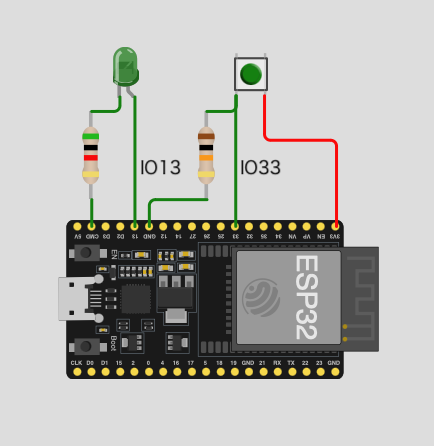
実物は、ESP32-WROOM-32E +変換基板 を ユニバーサル基板にハンダ付けして、3.3Vレギュレータモジュールを通して、モバイルバッテリーで稼働させています。
( DeepSleep状態でも電源供給を停止しない、旧式のモバイルバッテリーを使用 )
USBシリアルを搭載していないので、DeepSleep状態での消費電流は、公称の10μAに近いと思われる。
-
2Fデバイス
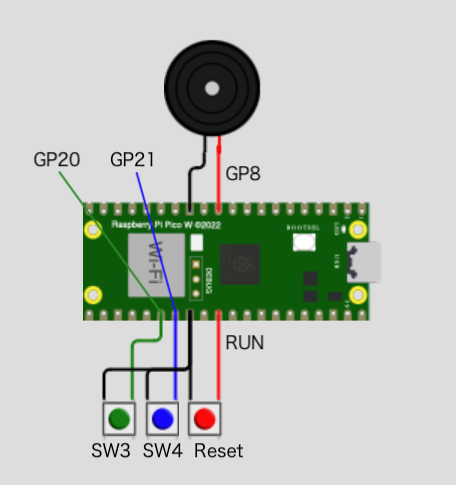
ソフトウェア
1Fデバイス
概要
- 普段は DeepSleep状態
- タクトスイッチを押すと、DeepSleepから復帰
- setup
- LED点滅状態(別コアでLED制御)
- WiFi接続 → HTTP(GET-REQUEST)発行
- LED点灯状態
- RESPONSEを受信したら、再び DeepSleep へ移行(LED消灯)
コード
client.ino
#include <WiFi.h>

RTC_DATA_ATTR int bootCount = 0;

const char *ssid = "SSID";
const char *pass = "PASSWORD";

const gpio_num_t wakeup = GPIO_NUM_33;
const int led = GPIO_NUM_13;
static int onoff = 1; // -1 always on, 0/1 blink

const char *host_name = "192.168.0.40"; //server address
const int  host_port  = 80;

WiFiClient client;

TaskHandle_t thp[1];
void Core0a(void *args) {
  while (1) {
    delay(100);
    if (onoff < 0) digitalWrite(led, HIGH);
    else {
      digitalWrite(led, onoff);
      onoff = 1 - onoff;
    }
  }
}

void setup() {
  Serial.begin(115200);
  delay(1000);

  onoff = 1;
  pinMode(led, OUTPUT);

  xTaskCreatePinnedToCore(Core0a, "Core0a", 4096, NULL, 3, &thp[0], 0);

  ++bootCount;
  Serial.println("Boot number: " + String(bootCount));

  print_wakeup_reason();

  esp_sleep_enable_ext0_wakeup(wakeup, 1);

  WiFi.begin(ssid, pass);
  Serial.print("WiFi connecting");
  while (WiFi.status() != WL_CONNECTED) {
    delay(500);
    Serial.print(".");
  }
  Serial.println("\nWiFi connected.");
  onoff = -1;

  while (true) {
    if (client.connect(host_name, host_port)) {
      char sendBuffer[128];
      sprintf(sendBuffer, "GET / HTTP/1.1\r\nHost: %s\r\n\r\n", host_name);
      client.print(sendBuffer);
      break;
    } else {
      Serial.println("client.connect error.");
      delay(100);
    }
  }
  while(true) {
    while(client.available()) {
      char c = client.read();
      Serial.print(c);
    }
    if(!client.connected()){
      Serial.println("disconnected");
      client.stop();
      break;
    }
  }

  Serial.println("Go to sleep now");
  esp_deep_sleep_start();
}

void loop() {}

void print_wakeup_reason() {
  esp_sleep_wakeup_cause_t wakeup_reason = esp_sleep_get_wakeup_cause();
  Serial.printf("x%02x: ", wakeup_reason);
  switch (wakeup_reason) {
    case 2: Serial.println("Wakeup caused by external signal using RTC_IO"); break;
    case 3: Serial.println("Wakeup caused by external signal using RTC_CNTL"); break;
    case 4: Serial.println("Wakeup caused by timer"); break;
    case 5: Serial.println("Wakeup caused by touchpad"); break;
    case 6: Serial.println("Wakeup caused by ULP program"); break;
    default: Serial.println("Wakeup was not caused by deep sleep"); break;
  }
}
2Fデバイス
概略
-
常時電源ON
-
setup
- WiFi(固定IP)接続
- HTTPサーバースタート
- ブザー鳴動(600Hz、0.5秒)(別コアでブザー鳴動制御)
-
loop
- HTTPハンドリング(REQUEST受信したら handleRootへ)
- SW3が 押されたら ブザー鳴動(1000Hz、0.5秒)(生存確認)
-
handleRoot
- ブザー鳴動(1000Hz)(SW4が 押されるまで)
- SW4が 押されたら ブザー停止
- RESPONSE応答
突然ブザーが鳴っても、びっくりしない程度の音量、音色
コード
server.ino
#include <WiFi.h>
#include <WiFiClient.h>
#include <WebServer.h>

const char *ssid = "SSID";
const char *pass = "PASSWORD";

IPAddress myIP(192, 168, 0, 40);  //static ip address
WebServer server(80);

static int note = 0;

void loop1() { //core1
  delay(100);
  if (note) {
    tone(8, note);
  } else {
    noTone(8);
  }
}

void handleRoot() {
  Serial.print("handleRoot...");
  note = 1000;
  while (digitalRead(21)) delay(10); // SW4
  note = 0;
  server.send(200, "text/HTML", "OK\r\n");
  Serial.println("exited");
}

void setup() {
  Serial.begin(115200);

  pinMode(20, INPUT_PULLUP);  //sw3
  pinMode(21, INPUT_PULLUP);  //sw4

  pinMode(8, OUTPUT);  //buzzer

  WiFi.disconnect(true);
  delay(500);

  WiFi.mode(WIFI_STA);
  WiFi.config(myIP);  // set ip address
  WiFi.begin(ssid, pass);
  Serial.print("WiFi connecting");
  while (WiFi.status() != WL_CONNECTED) {
    delay(500);
    Serial.print(".");
  }
  Serial.println("\nWiFi connected.");
  Serial.print("IP address: ");
  Serial.println(WiFi.localIP());

  server.on("/", handleRoot);

  server.begin();
  Serial.println("HTTP server started.");

  note = 600;
  delay(500);
  note = 0;
}

void loop() {
  if (!digitalRead(20)) {  // SW3
    note = 1000;
    delay(500);
    note = 0;
  }

  server.handleClient();
  delay(10);
}

その後、1Fデバイスを Raspberry Pi Pico W(Micropython)に変えました。
( 通常時は 40mA 程度に対し、DeepSleep状態では、安定化電源装置の電流値表示は 0.000A(1mA程度)であった )
以上、夏休みの電子工作でした。