

Node-REDのカスタムノードを作るときの設定パラメータをよく忘れがちなので、忘れちゃうものをまとめておきます。
こちらにまとまってる内容を元に自作ノードでの設定と照らし合わせておきます。
colorとかは分かりやすいんですけどね。
カスタムノードのhtmlファイル内のRED.nodes.registerType()の設定の中でパラメータを設定できます。
カテゴリー
サイドパネルに表示されるカテゴリー名です。内部の管理名にもなってるかも。
category: 'LINE',と書くことでLINEというカテゴリができます。

任意カテゴリ作れるのでノードの数が多い場合は任意カテゴリにしておいた方が良さそう。
アイコン - icon
アイコンは組み込みのものもありますが、選択肢が少ないのでfont-awesomeから検索します。
font-awesome/fa-<アイコン名>という形式で指定します。

例えば、checkを使う場合はfont-awesome/fa-checkですし、check-squareを使う場合はfont-awesome/fa-check-squareになります。
同じcommentアイコンの比較
fontawesomeを使ってicon: "font-awesome/fa-comment"とした場合が上で、Node-REDの組み込みアイコンのicon: "comment.png"とした場合が下です。
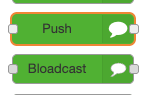
若干ですが、conmment.pngの方が、解像度が低くてぼやっとした印象ですがほぼ変わらないので好みの問題な気もします。
メインのフロー編集エリアでのノード表示名と左のサイドパレットでの表示名
- label: フロー画面での表示
- palletLabel: サイドパレットでの表示
となっています。これいつも忘れる。
{
省略

    label: function () {
        return this.name || 'Reply Message';
    },
    paletteLabel: "Reply"
}
こうした場合、以下のようサイドにいるときはReplyとなっていてフロー編集画面に持っていくとReply Messageという表示名になります。

アイコンの位置
これはシンプルにalignの指定です。
align: "right"
これで右側になります。
指定しないと左側になります。

この画像の場合、Uploadのノードはalignの指定無し、Get Imageはalign: "right"の指定をしています。
inputとoutputで入出力にキャプション
inputLabelsとoutputLabelsでノードの入出力に説明を追加できます。

こんな感じですね。これだと以下の書き方です。
outputLabels: ["sentMessages(object)"],
複数ある場合は配列で指定
outputLabels: ["hugahuga","hogehoge"],
あんまり使えてないけど、よりユーザーが迷いにくく親切になりますね。
参考用のHTMLの全体
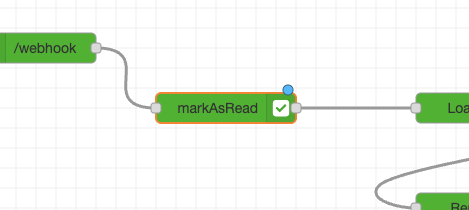
最近作ったLINEノード内のMark As ReadノードのHTMLです。
今回の記事で紹介した内容はだいたい入れ込んでます。
<script>
    RED.nodes.registerType('markAsRead', {
        category: 'LINE',
        color: '#01B301',
        defaults: {
            name: {value: ''},
            lineConfig: {value: "", type:"lineConfig", required:true},
        },
        inputs: 1,
        outputs: 1,
        inputLabels: ["LINE Messages Object"],
        outputLabels: ["LINE Messages Object or Error Message"],
        icon: "font-awesome/fa-check-square",
        align: 'right',
        label: function () {
            return this.name || 'Mark As Read';
        },
        paletteLabel: 'MarkAsRead',
    });
</script>

<script type="text/html" data-template-name="markAsRead">
    <!-- 名前 -->
    <div class="form-row">
        <label for="node-input-name">
            <i class="fa fa-tag"></i>
            <span data-i18n="markAsRead.label.name">名前</span>
        </label>
        <input type="text" id="node-input-name" placeholder="Name">
    </div>

    <!-- LINE Config -->
    <div class="form-row">
        <label for="node-input-lineConfig">
            <i class="fa fa-tag"></i>
            <span data-i18n="markAsRead.label.lineConfig">LINE Bot設定</span>
        </label>
        <input type="text" id="node-input-lineConfig">
    </div>

</script>

<script type="text/html" data-help-name="markAsRead">
    <p>Gets the user profile information.</p>
</script>