0
1

Delete article

Deleted articles cannot be recovered.

Draft of this article would be also deleted.

Are you sure you want to delete this article?

WSL2を自動起動する設定

0
Last updated at Posted at 2025-09-13

Windows 再起動後に WSL2 を自動起動させるための設定手順。

タスクスケジューラに登録して自動起動する。

(2026/02/07追記: 「設定」タブの設定およびコマンドラインからの起動手順を追記)

WSL2 自動起動設定

タスクスケジューラの設定手順

  • タスクスケジューラを起動する
    • スタートメニュー -> Windowsツール -> コンピュータの管理 -> タスクスケジューラ
  • 「タスクの作成」を実行し、以下を設定する
    • 「名前」を入力(名前は任意)

      • WSL2 start on boot
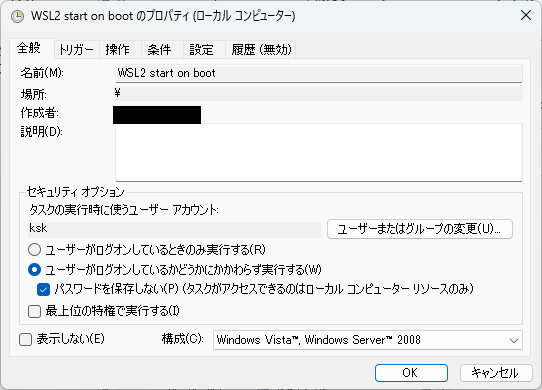
    • 「全般」タブ

      • 「ユーザーがログオンしているかどうかにかかわらず実行する」を選択
      • 「パスワードを保存しない」をチェック
        スクリーンショット 2025-09-13 150745.png
    • 「トリガー」タブ

      • 「新規」
      • 「タスクの開始」->「スタートアップ時」
        スクリーンショット 2025-09-13 151430.png
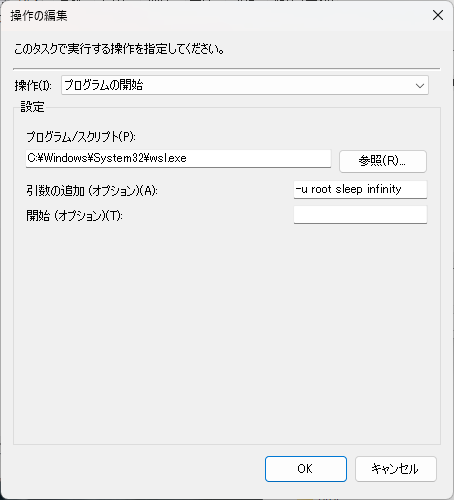
    • 「操作」タブ

      • 「新規」
      • 「操作」->「プログラムの開始」
      • 「プログラム/スクリプト」: C:\Windows\System32\wsl.exe
      • 「引数の追加」: -u root sleep infinity
        スクリーンショット 2025-09-13 151454.png
        スクリーンショット 2025-09-13 151502.png
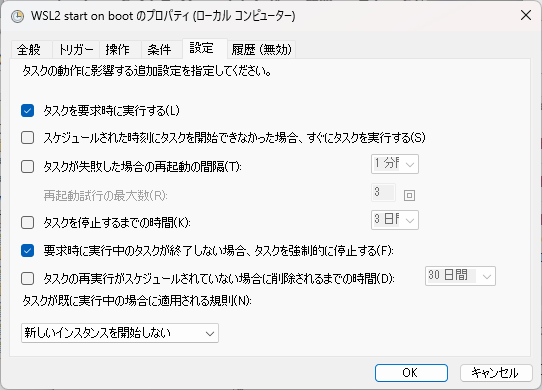
    • 「設定」タブ

      • 「タスクを停止するまでの時間」のチェックを外す
      • スクリーンショット 2026-02-07 161417.png
    • OKで追加

  • Windows を再起動する

コマンドラインからの起動手順

  • タスクの実行開始
schtasks /run /tn "WSL2 start on boot"
  • タスクの実行状態の表示
schtasks /tn "WSL2 start on boot"
注意事項
  • コマンドラインから実行すると、「設定」タブの「タスクを停止するまでの時間」経過後に停止してしまうため、このチェックを外しておく必要がある
  • タスクスケジューラのアプリから右クリックで「実行する」で開始した場合はこの設定に関わらず停止はしない(らしい)
  • 詳細は参考情報を参照

参考情報

0
1
0

Register as a new user and use Qiita more conveniently

  1. You get articles that match your needs
  2. You can efficiently read back useful information
  3. You can use dark theme
What you can do with signing up
0
1

Delete article

Deleted articles cannot be recovered.

Draft of this article would be also deleted.

Are you sure you want to delete this article?