
2026年5月12日、データベースへの接続機能を提供するOCIサービス「データベース・ツール」にMCPサーバーの機能が追加されました。Release Notes に以下の記載がある通り、Oracle Database へMCPを介してアクセスできるマネージドMCPサーバーとして利用することができます。
Database Tools MCP Serverは、MCPクライアントがModel Context Protocol (MCP)を介してOracle AI Databaseに安全にアクセスできるようにする、管理されたマルチテナント・サービスです。このサービスは、IAMアイデンティティ・ドメインのOAuth 2.0と統合され、組込みおよびカスタムのSQLおよびPL/SQLツールをサポートします。
https://docs.oracle.com/ja-jp/iaas/releasenotes/database-tools/mcp.htm
MCPを使用した接続では、認可サーバーとして OCI IAM Identity domains が使われます、これは MCP サーバーを作成する際に使用するドメインを指定する形になりますが、どうも接続フローに関してはログを見る限り、MCPの2025-11-25 版の認可仕様に沿っているようです。
そこでこの記事では、初期アクセスから実際にトークンが払い出されるまでのフローを確認しながら、Database Tools MCP Server の認可の仕組みを追っていきたいと思います。
MCP Authorization 仕様について
とはいえ、MCPの仕様に沿っているだけですからそこまで変わったことがあるわけでもないため、この記事では仕様を網羅的に説明するのではなく、実際の通信で何が起きているかを確認することに絞ります。仕様の詳細は以下から確認することができますので、知りたい方はこちらを読むといいでしょう。
さて、あくまで私の理解ですが、この 2025-11-25 版の仕様のフローは次の4つのフェーズに大きく分けて整理ができます。
- MCPサーバーのメタデータ取得
- 認可サーバーのメタデータ取得
- クライアント登録
- OAuth フローの開始
ここからはこの順に見ていきます。
1. MCPサーバーのメタデータの取得
MCPクライアントはMCPサーバーのURLを与えられると、まずはなんの考えもなくPOSTリクエストを行います。
Database Tools MCP Server の場合、https://mcp.dbtools.ap-sydney-1.oci.oraclecloud.com/20250830/databaseToolsMcpServers/ocid1.databasetoolsmcpserver.oc1.ap-sydney-1.xxx/actions/invokeのような形で与えられていると思います。
POST https://mcp.dbtools.ap-sydney-1.oci.oraclecloud.com/20250830/databaseToolsMcpServers/ocid1.databasetoolsmcpserver.oc1.ap-sydney-1.xxx/actions/invoke
トークンを付与していないため、これに対するレスポンスは以下のように 401 Unauthorized が返却され、www-authenticateにMCPサーバーへアクセスするための情報が書かれています。
401 Unauthorized

www-authenticate:
	Bearer
        error="invalid_request",
        error_description="No access token was provided in this request",
        resource_metadata="https://mcp.dbtools.ap-sydney-1.oci.oraclecloud.com/.well-known/oauth-protected-resource/20250830/databaseToolsMcpServers/ocid1.databasetoolsmcpserver.oc1.ap-sydney-1.xxx/actions/invoke",
        scopes="urn:opc:dbtools:mcpserver:ocid1.databasetoolsmcpserver.oc1.ap-sydney-1.xxx:all"
これを見て、MCPクライアントはなるほどということで resource_metadata に書かれた場所にリソースサーバー(MCPサーバー)の情報を取りに行きます。このパス形式に関しては RFC9728 の通りですね。1
GET https://mcp.dbtools.ap-sydney-1.oci.oraclecloud.com/.well-known/oauth-protected-resource/20250830/databaseToolsMcpServers/ocid1.databasetoolsmcpserver.oc1.ap-sydney-1.xxx/actions/invoke
レスポンスは以下のようになります。
{
	"resource": "https://mcp.dbtools.ap-sydney-1.oci.oraclecloud.com/20250830/databaseToolsMcpServers/ocid1.databasetoolsmcpserver.oc1.ap-sydney-1.xxx/actions/invoke",
	"authorization_servers": [
		"https://idcs-aaa.identity.oraclecloud.com:443"
	],
	"scopes_supported": [
		"urn:opc:dbtools:mcpserver:ocid1.databasetoolsmcpserver.oc1.ap-sydney-1.xxx:all"
	],
	"bearer_methods_supported": [
		"header"
	],
	"resource_name": "mcp-dbtools-adb-zzzzzzzz",
	"resource_documentation": "https://docs.oracle.com/en-us/iaas/database-tools"
}
これで該当のMCPサーバーが利用している認可サーバー(Identity Domain)の位置と必要なスコープが把握できました。
2. 認可サーバーのメタデータの取得
認可サーバーの位置がわかったので、認可サーバーのメタデータを取得しにいきます。
GET https://idcs-aaa.identity.oraclecloud.com:443/.well-known/oauth-authorization-server
レスポンスは以下のようになります。
{
  "issuer": "https://identity.oraclecloud.com/",
  "authorization_endpoint": "https://idcs-aaa.oraclecloud.com:443/oauth2/v1/authorize",
  "token_endpoint": "https://idcs-aaa.identity.oraclecloud.com:443/oauth2/v1/token",
  "token_endpoint_auth_methods_supported": [
    "client_secret_basic",
    "private_key_jwt",
    "client_secret_post",
    "none"
  ],
  "token_endpoint_auth_signing_alg_values_supported": [
    "RS256"
  ],
  "jwks_uri": "https://idcs-aaa.identity.oraclecloud.com:443/admin/v1/SigningCert/jwk",
  "scopes_supported": [
    "openid",
    "profile",
    "offline_access",
    "email",
    "address",
    "phone",
    "groups",
    "get_groups",
    "approles",
    "get_approles"
  ],
  "response_types_supported": [
    "code",
    "token",
    "id_token",
    "code token",
    "code id_token",
    "token id_token",
    "code token id_token"
  ],
  "ui_locales_supported": [
    "en"
  ],
  "revocation_endpoint": "https://idcs-aaa.identity.oraclecloud.com:443/oauth2/v1/revoke",
  "introspection_endpoint": "https://idcs-aaa.identity.oraclecloud.com:443/oauth2/v1/introspect",
  "code_challenge_methods_supported": [
    "S256"
  ],
  "secure_authorization_endpoint": "https://idcs-aaa.ap-sydney-idcs-1.secure.identity.oraclecloud.com/oauth2/v1/authorize",
  "secure_token_endpoint": "https://idcs-aaa.ap-sydney-idcs-1.secure.identity.oraclecloud.com/oauth2/v1/token",
  "secure_userinfo_endpoint": "https://idcs-aaa.ap-sydney-idcs-1.secure.identity.oraclecloud.com/oauth2/v1/userinfo",
  "secure_revocation_endpoint": "https://idcs-aaa.ap-sydney-idcs-1.secure.identity.oraclecloud.com/oauth2/v1/revoke",
  "secure_introspection_endpoint": "https://idcs-aaa.ap-sydney-idcs-1.secure.identity.oraclecloud.com/oauth2/v1/introspect",
  "secure_jwks_uri": "https://idcs-aaa.ap-sydney-idcs-1.secure.identity.oraclecloud.com/admin/v1/SigningCert/jwk",
  "grant_types_supported": [
    "client_credentials",
    "password",
    "refresh_token",
    "authorization_code",
    "urn:ietf:params:oauth:grant-type:jwt-bearer",
    "tls_cert_auth"
  ],
  "userinfo_endpoint": "https://idcs-aaa.identity.oraclecloud.com:443/oauth2/v1/userinfo"
}
色々書いてありますが、ここではMCPクライアントはリクエスト先のエンドポイントやサポートされる付与方式、PKCE が対応しているか(code_challenge_methods_supported)等をチェックします。
mcp-remoteを使用している場合、このあとトークンキャッシュの確認や接続テストを行い、OAuthフローに入るかどうかを確認しているようです。
3. クライアント登録
次にクライアント登録を行います。
2025-11-25 版認可仕様では、クライアント登録について次の選択肢が示されています。
- Client ID Metadata Documents: When client and server have no prior relationship (most common)
- Pre-registration: When client and server have an existing relationship
- Dynamic Client Registration: For backwards compatibility or specific requirements
OCI IAM Identity Domains は2026年6月13日時点では、動的クライアント登録(DCR)や CIDM の動的なクライアント登録方法を持ちません。そのため、今のところは静的な事前登録(Pre-registration)を使用することになります。
なお、2025-11-25 版の Authorization 仕様に対応していない MCP クライアントもまだ多いため、しばらくは mcp-remote を併用する場面が多いかもしれません。
4. OAuthフロー
クライアント登録まで済ませると、OAuth のフローに入ります。
通常、MCP サーバーのメタデータ取得時に確認した scope と resource パラメータを使用しつつリクエストを行います。ここについては OAuth 2.1 や Resource Parameter Indicators など色々ありますが、このあたりの動作については MCP 仕様を確認ください。
OCIのコンソールから見ると scope は offline_access(リフレッシュトークン)まで含んでいるようですが、これは必要に応じて指定します。
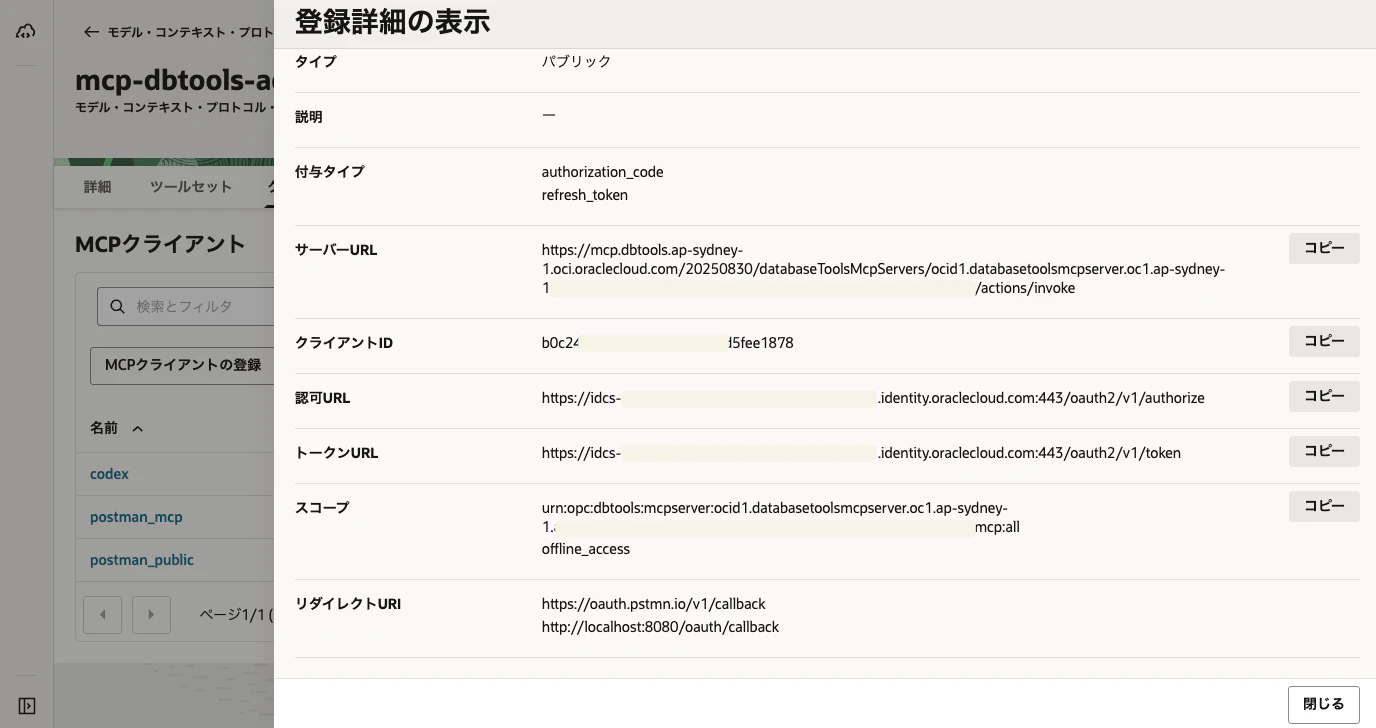
Claude のドキュメントによると、認可サーバーメタデータの scopes_supported に offline_access がある場合、Claude はリフレッシュトークン取得のために offline_access を追加するそうです。2
Claude Desktop から Database Tools MCP Server に接続する
ということで、ドキュメントのチュートリアルではmcp-remoteを使用したものが紹介されていますが、11月仕様に対応している MCP クライアントであればそのままHTTPでアクセスできるはずです。そこで、ここからは MCPクライアントとして Claude Desktop のカスタムコネクタを使用して接続を行ってみます。
なお、前提条件として MCPサーバーは構築されていることを前提とします。必要に応じてドキュメントのチュートリアルを参考にします。
その他の事前設定として redirect_urisにhttps://claude.ai/api/mcp/auth_callbackを登録しておきます。
設定手順は以下の通りです。
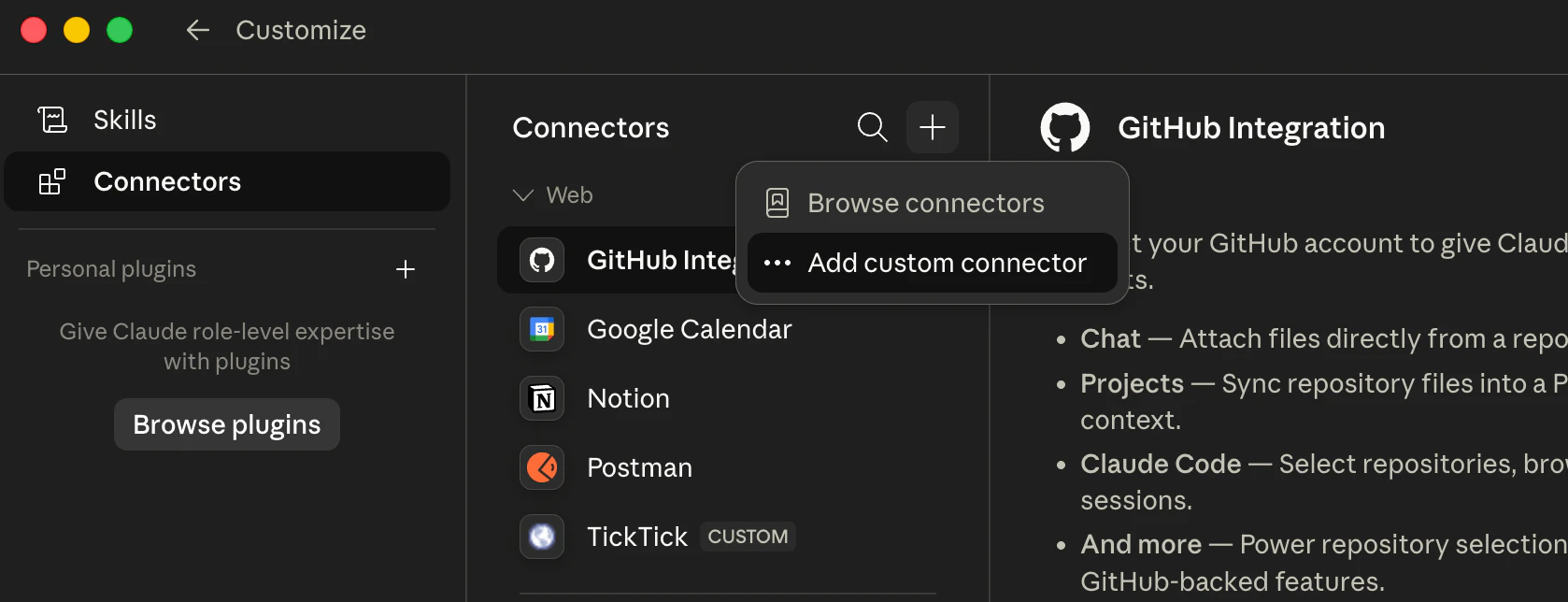
- Claude の Customize → Connectors を開き、
+から Add custom connector を選択
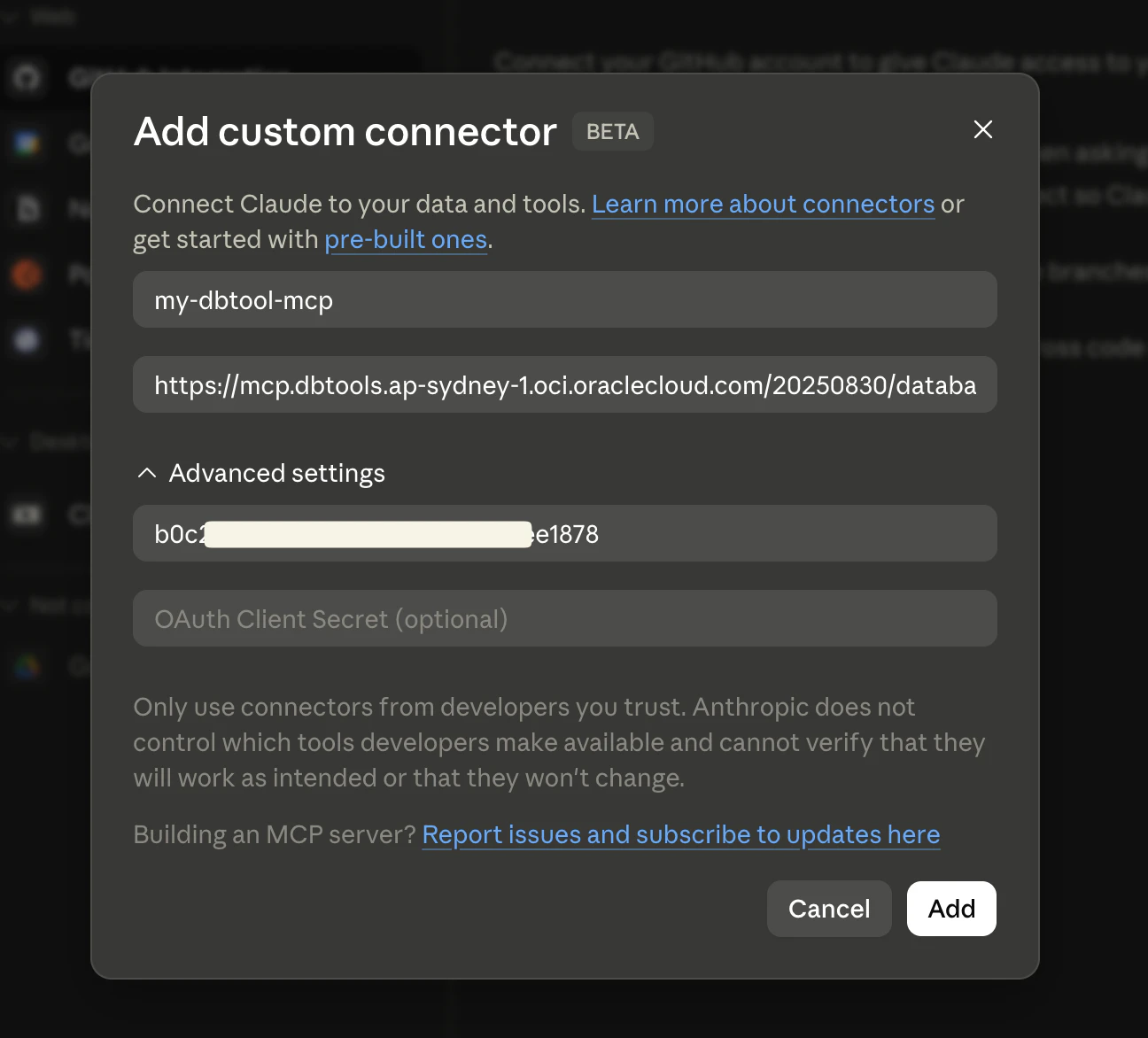
- Remote MCP Server URL を入力
- 事前登録した OAuth Client ID と必要に応じて OAuth Client Secret を入力し、Addを選択
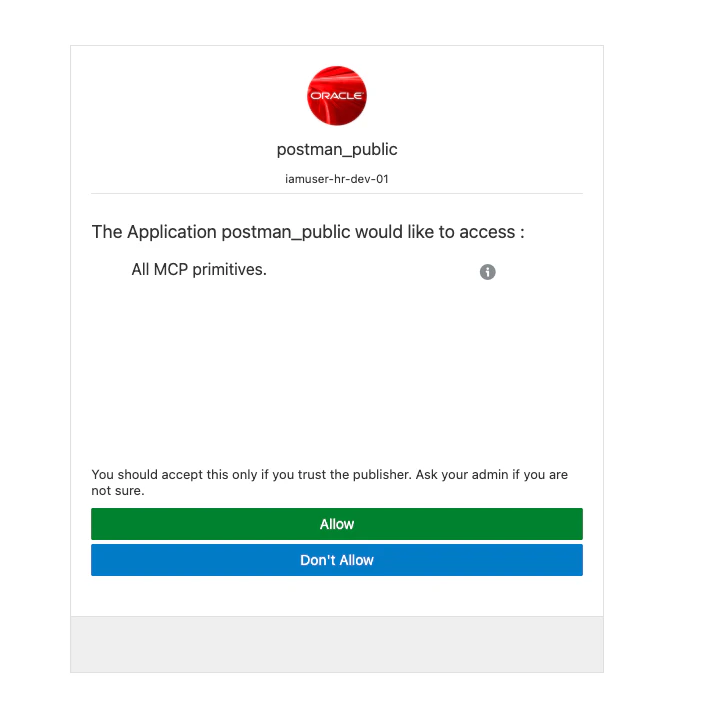
コネクタ一覧から Connect をクリックすると、ブラウザが立ち上がり、Claude、そして Identity Domains の認証が行われます。
Database Tools MCP Server で作成した tool が正しく認識されていることを確認します。
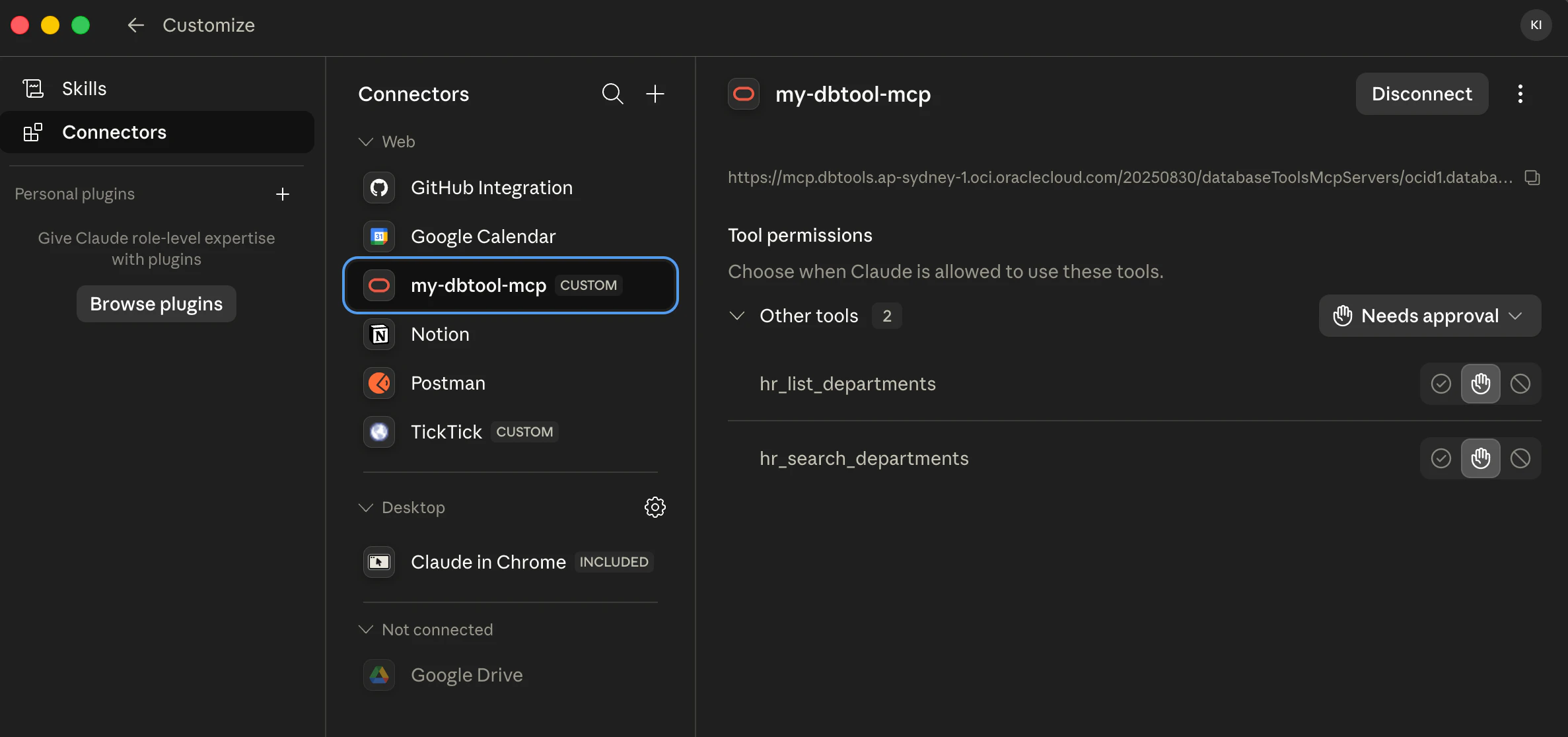
コネクタを使用する際は、会話画面の + → Connectors から、その会話で有効化します。

カスタムコネクタ経由のリモート MCP 接続は Anthropic のクラウド側から MCP サーバーへ到達するようです。そのため、プライベートネットワーク上の MCP サーバーとは挙動が異なります。3
補足: Database Tools による DB 接続方式について
Database Tools の DB 接続においては、従来のパスワード方式の他に、OCI IAM による認証もサポートしています。
これは OCI IAM のトークンを使用してデータベースへ接続することで、OCI ユーザーやグループを使用して接続及び権限管理ができるものです。決められた接続設定でなく、OCI IAM のコンテキストで接続及び認可が行われます。この設定については以下の記事で紹介しているので、ご参考にしてください。
MCP を利用する場合は多くの利用者が想定されます。OCI 側でユーザーやグループ管理をDBまでの接続権限をまとめて管理できるのは利点だと言えます。