はじめに
Windowsサービスってどうやって作るの?
Windowsサービスとクライアントアプリはどうやって通信するの?
ってことでやっていきましょう。
検証環境
- win11
- .NET10
- Visual Studio 2026
プロジェクト作成
gRPC用のライブラリ
通信には gRPC を使いました。
xml MygRPC.csproj
<Project Sdk="Microsoft.NET.Sdk">

	<PropertyGroup>
		<TargetFramework>net10.0</TargetFramework>
		<ImplicitUsings>enable</ImplicitUsings>
		<Nullable>enable</Nullable>
	</PropertyGroup>

    <!-- 必要なパッケージ -->
	<ItemGroup>
		<PackageReference Include="Grpc.Tools" Version="2.78.0" PrivateAssets="All" />
		<PackageReference Include="Grpc.Net.Client" Version="2.76.0" />
		<PackageReference Include="Google.Protobuf" Version="3.27.0" />
	</ItemGroup>

    <!-- protoファイルをビルドするための設定 -->
	<ItemGroup>
		<Protobuf Include="Protos\MygRPC.proto" GrpcServices="Both" />
	</ItemGroup>

</Project>
サンプルとして、int Type を渡して string Messageを取得するproto
syntax = "proto3";

package MygRPC;

message GetMessageRequest {
  int32 type = 1;
}

message GetMessageResponse {
  string message = 1;
}

service MessageService {
  rpc GetMessage(GetMessageRequest) returns (GetMessageResponse);
}
Windowsサービス用コンソールアプリ
サンプルではgRPCの通信方式はhttp2平文ですが、実運用ではTLS化するなどします。
xml MyService.csproj
<Project Sdk="Microsoft.NET.Sdk">

	<PropertyGroup>
		<OutputType>Exe</OutputType>
		<TargetFramework>net10.0</TargetFramework>
		<ImplicitUsings>enable</ImplicitUsings>
		<Nullable>enable</Nullable>
	</PropertyGroup>

    <!-- 必要なパッケージ -->
	<ItemGroup>
		<PackageReference Include="Grpc.AspNetCore" Version="2.76.0" />
		<PackageReference Include="Microsoft.Extensions.Hosting" Version="10.0.3" />
		<PackageReference Include="Microsoft.Extensions.Hosting.WindowsServices" Version="10.0.3" />
	</ItemGroup>

    <!-- プロジェクト依存関係 -->
	<ItemGroup>
		<ProjectReference Include="..\MygRPC\MygRPC.csproj" />
	</ItemGroup>

</Project>
Program.cs
using Grpc.Core;
using Microsoft.AspNetCore.Builder;
using Microsoft.AspNetCore.Hosting;
using Microsoft.AspNetCore.Server.Kestrel.Core;
using Microsoft.Extensions.DependencyInjection;
using Microsoft.Extensions.Hosting;
using MygRPC;

var builder = WebApplication.CreateBuilder(args);

// Windowsサービスとしてのホスト設定
builder.Host.UseWindowsService();

// バックグラウンドサービスの追加
builder.Services.AddHostedService<Worker>();

// gRPCサービスの追加
builder.Services.AddGrpc(options =>
{
    options.EnableDetailedErrors = true;
});

// Kestrelサーバーの設定(TODO TLS)
builder.WebHost.ConfigureKestrel(options =>
{
    options.ListenLocalhost(50051, listenOptions =>
    {
        listenOptions.Protocols = HttpProtocols.Http2;
    });
});

// MessageStateとMessageServiceImplをシングルトンとして登録
builder.Services.AddSingleton<MessageServiceImpl>();
builder.Services.AddSingleton<MessageState>();

// アプリケーションのビルド
var app = builder.Build();

// gRPCサービスのマッピング
app.MapGrpcService<MessageServiceImpl>();

// アプリケーションの実行
await app.RunAsync();

// バックグラウンドサービスの実装
class Worker(MessageState messageState) : BackgroundService
{
    protected override async Task ExecuteAsync(CancellationToken stoppingToken)
    {
        // サービスが停止されるまでループ
        while (!stoppingToken.IsCancellationRequested)
        {
            // 現在の日時をメッセージとして設定
            var message = string.Format("Worker running at: {0}", DateTimeOffset.Now);
            messageState.SetMessage(message);

            // 1秒待機
            await Task.Delay(1000, stoppingToken);
        }
    }
}

// gRPCサービスの実装
public class MessageServiceImpl(MessageState messageState) : MessageService.MessageServiceBase
{
    public override Task<GetMessageResponse> GetMessage(GetMessageRequest request, ServerCallContext context)
    {
        return Task.FromResult(new GetMessageResponse
        {
            Message = messageState.GetMessage()
        });
    }
}

// メッセージの状態を管理するクラス
public class MessageState
{
    private readonly object _lock = new();
    private string _latestMessage = string.Empty;

    public void SetMessage(string message)
    {
        lock (_lock)
        {
            _latestMessage = message;
        }
    }

    public string GetMessage()
    {
        lock (_lock)
        {
            return _latestMessage;
        }
    }
}
ビルド
dotnet publish -c Release -r win-x64 --self-contained false
サービスとして登録して起動 (管理者で実行)
sc create MyService binPath="C:\pathto\MyService\bin\Release\net10.0\win-x64\publish\MyService.exe"
sc start MyService

# 後始末
# sc stop MyService
# sc delete MyService
クライアントアプリ
サンプルはWinUI3
xml MyApp.csproj
    <!-- 必要なパッケージ(抜粋) -->
    <ItemGroup>
		<PackageReference Include="Grpc.Net.Client" Version="2.76.0" />
	</ItemGroup>

    <!-- プロジェクトの依存関係 -->
	<ItemGroup>
		<ProjectReference Include="..\MygRPC\MygRPC.csproj" />
	</ItemGroup>
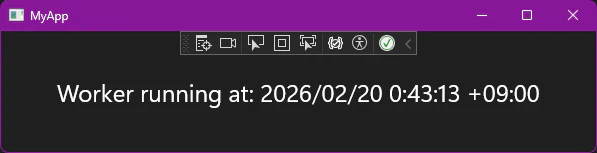
画面を実装して、メッセージを表示します。
xaml MainWindow.xaml
    <!-- 抜粋 -->
    <Grid Loaded="Root_Loaded">
        <TextBlock x:Name="MessageText" HorizontalAlignment="Center" VerticalAlignment="Center" FontSize="24" />
    </Grid>
MainWindow.xaml.cs
using Grpc.Net.Client;
using Microsoft.UI.Dispatching;
using Microsoft.UI.Xaml;
using MygRPC;
using System;
using System.Threading;
using System.Threading.Tasks;

namespace MyApp;

public sealed partial class MainWindow : Window
{
    // gRPCクライアント
    private MessageService.MessageServiceClient _client;

    // キャンセルトークンソース
    private CancellationTokenSource _cts = new();

    public MainWindow()
    {
        InitializeComponent();
        Closed += MainWindow_Closed;
    }

    // ウィンドウが読み込まれたときにgRPCサーバーへの接続を確立し、メッセージのポーリングを開始する
    private void Root_Loaded(object sender, RoutedEventArgs e)
    {
        // gRPCサーバーへの接続を確立
        var channel = GrpcChannel.ForAddress("http://localhost:50051");

        // gRPCクライアントの初期化
        _client = new MessageService.MessageServiceClient(channel);

        // メッセージのポーリングを開始
        _ = StartPollingAsync(_cts.Token);
    }

    // メッセージのポーリングを実施
    private async Task StartPollingAsync(CancellationToken token)
    {
        while (!token.IsCancellationRequested)
        {
            try
            {
                // gRPCサーバーからメッセージを取得
                var reply = await _client.GetMessageAsync(new GetMessageRequest { Type = 1 });

                // UIスレッドでメッセージを更新
                DispatcherQueue.TryEnqueue(() =>
                {
                    MessageText.Text = reply.Message;
                });
            }
            catch (Exception ex)
            {
                // エラーが発生した場合は、UIスレッドでエラーメッセージを表示
                DispatcherQueue.TryEnqueue(() =>
                {
                    MessageText.Text = "error";
                });
            }

            // 1秒待機してから次のポーリングを行う
            await Task.Delay(1000, token);
        }
    }

    // ウィンドウが閉じられるときにキャンセルトークンをキャンセルして、ポーリングを停止する
    private void MainWindow_Closed(object sender, WindowEventArgs args)
    {
        _cts.Cancel();
    }
}
実行結果