
本記事ではMac版CursorからSingleStore MCPを使用する方法についてご紹介します。
テスト環境
- MacBook Pro 14 inch
- MacOS 15.7.1
- Cursor 2.2.12
- Python 3.13
- SingleStore Heliosアカウント
- SingleStore MCP Server
Cursorはブラウザ版ではなくデスクトップアプリを使用する必要があります。
SingleStore Heliosアカウントの作成方法は下記記事をご参照ください。
テスト手順
Single Store MCP Serverリポジトリをgit cloneします。
git clone https://github.com/singlestore-labs/mcp-server-singlestore.git
mcp-server-singlestoreディレクトリに移動します。
cd mcp-server-singlestore
BrewでPythonの高速パッケージマネージャーであるuvをインストールします。
brew install uv
uvでPython 3.13をインストールします。
uv python install 3.13
Python 3.14ではuv run pre-commit installに失敗しました。
.venvディレクトリ内に仮想環境を作成します。
uv venv .venv --python 3.13
仮想環境をアクティベートします。
source .venv/bin/activate
アクティベートされた環境でのバージョンを確認します。
python --version
開発環境のセットアップを実施します。
uv sync --dev
uv run pre-commit install
SingleStore MCP ServerをCursor向けに初期化して起動します。
uvx singlestore-mcp-server init --client=cursor
uvx singlestore-mcp-server start
この時点でブラウザウィンドウが開き、SingleStore Heliosアカウントへのサインインを求められます。
サインインするとブラウザに認証成功の画面が表示されます。

認証後、ターミナルに「認証成功」というメッセージが表示され、環境が接続されたことを確認します。
私の環境ではCursorデスクトップアプリの設定で、MCPサーバーを無効にしてから再度有効にする必要がありました。

Command + L を押すと、CursorでAIチャットウィンドウが開きます。
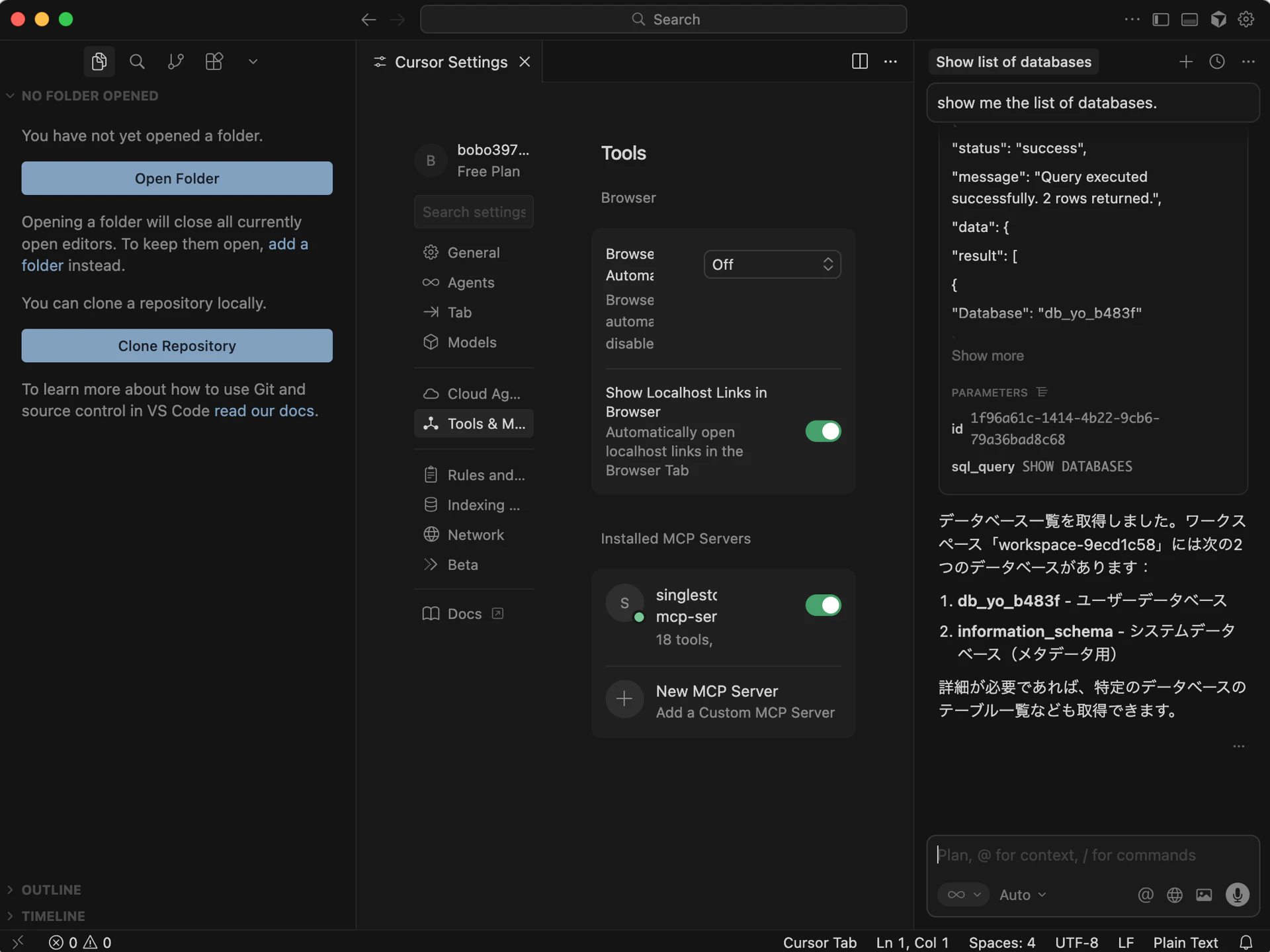
AIチャットウィンドウから、自然言語でSingleStoreを操作することが可能になります(下記画像ではデータベース一覧を表示させています)。
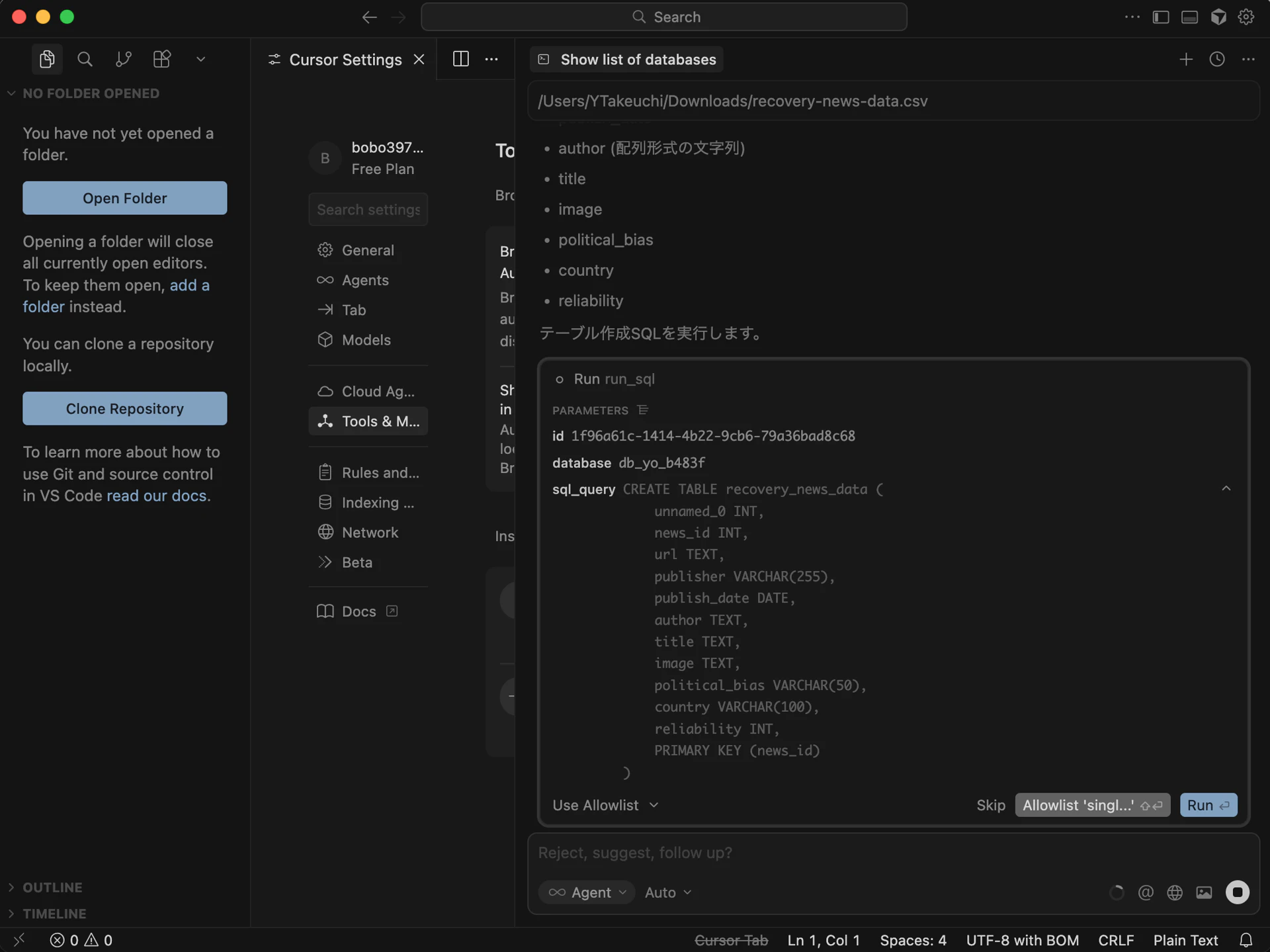
例として、手元のCSVファイルに基づいてテーブルを作成するように依頼してみます。
SingleStore Heliosポータルで、テーブルが作成されていることを確認できました。

まとめ
今回はCursorでSingleStore MCPサーバを使用しましたが、Claude DesktopやVS Codeなどでも使用することが可能です。
対応しているクライアントについては下記Gitページをご参照ください。