
概要
Raspberry Piでは使えなかったVSCodeのRemote-SSHがバージョンアップでSupportedにラズパイが含まれていたので試してみました。
必要な環境
- VScode(1.39.1)
- Raspberry Pi(Raspberry Pi 3 Model B)
インストールする拡張機能
- ms-vscode-remote.remote-ssh
- ms-python.python(必要なら。pythonの実行/デバッグで使用)
- rogalmic.bash-debug(必要なら。bashの実行/デバッグで使用)
セットアップ
拡張機能のインストール
Powershell から下記コマンドを実行。もしくはVSCodeの拡張機能(Ctrl + Shift + X)からRemote-SSHを検索してインストールする。
Powershell-拡張機能のインストール
PS> code --install-extension ms-vscode-remote.remote-ssh
リモートホストに接続
事前準備
SSH用フォルダがなければ作成する
Powersehll-フォルダ作成
PS> mkdir $HOME/.ssh
リモートホストの追加
VSCodeを起動。下記手順でリモートホストを追加する
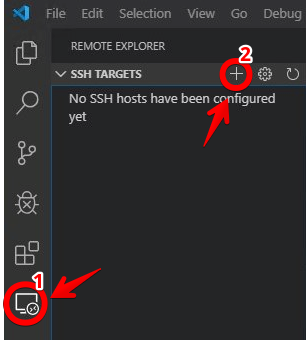
ユーザー名とホスト名を入力

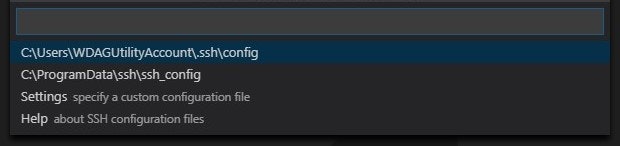
SSH設定の保存先を指定。事前準備で作成したフォルダを指定する
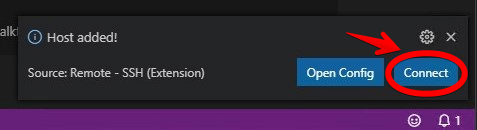
リモートホストに接続。VSCodeの右下にポップアップが出るのでConnectをクリック。SSH鍵を登録していない場合はSSHアカウントのパスワードを聞かれるので入力する
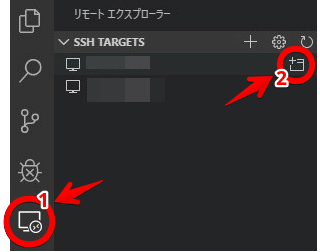
自分の環境では初回接続時は失敗したのでダイアログでRetryを選択しました。追加したホストはリモートエクスプローラーのSSH TARGETS一覧に表示されるので下記のようにして接続する事もできます。
リモートホストのフォルダを開く
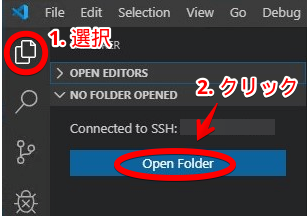
以降、開いたフォルダでの操作(新規作成、編集など)はリモートホスト上の対象フォルダ配下に反映されます
リモートでプログラムを実行
Pythonの実行
リモートホストのPythonを実行してみる。
※なお、VSCodeの拡張機能は環境毎にインストールが必要
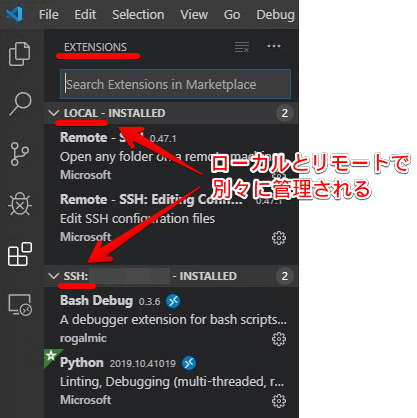
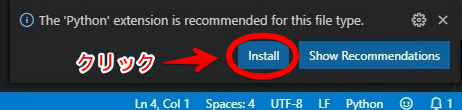
Pythonの場合、拡張子.py のファイルを開くと拡張機能のインストールをうながされるので指示に従うのが楽。
実行はタブの右にある アイコンをクリック

bashのデバッグ
拡張機能をインストール
拡張機能 rogalmic.bash-debug を検索してリモート環境にインストール
設定ファイルの作成
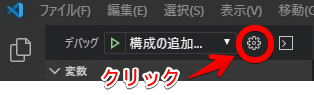
内容は以下↓
launch.json
{
    // Use IntelliSense to learn about possible attributes.
    // Hover to view descriptions of existing attributes.
    // For more information, visit: https://go.microsoft.com/fwlink/?linkid=830387
    "version": "0.2.0",
    "configurations": [
        {
            "type": "bashdb",
            "request": "launch",
            "name": "Bash-Debug (simplest configuration)",
            "program": "${file}",
            "terminalKind": "debugConsole"
        }
    ]
}
デバッグ
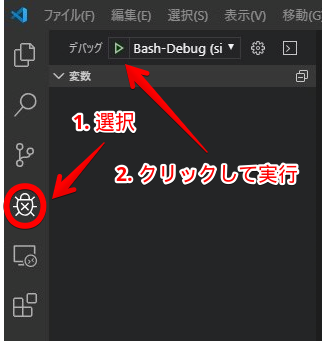
任意のシェルスクリプトを開いてから、下記の手順でデバッグを開始する
まとめ
ローカルホストと同じような操作で実行やデバッグができるので便利!