

なぜ「直接編集」なのか
VSCodeではSplit ViewでMarkdownプレビューを見ることができますが、プレビュー用に画面幅を使うため、そのまま編集できた方がスマートです。とくにAIと一緒に記事を書く開発では、プレビューと編集を行き来せずに済む分、かなり使いやすくなります。
標準スプリットエディタでも整形されたMarkdownが読めますが、画面幅を使うので作業スペースが圧迫されます。
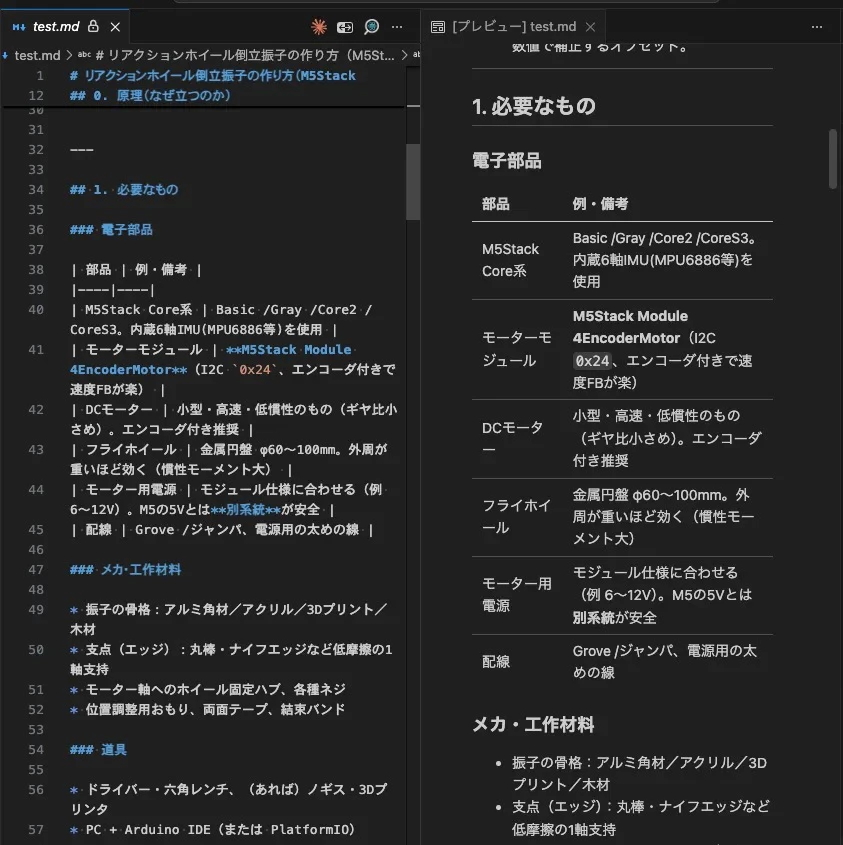
meo拡張を使うとどうなるか
そこでおすすめしたいのが、meoというVSCode拡張機能です。
meoを使うと、以下のように整形された状態を見ながら編集できます。標準エディタが生のMarkdownをそのまま表示するのに対し、meoは整形された状態のまま直接編集できます。
| 表示対象 | 標準エディタ | meo拡張 |
|---|---|---|
| テーブル | 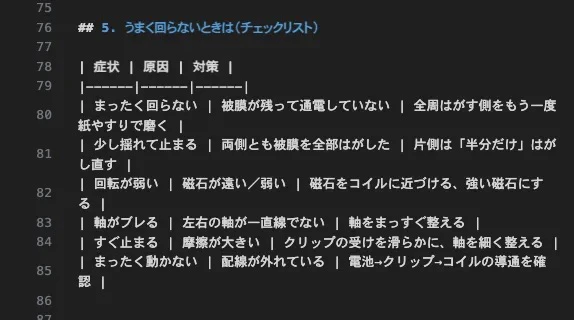 |
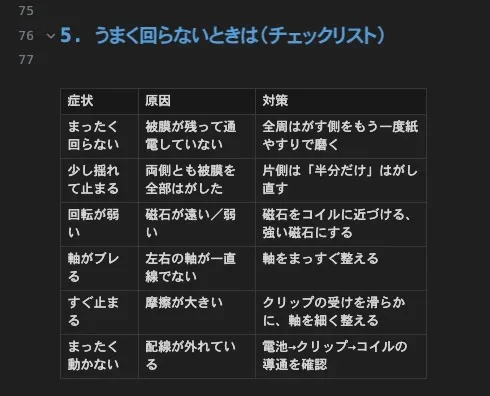 |
| 見出し・文字装飾 | 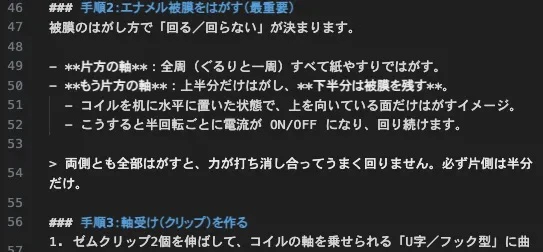 |
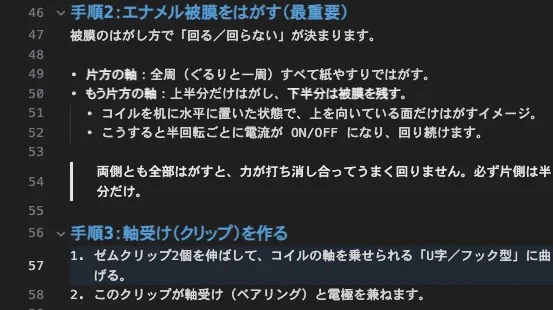 |
目次も横に置きながら編集でき、Gitの差分なども確認できます。
導入手順
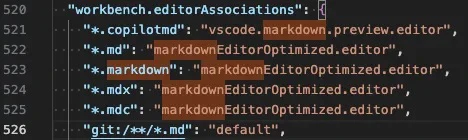
VSCodeで⌘+,を押して、モーダル上部のファイルアイコンをクリックし、settings.jsonに以下を記述します。
settings.json
"workbench.editorAssociations": {
  "*.md": "markdownEditorOptimized.editor",
  "*.markdown": "markdownEditorOptimized.editor", // お好みで
  "*.mdx": "markdownEditorOptimized.editor", // お好みで
  "*.mdc": "markdownEditorOptimized.editor", // お好みで
}
テーマをカスタマイズする
テーマもカスタマイズできます。標準のテーマの色が特殊なので、私はこうしています。
custom-theme.json
{
  "id": "custom-theme",
  "name": "Custom theme",
  "colors": {
    "base01": "#D4D4D4",
    "base02": "#D4D4D4",
    "base03": "#373737",
    "base04": "#569CD6",
    "base05": "#529CCA",
    "base06": "#4DAB9A",
    "base07": "#E6E6E6",
    "base08": "#FFA344",
    "base09": "#529CCA"
  },
  "syntaxTokens": {
    "keyword": "",
    "identifier": "",
    "macroName": "",
    "variableName": "",
    "propertyName": "",
    "typeName": "",
    "className": "",
    "namespace": "",
    "operator": "",
    "operatorKeyword": "",
    "punctuation": "",
    "functionName": "",
    "labelName": "",
    "definitionFunction": "",
    "definedVariable": "",
    "number": "",
    "changed": "",
    "annotation": "",
    "modifier": "",
    "self": "",
    "color": "",
    "constant": "",
    "atom": "",
    "bool": "",
    "specialVariable": "",
    "specialString": "",
    "regexp": "",
    "string": "",
    "typeDefinition": "",
    "meta": "",
    "comment": "",
    "tagName": "",
    "attributeName": "",
    "invalid": "",
    "deleted": "",
    "monospace": "",
    "heading": "",
    "emphasis": "",
    "strong": "",
    "strikethrough": "",
    "quote": "",
    "contentSeparator": "",
    "link": "",
    "url": "",
    "processingInstruction": ""
  },
  "fonts": {
    "liveFont": "",
    "sourceFont": "",
    "liveFontWeight": "",
    "sourceFontWeight": "",
    "liveFontSize": null,
    "sourceFontSize": null,
    "h1FontSize": 1.6,
    "h2FontSize": 1.5,
    "h3FontSize": 1.3,
    "h4FontSize": 1.2,
    "h5FontSize": 1.1,
    "h6FontSize": 1,
    "h1FontWeight": "600",
    "h2FontWeight": "600",
    "h3FontWeight": "600",
    "h4FontWeight": "600",
    "h5FontWeight": "600",
    "h6FontWeight": "600",
    "liveLineHeight": 1.5,
    "sourceLineHeight": 1.5
  }
}
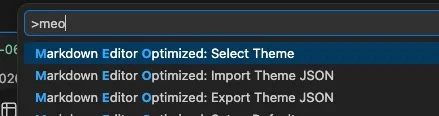
⌘+Shift+Pをして「> meo」と打ち込むと、Select Themeが出てくるので、既存のテーマを選択することもできます。
現時点の問題点・注意
便利な一方で、今のところ以下の問題も見つかっています。
- 絵文字が入力できない。
- 絵文字ピッカーが表示されない。
- たまに挙動がおかしくなり、文字が消える。
参考文献