
Excelの置換は、セル全体に反映されるため、文字列の色を部分的に変更することができません
vbaマクロを使えば部分的に文字の色を置換することができます
まず、ダイアログのフォームを作成しましょう
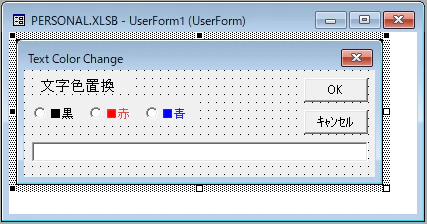
各パーツのオブジェクト名は以下です
OKボタン:cmdOK
キャンセルボタン:cmdCancel
ラジオボタン:Radio1~3
テキストボックス:TextBox1
アクションは以下の様になっています
Option Explicit

Private m_dialogResult As VbMsgBoxResult    ' 戻り値
Private m_textColor As Long  ' VBAの色はLong型で扱う
Private m_radioValue As Integer

' コンストラクタ(初期化処理)
Private Sub UserForm_Initialize()
    Radio1.GroupName = "GroupA"
    Radio2.GroupName = "GroupA"
    Radio3.GroupName = "GroupA"
    Radio2.Value = True '赤を初期値にする
    m_radioValue = 2
    cmdOK.Enabled = False '入力するまでDesable
End Sub

' ラジオボタンクリック処理
Private Sub Radio1_Click()
    m_textColor = RGB(0, 0, 0)
    m_radioValue = 1
End Sub
Private Sub Radio2_Click()
    m_textColor = RGB(255, 0, 0)
    m_radioValue = 2
End Sub
Private Sub Radio3_Click()
    m_textColor = RGB(0, 112, 192)
    m_radioValue = 3
End Sub

' キャンセルボタンを押したとき。
Private Sub cmdCancel_Click()
    End
End Sub

' OKボタンを押したとき。
Private Sub cmdOK_Click()
    m_dialogResult = vbOK
    Me.Hide
End Sub

Private Sub TextBox1_Change()
    If TextBox1.Value = "" Then
        cmdOK.Enabled = False
    Else
        cmdOK.Enabled = True
    End If
End Sub

' UserForm が閉じる前に発生するイベント。
Private Sub UserForm_QueryClose(Cancel As Integer, CloseMode As Integer)
    If (CloseMode = vbFormControlMenu) Then
        End
    End If
End Sub

' [プロパティ] ユーザーフォーム戻り値。(読み取り専用)
Public Property Get DialogResult() As VbMsgBoxResult
    DialogResult = m_dialogResult
End Property
Public Property Get textColor() As Long
    textColor = m_textColor
End Property
Public Property Get RadioValue() As Integer
    RadioValue = m_radioValue
End Property
マクロ実行処理
Sub ChangePartialTextColor()
    Dim ws As Worksheet
    Dim rng As Range
    Dim cell As Range
    Dim searchText As String
    Dim startPos As Long
    Dim count As Integer
    Dim isValid As Boolean
    Dim textColor As Long  ' VBAの色はLong型で扱う
    Dim UserForm As New UserForm1 ' ユーザーフォーム名

    ' 対象シートと範囲を設定
    Set ws = ActiveSheet
    Set rng = ws.UsedRange ' 対象範囲

    isValid = False
    Do While Not isValid
        ' ユーザーフォームを表示
        UserForm.Show
        ' キャンセルが押されたら終了
        If UserForm.DialogResult = vbCancel Then
            Exit Sub
        End If
        ' 選択された値を取得
        searchText = UserForm.TextBox1.Value
        textColor = UserForm.textColor

        isValid = True
    Loop

    ' 範囲内の各セルを処理
    count = 0
    For Each cell In rng
        If Not IsEmpty(cell.Value) Then
            startPos = InStr(1, cell.Value, searchText, vbTextCompare)
            Do While startPos > 0
                ' 部分文字列の色を変更
                cell.Characters(startPos, Len(searchText)).Font.Color = textColor
                count = count + 1

                ' 次の一致を探す
                startPos = InStr(startPos + Len(searchText), cell.Value, searchText, vbTextCompare)
            Loop
        End If
    Next cell

    MsgBox (ws.Name & "シートの置換件数:" & count)

    Call Unload(UserForm)

End Sub