
はじめに
(SwiftUIの記事は)初投稿です。
古来より伝わる「ライフゲーム」をモダンな言語で実装するチャレンジ実施中です。
今回は前回のSwiftPlaygroundでの実装を元に、SwiftUIを用いた可視化でやっていきます。
開発環境
- MacStudio2023(M2 Max)
- macOS Tahoe(26.1)
- Xcode(26.1.1)
プロジェクト生成
- XcodeでFile -> New -> Project
- Multiplatform 選択
実行はMacアプリとiPhoneシミュレータを対応。
ライフゲームとは
概要は先駆者様の解説に委ねます。
コーディングに必要なルールは以下となります。
- 2次元グリッド上で展開され、各セルは「生」または「死」の2つの状態を持つ。
- 各世代で、「隣接(上下左右と斜め4方向の計8方向にある)」セルを以下のルールに従って状態が更新される。
- 誕生:死んでいるセルに隣接する生きたセルがちょうど3つあれば、次の世代で誕生する。
- 生存:生きているセルに隣接する生きたセルが2つまたは3つならば、次の世代でも生存する。
- 過疎:生きているセルに隣接する生きたセルが1つ以下ならば、過疎により死滅する。
- 過密::生きているセルに隣接する生きたセルが4つ以上ならば、過密により死滅する。
- 端は常に死んでいるとみなす(固定境界)
実装フロー
ざっくりと。
各コードについて
ゲームコントローラー部分
- 新規ファイル
// LifeGameController.swift
import Foundation
import Combine

class LifeGameController: ObservableObject {
    /// グリッドの辺の数
    static let gridSize: Int = 31
    /// 生存リスト
    private var liveFlags: [Bool] = []
    /// 現在の世代数をSwiftUIでも参照可能に
    @Published private(set) var nowGenerationIndex: Int = 0

    /// 固定パターン用
    /// - Parameter index: 配列番号
    /// - Returns: 生存状態
    func isAliveIndexes(index: Int) -> Bool {
        let alivePositions: [(x: Int, y: Int)] = [
            (x: 4, y: 4),(x: 5, y: 4),(x: 6, y: 4),
            (x: 4, y: 5),(x: 5, y: 5),(x: 6, y: 5),
            (x: 4, y: 6),(x: 5, y: 6),(x: 6, y: 6)
        ]
        for position in alivePositions {
            if index == position.y * Self.gridSize + position.x {
                return true
            }
        }
        return false
    }

    /// 最初の配置を設定
    /// - Parameter isHold: 固定配列ならtrue
    func initializeLiveFlags(isHold: Bool = false) {
        nowGenerationIndex = 0
        liveFlags.removeAll()
        for index in 0..<(Self.gridSize * Self.gridSize) {
            if isHold {
                if isAliveIndexes(index: index) {
                    liveFlags.append(true)
                } else {
                    liveFlags.append(false)
                }
            } else {
                // 疑似乱数
                if index % 5 == 1 || index % 11 == 1 {
                    liveFlags.append(true)
                } else {
                    liveFlags.append(false)
                }
            }
        }
    }

    /// 自分の生存状態を返す
    /// - Parameter index: 配列番号
    /// - Returns: 生存状態
    func isAlive(index: Int) -> Bool {
        guard index >= 0, index < liveFlags.count else { return false }
        return liveFlags[index]
    }

    /// 近接の生存数を返す
    /// - Parameter index: 配列番号
    /// - Returns: 生存数
    func countSurvivors(index: Int) -> Int {
        let searchPatterns: [(x: Int, y: Int)] = [
            (x: -1, y: -1),(x: 0, y: -1),(x: 1, y: -1),
            (x: -1, y:  0),(x: 1, y:  0),
            (x: -1, y:  1),(x: 0, y:  1),(x: 1, y:  1)
        ]
        var result = 0
        searchPatterns.forEach { pattern in
            let x = index % Self.gridSize
            let y = index / Self.gridSize
            let neighborX = pattern.x + x
            let neighborY = pattern.y + y
            let neighborIndex = neighborY * Self.gridSize + neighborX
            if neighborIndex >= 0, neighborIndex < liveFlags.count {
                result += liveFlags[neighborIndex] ? 1 : 0
            }
        }
        return result
    }

    /// 次の世代での生存状態を返す
    /// - Parameters:
    ///   - index: 配列番号
    ///   - survivorCount: 生存数
    /// - Returns: 生存状態
    func getNextDeadOrAlive(index: Int, survivorCount: Int) -> Bool {
        guard index >= 0, index < liveFlags.count else { return false }
        if liveFlags[index] {
            // 過疎: 生きているセルに隣接する生きたセルが1つ以下ならば、過疎により死滅する
            // 過密: 生きているセルに隣接する生きたセルが4つ以上ならば、過密により死滅する
            return (survivorCount <= 1 || survivorCount >= 4 ? false : true)
            // 生存: 生きているセルに隣接する生きたセルが2つまたは3つならば、次の世代でも生存する
        }
        // 誕生: 死んでいるセルに隣接する生きたセルがちょうど3つあれば、次の世代で誕生する
        return (survivorCount == 3 ? true : false)
    }

    /// 世代更新
    /// - Returns: 生存リスト
    func nextGeneration() -> [Bool] {
        // 次の世代の状態を保持する配列
        var nextALives: [Bool] = []
        // インデックスでループ
        liveFlags.enumerated().forEach { index, liveFlag in
            let survivorCount = countSurvivors(index: index)
            let nextState = getNextDeadOrAlive(index: index, survivorCount: survivorCount)
            nextALives.append(nextState)
        }
        liveFlags.removeAll()
        liveFlags = nextALives
        nowGenerationIndex += 1
        return nextALives
    }
}
UIパーツ
セル表示バーツ
- 新規ファイル
// CellView.swift
import SwiftUI

struct CellView: View {
    let index: Int
    let size: CGFloat
    let color: Color

    var body: some View {
        Rectangle()
            .fill(color)
            .frame(width: size, height: size)
            .shadow(radius: 1)
    }
}
グリッド表示パーツ
- 新規ファイル
// GridView.swift
import SwiftUI

/// 指定された行数と列数を持つグリッドの線を描画するShape
struct GridView: Shape {
    let rows: Int
    let columns: Int

    func path(in rect: CGRect) -> Path {
        var path = Path()
        // 間隔
        let columnSpacing = rect.width / CGFloat(columns)
        let rowSpacing = rect.height / CGFloat(rows)
        // 垂直線 (列の境界) を描画
        for i in 1..<columns {
            let xOffset = CGFloat(i) * columnSpacing
            path.move(to: CGPoint(x: xOffset, y: 0))
            path.addLine(to: CGPoint(x: xOffset, y: rect.height))
        }
        // 水平線 (行の境界) を描画
        for i in 1..<rows {
            let yOffset = CGFloat(i) * rowSpacing
            path.move(to: CGPoint(x: 0, y: yOffset))
            path.addLine(to: CGPoint(x: rect.width, y: yOffset))
        }
        return path
    }
}
画面全体部分
- 既存ファイル修正
// ContentView.swift
import SwiftUI

struct ContentView: View {
    // グリッドのサイズ
    let gridSize = LifeGameController.gridSize
    // 盤の色
    let boardColor = Color(red: 0.1, green: 0.1, blue: 0.2)
    // セルの色
    let cellAliveColor: Color = Color(red: 0.25, green: 1, blue: 0.25)
    let cellDeadColor: Color = .clear
    // ゲーム用のセルUI初期化クロージャー
    @State var cells: [(index: Int, column: Int, row: Int, color: Color)] = {
        var initialCells: [(index: Int, column: Int, row: Int, color: Color)] = []
        let max = LifeGameController.gridSize
        var index = 0
        for row in 0..<max {
            for column in 0..<max {
                initialCells.append((index: index, column: column, row: row, color: .clear))
                index += 1
            }
        }
        return initialCells
    }()
    // ゲームコントローラー
    @StateObject var gameController = LifeGameController()

    var body: some View {
        GeometryReader { geometry in
            let boardSize = min(geometry.size.width, geometry.size.height) // 正方形にする
            // グリッドの間隔(一つの交点間の距離)
            let spacing = boardSize / CGFloat(gridSize)
            let stoneSize = spacing * 0.8 // セルのサイズを間隔の割合で設定

            ZStack(alignment: .topLeading) {
                // 1. グリッドの線を描画
                GridView(rows: gridSize, columns: gridSize)
                    .stroke(Color.white, lineWidth: 1.5)
                    .background(boardColor)
                    .frame(width: boardSize, height: boardSize) // 描画サイズを正方形に限定

                // 2. セルを配置
                ForEach(cells, id: \.index) { cell in
                    let positionX = CGFloat(cell.column) * spacing + spacing / 2 - stoneSize / 2
                    let positionY = CGFloat(cell.row) * spacing + spacing / 2 - stoneSize / 2
                    CellView(index: cell.index, size: stoneSize, color: cell.color)
                        // 位置を計算して配置
                        .offset(x: positionX,
                                y: positionY)
                }
            }
            // 盤全体を中央に配置
            .frame(maxWidth: .infinity, maxHeight: .infinity)
        }
        .safeAreaInset(edge: .bottom) {
            HStack {
                Spacer()

                Button(action: {
                    self.gameController.initializeLiveFlags(isHold: false)
                    self.cells = self.cells.enumerated().map { index, cell in
                        // 生存状態更新
                        var newCell = cell
                        newCell.color = self.gameController.isAlive(index: index) ? self.cellAliveColor : self.cellDeadColor
                        return newCell
                    }
                }) {
                    Text("初期配置")
                        .font(.headline)
                        .padding(.vertical, 8)
                        .padding(.horizontal, 40)
                        .background(Capsule().fill(Color.red))
                        .foregroundColor(Color.white)
                }

                Spacer()

                VStack(alignment: .center, spacing: 10) {
                    Text("世代")
                        .font(.headline)
                        .padding(.horizontal, 10)
                        .foregroundColor(.white)
                    Text("\(self.gameController.nowGenerationIndex)")
                        .font(.headline)
                        .padding(.horizontal, 10)
                        .foregroundColor(.white)
                }

                Spacer()

                Button(action: {
                    let aliveList = self.gameController.nextGeneration()
                    self.cells = self.cells.enumerated().map { index, cell in
                        var newCell = cell
                        newCell.color = aliveList[index] ? self.cellAliveColor : self.cellDeadColor
                        return newCell
                    }
                }) {
                    Text("次世代")
                        .font(.headline)
                        .padding(.vertical, 8)
                        .padding(.horizontal, 54)
                        .background(Capsule().fill(Color.blue))
                        .foregroundColor(Color.white)
                }
                .padding(.bottom, 8)

                Spacer()
            }
        }
        .background(Color.black)
    }
}

#Preview {
    ContentView()
}
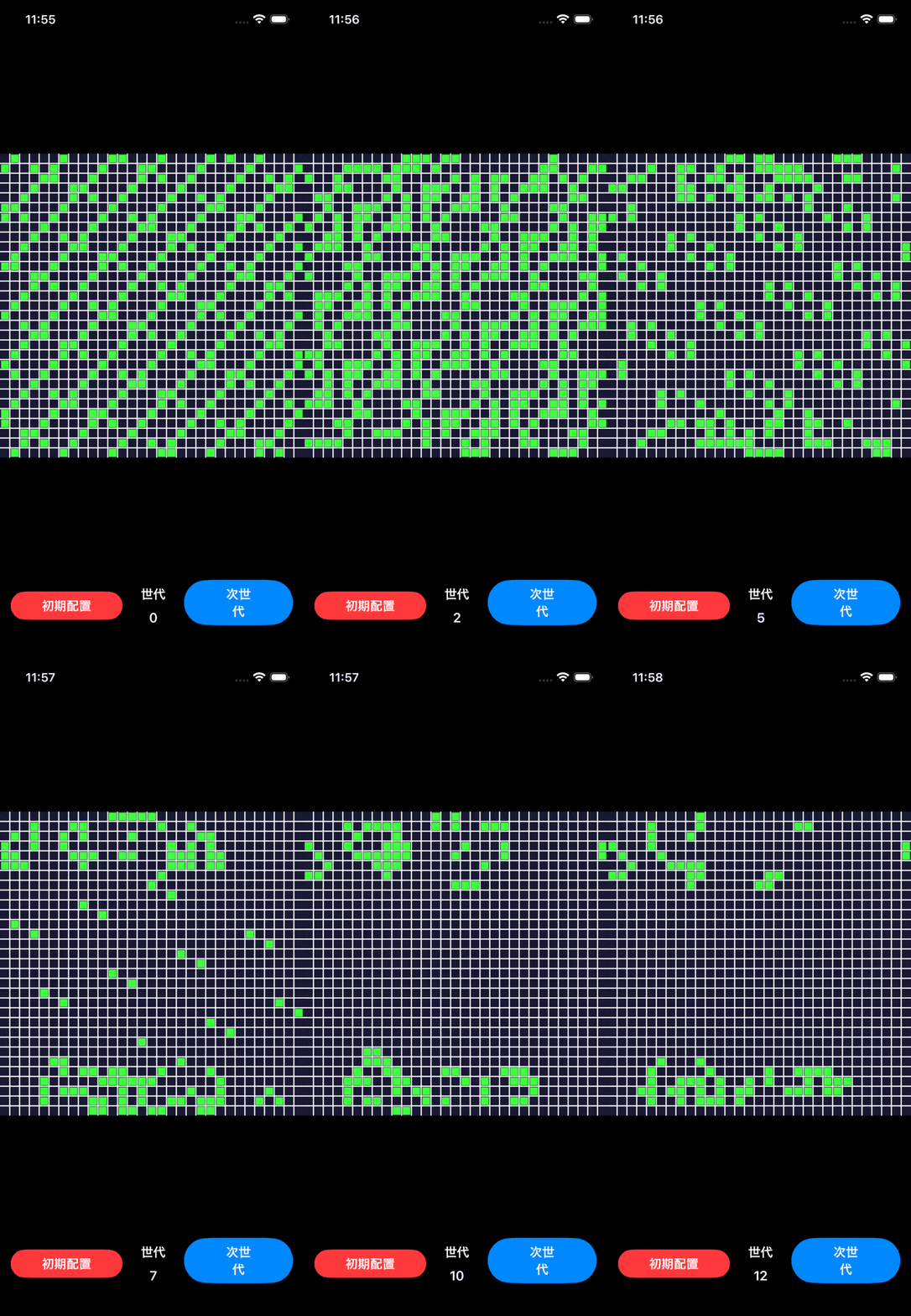
実行結果例
初期状態
- 「初期配置」ボタンを押した後

世代進行
- 「次世代」ボタンを12世代まで押した結果をアニメ化
実行して判った事
- SwiftUIでの実装には制限が多いと感じた、通常のSwiftの記述ではエラーになる部分が多く、コーデェングに制約を多く感じた
- 特にSwift側の型がSwiftUI側ではそのままでは使用できない事が実装の障害になった
- 結果としてSwiftPlayground版とはロジックが異なる(隣接の生死判定は毎世代実行する、など)
- とはいえ、SwiftUIの癖が改めて理解できるようになったのは収穫である
- やはりライフゲームは言語学習にはもってこいだと強く感じた
今後の展開予定
- SKSceneを用いてリアルタイム進行の実施
- 他の言語でのチャレンジ
おわりに
ここまで読んでいただきありがとうございます。
今後も思いつくままに記事投稿を続けて行きたい所存であります。
勝利の栄光を君に!