
背景
会社にて、FastAPI で、SQL Server の情報を利用する必要が生じたので、試行した記録
まずは以下まで
- WSL
- Python
- FastAPI
WSL を使用して Windows に Linux をインストールする
install
wsl --install
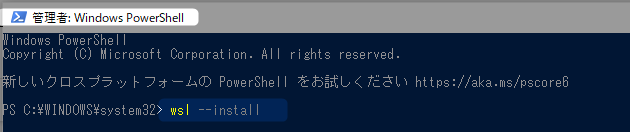
失敗?
途中で何故かダウンロードバーが停止・・ 
10分ほど待つが変化無いので、一旦終了してやり直そうとしたところ、再起動しろとか言われるので、再起動する・・
再度 install コマンドを入れると、Helpが出る。
まさに以下
ということで、ディストリビューション確認
wsl --list --online
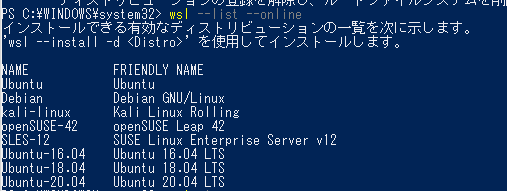
Ubuntu との違いが判らなかったけれど、まぁ、最新でいいか、と Ubuntu-20.4 を install
・・もしかしたら、常時最新版って意味だったのか?
wsl --install -d Ubuntu-20.04

Ubuntu 初期設定
- User 登録

- password 登録で完了
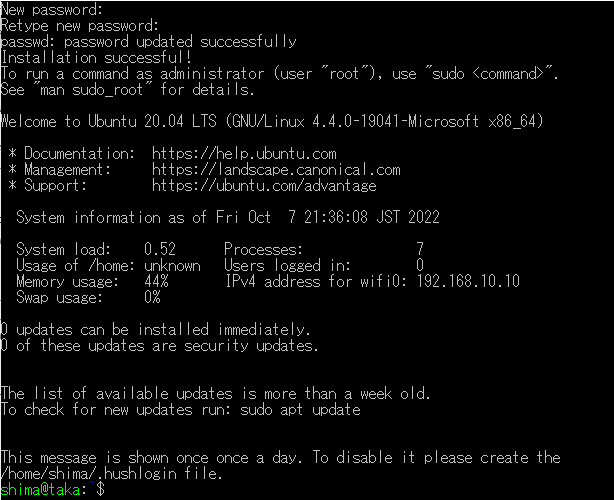
補足
プロキシの設定
自宅だと無いので不要
プロキシは環境に合わせて修正必要
以下の例でいくと、10.10.10.10:1010 ってとこ
環境確認
printenv http_proxy https_proxy
.bashrc への設定
\\wsl$\Ubuntu-20.04\home\shima.bashrc
を VS-Code などで編集して、以下を追加
# proxy
export http_proxy="10.10.10.10:1010"
export https_proxy=$http_proxy
\\wsl$\Ubuntu-20.04\etc\apt\apt.conf
同様に、以下も
Acquire::http::Proxy "http://10.10.10.10:1010";
Acquire::https::Proxy "http://10.10.10.10:1010";
参考
アップデート
sudo apt-get update
sudo apt-get upgrade
初っ端はそこそこある。 pip3
コマンド一覧は以下より
python 準備
これも、そこそこHeavy
sudo apt install -y python3 python3-pip python-is-python3 python3-venv
- python3-pip
- pip3 のこと。python3 用の pip
- python-is-python3
- python コマンドを通す為。実際には、python2.* コマンドをって話
- python3-venv
-
python 仮想環境作成用
python3 -m venv [machine name]って感じで
-
python 仮想環境作成用
pip3 の update は、上述のアップデートで
この段階でやったほうが楽だった・・のかな、とも?
pip3 -V
pip -V
使わない?と思われるが、pip のアップデートは以下
sudo pip3 install --upgrade pip
FastAPI の準備
インストール Fast API with uvicorn
pip3 install fastapi[all]
チュートリアルの実践で、Uvicorn 起動確認
mkdir fastapi_sample_app
cd fastapi_sample_app
code main.py
で、以下のチュートリアルコードを貼り付けたあとで
from fastapi import FastAPI

app = FastAPI()

@app.get("/")
async def root():
    return {"message": "Hello World"}
uvicorn main:app --reload
ブラウザで、以下を確認して Hello Wordl が出ていれば OK
http://127.0.0.1:8000

ついでに、Open API ページの確認
http://127.0.0.1:8000/docs
あとがき
あとは、SQLAlchemy 、ODBC Driver を入れて、CRUD の Sample まで行ければ、かな
チュートリアルがほんと丁寧で感謝しかない
次