
ただ単に自分の調査不足なのですが、React Native Expoを使ってiOSアプリを開発している中で始める前に知っておきたかったことを残します。本書の概要を以下にまとめます。
- Apple Developer Program登録は申請から1日は待機時間がある
- EXPOの無料プランの場合、
eas buildとeas submitに2〜3時間近く要する場合がある。
⓪【大前提】Apple Developer Program登録(有料)
登録が完了して次の日にはメールが届きました。登録申請から1日は待機時間があるので、そこは見積もっておいた方が良いかと思います。
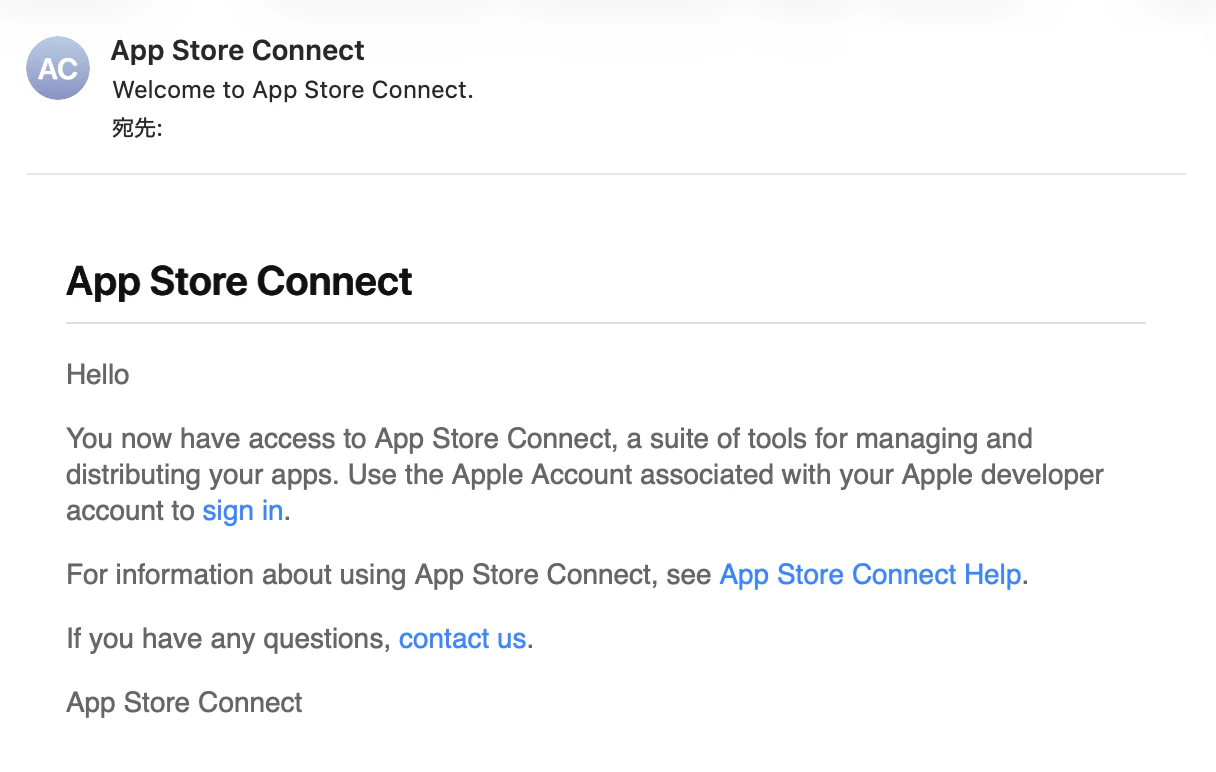
①ビルド(eas build)〜リリース(eas submit)までにすごい時間がかかる。。。
ビルド
eas build --platform iosコマンドを実行して上記のExpoのプロジェクトにビルドします。無料プランの場合は月に30回のビルド回数の上限があり、また、共有キューを使用するため混雑時にビルド待ち時間が発生しやすく、時間がかかる場合があります。私の場合、長い時は1〜2時間近くかかりました。
$ eas build --platform ios

EAS Build is experiencing a partial outage.
Reason: EAS unavailable during database maintenance.
All information on service status and incidents available at https://status.expo.dev/

...

Resolved "production" environment for the build. Learn more
No environment variables with visibility "Plain text" and "Sensitive" found for the "production" environment on EAS.

✔ Incremented buildNumber from 3 to 4.
✔ Using remote iOS credentials (Expo server)

If you provide your Apple account credentials we will be able to generate all necessary build credentials and fully validate them.
This is optional, but without Apple account access you will need to provide all the missing values manually and we can only run minimal validation on them.

✔ Do you want to log in to your Apple account? … yes
› Log in to your Apple Developer account to continue
✔ Apple ID: … [ID入力]
...

Project Credentials Configuration

...

App Store Configuration

...

See logs:

...

Waiting for build to complete. You can press Ctrl+C to exit.
  Build queued...

Start builds sooner in the priority queue.
Sign up for a paid plan at https://expo.dev/accounts/...

Waiting in Free tier queue # ← 長時間待ちます
|■■■■■■■■■■■■■■■■■■■■■■■■■■■■■■■■■■■■■■■■| starting soon...


✔ Build finished
🍏 iOS app:                              | starting in about 20 minutes...
https://expo.dev/artifacts/eas/***.ipa
リリース
次に、eas submit -p iosコマンドを実行して、上記のApp Store Connectにアプリを提出します。こちらは40分〜60分ほどの時間がかかります。
eas submit -p ios

✔ What would you like to submit? › Select a build from EAS
✔ Which build would you like to submit? › - ID: *** # [選択]
Ensuring your app exists on App Store Connect. This step can be skipped by providing ascAppId in the submit profile. Learn more

› Log in to your Apple Developer account to continue
✔ Apple ID: … *** # [選択]
...

✔ Scheduled iOS submission
...

Waiting for submission to complete. You can press Ctrl+C to exit.
⠹ Submitting your app to Apple App Store Connect: waiting for an available submitter
...
✔ Submitted your app to Apple App Store Connect!

Your binary has been successfully uploaded to App Store Connect!
- It is now being processed by Apple - you will receive an email when the processing finishes.
- It usually takes about 5-10 minutes depending on how busy Apple servers are.
- When it's done, you can see your build here: https://appstoreconnect.apple.com/apps/***/testflight/ios
②各種書類の用意(3つ: 利用規約、プライバシーポリシー、サポートページ)
利用規約とプライバシーポリシー
- 【利用規約サンプル】https://kiyaku.jp/hinagata/gp.html
- 【プラポリサンプル】https://kiyaku.jp/hinagata/privacy.html
①【前準備】GitHub Pagesの利用
-
GitHubでpublicリポジトリ作成 - 表示したい利用規約とプライバシーポリシーのhtmlファイルをプッシュ
-
Setting→Pagesを開き、Build and deploymentを適宜設定
②利用規約とプライバシーポリシーのリンク実装
import * as Linking from 'expo-linking';
import {
    Alert,
    TouchableOpacity,
    Text,
} from 'react-native';

// TODO: 実際のURLに置き換えてください
const LINKS = {
    terms: 'https://[アカウント名].github.io/[リポジトリ名]/[利用規約のファイルパス]',
    privacy: 'https://[アカウント名].github.io/[リポジトリ名]/[プライバシーポリシーのファイルパス]',
};

// ...

const openLink = (url: string) => {
    Linking.openURL(url).catch(() => {
        Alert.alert('エラー', 'リンクを開けませんでした。');
    });
};

// ...

<TouchableOpacity onPress={() => openLink(LINKS.terms)}>
    <Text>利用規約</Text>
</TouchableOpacity>
<TouchableOpacity onPress={() => openLink(LINKS.privacy)}>
    <Text>プライバシーポリシー</Text>
</TouchableOpacity>
// ...
サポートページの作成
アプリ申請時、サポートページ(ユーザーが問い合わせや問題解決を行えるWebページ)のURLを求められました。こちらもGitHub Pagesを使って作成しました。
OSSライセンス
ReactNativeでの開発で使用したライセンス一覧を用意します。私は以下の手順で作成しました。
①使用ライブラリのライセンスの出力
package.jsonがあるフォルダ(ディレクトリ)において以下のコマンドを実行する。
npx license-checker --json > assets/json/oss-licenses.json
②【サンプル】出力したライセンス一覧の表示
あとは以下のコンポーネントを呼び出すことで画面を確認。
import rawLicenses from '@/src/assets/json/oss-licenses.json'; // ①で出力したjsonファイル
import * as Linking from 'expo-linking';
import {
    FlatList,
    StyleSheet,
    Text,
    TouchableOpacity,
    View,
} from 'react-native';

type LicenseEntry = {
    licenses: string;
    repository?: string;
    publisher?: string;
    url?: string;
};

type LicenseItem = {
    name: string;
    version: string;
    licenses: string;
    repository?: string;
};

/** JSON を { name, version, licenses, repository } のリストに変換して重複排除 */
const licenseList: LicenseItem[] = (() => {
    const seen = new Set<string>();
    return Object.entries(rawLicenses as Record<string, LicenseEntry>)
        .map(([key, val]) => {
            const atIndex = key.lastIndexOf('@');
            const name = atIndex > 0 ? key.slice(0, atIndex) : key;
            const version = atIndex > 0 ? key.slice(atIndex + 1) : '';
            return {
                name,
                version,
                licenses: val.licenses,
                repository: val.repository,
            };
        })
        .filter(({ name }) => {
            if (seen.has(name)) return false;
            seen.add(name);
            return true;
        })
        .sort((a, b) => a.name.localeCompare(b.name));
})();

function OssLicenseRow({ item }: { item: LicenseItem }) {
    return (
        <View style={styles.row}>
            <View style={styles.info}>
                <Text style={styles.packageName} numberOfLines={1}>
                    {item.name}
                </Text>
                <Text style={styles.meta}>
                    {item.version}  ·  {item.licenses}
                </Text>
            </View>
            {item.repository && (
                <TouchableOpacity
                    onPress={() => Linking.openURL(item.repository!)}
                    hitSlop={{ top: 8, bottom: 8, left: 8, right: 8 }}
                >
                    <Text style={styles.link}>
                        リポジトリ
                    </Text>
                </TouchableOpacity>
            )}
        </View>
    );
}

export function OssLicenseModal() {
    return (
        <View style={styles.container}>
            <FlatList
                data={licenseList}
                keyExtractor={(item) => item.name}
                renderItem={({ item }) => <OssLicenseRow item={item} />}
                contentContainerStyle={styles.list}
                initialNumToRender={30}
            />
        </View>
    );
}

const styles = StyleSheet.create({
    container: {
        flex: 1,
    },
    list: {
        paddingHorizontal: 16,
        paddingBottom: 32,
    },
    row: {
        flexDirection: 'row',
        alignItems: 'center',
        justifyContent: 'space-between',
        paddingVertical: 12,
        borderBottomWidth: StyleSheet.hairlineWidth,
        gap: 8,
    },
    info: {
        flex: 1,
    },
    packageName: {
        fontSize: 14,
        fontWeight: '600',
    },
    meta: {
        fontSize: 12,
        marginTop: 2,
    },
    link: {
        fontSize: 13,
        flexShrink: 0,
    },
});
③各種画像の用意
アプリアイコンとスプラッシュアイコン
私はGeminiを使って作成しました。抽象的なビジョンを伝えてベース画像を作成してもらったあと、利用者に伝えたいメッセージや、してもらいたい行動などを伝えることでより画像を具体的にしてもらいました。
ストア用スクリーンショット(iOSとiPad)
iPhoneは実機でスクリーンショットして、画像リサイズのサイトでリサイズをしました。iPadはシミュレータをスクリーンショットして同じくリサイズしました。
今回、私はすごい手抜きで作成しましたがFigmaなどを使って今後は凝った作りにしていきたいです。
ストア用スクリーンショットについて、1ピクセルでも違うとアップロードできないため、適切に調整する必要があります。
④広告を入れる
- 【参考URL】https://zenn.dev/hal1986/books/react-native-monetize/viewer/1_admob
- 【参考URL】https://zenn.dev/hal1986/books/react-native-monetize/viewer/2_admob_att
上記のURLを参考に以下の手順で広告挿入のための申し込みを行いました。
- 【申し込み】https://admob.google.com/intl/ja/home/get-started/
- 【アプリの追加】iOSもしくはAndroidのアプリを追加
- 【広告の追加】バナー、インスティシャル、リワード、など