
こんばんは、弥富阿下喜(Yatomi Ageki)です。
今日はVeeam Backup & ReplicationでOCIのCloud Storageを利用する方法をご説明いたします。
今回はVeeam Backup & Replicationが既にインストール済みであり、かつOCIのアカウントが既に作成されている前提で話を進めます。ご容赦ください。
Key idとTokenを発行する
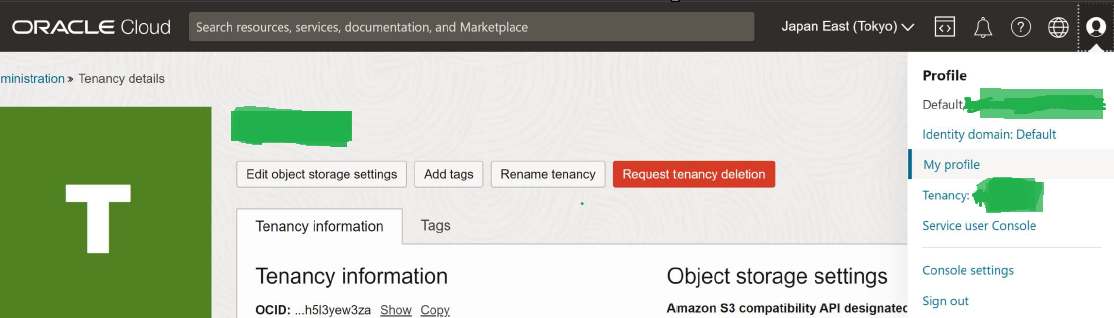
OCIのAdministration -> Tenancy Detailsから画面右
「My Profile」を選択
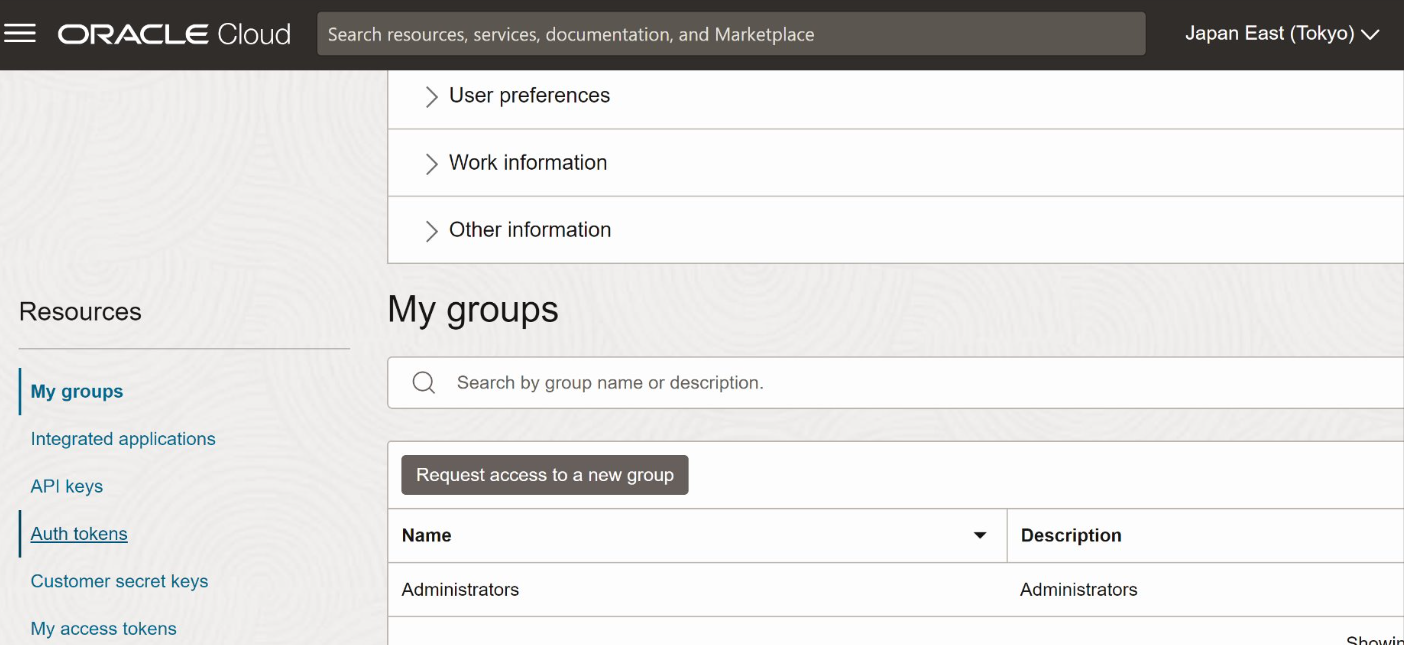
画面左「Customer Secret Keys」を選択
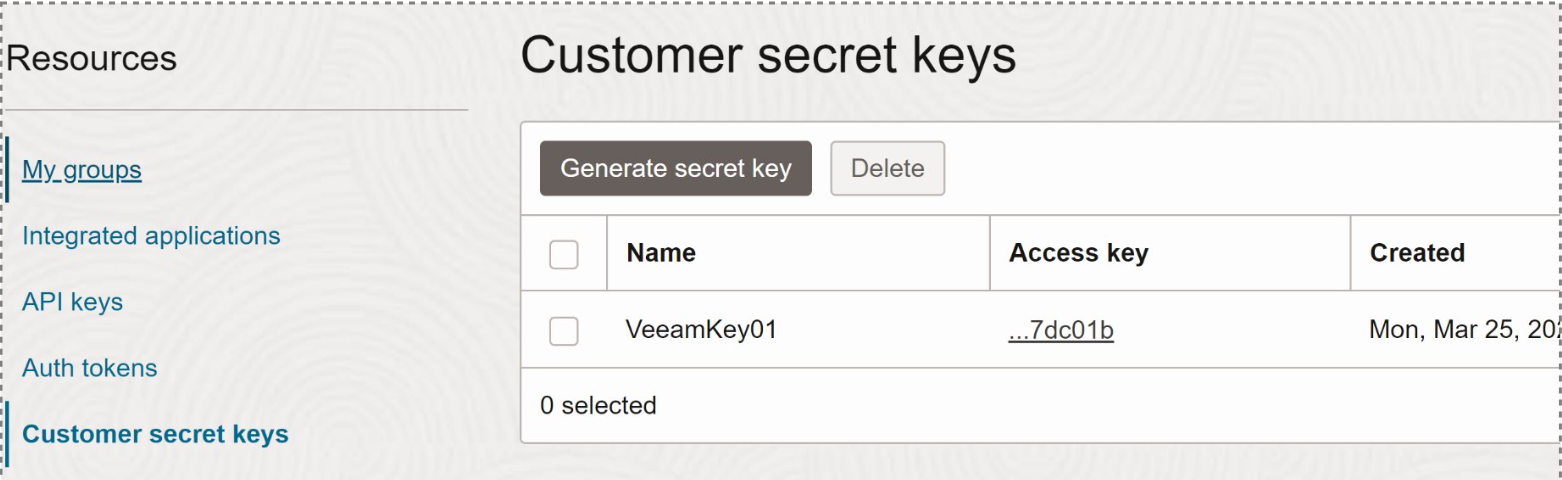
画面真ん中「Gemerate secret key」を選択
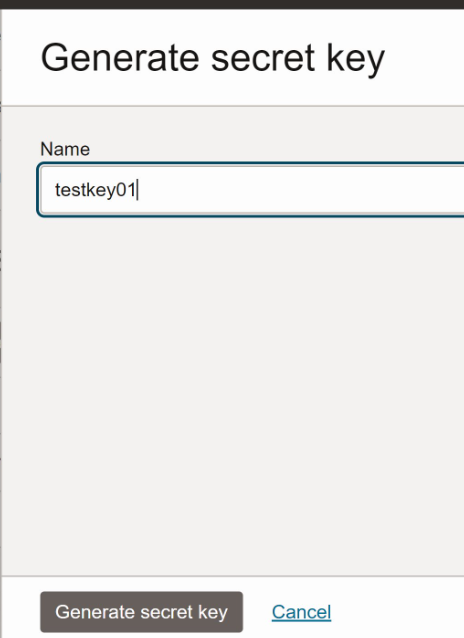
Keyの名前を適当に決めまして
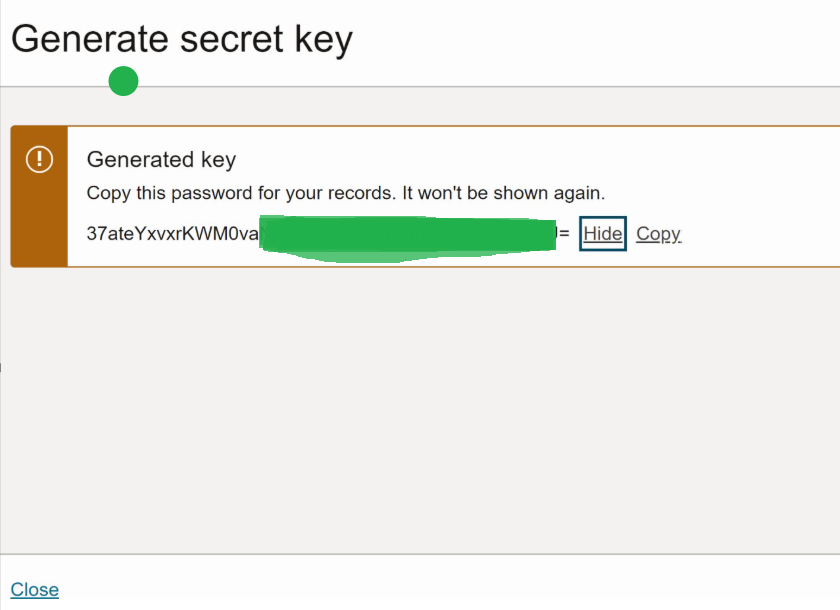
Tokenが生成されました。これがSecretトークンになります。
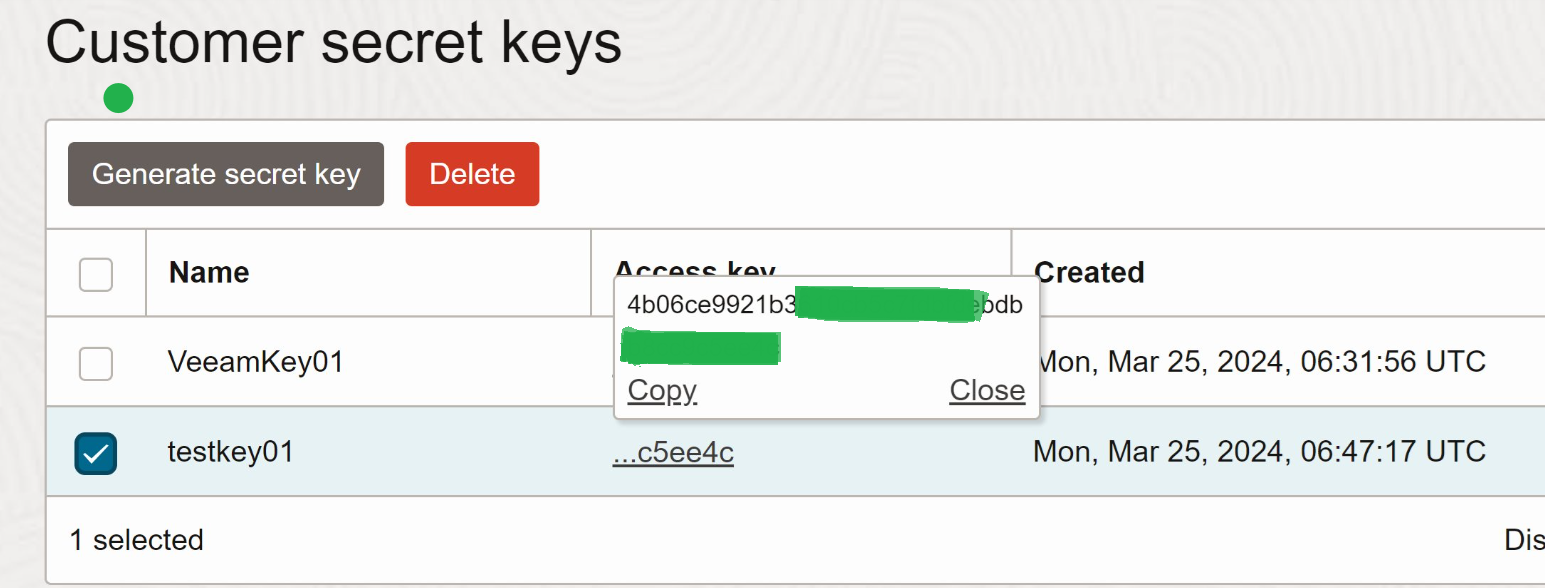
Access Keyのカラムにある文字列がKey IDです。
サービスポイントを探す
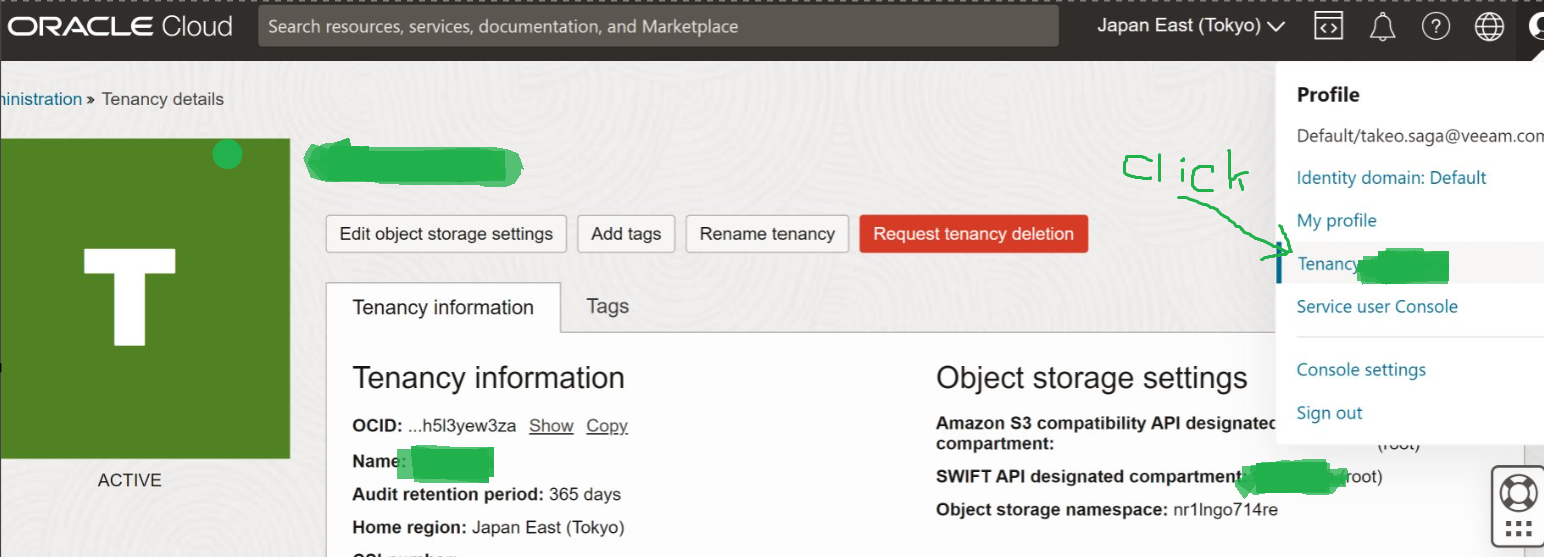
画面右「Tenancy:YOUR_NAME」をクリック
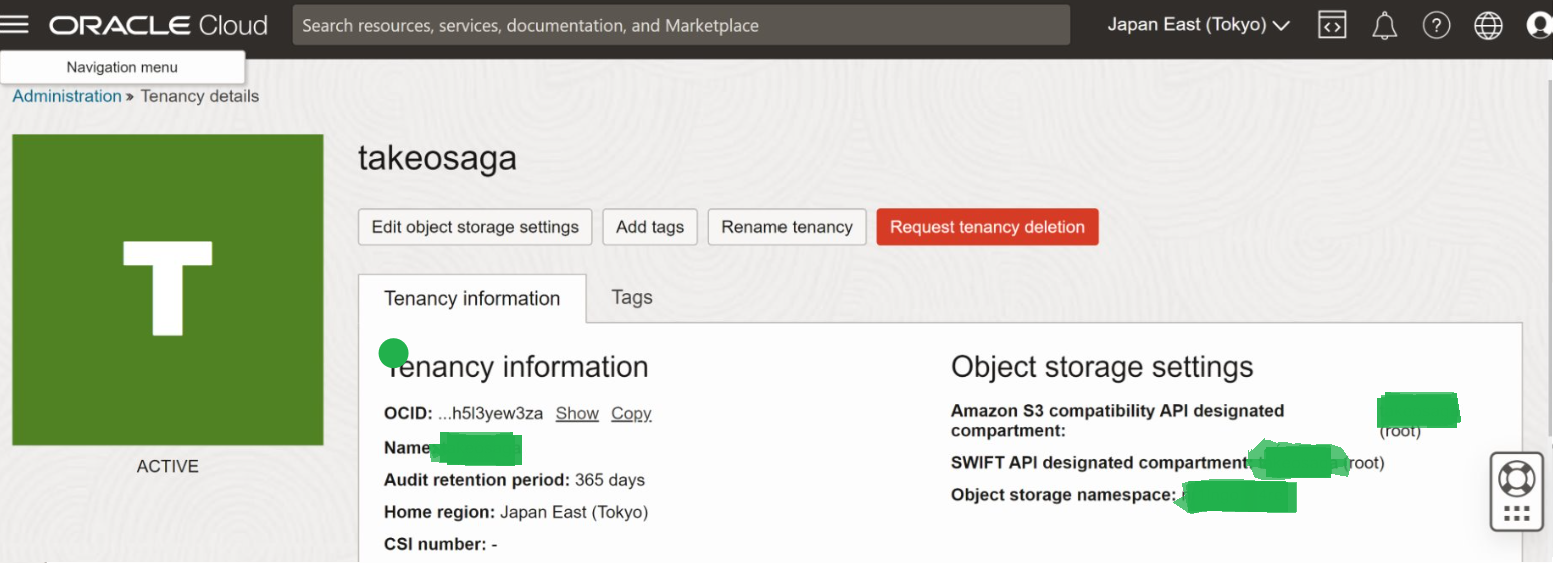
「Object Storage Namespace: 」の先にある文字列がサービスポイント名です
Veeam Backup & Replicationにクレデンシャルを登録する
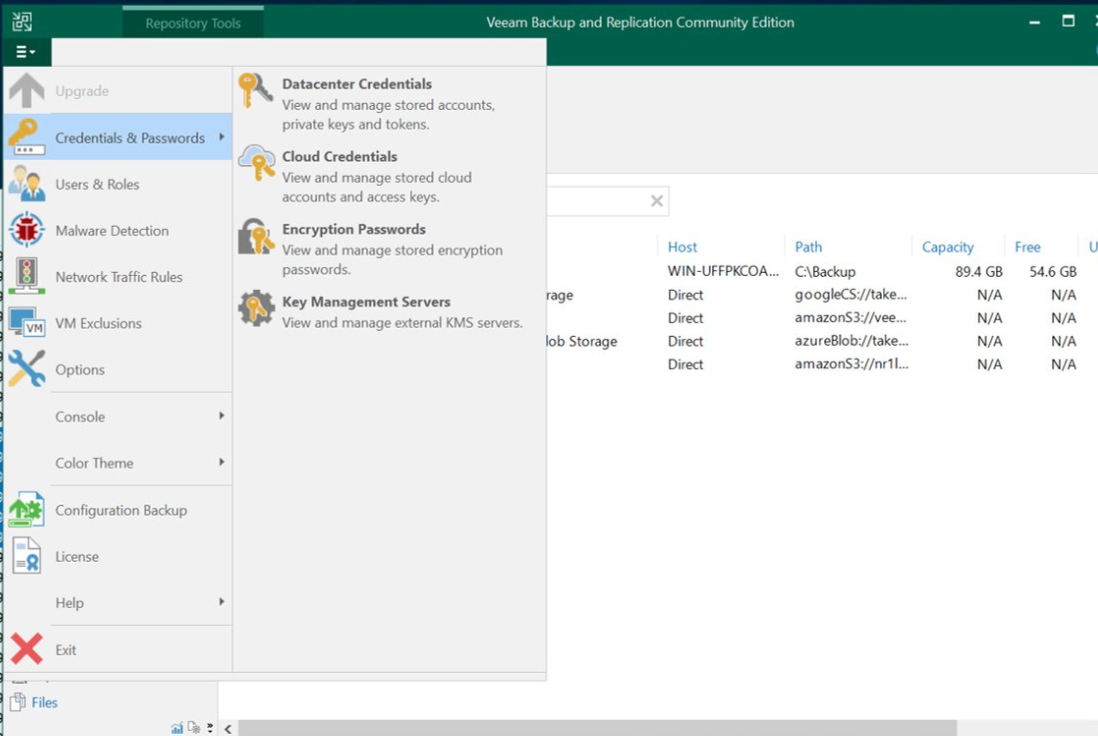
「Cloud Crendetials」を選択します。
Version 12の画像です。Version 13だと少し見た目が変わります。
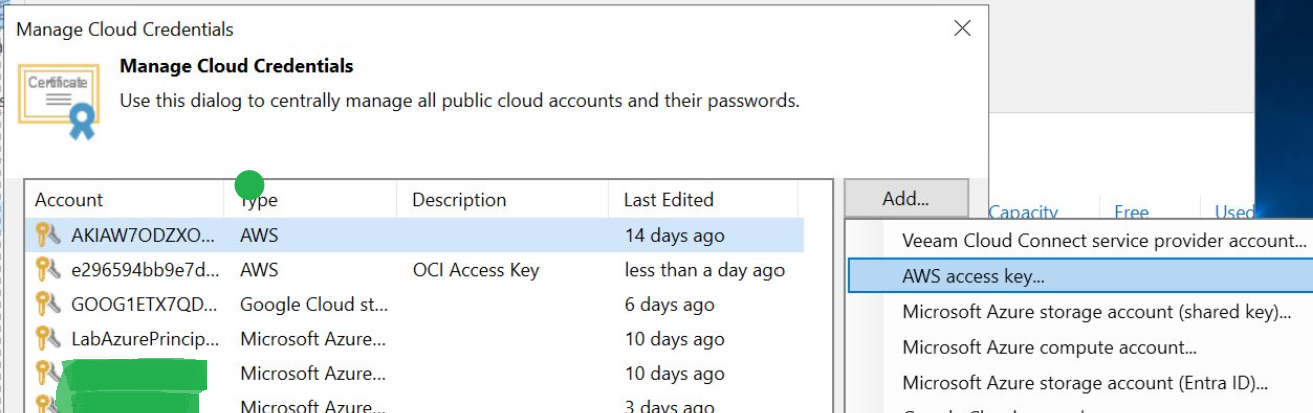
OCIのCredentialは「AWS access key」に登録します
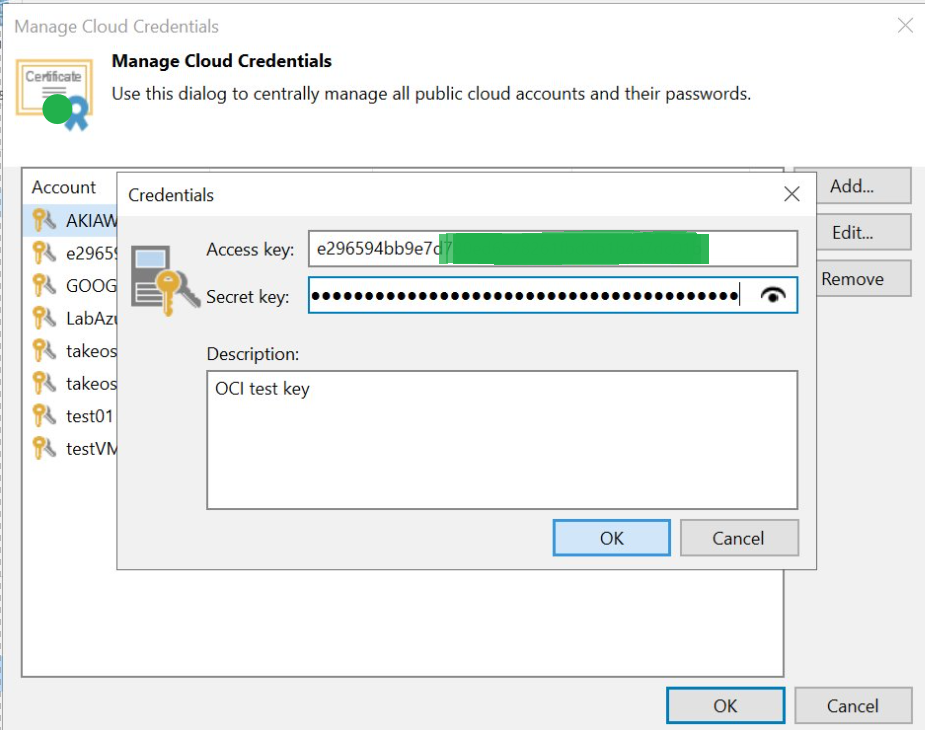
先ほど控えたKeyIDとSecretを保存します。
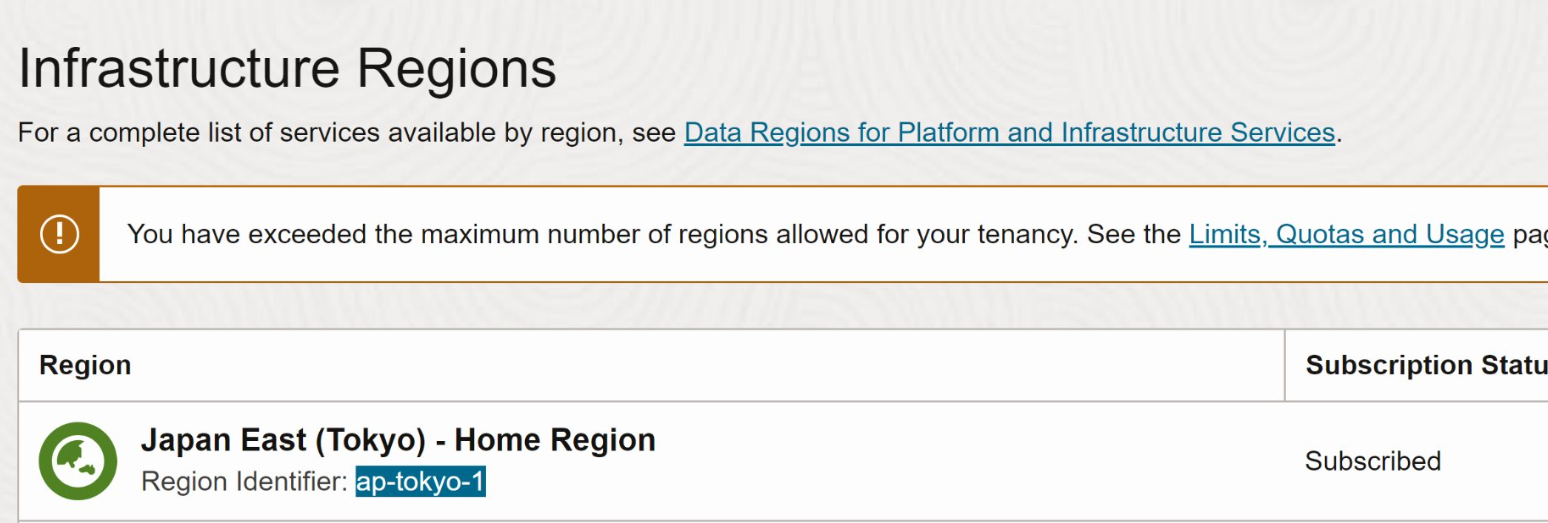
Region名を見つける
画面右上「Manage regions」をクリック
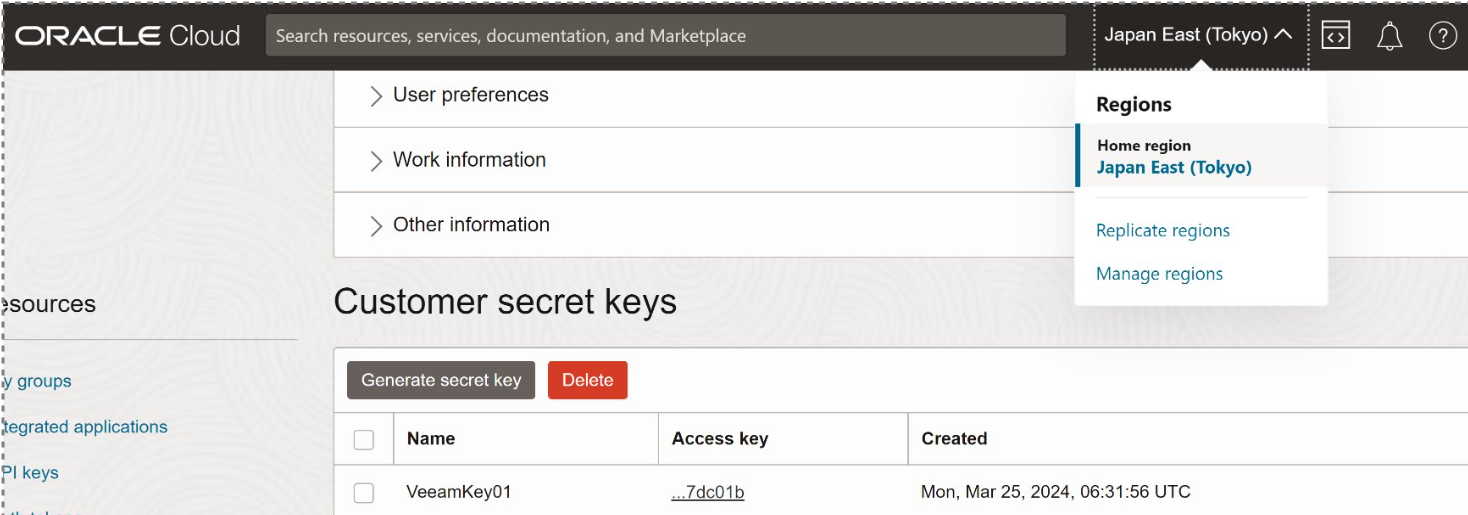
「Region Identifier」がVeeamに投入するRegion名です
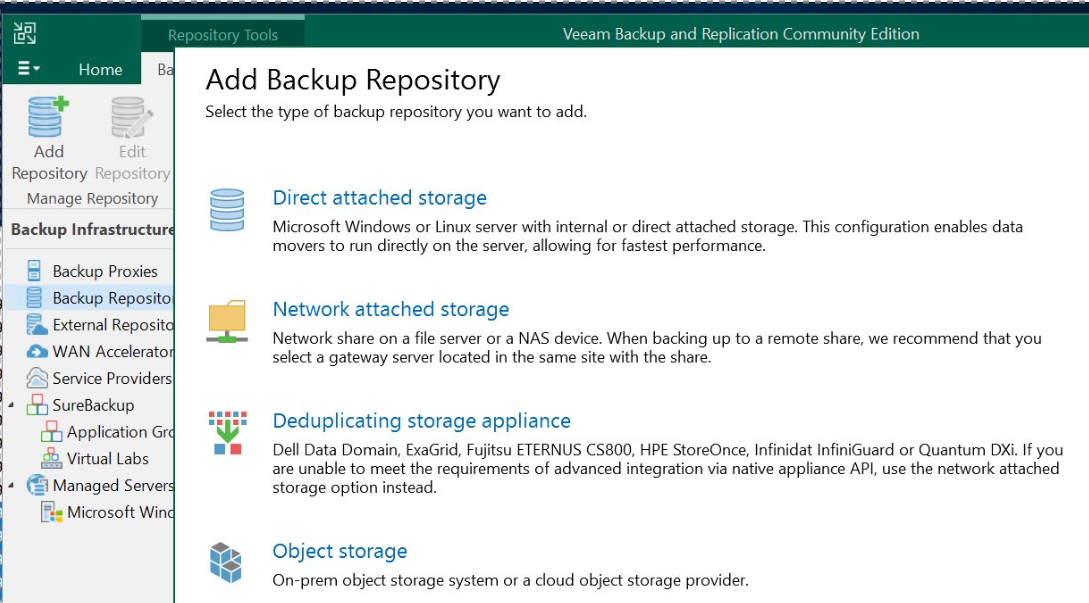
OCIのbucketを追加する
「Object Storage」を選択
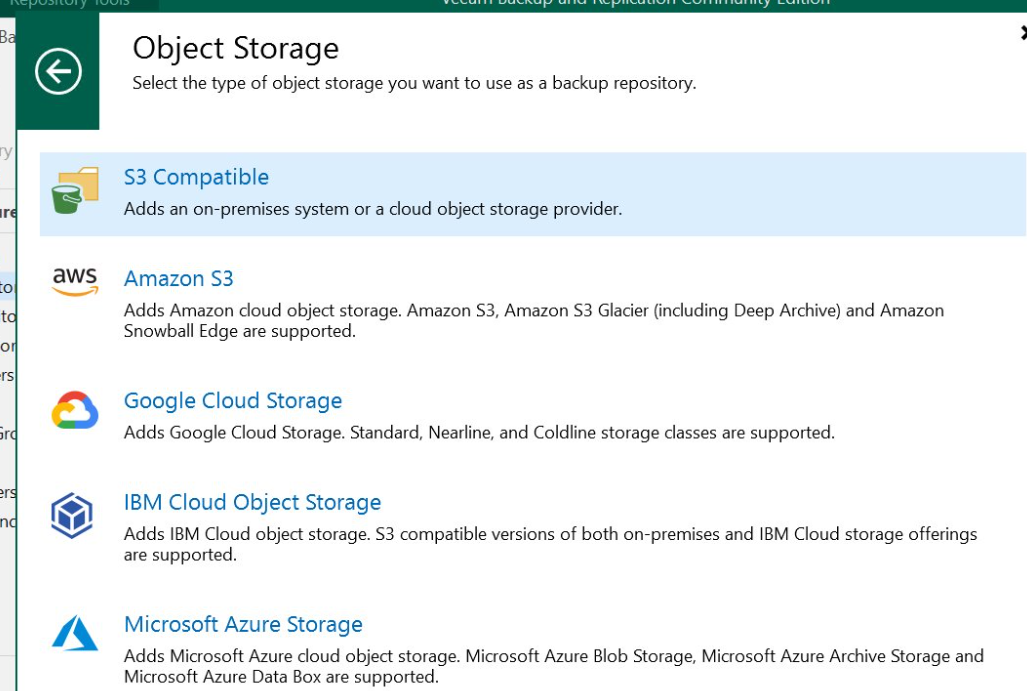
「S3 Compatible」をクリック
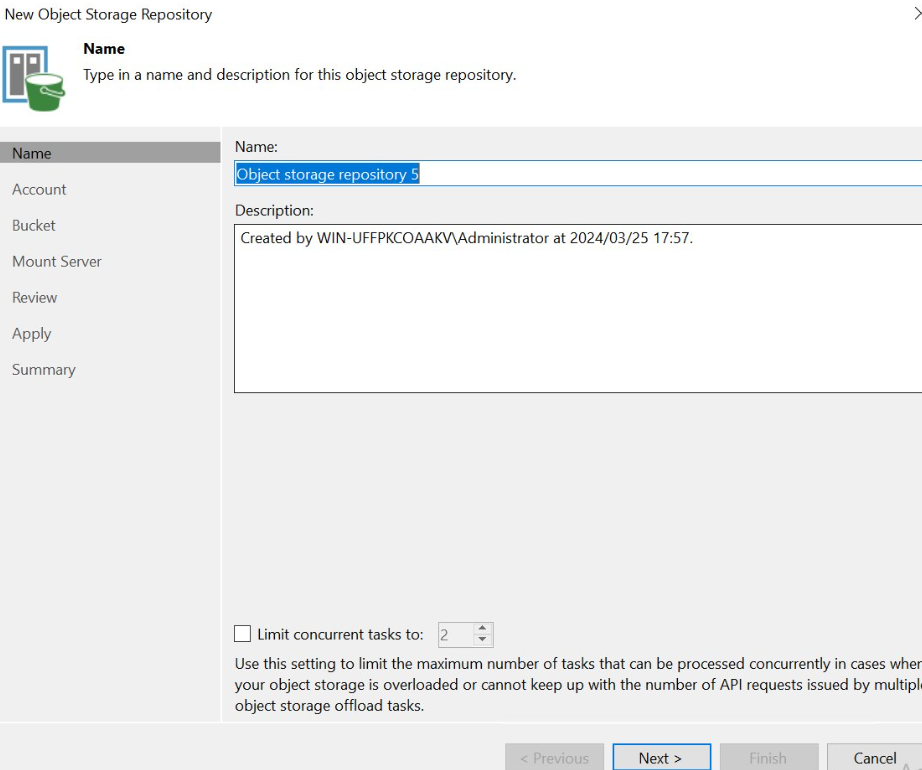
リポジトリの名前を決めて「Next」
サービスポイント・Region名・Credentialsを投入します。サービスポイント名は「https://YOUR_OBJECT_STORAGE_NAMESPACE.compat.objectstorage.YOUR_REGION.oraclecloud.com」です。
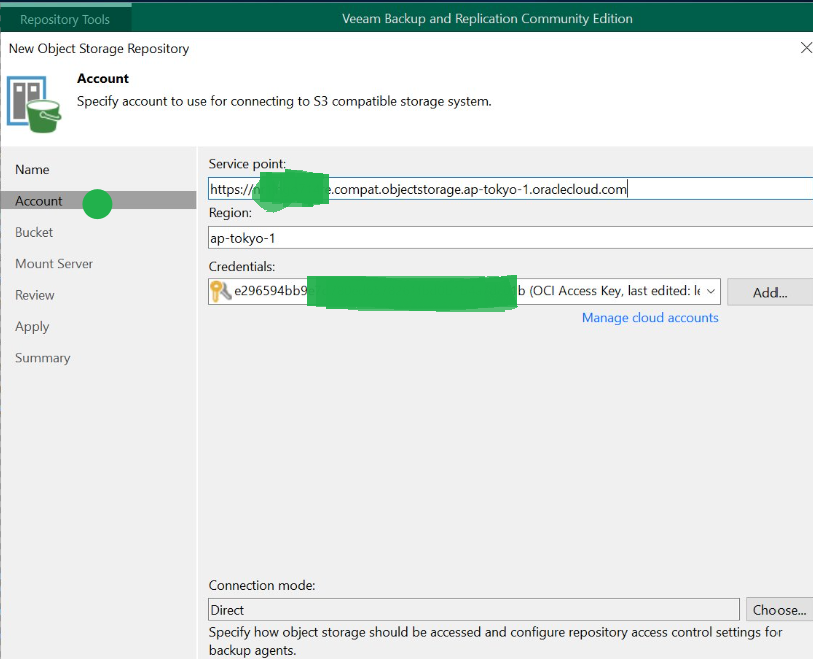
後はS3 Compatible Object Storageの通常の追加と全く同じです。
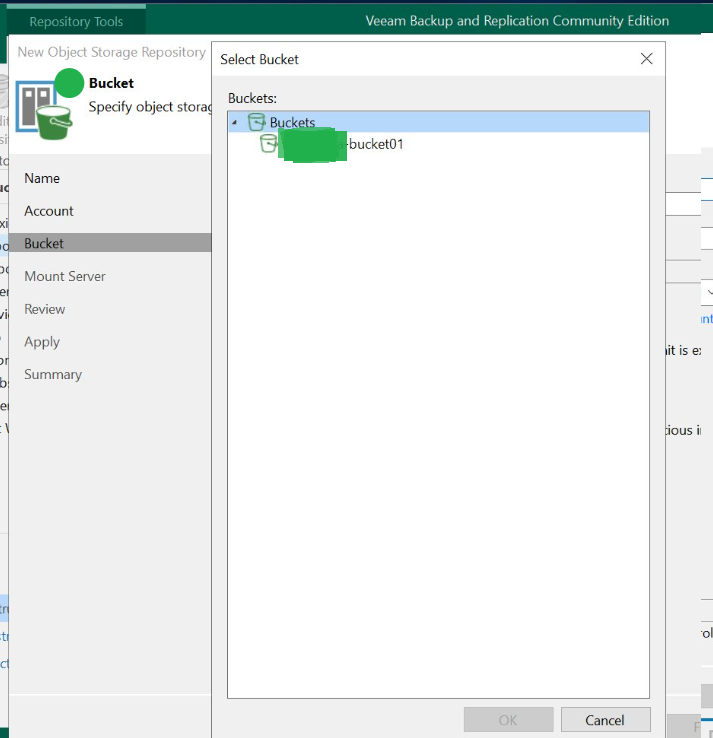
この後の手順については以下URLを参考に進めてください
https://helpcenter.veeam.com/docs/vbr/userguide/compatible_storage_details.html?ver=13
ご不明な点があればコメントでご指摘ください。
お疲れさまでした。