

はじめに
作成したReactアプリをFirebase Hostingにデプロイする過程で詰まったのでまとめます。
問題
$ firebase deploy
して、Hosting URLにアクセスすると
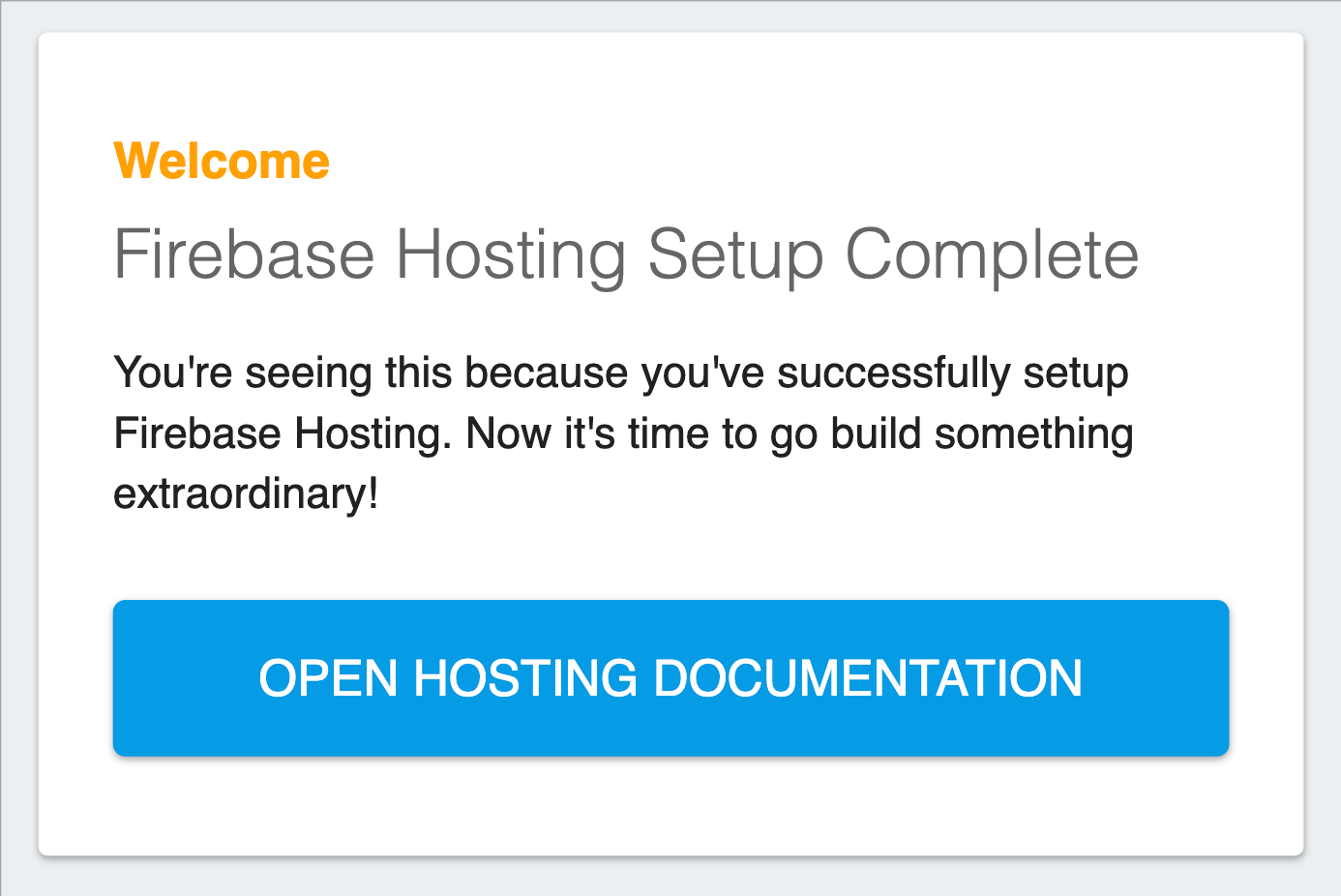
なぜかデフォルト画面が表示され、作成したアプリが表示されない、、、
原因
public directory(公開するルートディレクトリ)の設定が間違っていた。
Viteで
$ npm run build
でビルドすると「dist」ディレクトリ配下に配信用のファイルが生成される。
その場合はfirebaseプロジェクトの設定をする際に「dist」をpublic directoryとして設定する必要があった。
が、デフォルト設定の「public」がpublic directoryとして設定されたまま進めてしまったため「dist」は公開されず「public」ディレクトリが公開されてしまっていた。
解決方法
$ firebase init
でfirebaseプロジェクトの初期化をして、
What do you want to use as your public directory?(public)
訳)パブリックディレクトリとして何を使用しますか?(初期設定:public)
と聞かれたら、「dist」と入力して進めていく。
再度
$ npm run build
$ firebase deploy
でビルドとデプロイをして、Hosting URLにアクセスすると解決しました。
他の解決策
今回はfirebaseプロジェクトの初期化をしなおしたが、一度firabase initを実行した後であれば下記対応で解決できます。
init時に作成されるfirebase.jsonのhostingセクションでpublicの値を変更し、
firebase.json
{
  "hosting": {
-    "public": "public", //初期設定
+    "public": "dist",   //変更後
    "ignore": [
      "firebase.json",
      "**/.*",
      "**/node_modules/**"
    ],
    "rewrites": [
      {
        "source": "**",
        "destination": "/index.html"
      }
    ]
  }
}
再度
$ firebase deploy
で反映されるはずです。
おわりに
初学者のうちは理解することが大切なので、時間かかってでも選択肢は全部調べようと思います!
参考