3
1

Delete article

Deleted articles cannot be recovered.

Draft of this article would be also deleted.

Are you sure you want to delete this article?

【Cursor】コマンドで最新バージョンのアップデートをする方法 How to Update Cursor AI to the Latest Version

3
Last updated at Posted at 2026-01-26

はじめに

Cursorを起動した際に「アップデートが必要」という内容のダイアログが表示されました。

そのままアップデートしようとすると、下記キャプチャのDownload Cursorのページに遷移します。
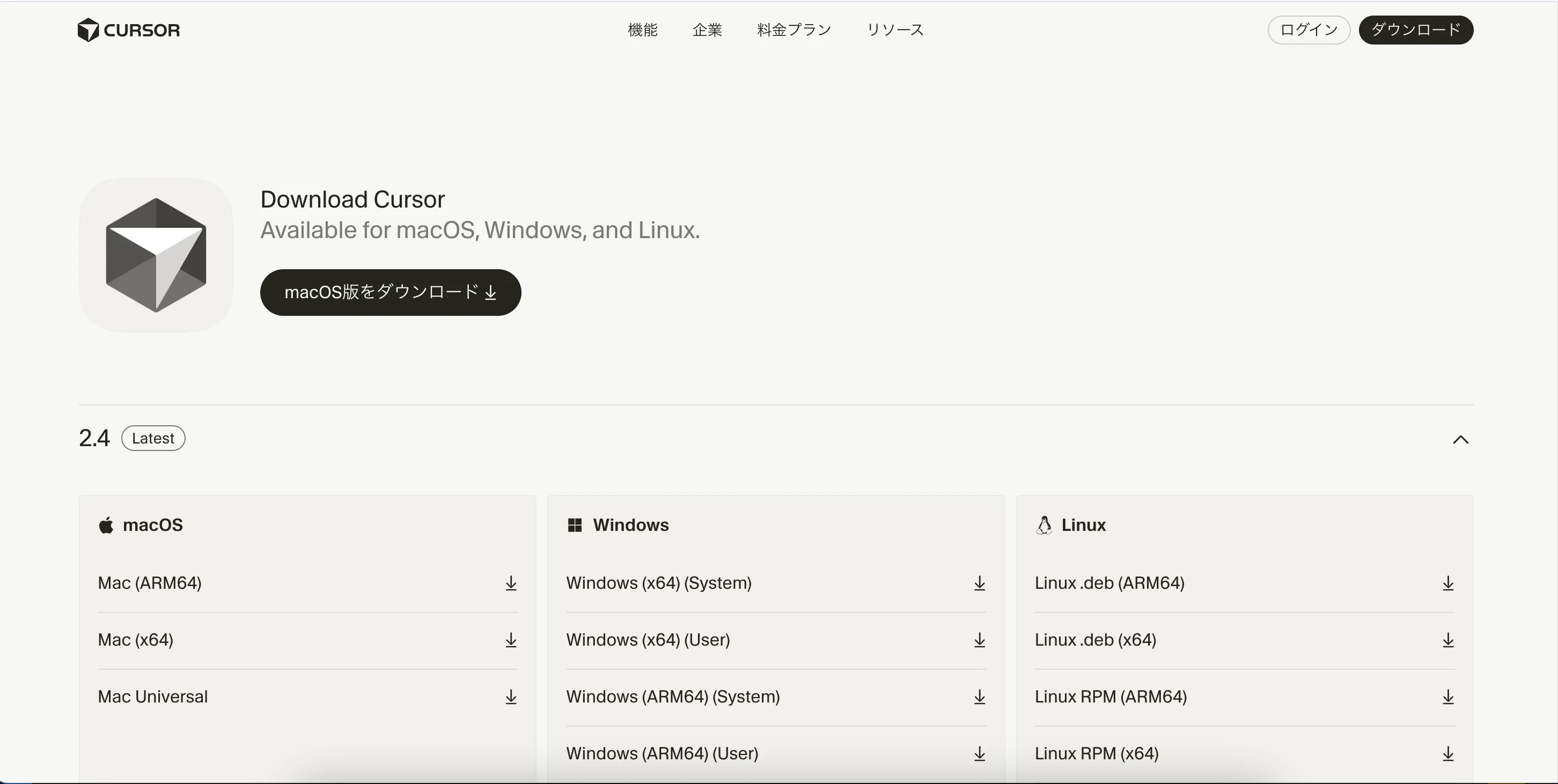
Download Cursorのページ

しかし、コマンド1つでアップデートできる方法があったので今回はそちらを試していきたいと思います。

(2026年1月26日時点の情報)

手順

1) Cursorの検索欄(下記キャプチャの赤枠の部分)をクリックする
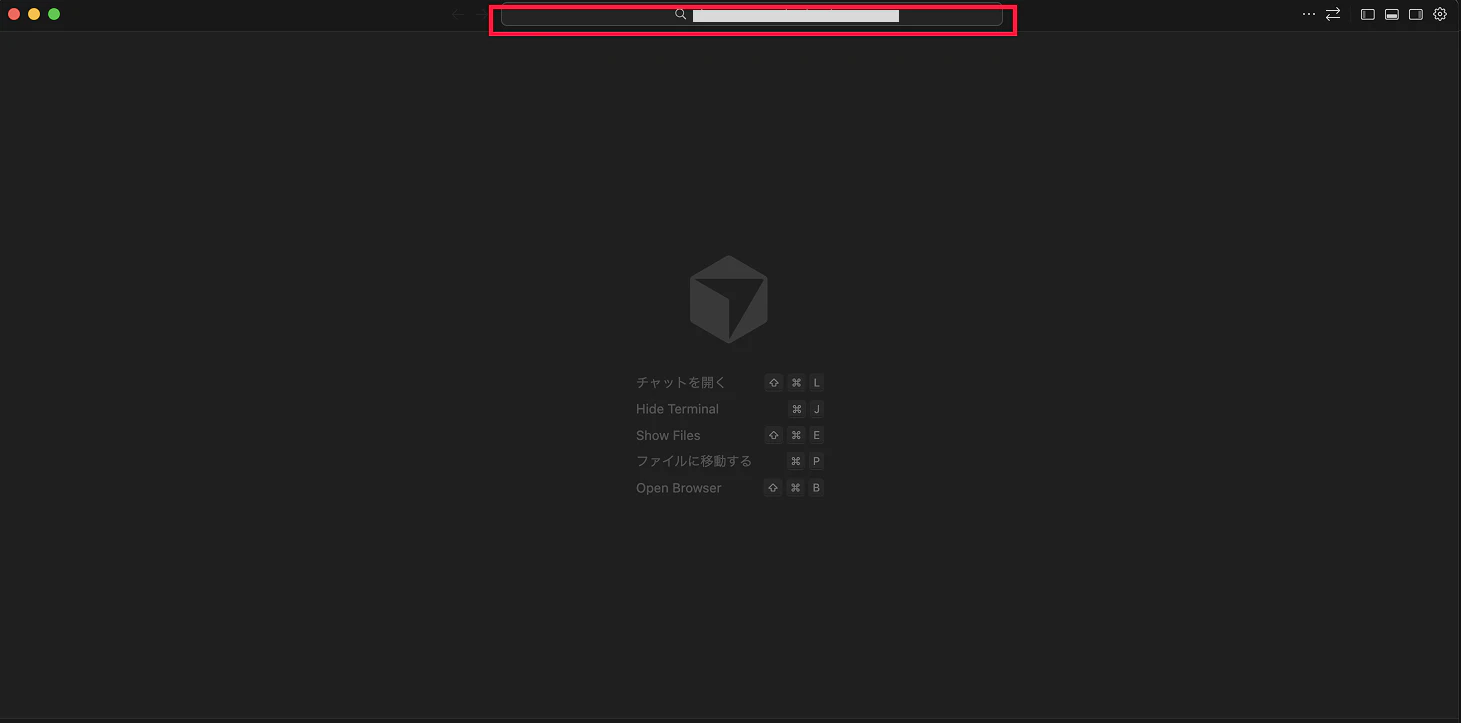
Cursorのキャプチャ。上部の検索欄に赤枠をつけている

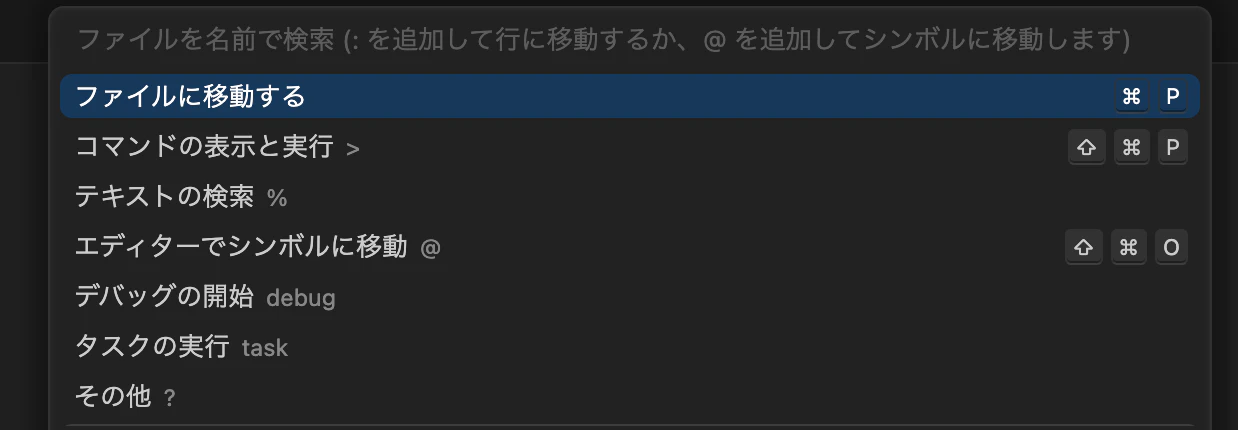
2)「コマンドの表示と実行 >」をクリックする

Cursorのキャプチャ。プルダウンに「コマンドの表示と実行」などが表示されている。

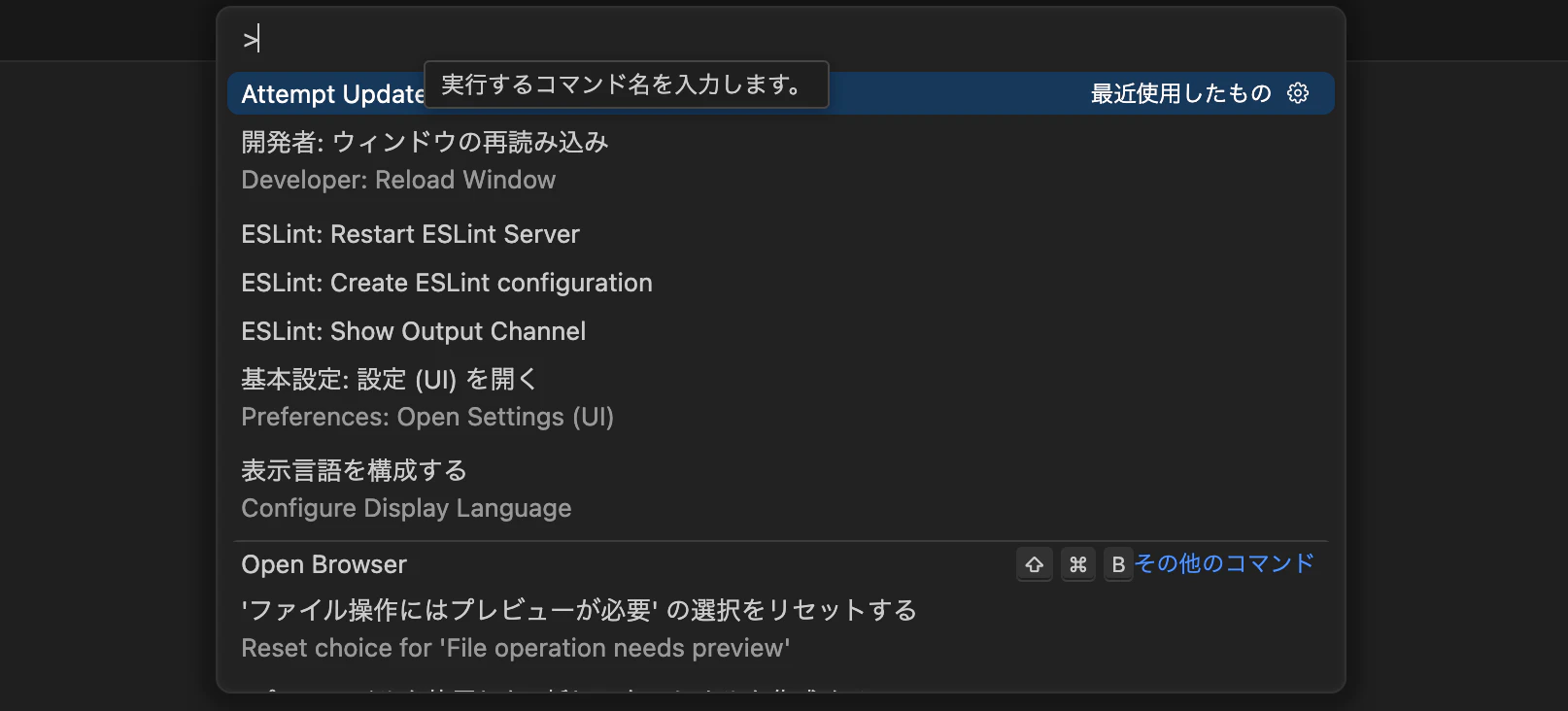
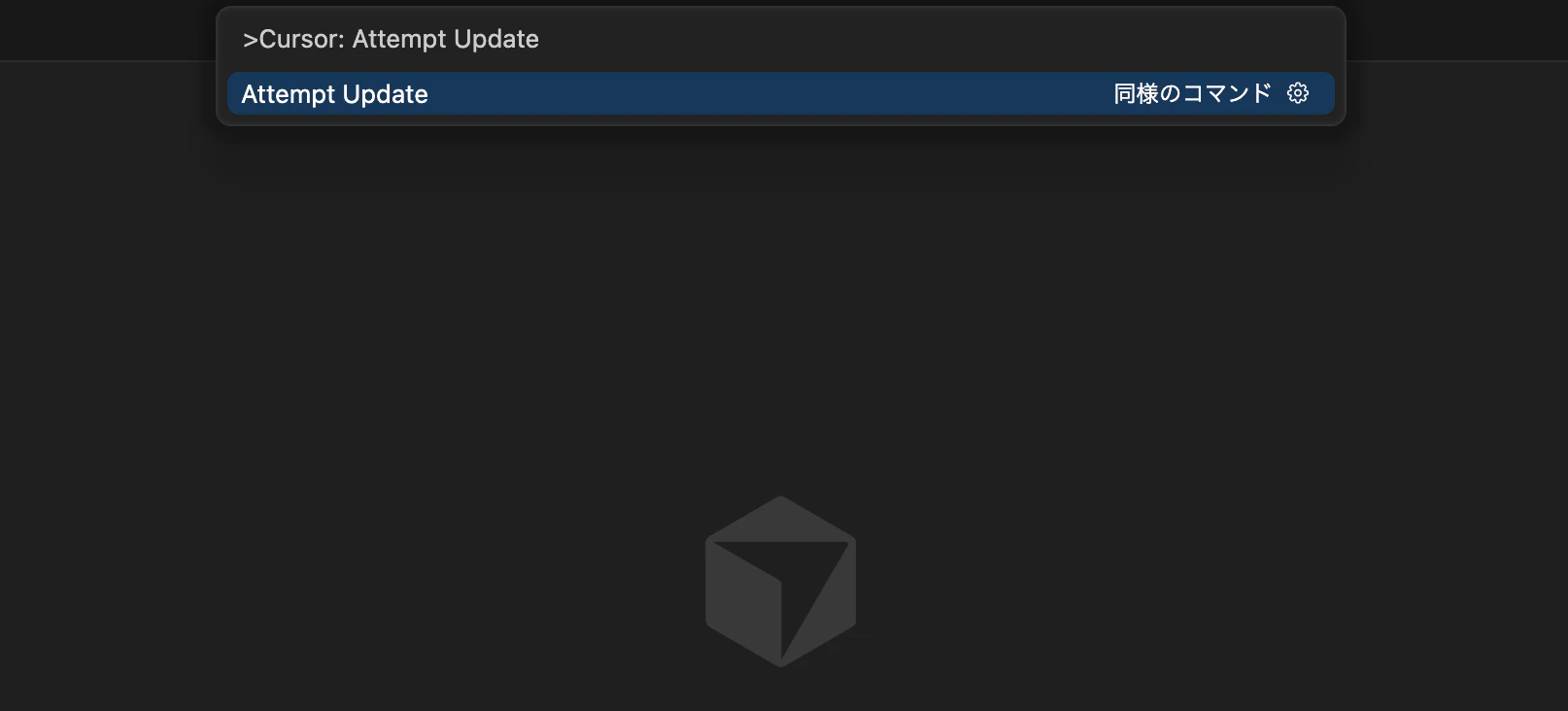
3)Cursor: Attempt Updateと入力する

Cursorのキャプチャ。コマンド入力欄を表示している。

Cursorのキャプチャ。「Cursor: Attempt Update」と入力している。

4)Enterキーをクリック

5)Cursorが再起動し、アップデートが完了する

再起動には少し時間がかかりました。

3
1
0

Register as a new user and use Qiita more conveniently

  1. You get articles that match your needs
  2. You can efficiently read back useful information
  3. You can use dark theme
What you can do with signing up
3
1

Delete article

Deleted articles cannot be recovered.

Draft of this article would be also deleted.

Are you sure you want to delete this article?