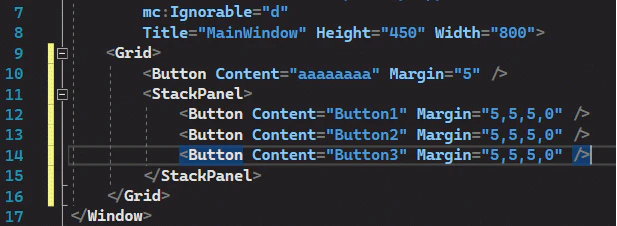
■目次
| 1.一覧 | 2.詳細 | 3.インストール | 4.使い方 |
|---|
■1.一覧
| ショートカット | 説明 |
|---|---|
| btn | Button |
| btn# | x:Name付きButton |
| check | CheckBox |
| check# | x:Name付きCheckBox |
| radio | RadioButton |
| radio# | x:Name付きRadioButton |
| lbl | Label |
| tblk | TextBlock |
| tbx | TextBox |
| tbx# | x:Name付きTextBox |
| lbl+tbx | LabelとTextBoxのセット |
| tblk+tbx | TextBlockとTextBoxのセット |
| list | ListBox |
| list# | x:Name付きListBox |
| list>li | ListBoxItemを含むListBox |
| combo | ComboBox |
| combo# | x:Name付きComboBox |
| combo>ci | ComboBoxItemを含むComboBox |
| border | Border |
| rect | Rectangle |
| img | Image |
| grid | Grid |
| rd | RowDefinition。(Visual Studio 2019標準) |
| rds | RowDefinitions |
| rds>rd*2 | RowDefinitionsの中にRowDefinitionが2つ |
| rds>rd*3 | RowDefinitionsの中にRowDefinitionが3つ |
| cd | ColumnDefinition。(Visual Studio 2019標準) |
| cds | ColumnDefinitions |
| cds>cd*2 | ColumnDefinitionsの中にColumnDefinitionが2つ |
| cds>cd*3 | ColumnDefinitionsの中にColumnDefinitionが3つ |
| stack | StackPanel |
| stackh | Horizontal指定のStackPanel |
| wrap | WrapPanel |
| dock | DockPanel |
| stack>btn*3 | StackPanelの中にButtonが3つ |
| stackh>btn*3 | Horizontal指定のStackPanelの中にButtonが3つ |
| winres | Window Resources |
| pgres | Page Resources |
| ucres | UserControl Resources |
| style | Style |
| style# | x:Key付きStyle |
| set | Setter。(Visual Studio 2019標準) |
| #region | #region。(Visual Studio 2019標準) |
| tag | 任意のタグ。初期値はGrid。(Visual Studio 2017, 2019標準) |
| menu | Menu |
| menu>mi | MenuItemを含むMenu |
| cmenu | ContextMenu |
| cmenu>mi | MenuItemを含むContextMenu |
■2.詳細
btn
<Button Content="Button" Margin="5" />
btn#
<Button x:Name="btn1" Content="Button" Margin="5" />
check
<CheckBox Content="CheckBox" IsChecked="True" Margin="5" />
check#
<CheckBox x:Name="check1" Content="CheckBox" IsChecked="True" Margin="5" />
radio
<RadioButton Content="RadioButton" IsChecked="True" Margin="5" />
radio#
<RadioButton x:Name="radio1" Content="RadioButton" IsChecked="True" Margin="5" />
lbl
<Label Content="Label" Margin="5" />
tblk
<TextBlock Text="TextBlock" Margin="5" />
tbx
<TextBox Text="TextBox" Margin="5" />
tbx#
<TextBox x:Name="txt1" Text="TextBox" Margin="5" />
lbl+tbx
<Label Content="Item Name1" Margin="5,5,5,0" Padding="0" />
<TextBox Text="Item Value1" Margin="5,0,5,5" />
tblk+tbx
<TextBlock Text="Item Name1" Margin="5,5,5,0" />
<TextBox Text="Item Value1" Margin="5,0,5,5" />
list
<ListBox ItemsSource="{}" SelectedIndex="0" Margin="5" />
list#
<ListBox x:Name="list1" ItemsSource="{}" SelectedIndex="0" Margin="5" />
list>li
<ListBox SelectedIndex="0" Margin="5">
    <ListBoxItem Content="item1" />
</ListBox>
combo
<ComboBox ItemsSource="{}" SelectedIndex="0" Margin="5" />
combo#
<ComboBox x:Name="combo1" ItemsSource="{}" SelectedIndex="0" Margin="5" />
combo>ci
<ComboBox SelectedIndex="0" Margin="5">
    <ComboBoxItem Content="item1" />
</ComboBox>
border
<Border BorderBrush="Black" BorderThickness="1" Height="100" Width="100" />
rect
<Rectangle Fill="LightGray" Height="100" Width="100" Stroke="Black" />
img
<Image Source="image1.png" />
grid
<Grid></Grid>
rd
<RowDefinition Height="1*" />
rds
<Grid.RowDefinitions></Grid.RowDefinitions>
rds>rd*2
<Grid.RowDefinitions>
    <RowDefinition Height="1*" />
    <RowDefinition Height="1*" />
</Grid.RowDefinitions>
rds>rd*3
<Grid.RowDefinitions>
    <RowDefinition Height="1*" />
    <RowDefinition Height="1*" />
    <RowDefinition Height="1*" />
</Grid.RowDefinitions>
cd
<ColumnDefinition Width="1*" />
cds
<Grid.ColumnDefinitions></Grid.ColumnDefinitions>
cds>cd*2
<Grid.ColumnDefinitions>
    <ColumnDefinition Width="1*" />
    <ColumnDefinition Width="1*" />
</Grid.ColumnDefinitions>
cds>cd*3
<Grid.ColumnDefinitions>
    <ColumnDefinition Width="1*" />
    <ColumnDefinition Width="1*" />
    <ColumnDefinition Width="1*" />
</Grid.ColumnDefinitions>
stack
<StackPanel></StackPanel>
stackh
<StackPanel Orientation="Horizontal"></StackPanel>
wrap
<WrapPanel></WrapPanel>
dock
<DockPanel></DockPanel>
stack>btn*3
<StackPanel>
    <Button Content="Button1" Margin="5,5,5,0" />
    <Button Content="Button2" Margin="5,5,5,0" />
    <Button Content="Button3" Margin="5,5,5,0" />
</StackPanel>
stackh>btn*3
<StackPanel Orientation="Horizontal">
    <Button Content="Button1" Margin="5,5,0,5" />
    <Button Content="Button2" Margin="5,5,0,5" />
    <Button Content="Button3" Margin="5,5,0,5" />
</StackPanel>
winres
<Window.Resources></Window.Resources>
pgres
<Page.Resources></Page.Resources>
ucres
<UserControl.Resources></UserControl.Resources>
style
<Style TargetType="Button"></Style>
style#
<Style x:Key="key1" TargetType="Button"></Style>
set
<Setter Property="Background" Value="Red" />
#region
<!--#region NewRegion -->
<!--#endregion-->
tag
<Grid></Grid>
menu
<Menu></Menu>
menu>mi
<Menu>
    <MenuItem Header="Item1" />
</Menu>
cmenu
<ContextMenu></ContextMenu>
cmenu>mi
<ContextMenu>
    <MenuItem Header="Item1" />
</ContextMenu>
■3.インストール
◇Visual Studio 2017/2019共通作業
-
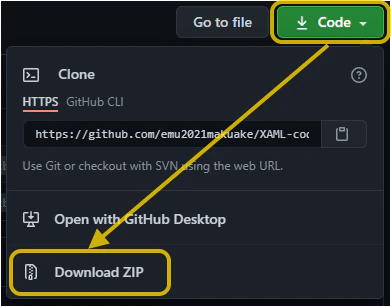
「XAML code snippets for Visual Studio 2019」から「Code」-「Download ZIP」を選択
-
ダウンロードしたZIPファイルを展開
-
Visual Studio 2019のメニュー「ツール」-「コードスニペットマネージャー」を選択
-
「インポート」ボタンを選択
-
「Xammet.snippet」ファイルを指定
◇Visual Studio 2017の場合の追加作業
以下をsnippetファイルとしてUTF8形式で保存し、同様にインポートすることで
Visual Studio 2019の#region, rd,cd, setが使えるようになる。
XAMLforVS2017.snippet
<?xml version="1.0" encoding="utf-8"?>
<CodeSnippets
xmlns="http://schemas.microsoft.com/VisualStudio/2005/CodeSnippet">
<CodeSnippet Format="1.0.0">
<Header>
<Title>#region</Title>
<Shortcut>#region</Shortcut>
<Description>#region ~ #endregion</Description>
<SnippetTypes>
<SnippetType>Expansion</SnippetType>
</SnippetTypes>
</Header>
<Snippet>
<Declarations>
<Literal Editable="true">
<ID>Value1</ID>
<Default>RegionName</Default>
</Literal>
</Declarations>
<Code Language="XAML"><![CDATA[<!--#region $Value1$-->$end$$selected$<!--#endregion-->]]></Code>
</Snippet>
</CodeSnippet>
<CodeSnippet Format="1.0.0">
<Header>
<Title>グリッド行定義</Title>
<Shortcut>rd</Shortcut>
<Description><RowDefinition></Description>
<SnippetTypes>
<SnippetType>Expansion</SnippetType>
</SnippetTypes>
</Header>
<Snippet>
<Declarations>
<Literal Editable="true">
<ID>Value1</ID>
<Default>1*</Default>
</Literal>
</Declarations>
<Code Language="XAML"><![CDATA[<RowDefinition Height="$Value1$" />$selected$$end$]]></Code>
</Snippet>
</CodeSnippet>
<CodeSnippet Format="1.0.0">
<Header>
<Title>グリッドカラム定義</Title>
<Shortcut>cd</Shortcut>
<Description><ColumnDefinition></Description>
<SnippetTypes>
<SnippetType>Expansion</SnippetType>
</SnippetTypes>
</Header>
<Snippet>
<Declarations>
<Literal Editable="true">
<ID>Value1</ID>
<Default>1*</Default>
</Literal>
</Declarations>
<Code Language="XAML"><![CDATA[<ColumnDefinition Width="$Value1$" />$selected$$end$]]></Code>
</Snippet>
</CodeSnippet>
<CodeSnippet Format="1.0.0">
<Header>
<Title>Setter</Title>
<Shortcut>set</Shortcut>
<Description><Setter></Description>
<SnippetTypes>
<SnippetType>Expansion</SnippetType>
</SnippetTypes>
</Header>
<Snippet>
<Declarations>
<Literal Editable="true">
<ID>Value1</ID>
<Default>Background</Default>
</Literal>
<Literal Editable="true">
<ID>Value2</ID>
<Default>Red</Default>
</Literal>
</Declarations>
<Code Language="XAML"><![CDATA[<Setter Property="$Value1$" Value="$Value2$" />$selected$$end$]]></Code>
</Snippet>
</CodeSnippet>
</CodeSnippets>
■4.使い方
ショートカットキーを入力してTabキー
◇使用例
btnと入力
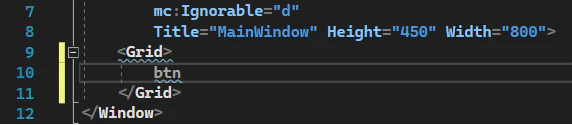
TABキー入力
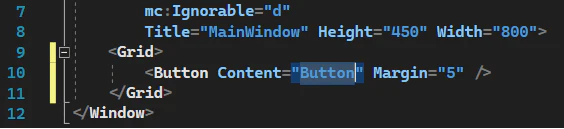
ContentのButton部分が選択状態になっているため、そのまま任意のボタン名を入力
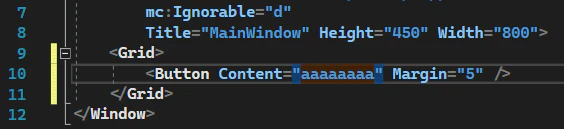
Enterキー入力でタグの外にカーソルが位置付けられる

もう一度Enterキー入力で改行し、stack>btn*3と入力

TABキー入力