
はじめに
GUIでGitHubをポチポチしていたら、リポジトリ一覧の表示方法がいっぱいあったので、メモ書きです。
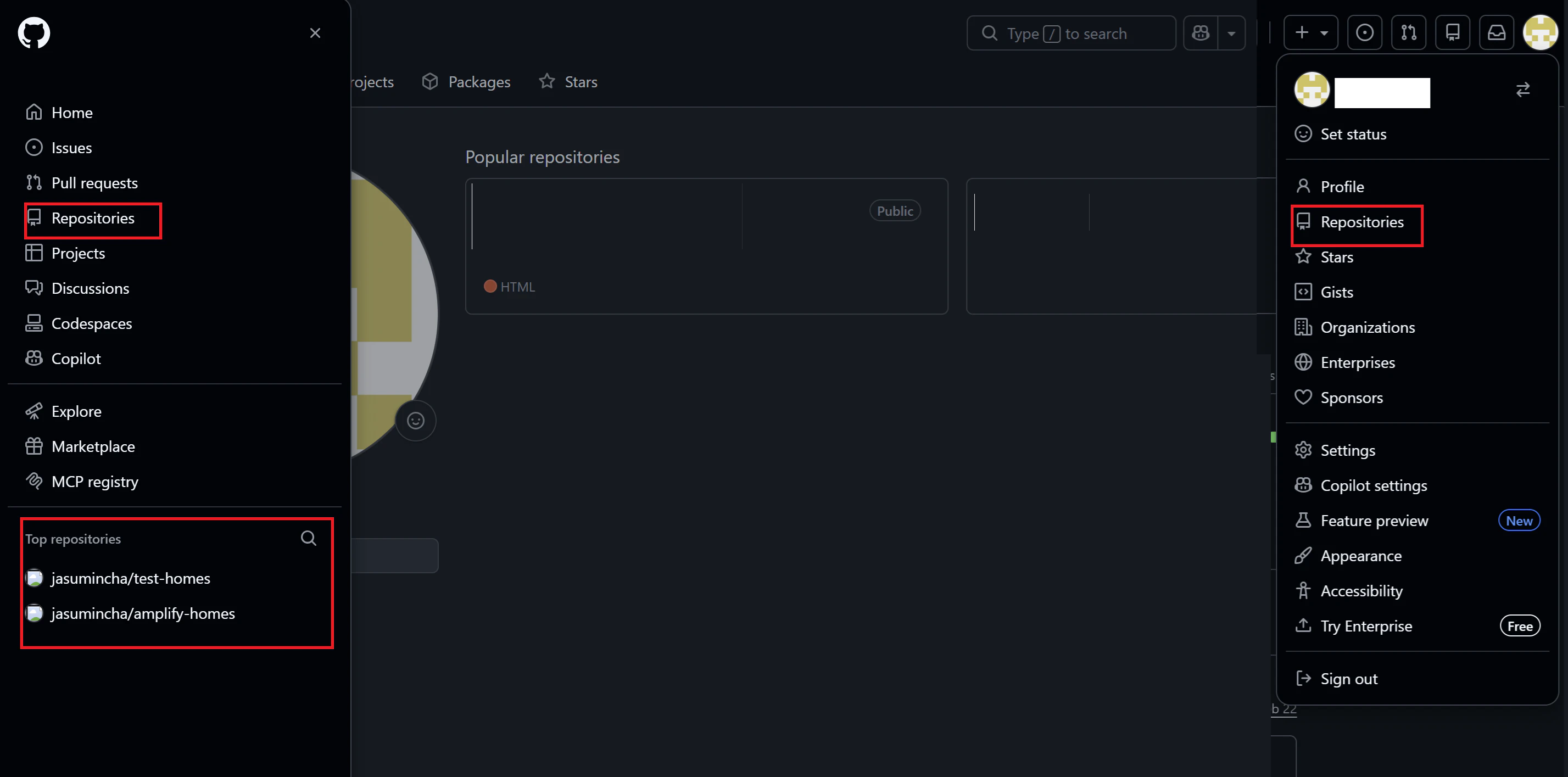
「Repositories」画面への遷移と、単純にリポジトリを検索したい場合の手順を記載します。
手順
GitHubへのログイン方法は GitHubのログイン方法 を参照
その1 ダッシュボードから検索
検索
ログイン直後にリポジトリを検索したい場合は、この方法が一番早いです。
ログイン直後は、ダッシュボード画面に遷移するので、左側に「Top Repositories」が表示されます。
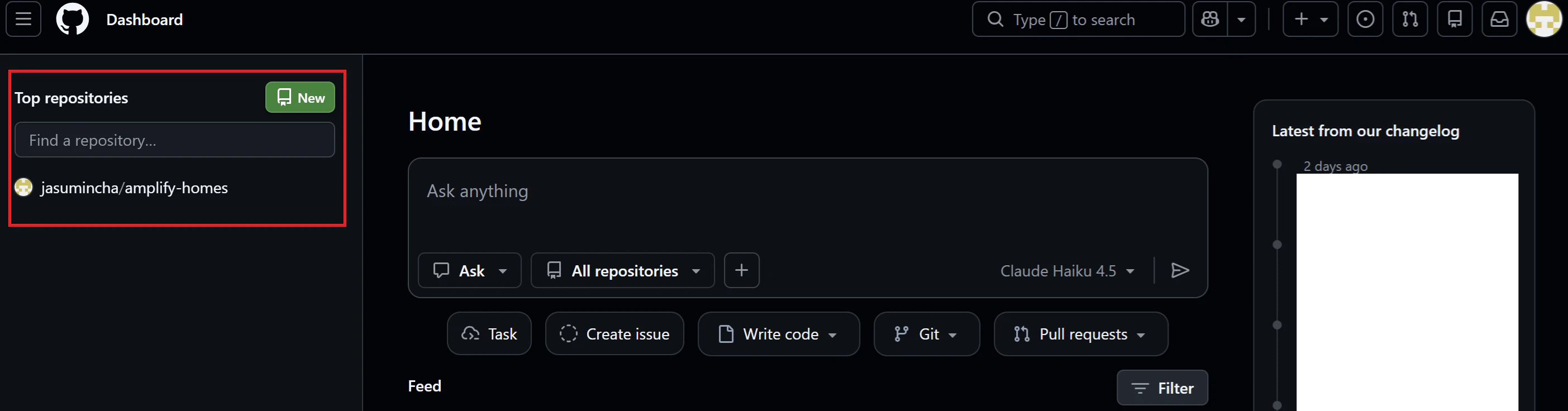
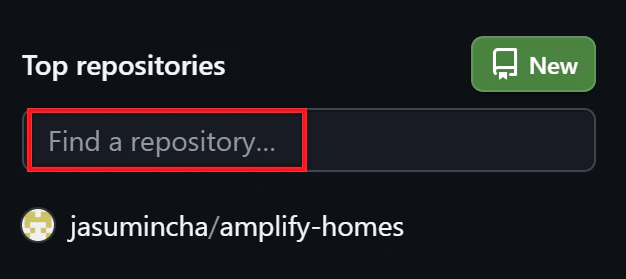
「Find a repository...」のテキストボックスに対象リポジトリ名を入力すると検索もできます。
他画面からダッシュボード画面へ遷移したい場合
GitHubちゃんのアイコンをクリックすると遷移可能です。
大体のサイトがサイトアイコンをクリックするとログイン直後の画面へ戻れるので覚えておきましょう。

その2 左サイドメニューから、検索または「Repositories」画面への遷移
概要
左サイドメニュー
→ Repositories(デフォルトは「My contributions」)
→ My repositories
検索
ログイン後、画面左上部の三本線をクリック
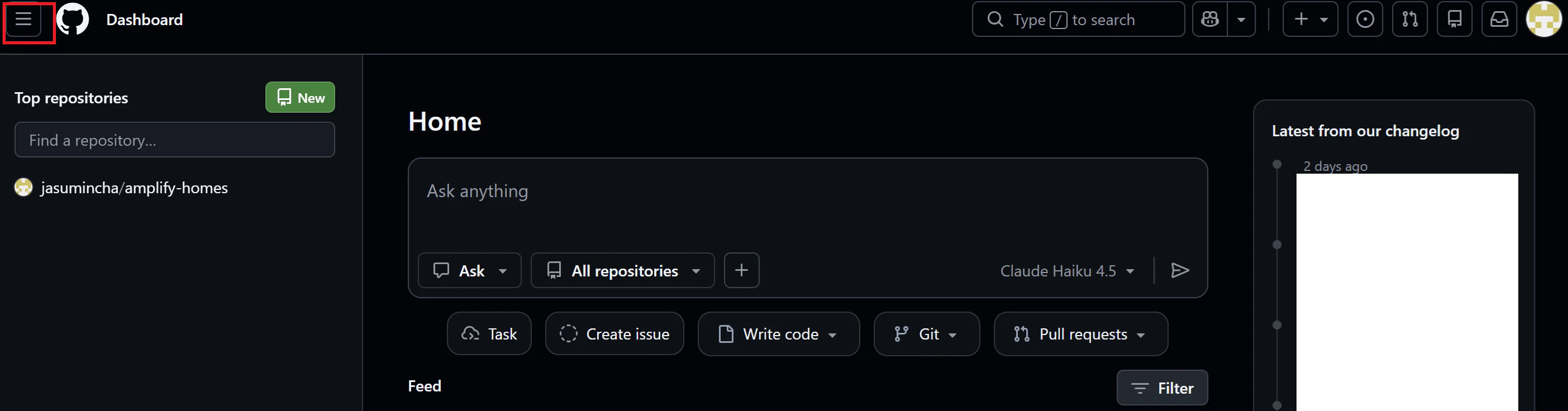
サイドメニューが開き、画面下部に「Top Repositories」が表示されます。
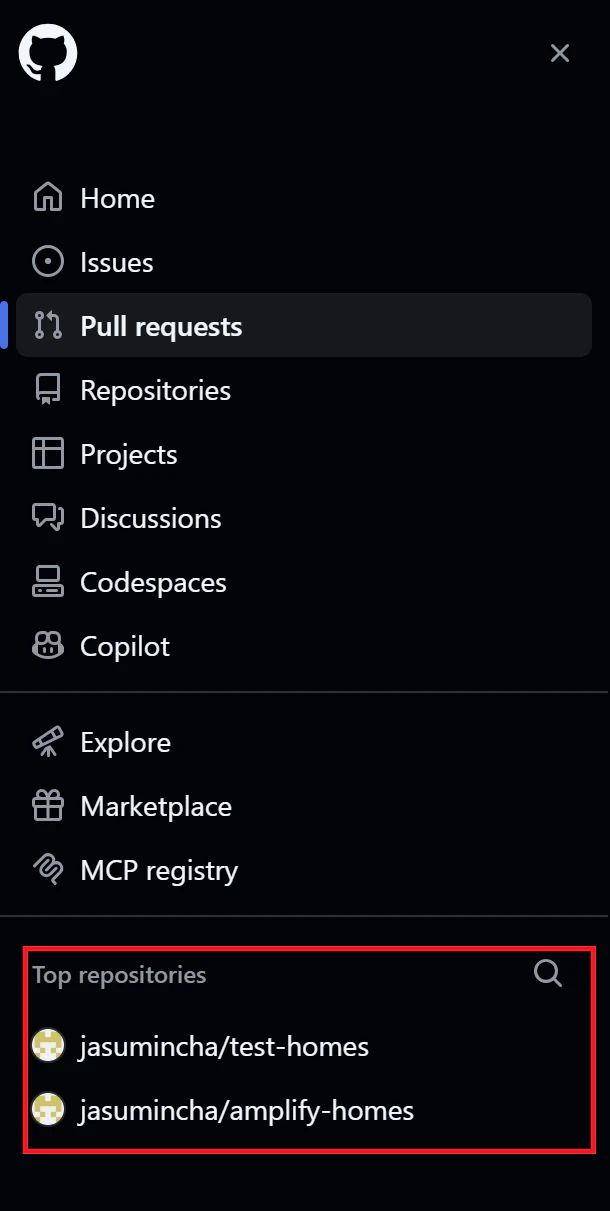
検索したい場合は、虫眼鏡アイコンをクリック
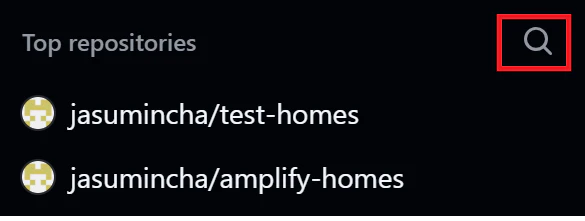
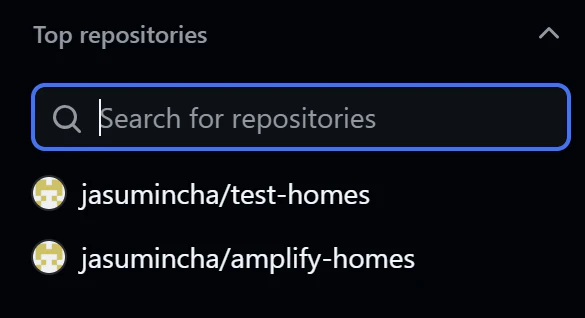
検索用の「Search for repositories」テキストボックスが表示されるので、そこに対象リポジトリ名を入力すると検索もできます。
「Repositories」画面への遷移
「Repositories」画面へ遷移したい場合は、「Repositories」をクリック

デフォルトは「My contributions」なので、「My repositories」をクリック
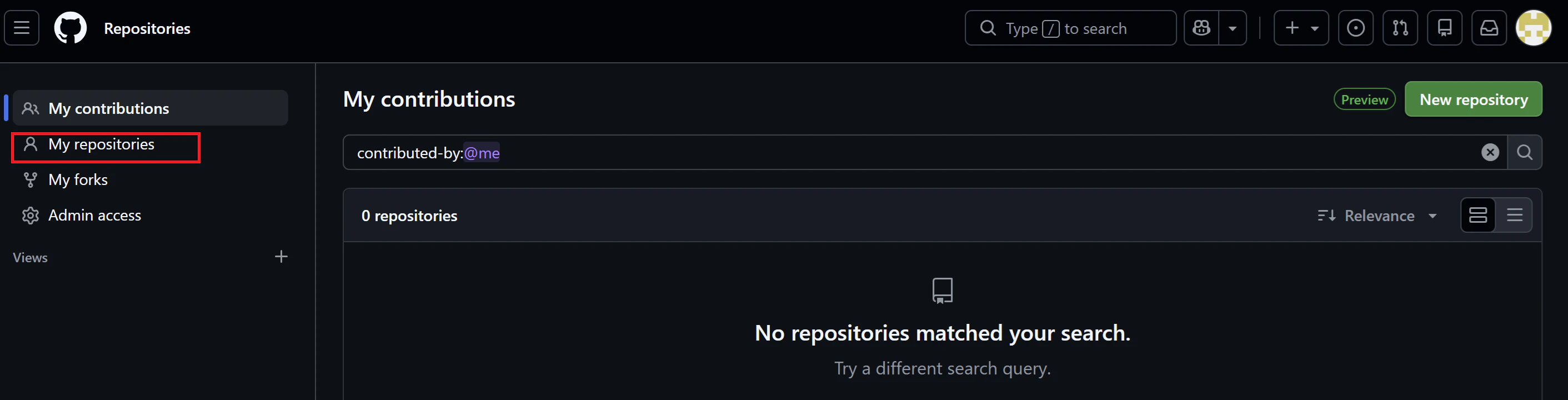
表示できました
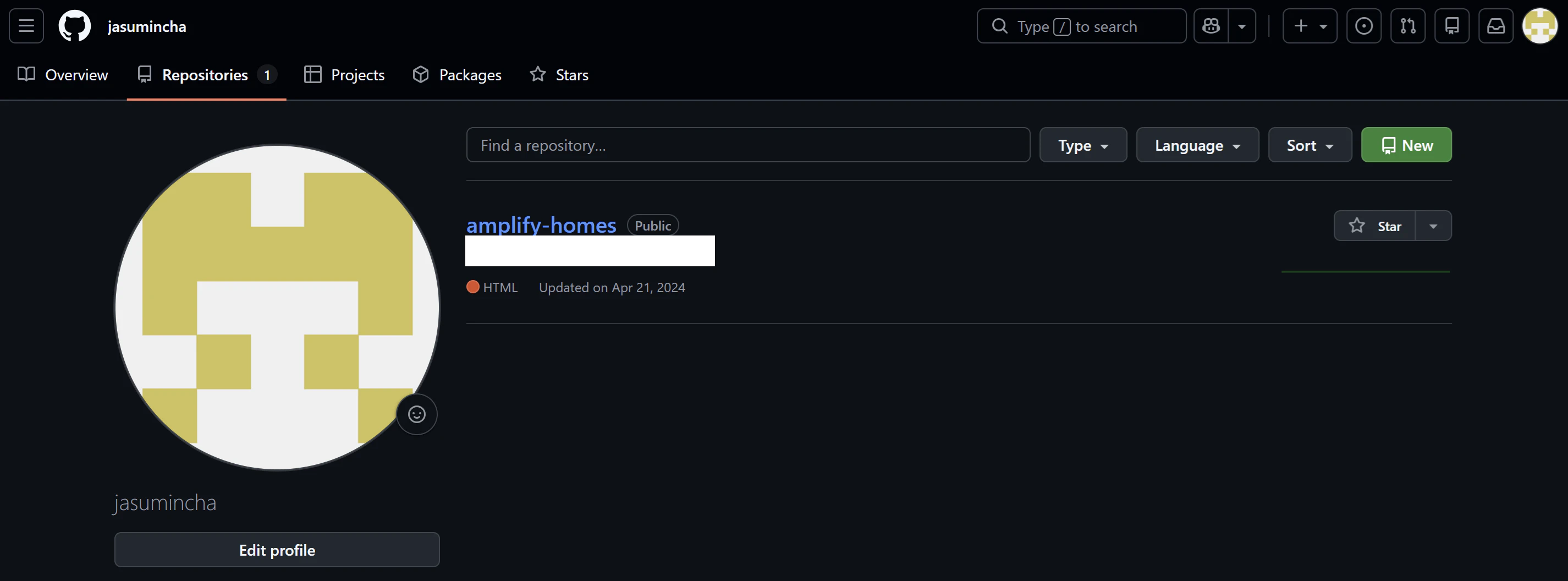
その3 アイコンから遷移
概要
右サイドメニュー
→ Repositories
「Repositories」画面への遷移
ログイン後、画面右上部の自分のアイコンをクリック

サイドメニューが開くので、「Repositories」をクリック
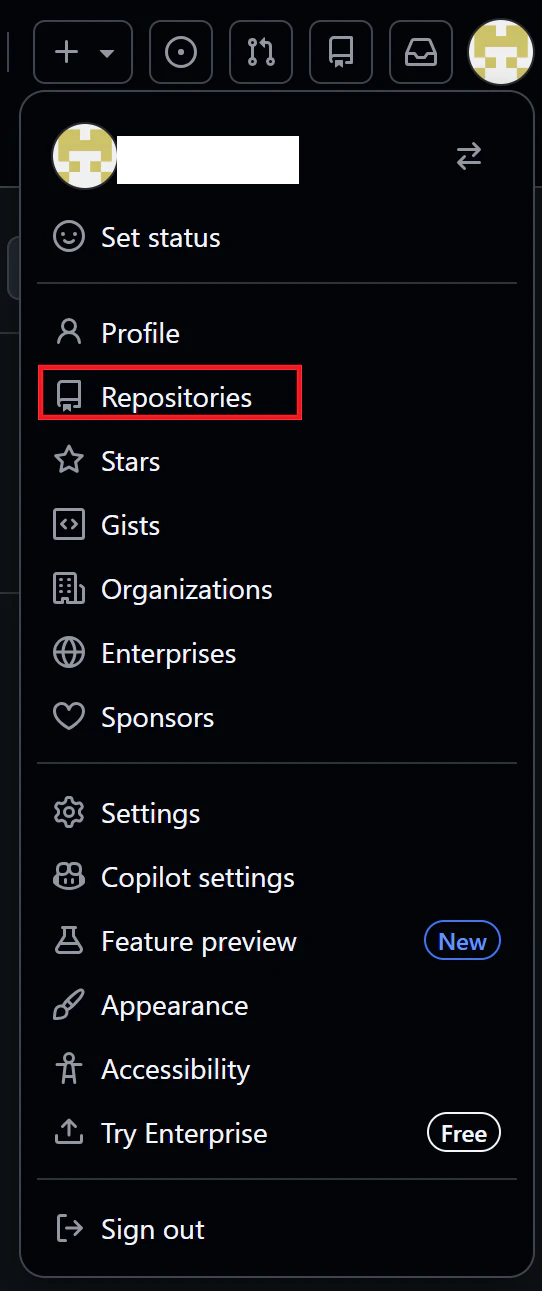
表示できました
その4 リンクから遷移
概要
ブラウザのURLを操作
直接リポジトリへ遷移
https://github.com/ユーザー名/リポジトリ名
上記をブラウザのURLへ入力すると、直接リポジトリ画面へ遷移できます。

その5 他リポジトリから遷移
「Repositories」画面への遷移
対象リポジトリ名の前のアカウント名をクリック

「Repositories」タブをクリック

表示できました
最後に
一覧への表示方法いっぱいあるんですね。