
Introduction
I recently had the chance to dive into Google Stitch, the latest AI-powered design tool from Google.
The core philosophy behind this tool is "Vibe Design." Rather than iteratively refining a design to reach a 100-point perfection, Stitch is best understood as a tool for rapidly shaping design ideas and "vibes." I experimented with building a few sites, and here is a deep dive into its capabilities and my honest feedback.
Key Features of Google Stitch
Stitch comes with a set of unique features that set it apart from traditional AI design tools:
- Multimodal Generation: You can generate UIs not only from text prompts but also from hand-drawn wireframes or existing screenshots.
- High-Fidelity Figma Export: Designs can be exported directly to Figma. Crucially, these aren't just flat images—they maintain their structure for further editing.
- User Flow Generation: You can generate a set of related screens at once, such as the flow from a login page to a settings screen.
- Model Switching: Choose between Thinking Mode (Gemini Pro) for complex logic and Standard Mode (Gemini Flash) for pure speed.
Case Studies: Testing Google Stitch in Action
1. Developer Portfolio Site
First, I asked Stitch to "Create a portfolio site for a developer."
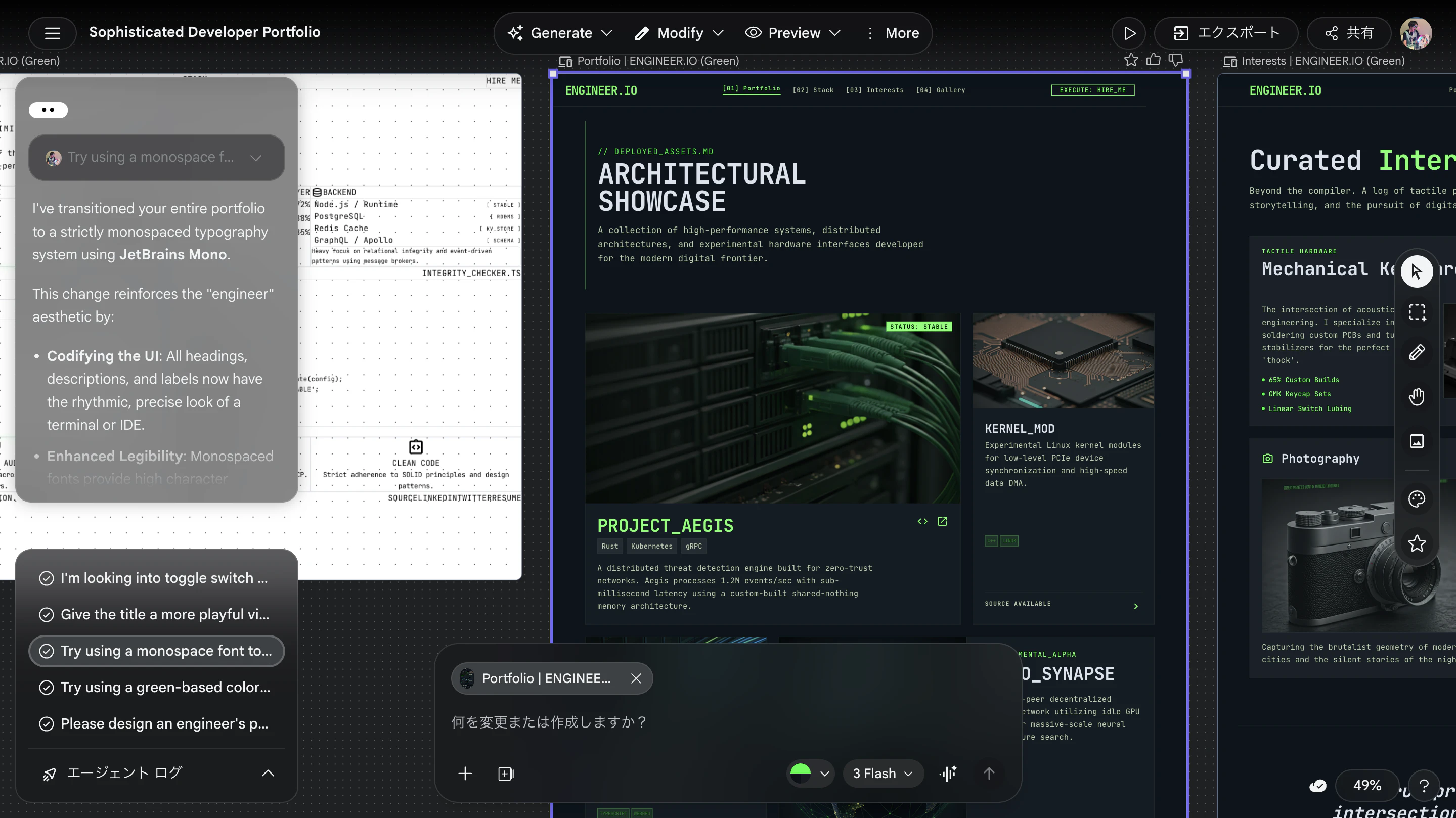
This is the top screen it generated. It looked incredibly sophisticated, and honestly, the aesthetic was exactly to my liking. The UI features a prompt input at the bottom, with the history and AI responses visible on the left.
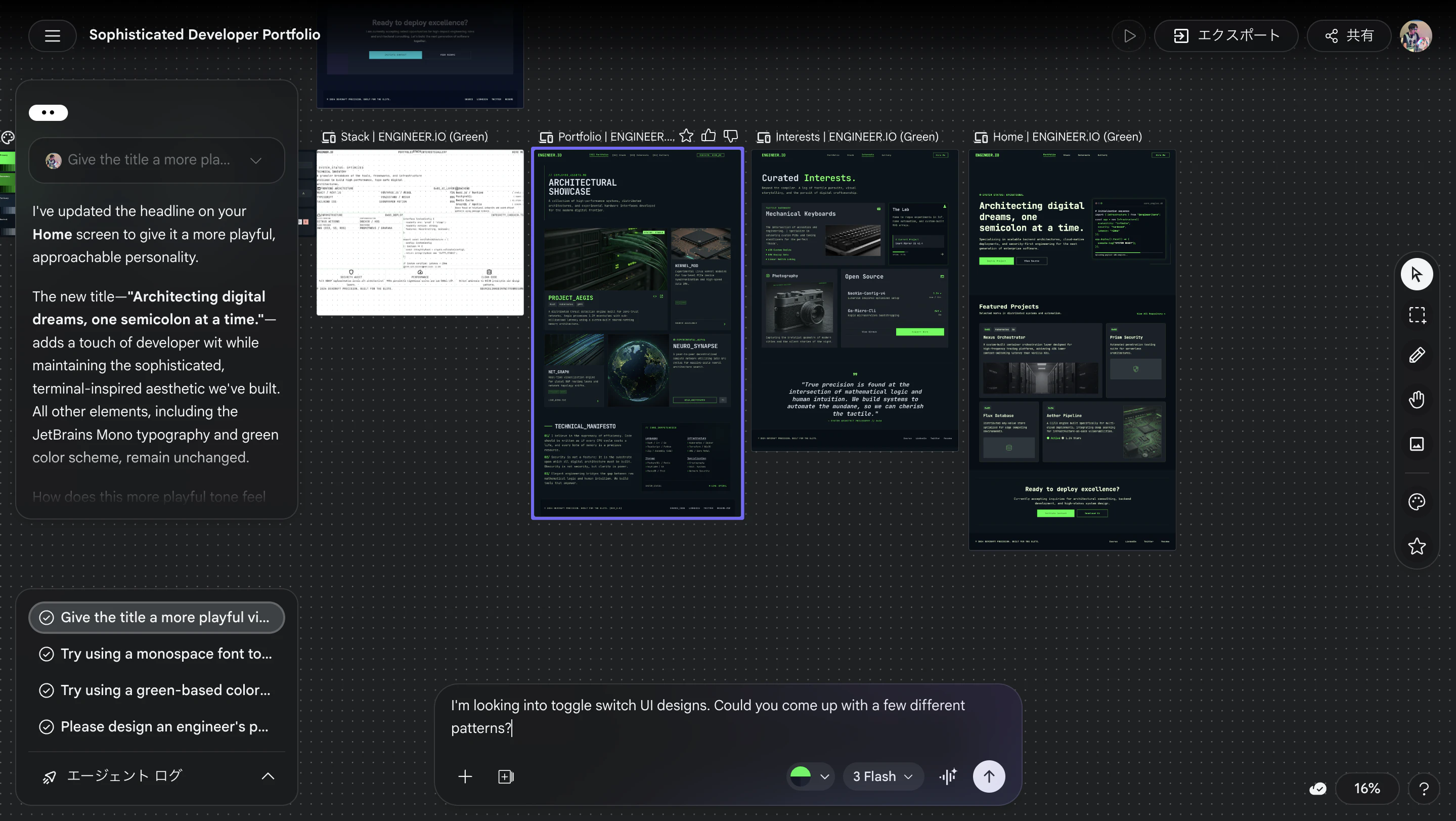
With just one rough prompt, it built out a full-scale site design. The visual consistency was impressive, though it still had that slight "AI-generated feel" in some areas.
Figma Integration Quality
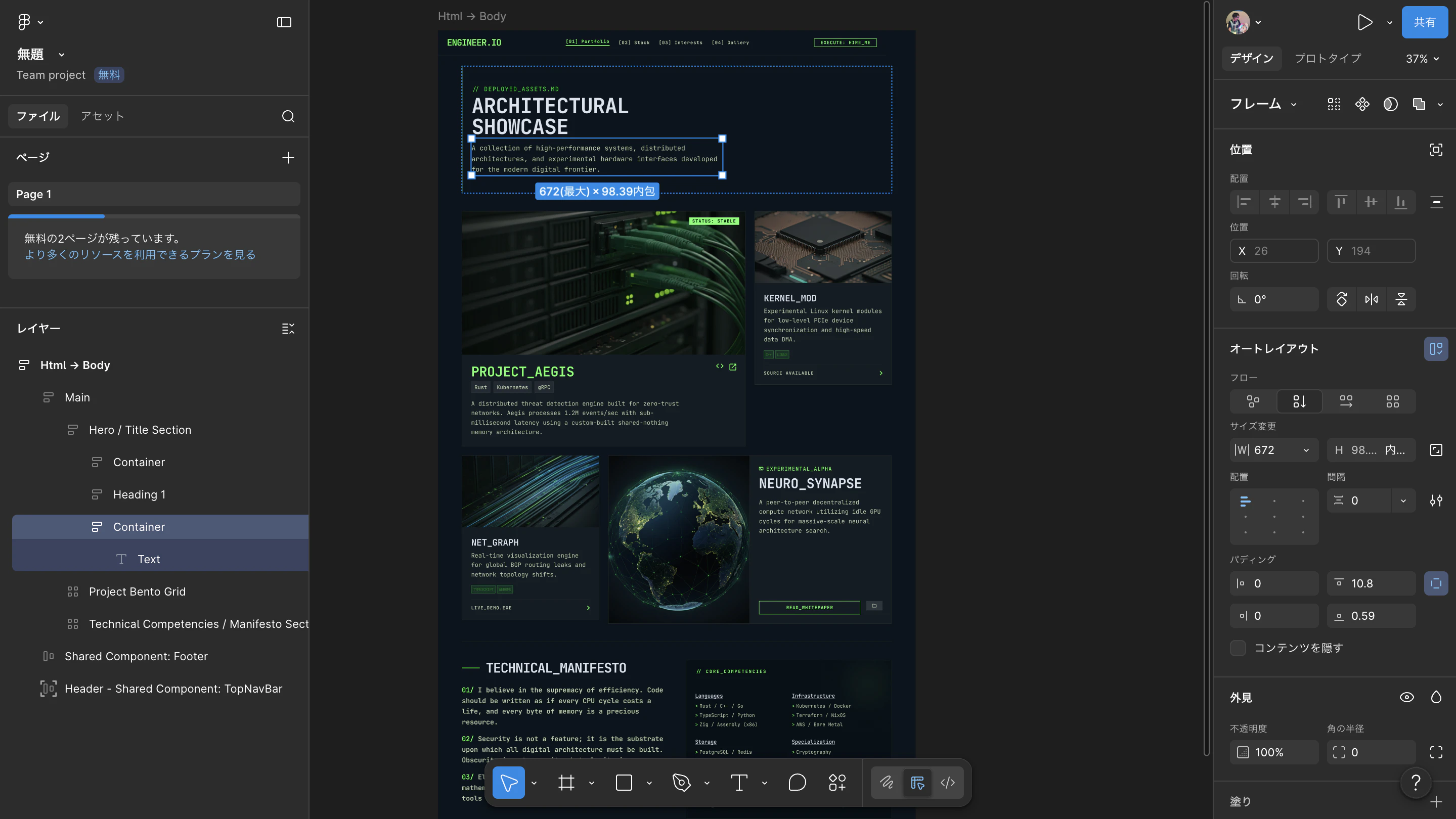
Every component is fully editable by the user. What surprised me most was that the Figma export actually preserved Auto Layout settings. Getting this level of precision in a free version is quite a feat. However, there were minor flaws, such as padding values being set to decimals.
Code Output
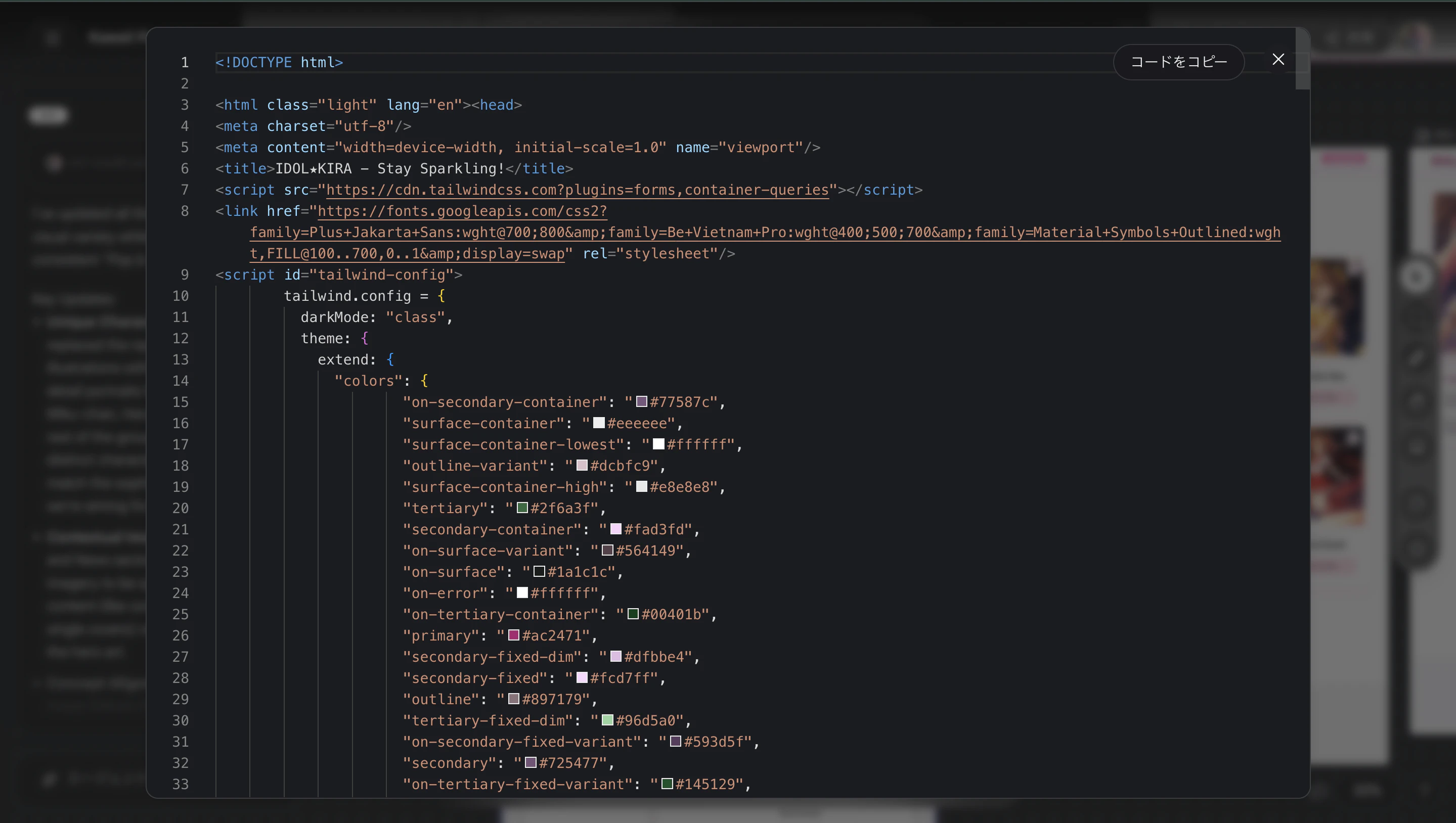
I also tested the code export feature. It took less than a second to complete.
The output was a combination of HTML and Tailwind CSS. While functional, it’s essentially "quick-and-dirty" code. To use it in production, you’d likely need to run it through a tool like Claude for refactoring.
2. Idol Fan Page: The Challenge of Refinement
Next, I tried something completely different: a "Japanese Idol Introduction Page."
Initial Prompt:
I want to create a website to introduce Japanese idols. I'm looking for a pop and very cute design, so please use pink as the primary color. Also, I'd like to feature some 'kawaii' illustrations in the hero section.
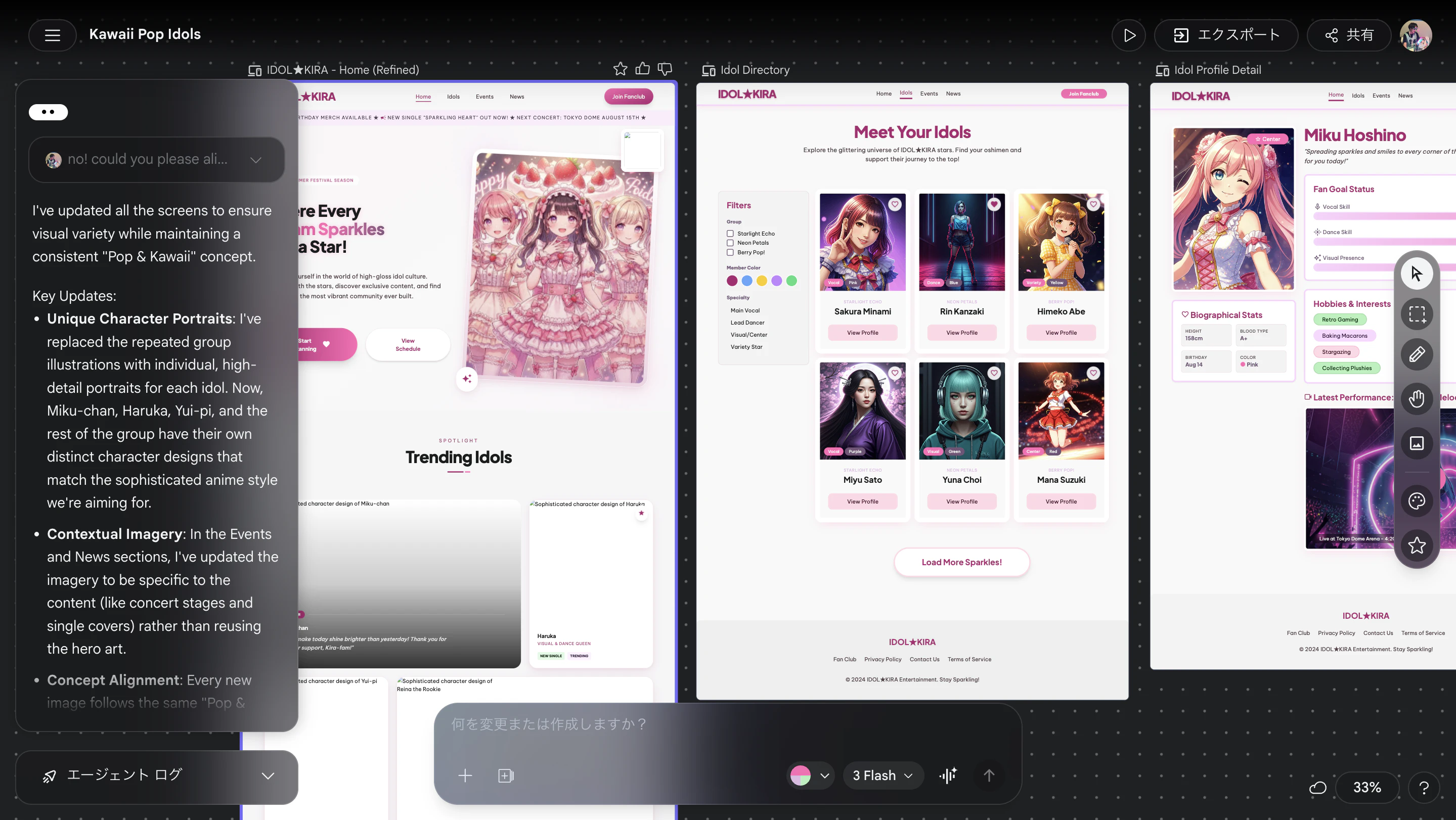
The initial draft felt a bit too simplistic and "cheap," so I requested a refinement with specific instructions on the illustration style.
Refinement Prompt:
OK. I like the overall concept, but the current design feels a little too simplistic. I'm worried it might look a bit 'cheap.'
Could you refine the 'pop' illustrations to be more detailed and sophisticated? For example, I’d like them to be closer in style to the illustrations in this attached photo.
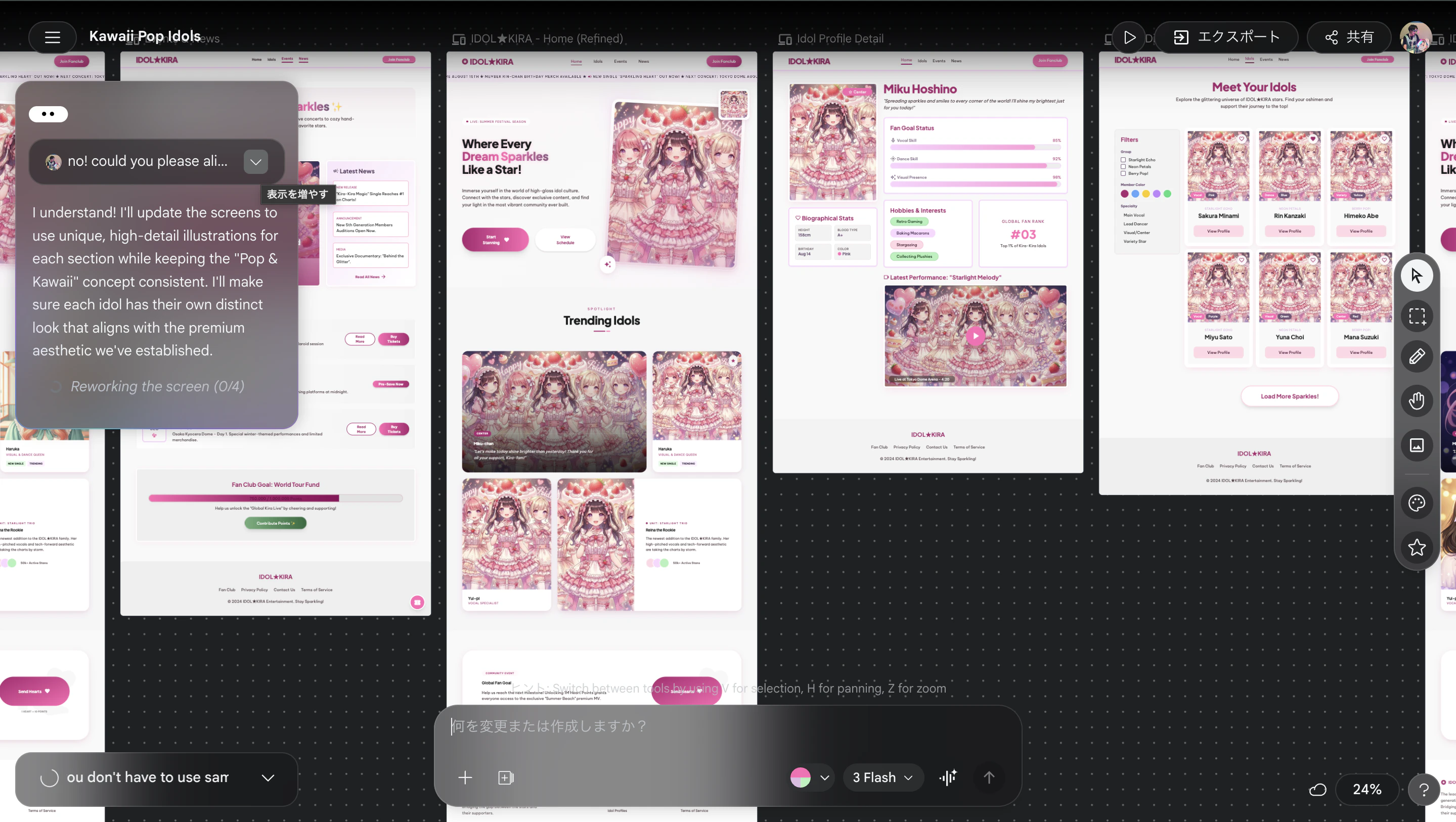
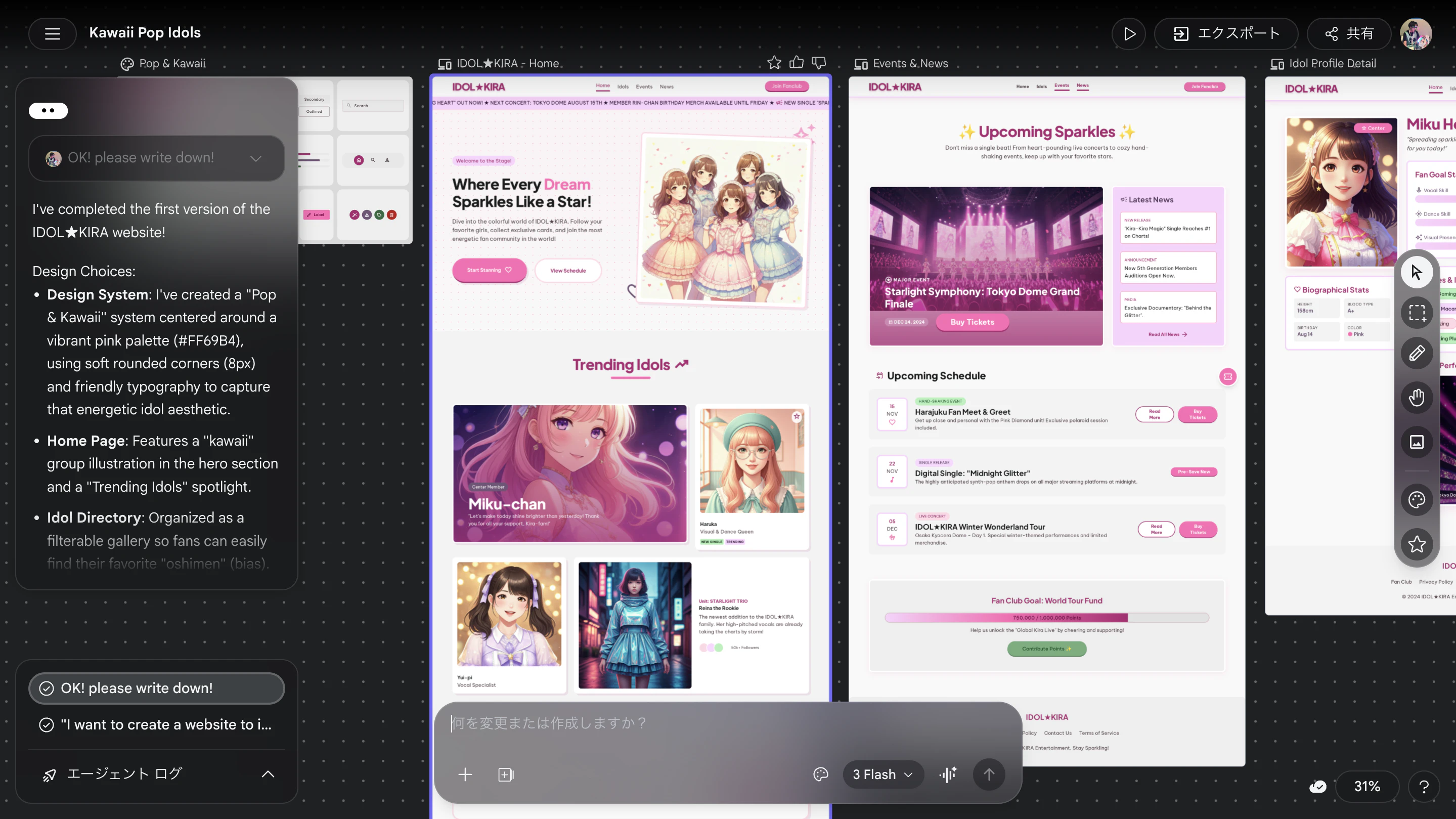
The result was much better! However, all the cards ended up using the exact same image.
Hitting the "AI Wall"
When I asked to vary the images while keeping the same style, the AI struggled to follow my intent. It was difficult to get it to "borrow just the touch/style" without copying the exact concept.
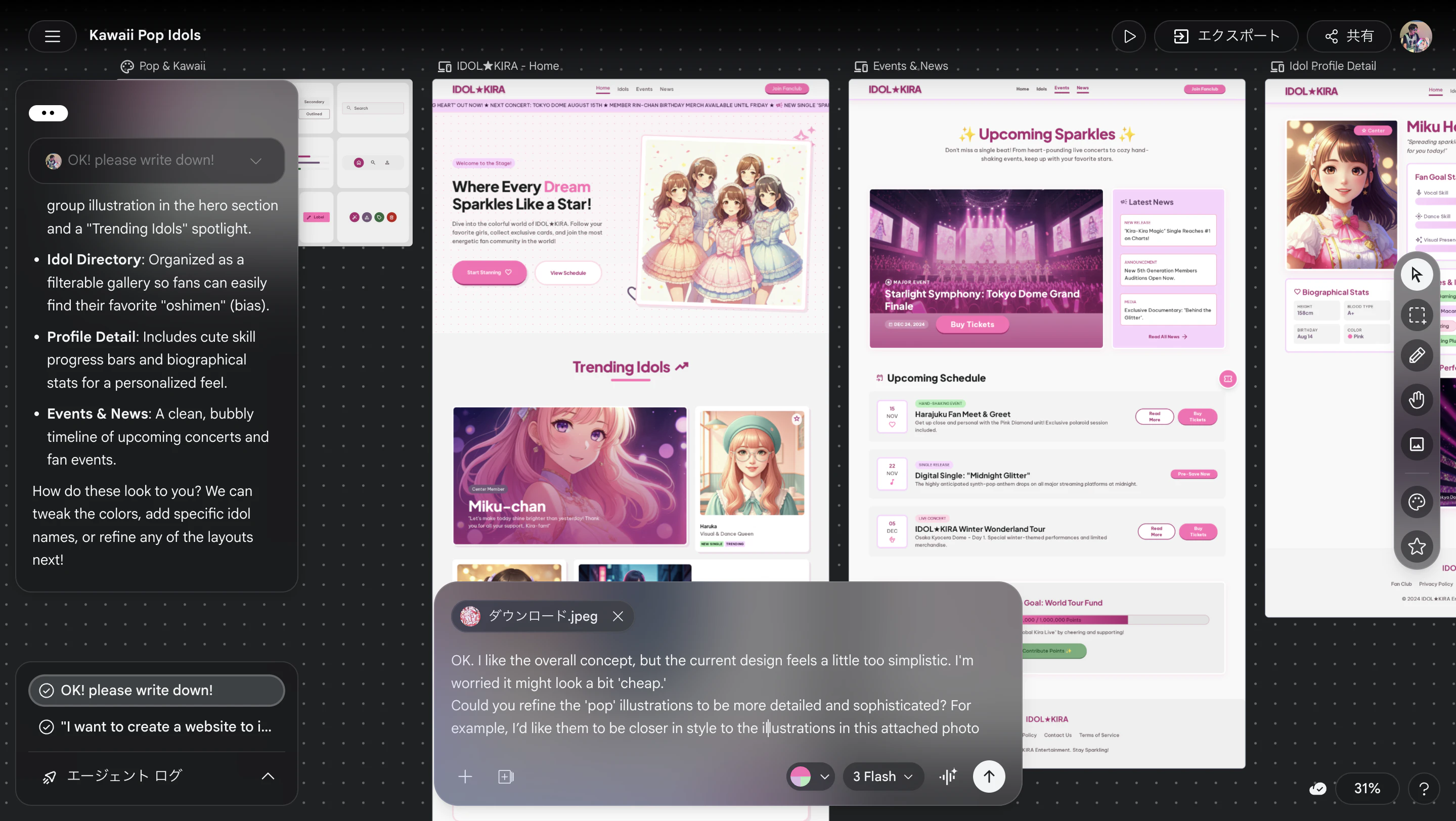
While part of this might be due to my prompting skills, it’s clear that precise control over nuances is still a challenge.
About DESIGN.md
I also explored the generation of "DESIGN.md," one of Stitch's signature features.
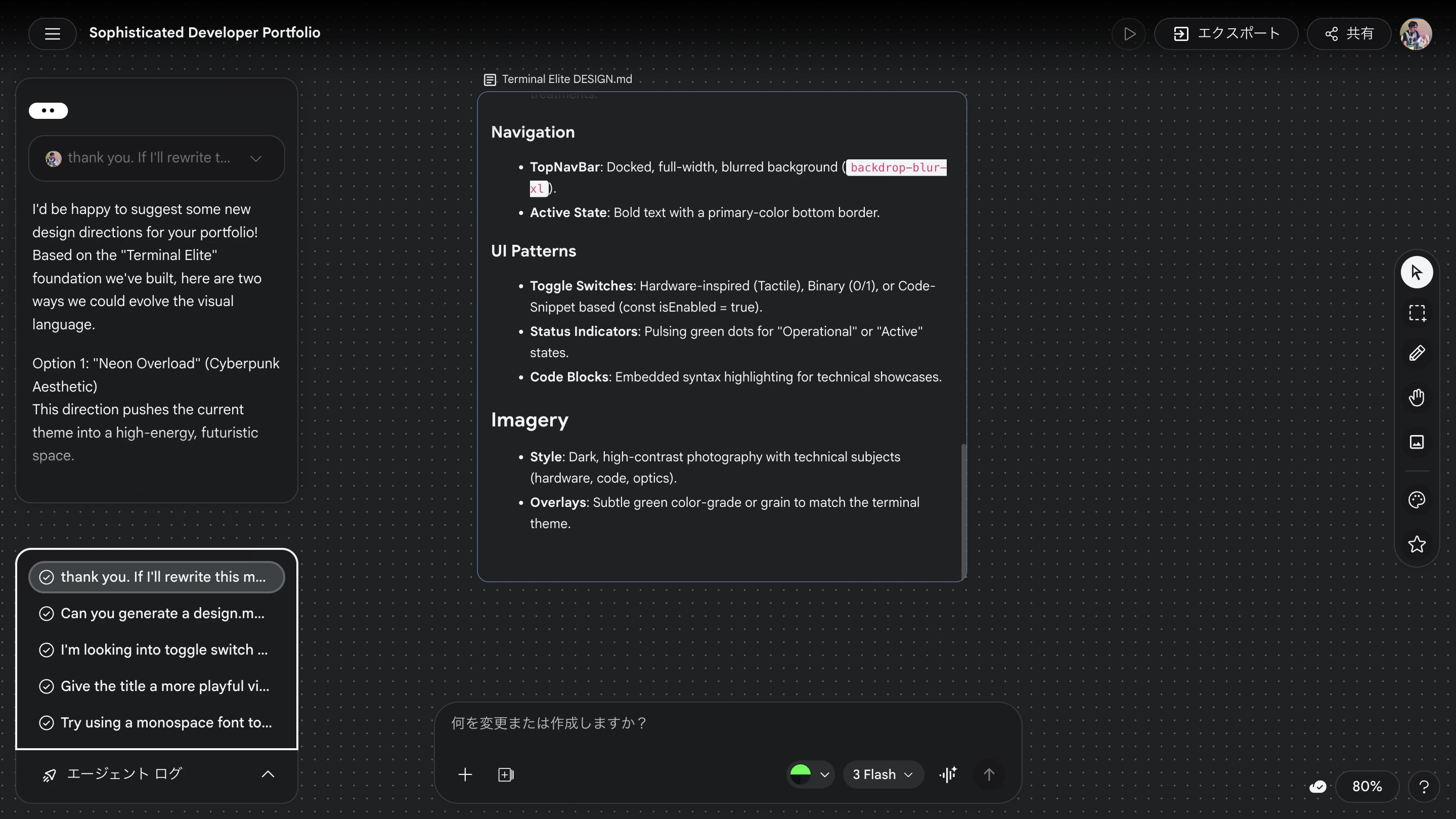
This is the rule set for the developer portfolio page. It’s a great tool for verbalizing design intent, defining everything from UI patterns to color palettes.
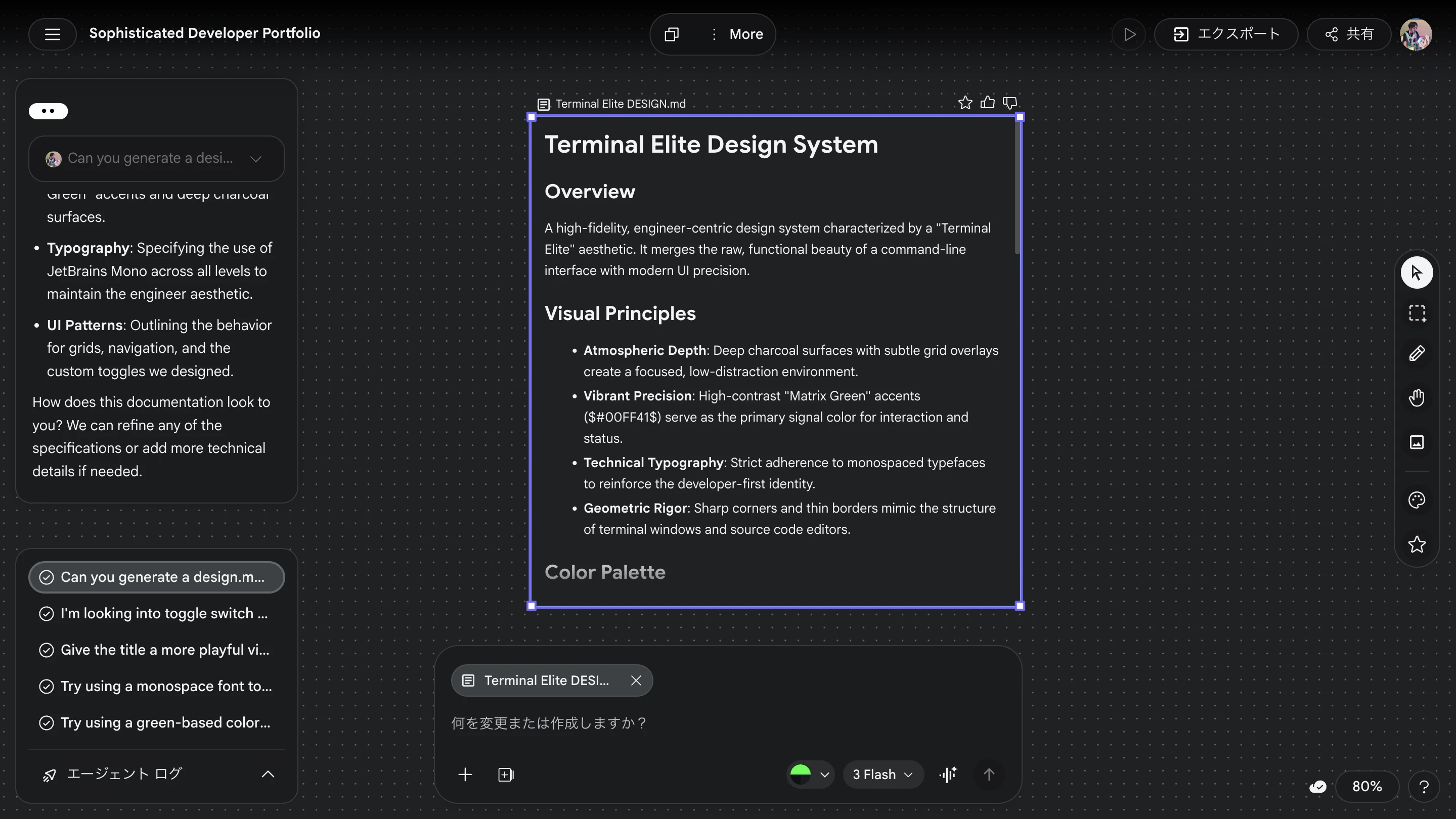
However, at this stage, it feels primarily like a "one-way suggestion" from the AI. When I tried modifying the Markdown file myself to reflect changes in the design, the AI didn't always respond as expected.
Honest Feedback: My Experience
The Pros
- Incredible Speed: It feels faster than Claude 3.5 Sonnet. You can see your ideas take shape while they are still fresh in your mind.
- Sophisticated UI Experience: The tool's own UI is very cool. Having designs generated across an infinite canvas serves as a visual log of your creative process—a very satisfying experience.
- Rapid Prototyping: It's a perfect companion for the early stages when you just want to see as many variations as possible.
The Cons
- Great for "0 to 1," Weak for "1 to 2": While it's brilliant at creating things from scratch, it struggles with precise refinements—like "move this by just a few pixels." It occasionally ignores specific prompts during the tuning phase.
- "AI-ish" Illustrations: It captures the "touch" of an illustration style well, but often over-copies the core concept.
- Lack of Documentation: Being a new tool, there is limited documentation available. It takes some trial and error to get used to the "habits" of Stitch.
Conclusion
Google Stitch is an unbeatable weapon as long as you use it for "rapidly generating initial ideas" rather than "finalizing complex requirements."
Living up to the name "Vibe Design," it shapes a concept in record speed and bridges the gap to Figma and code. I see a bright future in its approach to solving the age-old problem of AI design tools: "the first draft is great, but the reproduction and refinement are a pain."
I highly recommend giving this new "lightning-fast" workflow a try.