

こういう人のための記事です
- Power Platform 管理者として、各環境の Dataverse 使用量(Database / File / Log)を取得したい方
- 容量情報のスナップショットを SharePoint に定期保存したい方
- Power BI で環境ごとの容量推移を可視化したい方
- Power Platform 管理センターでは取得しにくい環境別の容量情報を自動収集したい方
この記事ではPower Platform 管理者による一括取得について書いていますが、環境のシステム管理者が自分の環境について取得可能かは続編のこちらの記事で紹介しています。 ↓こちら 併せてご覧ください。
先に結論
Power Automate の「管理者用 Power Platform」コネクタにある「環境一覧を管理者として作成する」にプロパティを追加すればとれる
この記事の趣旨
Power Platform をしっかり活用しようと考えると、環境のDataverse容量の管理というのは必要になってきます。しかし、管理センターの機能のなかでは、テナント全体の容量消費こそ表示とエクスポートができるものの、環境ごとの容量消費合計をまとめてエクスポートするような機能はありません。
また、Power Platform 管理者であれば表示される消費推移のグラフもなぜか現状は省かれています。
この記事では、テナントに存在する環境のDataverseについて、Database,Files,Logsのそれぞれの消費済み容量のスナップショットをJSONのような形でファイル化してSharePointなど扱いやすい場所に保存して活用してみよう、という試みを行います。

テナント全体のDataverse容量については、以前に下記のQiita記事で取得方法を紹介しました。Power Automateでサービスプリンシパルの委任をワンタイムパスワードっぽい認証で取得する胸熱テクニックなので、こちらもぜひご覧ください。
必要なロール
以下のいづれか
- Power Platform Administrator
- Dynamics 365 Administrator
- Global Administrator
Power Automateでの取得方法
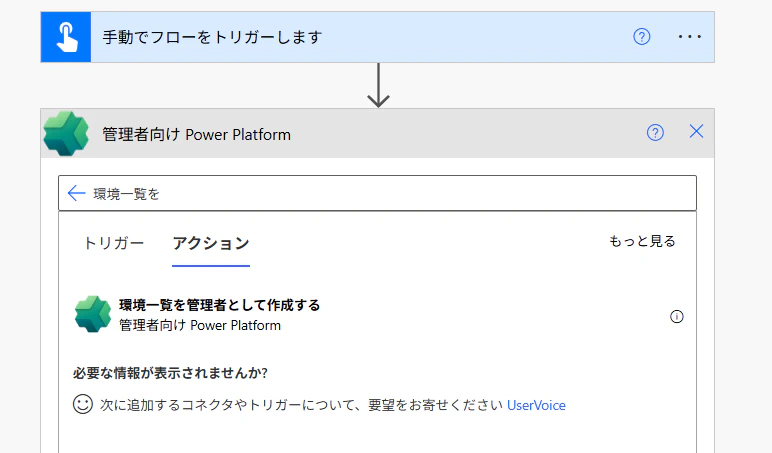
アクションのなかから「管理者用 Power Platform」 (V2とついていないほうです)を選択します。

「環境一覧を管理者として作成する」をクリックします。
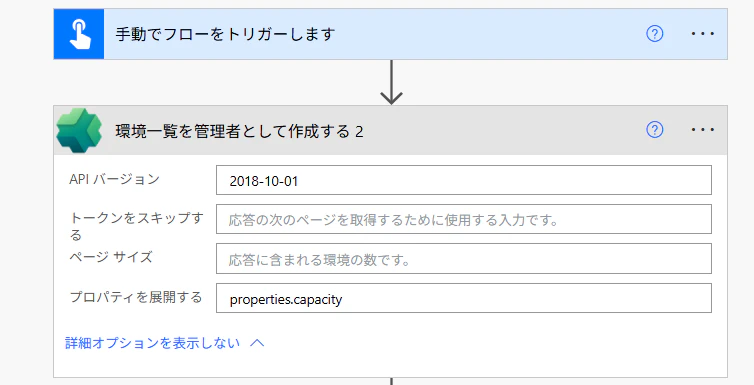
プロパティの欄に下記を貼り付けます。
properties.capacity
実行すると、環境のDataverseの使用済み容量が取得できました! 以上!
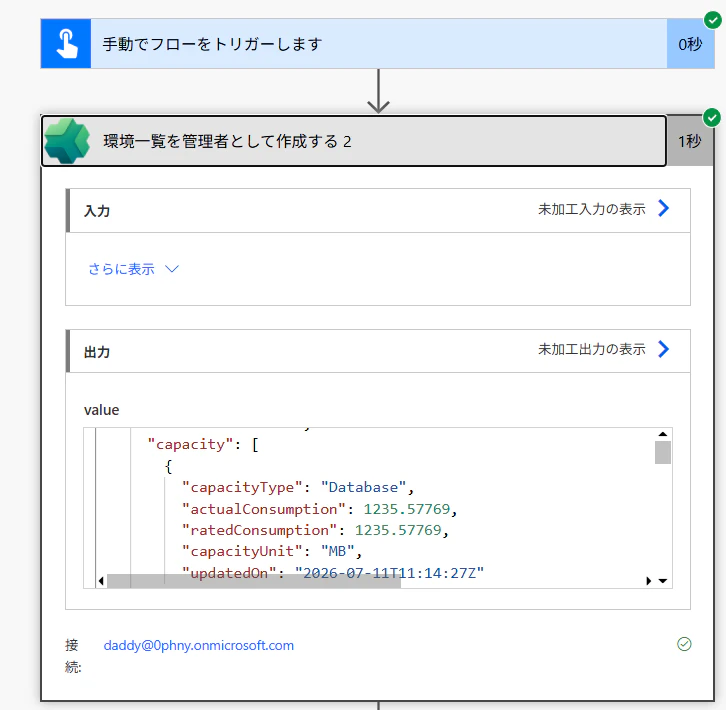
ここまでで目的は達成です。
Dataverse の
- Database
- File
- Log
の使用量を取得できました。
この方法については、こちらの記事を見つけたことでわかりました。
https://www.linkedin.com/pulse/retrieve-dataverse-storage-actual-values-craig-harvey-dzsoc/
以降は、私が API を直接呼び出して取得できるようになるまでの試行錯誤を紹介します。
おまけ:APIを直接叩いて取得するまでの試行錯誤
さて、ご案内のとおり、アクションを使って簡単に取得することができましたのでご紹介はここまでです。
実はこのアクションのことを知るまでに紆余曲折がありました。APIを直接HTTP要求でたたいて取得する方法をかなり苦労して成功させました。
けれど、やっぱりアクションひとつで取得できることが、記事を書いた後でわかったので、ここから後ろは「ああ、そういう風にもとれるんだなぁ」という読み物として顛末をお楽しみください。
設定するのに必要なロール
- サービスプリンシパルの作成
- Application Developer、Application Administrator、Cloud Application Administrator、Global Administrator
- 環境へのアプリ登録
- Power Platform Administrator、Dynamics 365 Administrator、Global Administrator
全体の流れ
この記事では、Power Platform管理APIを利用して各環境のDataverse容量を取得できるようにするため、以下の流れで設定と検証を行います。
-
設定するに必要なロール
- サービスプリンシパル作成に必要なロールを確認
- Power Platform管理に必要なロールを確認
-
Power Platform管理センターでは見えないものがある
- Power Platform 管理者の場合
- 環境のシステム管理者の場合
-
サービスプリンシパルを作る
-
Power Platform 管理者ロールをサービスプリンシパルに与える
-
トークンを取得する
- サービスプリンシパル認証でアクセストークンを取得
-
いよいよ容量を取得?
- 容量取得APIを実行
- 403エラーで失敗
-
うまくいかない。サービスプリンシパルを管理者として登録?
- Learn記事の手順を確認
- 管理アプリ登録の必要性を調査
-
PowerShellからInvokeでリクエスト送る
- 管理アプリとして登録
- 登録状況を確認
-
いよいよ?
- APIバージョンを修正
- Dataverse容量情報の取得に成功
-
取得したJSONを活用する
- Database / File / Log の消費量を抽出
- SharePointへスナップショット保存
- Power BIで容量推移を可視化
Power Platform 管理センターでは見えないものがある
Power Platform 管理者の場合
Dataverseの管理といえばPower Platform管理センターがすぐに思い浮かびます。
アクセスURLはこちらです。
https://admin.powerplatform.microsoft.com/
でもこの画面、開く人のロールによっては見えない部分が多いんです。
例えば、Power Platform管理センター>ライセンス>概要>容量の管理 をクリックすると、右側に環境ごとの容量が表示されています。残念ですがExportボタンとかはないので、これだけだと管理しづらいですね。この画面はPower Platform 管理者やグローバル管理者から見た場合です。

環境のシステム管理者の場合
このうちの一つの環境にシステム管理者として一般ユーザーに割り当ててみます。
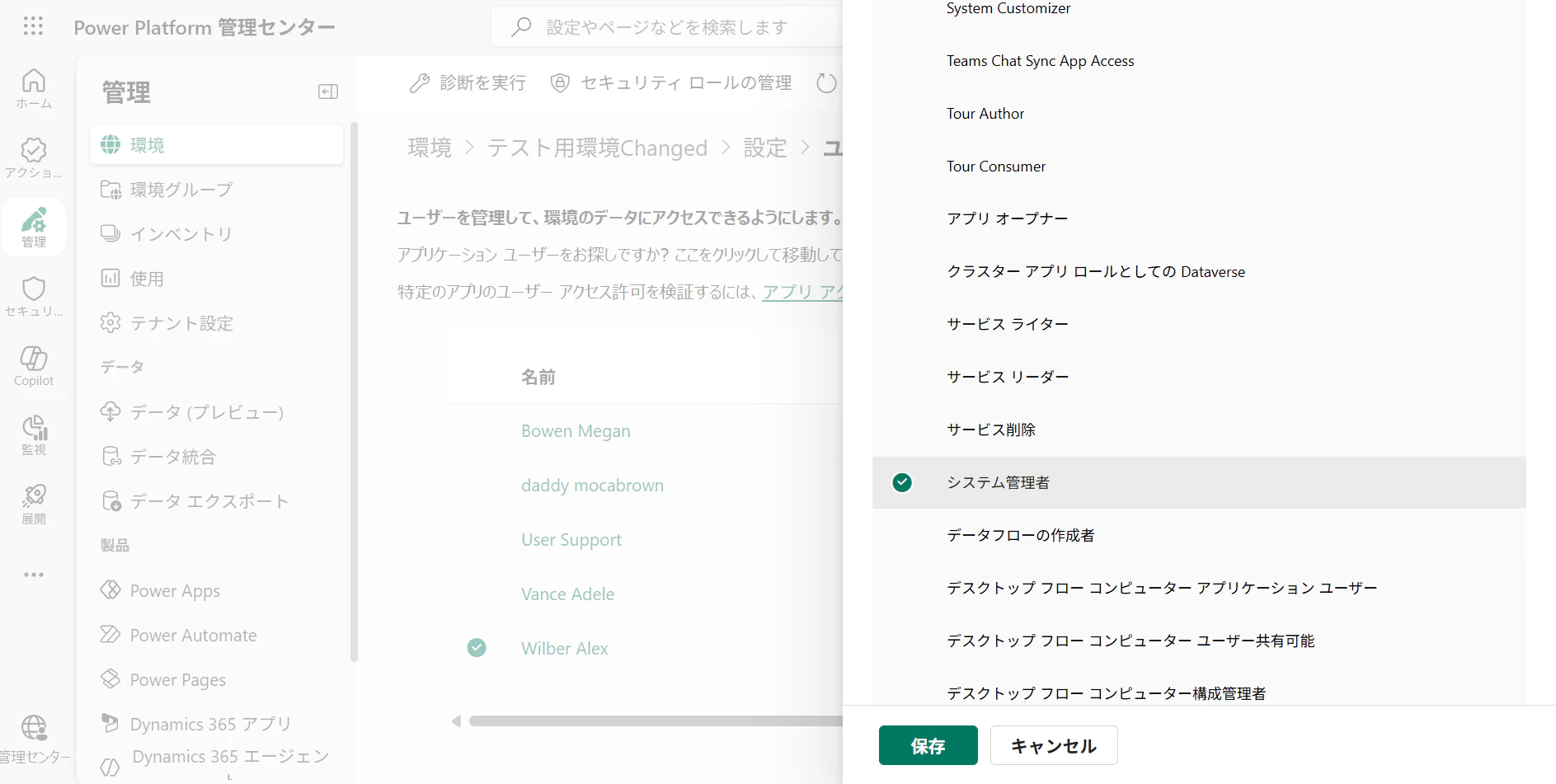
割り当てられた環境のシステム管理者さんから見るとこんな感じになります。自分が管理している環境のDataverseが見られないんです。「環境」タブを押しても同じです。

「環境」のほうを環境のシステム管理者がクリックすると対象は表示されません。
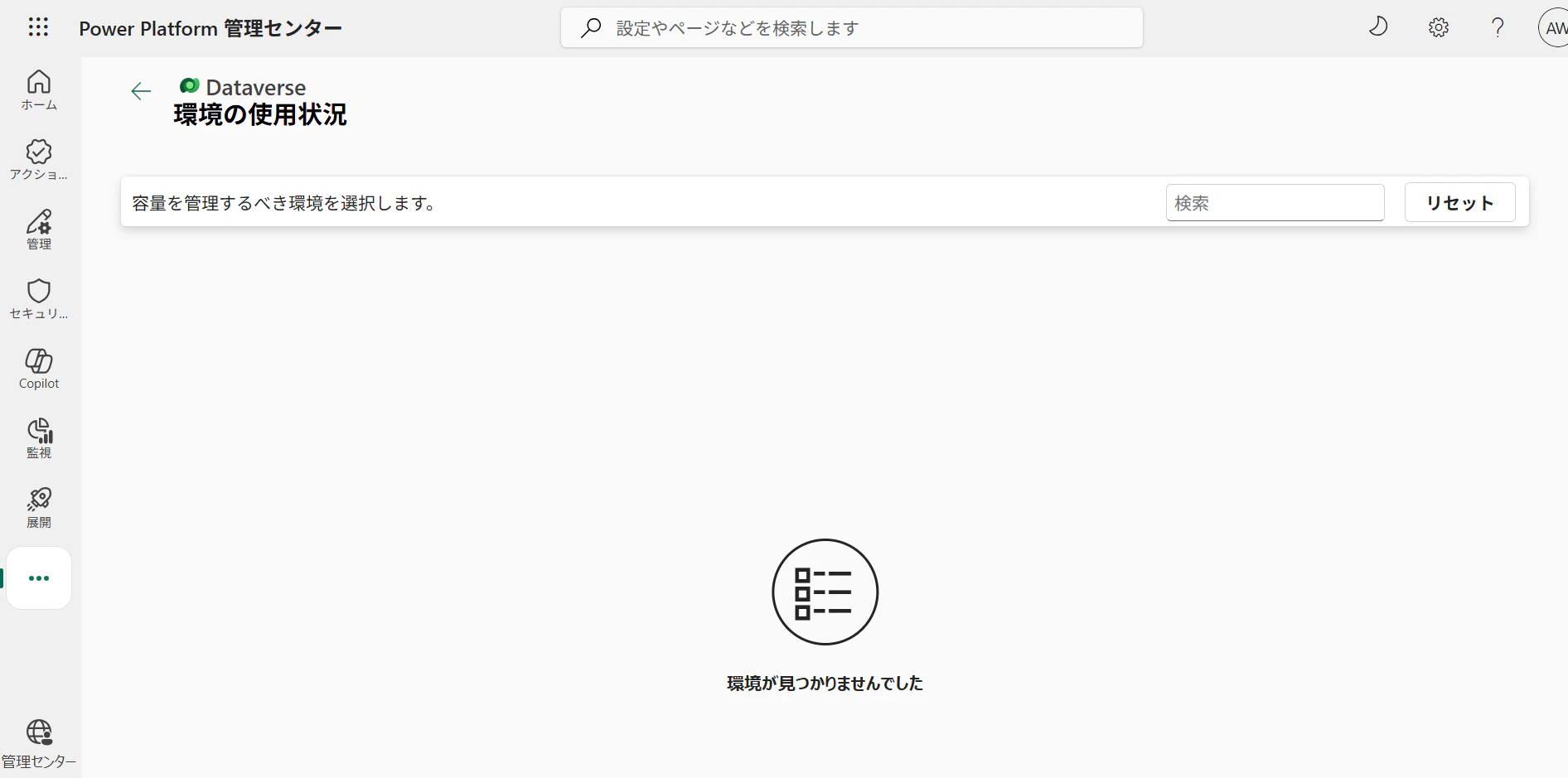
けれど最近、ライセンス>容量アドオン>Dataverse から環境の「詳細」にあるグラフアイコンのところを押すと、別ルートからは見えなかった画面が見えるようになっていることに気が付きました。ただし、Power Platform 管理者ならばテーブルごとの消費量がこの下のほうで確認できるのに、システム管理者だと見えません。
また、画面右側の消費推移がみられるはずのグラフ表示も「傾向データなし」と表示されてしまってみられないのが残念です。

Dataverse消費済み容量を取得する仕組みを作る
サービスプリンシパルを作る
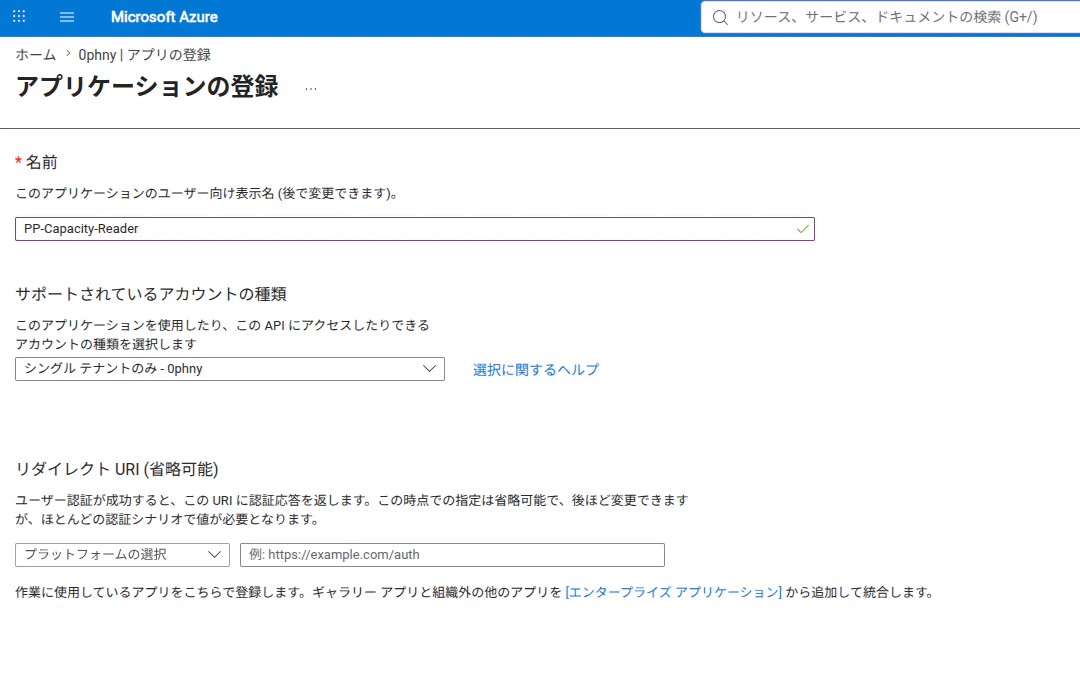
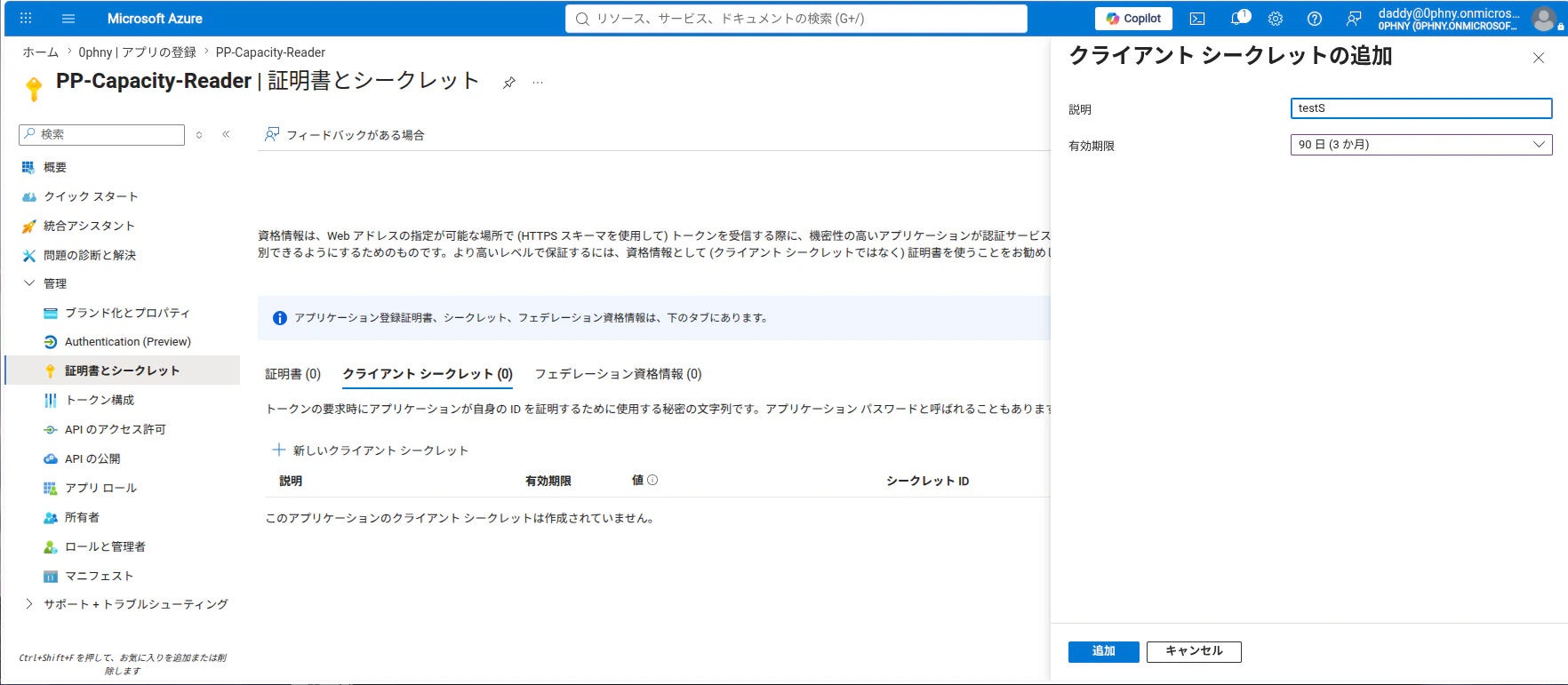
クライアントシークレットを取得します。シークレットは「値」の文字列をコピーしておきます。この値はあとからコピーできないので注意。シークレットの他に「概要」を開いてテナントIDとアプリケーションID(クライアント)もコピーしておきます。この3つはお約束です。
Power Platform 管理者ロールをサービスプリンシパルに与える
Entra IDに戻って、「ロールと管理者」を開き、Power Platform 管理者をクリックします。

割当の追加をクリックします。

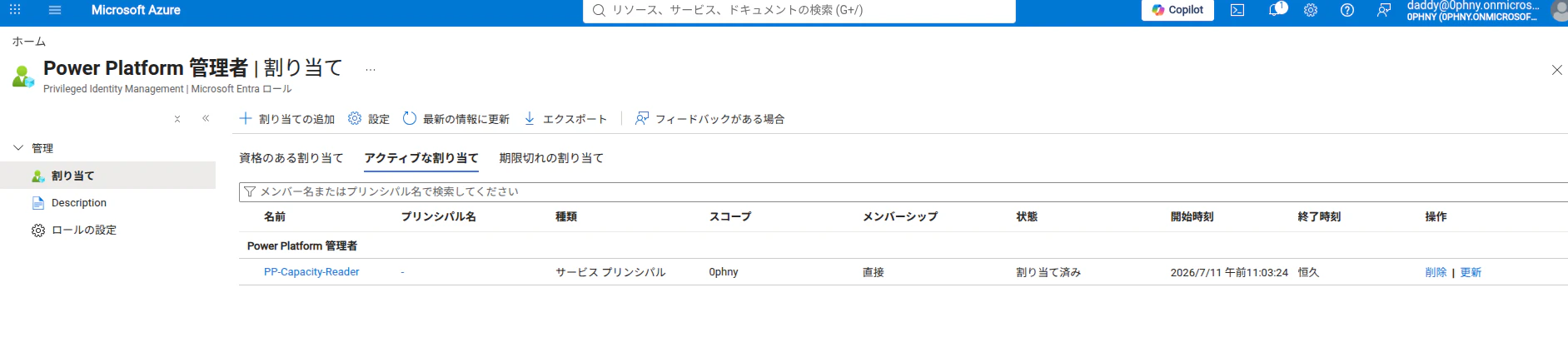
ここで先程作成したサービスプリンシパルを追加します。これによってサービスプリンシパルがPower Platform 管理者のロールを持つことになります。
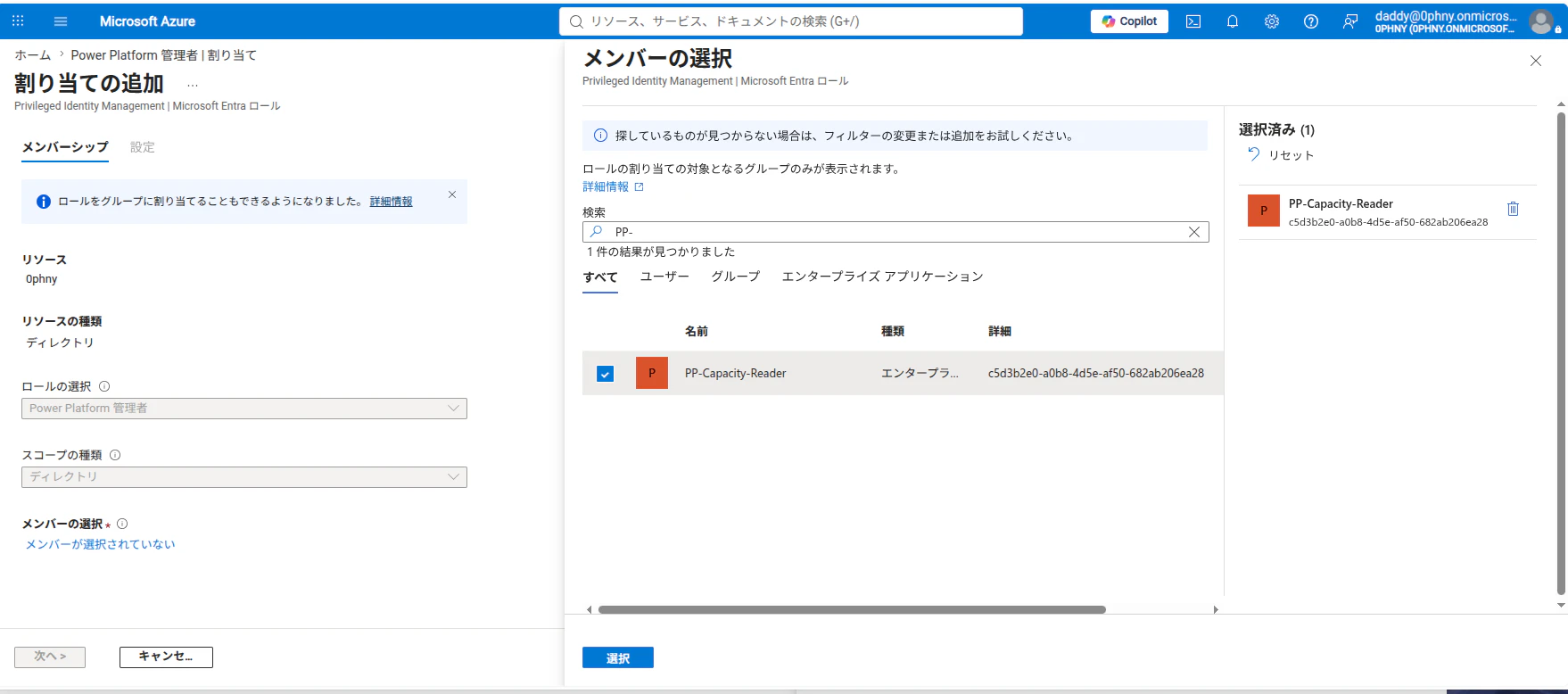
割当を追加する際には期間や理由を求められます。
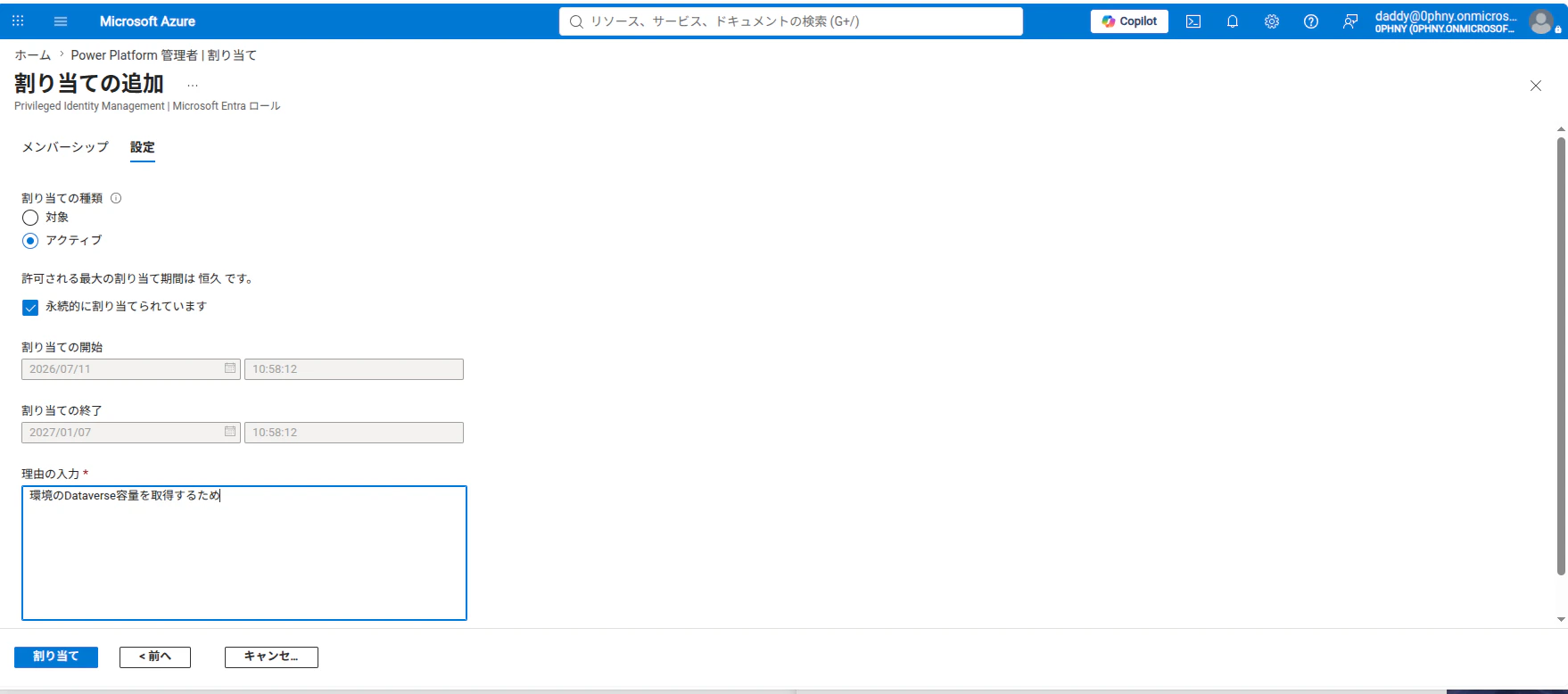
しばらく待つと、ロールに対してサービスプリンシパルが追加されていることがわかります。
トークンを取得する
さきほど作成したサービスプリンシパルのテナントID、アプリID、シークレットを「作成」にそれぞれ割り当てました。「作成」は設定からシークレットモードにできるので切り替えています。
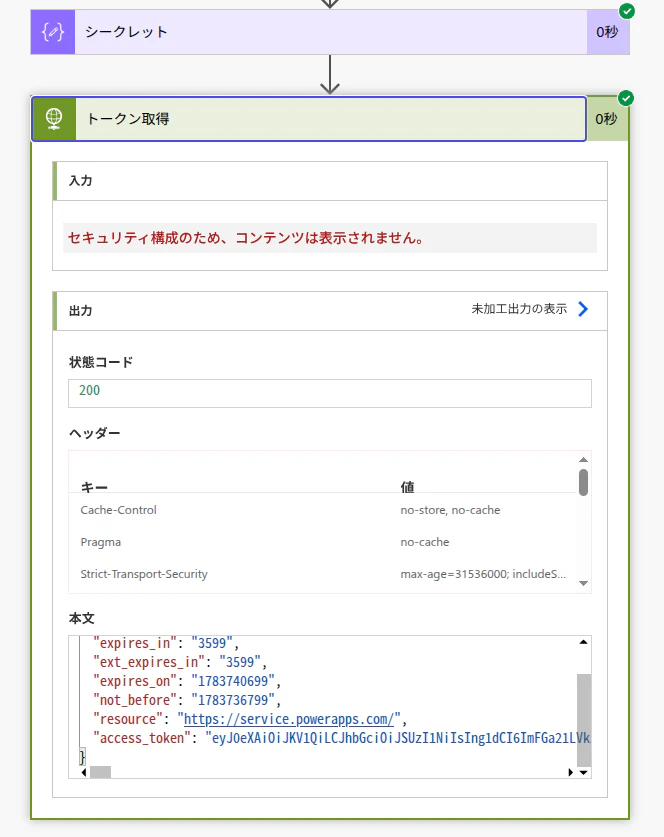
この値を使ってプレミアムコネクタの「HTTP」を使ってこのようにPOSTを投げます。

https://login.microsoftonline.com/@{outputs('テナントID')}/oauth2/token
Content-Type
application/x-www-form-urlencoded
grant_type=client_credentials&client_id=@{outputs('アプリID')}&client_secret=@{outputs('シークレット')}&resource=https://api.bap.microsoft.com/
上記ではBodyにアプリIDやシークレットを記述していますが、HTTPアクションには詳細オプションの中に認証オプションがあるので、そちらを使われたほうがよいです。理由はシークレットがそのまま結果のBody表示に出てきてしまうためです。
実行してみると、結果にaccess_tokenが取得できていることがわかります。これが次にAPIを叩く際の合言葉となるイメージです。
いよいよ容量を取得?
トークンが取得できたので、JSONのなかのaccess_tokenの部分を切り出して、AuthorizationヘッダーにBearerの文字にスペース1つ開けて与えてやります。
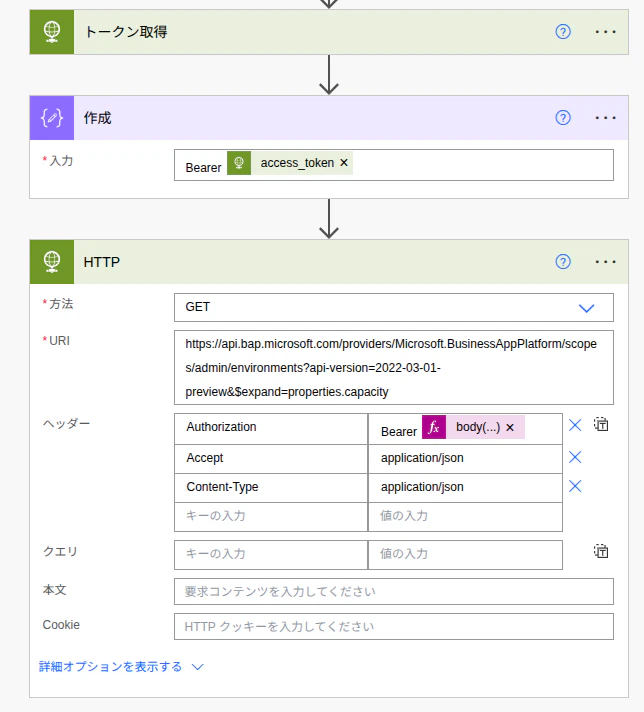
実行してみると・・・ 403エラーです。なんか権限が足りない?
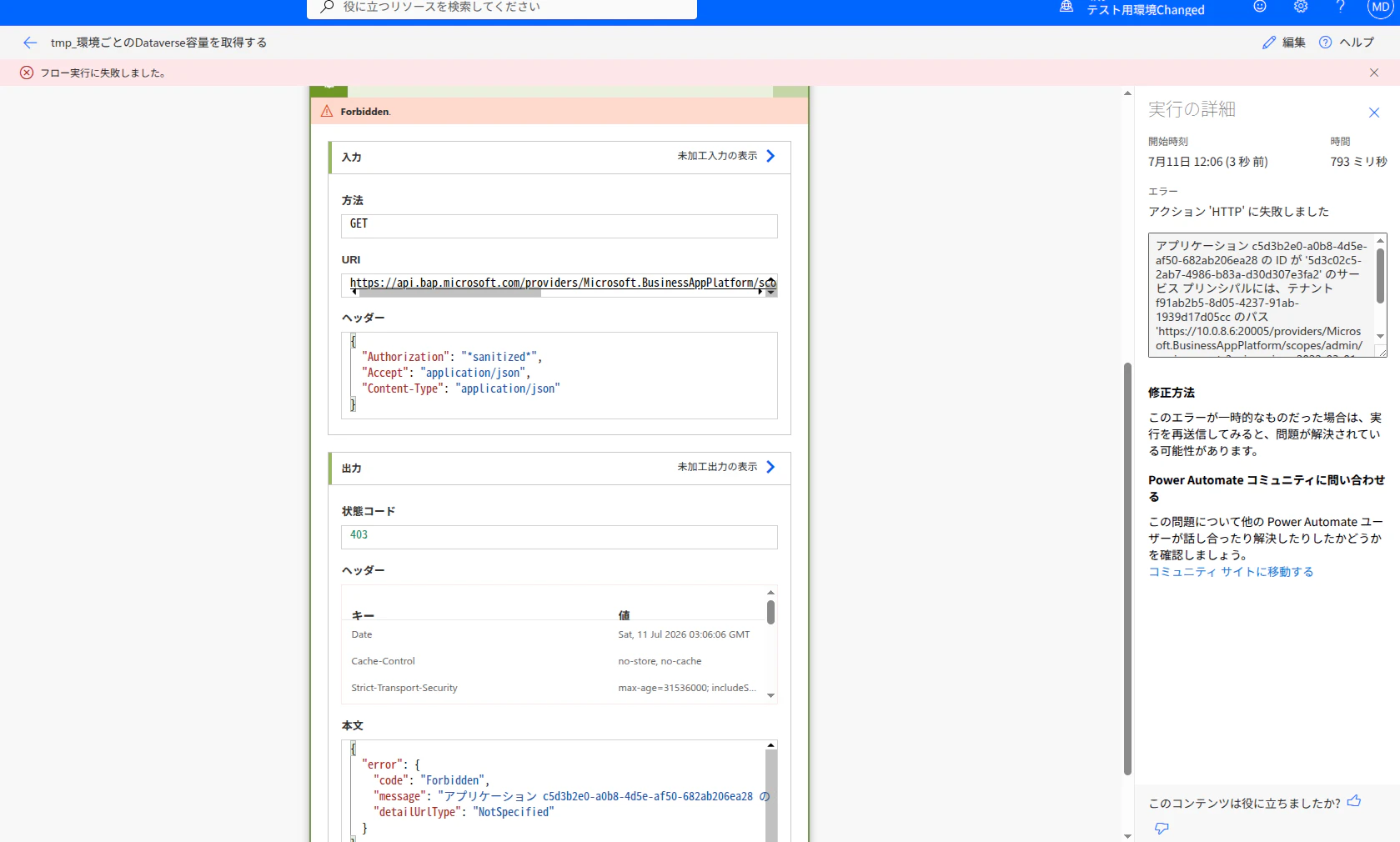
うまくいかない。サービスプリンシパルを管理者として登録?
Copilotくんに相談すると、以下のLearn記事を見つけてくれました。
これによると、クライアントアプリケーション(つまりサービスプリンシパル)はHTTP要求とかPAC CLIとかを使って登録をしないといけないようです。
さっきの使えなかったトークンで以下のエンドポイントに要求を投げろと? URIがbapなので期待できそうです。
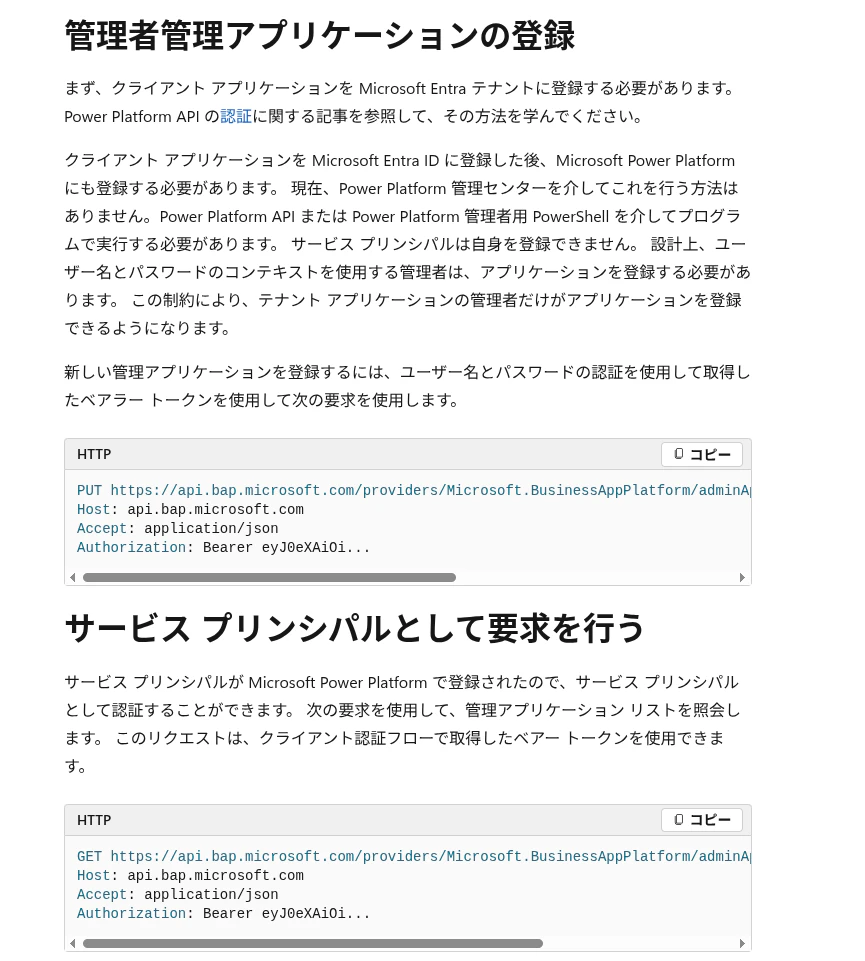
容量の要求を行うアクションの手前に終了をおいて、LearnにあるようにアプリIDとBearerトークンを与えて登録というのをやってみます。

アカンやんけ!

どうやらここで使用するトークンはサービスプリンシパルのトークンではなくて、Power Platform 管理者ユーザーのトークンらしい。まあそうでしょうね。そのトークンを取得するには、やっぱりPowerShellから。
ここまでLinuxでやってましたが、PowerShellうまくいかなかったのでWindowsで実行します。
Install-Module Microsoft.PowerApps.Administration.PowerShell
Add-PowerAppsAccount
Get-Module Microsoft.PowerApps.Administration.PowerShell
$global:currentSession.resourceTokens["https://service.powerapps.com/"] | Format-List *
これでトークンが取れました。もちろん実行するユーザーがPower Platform 管理者である必要があります。
とれたとれた!

PowerShellからInvokeでリクエスト送る
最初はPower AutomateのHTTP要求でトークンを貼り付けて要求してみたのだけれどうまくいかなかったので、PowerShellのInvokeを使ってこちらからまとめて登録操作を行うことにしました。
セッション内のトークンを確認します。service.powerapps.com が表示されればOKです。表示されないならAdd-PowerAppsAccountでサインインしなおしてください。
$global:currentSession.resourceTokens.Keys

service.powerapps.com のトークン取得します。
$tokenInfo = $global:currentSession.resourceTokens["https://service.powerapps.com/"]

$tokenInfo | Format-List *
tokenInfoの中のアクセストークン部分を変数に格納します。
$token = $tokenInfo.accessToken
アプリの登録があるか確認します。GETです。多分最初は登録がないので何も帰ってきません。
$headers = @{
    Authorization = "Bearer $token"
    Accept = "application/json"
}

Invoke-RestMethod `
    -Method GET `
    -Uri "https://api.bap.microsoft.com/providers/Microsoft.BusinessAppPlatform/adminApplications?api-version=2020-10-01" `
    -Headers $headers
サービスプリンシパルを管理アプリとして登録します。PUTです。BODYが{}なのがポイントのようです。
$headers = @{
    Authorization = "Bearer $token"
    Accept = "application/json"
    "Content-Type" = "application/json"
}

Invoke-RestMethod `
    -Method PUT `
    -Uri "https://api.bap.microsoft.com/providers/Microsoft.BusinessAppPlatform/adminApplications/{あなたのサービスプリンシパルのアプリID}?api-version=2020-10-01" `
    -Headers $headers `
    -Body "{}"
最後にもういちど先ほどの確認のスクリプト(GETのほうです)を動かすと、アプリIDが管理アプリとして登録されたことがわかります。

いよいよ?
サービスプリンシパルのアプリIDが管理アプリとして登録されたはずなので、満を持してフローを動かしてみます。すると・・・
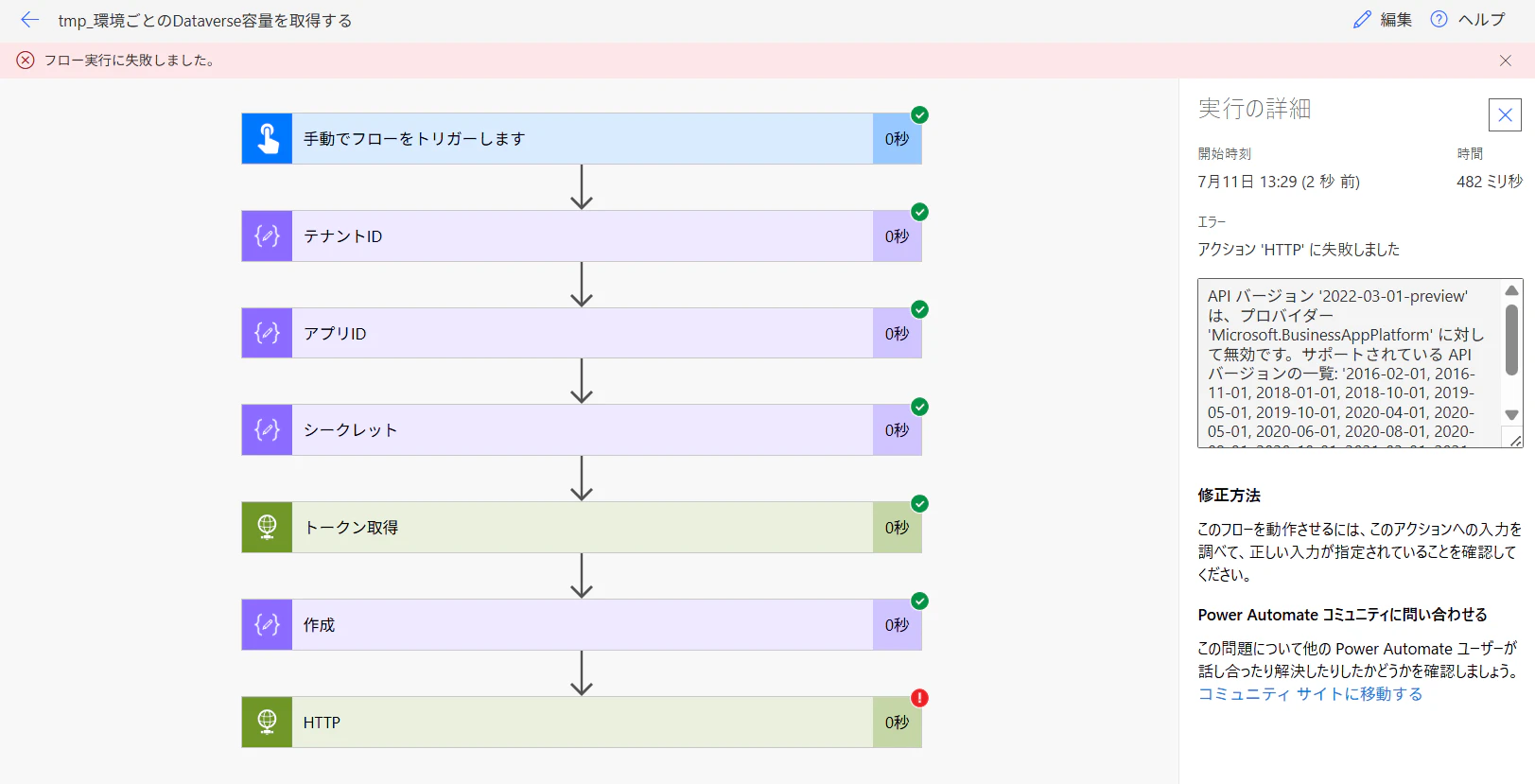
なんかエラーが変わりましたね。APIのバージョンがちがう?
API バージョン '2022-03-01-preview' は、プロバイダー 'Microsoft.BusinessAppPlatform' に対して無効です。サポートされている API バージョンの一覧: '2016-02-01, 2016-11-01, 2018-01-01, 2018-10-01, 2019-05-01, 2019-10-01, 2020-04-01, 2020-05-01, 2020-06-01, 2020-08-01, 2020-09-01, 2020-10-01, 2021-03-01, 2021-04-01, 2021-07-01, 2022-05-01, 2023-06-01, 2024-05-01, 2026-06-01'。
試しに、エラーの中に表示されている一番あたらしい 2026-06-01にURI内のパラメータを変更してみます。
https://api.bap.microsoft.com/providers/Microsoft.BusinessAppPlatform/scopes/admin/environments?api-version=2026-06-01&$expand=properties.capacity
実行! キターーーー!!!

取得できたJSONは環境ごとに1つの要素になっています。
ちょっと長いけれど、1環境分の内容をIDにはマスクをかけて貼っておきます。これが欲しかった!
{
  "id": "/providers/Microsoft.BusinessAppPlatform/scopes/admin/environments/******",
  "type": "Microsoft.BusinessAppPlatform/scopes/environments",
  "location": "unitedstates",
  "name": "*****",
  "properties": {
    "tenantId": "*****",
    "azureRegion": "eastus",
    "displayName": "テスト用環境Changed",
    "createdTime": "2025-04-13T06:12:48.8789394Z",
    "createdBy": {
      "id": "*****",
      "type": "User",
      "tenantId": "*****"
    },
    "usedBy": {
      "id": "*****",
      "type": "User",
      "tenantId": "*****"
    },
    "lastModifiedTime": "2026-04-13T06:41:31.203633Z",
    "provisioningState": "Succeeded",
    "creationType": "User",
    "environmentSku": "Developer",
    "isDefault": false,
    "capacity": [
      {
        "capacityType": "Database",
        "actualConsumption": 182.0078,
        "ratedConsumption": 0,
        "capacityUnit": "MB",
        "updatedOn": "2026-07-10T11:09:26Z"
      },
      {
        "capacityType": "File",
        "actualConsumption": 2034.494,
        "ratedConsumption": 0,
        "capacityUnit": "MB",
        "updatedOn": "2026-07-10T11:09:26Z"
      },
      {
        "capacityType": "Log",
        "actualConsumption": 0.1361675,
        "ratedConsumption": 0,
        "capacityUnit": "MB",
        "updatedOn": "2026-07-10T11:09:26Z"
      },
      {
        "capacityType": "FinOpsDatabase",
        "actualConsumption": 0,
        "ratedConsumption": 0,
        "capacityUnit": "MB",
        "updatedOn": "2026-07-10T11:09:26Z"
      },
      {
        "capacityType": "FinOpsFile",
        "actualConsumption": 0,
        "ratedConsumption": 0,
        "capacityUnit": "MB",
        "updatedOn": "2026-07-10T11:09:26Z"
      }
    ],
    "addons": [],
    "clientUris": {
      "admin": "https://admin.powerplatform.microsoft.com/environments/environment/*****/hub",
      "maker": "https://make.powerapps.com/environments/*****/home"
    },
    "runtimeEndpoints": {
      "microsoft.BusinessAppPlatform": "https://unitedstates.api.bap.microsoft.com",
      "microsoft.CommonDataModel": "https://unitedstates.api.cds.microsoft.com",
      "microsoft.PowerApps": "https://unitedstates.api.powerapps.com",
      "microsoft.PowerAppsAdvisor": "https://unitedstates.api.advisor.powerapps.com",
      "microsoft.PowerVirtualAgents": "https://powervamg.us-il102.gateway.prod.island.powerapps.com",
      "microsoft.ApiManagement": "https://management.usa.azure-apihub.net",
      "microsoft.Flow": "https://us.api.flow.microsoft.com"
    },
    "databaseType": "CommonDataService",
    "linkedEnvironmentMetadata": {
      "resourceId": "*****",
      "friendlyName": "テスト用環境Changed",
      "uniqueName": "unqe01266592e18f0119aed002248326",
      "domainName": "*****",
      "version": "9.2.26062.163",
      "instanceUrl": "https://*****.crm.dynamics.com/",
      "instanceApiUrl": "https://*****.api.crm.dynamics.com",
      "baseLanguage": 1041,
      "instanceState": "Ready",
      "createdTime": "2025-04-13T06:13:00.757Z",
      "backgroundOperationsState": "Enabled",
      "scaleGroup": "NAMCRMLIVESG663",
      "crmGeo": "NAM",
      "platformSku": "Standard",
      "schemaType": "Standard",
      "isDormant": false
    },
    "trialScenarioType": "None",
    "notificationMetadata": {
      "state": "NotSpecified",
      "branding": "NotSpecific"
    },
    "retentionPeriod": "P7D",
    "states": {
      "management": {
        "id": "Ready"
      },
      "runtime": {
        "runtimeReasonCode": "NotSpecified",
        "requestedBy": {
          "displayName": "SYSTEM",
          "type": "NotSpecified"
        },
        "id": "Enabled"
      },
      "disasterRecovery": {
        "copyLocation": "NearCopy",
        "id": "Unavailable"
      }
    },
    "updateCadence": {
      "id": "Frequent"
    },
    "retentionDetails": {
      "retentionPeriod": "P7D",
      "backupsAvailableFromDateTime": "2026-07-04T04:31:52.2987814Z"
    },
    "protectionStatus": {
      "keyManagedBy": "Microsoft"
    },
    "cluster": {
      "category": "Prod",
      "number": "102",
      "uriSuffix": "us-il102.gateway.prod.island",
      "geoShortName": "US",
      "environment": "Prod",
      "scaleGroupId": "*****"
    },
    "connectedGroups": [],
    "lifecycleOperationsEnforcement": {
      "allowedOperations": [
        {
          "type": {
            "id": "Move"
          }
        },
        {
          "type": {
            "id": "Backup"
          }
        },
        {
          "type": {
            "id": "Copy"
          }
        },
        {
          "type": {
            "id": "Delete"
          }
        },
        {
          "type": {
            "id": "Edit"
          }
        },
        {
          "type": {
            "id": "Recover"
          }
        },
        {
          "type": {
            "id": "Reset"
          }
        },
        {
          "type": {
            "id": "Restore"
          }
        },
        {
          "type": {
            "id": "SwapNetworkInjection"
          }
        },
        {
          "type": {
            "id": "RevertNetworkInjection"
          }
        },
        {
          "type": {
            "id": "NewIdentity"
          }
        },
        {
          "type": {
            "id": "SwapIdentity"
          }
        },
        {
          "type": {
            "id": "RevertIdentity"
          }
        },
        {
          "type": {
            "id": "Enable"
          }
        },
        {
          "type": {
            "id": "Disable"
          }
        },
        {
          "type": {
            "id": "EnableGovernanceConfiguration"
          }
        },
        {
          "type": {
            "id": "PrepareTenantToTenant"
          }
        },
        {
          "type": {
            "id": "MigrateTenantToTenant"
          }
        }
      ],
      "disallowedOperations": [
        {
          "type": {
            "id": "Provision"
          },
          "reason": {
            "message": "Provision cannot be performed because there is no linked CDS instance or the CDS instance version is not supported.",
            "type": "CdsLink"
          }
        },
        {
          "type": {
            "id": "Unlock"
          },
          "reason": {
            "message": "Unlock cannot be performed because there is no linked CDS instance or the CDS instance version is not supported.",
            "type": "CdsLink"
          }
        },
        {
          "type": {
            "id": "Convert"
          },
          "reason": {
            "message": "Convert cannot be performed on environment of type Developer.",
            "type": "EnvironmentSkuType"
          }
        },
        {
          "type": {
            "id": "Promote"
          },
          "reason": {
            "message": "Promote cannot be performed on environment of type Developer.",
            "type": "EnvironmentSkuType"
          }
        },
        {
          "type": {
            "id": "UpdateProtectionStatus"
          },
          "reason": {
            "message": "UpdateProtectionStatus cannot be performed on environment of type Developer.",
            "type": "EnvironmentSkuType"
          }
        },
        {
          "type": {
            "id": "ForceFailover"
          },
          "reason": {
            "message": "ForceFailover cannot be performed on environment of type Developer.",
            "type": "EnvironmentSkuType"
          }
        },
        {
          "type": {
            "id": "DisasterRecoveryDrill"
          },
          "reason": {
            "message": "DisasterRecoveryDrill cannot be performed on environment of type Developer.",
            "type": "EnvironmentSkuType"
          }
        },
        {
          "type": {
            "id": "FailbackToNearCopy"
          },
          "reason": {
            "message": "FailbackToNearCopy cannot be performed on environment of type Developer.",
            "type": "EnvironmentSkuType"
          }
        },
        {
          "type": {
            "id": "RotateCustomerManagedKey"
          },
          "reason": {
            "type": "EnvironmentCmkLinked"
          }
        },
        {
          "type": {
            "id": "RevertToMicrosoftKey"
          },
          "reason": {
            "type": "EnvironmentCmkLinked"
          }
        },
        {
          "type": {
            "id": "NewCustomerManagedKey"
          },
          "reason": {
            "message": "NewCustomerManagedKey cannot be performed on Power Platform environment because of the governance configuration.",
            "type": "GovernanceConfig"
          }
        },
        {
          "type": {
            "id": "NewNetworkInjection"
          },
          "reason": {
            "message": "NewNetworkInjection cannot be performed on Power Platform environment because of the governance configuration.",
            "type": "GovernanceConfig"
          }
        },
        {
          "type": {
            "id": "DisableGovernanceConfiguration"
          },
          "reason": {
            "message": "DisableGovernanceConfiguration cannot be performed on Power Platform environment because of the governance configuration.",
            "type": "GovernanceConfig"
          }
        },
        {
          "type": {
            "id": "UpdateGovernanceConfiguration"
          },
          "reason": {
            "message": "UpdateGovernanceConfiguration cannot be performed on Power Platform environment because of the governance configuration.",
            "type": "GovernanceConfig"
          }
        }
      ]
    },
    "governanceConfiguration": {
      "protectionLevel": "Basic"
    },
    "bingChatEnabled": true,
    "m365Enabled": true,
    "appDraftingCopilotEnabled": true,
    "enableAnalyticsForMakers": true
  }
JSON構造の概要
このAPIは環境一覧を返却し、最上位の value 配列の中に環境ごとの情報が格納されています。
取得できたJSONをCopilotに渡して構造を分析させました。(こういうことを一発でできるようになったのはありがたいですね。)
全体構造
value[]
 ├─ id
 ├─ type
 ├─ location
 ├─ name
 └─ properties
      ├─ tenantId
      ├─ azureRegion
      ├─ displayName
      ├─ description
      ├─ capacity[]
      ├─ clientUris
      ├─ runtimeEndpoints
      ├─ linkedEnvironmentMetadata
      ├─ states
      ├─ connectedGroups[]
      ├─ lifecycleOperationsEnforcement
      └─ ...
環境の基本情報
value[]
 ├─ id
 ├─ type
 ├─ location
 └─ name
- id : Power Platform環境のリソースID
- type : リソース種別
- location : 環境のリージョン
- name : 環境ID
properties
環境の詳細情報を格納するメインのオブジェクトです。
properties
 ├─ tenantId
 ├─ azureRegion
 ├─ displayName
 ├─ description
 ├─ createdTime
 ├─ lastModifiedTime
 ├─ environmentSku
 ├─ capacity[]
 ├─ clientUris
 ├─ runtimeEndpoints
 ├─ linkedEnvironmentMetadata
 ├─ states
 ├─ connectedGroups[]
 └─ lifecycleOperationsEnforcement
環境情報
- tenantId : テナントID
- azureRegion : Azureリージョン
- displayName : 環境表示名
- description : 環境説明
- createdTime : 作成日時
- lastModifiedTime : 最終更新日時
- provisioningState : プロビジョニング状態
- creationType : 作成種別
- environmentSku : 環境種別
- isDefault : 既定環境フラグ
createdBy
createdBy
 ├─ id
 ├─ type
 └─ tenantId
- id : 作成者ID
- type : User などの種別
- tenantId : テナントID
capacity
Dataverse容量情報です。容量監視用途では最重要となる項目です。
capacity[]
 ├─ capacityType
 ├─ actualConsumption
 ├─ ratedConsumption
 ├─ capacityUnit
 └─ updatedOn
- capacityType : 容量種別(Database / File / Log など)
- actualConsumption : 実際の消費量
- ratedConsumption : 課金対象消費量
- capacityUnit : 容量単位
- updatedOn : 集計日時
clientUris
Power Platformの管理URLです。
clientUris
 ├─ admin
 └─ maker
- admin : 管理センターURL
- maker : Maker Portal URL
runtimeEndpoints
各種サービスのAPIエンドポイントです。
runtimeEndpoints
 ├─ microsoft.BusinessAppPlatform
 ├─ microsoft.CommonDataModel
 ├─ microsoft.PowerApps
 ├─ microsoft.Flow
 └─ ...
linkedEnvironmentMetadata
Dataverse環境に関する詳細情報です。
linkedEnvironmentMetadata
 ├─ resourceId
 ├─ friendlyName
 ├─ uniqueName
 ├─ domainName
 ├─ instanceUrl
 ├─ instanceApiUrl
 ├─ version
 ├─ securityGroupId
 ├─ platformSku
 ├─ schemaType
 └─ isDormant
- resourceId : Dataverse環境ID
- friendlyName : 表示名
- uniqueName : 環境の論理名
- instanceUrl : 環境URL
- instanceApiUrl : Dataverse Web API URL
- version : Dataverseバージョン
- securityGroupId : 関連付けられたグループID
- platformSku : プラットフォームSKU
- schemaType : スキーマ種別
- isDormant : 休眠状態フラグ
states
環境状態を表します。
states
 ├─ management
 ├─ runtime
 └─ disasterRecovery
- management.id : 管理状態
- runtime.id : 実行状態
- disasterRecovery.id : 災害復旧状態
connectedGroups
TeamsやMicrosoft 365グループとの関連情報です。
connectedGroups[]
 ├─ id
 ├─ displayName
 ├─ state
 └─ resources[]
      ├─ type
      └─ id
lifecycleOperationsEnforcement
環境に対して許可・禁止されている操作一覧です。
lifecycleOperationsEnforcement
 ├─ allowedOperations[]
 └─ disallowedOperations[]
allowedOperations
実行可能な操作。
例:
- Move
- Backup
- Delete
- Edit
- Restore
disallowedOperations
実行不可の操作。
例:
- Copy
- Reset
- Convert
- ForceFailover
ガバナンス関連
governanceConfiguration
 └─ protectionLevel

protectionStatus
 └─ keyManagedBy
- protectionLevel : 保護レベル
- keyManagedBy : 暗号化キー管理者
Copilot関連
- bingChatEnabled : Bing Chat利用可否
- m365Enabled : Microsoft 365連携可否
- appDraftingCopilotEnabled : Copilotによるアプリ作成可否
- enableAnalyticsForMakers : Maker分析機能可否
容量管理用途で特に重要な項目
容量レポートの作成で最低限必要なのは次の項目です。
properties.displayName
properties.environmentSku
properties.capacity[].capacityType
properties.capacity[].actualConsumption
properties.capacity[].capacityUnit
properties.capacity[].updatedOn
これらだけでも環境ごとの Database / File / Log 消費量の履歴管理が可能です。
クラウドフローからJSONの消費量部分だけをファイル化する
ほしかったJSON出力が取れて興奮気味だったので少し盛り込みすぎましたが、おまちかねのファイル化を進めましょう。
JSONファイルとして保存する
取得できたデータはJSON形式なので、そのまま保存するだけならば簡単です。SharePointの「ファイルの作成」アクションを使って保存先を指定し、適当なファイル名とファイルコンテンツには先ほどの「HTTP」を選択するだけです。
保存するファイルはファイル名に日付が入っていたほうが扱いやすいので、式で以下のように設定してみました。
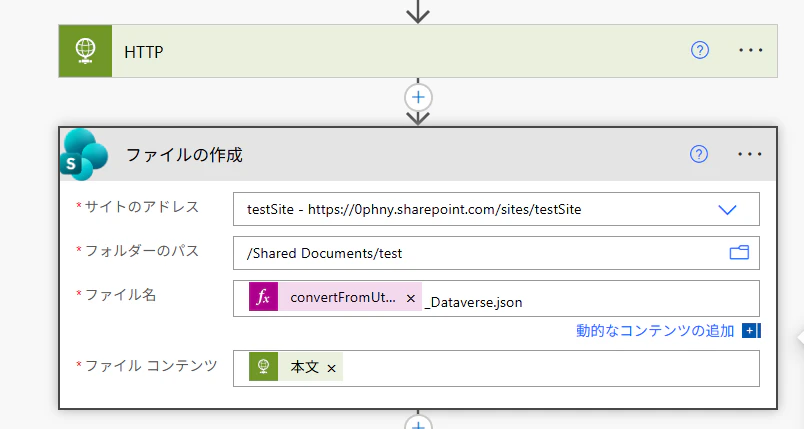
convertFromUtc(utcNow(),'Tokyo Standard Time','yyyyMMdd')
このあたりutcNow関数と文字化についてはこちらを参考にしてください。
テスト中にファイルの保存にエラーが出た場合は上書きしようとして失敗しているためです。設定の「チャンクの許可」をオフにすると短時間でも上書きできるようになります。

CSVファイルとして保存する
JSONファイルは情報が非常に多いので、ほしい項目だけを抜き出してCSVファイルにしたいという場合もあるでしょう。「選択」を使ってJSONのなかから項目を指定します。階層をしっかり把握して指定することが大切です。
あとは「CSVテーブルの作成」アクションに渡した後、JSONの時と同じように「ファイルの作成」アクションに渡すだけです。ファイル名の拡張子はcsvにします。
このとき、ファイルコンテンツにはExcelで開いたときに文字化けしないように一工夫しておきましょう。こちらを参考にしてください。

@{body('HTTP')?['value']}
@item()?['location']
@item()?['properties']?['displayName']
@item()?['properties']?['createdTime']
@item()?['properties']?['createdBy']?['id']
@item()?['properties']?['capacity']
保存の結果
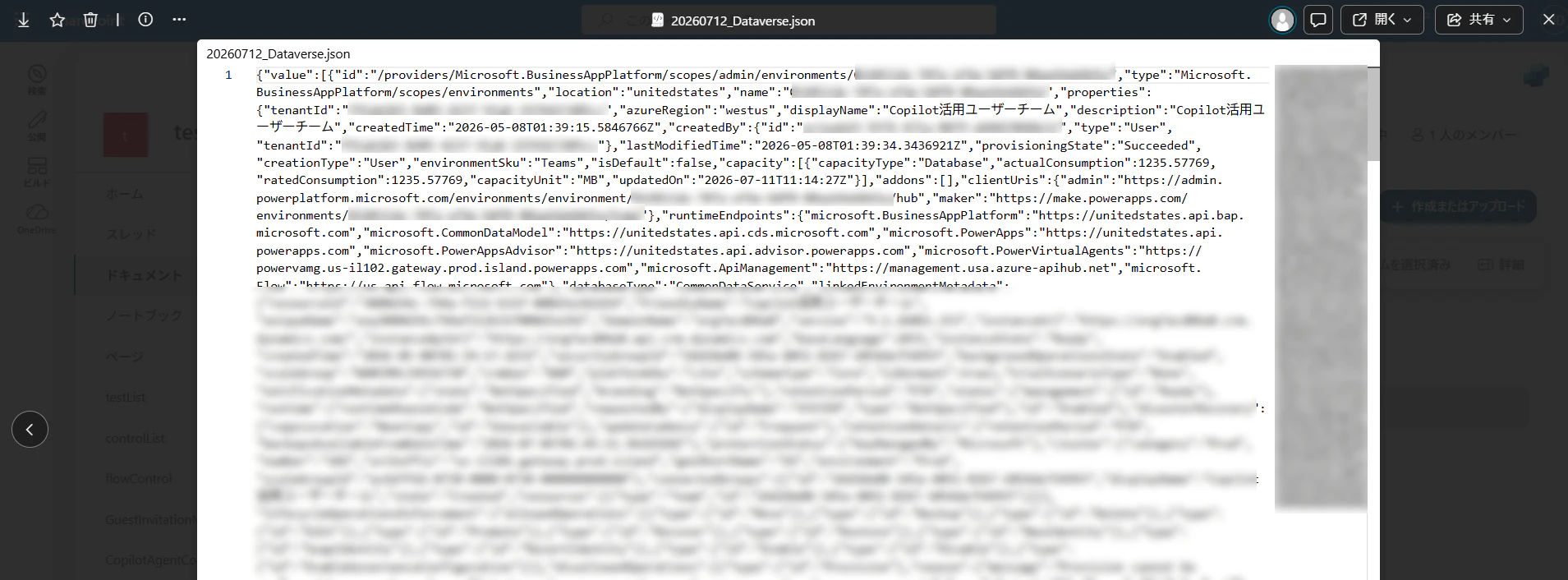
JSONとCSVファイルをそれぞれ保存しました。SharePointのドキュメントライブラリ上に表示されています。

JSON
取得できたデータそのままですがちゃんと保存できました。Power BIなどで推移をグラフ化するなら不要な項目列を取り除きつつ、Capacity列に存在する各項目をPower Queryで行として分解するとよいでしょう。
CSV
Capacity部分は配列のまま保存しているので、グラフ化するような場合にはPower Queryか関数を使って分解する必要がありますが、とりあえず書き出せています。

まとめ
Dataverseの各環境ごとの使用済み容量をファイル化することができました。
取得できた結果の中には、bingChatEnabled、m365Enabled、appDraftingCopilotEnabled などもありました。これは環境の生成AI設定なので、どの環境が有効/無効 を調べたいときにもこの結果は利用できそう。思わぬ副産物でした。
今回のAPIでの取得は環境数が少ない私個人の検証用環境での結果なので問題ありませんでしたが、Teams環境も拾ってくるので環境数が多いテナントだとなかなか負荷は高いかもしれません。
Entra ID でのアプリ登録や、アプリを環境に登録するためにはそれなりの権限が必要なので、一般利用者が使うものではないですが、Power Automateを使ってこの辺りのデータの取得を自動化できる点で、Microsoft 365の管理者なら知っておいてよいAPIだと思います。
環境ごとの容量は環境IDごとに渡してひとつずつ取得するしかないかな?と考えていたので、一括で取得できることが分かってよかったです。方法をさがし歩いてたどりき、今回の記事の参考にしたのは以下のサイトです。
まとめ2
冒頭でご案内のとおり、APIをがんばって使わなくてもPower Platform 管理者系のアクションにプロパティ追加することで取得できました。こっちのほうが良いですね。お粗末様です。
こんな人が書いてます。
職場でPower Platformの管理者さんをしています。ブログではPower AutomateのTipsのようなものを書いています。QiitaではPower BIとクラウドフローのちょこ技を記事にしています。そちらも読んで「いいね」などしていただけるととっても喜びます。
この記事を書いていた際のツイートです。
PowerPlatformの各環境のDataverse容量の詳細な把握について、なんかAPI使ってできそうな感触を得たので、明日あたり実装してQiitaに顛末を紹介する予定です。
— ランゲルハンス島のDD@IT界隈 (@DaddyDaddy) July 10, 2026