

はじめに
CrowdStrike Falconでは、高度なイベント検索を使用することで、Falconセンサーを実行しているホストに関するイベントやプロセスについて検索することができます。
高度なイベント検索を行うためには、CrowdStrike Query Language(以下、CQL)と呼ばれるクエリ言語に関する構造や構文の理解が必要ですが、CQLを用いた効率的なクエリはアラート発生時の調査に欠かせません。
本記事では、高度なイベント検索を使用してプロセスを調査する方法について記載しています。
DNSリクエストを行っているプロセスの調査方法
エンドポイント検知より、ドメイン検索結果1が、以前に標的型攻撃で使用されたCrowdStrikeインテリジェンスインジケーターに一致する場合、SeverityがHighのアラートとして検知されます。
このアラートは、Intelligence Indicator - Domainの手法として整理されていて、標的型攻撃で過去に使用された悪意のあるドメイン、または標的型ではない汎用マルウェアである可能性と説明されており、最優先で調査する必要があると説明されています。
検知したアラートのIOCを調査するため、実際にDNSリクエストを行っているプロセスを特定したいときに、エンドポイントの検知画面の情報だけでは、どのプロセスが実際にDNSリクエストを行なっているか確認できない場合があります。
例えば、DNSセキュリティ製品などを導入している場合、製品のクライアントに関するプロセスが検知されるため、実際にDNSリクエストを行っているプロセスは、エンドポイントの検知画面から確認することができません。
このような状況の場合、高度なイベント検索を使用することで、実際にDNSリクエストを行っているプロセスを特定できます。
従って、DNSリクエストを行っているプロセスを確認するためには、以下のイベントに関する情報を利用します。
-
DnsRequestの情報を基に、名前解決されたIPアドレスを特定 -
NetworkConnectの情報を基に、名前解決されたIPアドレスを検索してContextProcessIdを確認 -
ContextProcessIdの情報を基に、ProcessRollup2を検索して実行プロセスを特定
DnsRequestの情報を基に、名前解決されたIPアドレスを特定
名前解決されたIPアドレスを特定するためには、以下の様なクエリを実行します。
#event_simpleName=DnsRequest
| ComputerName="<Computer Name>"
| DomainName="<Domain Name>"
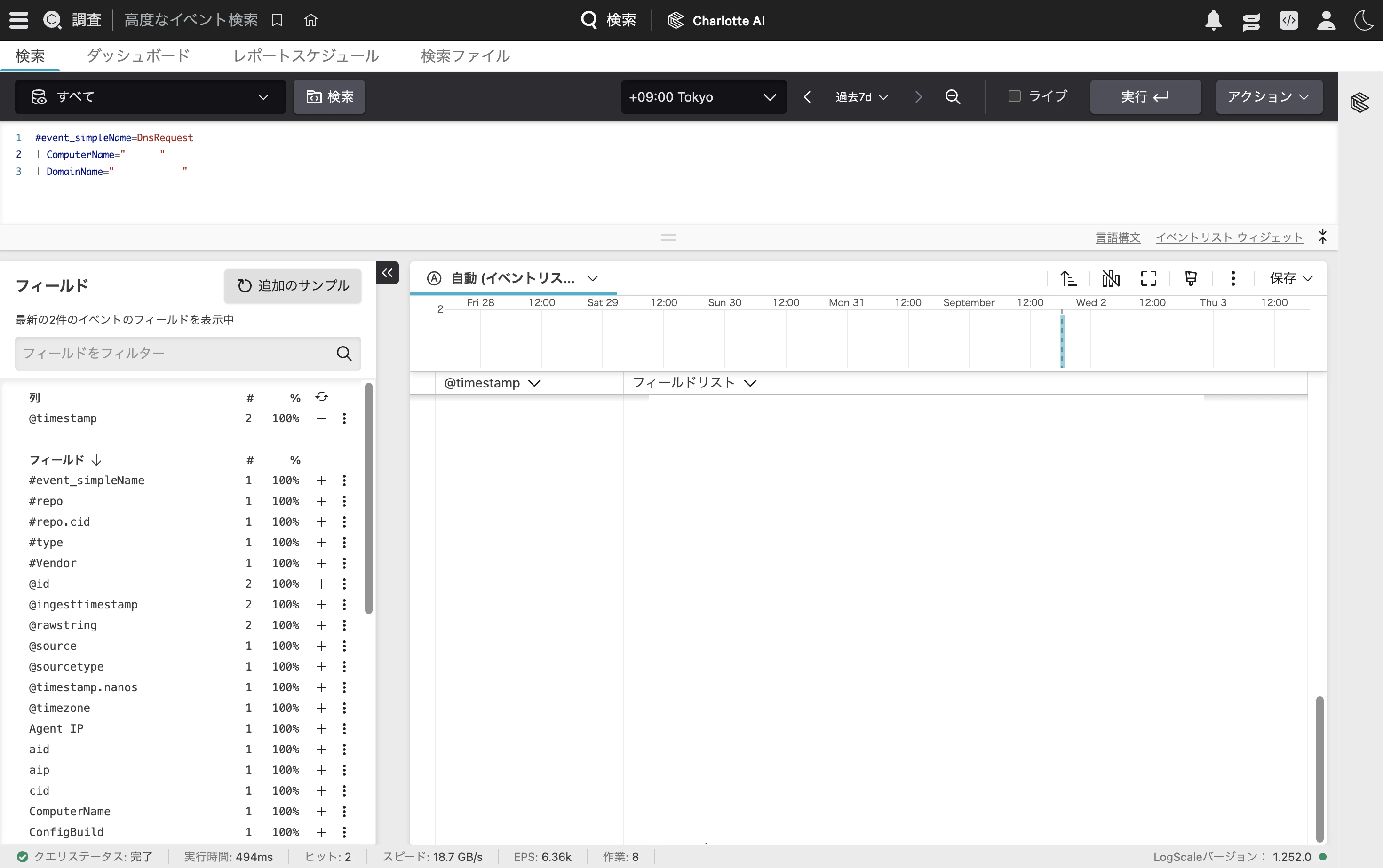
tableを利用すると、テーブル形式になるため、可視性が向上します。
#event_simpleName=DnsRequest
| ComputerName="<Computer Name>"
| DomainName="<Domain Name>"
| table([@timestamp, ComputerName, DomainName, FirstIP4Record, IP4Records, IP6Records, QueryStatus, ContextProcessId, ContextBaseFileName])

ドメインに関する調査を行う場合、バルクドメインを利用することでも、イベントの調査が可能です。
NetworkConnectの情報を基に、名前解決されたIPアドレスを検索してContextProcessIdを確認
次に、ContextProcessIdを確認するため、以下の様なクエリを実行します。
#event_simpleName=/^NetworkConnect/ ComputerName="<Computer Name>"
| in(RemoteAddressIP4, values=["<Ip Address>","<Ip Address>","<Ip Address>"])
| table([@timestamp, ComputerName, RemoteAddressIP4, RemotePort, Protocol, ContextProcessId, aid])

IPアドレスが判明している場合は、RemoteIPに指定することもできます。
#event_simpleName=NetworkConnectIP4 ComputerName="<Computer Name>" RemoteIP="<Ip Address>"
| table([@timestamp, ComputerName, RemoteIP, RemotePort, Protocol, ContextProcessId, aid])
ContextProcessIdの情報を基に、ProcessRollup2を検索して実行プロセスを特定
ProcessRollup2のイベントより、実行プロセスが特定できます。
#event_simpleName=ProcessRollup2 ComputerName="<Computer Name>" TargetProcessId="<ContextProcessId>"
| table([@timestamp, ImageFileName, CommandLine, ParentProcessId, ParentBaseFileName, UserName])

IPアドレスが判明している場合は、joinして確認することもできます。
#event_simpleName=/^NetworkConnect/ ComputerName="<Computer Name>"
| in(RemoteAddressIP4, values=["<Ip Address>", "<Ip Address>", "<Ip Address>"])
| join(query={
    #event_simpleName=ProcessRollup2
}, include=[ImageFileName, CommandLine], field=[aid, ContextProcessId], key=[aid, TargetProcessId], mode=left, limit=200000)
| table([@timestamp, ComputerName, RemoteAddressIP4, RemoteAddressIP6, ContextProcessId, ImageFileName, CommandLine], limit=20000)
-
include: 抽出したいフィールド名を指定 -
field: 結合元テーブルから結合キーとして使うフィールド名を指定 -
key: 結合先テーブルから結合キーとして使うフィールド名を指定 -
mode:mode=innerは両方にマッチした行だけ残し、mode=leftは左側を全件残す
外部と通信を行っているプロセスの調査方法
外部と通信を行っているかの観点で調査する場合、ProcessRollup2のイベント情報を基にoutbound接続を確認します。
具体的には、NetworkConnectの通信イベントと、ProcessRollup2のプロセス実行イベントより、NetworkConnectIP4のContextProcessIdと、ProcessRollup2側のTargetProcessIdを突合して確認します。
#event_simpleName=NetworkConnectIP4 ConnectionDirection=0
| ComputerName="<Computer Name>"
| join(query={
    #event_simpleName=ProcessRollup2
    | ComputerName="<Computer Name>"
    | CommandLine="<CommandLine>"
}, include=[CommandLine, ImageFileName], field=[aid, ContextProcessId], key=[aid, TargetProcessId], mode=inner)
| table([@timestamp, ComputerName, CommandLine, LocalAddressIP4, RemoteAddressIP4, LocalPort, RemotePort, Protocol])
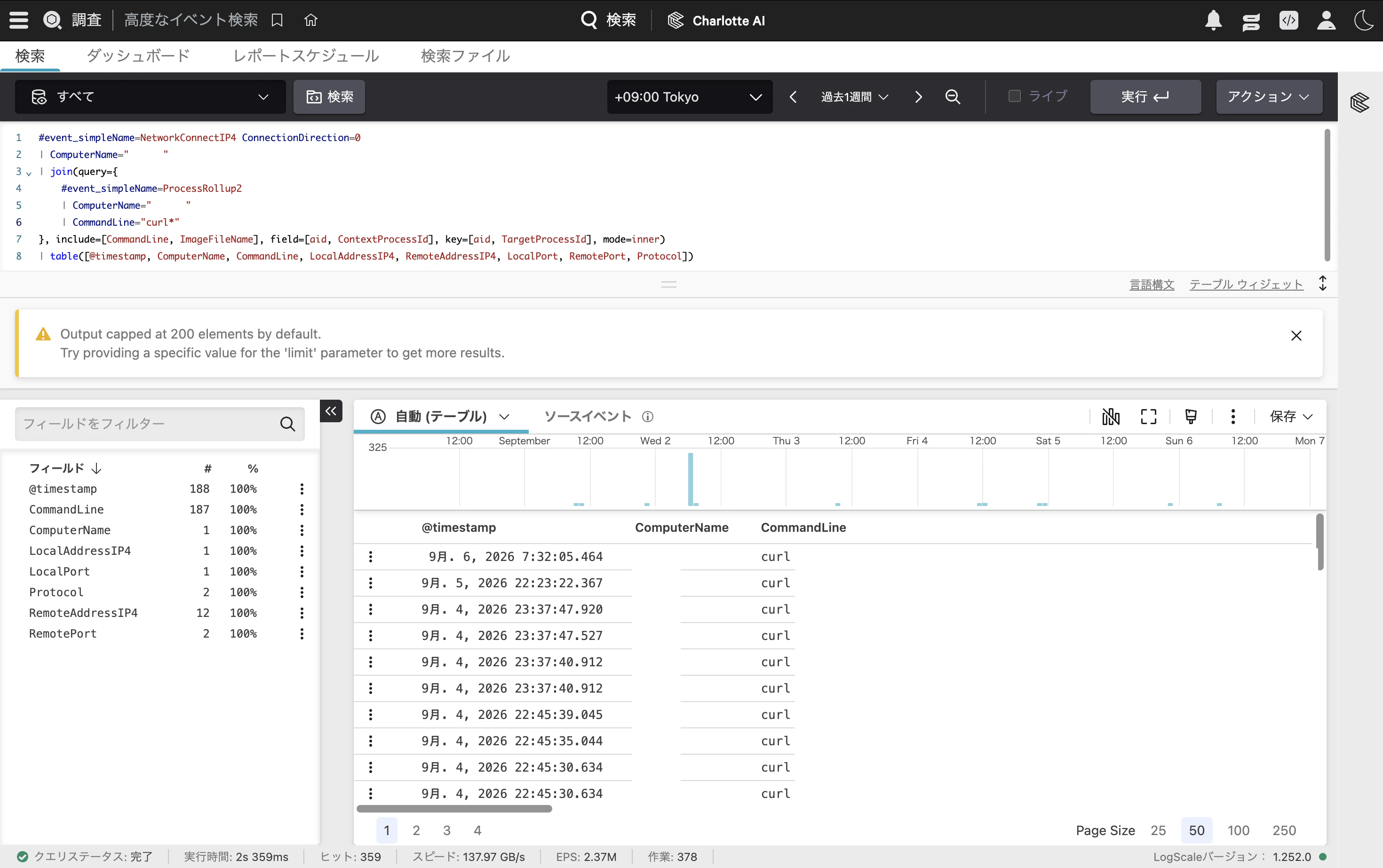
ネットワーク接続の方向(ConnectionDirection)は、以下の値を指定します。
0:アウトバウンド
1:インバウンド
2:どちらでもない
CommandLineからプロセスを特定する
最近は組織で生成AIを利用をすることで、Claudeなどによって生成されたプログラムやスクリプトの実行によるアラートの検知が多いのではないでしょうか。
エンドポイント検知時、Claudeがプロセスツリーに含まれているときは関連性が確認できますが、関連性が確認できない場合もあります。
このように検知されたアラートがClaudeによるものか確認したい場合、アラートの前後の時間帯で実行されているコマンドラインのプロセスから特定することがます。
以下の様なクエリを実行して、検知された時間帯の付近でCommandLineに関連する環境変数などの情報からキーワードとする情報について得られる場合があります。
#event_simpleName=ProcessRollup2
| ComputerName="<Computer Name>"
| CommandLine=/scp|sftp|rsync|curl|wget|python.*requests/i
| table([ComputerName, UserName, CommandLine, ImageFileName, @timestamp])
おわりに
最近はCharlotte AIを活用した調査を行うことも多いと思いますが、迅速かつ的確に調査を行うためには、高度なイベント検索の様な機能を使いこなすスキルが重要です。
-
何らかのプロセスによって、名前解決が行われたドメイン名 ↩