

はじめに
登壇資料の自己紹介スライドに、取得した AWS 認定バッジを載せることがありますよね。
しかし、手作業で並べるのは面倒ですし、資格が増えるたびに作り直すのも手間です。
また、近年は AI エージェントにスライドを生成してもらうこともあると思います。そこで、Skillsを使って、「AWS認定のバッジを並び替えて」の一言で画像が自動生成されるようにしました。
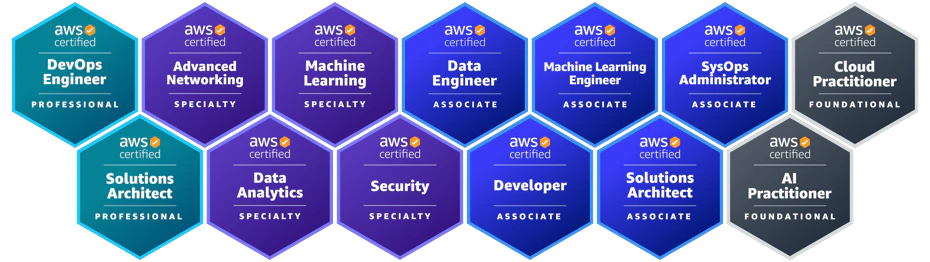
作った Skills の紹介
ここから Skills を紹介したいと思います。
構成
aws-certified-honeycomb/
├── SKILL.md
└── generate.py # 画像生成スクリプト
SKILL.md
SKILL.md の内容は以下の通りです。
- Early Adopter に配布されるバッジなど、特別なものは除外する
- バッジ画像の URL は
https://www.credly.com/users/<username>/badges.jsonから取得 - 左から順に高難度の資格になるように指示
- 画像は背景透過で生成する
Credly から Json 形式で落とせることは初めて知りましたが、便利ですね。
---
name: aws-certified-honeycomb
description: AWS認定資格のバッジをCredlyから取得し、ハニカム構造で並べたPNG画像を生成する。
---

## ワークフロー

`generate.py` を実行する。

## スクリプト仕様

- データソース: `https://www.credly.com/users/<username>/badges.json`
- 出力: `aws_certifications_honeycomb.png`(背景透過PNG)

## フィルタリング

- `AWS Certified` を含むバッジのみ対象
- 除外キーワード: `Jr. Champions`, `Early Adopter`

## ソート順

高難易度順: Professional → Specialty → Associate → Practitioner

## 配置ルール

- 2行のハニカム構造(交互に上段・下段へ振り分け)
- 横間隔: バッジサイズ × 0.87
- 縦間隔: バッジサイズ × 0.75
- 下段は横間隔の半分だけ右にオフセット
generate.py
SKILL.md から実行する画像生成スクリプトです。こちらは AI エージェントが作ってくれました。
バッジ同士の間隔を調整するために何回かラリーしましたが、10分かからないうちにスクリプトが出来上がりました。
import json
import urllib.request
from io import BytesIO
from PIL import Image

CREDLY_URL = "https://www.credly.com/users/<YOUR_USERNAME>/badges.json"
EXCLUDE_KEYWORDS = ["Jr. Champions", "Early Adopter"]
LEVEL_ORDER = {"Professional": 0, "Specialty": 1, "Associate": 2, "Practitioner": 3}
BADGE_SIZE = 150
OUTPUT = "aws_certifications_honeycomb.png"


def get_level(name):
    for level in LEVEL_ORDER:
        if level in name:
            return LEVEL_ORDER[level]
    return 99


def fetch_badges():
    with urllib.request.urlopen(CREDLY_URL) as resp:
        data = json.loads(resp.read())["data"]
    badges = []
    for b in data:
        name = b["badge_template"]["name"]
        if any(kw in name for kw in EXCLUDE_KEYWORDS):
            continue
        if "AWS Certified" not in name:
            continue
        badges.append({"name": name, "image_url": b["badge_template"]["image_url"]})
    badges.sort(key=lambda x: (get_level(x["name"]), x["name"]))
    return badges


def download_image(url):
    with urllib.request.urlopen(url) as resp:
        return Image.open(BytesIO(resp.read())).convert("RGBA").resize((BADGE_SIZE, BADGE_SIZE))


def two_row_positions(count):
    col_step = int(BADGE_SIZE * 0.87)
    row_y = int(BADGE_SIZE * 0.75)
    offset_x = col_step // 2
    positions = [None] * count
    top_i = bot_i = 0
    for i in range(count):
        if i % 2 == 0:
            positions[i] = (top_i * col_step, 0)
            top_i += 1
        else:
            positions[i] = (bot_i * col_step + offset_x, row_y)
            bot_i += 1
    return positions


def main():
    badges = fetch_badges()
    positions = two_row_positions(len(badges))
    max_x = max(x for x, y in positions) + BADGE_SIZE
    max_y = max(y for x, y in positions) + BADGE_SIZE
    canvas = Image.new("RGBA", (max_x, max_y), (0, 0, 0, 0))
    for i, badge in enumerate(badges):
        img = download_image(badge["image_url"])
        canvas.paste(img, positions[i], img)
    canvas.save(OUTPUT, "PNG")


if __name__ == "__main__":
    main()
おわりに
AIがSKILL.mdを読み、generate.pyを実行し、画像ファイルが出力されます。
資格が増えたら、もう一度「バッジ画像作って」と言うだけで最新版が生成されます。
画像生成ツールをWebアプリとして公開するアプローチもありますが、自分用であればAIエージェントのSkillsで十分でした。Webアプリのデプロイやメンテナンスが不要で、Markdownとスクリプトだけで完結するのがスキルの手軽さです。