

環境構築として下記のものが終了していることが前提である
ファイル構造
\---yourprojectname
    |   db.sqlite3
    |   manage.py
    |
    +---yourappname
    |   |   admin.py
    |   |   apps.py
    |   |   models.py
    |   |   tests.py
    |   |   urls.py  ##追加する
    |   |   views.py
    |   |   __init__.py
    |   |
    |   +---migrations
    |   |
    |   +---static ##追加する
    |   |
    |   +---templates ##追加する
    |   |
    |   \---__pycache__
    |
    \---yourprojectname
        |   asgi.py
        |   settings.py
        |   urls.py
        |   wsgi.py
        |   __init__.py
        |
        \---__pycache__
ファイル・フォルダーの追加
上記のtreeで足りていないファイル・フォルダーを追加
・urls.py
・templates (フォルダー)
・static (フォルダー)
templatesファイルの設定
setting.pyの変更
setting.py
INSTALLED_APPS = [
    'django.contrib.admin',
    'django.contrib.auth',
    'django.contrib.contenttypes',
    'django.contrib.sessions',
    'django.contrib.messages',
    'django.contrib.staticfiles',
    'yourappname', # ココにappの名前を追加
]
setting.py
TEMPLATES = [
    {
        'BACKEND': 'django.template.backends.django.DjangoTemplates',
        'DIRS': [], ##ココに下記を追加
        'APP_DIRS': True,
        'OPTIONS': {
            'context_processors': [
                'django.template.context_processors.debug',
                'django.template.context_processors.request',
                'django.contrib.auth.context_processors.auth',
                'django.contrib.messages.context_processors.messages',
            ],
        },
    },
]
上記のsetting.pyのTEMPLATESに,下記を追加
setting.py
'DIRS': [os.path.join(BASE_DIR, 'templates')],
恐らくosがimportできていないので,下記も追加
setting.py
import os
templatesフォルダー内にHTMLファイルの追加
- templatesフォルダー内にindex.htmlを追加
- 下記のHTMLを書き込む
index.html
<!DOCTYPE html>
<html lang="en">
<head>
<meta charset="UTF-8">
<meta name="viewport" content="width=device-width, initial-scale=1.0">
<title>Document</title>
</head>
<body>
<header>
<h1>
Django Template
</h1>
</header>
<main>
<p>
Hello, World!
</p>
</main>
<footer>
<p>
© 2024 Django Template
</p>
</footer>
</body>
</html>
views.py
views.py
from django.shortcuts import render

def title_page(request):
    return render(request, 'index.html')
yourprojectname/urls.py
yourprojectname/urls.py
from django.contrib import admin
from django.urls import path
from django.urls.conf import include

urlpatterns = [
    path('admin/', admin.site.urls),
    path('', include('yourappname.urls')), # Add this line
]
yourappname/urls.py
yourappname/urls.py
from django.urls import path
from .views import title_page

urlpatterns = [
    path('', title_page, name='title_page'),
]
結果表示
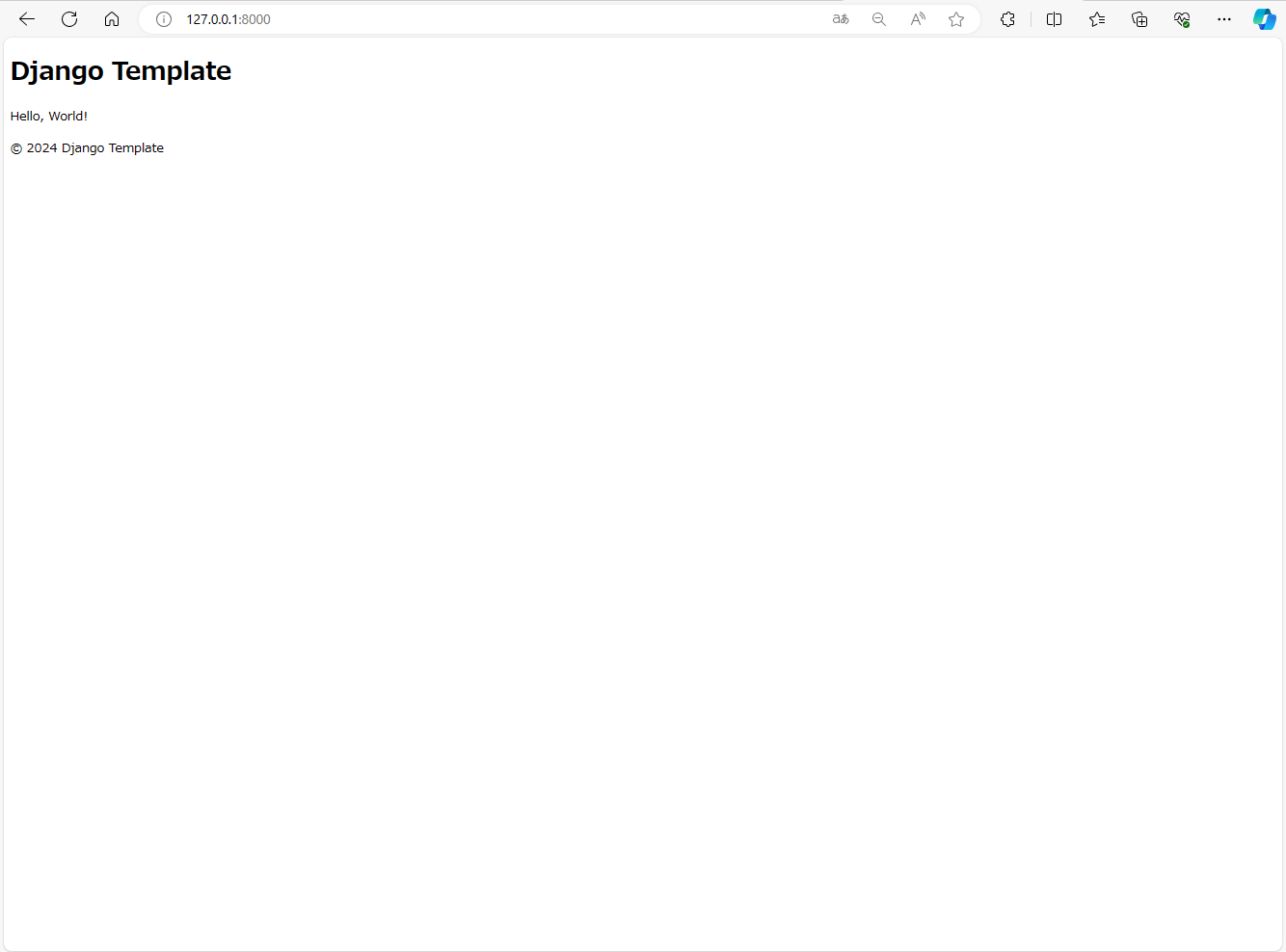
staticファイルの設定
setting.py
下記コードを追加
setting.py
STATIC_DIRS = [
    os.path.join(BASE_DIR, 'yourappname', 'static'),
]
staticファイルの作成
- templatesフォルダー内にindex.cssを追加
- 下記のCSSを書き込む
index.css
header{
    background-color: #333;
    color: white;
    padding: 10px;
    text-align: center;
}
main{
    padding: 10px;
}
footer{
    background-color: #333;
    color: white;
    padding: 10px;
    text-align: center;
}
HTMLでの呼び出し
-
{{% load static %}}をindex.htmlの一番上に追加 -
<head>タグの中に以下を追加
index.html
<link rel="stylesheet" href="{% static 'index.css' %}">
結果表示
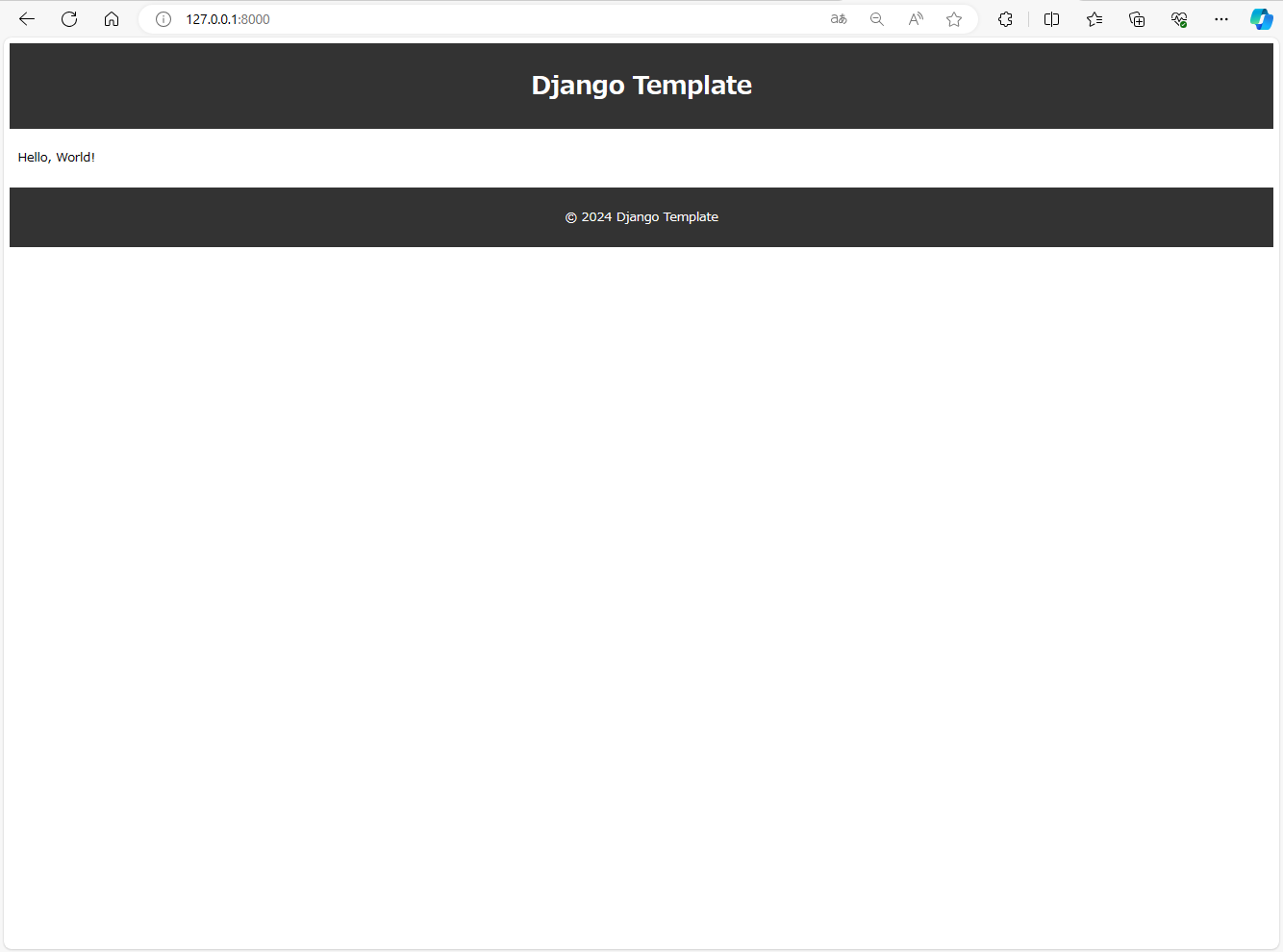
備考
+---static
|   +---css
|   |       index.css
|   |
|   +---img
|   |       suityann.png
|   \---js
|           index.js
上記の様にstatic内を定義するとindex.cssはindex.htmlないで下記の様に呼び出される.
index.html
<link rel="stylesheet" href="{% static 'css/index.css' %}">
1.imgタグでの取り出し
index.html
<img src="{% static 'img/suityann.png' %}" alt="kyoumokawaii!">
2.scriptタグでの取り出し
index.html
<script src="{% static 'index.js' %}"></script>