

入力したテキストをそのまま表示してみようと思います。
こちらの遷移後のページに追加してみようと思います。
まず、今まではStatelessWidgetを使用していましたが、こちらを変更します。
StatelessWidgetは名前の通り「状態を持たないWidget」です。
そのため、以下のような処理はできません。
入力された値を保持する
入力に応じてUIを更新する
このような場合はStatefulWidgetを使用します。
StatefulWidgetに変更する
.dart
class SecondPage extends StatefulWidget {
  const SecondPage({super.key});

  @override
  State<SecondPage> createState() => _SecondPageState();
}
テキスト入力と表示を追加
class _SecondPageState extends State<SecondPage> {
  String inputText = "";

  @override
  Widget build(BuildContext context) {
    return Scaffold(
      appBar: AppBar(title: Text('2ページ目')),
      body: Padding(
        padding: const EdgeInsets.all(16.0),
        child: Column(
          mainAxisAlignment: MainAxisAlignment.center,
          children: [
+           TextField(
+             onChanged: (text) {
+               setState(() {
+                 inputText = text;
+               });
+             },
+           ),
+           SizedBox(height: 20),
+           Text(inputText),
+           SizedBox(height: 20),
            ElevatedButton(
              onPressed: () {
                Navigator.pop(context);
              },
              child: Text('戻る'),
            ),
          ],
        ),
      ),
    );
  }
}
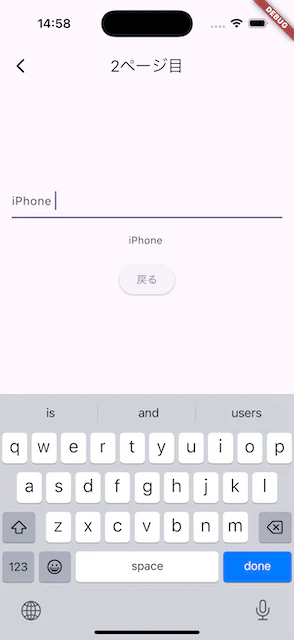
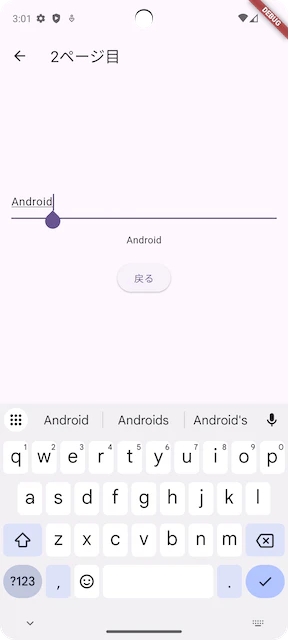
入力値を扱う場合はStatefulWidgetが必要。
onChanged + setStateでリアルタイム更新ができます。
以上になります。