
こんな画面
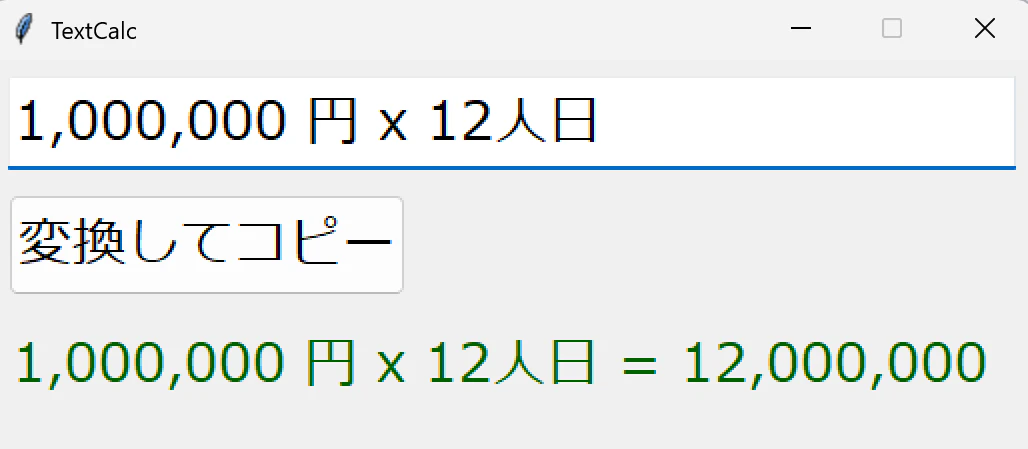
機能
- カンマつき単位つきの数式を計算してくれる
- 計算結果をクリップボードにセットしてくれる
- 計算結果は3桁カンマのフォーマット
- 入力の初期値はクリップボードのテキスト
使い方
- メールやチャットでちょっとした計算をしたいときに数式をクリップボードにコピー
- TextCalc.pywを実行
- エンター(すると計算結果がクリップボードにセット)
- Windowsのクリップボード履歴で計算結果が履歴になるからこのアプリに履歴管理機能なんて要らない
ソース
textcalc.pyw
import sys
import re
import tkinter as tk
from tkinter import ttk
from tkinter import font as tkfont
from decimal import Decimal, InvalidOperation

# --- 数式の抽出と評価ロジック ---

MULTIPLY_CHARS = ['*', 'x', 'X', '×', '*', 'x', 'X']
DIVIDE_CHARS   = ['/', '/', '÷']
MULTIPLY_SET = set(MULTIPLY_CHARS)
DIVIDE_SET   = set(DIVIDE_CHARS)
LEFT_PARENS  = set(['(', '('])
RIGHT_PARENS = set([')', ')'])

def extract_numbers_and_ops(expr: str) -> str:
    tokens = []
    i = 0
    while i < len(expr):
        ch = expr[i]
        if ch.isdigit():
            start = i
            i += 1
            while i < len(expr) and (expr[i].isdigit() or expr[i] in ",._·"):
                i += 1
            tokens.append(expr[start:i])
            continue
        elif ch in "+-":
            tokens.append(ch)
        elif ch in LEFT_PARENS:
            tokens.append('(')
        elif ch in RIGHT_PARENS:
            tokens.append(')')
        elif ch in MULTIPLY_SET:
            tokens.append('*')
        elif ch in DIVIDE_SET:
            tokens.append('/')
        i += 1
    return "".join(tokens)

def normalize_number_token(token: str) -> str:
    return token.replace(",", "").replace("_", "").replace("·", "")

def eval_text_expression(expr: str) -> Decimal:
    cleaned = extract_numbers_and_ops(expr)
    if not cleaned:
        raise ValueError("式が見つかりません")

    def repl(m: re.Match) -> str:
        return normalize_number_token(m.group(0))

    cleaned = re.sub(r"[0-9][0-9,._·]*", repl, cleaned)

    try:
        val = eval(cleaned, {"__builtins__": None}, {})
    except Exception as e:
        raise ValueError(f"無効な式です: {cleaned}") from e

    try:
        return Decimal(str(val))
    except InvalidOperation as e:
        raise ValueError(f"結果を数値に変換できません: {val}") from e

def format_with_commas(value: Decimal) -> str:
    if value == value.to_integral():
        return f"{int(value):,}"
    else:
        s = f"{value:f}".rstrip("0").rstrip(".")
        parts = s.split(".")
        parts[0] = f"{int(parts[0]):,}"
        return ".".join(parts)

# --- クリップボード(tkinter 経由) ---

def get_clipboard_text(root: tk.Tk) -> str:
    try:
        return root.clipboard_get()
    except tk.TclError:
        return ""

def set_clipboard_text(root: tk.Tk, text: str) -> bool:
    try:
        root.clipboard_clear()
        root.clipboard_append(text)
        root.update()
        return True
    except tk.TclError as e:
        print("[ERROR] クリップボード設定に失敗しました:", e, file=sys.stderr)
        return False

# --- GUI アプリ ---

def main():
    root = tk.Tk()
    root.title("TextCalc")
    root.geometry("520x200")
    root.resizable(False, False)

    base_font_size = 20
    app_font = ("Meiryo", base_font_size)

    style = ttk.Style(root)
    style.configure("TLabel", font=app_font)
    style.configure("TButton", font=app_font)
    style.configure("TEntry", font=app_font)

    clip_text = get_clipboard_text(root)
    first_line = clip_text.splitlines()[0].strip() if clip_text else ""

    frame = ttk.Frame(root, padding=8)
    frame.pack(fill="both", expand=True)

    entry_var = tk.StringVar(value=first_line)
    entry = ttk.Entry(frame, textvariable=entry_var, font=app_font)
    entry.pack(fill="x", expand=False, pady=(0, 8))

    btn_frame = ttk.Frame(frame)
    btn_frame.pack(fill="x", pady=(4, 0))

    status_var = tk.StringVar(value="")

    # ステータス用フォント(サイズ可変)
    status_font = tkfont.Font(family="Meiryo", size=base_font_size)
    lbl_status = ttk.Label(frame, textvariable=status_var, foreground="#006000")
    lbl_status.pack(anchor="w", pady=(12, 0))
    lbl_status.configure(font=status_font)

    def adjust_status_font(text: str):
        """
        ラベルの幅に合わせてフォントサイズを自動縮小(最小9pt)。
        溢れていない場合は base_font_size のまま。
        """
        if not text:
            return

        # まずベースサイズに戻して測定
        status_font.configure(size=base_font_size)
        root.update_idletasks()  # レイアウト確定

        label_width = lbl_status.winfo_width()
        if label_width <= 0:
            label_width = lbl_status.winfo_reqwidth()
        if label_width <= 0:
            return

        text_width = status_font.measure(text)

        # 溢れていないなら縮小しない
        if text_width <= label_width:
            return

        size = base_font_size
        while text_width > label_width and size > 9:
            size -= 1
            status_font.configure(size=size)
            text_width = status_font.measure(text)

    def do_convert():
        text = entry_var.get()
        if not text.strip():
            status_var.set("入力が空です")
            adjust_status_font(status_var.get())
            return

        try:
            result = eval_text_expression(text)
        except Exception as e:
            msg = f"エラー: {e}"
            status_var.set(msg)
            adjust_status_font(msg)
            return

        formatted = format_with_commas(result)
        new_text = f"{text} = {formatted}"

        status_var.set(new_text)
        adjust_status_font(new_text)
        set_clipboard_text(root, new_text)

    def on_entry_return(event):
        do_convert()
        return "break"

    entry.bind("<Return>", on_entry_return)

    btn_convert = ttk.Button(btn_frame, text="変換してコピー", command=do_convert)
    btn_convert.pack(side="left")

    entry.focus_set()
    root.mainloop()

if __name__ == "__main__":
    main()
解説
- pywの拡張子つけるとWindowsでダブルクリックするだけでコマンドプロンプト画面なしにPythonが実行される
- Tkinterは標準モジュール。他にも追加インストール必要なモジュールは一切使ってない
- TkinterはMacOSやLinuxでも動くらしい(未検証)
- GUIつきアプリだけど実行時のメモリ使用量は11MBとめちゃくちゃ小さい
- スクロールをさせたくなかったので、文字が溢れたら縮小という面倒くさめのロジックを足してる