
Introduction
Have you ever felt like you're "repeating the same tasks over and over" or "wanting to execute multiple prompts sequentially" when developing with Claude Code? I faced the same challenges in my daily coding work. The solution I discovered was Claude Code automation using tmux.
In this article, I'll introduce methods to dramatically improve Claude Code development efficiency, from basic tmux automation to the Prompt Scheduler I actually developed, in a step-by-step manner.
Disclaimer
The automation techniques and Prompt Scheduler introduced in this article are personally developed and verified by me. I want to clearly state that these are independent efforts with no connection whatsoever to Anthropic's Claude or Claude Code. Please execute automation at your own risk.
Why tmux and Claude Code Are a Perfect Match
Since Claude Code operates in a CLI environment, it has excellent compatibility with tmux. By leveraging tmux's powerful session management and automation capabilities, we can significantly improve Claude Code workflows.
Main Advantages of tmux
Session Persistence: Claude Code sessions continue even when the terminal is closed, enabling long-term work and overnight execution. When working on multiple projects in parallel, you can instantly restore context just by switching sessions.
Programmatic Control: Using tmux's send-keys command, you can send key inputs from scripts. This enables automation of prompt sending, command execution, file operations, and more.
Pane Buffer Management: The load-buffer and paste-buffer commands allow clipboard operation automation. Long prompts and complex configurations can be reliably sent from scripts.
Output Capture: The capture-pane command can monitor Claude Code output and detect specific messages (like usage limits) to respond appropriately.
Basic tmux Automation Steps
1. Creating and Managing tmux Sessions
# Create a new session
tmux new-session -d -s claude-work

# Attach to existing session
tmux attach-session -t claude-work

# List sessions
tmux list-sessions
2. Basic Automation with Key Sending
# Send prompt in Claude Code
tmux send-keys -t claude-work "your prompt here" Enter

# Send multi-line prompt via paste buffer
echo "Multi-line
prompt content" | tmux load-buffer -
tmux paste-buffer -t claude-work
tmux send-keys -t claude-work Enter
3. Output Monitoring and Response Detection
# Capture Claude Code output
tmux capture-pane -t claude-work -p > output.txt

# Detect specific messages
if grep -q "usage limit" output.txt; then
    echo "Usage limit detected"
    # Appropriate waiting process
fi
Practical Automation Script Examples
Simple Prompt Sending Script
#!/bin/bash
# simple-claude-automation.sh

SESSION_NAME="claude-session"
PROMPT="$1"

# Check if session exists
if ! tmux has-session -t "$SESSION_NAME" 2>/dev/null; then
    echo "Error: tmux session '$SESSION_NAME' not found"
    exit 1
fi

# Send prompt
echo "Sending prompt: $PROMPT"
tmux send-keys -t "$SESSION_NAME" "$PROMPT" Enter

echo "Prompt sent successfully"
Sequential Execution of Multiple Prompts
#!/bin/bash
# multi-prompt-automation.sh

SESSION_NAME="claude-session"
PROMPTS_FILE="prompts.txt"
WAIT_TIME=300  # 5-minute intervals

while IFS= read -r prompt; do
    echo "Executing: $prompt"

    # Send prompt
    tmux send-keys -t "$SESSION_NAME" "$prompt" Enter

    # Wait
    echo "Waiting ${WAIT_TIME} seconds..."
    sleep "$WAIT_TIME"

done < "$PROMPTS_FILE"
Script with Usage Limit Detection
#!/bin/bash
# advanced-claude-automation.sh

SESSION_NAME="claude-session"

check_usage_limit() {
    # Capture output
    local output=$(tmux capture-pane -t "$SESSION_NAME" -p)

    # Check for usage limit messages
    if echo "$output" | grep -q "usage limit"; then
        echo "Usage limit detected!"

        # Extract reset time
        local reset_time=$(echo "$output" | grep -o "resets at [0-9]\+[ap]m" | grep -o "[0-9]\+[ap]m")

        if [ -n "$reset_time" ]; then
            echo "Will reset at: $reset_time"
            # In actual implementation, add time calculation and waiting process
        fi

        return 0
    fi

    return 1
}

# Check usage limit before prompt execution
if check_usage_limit; then
    echo "Usage limit reached, please wait for reset"
    exit 1
fi

# Execute prompt
tmux send-keys -t "$SESSION_NAME" "$1" Enter
Prompt Scheduler: A Comprehensive Automation Solution
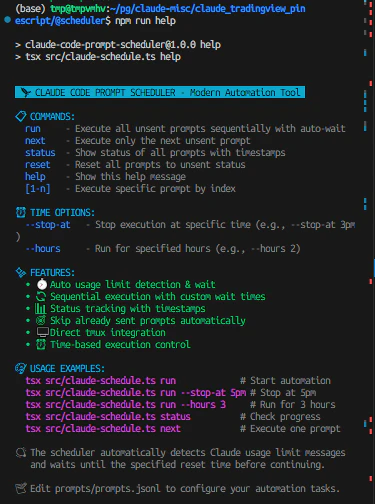
While basic scripts are quite effective, when I needed more advanced automation, I developed a tool called Prompt Scheduler.
Key Features of Prompt Scheduler
Intelligent Usage Limit Detection: Detects messages like "Approaching usage limit · resets at 10pm" or "Claude usage limit reached. Your limit will reset at 1pm" displayed by Claude Code using regular expressions, and automatically waits until reset time using the dayjs library.
Configuration-Driven Execution: JSONL format configuration files allow flexible management of prompt content, execution order, wait times, target sessions, etc. You can systematically manage large numbers of prompts and track execution status.
Time Control Features: Time-based controls like automatic stopping at specific times (--stop-at 5pm) or executing for specified durations (--hours 3) are possible. This enables safe overnight execution and long-term batch processing.
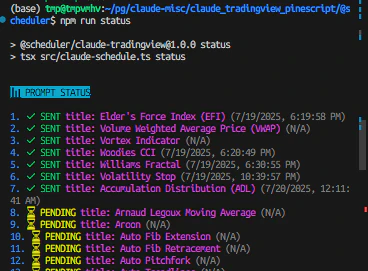
Real-time Progress Monitoring: A colorful CLI interface monitors execution status, making it clear at a glance which prompts are completed, what's currently executing, and what's scheduled next.
Installation and Basic Usage
# One-liner installation
curl -fsSL https://raw.githubusercontent.com/prompt-scheduler/cli/main/install.sh | bash

# Create configuration file
cp prompts/prompts.jsonl.sample prompts/prompts.jsonl

# Edit configuration
# {"prompt": "Create a login form", "tmux_session": "/path/to/session", "sent": "false", "sent_timestamp": null, "default_wait": "15m"}

# Execute
prompt-scheduler run
Real Development Workflow Use Cases
Case 1: Large-Scale Code Generation Project
In a project to create 70 TradingView PineScript indicators, each indicator required sequential execution of four prompts: "basic implementation," "parameter adjustment," "error handling," and "documentation generation."
{"prompt": "title: Moving Average Convergence Divergence (MACD) - Basic Implementation", "tmux_session": "/claude/trading", "sent": "false", "sent_timestamp": null, "default_wait": "15m"}
{"prompt": "title: MACD - Parameter Optimization", "tmux_session": "/claude/trading", "sent": "false", "sent_timestamp": null, "default_wait": "10m"}
{"prompt": "title: MACD - Error Handling", "tmux_session": "/claude/trading", "sent": "false", "sent_timestamp": null, "default_wait": "10m"}
{"prompt": "title: MACD - Documentation", "tmux_session": "/claude/trading", "sent": "false", "sent_timestamp": null, "default_wait": "5m"}
Work that would take several weeks with manual execution was completed in 3 days through automation. The automatic detection of usage limits was particularly valuable, allowing safe continued execution during nights and weekends.

Case 2: Refactoring Project
When migrating an existing codebase to a modern architecture, we executed prompts for "current analysis," "design proposal," "implementation," "testing," and "documentation update" for each module.
# Execute safely with time limits
prompt-scheduler run --stop-at 18:00 --hours 6
Case 3: Learning and Research Project
When learning a new technology stack, we automated a workflow that gradually deepened questions step by step.
{"prompt": "Explain the basics of React Server Components", "tmux_session": "/claude/learning", "sent": "false", "sent_timestamp": null, "default_wait": "5m"}
{"prompt": "Show me a practical example of RSC implementation", "tmux_session": "/claude/learning", "sent": "false", "sent_timestamp": null, "default_wait": "10m"}
{"prompt": "What are the performance implications?", "tmux_session": "/claude/learning", "sent": "false", "sent_timestamp": null, "default_wait": "5m"}
{"prompt": "How does it compare to traditional SSR?", "tmux_session": "/claude/learning", "sent": "false", "sent_timestamp": null, "default_wait": "5m"}
Best Practices for tmux Automation
Session Management
Establish Naming Conventions: Use consistent naming conventions for each project. For example, hierarchical naming like /claude/project-name or /work/feature-branch is recommended.
Session Isolation: Manage different projects or contexts in separate sessions to avoid mutual interference. This allows parallel progress on multiple projects.
Regular Session Cleanup: Periodically delete unnecessary sessions to use resources efficiently.
Error Handling
Session Existence Check: Verify that the target tmux session exists before script execution and display appropriate error messages.
Timeout Processing: Implement timeout processing for cases where Claude Code response is abnormally slow to prevent infinite waiting.
Log Recording: Record execution history, errors, and success status in log files for troubleshooting.
Security Considerations
Configuration File Protection: Since prompt configuration files may contain sensitive information, set appropriate file permissions and add them to .gitignore.
Session Access Control: Properly restrict access to tmux sessions to prevent unauthorized access from other users.
Output Confidentiality: Consider the possibility that Claude Code output may contain sensitive information and handle log files and capture files carefully.
Quantitative Effects of Productivity Improvement
Time Reduction Effects
Measuring work time before and after automation confirmed the following improvements:
Prompt Management Time: Manual management required 2-3 hours per day for prompt timing management, but automation reduced this to virtually 0 hours.
Execution Efficiency: Manual execution was limited to 5-8 prompts per day, but automation enabled processing of 20-30 prompts. Processing capacity improved by approximately 4 times.
Error Reduction: Input mistakes and timing errors during manual execution were eliminated, significantly reducing time loss due to re-execution.
Quality Improvement Effects
Consistency Assurance: Automation ensures all prompts are executed with the same procedure reliably, standardizing execution quality.
Improved Concentration: Being freed from prompt management allows focus on more creative and valuable work.
Long-term Work Realization: Automatic handling of usage limits enables continuous execution during nights and weekends, dramatically improving development speed.
Troubleshooting Guide
Common Problems and Solutions
Session not found:
# Solution: Check session list
tmux list-sessions

# Create new session if needed
tmux new-session -d -s your-session-name
Prompts not being sent:
# Solution: Check session status
tmux capture-pane -t your-session -p

# Check if Claude Code is in a responsive state
Usage limit detection not working:
# Solution: Test output capture
tmux capture-pane -t your-session -p | grep -i "usage\|limit"

# Adjust regular expression patterns
Debugging Methods
Enable Detailed Logging: Add verbose mode to scripts and record detailed execution status for each step.
Staged Execution: Break complex automation into small steps and verify normality at each stage before proceeding.
Manual Verification: Manually execute the same operations as the automation script and compare with expected results.
Community and Tool Ecosystem
Integration with Related Tools
Git Integration: Automatically commit prompt execution results to Git and track change history.
CI/CD Integration: Integrate with GitHub Actions or Jenkins for automatic execution triggered by specific events (like pull request creation).
Monitoring Tools: Integrate with Prometheus or Grafana to monitor automation execution status and success rates.
Community Utilization
GitHub Discussions: Active discussions about use cases and customization methods take place in the Prompt Scheduler repository.
Best Practice Sharing: Reference other developers' automation examples to get hints for improving your own workflow.
Problem Solving: Community members support each other and collaborate to solve technical challenges.
Future Prospects and Development Possibilities
Future of AI Agent Integration
Integration with AI tools other than Claude Code may realize more comprehensive development automation. Workflows combining multiple AI services and role assignments leveraging different AI strengths are anticipated.
Machine Learning Optimization
Systems that learn execution history and results to automatically suggest optimal wait times and prompt sequences are being developed. Features that analyze user usage patterns and generate personalized automation settings are also being considered.
Cloud Integration and Scalability
Implementation of large-scale automation in cloud environments and configuration sharing features between teams, not just local environments, is planned. Docker containerization and Kubernetes support will provide more flexible and scalable execution environments.
Conclusion
Automation through the combination of tmux and Claude Code is a powerful method that dramatically improves developer productivity. Starting with basic scripts and gradually building advanced automation frees you from manual work and allows focus on more creative development.
Particularly important is the ability to build a safe and sustainable automation environment through automatic detection of usage limits and time control functions. This makes long-term continuous execution and overnight batch processing realistic, dramatically improving development speed.
Automation introduction is a one-time investment with long-term effects, making it an essential skill for developers who use Claude Code daily. I recommend starting with simple scripts and gradually expanding functionality.
Project Information
- GitHub: https://github.com/prompt-scheduler/cli
- License: MIT License
- Language: TypeScript
- Supported Platforms: Linux, macOS, Windows (WSL)
Tags
#tmux #CLI #ClaudeCode #Automation #DevEfficiency #Terminal #ShellScript #DevTools #Productivity #DevOps